
Per Product Settings of Product Input Fields for WooCommerce Pro plugin will add Product Input Fields tab to each product’s Edit page. This setting is available on the Per Product settings page.
To go to the Per Product settings page, go to WooCommerce -> Settings -> Product Input fields -> Per Product link. Default Per Product page will appear as below:
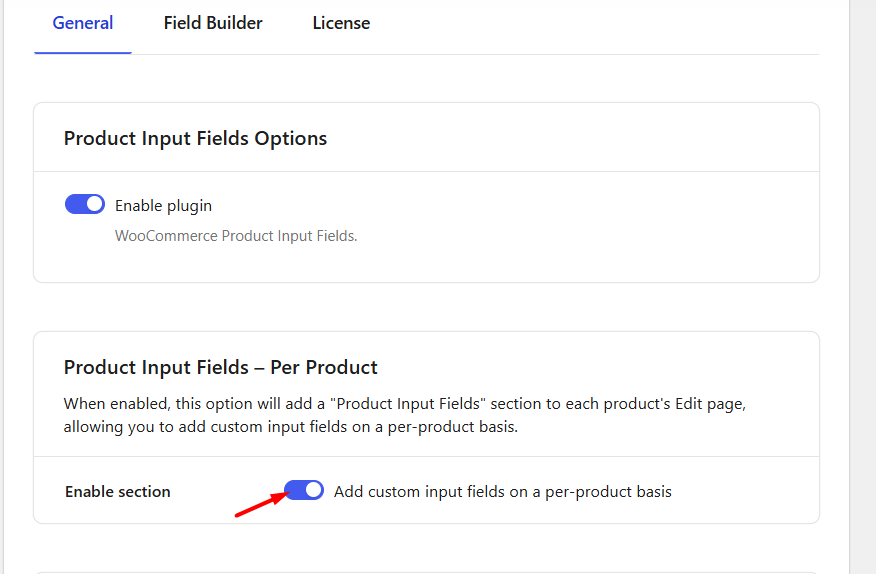
Default Per Product page
This page consists of 2 sections:
- Product Input Fields per Product Options
- Reset Section Settings
Product Input Fields per Product Options
↑ Back to topThere are 2 settings under this option namely, Product Input Fields – per Product option and Default Number of Product Input Fields per Product option.
Product Input Fields – per Product
The Product Input Fields – per Product option allows you to enable Product Input Fields on each product’s Edit page. This option is enabled by default and you can add input fields for individual products.
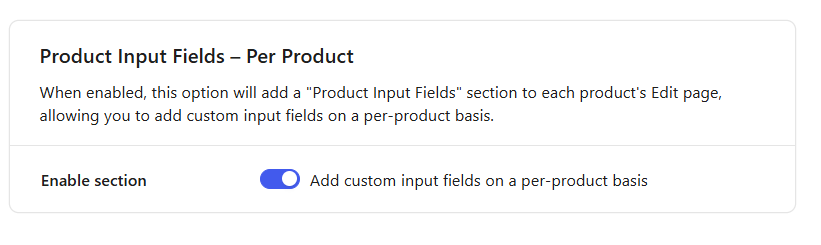
Setting enabled
So when Enable section checkbox is ticked, a Product Input Fields tab will be displayed on each product’s Edit page. From here, you can click on the Add Field button to add and configure input fields for that product.
By default, one input field will be available. You can add more fields as per your requirements.
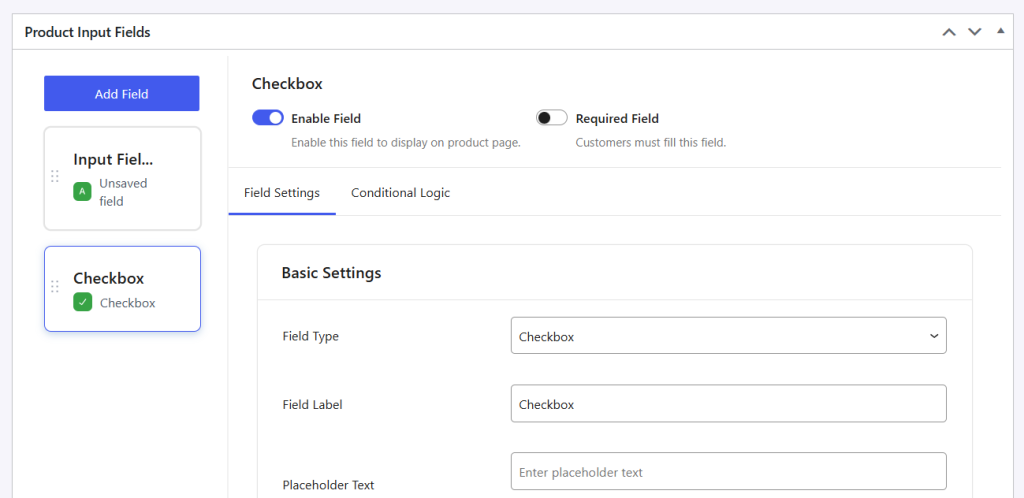
Product Input Field #1 options
Each Product Input Field comes with multiple configuration options.
The configuration options for each input field such as Field Type, Field Label, Placeholder Text, Pricing, and Field Options are explained in detail in the General Settings section.
Reset Section Settings
↑ Back to topReset Settings
When you tick the Reset Settings checkbox, it will reset all settings on the Per Product page to their default values.
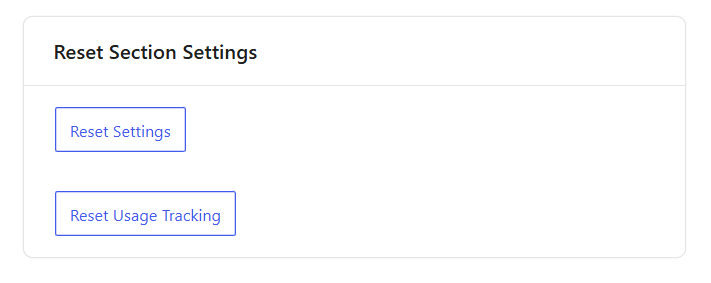
Reset Settings
Reset Usage Tracking
When you click the Reset Usage Tracking button, it will reset your tracking settings.This means that this setting will stop sending us your plugin usage data. As a result, you will see an opt-in banner again on your site. If you wish to continue to send us your data, you click on the ‘Allow’ option in the banner.

