Affiliate for WooCommerce plugin helps you to add, manage affiliates, and track performance from a single place – commissions, sales, payouts, leaderboard, etc. Earn money without hard work. Increase your brand outreach, and get potential customers.
As a store owner, you can print invoices for commission payouts or allow your affiliates to print them using the Payout Invoice feature. This improves transparency and record-keeping for both you (store admin) and your affiliates.
How to enable/disable the invoice for commission payout?
↑ Back to topRefer to the settings here.
How can the store admin print an invoice for payout?
↑ Back to top- Go to WordPress Admin > WooCommerce > Affiliates Dashboard.
- Select the affiliate.
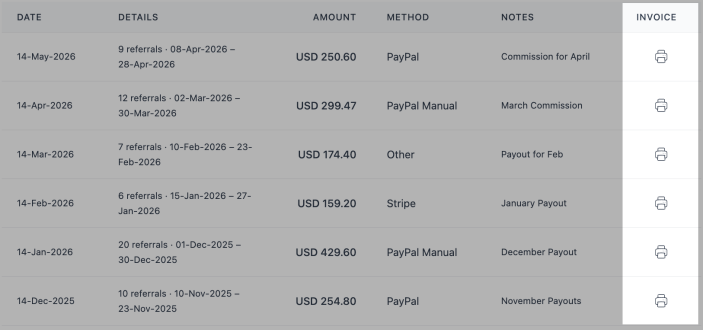
- Click on the Payouts tab, where you will find a list of payout records listed inside a table for the selected date range.
- On the Payouts tab, under the INVOICE column, you will notice Print Icons for each record.
- Click on the Print icon to print the invoice for any specific payout.
How can affiliates print invoices for payout?
↑ Back to topTo allow affiliates to print payout invoices, enable the Show and allow affiliates to print their invoice setting.
And follow these steps:
- Log in as an affiliate as guided here.
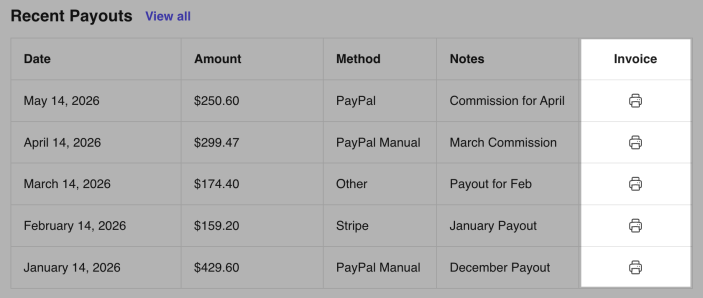
- Visit My Account > Affiliate > Reports tab.
- On the Payouts table, under the Invoice column, you will notice one Print icon for each record.
- Click on the icon for any specific payout to print the invoice.
What does it show in a payout invoice?
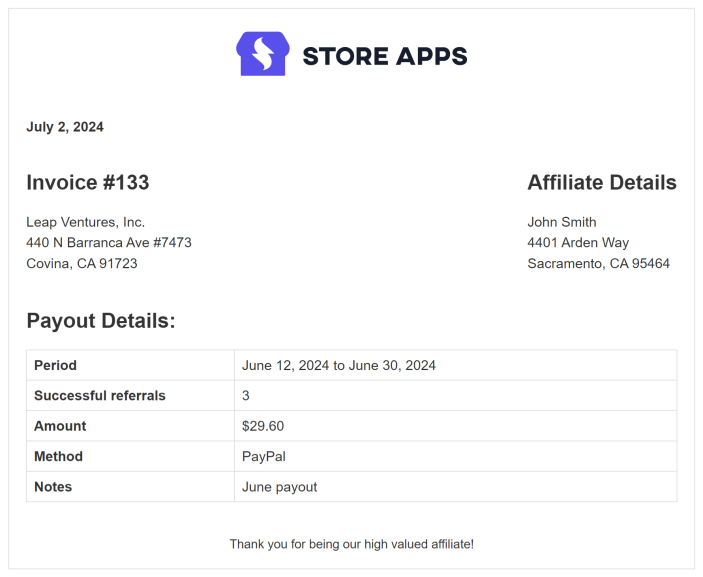
↑ Back to topYou can see the following information in a payout invoice:
Logo: If you have uploaded a logo using the Select a logo setting, the logo will be visible at the top of the invoice.
Invoice ID: A unique identifier is assigned to an invoice. It’s essentially a reference number that helps both you (the store owner) and the affiliate to keep track of the payout transaction.
Invoice Date: The date when the payout was processed.
Store Address: The store address you have added in the WordPress Admin > WooCommerce > Settings > General > Store Address section.
Affiliate Details: The Affiliate Details section shows the following things:
- The first name and the last name of the affiliate.
- The billing address of the affiliate is set on their My Account > Addresses > Billing address.
Payout Details: The details of the specific payout are shown in a table with the following details:
- Period – The date range in which the commission was earned.
- Successful Referrals – The number of referral orders for which the commission is paid.
- Amount – The total amount paid as commission.
- Method – The payment method used for sending the payout.
- Notes – Any notes you included while processing the specific payout.
Feature request
↑ Back to topHave a feature request or enhancement suggestion for Affiliate For WooCommerce? Submit a request or send it to us from here.