Use this AutomateWoo workflow to follow up after a completed order with products related to the customer’s purchase and a personalized coupon for their next order.
Before you start
↑ Back to top- Give products useful categories and tags. WooCommerce uses shared categories and tags to find related products. The customer’s purchased product is excluded from the related-products results.
- Create a template coupon under Marketing > Coupons. Set the discount and any purchase restrictions you want the personalized coupons to inherit, leave the coupon expiry blank, and set its visibility to Private. See How to create personalized coupons for the full setup.
Create the workflow from the preset
↑ Back to top- In your WordPress admin, go to AutomateWoo > Workflows and open Browse presets.
- Find Cross sell: Related products (with coupon) and select Create workflow.
- Leave the workflow Disabled while you configure and test it.
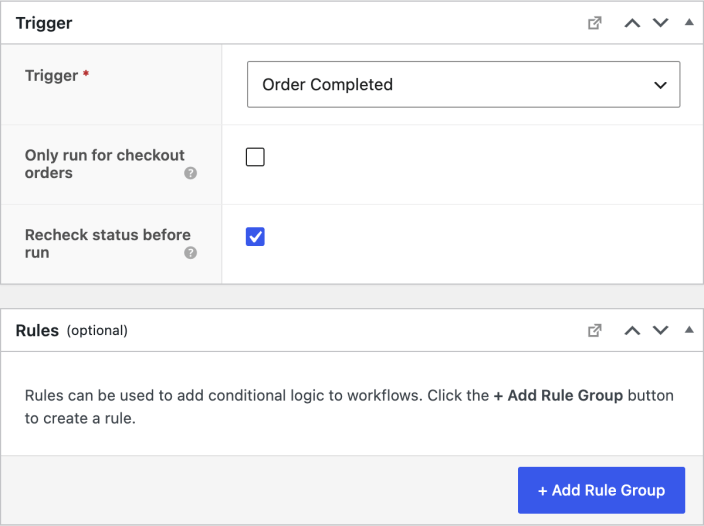
- Review the preset setup. It uses the Order Completed trigger, waits one hour, rechecks the order status, and revalidates its rules before sending.
- Add rules if the email should only run for certain products, categories, customers, or order values. The preset has no rules by default, so it can run after every completed order.
Customize the email
↑ Back to top- In the Send Email action, keep the preset recipient and related-products variable in place.
- Replace the placeholder discount in the subject and email body with the offer configured in your template coupon.
- In the Variables panel, select customer.generate_coupon. Choose your template coupon and set an expiry, prefix, and usage limit if needed. Select Copy to clipboard, then replace the preset coupon placeholder in the email with the copied variable. See How to create personalized coupons for details.
- Leave Is transactional? unchecked so AutomateWoo applies its marketing opt-in and opt-out handling.
Related products and cross-sells
↑ Back to topThe related-products variable finds products from shared categories and tags. It does not use cross-sells assigned in a product’s Linked Products settings. To display manually assigned products instead, choose the cross-sells variable in the Variables panel. See Related Products, Up-Sells and Cross-Sells for the difference.
Product-display variables show published, catalog-visible products. They also respect the store setting that hides out-of-stock products. If no qualifying related products are available, the variable does not output a product grid.
Test and activate the workflow
↑ Back to top- Select Preview on the email action and check the related products and coupon code. The preview uses sample data; an empty coupon code can mean the template coupon is missing or invalid.
- Preview mode shows a sample coupon code but does not save a coupon. Send a test email to an address you control and check the generated coupon, expiry, prefix, and usage limit.
- Open the product links and check the email on desktop and mobile.
- On a staging store, activate the workflow and complete a test order. Check the queue and log after the delay, then disable the test workflow. Activate the workflow on your live store when you are ready.
Generated coupons are not restricted to the customer’s email address by default. Add that restriction through a customization if your promotion requires it.
Questions and support
↑ Back to topSomething missing from this documentation? Still have questions and need assistance?
- If you have a question about a specific extension or theme you’d like to purchase, contact us to get answers.
- If you already purchased this product and need some assistance, get in touch with a Happiness Engineer via our support page and select this product’s name from the Product dropdown.