
Use AutomateWoo and WooCommerce Subscriptions to charge for a year of deliveries in advance and create a renewal order for each monthly shipment. This example uses a $99 annual magazine subscription and includes shipping in the price.
Before you start
↑ Back to topActivate AutomateWoo and WooCommerce Subscriptions. For automatic renewals, use a payment method that supports changes to both recurring amounts and payment dates. Test the setup on a staging store with your payment method before enabling it for customers.
Create the annual subscription product
↑ Back to top- Go to Products > Add new product and choose Simple subscription in Product data.
- Set the subscription price to 99 every year. For this example, leave the subscription running until it is canceled and leave the sign-up fee empty and the free trial at 0.
- Use free shipping for this product and explain the schedule in the product description. For example, customers pay $99 upfront for 12 monthly issues. The first shipment corresponds to the initial order.
Set up the three workflows
↑ Back to topGo to AutomateWoo > Workflows and select Add Workflow for each workflow below. In each trigger, select your annual subscription product under Subscription products. Leave the workflows disabled while you set them up.
Start the prepaid term
↑ Back to top- Choose the Subscription Created trigger.
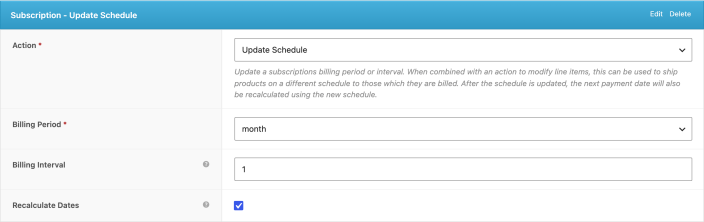
- Add Subscription – Update Schedule. Set the Billing Period to month and Billing Interval to 1. Select Recalculate Dates so the next order is due a month later.
- Add Subscription – Update Product. Choose the annual subscription product and enter 0.00 as the Custom Product Price. Save the workflow.
Prepare the next annual payment
↑ Back to top- Choose Subscription Renewal Payment Complete.
- In Rules, add Subscription – Payment Count. Select is a multiple of and enter 12. Use the current subscription’s count.
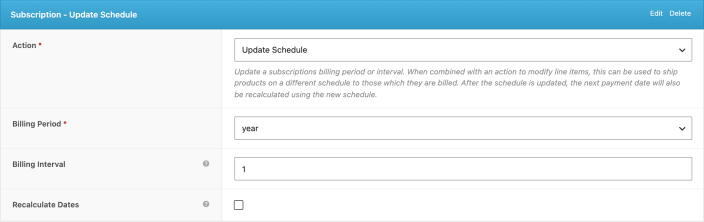
- Add Subscription – Update Schedule with a Billing Period of year and Billing Interval of 1. Clear Recalculate Dates so the next payment stays on the existing monthly date.
- Add Subscription – Update Product. Choose the same product, enter 99.00 as the Custom Product Price, and save.
Resume monthly shipments after the annual payment
↑ Back to top- Choose Subscription Renewal Payment Complete.
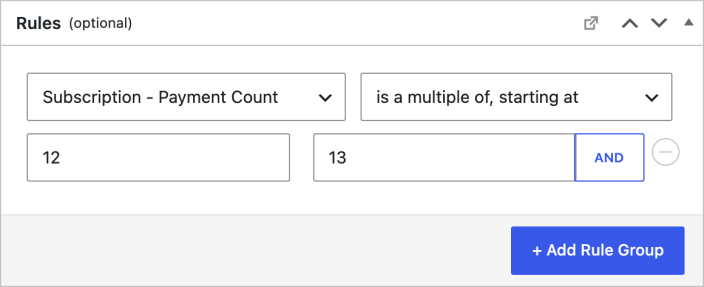
- Add Subscription – Payment Count. Select is a multiple of, starting at, enter 12 for the multiple, and enter 13 for the starting count. This matches orders 13, 25, 37, and each later annual renewal order. The workflow runs when the annual payment for that same order completes. It changes the subscription for future orders.
- Add the same actions as in Start the prepaid term. Set the billing period to month and interval to 1, select Recalculate Dates, and set the product price to 0.00. Save the workflow.
Test the billing and shipment cycle
↑ Back to topFor a subscription purchased through checkout, the count starts with the initial order. Completed zero-total renewal orders also count. In this example, order 1 charges $99, orders 2 through 12 are $0, and order 13 charges $99. After order 13, the following monthly orders return to $0. The same pattern repeats with order 25.
Activate all three workflows on your staging store and complete a test checkout with your intended payment method. Verify the total and next payment date after signup, the first monthly renewal, the final $0 renewal, and the next annual payment. If the amount or date is wrong, check the order count, the workflow logs, the Recalculate Dates settings, and whether the payment method supports the changes. Confirm the total includes the intended shipping and tax settings before using the workflow on a live store.
Plan how to handle any prepaid shipments that remain if a customer cancels or puts the subscription on hold. The workflow relies on the subscription continuing to generate renewal orders.
Questions and support
↑ Back to topSomething missing from this documentation? Still have questions and need assistance?
- If you have a question about a specific extension or theme you’d like to purchase, contact us to get answers.
- If you already purchased this product and need some assistance, get in touch with a Happiness Engineer via our support page and select this product’s name from the Product dropdown.

