Use an AutomateWoo workflow to remind customers when a consumable or regularly replaced product may be running low. You can give each product or category its own replenishment schedule, then send a personalized email after a matching order is completed.
Plan the reminder
↑ Back to topChoose the product or product category and estimate how long it normally lasts. Create separate workflows when products need different schedules. For example, coffee might need a 30-day reminder while a water filter might need a 90-day reminder.
Create the workflow
↑ Back to top- In your WordPress admin, go to AutomateWoo > Workflows and select Add New Workflow.
- Give the workflow a descriptive title, then set its status to Disabled while you configure and test it.
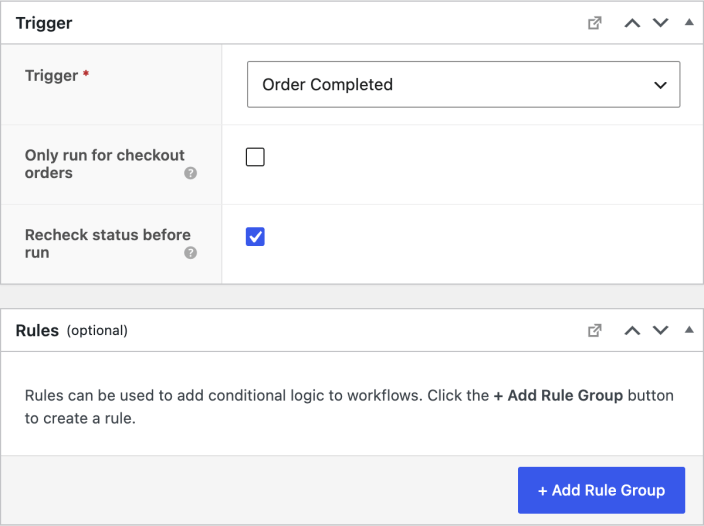
- Set the trigger to Order Completed. Keep Recheck status before run enabled so the order must still have the expected status when the delayed workflow runs.
- Set Timing to Delayed, then enter the replenishment period. In this example, the workflow waits 30 days.
- Keep Revalidate rules before run enabled.
- Add a rule to identify qualifying orders. Use Order – Items for specific products, or Order – Item Categories for a product category. Choose matches any and select the category you want to include.
Create the replenishment email
↑ Back to top- In the Actions section, select + Add Action, then choose Send Email.
- Use the Variables panel to choose the customer email variable, then copy it into the To field.
- Add a subject, heading, and preheader. To personalize the subject, choose the customer first name in the Variables panel and set a fallback for customers without a first name.
- Write a short message that explains what the customer may need to replenish, then add a clear link to the relevant product or category.
- Select an email template. The WooCommerce Default template matches the style of your WooCommerce transactional emails.
A replenishment reminder is normally a marketing message. Leave Is transactional? unchecked so AutomateWoo applies its normal marketing opt-in and opt-out handling. Only mark an email as transactional when it is required to complete or service the customer’s order.
Test and activate the workflow
↑ Back to top- Select Preview on the email action to check the message using sample data.
- Confirm that customer variables display correctly, fallback text reads naturally, and the purchase link opens the intended product or category.
- Review the delay, order-status check, and product or category rule.
- On a test store, activate the workflow and complete an order that matches the rule. Check the queue and log after the delay, then disable the test workflow. Activate the workflow on your live store when you are ready.
Each qualifying completed order can queue its own replenishment reminder. Review the workflow’s queue and logs after activation, especially when customers may place matching orders close together.
Questions and support
↑ Back to topSomething missing from this documentation? Still have questions and need assistance?
- If you have a question about a specific extension or theme you’d like to purchase, contact us to get answers.
- If you already purchased this product and need some assistance, get in touch with a Happiness Engineer via our support page and select this product’s name from the Product dropdown.