Thanks for purchasing the Buy One Get One Free (BOGO) plugin from WooCommerce.com! In this article, you’ll review:
- How to install the plugin and activate your subscription to get support & automatic updates.
- The promotion types you can create with the plugin.
- How to add, duplicate, and delete a promotion, along with a description of each field of the promotion settings.
- The general plugin settings.
So read more below or use the table of contents to jump to the appropriate section.
Installation
↑ Back to topImportant: The “Buy One Get One Free” plugin requires WooCommerce 4.0+.
There are two different methods to install your WooCommerce Buy One Get One Free plugin:
One-Click Install Method
↑ Back to topYou can use a one-click install method if you have connected your WooCommerce.com account to your website. Go to WooCommerce > Extensions > My Subscriptions tab and click the Download button next to WooCommerce Buy One Get One Free extension.
This article explains how you can connect your WooCommerce.com account to your store.
File Upload
↑ Back to topLog in to your WooCommerce account and go to the Downloads page to download the extension’s zip file to your computer.
The Safari web browsers automatically unarchive downloaded Zip files. Make sure you disable this functionality from Safari > Preferences > General > and uncheck” “Open safe files after downloading.”
From your WordPress Dashboard, Go to Plugins > Add New and Upload Plugin. Select the zip file from your computer and click the Install Now button. Then click the Activate button to activate the Buy One Get One Free plugin.
After activating the plugin, go to WooCommerce > Extensions > My Subscriptions tab and activate the subscription on your site to receive automatic updates. The WooCommerce docs provide instructions on how to activate a subscription on your site.
Promotion types
↑ Back to topBefore adding your first promotion, let’s familiarize ourselves with the types of BOGO promotions the plugin allows.
Get a discount on the cheapest product
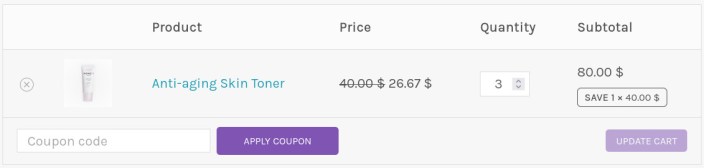
↑ Back to topUse this offer type to create the most popular form of shopper promotion: “Buy One, Get One Free” (BOGOF) deals. For example, you can run promotions like buy two products, get one free (2×1), buy two, get one 50% off, buy three products at the cost of two (3×2)…Or any other similar promotion.
This offer applies the discount to the cheapest product included in the promotion.
Buy products and get a gift (Buy A Get B)
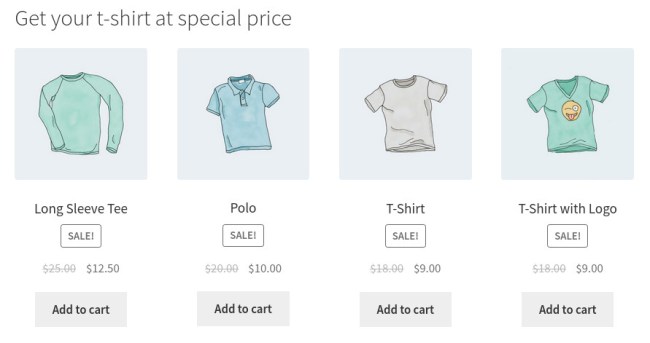
↑ Back to topThis type of promotion allows shoppers to receive a “gift” when purchasing other products. The customer can choose a gift from products that meet specific conditions (category, tag, product list, product variations). Or you can select a product to add automatically to the cart as a gift.
The gift can also be a special discount on other products. For example: buy one hoodie and select one T-shirt with 50% off.
Get the same product you buy (Buy A Get A)
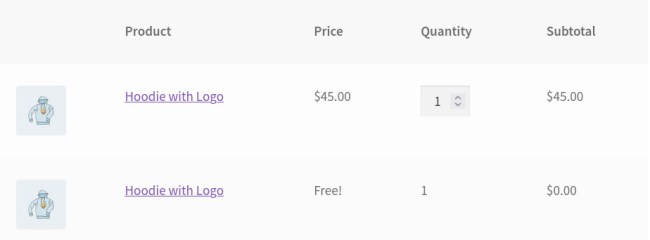
↑ Back to topIf you select this promotion type, the customer will automatically get the identical product they added to the cart.
The discounted product will be added to a new cart line.
Quantity discount
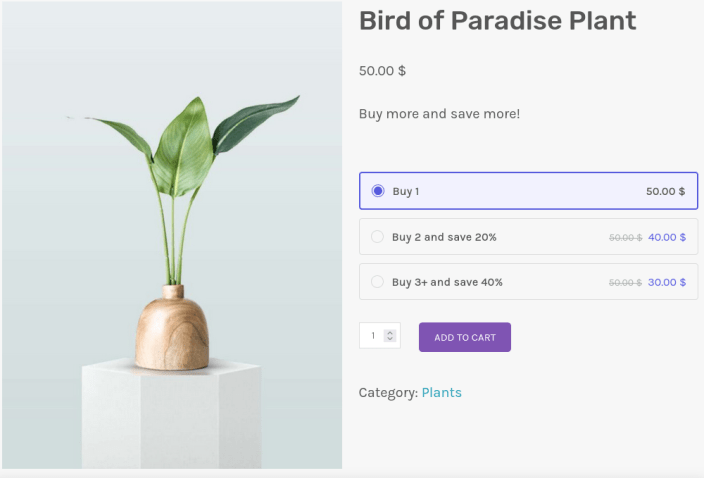
↑ Back to topThis promotion type allows you to apply progressive discounts based on the total quantity purchased. Also known as quantity-based bulk discount or buy more, save more.
Adding and Managing BOGO Promotions
↑ Back to top- Go to WooCommerce > Buy One Get One > Add new.
- Enter a promotion Title.
- Go to the Promotion settings meta box to configure the promotion.
Promotion settings
↑ Back to top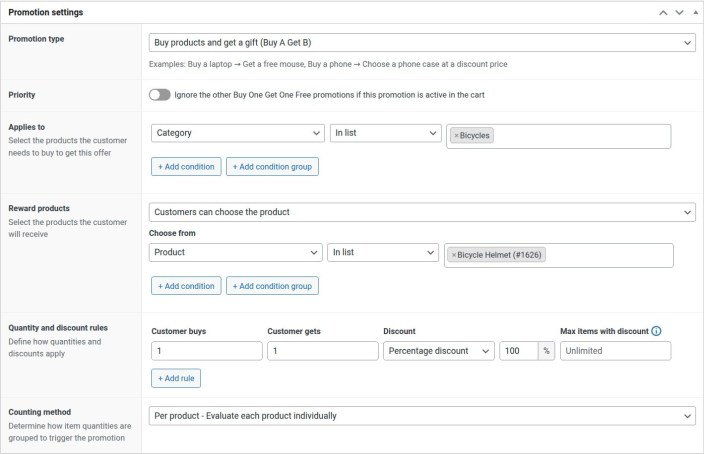
Promotion type
Select one of the types listed in the above section.
Priority
Check this field so the plugin ignores other BOGO promotions if the user gets the products at a special price through this promotion.
Applies to
Select which products the customer must buy to receive the offer. This field works with conditions. The product must meet all conditions to be included in the promotion.

Reward products
Available only for the “Buy products and get a gift” promotion type.
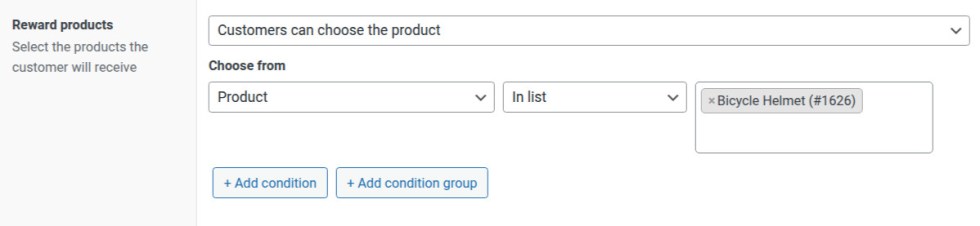
This field lets you define the products the customer will receive as gifts or at a discount when they purchase the products listed in the “Applies to” field. The available options are:
- Add the gift automatically to the cart – The plugin will add the selected product to the cart.
- Customers can choose the gift – Allow the customer to select the gift from a list of products. This option uses the same conditions as the “Apply promotion to” field to choose the products.
Quantity and discount rules
In this section, you have to enter the promotion quantities and the discount, i.e., the units the customer has to buy to get units at a special price. For example, if the customer buys three, he’ll get two at 50% off.

Discount
Set the discount type and amount. There are three discount types:
- Percentage discount – The plugin calculates the discount as a percentage.
- Fixed product discount – The plugin applies a fixed discount to the products included in the offer.
- Fixed sale price – The plugin sets a sale price for the products included in the offer.
Max items with discount
The plugin calculates the number of products the customer will receive as a multiple of the “buy quantity.” For example, if you set the offer to buy three, get two, and the customer purchases six, he will get four. Use this field to limit the number of products the customer can get.
Counting method
Available only for the promotion types “Get a discount on the cheapest product” and “Buy products and get a gift (Buy A Get B)”.
This field controls how the plugin counts the items included in the promotion and applies the offer.
- Global – Sum the quantities of all selected products in the cart.
- Per product – The plugin evaluates the offer for each product individually.
Schedule a promotion
↑ Back to topYou can schedule the promotion to be enabled between two dates.

- In the Save metabox, set the Status to Active.
- Turn on the Schedule switch. This action will enable the Start and end dates.
- Enter the dates the promotion will be available.
Even though the promotion is in Active status, it only runs between the start and end dates.
Promotion rules
↑ Back to topThe rules allow you to add conditional logic to the BOGO promotion.
Each condition runs a comparison statement, such as “matches any,” “is less than,” and “is greater than.” The promotion runs only if the condition or a combination of conditions is met.
Combining rules
↑ Back to topYou can add a condition by clicking the “+ Add condition” button. All conditions must be satisfied for the promotion to run.
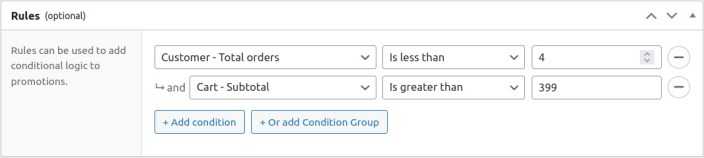
Alternatively, clicking the “+ or Add Condition Group” button can add a condition group. Only one of the groups must be satisfied for the promotion to run.
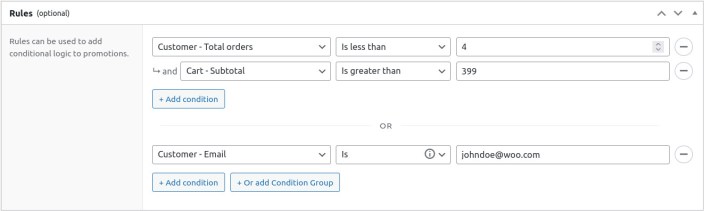
Rules list
↑ Back to topCustomer
- Is logged in: Restricts the promotion to customers who are logged in or are not (guest).
- Email: Restricts the promotion to customers whose email matches the condition.
- User role: Restricts the promotion to customers with specific user roles.
It is helpful if your store uses multiple customer tiers, such as VIP or Wholesale. You can also test your promotion by restricting it to administrators only. - Billing country, billing city, billing postcode, shipping country, shipping city, shipping postcode:
Any customer address conditions allow you to restrict the promotion to customers whose address fields match the condition. - Total orders: Restricts the promotion to customers who have a specific number of non-canceled, non-failed orders.
- Total revenue: This option restricts the promotion to customers with a specific lifetime value (or the total amount you have earned from this customer’s orders).
- Average order value: This condition restricts the promotion to customers whose total revenue, divided by their total order value, satisfies the condition.
Cart
- Subtotal: The cart subtotal before discount coupons are applied. It does not include shipping costs.
- Subtotal (after discount coupons): The cart subtotal after applying the discount coupons. It does not include shipping costs.
- Virtual coupon: A code valid as a coupon but not stored in Marketing > Coupons. It’s helpful if you want the user to add a code to get the promotion (and you don’t want to create a coupon from Marketing > Coupons).
- Coupons: To restrict the promotion by verifying the coupons (of Marketing > Coupons) that the user applied to the cart.
- Line item count: The number of lines in the cart. (Note that this condition compares with the number of lines, which is different than the quantity of the items)
Promotion
- Items Subtotal: The cart subtotal for only the products included in the “Apply promotion to” field.
- Usage limit: The maximum number of uses of the promotion. The available comparison statements for this condition are:
- Per user: Set the maximum number of uses for an individual user. For guests, use billing email; for logged-in users, use user ID.
- Per promotion: Set the maximum number of times the promotion can be used.
Promotion visibility: Badges, Info Messages & Pricing tables
↑ Back to topThe Content section allows you to manage how to set up visual badges on product images, informative messages before the “Add to cart” button, and dynamic pricing tables for quantity-based discounts to highlight your offers and improve conversion.
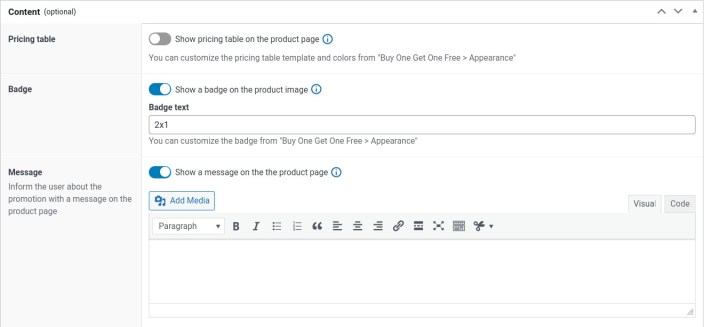
Product Badge
↑ Back to topEnable this option to display a visual label over the product image, highlighting that the item is part of a promotion.
- Show a badge on the product image: Toggle this switch to enable or disable the badge for this specific promotion.
- Badge text: Enter the text you want to appear inside the badge (e.g., “2nd unit 50% off”).
- Customization: Global styling for the badge (colors, position, etc.) can be managed under Buy One Get One Free > Appearance > Badges.
Product Message
↑ Back to topUse this feature to provide detailed information about the offer that will appear on the product page, encouraging customers to add the item to their cart.
- Show a message on the product page: Toggle this switch to display a custom notification.
- Message Editor: A full WordPress rich-text editor is available. You can format the text, add bold highlights, include links, or even use the Add Media button to include small icons or banners. This message appears before the “Add to Cart” button to ensure maximum visibility.
Pricing Table
↑ Back to topThis feature is specifically available for Quantity Discount promotions. It displays a structured table on the product page that breaks down the unit price by quantity purchased.
- Show pricing table on the product page: Toggle this switch to enable a dynamic table that updates automatically according to your discount rules.
- Customization: You can manage the table’s layout, templates, and colors globally by navigating to Buy One Get One Free > Appearance > Pricing table.
Duplicating a promotion
↑ Back to topIt’s possible to use duplicate promotions to create similar promotions. This feature helps you to save time.
Go to WooCommerce > Buy One Get One, look in the list of promotions for the one you want to duplicate, then hover in the area under the promotion name and click Duplicate.
Deleting a promotion
↑ Back to topTo delete a promotion:
- Go to WooCommerce > Buy One Get One Free.
- Find the promotion you wish to delete.
- Hover over the area below the promotion name, then click Trash.
Settings
↑ Back to topThe plugin settings are available at WooCommerce > Buy One Get One Free > Settings.
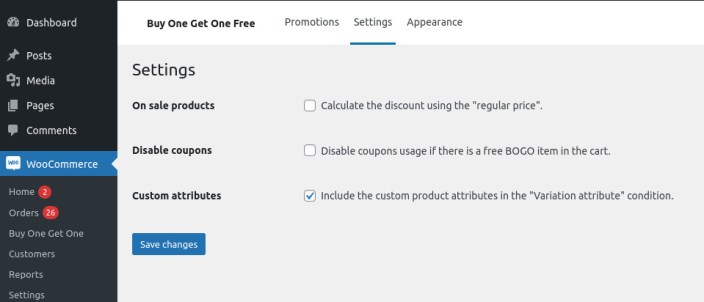
On sale products
Enable this option for the plugin to calculate the discount of the BOGO promotion using the regular price (ignoring the sale price of the on-sale products)
Disable coupons
This option controls how coupons interact with BOGO promotions. Check it if you want to disable the coupons if there is a BOGO item in the cart.
Custom attributes
By default, the “Variation attribute” condition only includes the global attributes. Enable this option to include custom product attributes as well.