
Currency per Product for WooCommerce Pro plugin allows you to set and display product prices in different currencies on your WooCommerce store. You can configure exchange rates manually or automatically and display products in different currencies while accepting payments in your store’s base currency. The plugin works with all WooCommerce product types.
Installation
↑ Back to topTo start using a product from WooCommerce.com, you can use the “Add to store” functionality on the order confirmation page or the My subscriptions section in your account.
- Navigate to My subscriptions.
- Find the Add to store button next to the product you’re planning to install.
- Follow the instructions on the screen, and the product will be automatically added to your store.
Alternative options and more information at:
Managing WooCommerce.com subscriptions.

General Settings Currency per Product for WooCommerce
↑ Back to topHow this works?
↑ Back to topAfter installing and activating the plugin, a new tab – Currency per Product is added under WooCommerce → Settings. The plugin consists of the following configuration tabs:
- General
- Behaviour
- Currencies
- Exchange Rates
- Advanced
To access the General settings, go to WooCommerce → Settings → Currency per Product → Configuration → General.
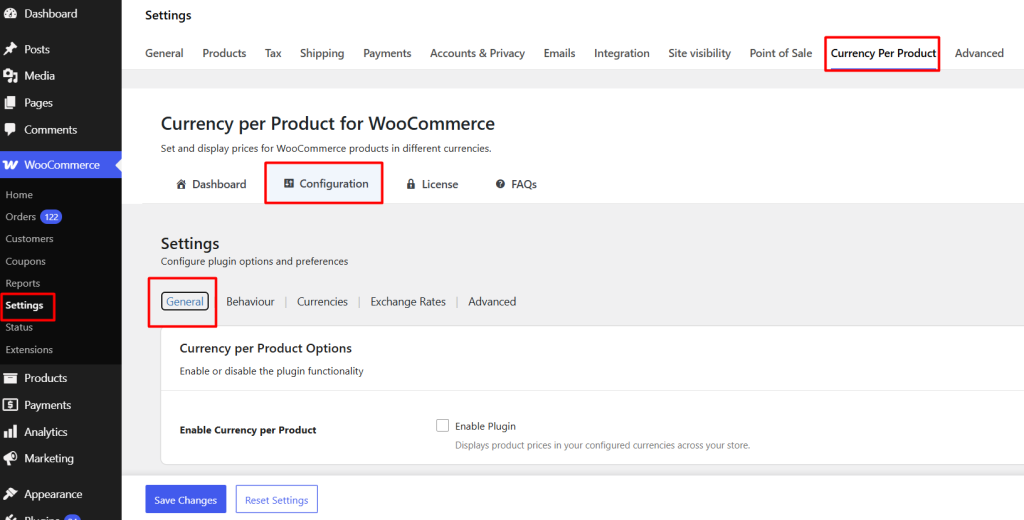
Default General Settings page
The General Settings page consists of the following sections:
- Currency per Product Options
- General Options
- Usage Data
- Save Changes and Reset Settings
Let us understand each of these sections in detail.
Currency per Product Options
↑ Back to top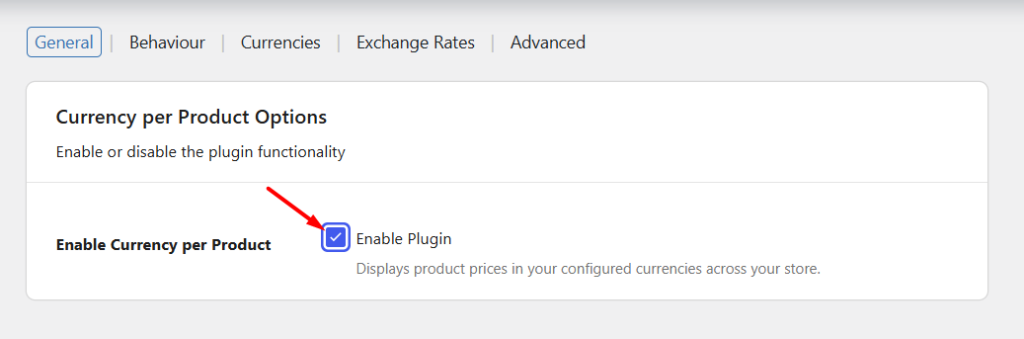
Enabling the plugin
In order to set and display product prices in different currencies, enable the plugin by ticking the Enable Plugin checkbox under the Currency per Product Options section.
This setting adds a Currency per Product meta box to the Edit Product page, allowing you to assign a currency to individual products.
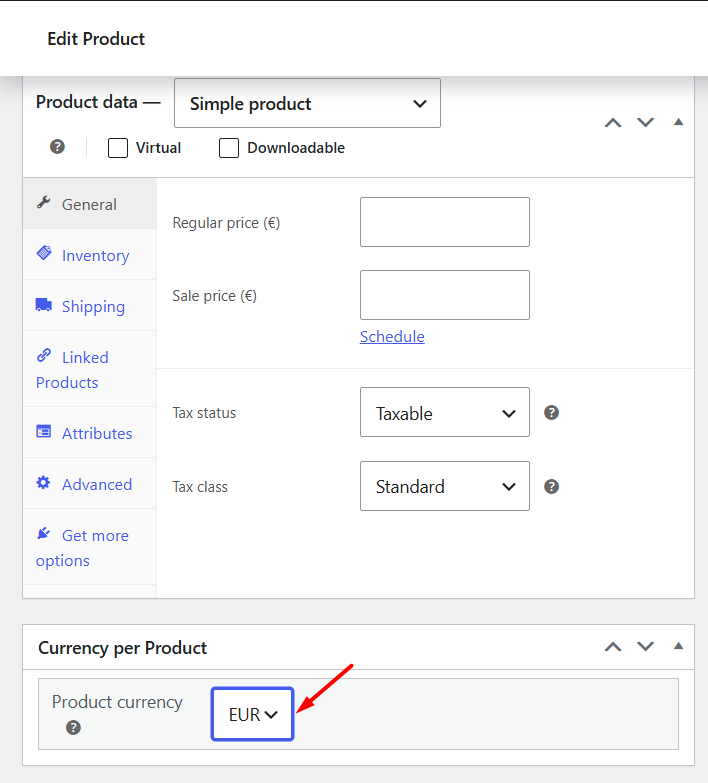
Currency per Product meta box
For example, if your WooCommerce store’s base currency is set to US Dollars (USD), the Product Currency field will display USD by default. You can then select a different currency for individual products from the currencies settings configured in the plugin.
By default, the Enable Plugin option is enabled.
General Options
↑ Back to topThe General Options section contains three settings:
- Currency Reports
- Custom Currency Symbol
- Round Off Product Prices.Enabling the Custom Currency Symbol option displays an additional Currency Symbol Template field, which can be used to configure the currency display format.
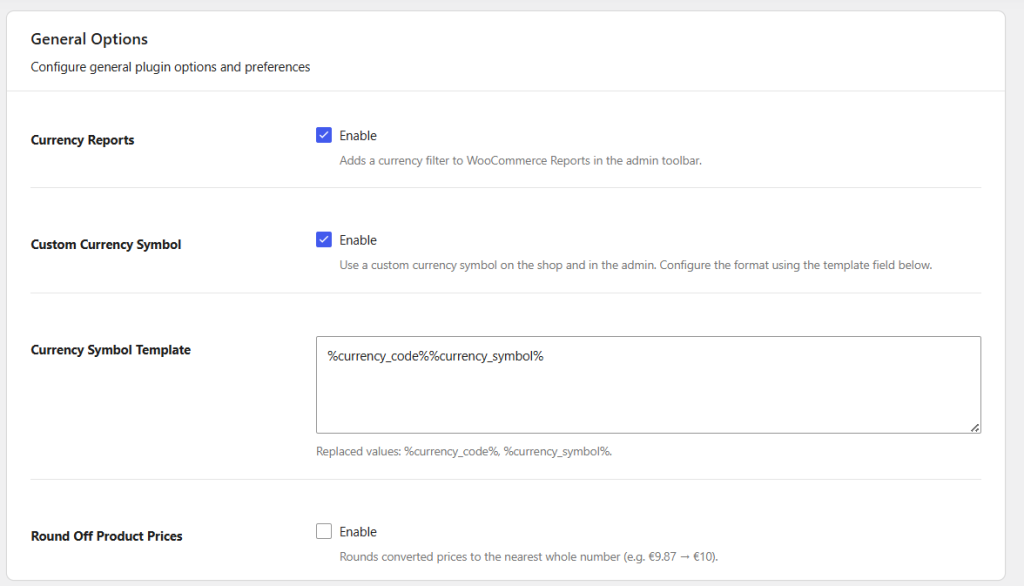
General Options section
Currency reports
The Currency Reports setting adds a currency filter to WooCommerce reports, allowing you to view reports for a specific currency.
When enabled, a Reports Currency dropdown is added to the WooCommerce Reports section. By default, the dropdown displays the store’s base currency configured in the WooCommerce global settings.
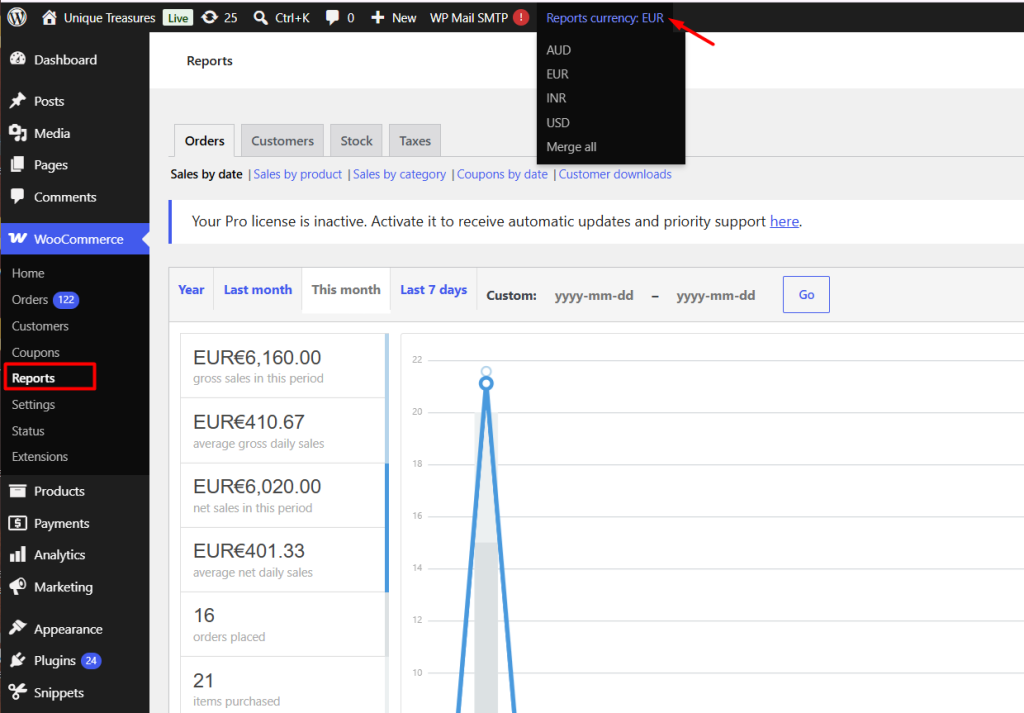
Reports under WooCommerce
The default currency in this case is EUR but you can change the currency by clicking on the appropriate one from the dropdown. The Reports currency dropdown shows all currencies that you have added on Currencies settings page.
You can select a specific currency to view reports in that currency or choose Merge All to display combined report data for all configured currencies.
This setting can be useful when your store accepts orders in multiple currencies and you want to review sales reports for a particular currency.
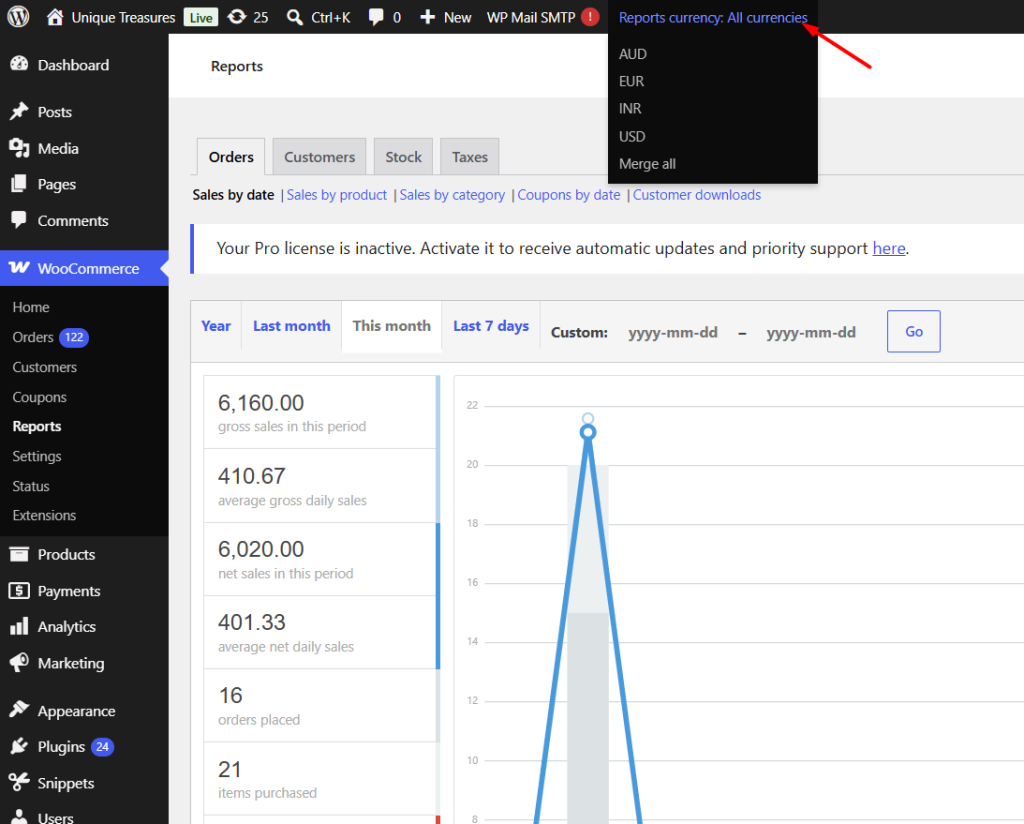
Merge all option
Sales report in USD currency
Currency reports setting is enabled by default.
Custom currency symbol
The Custom Currency Symbol setting allows you to display a custom currency format on the frontend and admin pages.
When enabled, an additional Currency Symbol Template field appears, allowing you to define how the currency code and symbol should be displayed.
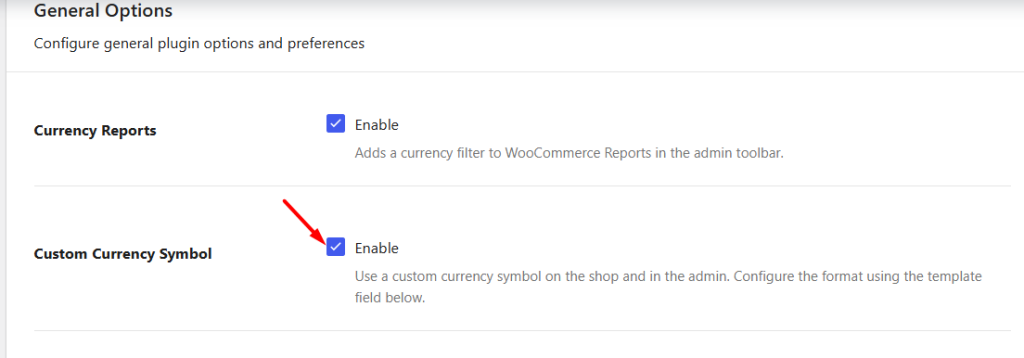
Enabling the Custom currency symbol
The following placeholders can be used in the template:
%currency_code%%currency_symbol%
The actual currency code and symbol of the currency assigned to the product replace these placeholders when prices are displayed.
By default, the Currency Symbol Template is set to:
%currency_code%%currency_symbol%
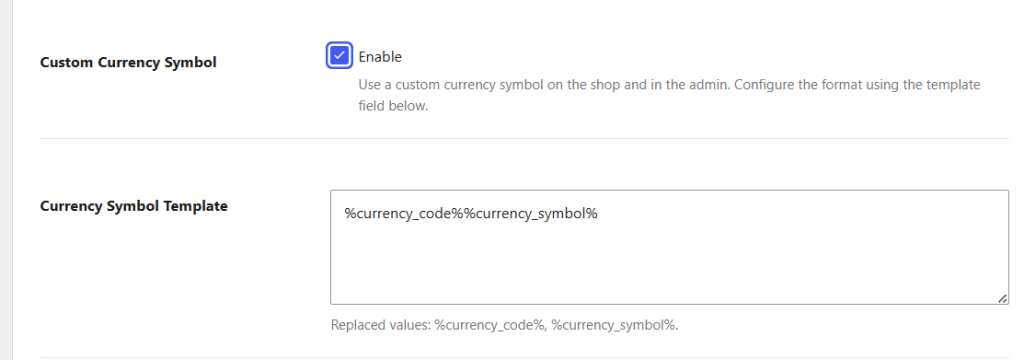
By default, WooCommerce displays prices using only the currency symbol. For example, a product priced at 50 US Dollars is displayed as $50.00 on both the admin pages and the storefront.
Enabling the Custom Currency Symbol option allows you to include additional information, such as the currency code, along with the currency symbol. For example, if the Currency Symbol Template is set to %currency_code%%currency_symbol%, the same product price will be displayed as USD$50.00 on both the admin pages and the storefront.
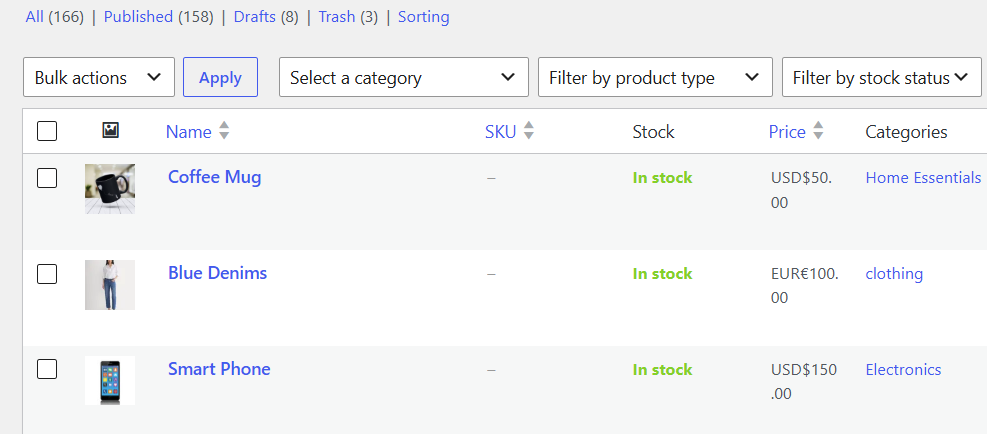
Currency change on Product’s page
Similarly, on Edit product page, you will see the price section also shows currency as pound sterling.
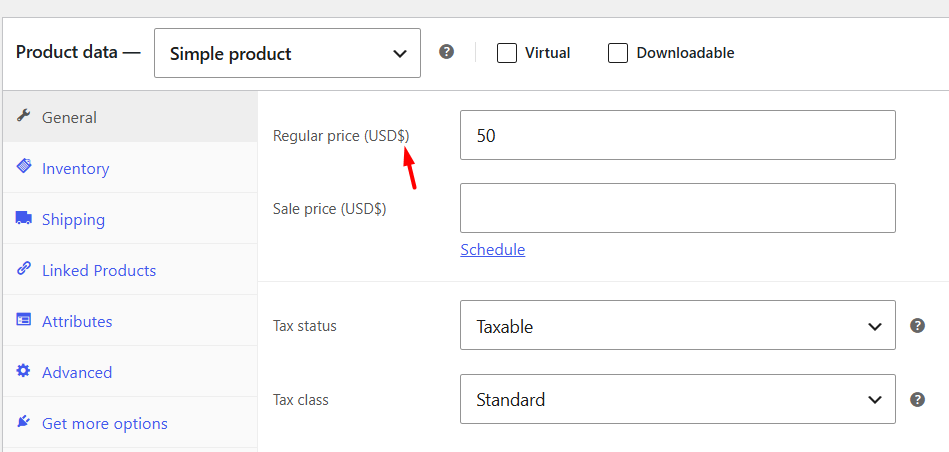
Price section showing currency as pound sterling
Whereas on the front end, this will be effective on Shop page, Cart page and Checkout page.
Shop page:
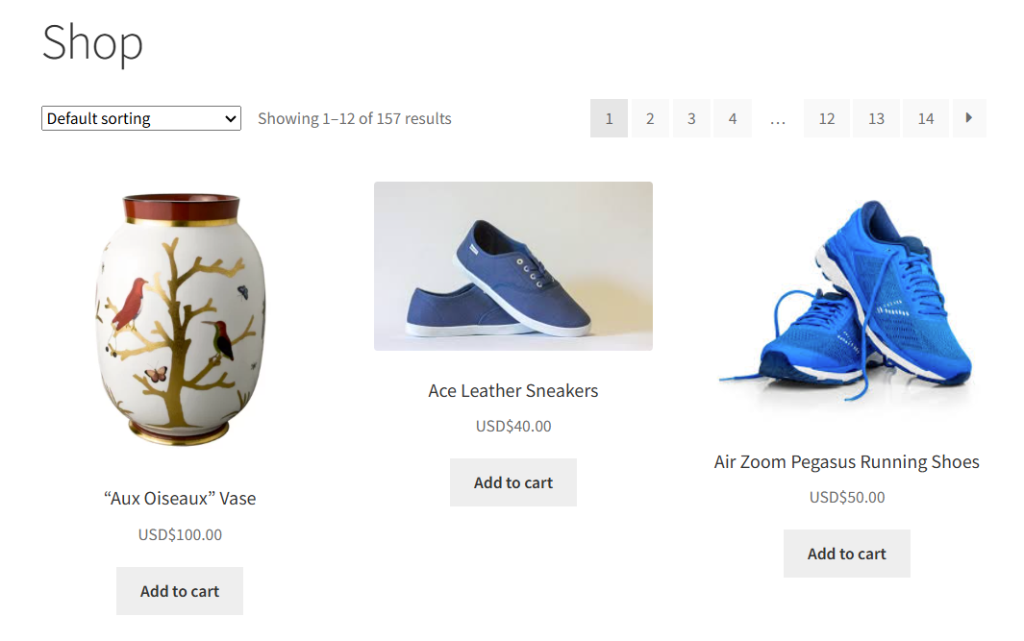
Currency change on Shop page
Cart page:
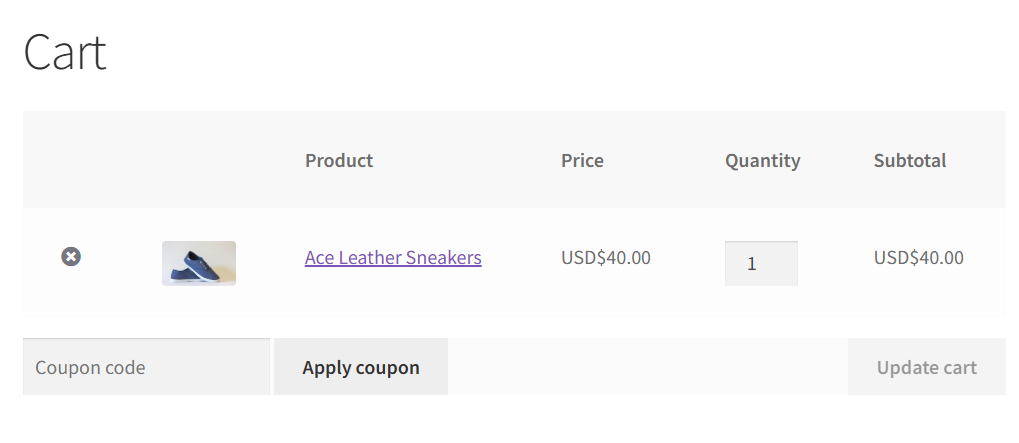
Currency change on Cart page
Checkout page:
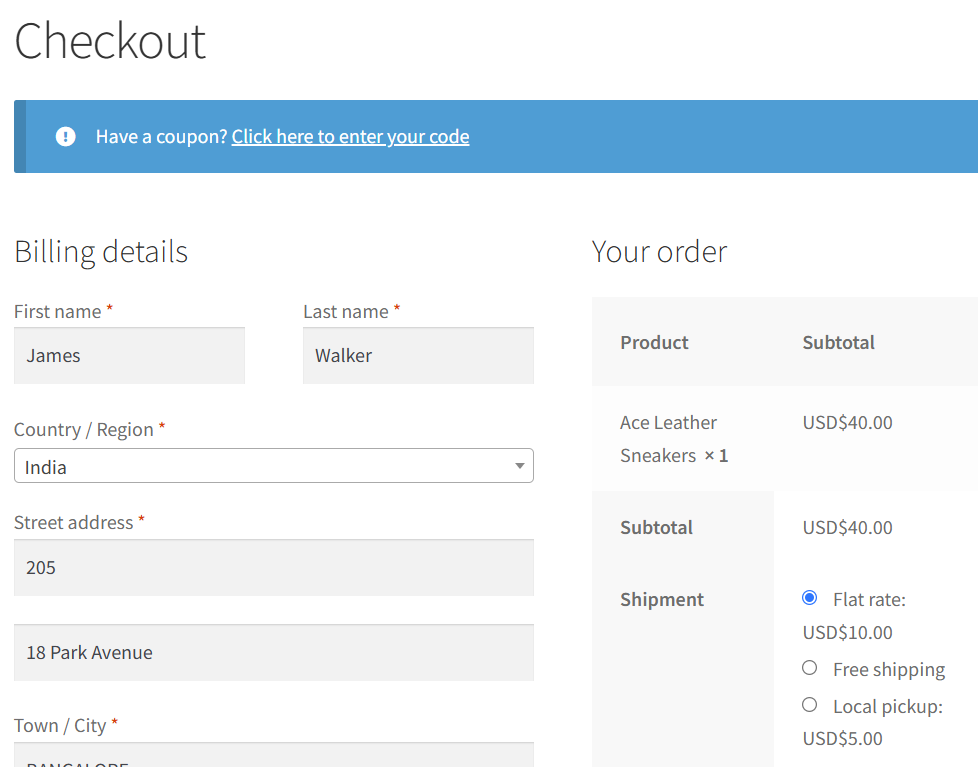
Currency change on Checkout page
This setting can be useful when your store displays products in multiple currencies and you want the currency code to appear along with the currency symbol for better clarity.
Roundoff decimal points on frontend
The Round Off Product Prices setting allows you to round converted product prices displayed on the frontend. When product prices are converted using exchange rates, the converted values may contain decimal amounts.
For example, assume a product is priced at $13 and the exchange rate converts the price to ₹1226.81.
When Round Off Product Prices is disabled, the exact converted price of ₹1226.81 is displayed on the frontend.
When this setting is enabled, the converted price is rounded and displayed as ₹1227.
This setting can be useful when you want to display clean and easy-to-read prices instead of uneven decimal values.

Save the changes and visit the product page on the frontend. You will notice that the price is now displayed as a rounded value. In this case, ₹1226.81 will be rounded and displayed as ₹1226.00.
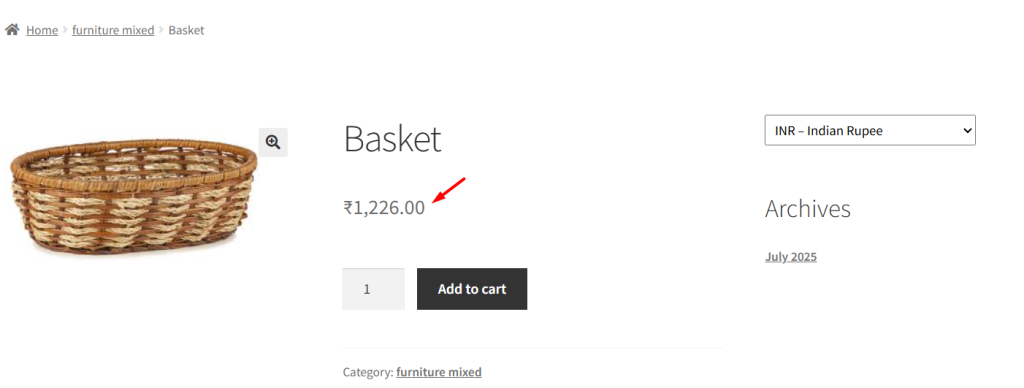
This ensures that customers see rounded and consistent product prices instead of uneven decimal values on the frontend.
Usage Data
↑ Back to topThe Usage Data section allows you to reset the plugin’s usage tracking information.
Click the Reset Usage Tracking button to clear the usage tracking data collected by the plugin.
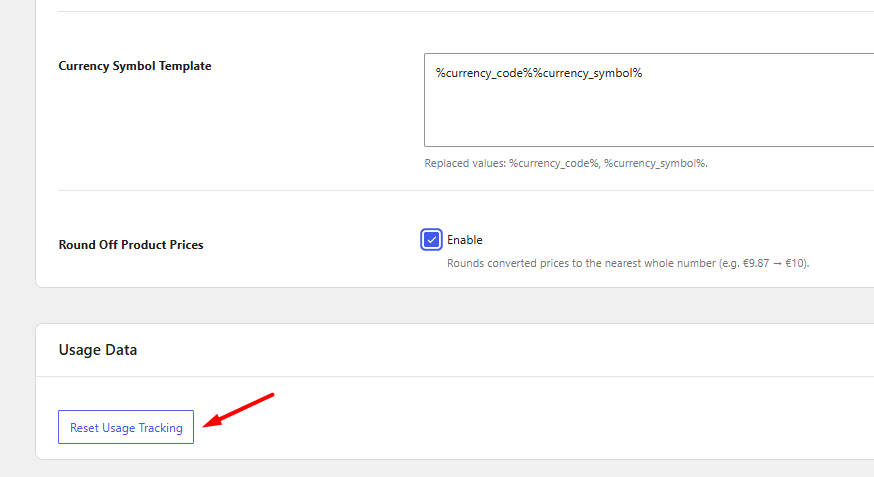
This option can be useful when you want to reset analytics and tracking information associated with the plugin’s usage.
Save Changes and Reset Settings
↑ Back to topAt the bottom of the page, you will find the Save Changes and Reset Settings buttons.
Save Changes
↑ Back to topClick Save Changes to apply any updates made to the General Settings.
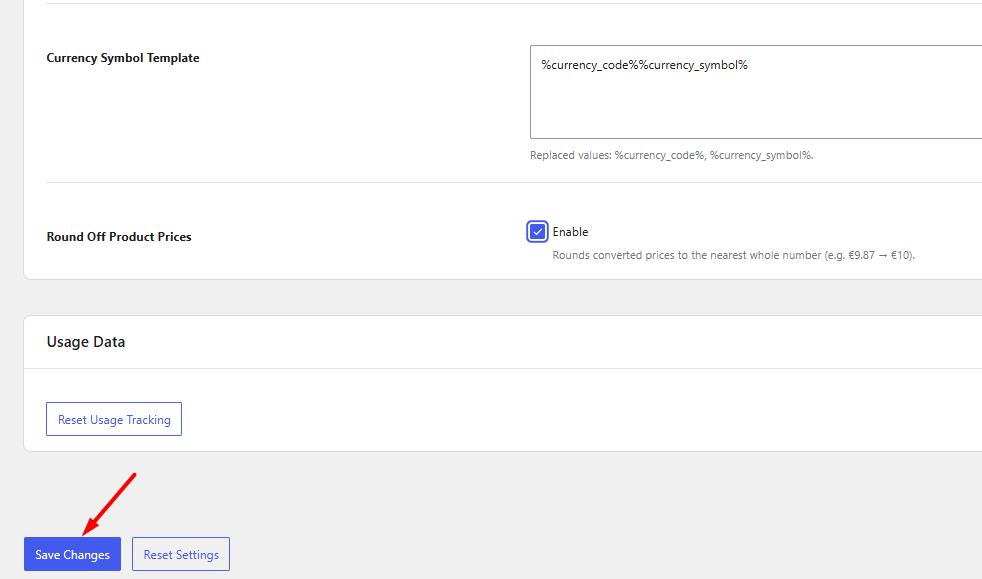
Reset Settings
↑ Back to topClick Reset Settings to restore the General Settings to their default values.
When the settings are reset:
- Enable Plugin remains enabled.
- Currency Reports is enabled.
- Custom Currency Symbol is disabled.
- Currency Symbol Template is restored to
%currency_code%%currency_symbol%. - Round Off Product Prices is disabled.
This allows you to quickly return the General Settings configuration to its default state.
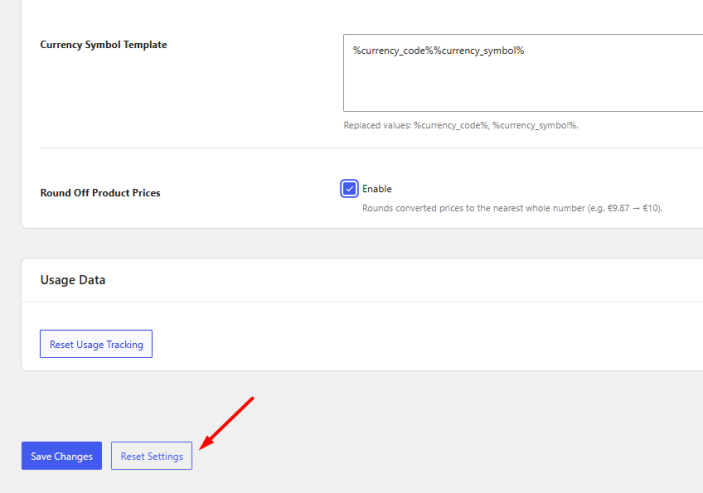
Enabling the Reset section settings
The General Settings tab provides the basic configuration required to enable Currency per Product functionality, customize currency display, manage reporting, and control how converted prices appear throughout your WooCommerce store.
Additional Settings of Currency Per Product
↑ Back to top- Behavior Settings
- Currencies Settings
- Exchange Rates Settings
- Advanced Settings
- Set Currency Per Product
Can I assign different currencies per WooCommerce product or variation using this plugin?
Yes. You can assign different currencies to individual products and even to each variation of a product.
Will product prices in different currencies be visible on the WooCommerce Shop, Cart, and Checkout pages?
Yes. You can control how prices appear on the WooCommerce Shop, Cart, and Checkout pages, including displaying them in different currencies based on your settings.
Can I show both the converted price and the original WooCommerce store currency price to customers?
Yes. You can choose to display the original price alongside the converted price on Shop, Cart, Checkout pages, and in order emails. This works when the relevant settings for original price display are enabled.
Can I round off converted WooCommerce prices to cleaner values (e.g., $9.99 or $100)?
Yes. The plugin rounds converted prices to the nearest whole number on the frontend (e.g., $18.88 becomes $18.90).
What currency will be used at WooCommerce Checkout?
You can control how currency is applied at WooCommerce Checkout using the Cart and Checkout behaviour settings. Depending on your configuration, customers can be charged in your store’s base currency or in the user-selected currency.
Can customers always pay in my WooCommerce store’s base currency (e.g., EUR), even if they see WooCommerce prices in their local currency?
Yes. You can configure the Cart and Checkout to charge customers in your store’s base currency, even if WooCommerce product prices are displayed in a different currency on the Shop page.
Can customers manually switch currencies in a WooCommerce store using Currency Per Product?
Yes. You can add the Currency Switcher (CPP) widget to any widget area on your WooCommerce store (sidebar, footer, or header), allowing customers to manually select their preferred currency. This can also be used at the Checkout page.
Does Currency Per Product automatically detect a customer’s location and show WooCommerce prices in their local currency?
Yes. The plugin supports geolocation-based currency display. It automatically detects a customer’s location via their IP address and displays prices in the appropriate local currency.
Can I restrict WooCommerce currency settings based on user roles, product categories, or payment gateways?
Yes. The Plugin allows you to configure currency behaviour based on user roles, product categories, product tags, and even specific payment gateways, giving you complete control over how currencies are displayed and applied.
Does Currency Per Product support automatic exchange rate updates in WooCommerce?
Yes. The plugin supports automatic daily exchange rate updates, so you don’t need to manually update rates. You can also set rates manually if preferred. The plugin also allows you to configure which exchange rate sources servers are used.
Can customers sort and filter WooCommerce products by converted currency prices?
Yes. Both sorting and filtering by converted prices are supported on the WooCommerce Shop page. Customers can sort products from high to low or low to high based on their local currency prices. The Price Filter widget also works with converted prices.

