
Each product is unique and different types of delivery processes have to be followed. You may need to charge extra for deliveries during peak hours, block out a few days/time slots, etc. Product Delivery Date Pro helps you balance customer experience and delivery experience by letting your customers choose the available delivery dates/time slots set by you from the product page.
Installation
↑ Back to topTo start using a product from WooCommerce.com, you can use the “Add to store” functionality on the order confirmation page or the My subscriptions section in your account.
- Navigate to My subscriptions.
- Find the Add to store button next to the product you’re planning to install.
- Follow the instructions on the screen, and the product will be automatically added to your store.
Alternative options and more information at:
Managing WooCommerce.com subscriptions.

Types of Deliveries
↑ Back to top- Specific Dates Deliveries
- Recurring Weekdays Deliveries
- Specific Dates & Recurring Weekdays Deliveries
- Delivery Date & Time Deliveries
- Estimated Delivery for Products
Specific Dates Deliveries
↑ Back to topOur Product Delivery Date Pro for WooCommerce plugin allows you to select the delivery date and time for your products. Today we will discuss how to set deliveries for the products that are delivered on specific dates. There are businesses that allow delivering products on only certain dates, so they can set the delivery settings accordingly through this plugin, to cater to their needs.
How does this work?
Firstly, you need to install and activate the plugin. Once this is done, on the Products page, you will see the Product Delivery Date meta box showing different settings. To enable deliveries for this product, tick the Enable Delivery Date option. Then select Delivery Option as Calendar for displaying the delivery calendar on the Products page in the frontend.
For better understanding, let’s take an instance of Specific Dates setting. Say you run a Costume business where you sell different costumes for the occasions like Halloween, Christmas themes, Independence Day, etc. So let us create a product Halloween Costume which is delivered only on specific dates in the last week of October and set the delivery of product on specific dates by ticking the Delivery on option for Specific Dates.

Note – When you want to select the Specific Dates option, you should disable the Recurring Weekdays option.
Let us add specific dates from the calendar as shown below:
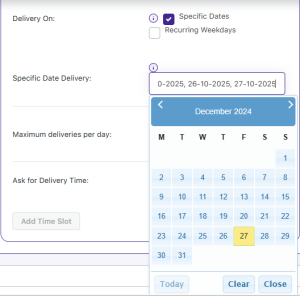
Adding settings for Specific Dates
Once the specific dates are saved, they will be displayed on the Manage Availability tab as shown below:
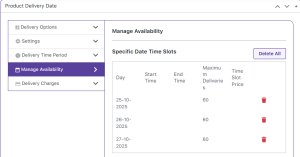
Added specific dates
As seen above, the product Halloween Costume will be delivered only on the 25th, 26th, and 27th October 2025 as selected in the Specific Date Delivery option. Now you will see a delivery calendar on the Product page of Halloween Costume where the selected dates will be shown enabled and the rest the dates will be disabled as shown below:
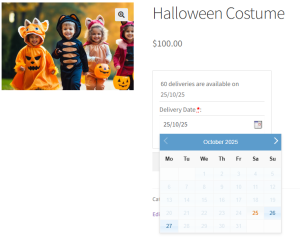
Added specific delivery dates shown enabled on the calendar
Now say we select 26th October 2025 for delivery of this product and add the product to the cart by clicking the Add to Cart button. The selected Delivery date will be shown on the Cart page as well, as shown below:
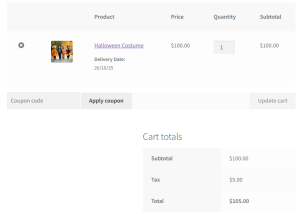
Delivery date shown on Cart page
Conclusion
This post explains how you can add delivery of products that are only delivered on specific dates. There is an option on the Products page for adding only those dates when delivery of the product takes place. This will disable all the other dates in the delivery calendar on the front end so that the customer knows when their selected product can be delivered.
Recurring Weekdays Deliveries
↑ Back to topSimilar to Specific Dates setting, today we will discuss Recurring weekdays deliveries. There are businesses that provides delivery of the products only on certain weekdays and not all weekdays. For instance, a home based cake shop delivers cakes only from Monday to Thursday and not on Friday, Saturday and Sunday. So you can add settings where deliveries can take place only on Monday, Tuesday, Wednesday and Thursday using Recurring Weekdays option using Product Delivery Date Pro for WooCommerce plugin.
How does this work?
Once the plugin is installed and activated, you will see the Product Delivery Date meta box showing different settings on the Products page. To enable deliveries to take place on selected weekdays, tick the Recurring Weekdays option and select Monday, Tuesday, Wednesday, and Thursday for the Delivery Days option, as deliveries take place only on these days:
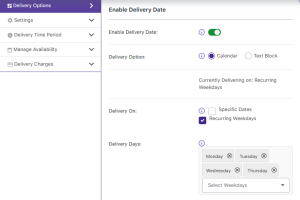
Selecting recurring weekdays for deliveries
Once the recurring weekdays are saved, they will be displayed on the Manage Availability tab as shown below:
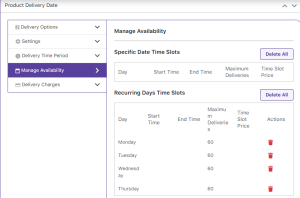
Selected recurring weekdays
This implies that when product Valentines Cake is selected on the shop page, the delivery calendar on the Products page will show all Monday, Tuesday, Wednesday and Thursday enabled. Rest other weekdays will be disabled as shown below:
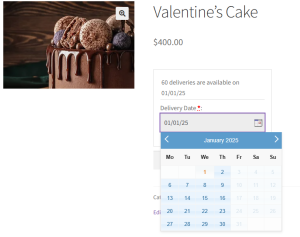
Delivery calendar showing only added weekdays enabled
Now say we select 1st January, 2025 for delivery of this product and add the product to the cart by clicking the Add to Cart button. The selected Delivery date will be shown on the Cart page as well, as shown below:
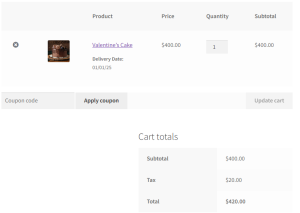
Selected delivery date displayed on the Cart page
Conclusion
This post explains how you can add delivery of products that are delivered on selected weekdays and recur every week. There is an option on the Products page for adding recurring weekdays when delivery of the product takes place. This will disable all the other weekdays in the delivery calendar on the frontend so that the customer knows when their selected product can be delivered.
Specific Dates & Recurring Weekdays Deliveries
↑ Back to topIn our previous posts, we saw how you can add settings for your product to enable deliveries for specific dates or recurring weekdays. We can also add settings for both specific dates and recurring weekdays together using the Product Delivery Date Pro for WooCommerce plugin.
How does this work?
Consider an instance where a Pet shop delivers products on all Saturday and Sunday but not on weekdays. It also delivers on 30th and 31st January as it is their opening day, hence offering discounts to customers. So on these 2 specific dates also, they allow delivery of Pet Food Packets.
Therefore for the above instance, tick both the Specific dates and Recurring Weekdays option in the Product Delivery Date meta box of the Pet Food Packet product page as shown below:
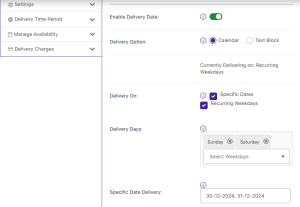
Adding both Specific Dates and Recurring Weekdays option
As you can see above, Saturday and Sunday are selected as recurring weekdays, and specific dates – 30th & 31st January 2025 are added when deliveries will be enabled.
Once these settings are saved, they will be displayed under the Manage Availability tab as shown below:
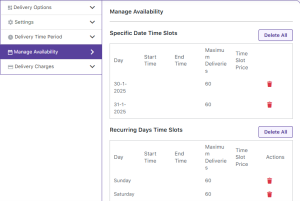
Selected specific dates and recurring weekdays
This will reflect on the front end of the Pet Food Packet product page as shown below:
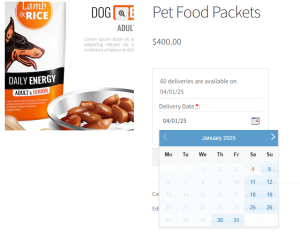
Added recurring weekdays and specific dates are enabled
Now say we select 30th January 2025 for delivery of this product and add the product to the cart by clicking the Add to Cart button. The selected Delivery date will be shown on the Cart page as well, as shown below:
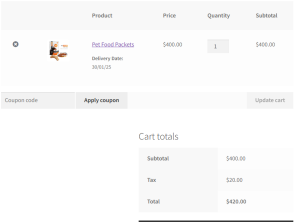
Conclusion
This post explains how you can add delivery of products that are delivered on specific dates as well as selected weekdays that will recur every week. There is an option on the Products page for adding recurring weekdays and specific dates when delivery of the product can take place. This will disable all the other weekdays in the delivery calendar on the frontend so that the customer knows when their selected product can be delivered.
Delivery Date & Time Deliveries
↑ Back to topWe have discussed in detail how to add delivery settings for product deliveries using the specific dates, recurring weekdays, and a combination of both options of the Product Delivery Date Pro for WooCommerce plugin. Today we shall discuss the process of adding the time slot for allowing customers to select their desired delivery time along with delivery days, on the Product page.
How does this work?
Once the plugin is installed and activated, you will find the Product Delivery Date meta box showing different settings. To enable deliveries for the product, tick the Enable Delivery Date option. Then select Delivery Option as Calendar for displaying the delivery calendar on the Products page in the frontend.
Say, for instance, the product Valentine Cake is delivered on all Mondays & Fridays, so let us select these weekdays from the Delivery Days option as shown below:
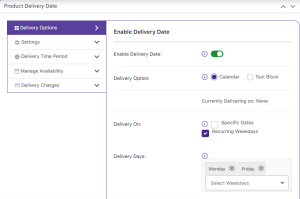
Adding delivery days for product deliveries
Now click on the Add Time slot button to add delivery time slots for this product. So let us add the time slot from 13:00 to 15:00 as shown below:
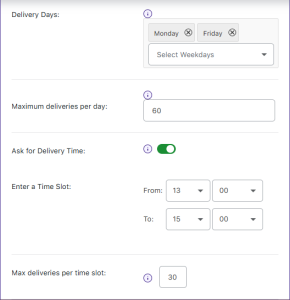
Adding time slot for delivery days
Similarly, add the time slot for Specific dates – 15th and 16th January from 16:00 to 21:00 as shown below:
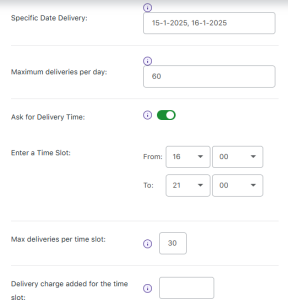
Adding time slot for specific dates
Once the time slots for specific dates and recurring weekdays are added, these are displayed under the Manage Availability tab as shown below:
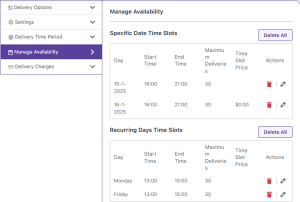
Added time slots displayed
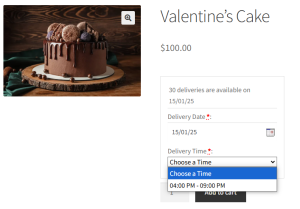
So now on the front, if the customer selects this product and opts for delivery on 15th January 2025, then the respective time slot from 04:00 PM – 09:00 PM will appear upon selecting the date as shown below:
Similarly, when 10th January 2025 is selected for delivery of this product, the time slot from 01:00 PM to 03:00 PM will be displayed as shown below:
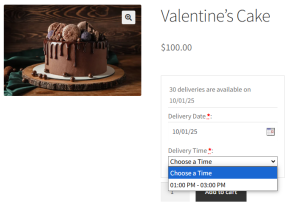
Time slot appears on date selection for recurring weekdays
Note – The time slots will be added in 24-hour format in the backend but on the front, it will be displayed in the selected time format.
Now, say Friday 16th January 2025 is selected by the customer which has delivery time slots added for specific dates and recurring weekdays both. In this case, priority will be given to the time slot of specific dates, hence the time slot that will be displayed on the Products page upon selection of product delivery date will show from 04:00 PM – 09:00 PM as shown below:
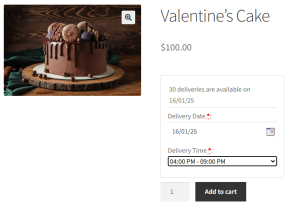
Time slot of specific dates is given priority
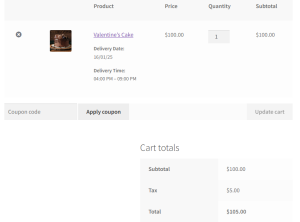
Once the delivery date and time is selected on the Product page and the product is added to the cart, the delivery date and time selected for the product, both will be displayed on the Cart page as shown below:
Delivery date and time displayed on the Cart page
Conclusion
This post explains how you can add delivery time slots for products that are delivered on specific dates as well as selected weekdays that will recur every week. There is an option on the Products page for adding recurring weekdays and specific dates and time slots. This will help the customers to know the delivery time of their selected product.
Also most importantly, when time slots for both specific dates and recurring weekdays are added for a particular date, priority is always given to the time slot added for specific dates and hence that time slot will appear on the frontend for customers to select from.
Estimated Delivery for Products
↑ Back to topIn our earlier posts, we saw how you can add delivery date and time settings for all your product deliveries. While adding the delivery settings on the Product page, there was a setting to select the Delivery option that will be displayed on the frontend Product page. This is set to Calendar as default option. But there is another option you can opt for, which is Text block and if you select this option for delivery, then instead of a delivery calendar, a text block notifying the delivery date for the product will be displayed. This option is used to provide estimated delivery details for products.
How this works?
Let us understand how this works with an instance. Say you run an online Footwear store and the estimated delivery time for all your products is 10 days from the time the order is placed.
Admin Experience:
To create a new product – Winter Boots and on the Product page, you will find the Product Delivery Date meta box showing different settings. To enable deliveries for the product, first, tick the Enable Delivery Date option. Now you will notice there are 2 options for Delivery Option displayed, namely Calendar and Text block. Let us select the Text block option and a new setting Minimum Delivery Days required field will appear. Here add the Minimum Delivery Days required as 10 days as shown in the below screenshot:
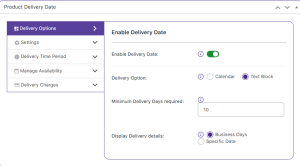
Adding settings in the backend
This implies the number of days added in the Minimum Delivery Days required field will be the total number of days for delivery counted from the order date.
Also, there is another setting for displaying the estimated delivery details on the front end namely Display Delivery details which appear below the Minimum Delivery Days required setting.
There are 2 options in this, either you can show the number of business days it will take to deliver the product by selecting the Business Days option or you can select the Specific Date option to display the estimated delivery date for delivering the product.
By default, the Business Days option is selected.
Customer Experience:
As per the settings added in the backend, the product Winter Boots will display the delivery details on the front end.
Display Delivery details – Business Days:
Let us select this product on the front end with Display Delivery details chosen as Business Days. The following message will be displayed upon product selection:
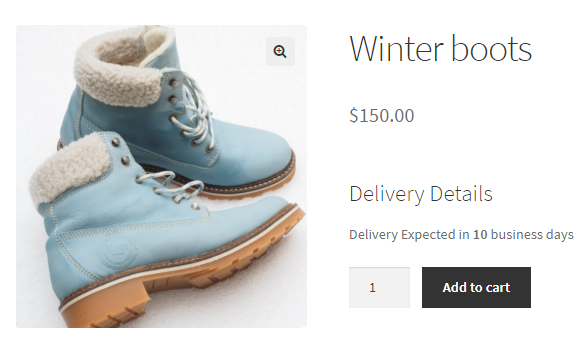
Delivery details displayed in business days
As you can see, the message displayed for delivery of the product is Delivery Expected in 10 business days. This is because the value added for the Minimum Delivery Days required option in the backend was 10.
Display Delivery details – Specific Date:
Now if you select Display Delivery details as Specific Date, then the number added in the Minimum Delivery Days required field will be added to the current date and a message will be displayed with a specific date when the delivery will take place, as shown below:
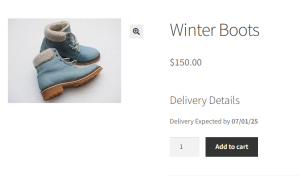
Delivery date displayed for specific dates option
As you can see in the above screenshot, the Delivery Expected date is calculated as 10 days from the current date. Hence shows 7th January, 2025 as the delivery date for the selected product.
Conclusion
This post discusses another setting of Delivery options which is a Text block that provides estimated delivery details and displays them on the frontend. The Product Delivery Date Pro for WooCommerce plugin has so many variations in settings that any business need can be catered to, thus making the product delivery process faster and more convenient.
| Flexi Product Delivery Date Pro – Features & Settings |
Where can customers select the delivery date?
Customers can choose their delivery date directly on the product page before adding the item to their cart, making it easy for them to plan ahead.
Can I set a fixed delivery date per product without allowing customers to choose a date?
Customers can choose their delivery date directly on the product page before adding the item to their cart, making it easy for them to plan ahead.
Can I show an estimated delivery date as a text message instead of a date picker for products?
Yes! You can display a simple estimated delivery date message on the product page, so customers know when to expect their order without selecting a specific date.
Can I exclude weekend deliveries?
Yes! You can prevent deliveries on weekends or any specific weekdays, so customers can only choose from the days you actually deliver.deliveries in the calendar after this number of orders.
Can I disable deliveries on public holidays or specific dates?
Absolutely. You can block public holidays or any custom dates so customers cannot select them for delivery.
Can I set different preparation times for each product?
Yes! Each product can have its own preparation time. For example, Product A can require 48 hours, while Product B can require 72 hours, affecting when customers can schedule deliveries.
Does it support cutoff times and extra charges for same-day or next-day delivery?
Yes! You can configure same-day and next-day delivery cutoff times per product and even add extra charges for these delivery options.
Can I create delivery time slots for my products?
Yes! You can offer specific delivery time slots for each product, allowing customers to choose a convenient time slot on the available delivery dates.
Can I limit how many orders are allowed per product for each delivery date?
Yes! You can set a maximum number of deliveries per product for each date. Once the limit is reached, that date automatically becomes unavailable for further orders.
Can I restrict delivery date selection to specific products?
Yes. You can enable delivery date and time selection on a per-product basis, giving you full control over which products shows the date picker on the frontend.
Can I apply delivery settings to multiple products at once?
Yes. You can apply delivery rules to multiple products or to the selected product categories.
Can customers place orders without selecting a delivery date on the product page?
Yes! The delivery date can be set as optional. When the ‘Mandatory Field’ option is disabled, customers can proceed to checkout and place their order without selecting a delivery date.
Does WooCommerce Product Delivery Date Pro comply with GDPR guidelines?
Yes! The plugin is GDPR-compliant and does not capture any customer data without consent.
Questions & Support
↑ Back to topI have another question.Please fill out this pre-sales form.

