
The Flexi Booking & Appointment Plugin (BKAP) now includes a built-in migration tool that allows you to move your existing bookings from WooCommerce Bookings. This ensures that all booking-related data, including orders and customer details, are preserved during the migration.
This migration process provides a reliable way to move existing bookings while store operations can continue without any data loss or disruption.
Accessing the Migration Option
↑ Back to topTo access the migration feature:
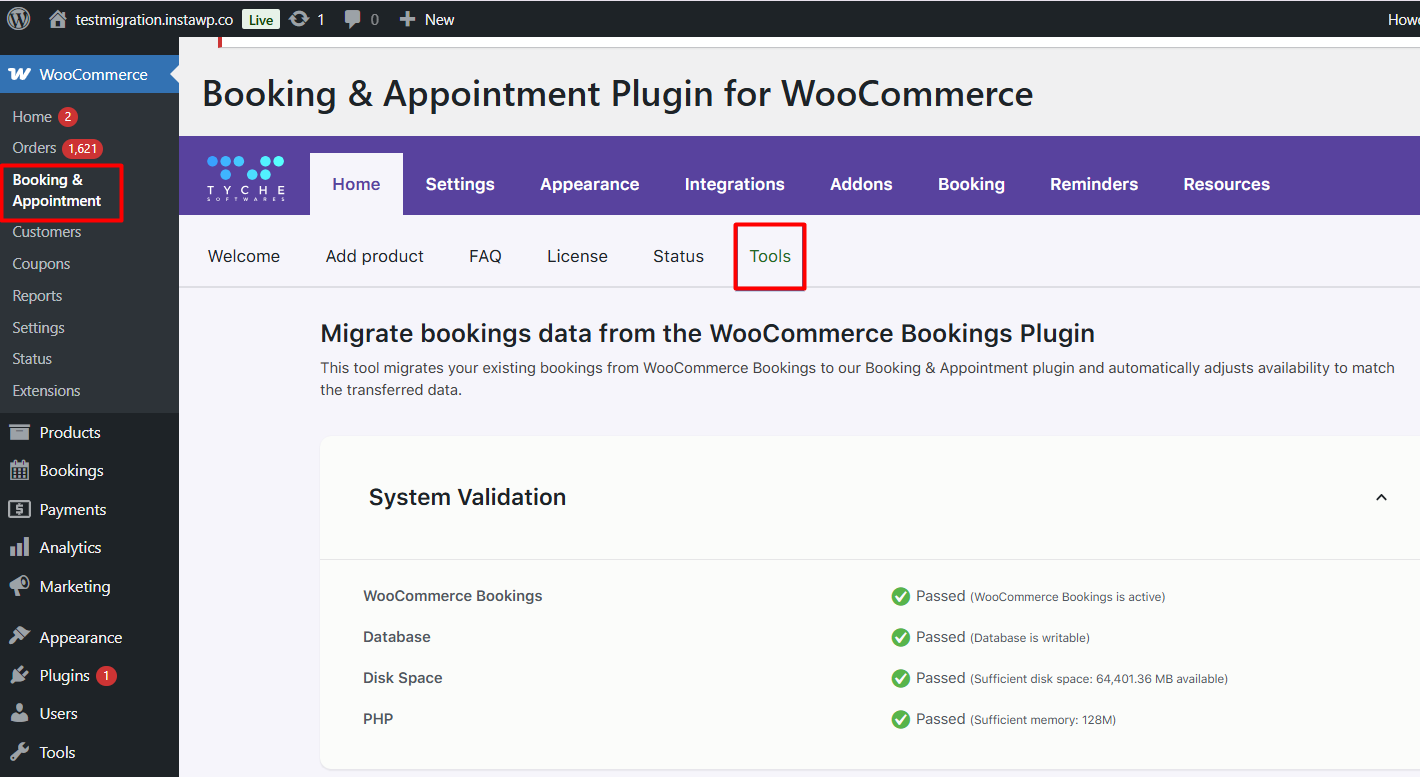
Go to WooCommerce → Booking & Appointment Plugin → Home→ Tools
From here, you can configure and start the migration process.
Prerequisites For Migration
↑ Back to topBefore starting the migration, ensure that booking settings are properly configured for all products.
The migration tool relies on WooCommerce booking settings to correctly map and import booking data. If a product has a missing or invalid configuration, its bookings will be skipped and listed under Conflicts Detected section.
Example: If a product like Boat Cruise has incomplete booking settings, it will appear in the conflicts section. Update the product’s configuration in Flexi Booking & Appointment Plugin and re-run the migration.
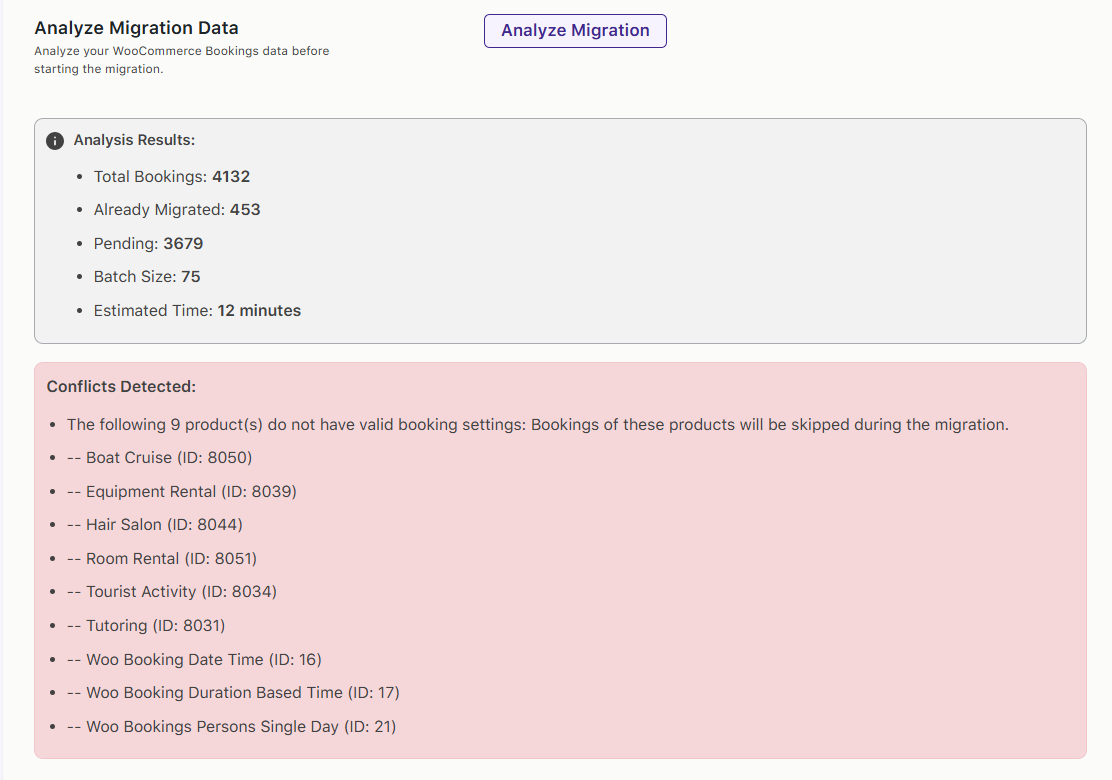
In such cases, the product’s booking settings need to be reviewed and updated.
This shows how the booking is currently configured in WooCommerce Bookings. Key details such as time slots, duration, pricing, availability, and persons are defined here.
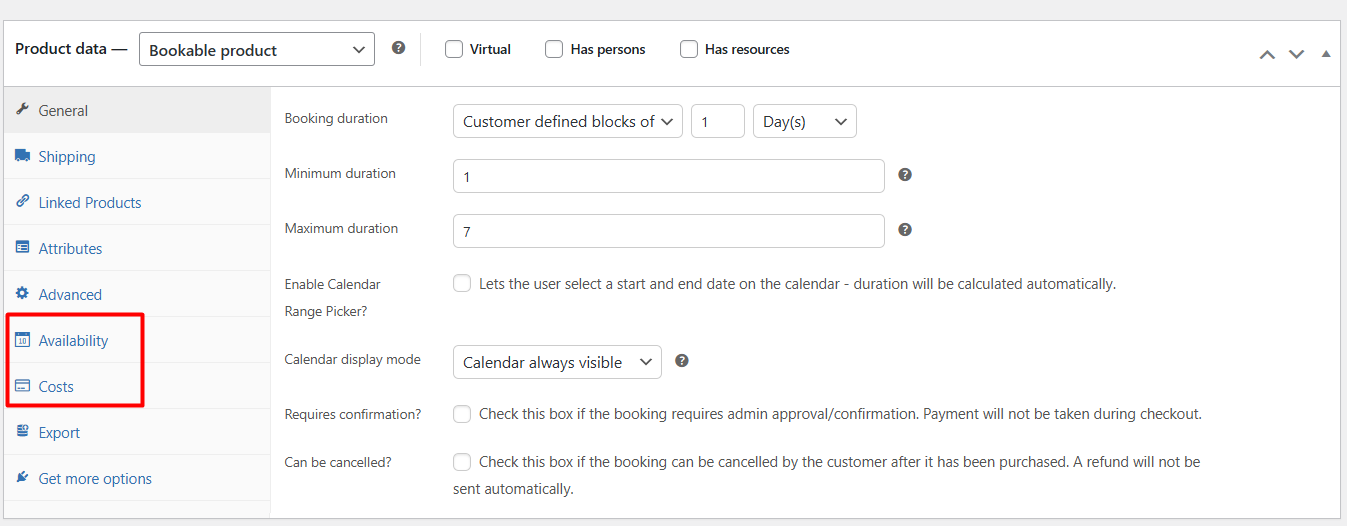
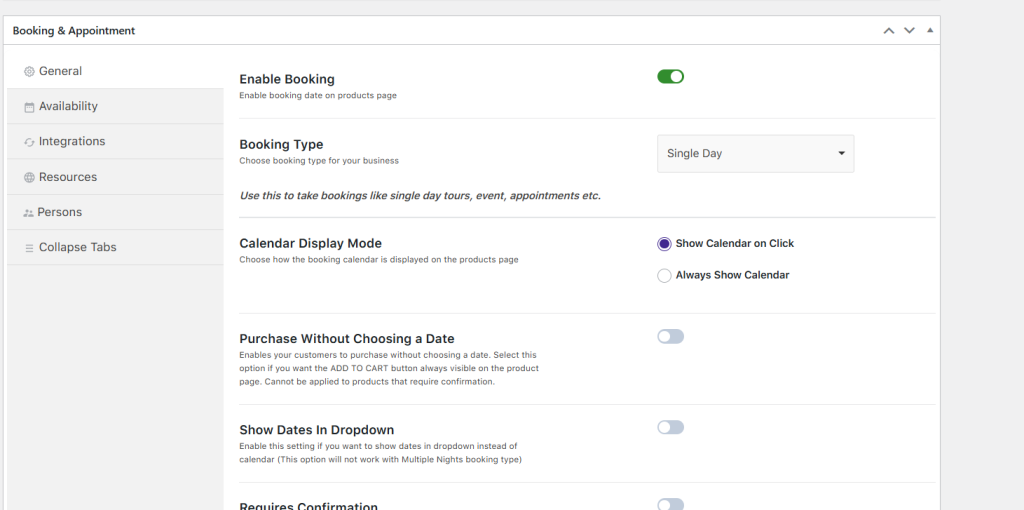
Make sure the booking settings in Flexi Booking & Appointment Plugin match your WooCommerce Bookings configuration, including time slots, duration, persons, pricing, and availability, costs, etc so that bookings are migrated correctly.
Migrate WooCommerce Bookings
↑ Back to topThe migration process can be initiated directly from the tools page. Before starting the migration, the available configuration options can be used to control which bookings are migrated and how the process is executed. Let’s see those options one by one below.
Product Filter
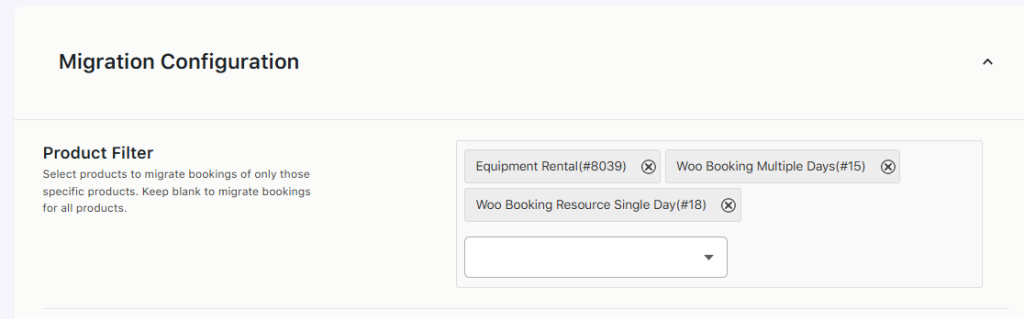
↑ Back to topThe Product Filter option allows selecting specific products for which bookings should be migrated.
If one or more products are selected, only bookings associated with those products will be included in the migration. If no product is selected, the tool will migrate bookings for all available products by default.
Test Migration
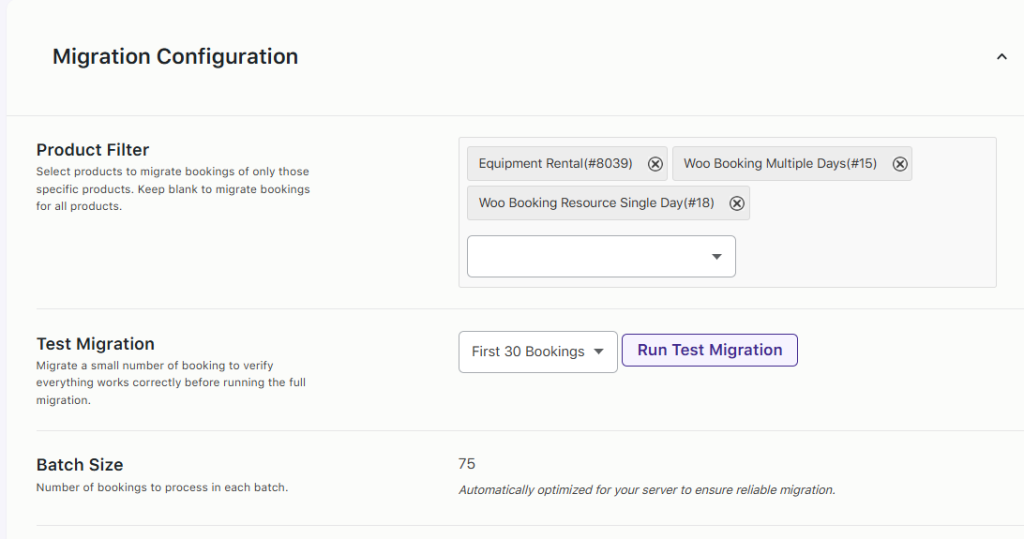
↑ Back to topThe Test Migration option allows running a small sample migration before executing the full process.
This helps verify that booking data is mapped correctly and that the migration behaves as expected. A limited number of bookings for example, the first 30 bookings or 50 bookings, can be processed as part of this test.
When initiating a test migration, a confirmation prompt is displayed to proceed with migrating the selected bookings.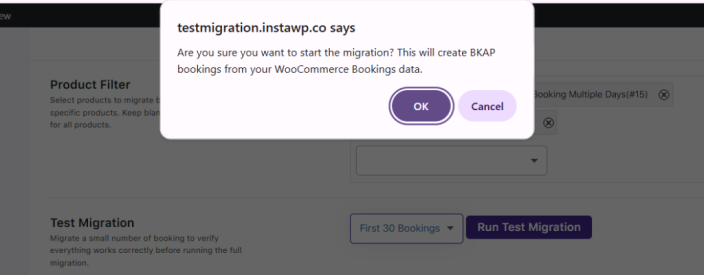 Running a test migration
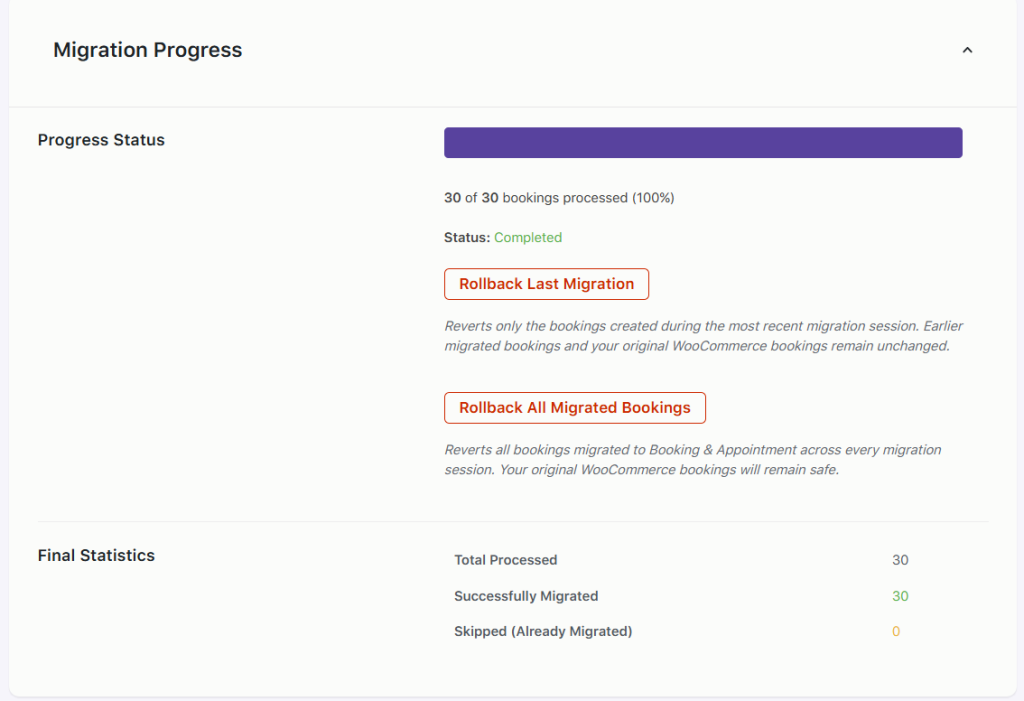
Running a test migration is recommended, especially for stores with a large number of bookings, as it helps to identify any issues or the migration is processed successfully.
Batch Size
↑ Back to topBatch size determines how many bookings are processed at a time during migration.
The migration runs in batches to ensure stable performance and to prevent server timeouts. The batch size is automatically optimized based on the server environment, so no manual adjustment is required.
Analyze Migration data
↑ Back to topThe Analyze Migration option provides a detailed overview of the existing WooCommerce Bookings data before starting the migration.
Clicking the Analyze Migration button scans the booking data and displays key insights, including:
- Total number of bookings
- Number of bookings already migrated
- Number of pending bookings
- Estimated time required for migration
- Any conflicts detected
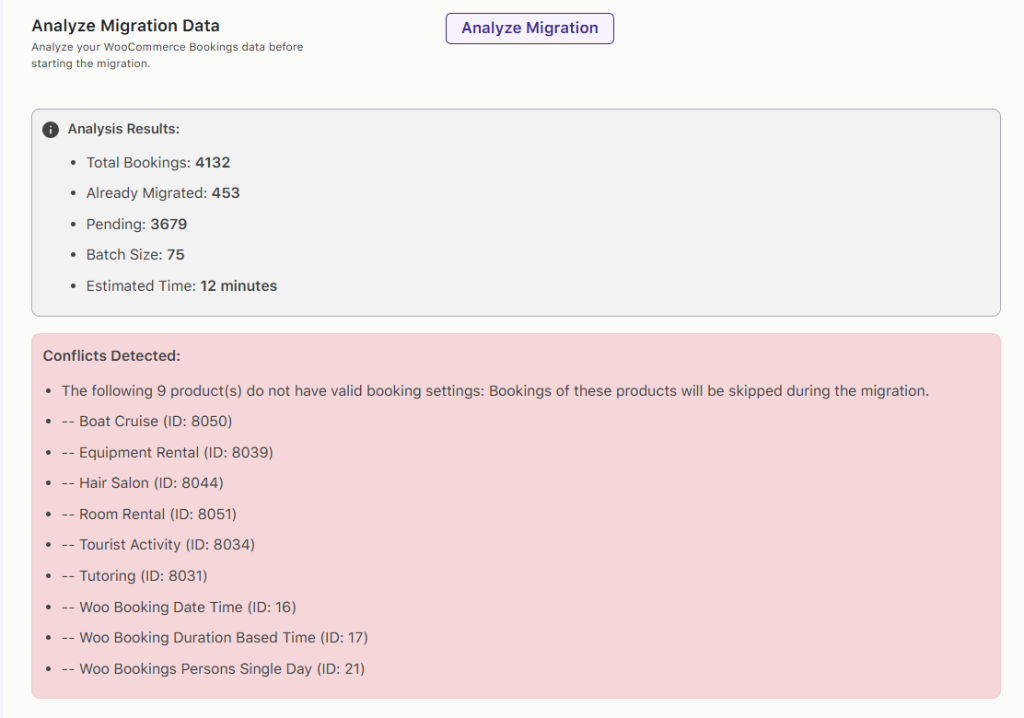
If any products do not have valid booking configurations in BKAP, they are listed under the Conflicts Detected section.
To include these bookings in the migration, update the product’s booking configuration in BKAP and run the analysis again.
Starting the Migration
↑ Back to topOnce the configuration is complete and the analysis results have been reviewed, the migration can be started using the Start Full Migration option.
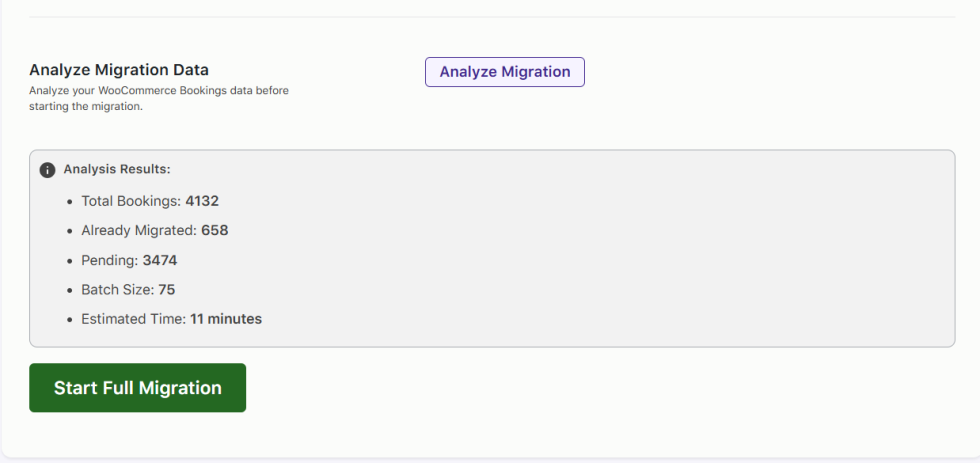
The migration process runs in the background and processes migrating bookings in batches to maintain performance and stability.
During the migration, a progress section displays real-time updates about the process.
Users can control the migration using the available options:
- Pause the migration
- Resume the migration
- Cancel and rollback the migrated data
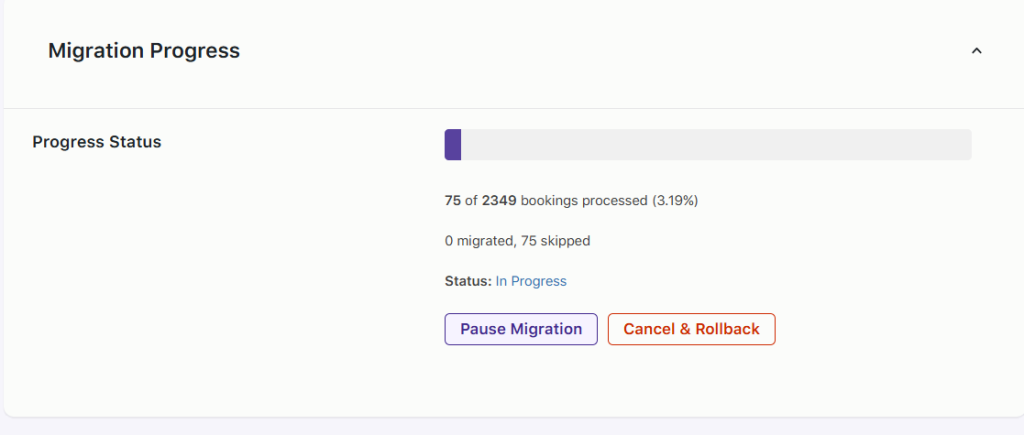
Viewing Migration Logs
↑ Back to topThe Migration Logs section provides a detailed record of all bookings processed during migration.
Each log entry includes:
- WooCommerce Booking ID
- BKAP Booking ID
- Migration status (success, failed, skipped, rollback)
- Message describing the result
- Date and time
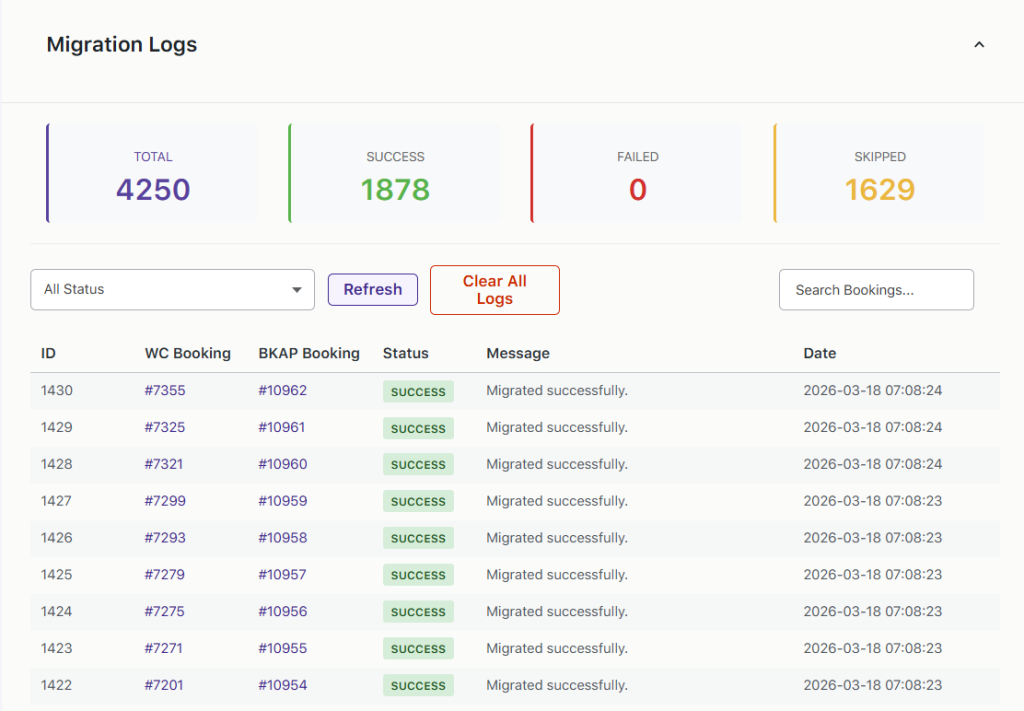
These logs help in identifying issues, verifying successful migration, and troubleshooting failed or skipped bookings.
Viewing Migrated Bookings
↑ Back to topAfter the migration is complete, all successfully migrated bookings can be viewed in the migration logs table :
Once a booking is migrated, a new order ID is assigned to the booking in BKAP.
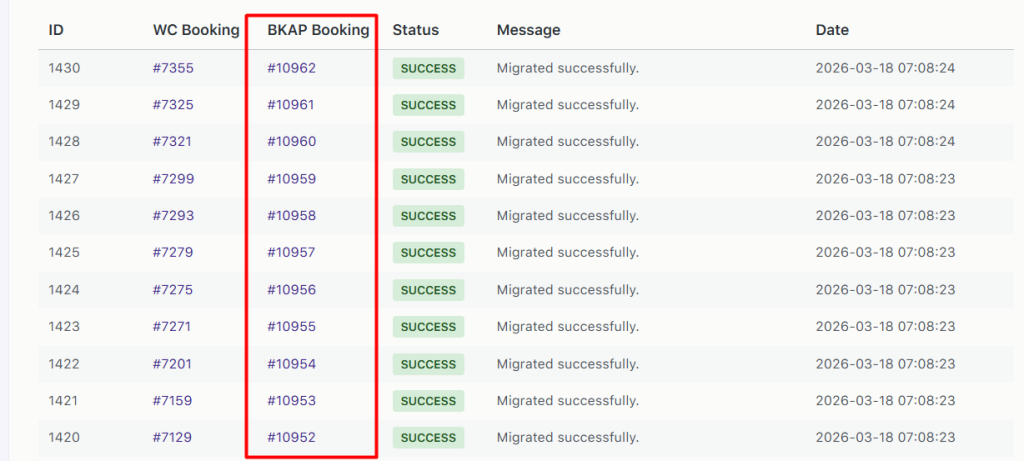
You can click on the order number in the BKAP Booking column that redirects you to that specific booking edit order page.
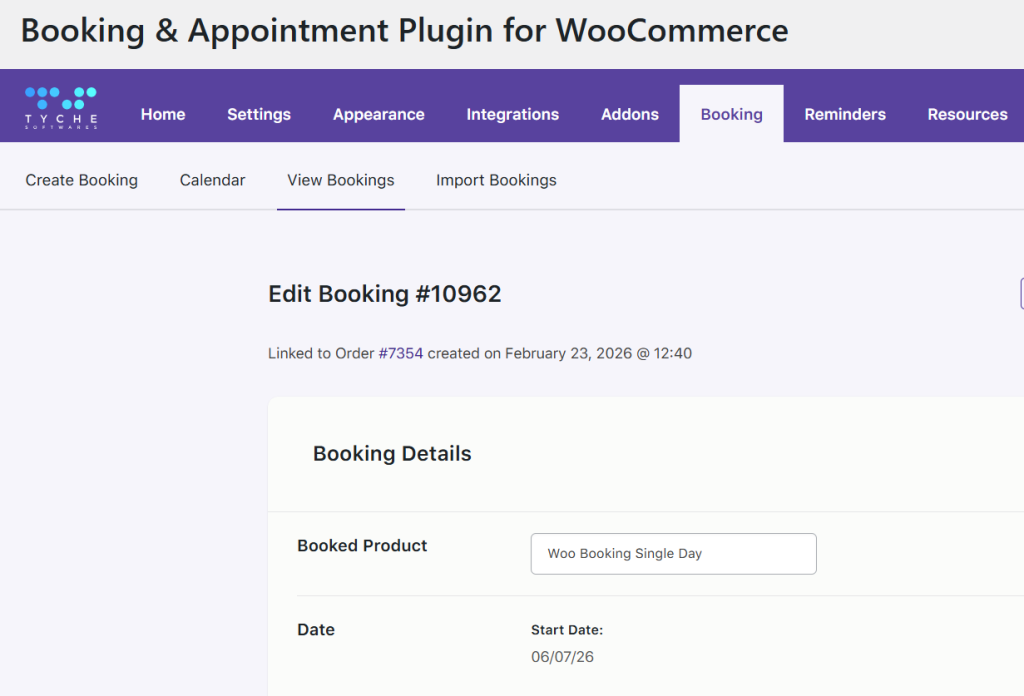
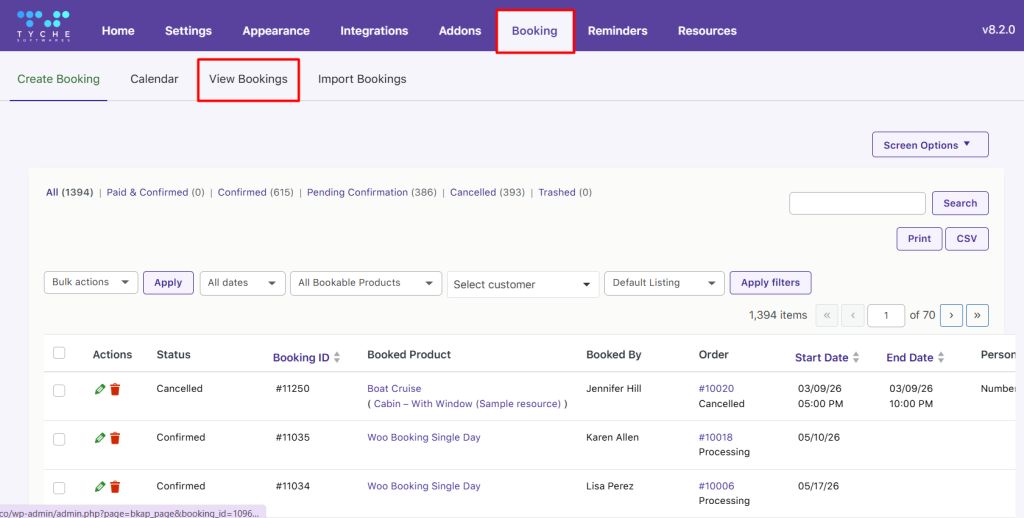
From the View Bookings page, you can see complete details of the migrated booking, including customer, dates, status, and pricing.
The migration tool in Flexi Booking & Appointment Plugin provides a seamless way to transfer bookings from WooCommerce Bookings while preserving all critical booking data, such as orders and customer details, so your business runs smoothly without interruptions.
Once migrated, the Flexi Booking & Appointment Plugin gives you the flexibility to manage bookings more efficiently and scale your operations with ease.