
Accepting donations is the most common use of Name Your Price. A donation is a simple product where the customer chooses the amount, with a suggested figure to anchor them and, optionally, a minimum to keep small transactions viable.
Requirements
↑ Back to top- WooCommerce and Name Your Price.
- A payment gateway set up in WooCommerce.
- For recurring donations, WooCommerce Subscriptions. See Name Your Price: Subscriptions.
Create a donation product
↑ Back to top- Go to Products > Add New and give the product a name, such as Donation or Support our work.
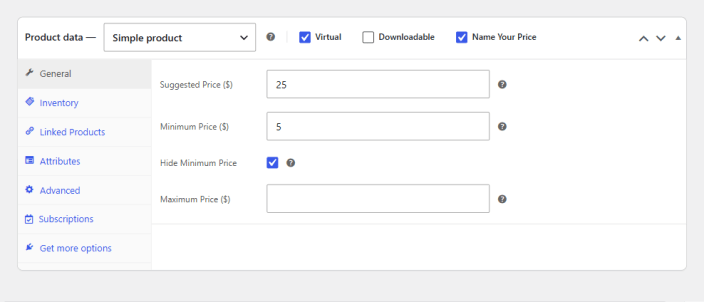
- In the Product data box, leave the type as Simple product and tick Name Your Price.
- Tick Virtual as well, so WooCommerce does not ask donors for a shipping address.
- On the General tab, enter a Suggested Price: the amount you would like to encourage. It is shown as Suggested price: $25.00 above the form.
- Optionally enter a Minimum Price. If you set one, consider ticking Hide Minimum Price: the minimum is still enforced, but donors are not shown a floor to anchor to. A donor who enters less sees Please enter a higher amount.
- Leave Maximum Price blank unless you need a cap.
- Check Tax status on the same tab. Donations are usually not taxed, so set it to None unless your accountant says otherwise. If it should be taxed, leave it as Taxable; the donor’s amount is then taxed like any other product, following your store’s Prices entered with tax setting.
- Add a description and image, and Publish.
Result: the donation page shows your suggested amount, an empty price input, and an add-to-cart button. Donors enter an amount, add it to the cart, and check out as they would for any product.
Settings worth changing for donations
↑ Back to topThese are store-wide, under WooCommerce > Settings > Name Your Price. Every field and default is listed in the settings reference.
| Setting | Suggested value for donations | Why |
|---|---|---|
| Name Your Price Text | Donation amount | Replaces the Name your price label above the input |
| Suggested Price Text | Suggested donation: %PRICE% | Reads naturally for a donation |
| Add to Cart Button Text for Single Product | Donate | Replaces Add to cart on the donation page |
| Add to Cart Button Text for Shop | Donate | The button on the product’s card in the shop |
| Hide quantity input | On | A donation is an amount, not a quantity. Without this, a donor can accidentally submit 2 × $50 |
With those in place, the donation page reads like a donation form rather than a shop listing:
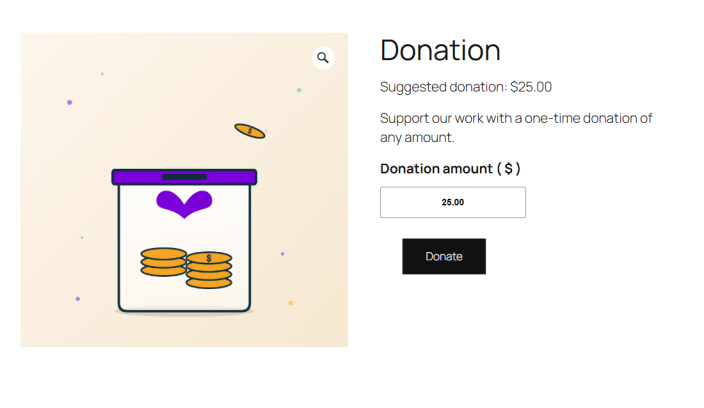
These settings apply to every Name Your Price product on the store. If you sell ordinary Name Your Price products alongside donations, leave the labels neutral.
Recurring donations
↑ Back to topTo let donors give monthly (or weekly, or yearly), you need WooCommerce Subscriptions. Create the donation as a Simple subscription product with Name Your Price ticked; the donor’s amount becomes the recurring charge, and you can let them change it later from their account. The full setup is in Name Your Price: Subscriptions.
Further reading
↑ Back to top- Recurring donations with WooCommerce Name Your Price: a walkthrough on the Backcourt blog.
- How customers can change subscription prices: letting donors adjust a recurring amount themselves.
Document Version: 1.0
Last Updated: September 27th, 2026
NYP Version Covered: 3.6.0+