
The Payment Gateways tab allows you to configure fees or discounts for each payment gateway available in your WooCommerce store. You can charge additional fees, offer discounts, and control when they are applied based on customer location, product categories, shipping methods, cart totals, and other conditions.
To access these settings, go to:
WooCommerce → Settings → Payment Gateway Fees → Payment Gateways
Select the payment gateway that you want to configure.
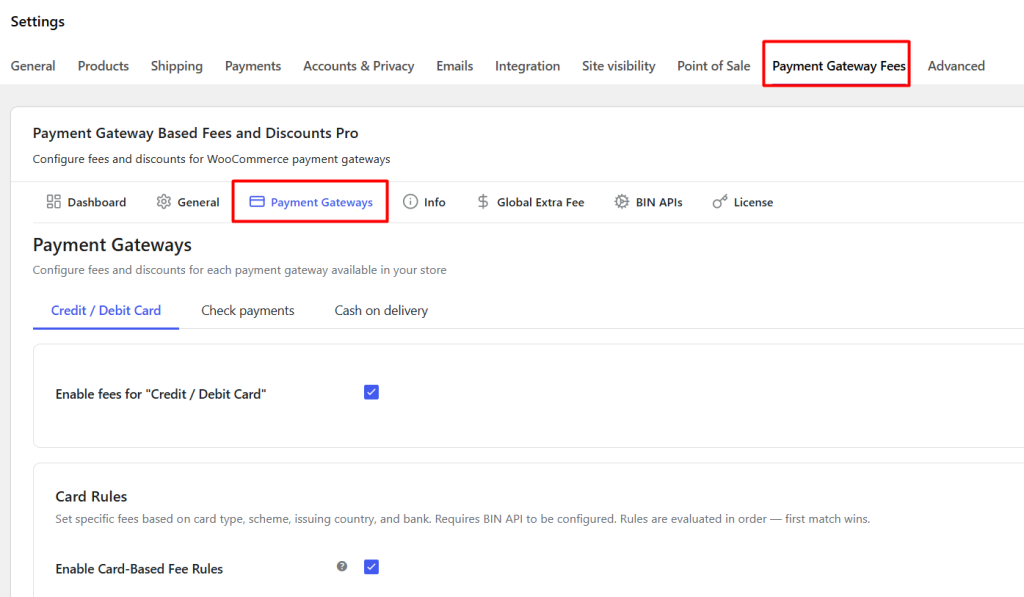
The payment gateways displayed in this section depend on the payment methods enabled in your WooCommerce store. For example, if your store offers Direct Bank Transfer, Cash on Delivery, PayPal, and Stripe, each of these payment methods will appear as separate tabs under the Payment Gateways section.
All payment gateways use the same fee configuration settings. Card-based gateways additionally include Card Rules, which allow fees and discounts to be applied based on card details such as card type, card scheme, issuing country, and issuing bank.
Enable Fees for a Payment Gateway
↑ Back to topThe first setting available for every payment gateway is Enable fees for “[Gateway Name]”. The first setting available for every payment gateway is Enable fees for “[Gateway Name]”. To configure fees or discounts, select the payment gateway tab that you want to work with. For example, in this guide, we have selected the Credit / Debit Card tab.
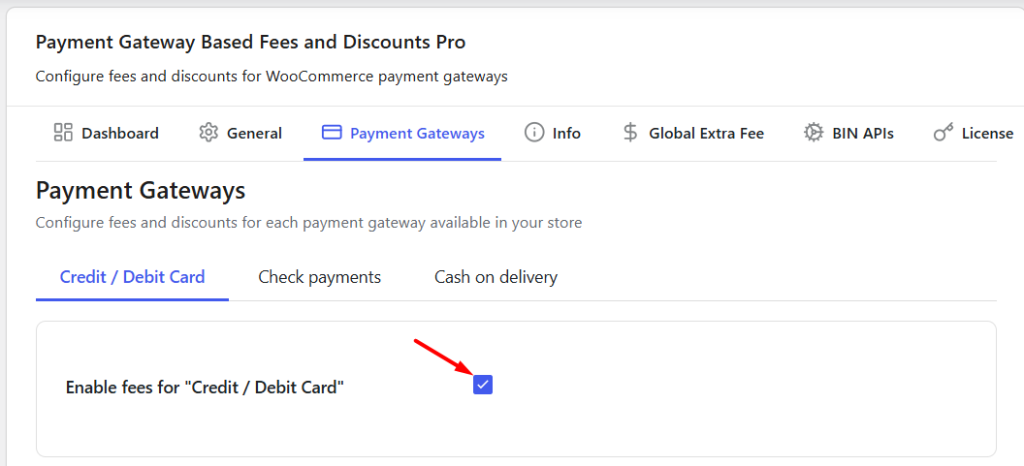
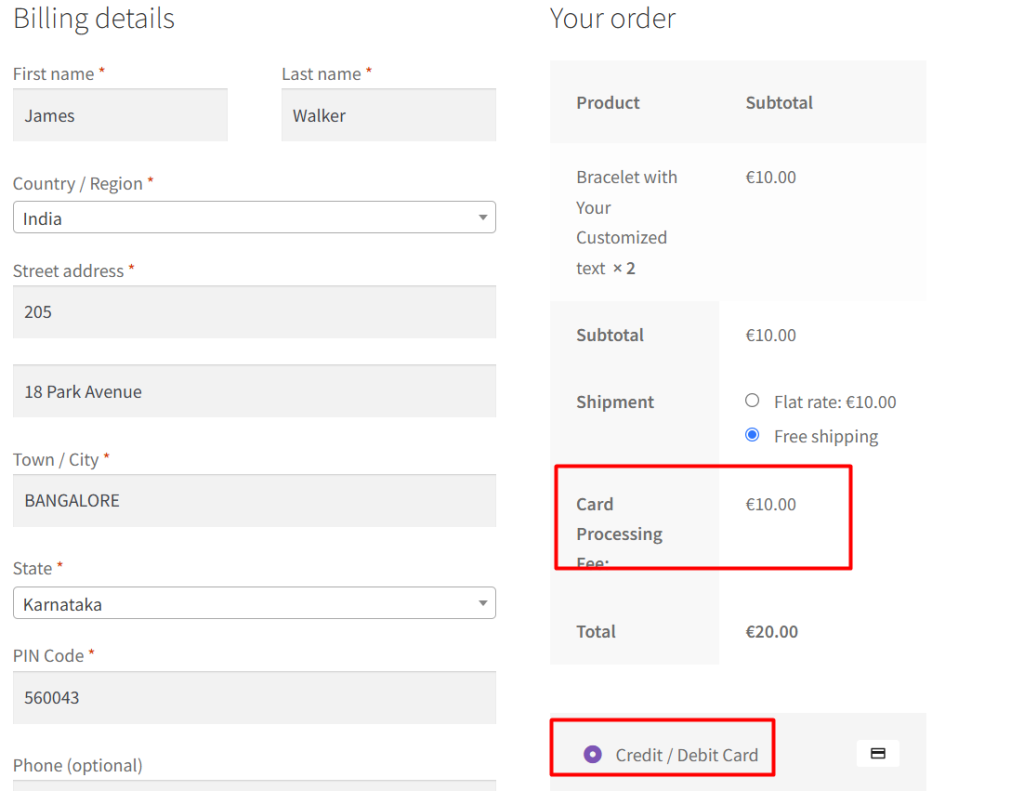
When this setting is enabled, all fee and discount rules configured for that payment gateway become active. Customers will see the applicable fee or discount whenever they select that payment method during checkout.
For instance, if you configure a $10 fee for the Cash on Delivery payment gateway, customers selecting Cash on Delivery during checkout will see the additional fee added to their order total.
Card Rules
↑ Back to topThe Card Rules section is available only for card-based payment gateways such as Stripe, WooCommerce Payments, Authorize.Net, and similar card processing gateways.
This feature allows you to apply fees based on:
- Card Type (Credit or Debit)
- Card Scheme (Visa, MasterCard, American Express, etc.)
- Issuing Country
- Card Location (Domestic or International)
- Issuing Bank
Before configuring Card Rules, ensure that the BIN API has been configured under the BIN APIs tab.
Enable Card-Based Fee Rules
↑ Back to topEnable this option to activate card-specific fee calculations for the selected gateway.
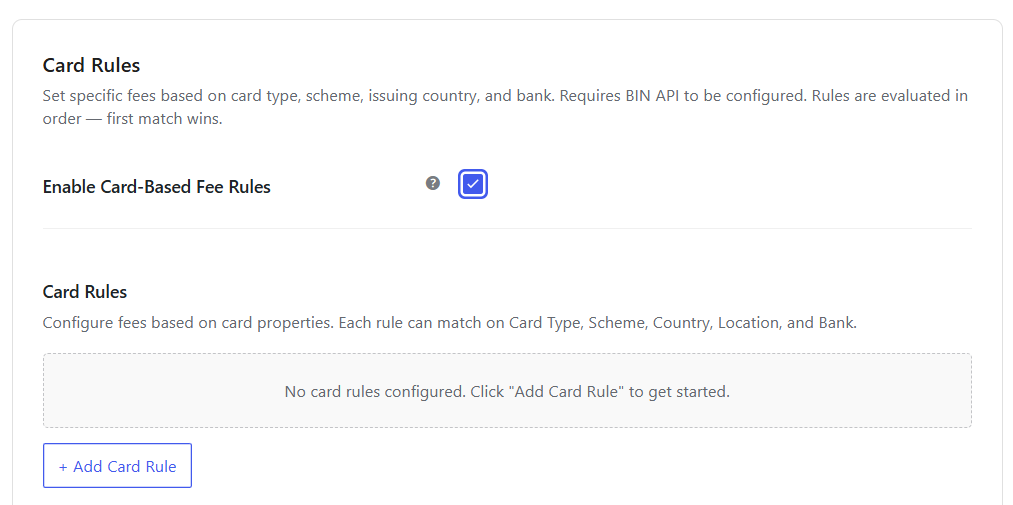
Once enabled, you can add one or more card rules using the Add Card Rule button. Rules are evaluated from top to bottom and the first matching rule is applied.
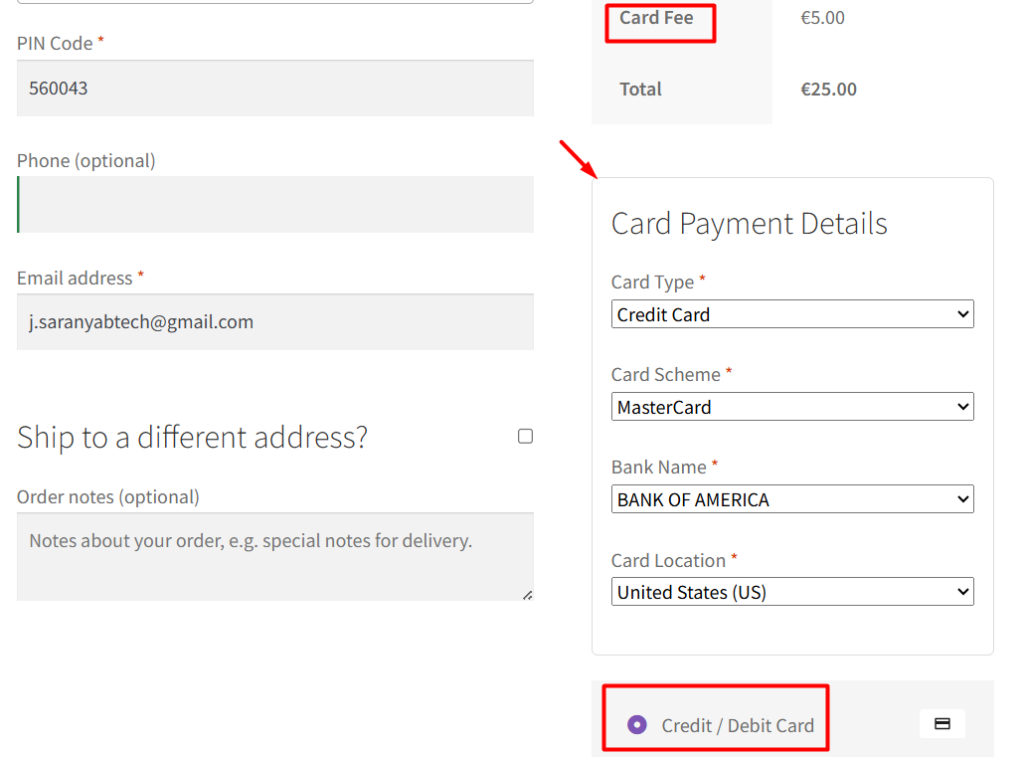
For example, you may wish to charge an additional $5 fee when customers use an international MasterCard credit card issued by Bank of America. In that case, configure the rule with the appropriate card details and set the fee amount to 5.
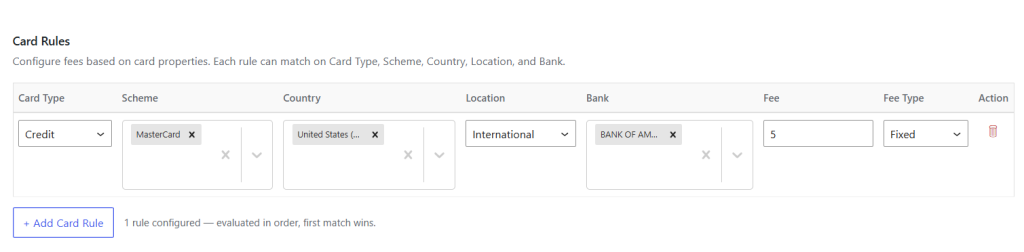
Whenever a customer’s card matches the configured conditions, the fee will be applied automatically.
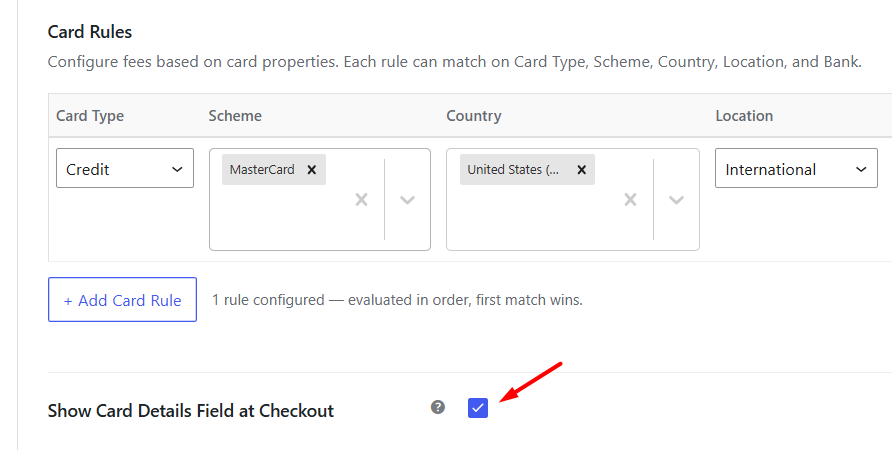
Show Card Details Field at Checkout
↑ Back to topSome payment gateways automatically provide card information required for Card Rules. Others do not.
When this option is enabled, customers will see a Card Payment Details section during checkout where they can provide the card information required to evaluate the configured card rules.
Primary Fee Configuration
↑ Back to topThe Primary Fee section allows you to configure the main fee or discount for the selected payment gateway.
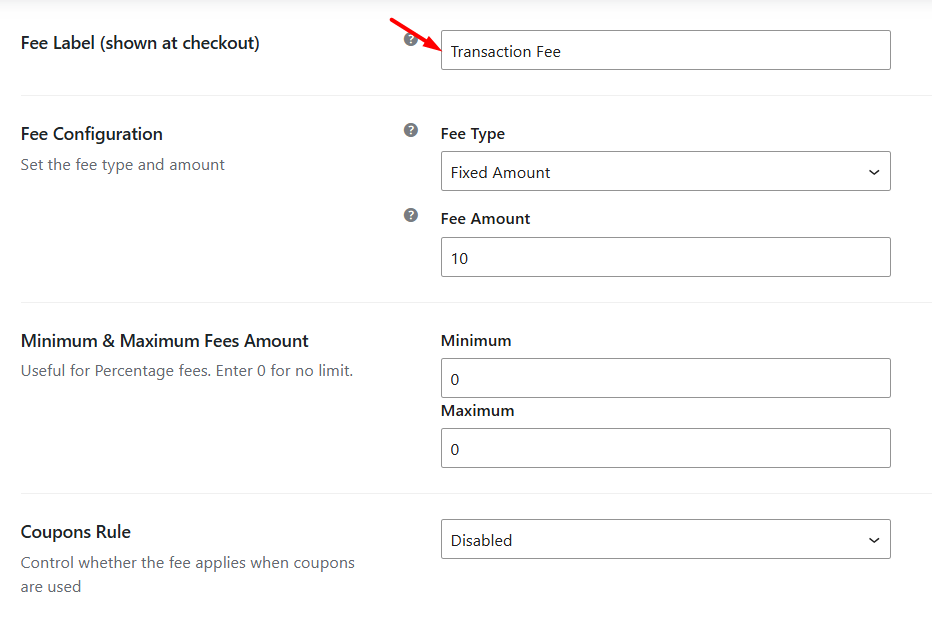
Fee Label
↑ Back to topThe Fee Label is displayed to customers on the Cart and Checkout pages whenever the fee is applied.
For example, you may use labels such as:
- Transaction Fee
- Credit card Fee
- Payment Handling Charge
Fee Type and Fee Amount
↑ Back to topYou can configure the fee as either a fixed amount or a percentage of the order total.
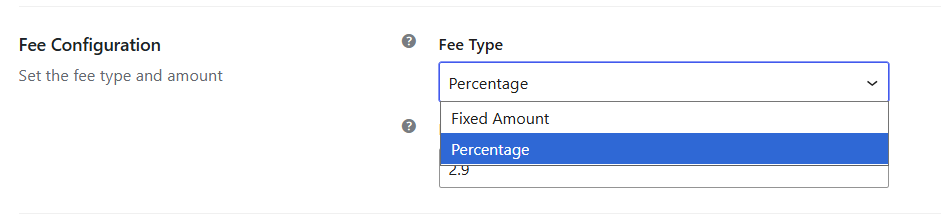
Let us understand this using an example.
Suppose you want to recover card processing charges by adding a 2.9% fee whenever customers pay using a credit card. In this case, select Percentage as the Fee Type and enter 2.9 as the Fee Amount.
The plugin will calculate the fee as 2.9% of the applicable cart value.
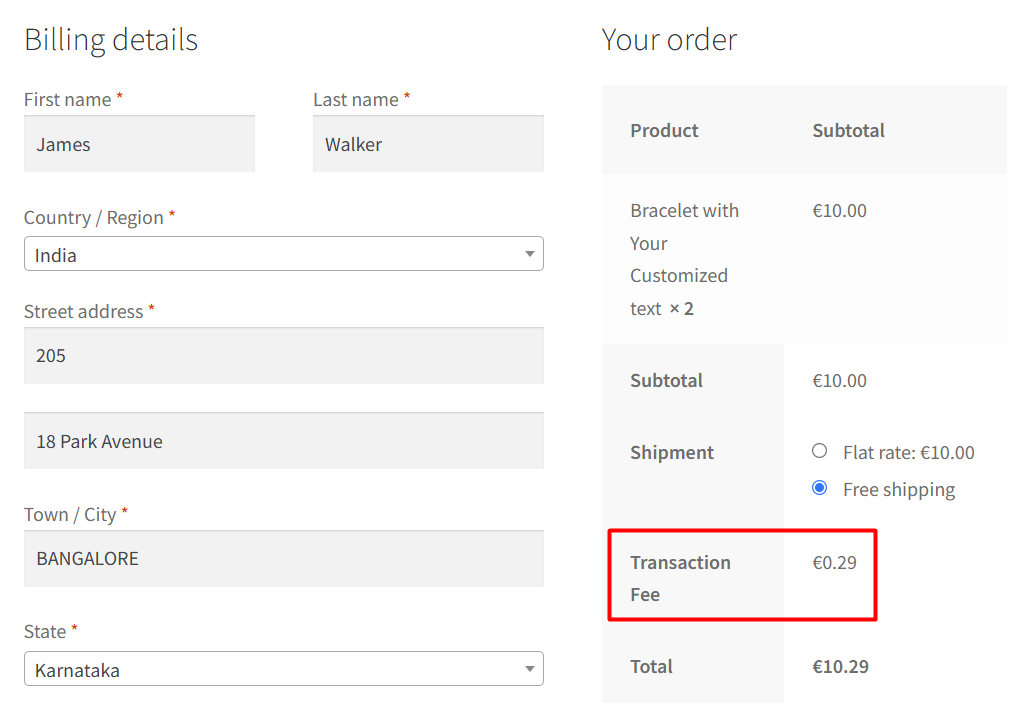
Similarly, if you wish to charge a flat handling fee of $10 regardless of the order total, select Fixed Amount and enter 10 as the Fee Amount.
Minimum and Maximum Fee Amount
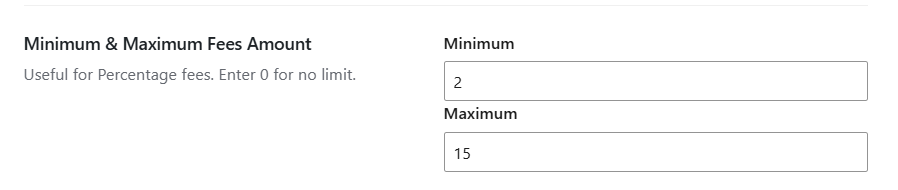
↑ Back to topWhen using percentage-based fees, you may want to control the minimum and maximum amount that can be charged.
For example, suppose a 2.9% fee is configured along with:
- Minimum Fee: $2
- Maximum Fee: $15
If the calculated fee is less than $2, the customer will be charged $2.
Likewise, if the calculated fee exceeds $15, the fee will be capped at $15.
Setting both values to 0 disables these limits.
Coupons Rule
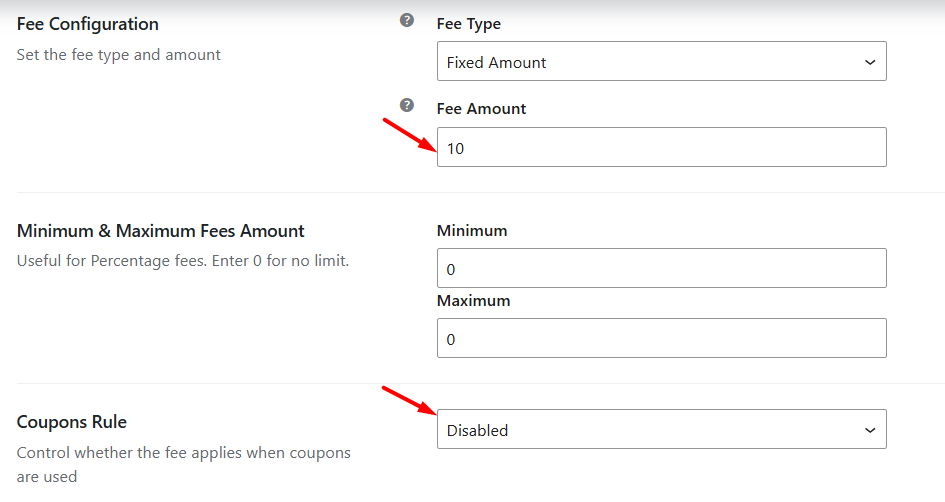
↑ Back to topThis setting controls whether the fee should be applied when customers use coupons during checkout.

Disabled
Select Disabled if coupon usage should not affect fee calculations.
For example, suppose you have configured a $10 Payment Processing Fee for Credit / Debit Card payments. Whether the customer applies a coupon or not, the $10 fee will still be added to the order.
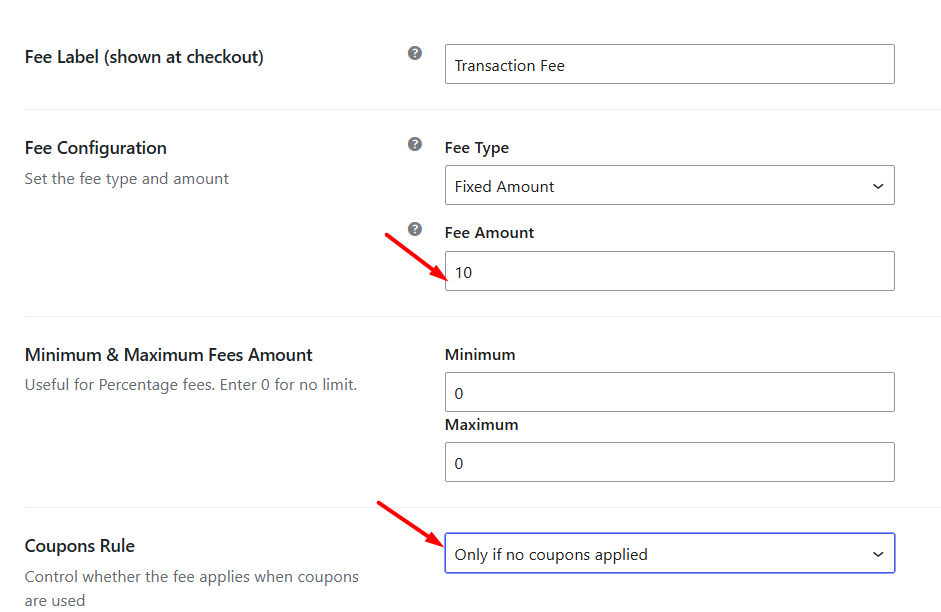
Only if no coupons are applied
Select Only if no coupons applied if the fee should be applied only when the customer has not used any coupon.
For example, suppose you have configured a $10 Payment Processing Fee.
- If the customer places an order without using a coupon, the $10 fee will be applied.
- If the customer applies a coupon during checkout, the fee will not be added.
This option is useful when you do not want to charge additional fees on discounted orders.
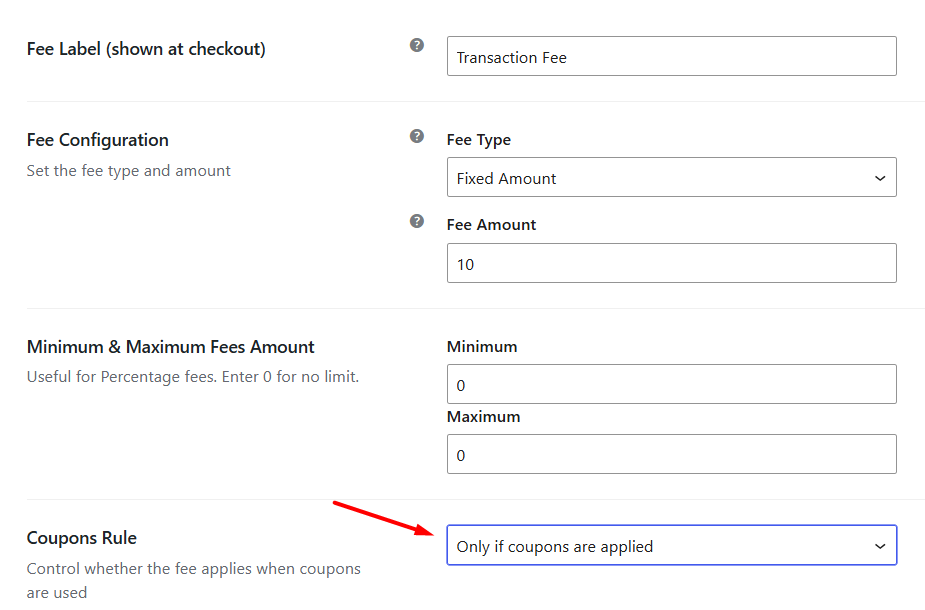
Only if coupons are applied
Select Only if coupons are applied if the fee should be applied only when the customer uses a coupon.
For example, suppose you have configured a $10 Payment Processing Fee.
- If the customer applies a coupon during checkout, the $10 fee will be added.
- If no coupon is used, the fee will not be applied.
This option can be useful when you want to recover part of the discount offered through coupons.
Customer Billing Countries
↑ Back to topYou can apply or restrict fees based on the customer’s billing country. Add countries to the Include list to apply the fee only to customers from those countries, or add countries to the Exclude list to prevent the fee from being applied.
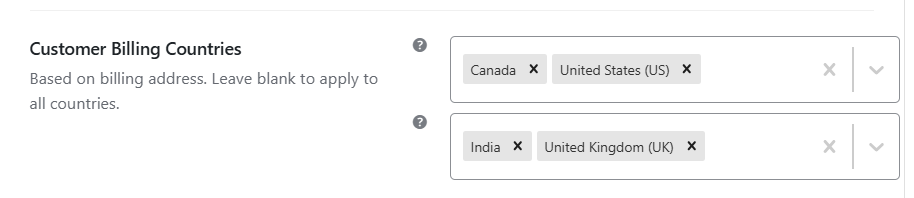
For example, if you only wish to charge a payment processing fee for customers located in the United States and Canada, add those countries to the Include list.
Similarly, countries added to the Exclude list will never receive the configured fee.
Customer Billing States
↑ Back to topThis setting allows you to apply or restrict fees based on the customer’s billing state.
Add state codes to the Include field to apply the fee only to customers from those states. Similarly, add state codes to the Exclude field to prevent the fee from being applied to customers from those states.
State codes should be entered as comma-separated values.
For example, if you add MH and UP to the Include field, the fee will only apply to customers whose billing state is Maharashtra or Uttar Pradesh.

Product Categories (Fee Condition)
↑ Back to topThis setting allows you to apply or restrict fees based on the product categories present in the cart.
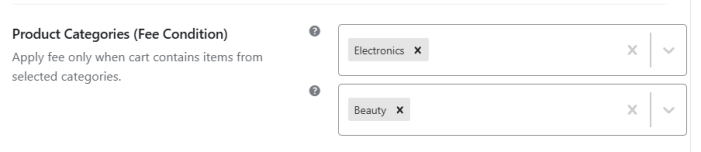
Add categories to the Include field to apply the fee only when products from those categories are present in the cart. Similarly, add categories to the Exclude field to prevent the fee from being applied when products from those categories are present.
For example, if you add Electronics to the Include field, the fee will only be applied when the cart contains products from the Electronics category.
Shipping Methods to Include / Exclude
↑ Back to topThis setting allows you to apply or restrict fees based on the shipping method selected by the customer during checkout.
Add shipping methods to the Include field to apply the fee only when those shipping methods are selected. Similarly, add shipping methods to the Exclude field to prevent the fee from being applied when those shipping methods are selected.
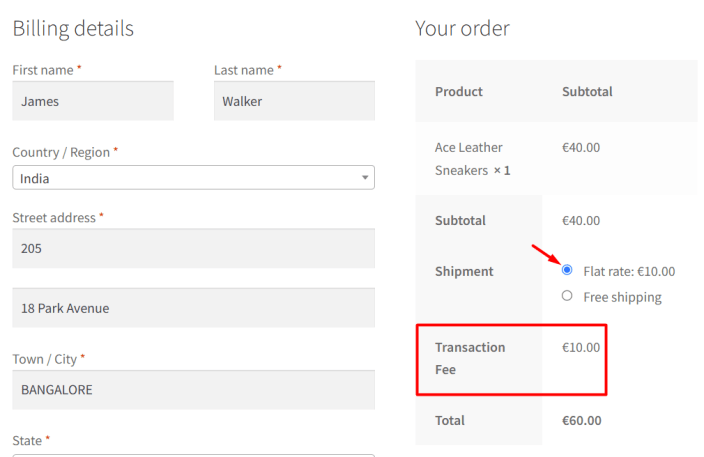
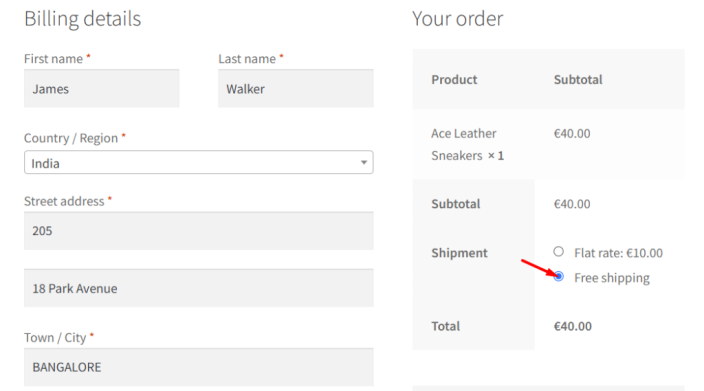
For example, suppose you add Flat Rate and Local Pickup to the Include field and Free Shipping to the Exclude field.
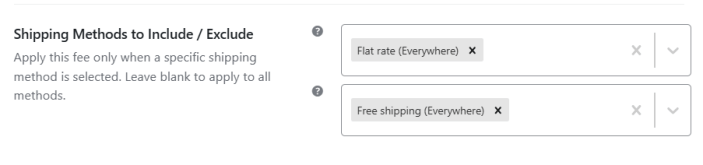
Customers selecting Flat Rate or Local Pickup will receive the configured fee.
Whereas customers selecting Free Shipping will not.
Secondary Fee
↑ Back to topThe Secondary Fee section allows you to add an additional fee alongside the primary fee.
This is useful when your payment charges consist of multiple components.
For example, you may wish to charge:
- 2.9% payment processing fee
- Plus a fixed $1 handling fee
In this case, configure the Primary Fee as a percentage fee and the Secondary Fee as a fixed amount fee.
When customers select the payment gateway, both fees will be applied automatically.
The Secondary Fee section includes the same configuration options available in the Primary Fee section, including countries, states, categories, shipping methods, and coupon rules.
General Options
↑ Back to topThe General Options section controls how fees are calculated and when they become applicable.
Cart Amount Requirements
↑ Back to topYou can configure minimum and maximum cart totals required before a fee is applied.
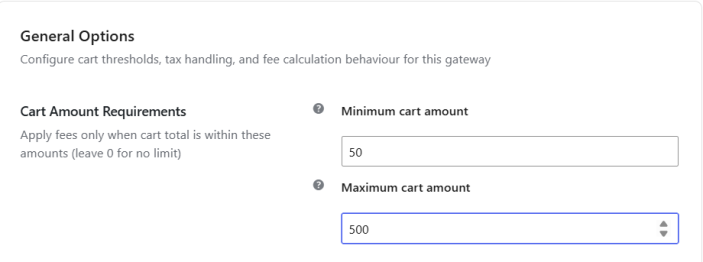
For example, if you set:
- Minimum Cart Amount: $50
- Maximum Cart Amount: $500
the fee will only apply when the cart total falls within this range.
Setting both values to 0 disables cart amount restrictions.
Round Fee to Decimal Places
↑ Back to topEnable this option if calculated fees should be rounded before being added to the order total. This is useful for stores that require consistent decimal precision in fee calculations. For example, if the calculated fee is 10.756 and the rounding precision is set to 2, the fee will be rounded to 10.76 before being added to the order total.

Apply Tax to This Fee
↑ Back to topEnable this option if the fee should be included in WooCommerce tax calculations.
The fee will then be taxed according to the tax rules configured in your WooCommerce store. For example, if you have configured a $10 Payment Processing Fee and your store applies 10% tax, the fee will also be taxed, making the total fee amount $11.
Cart Calculation
↑ Back to topThese options determine how percentage-based fees are calculated.
You can choose whether shipping charges should be excluded from calculations and whether taxes should be included when determining the fee amount.

Customer Countries
↑ Back to topThis setting allows you to add countries to the Countries to include and Countries to exclude lists that will be considered for all fees configured under the selected payment gateway.
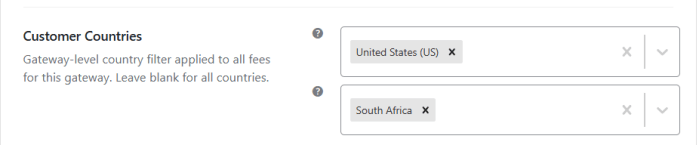
Countries added to the Countries to include list will be eligible for the configured fees or discounts. Countries added to the Countries to exclude list will not receive any configured fees or discounts.
Unlike the Customer Billing Countries setting available in the Primary Fee and Secondary Fee sections, this setting applies to all fees configured for the selected payment gateway.
For example, suppose you add the United States to the Countries to include list and configure:
- Primary Fee: $20
- Secondary Fee: $10
When a customer from India selects this payment gateway during checkout, both fees will be applied to the order.
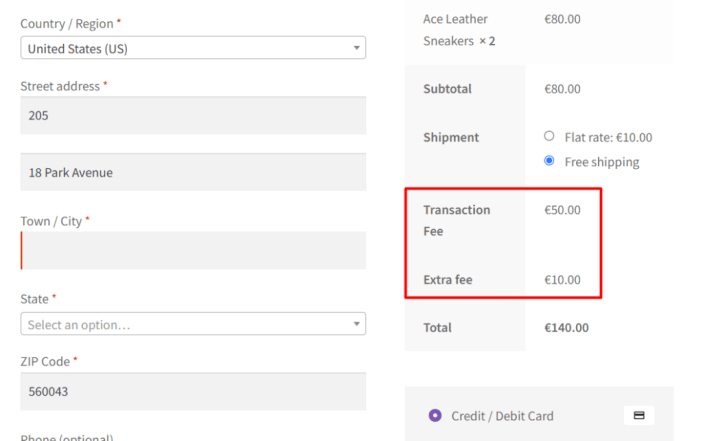
Similarly, if you add South Africa to the Countries to exclude list, neither the Primary Fee nor the Secondary Fee will be applied when a customer from South Africa places an order.
If you need different country conditions for individual fees, you can configure them separately using the Customer Billing Countries setting available within the Primary Fee and Secondary Fee sections.
By default, both fields are left blank, allowing the fees or discounts to be applied for all countries.
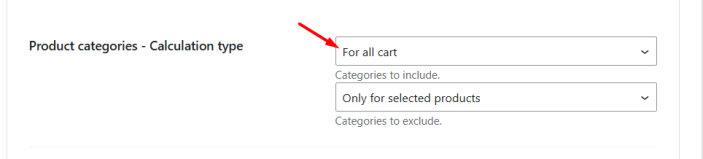
Product Categories – Calculation Type
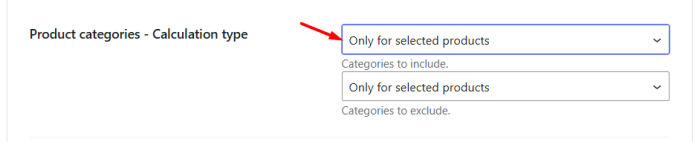
↑ Back to topBefore using this setting, you must first configure the product categories under the fee settings by selecting categories in the Categories to include and/or Categories to exclude fields available in the Primary Fee or Secondary Fee section.
Before the fee is calculated, the plugin checks the Categories to include and Categories to exclude conditions configured under the fee settings.
Once the conditions are satisfied, you can choose how the fee should be calculated using the following options:

For All Cart
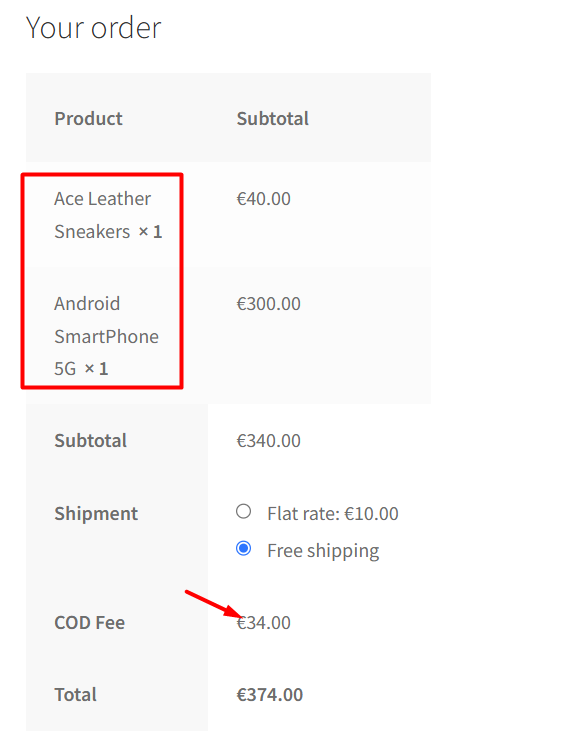
↑ Back to topWhen this option is selected, the fee or discount is calculated using the entire cart total once the category condition is met.
Below is the category set in the Categories to include and/or Categories to exclude fields available in the Primary Fee or Secondary Fee section.
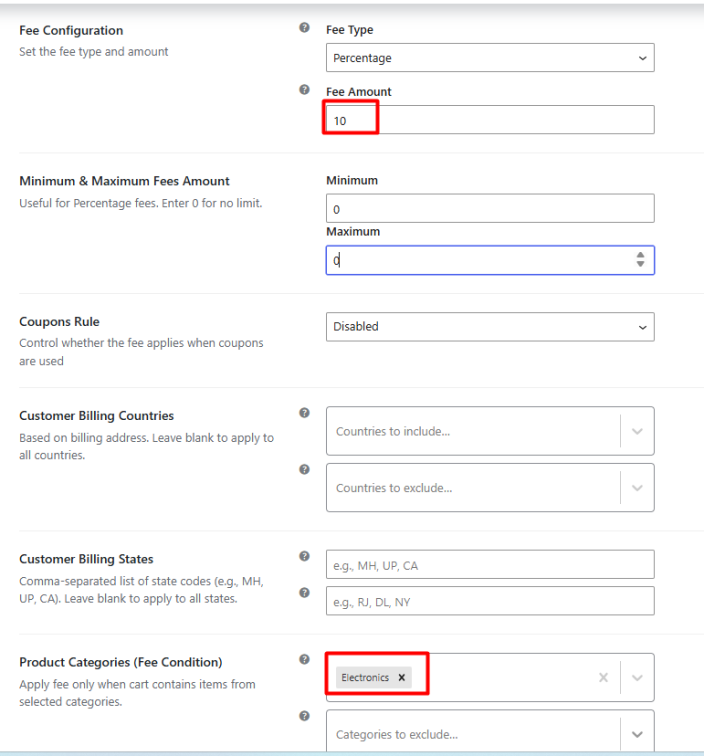
Example
Configuration:
- Categories to include: Electronics
- Fee: 10%
Cart Contents:
- Android Smartphone – €300 (Electronics)
- Sneakers – €40 (Footwear)
Cart Total: €340
Since the cart contains a product from the Electronics category, the category condition is satisfied. The fee is therefore calculated on the full cart total.
The Fee Calculation would be 10% × €340 = €34 as shown below.
For Selected Products
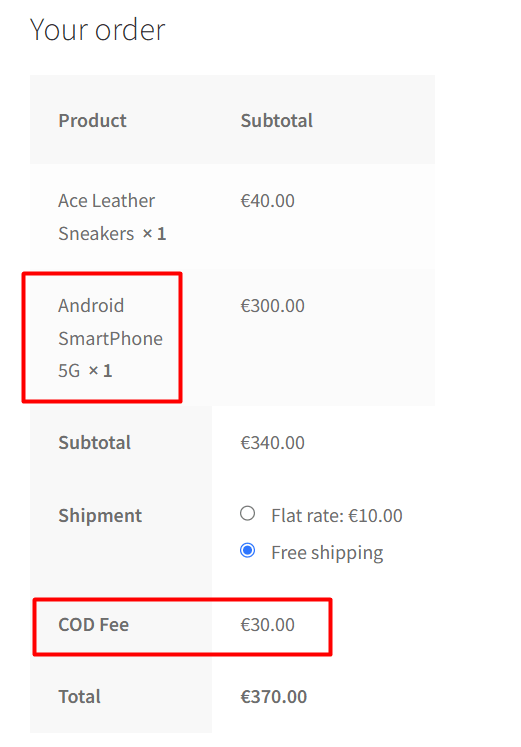
↑ Back to topWhen this option is selected, the fee or discount is calculated only on products that belong to the selected categories.
Example
Configuration:
- Categories to include: Electronics
- Fee: 10%
Cart Contents:
- Android Smartphone – €300 (Electronics)
- Sneakers – €40 (Footwear)
Since only the Android Smartphone belongs to the Electronics category, the fee is calculated on its value of €300, resulting in a fee of €30 (10% × €300).
The Sneakers product is ignored because it does not belong to the selected category.
Save or Reset Settings
Once you have configured the payment gateway settings, click Save Changes to apply them.
If you want to restore the gateway settings to their default values, click Reset Settings.
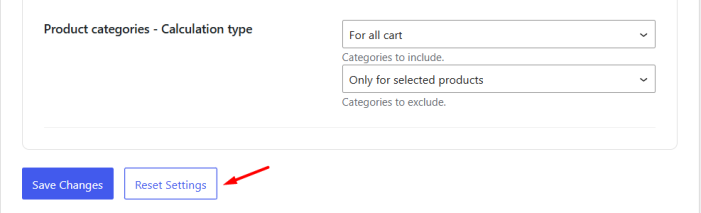
Resetting the settings removes all custom fee configurations for that gateway and cannot be undone.
*** Remember – The settings that we discussed in this post for Cash on delivery payment gateway option is SAME for remaining 3 payment gateways – Direct Bank Transfer, Cheque Payments and PayPal option. So you can refer to this post to understand the working of other 3 payment gateways.

