
Purpose:
Easily prevent specific content sections from being indexed by the AI by adding a CSS class to any block or HTML element in your post editor.
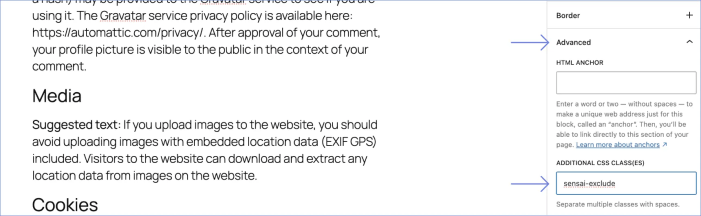
How It Works
↑ Back to top- Select any block in the WordPress Block Editor (or Classic Editor).
- Open the Advanced tab in the right sidebar.
- Under Additional CSS class(es), type:
sensai-exclude - The entire block and its content will be excluded from AI indexing.
Notes:
- Visitors can still see the content on your site.
- The AI will not use this content in answers.
- Index updates automatically when you save the post, no rebuild needed.
What Gets Excluded
↑ Back to top- The entire element and all its child elements
- Works with any content block
- Multiple elements can be excluded on the same page
- Compatible with both Classic and Block Editors
When to Use
↑ Back to top- Exclude navigation menus or headers that appear in content
- Hide sidebar content that shouldn’t be part of AI knowledge
- Exclude promotional banners or ads
- Hide disclaimers or legal text that shouldn’t appear in AI answers
Important Notes
↑ Back to top- The excluded content remains visible to visitors; only the AI ignores it.
- No additional settings are required; it works automatically.
- The class name must be exactly
sensai-exclude(case-sensitive).
To exclude an entire page, post, or product (title and URL as well as body), use the SensAI sidebar checkbox instead, see Exclude Post From Indexing.