
Review the assistant’s proposed change before applying it, then check what changed. Undo is available for supported operations, but it cannot reverse every action or side effect.
Before you start
↑ Back to topThe assistant must have proposed a change for you to review. Your account needs permission to edit the affected products, orders, or other store data. Use a test store when learning the workflow.
Check the preview
↑ Back to topWhen you ask the assistant to create or edit a draft product or coupon, it may save the change immediately without a review card. Open the product or coupon in WordPress admin to check the saved changes. Follow the approval steps below when the assistant presents a review card.
- Read the proposed operation and confirm that it matches your request.
- Check the selected items, their current values, and the proposed values. A variable product can contribute more than one variation, so the number of affected items can exceed the number of products.
- Review the undo information and side effects. Customer notifications, stock changes, publication, or other workflows may not be fully reversible.
- Apply the specific preview only when its selection and values are correct. If they are wrong, ask for a revised proposal instead.
For example, a preview may change Ridge Camp Mug’s regular price from USD 20.00 to USD 22.00. Check the product and both values before selecting Apply.
Verify the result
↑ Back to topAfter the operation finishes, check the applied, skipped, and failed items. A partial result means some changes happened while others did not. Check the affected WooCommerce records before repeating a request, so you do not apply it twice.
A product edited elsewhere after the proposal can conflict with the planned change. The default conflict policy skips those rows and continues. Ask the assistant to plan again if the selection or intended values have changed.
Undo a supported change
↑ Back to top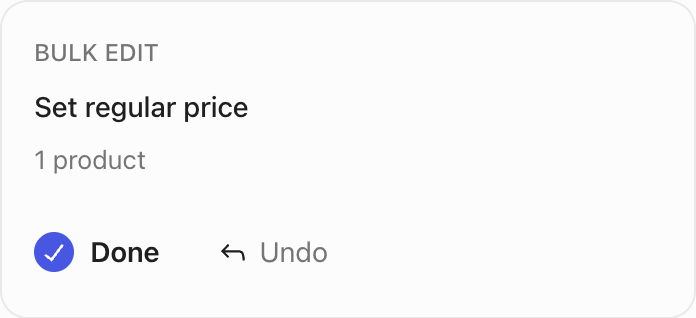
- Select Undo on the completed change card when it is available, or go to WooCommerce > Status > AI Logs and use Undo when it is available for that operation.
- Review the undo result, including items that were skipped or failed.
- Open the affected records and confirm that the intended values were restored.
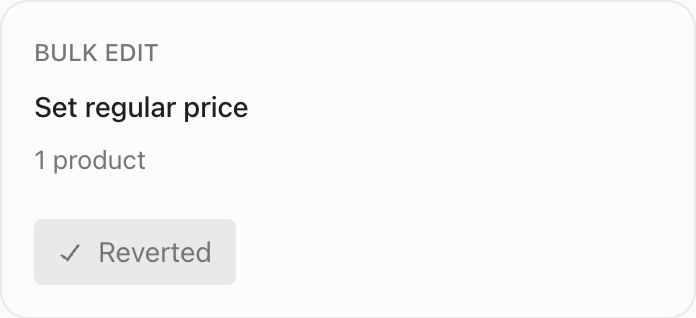
By default, undo skips items that changed again after the original operation. This protects later edits. A forced undo can overwrite those later edits; request it only after checking the affected records and deciding that you want to replace the newer values. Deleted records cannot be restored by undoing the operation.
Check AI Logs
↑ Back to topWooCommerce > Status > AI Logs lists recorded outcomes for your account. Use the date range and status filters to find an operation. The table shows the result of each recorded operation.
If an operation stops
↑ Back to topCancelling stops remaining work; it does not automatically reverse items already changed. Review the result and use a supported undo where needed. If undo restores only part of the operation, check the remaining items and handle them individually.
Getting started · Step 3 of 3
Keep exploring
Choose assistant tools
Enable features and choose the tools available in chat.
Understand your store
Learn how Intelligence helps you understand store performance.