
Choose which WooCommerce AI features are active and which tools the assistant can use in chat. Settings save automatically when you change a control.
Before you start
↑ Back to topSign in as a store administrator or store manager with permission to manage WooCommerce. Connect your store and user account to WordPress.com before using the feature controls.
Open the settings
↑ Back to topIn WordPress admin, go to WooCommerce > Settings > WooCommerce AI. If a connection prompt appears, complete it before changing the disabled controls.
Choose features
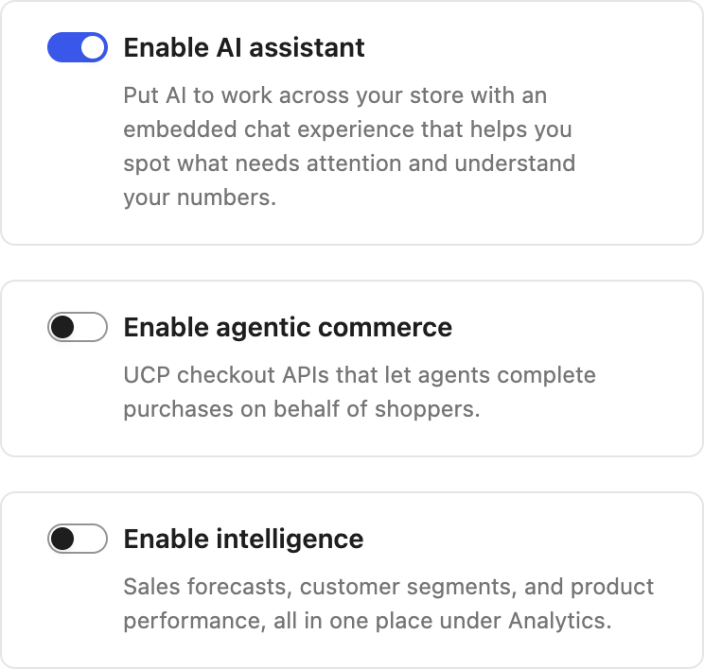
↑ Back to top- Enable AI assistant: turns the embedded admin chat on or off. It is enabled by default.
- Enable agentic commerce: enables the plugin’s UCP checkout services. It is off by default. External shopping-service eligibility and payment setup are separate requirements.
- Enable intelligence: adds analytical tools under Analytics > Intelligence. It is off by default.
Choose chat abilities
↑ Back to topUnder Advanced on the WooCommerce AI settings page, select Abilities. These controls determine which store actions and queries the embedded assistant can use.
Turn abilities on or off for chat
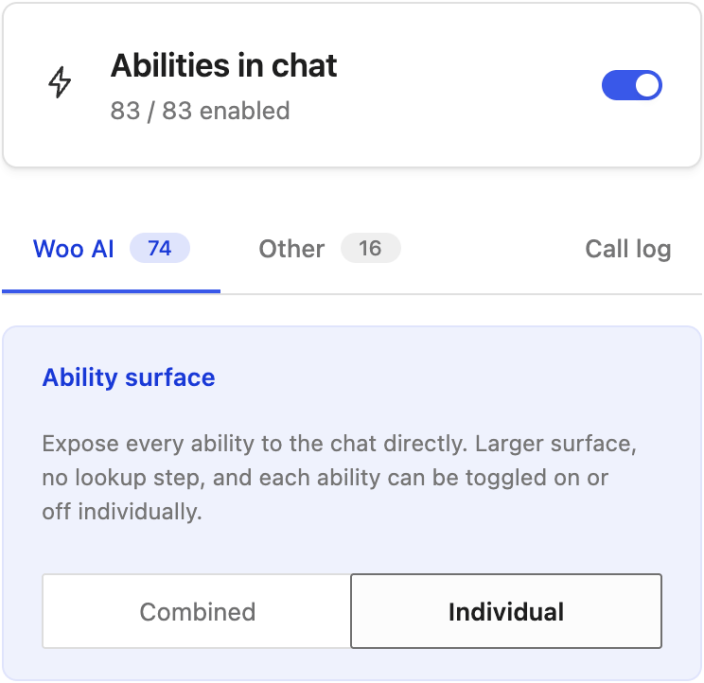
↑ Back to topUse the toggle in Abilities in chat to stop or restore the assistant’s access to abilities. Turning it off preserves the individual selections. To disable the assistant itself, use Enable AI assistant on the main settings page.
Choose individual abilities
↑ Back to topIn the WooCommerce AI ability list, Ability surface controls how tools are presented. Individual mode exposes each ability directly and lets you toggle it separately. Combined mode presents helper abilities that discover and run other tools on demand. The displayed list and counts depend on this mode.
- Find the ability you want to change, using the list’s search and filters if needed.
- Turn its toggle off to exclude it from chat, or on to restore it. Changes save automatically.
- Return to the assistant and ask a question that uses the ability without changing store data.
Greyed-out abilities are unavailable in chat, and their toggles cannot be changed.
Configure external AI clients
↑ Back to topExternal MCP clients have separate permissions and tool settings. Under Advanced, select MCP server to manage external MCP clients and exposed tools. Turning off an ability in chat does not change those settings.
Verify a change
↑ Back to top- Change one feature control and wait for its save to finish.
- Reload the page and confirm that the control retains the intended value.
- Open the affected feature. For the assistant, check that chat opens; for Intelligence, check the Analytics menu. For agentic commerce, complete the shopping-service setup and test checkout before accepting orders.
- After changing an individual ability, return to the assistant and ask a read-only question that uses it. Confirm that the assistant has the intended access.
If a setting does not save
↑ Back to topDisconnected controls appear off and unavailable without discarding stored feature selections. Complete the site and user connection first. If settings fail to load, use Reload and check your permissions.
If a save fails, the control returns to its previous value and shows an error. Reload the settings page and verify the stored value before retrying. Re-enable a previously excluded ability from the same list when you want to restore it.