
Overview
↑ Back to topPayPal Enterprise Payments (formerly Braintree) for WooCommerce lets you accept credit cards, PayPal payments, and Venmo on your WooCommerce store via Braintree. Customers can check out quickly using Apple Pay, Google Pay, or Fastlane. Customers can save their credit card details or link a PayPal account to their WooCommerce user account for fast and easy checkout.
PayPal Enterprise Payments includes full support for WooCommerce Subscriptions and WooCommerce Pre-Orders for both the credit card and PayPal gateways! Click here for more information about Subscriptions and Pre-Orders compatibility.
- woocommerce-gateway-paypal-powered-by-braintree
- woocommerce-plugin-framework
Requirements
↑ Back to top- PHP 7.4+ (you can see this under WooCommerce > Status)
- WooCommerce 9.8+
- WordPress 6.6+
- An SSL certificate
- A Braintree Direct account
- cURL support (most hosts have this enabled by default)
Installation
↑ Back to top- Ensure your store meets the plugin requirements.
- Download the extension from your WooCommerce dashboard.
- Go to Plugins > Add New > Upload and select the ZIP file you just downloaded.
- Click Install Now and then Activate.
- Click Configure and read the next section to learn how to set up the plugin.
Getting started
↑ Back to topFollow the steps below to connect the plugin to your Braintree Direct account:
- Log in to your Braintree Control Panel.
- Select the gear icon in the upper right corner and click API.

- From here, you can click View to view an existing set of API keys or Generate New API Key to create a new set.

- When viewing keys, copy the Public Key, Private Key, and Merchant ID.

- Now, log in to your WooCommerce site and go to WooCommerce > Settings > Payments and select either the PayPal Enterprise Payments (Credit Card) or PayPal Enterprise Payments (PayPal) gateway. (Only these two gateways allow for credential entry.)
- Paste the copied API keys into the associated fields under the Connection Settings.
- Click Save changes.
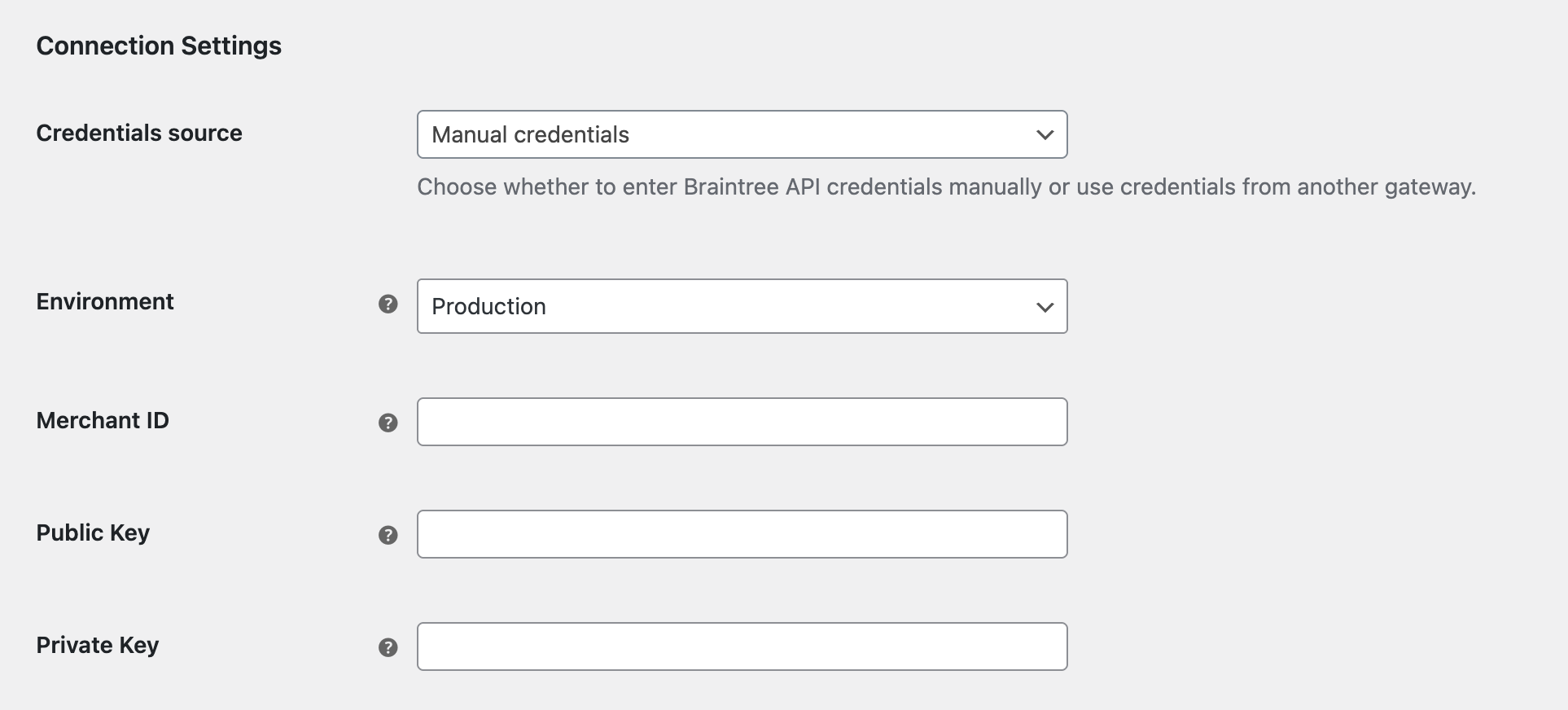
- For each payment method you want to support, go to WooCommerce > Settings > Payments and select the PayPal Enterprise Payments payment method you want to enable.
- In the Credentials Source field, select Use credentials from PayPal Enterprise Payments (Credit Card) or Use credentials from PayPal Enterprise Payments (PayPal), depending on which gateway you set up previously.
- Click Save changes.
That’s it! You’re ready to start accepting payments. Keep reading if you want to tweak settings and customize the checkout process.
Credit card settings
↑ Back to topYou can configure the following settings for the PayPal Enterprise Payments credit card gateway:
- Enable/Disable: Allow customers to use this gateway to complete checkout.
- Title: The text shown for the payment during checkout and on the Order Received page.
- Description: The text shown under the gateway’s title during checkout. Limited HTML is allowed. If you enable test mode, this section will also display a notice along with test credit card numbers.
- Card Verification (CSC): Require customers to enter their card security codes when checking out.
- Transaction Type: Controls how transactions are submitted to Authorize.Net. Defaults to “Charge” to automatically capture payments. Click here to learn more about capturing payments.
- Charge Virtual-Only Orders: If Transaction Type is set to “Authorization”, enable this to automatically capture charges for orders with only virtual products. For downloadable products, this will grant download access right away.
- Capture Paid Orders: If Transaction Type is set to “Authorization”, enable this to automatically capture charges when orders move to a paid status.
- Accepted Card Logos: Determines which card logos are displayed during checkout. This has no impact on which cards are accepted by your merchant account.
- Tokenization: Let customers save their payment methods for future use at checkout. The Vault must be enabled in your Braintree account to use tokenization. This is required for Subscriptions or Pre-Orders.
- Detailed Decline Messages: Display detailed messages to customers to provide reasoning for declines instead of a generic error message when possible. Click here to read more about detailed decline messages.
- Debug Mode: Enable when you’re having issues processing transactions. You can choose to log API requests directly on the checkout page, save them to the WooCommerce > Status > Logs page, or both. As a best practice, please do not enable this setting unless you’re having issues with the plugin.
- Credentials source: Either use credentials specific to the credit card gateway by selecting “Manual credentials”, or use the credentials from the PayPal gateway by selecting “Use credentials from PayPal Enterprise Payments (PayPal)”, which will only be available when credentials have been entered for the PayPal gateway.
- Environment: Switch between “Production” and “Sandbox” credentials. Set to “Production” to process payments. Enable “Sandbox” to send transactions to your Braintree sandbox account. Click here to sign up for a Braintree sandbox account. If you are using credentials from the PayPal gateway, this field will not be editable.
- Merchant ID, Public Key, Private Key: API key credentials required to connect the plugin to Braintree. Click here for instructions on locating those keys. If you are using credentials from the PayPal gateway, these fields will not be editable.
- Merchant Account IDs: Use if you have different merchant accounts for multi-currency support, or if you need to use a specific merchant account that has payment features enabled. Click here to read more about Braintree multi-currency.
- Dynamic Descriptors: Determine how your store is represented on customer credit card statements. Click here to read more about dynamic descriptors.
- Fraud Settings: Optionally select the fraud tool you’d like to use for your payments. Click here to read more about fraud and verification tools.
- 3D Secure: Optionally enable different 3D Secure verifications if enabled under your Braintree account. Click here to read more about 3D Secure.
PayPal settings
↑ Back to topTo use the PayPal Enterprise Payments (PayPal) gateway, you must have PayPal enabled in your Braintree account under Settings > Processing, and you must be using a merchant account that has PayPal enabled.
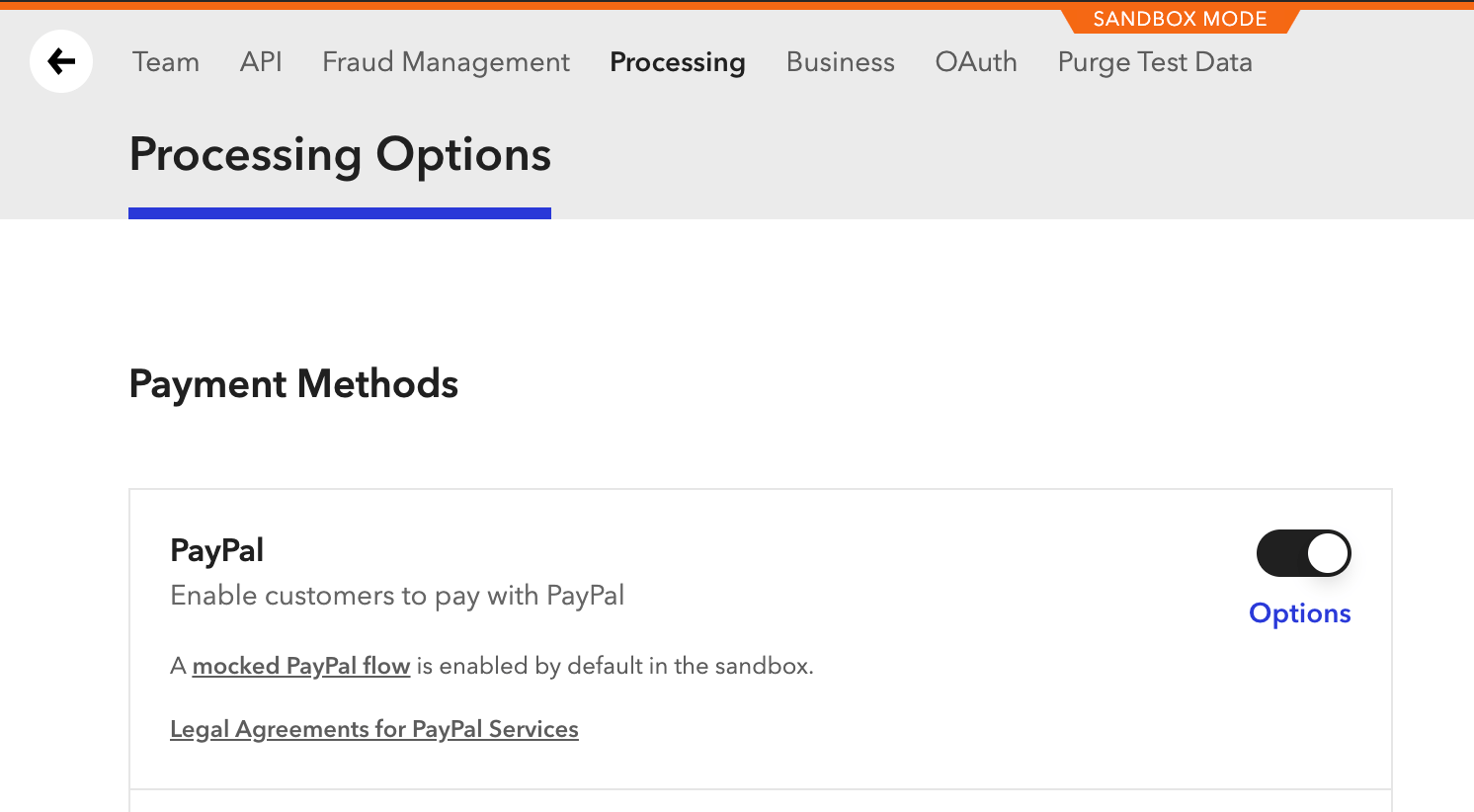
If you want to use PayPal without credit card processing, click here to read more about configuring this correctly.
You can configure the following settings for the PayPal Enterprise Payments gateway:
- Enable/Disable: Allow customers to use this gateway to complete checkout.
- Title: The text shown for the payment during checkout and on the Order Received page.
- Description: The text shown under the gateway’s title during checkout. Limited HTML is allowed.
- Button Color: Choose the color of the “Pay with PayPal” button. You can see how this will look under the Preview section.
- Button Size: Choose the size of the “Pay with PayPal” button. You can see how this will look under the Preview section.
- Button Shape: Choose the shape of the “Pay with PayPal” button. You can see how this will look under the Preview section.
- PayPal Credit: For US merchants, enable the PayPal Credit button beneath the standard “Pay with PayPal” button.
- Buy Now on Product Pages: Enable to add the “PayPal Buy Now” button on product pages. Click here to read more about this express checkout option.
- Enable Cart Checkout: Enable to allow customers to checkout with PayPal from the Cart. Click here to read more about this express checkout option.
- Transaction Type: Controls how transactions are submitted to Authorize.Net. Defaults to “Charge” to automatically capture payments. Click here to learn more about capturing payments.
- Charge Virtual-Only Orders: If Transaction Type is set to “Authorization”, enable this to automatically capture charges for orders with only virtual products. For downloadable products, this will grant download access right away.
- Capture Paid Orders: If Transaction Type is set to “Authorization”, enable this to automatically capture charges when orders move to a paid status.
- Tokenization: Let customers link their Venmo account for future use at checkout. This is required for Subscriptions or Pre-Orders.
- Detailed Decline Messages: Display detailed messages to customers to provide reasoning for declines instead of a generic error message when possible. Click here to read more about detailed decline messages.
- Debug Mode: Enable when you’re having issues processing transactions. You can choose to log API requests directly on the checkout page, save them to the WooCommerce > Status > Logs page, or both. As a best practice, please do not enable this setting unless you’re having issues with the plugin.
- Credentials source: Either use credentials specific to the PayPal gateway by selecting “Manual credentials”, or use the credentials from the credit card gateway by selecting “Use credentials from PayPal Enterprise Payments (Credit Card)”, which will only be available when credentials have been entered for the credit card gateway.
- Environment: Switch between “Production” and “Sandbox” credentials. Set to “Production” to process payments. Enable “Sandbox” to send transactions to your Braintree sandbox account. Click here to sign up for a Braintree sandbox account. If you are using credentials from the credit card gateway, this field will not be editable.
- Merchant ID, Public Key, Private Key: API key credentials required to connect the plugin to Braintree. Click here for instructions on locating those keys. If you are using credentials from the credit card gateway, these fields will not be editable.
- Merchant Account IDs: Use if you have different merchant accounts for multi-currency support, or if you need to use a specific merchant account that has payment features enabled. Click here to read more about Braintree multi-currency.
- Dynamic Descriptors: Determine how your store is represented on customer credit card statements. Click here to read more about dynamic descriptors.
Venmo settings
↑ Back to topTo use the PayPal Enterprise Payments (Venmo) gateway, you must have a US business entity, meet additional eligibility requirements, and enable Venmo in your Braintree account under Settings > Processing. Note that Venmo is only available for US purchases in USD.
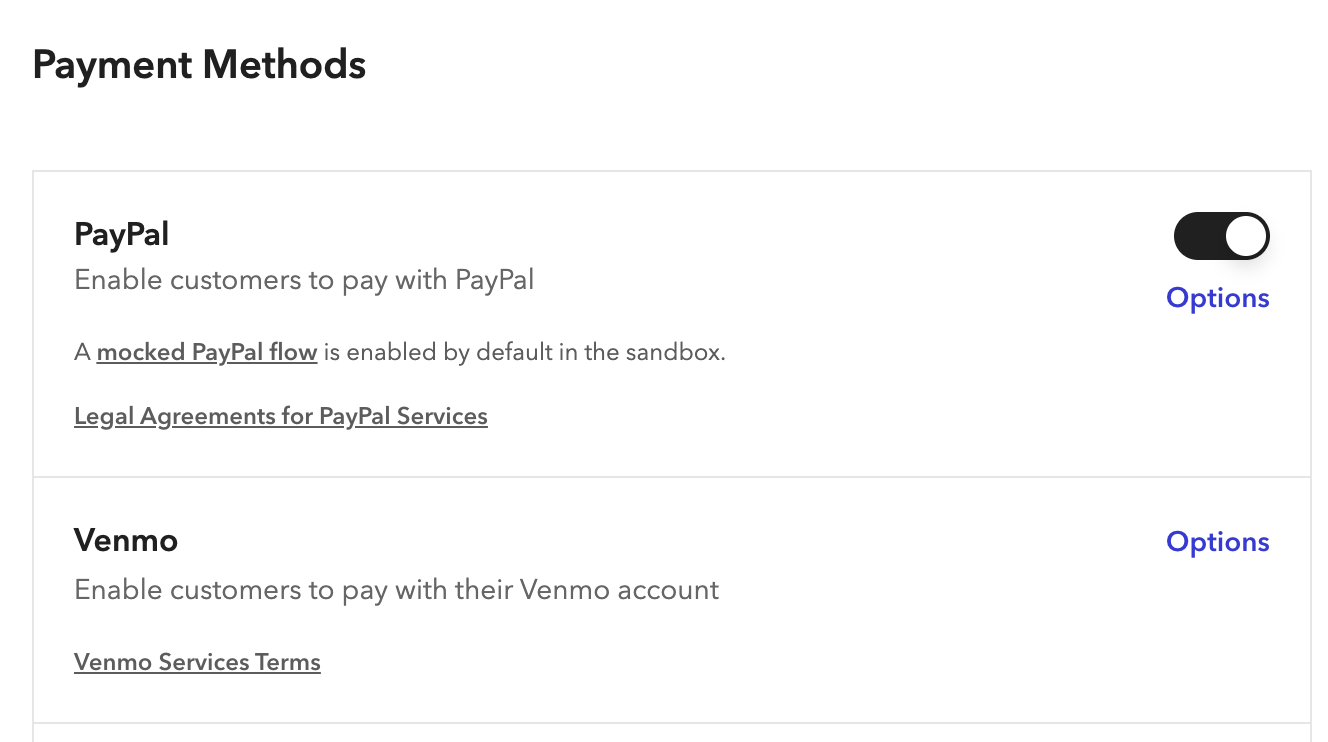
You can configure the following settings for the PayPal Venmo gateway:
- Enable / Disable: Allow customers to use this gateway to check out.
- Title: The text shown for the payment during checkout and on the Order Received page.
- Description: The text shown under the gateway’s title during checkout. Limited HTML is allowed.
- Tokenization: Let customers link their PayPal account for future use at checkout. Requires Advanced Fraud Tools to be enabled on your Braintree account. Click here to learn more about fraud tools and setup. This is required for Subscriptions or Pre-Orders.
- Detailed Decline Messages: Display detailed messages to customers to provide reasoning for declines instead of a generic error message when possible. Click here to read more about detailed decline messages.
- Debug Mode: Enable when you’re having issues processing transactions. You can choose to log API requests directly on the checkout page, save them to the WooCommerce > Status > Logs page, or both. As a best practice, please do not enable this setting unless you’re having issues with the plugin.
- Credentials source: Select which gateway credentials you want to use. You can select from “Use credentials from PayPal Enterprise Payments (Credit Card)” or “Use credentials from PayPal Enterprise Payments (PayPal)”, depending on which credentials you have already entered for those gateways.
- Environment: Shows which environment is in use for the credentials selected in the Credentials source field.
- Merchant ID, Public Key, Private Key: Shows the API key credentials in use based on the credentials selected in the Credentials source field.
- Dynamic Descriptors: Determine how your store is represented on customer credit card statements. Click here to read more about dynamic descriptors.
- Allow Venmo on: Choose whether the Venmo express-checkout button appears on Product Pages, the Cart Page, or both. Venmo is always available on the checkout page when the gateway is enabled.
ACH Direct Debit settings
↑ Back to topPayPal Enterprise Payments (ACH Direct Debit) lets US customers pay directly from a US bank account. It’s available for USD orders only, and like Venmo, it always uses the credentials saved under PayPal Enterprise Payments (Credit Card) or (PayPal); manual credential entry isn’t available for this gateway.
You can configure the following settings:
- Enable/Disable: Allow customers to use ACH Direct Debit to complete checkout.
- Title: The text shown at checkout and on the Order Received page.
- Description: The text shown under the gateway’s title during checkout. Limited HTML is allowed.
- Tokenization: Let customers save their bank account for future purchases. This is required for Subscriptions.
- Detailed Decline Messages: Display detailed messages to customers to provide reasoning for declines.
- Debug Mode: Enable when you’re having issues processing transactions. You can choose to log API requests directly on the checkout page, save them to the WooCommerce > Status > Logs page, or both. As a best practice, please do not enable this setting unless you’re having issues with the plugin.
- Use credentials from: Choose whether to use the credentials saved for PayPal Enterprise Payments (Credit Card) or (PayPal).
- Add merchant account ID: Enter additional merchant account IDs if you do not want to use your Braintree account default. Learn more about merchant account IDs.
The authorization text shown at checkout
Before placing an order with ACH Direct Debit, customers must agree to a mandate statement authorizing the debit from their account. The exact wording shown depends on whether the payment is one-time or recurring (e.g., a subscription) and whether the customer is using a new or a previously saved bank account. This text is required for ACH compliance and can’t be edited or disabled.
Manage Order status with ACH Direct Debit
ACH Direct Debit transfers take 3–5 business days to settle with the bank, so orders placed with this gateway start in On Hold status rather than Processing/Completed. WooCommerce updates the order automatically once the payment settles. You don’t need to do anything manually.
PayPal Fastlane
↑ Back to topPayPal Fastlane offers guest customers an accelerated checkout: returning Fastlane members can autofill their name, shipping address, and saved card details from their PayPal profile without creating a store account.
Requirements
- Fastlane must be activated for your account in the PayPal Customer Checkout Dashboard.
- Fastlane is only available to guest checkout. Customers who are logged in will see the standard credit card fields instead.
Enabling Fastlane
- Go to WooCommerce > Settings > Payments and select PayPal Enterprise Payments (Credit Card).
- Scroll to the PayPal Fastlane section.
- Check Enable Fastlane when available. Once your Merchant ID is configured, a Manage Fastlane in PayPal Dashboard link appears here. Fastlane also needs to be turned on from that dashboard.
- Click Save changes.
A few things to note with Fastlane:
- If a customer’s email isn’t pre-filled, Fastlane shows a short confirmation step before continuing; pre-filled emails skip that step.
- Subscriptions requires customers to set a password during checkout, Fastlane is automatically turned off for that order so the standard checkout fields can be shown instead.
Local Payment Methods (LPMs)
↑ Back to topPayPal Enterprise Payments also supports several country-specific payment methods, each as its own gateway under WooCommerce > Settings > Payments:
| Payment method | Currencies |
|---|---|
| Bancontact | EUR |
| EPS | EUR |
| iDEAL | Wero | EUR |
| MyBank | EUR |
| BLIK | PLN |
| Przelewy24 (P24) | EUR, PLN |
Like Venmo and ACH Direct Debit, Local Payment Method gateways can’t store their own API credentials. Enable and configure credentials on PayPal Enterprise Payments (Credit Card) or (PayPal) first, then set each LPM gateway’s Credentials source to use those. You can configure the same Enable/Disable, Title, Description, Debug Mode, and Detailed Decline Message settings available on the other gateways.
Merchant Account IDs: Each LPM only works if you have a Merchant Account ID configured (in the Multi-currency setup) for one of its supported currencies. If you enable an LPM without one, you’ll see an admin notice explaining which currency needs a Merchant Account ID.
Multi-currency setup
↑ Back to topIf you want to accept payments in multiple currencies, you can add credentials for different merchant accounts. When used alongside a currency switcher plugin, you can then route payments to the different accounts based on the currency. We recommend these plugins to enable multi-currency in your WooCommerce store:
- WooCommerce Multi-Currency (requires purchase)
- Aelia Currency Switcher (requires purchase)
Both plugins work seamlessly with PayPal Enterprise Payments.
Follow the steps below to add more merchant accounts to accept multi-currency payments:
- Install and activate a currency switcher plugin, such as Aelia Currency Switcher.
- Go to WooCommerce > Settings > Payments and select the PayPal Enterprise Payments gateway you want to update.
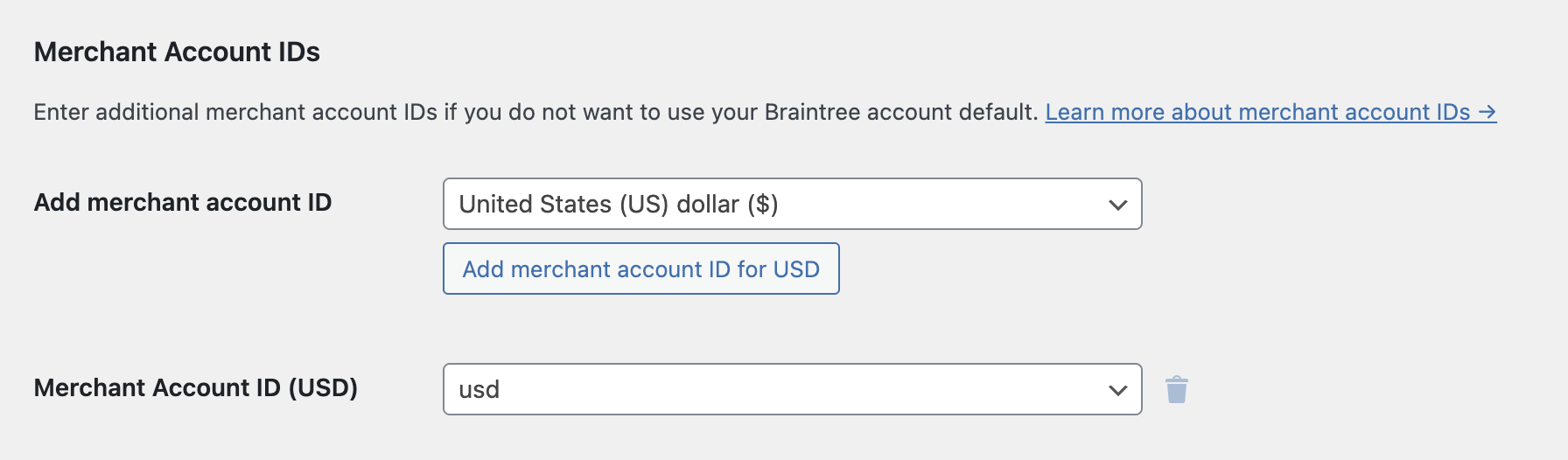
- Under the Merchant Account IDs section, select the currency for this merchant account from the drop-down menu and click Add merchant account ID.
- Select the merchant account ID in the newly created field – only merchant accounts that support the current payment method and currency should be displayed.
Note: If the plugin can find eligible merchant accounts for the selected currency, this field shows a dropdown of your actual Braintree merchant account IDs (your Braintree default account is marked [default]) – just pick the one you want. If no matching account is found, you’ll see a plain text field instead, where you can paste the ID manually. - Repeat steps 3 and 4 as needed for each currency/ merchant ID.
- Click Save changes.
Dynamic Descriptors setup
↑ Back to topDynamic Descriptors let you control how your charges appear on customer credit card statements for specific purchases. This can help you avoid customer disputes/chargebacks due to confusion or non-recognition. Dynamic Descriptors must be enabled by your Braintree representative.
Braintree has very specific formatting requirements for these fields, so we highly recommend running a test transaction to confirm your format is valid.
Once enabled by Braintree, you can configure Dynamic Descriptors in the gateway settings. There are three format options for the Name field – please note that components must be separated by an asterisk:
- [3 letters]*[up to 18 letters]: 3 letters to represent the company name, up to 18 letters to represent the product name. For example,
WOO*WOOCOMMERCEPLUGINS.

- [7 letters]*[up to 14 letters]: 7 letters to represent the company name, up to 14 letters to represent the product name. For example,
WOOCOMS*WOOCOMMPLUGINS.

- [12 letters]*[up to 9 letters]: 12 letters to represent the company name, up to 9 letters to represent the product name. For example,
WOOCOMPANIES*WCPLUGINS.

For the Phone field (optional), you must enter exactly 10 characters. This field can only contain numbers, dashes, parentheses, or periods.
For the URL field (optional), you may enter your URL in 13 characters or less.
Fraud and verification tools
↑ Back to topBy default, PayPal Enterprise Payments includes Basic fraud verification tools. However, there are more sophisticated fraud prevention tools – Advanced or Kount Direct – which you can optionally enable through your Braintree account.
To enable Kount Direct fraud tools, contact your Braintree representative. They can provide the Kount Merchant ID required in the gateway settings.
With Kount fraud protection turned on, the necessary scripts are loaded from Braintree and inserted into the page with the initialization code to trigger them. However, some optimization plugins that alter the page’s JavaScript can interfere with these scripts, causing them to load out of order, among other issues.
If the Kount tools aren’t working properly, the best first step is to deactivate any caching or optimization plugins/tools.
We recommend enabling Advanced fraud tools, as they provide additional protection and are easy to enable. Click here to read more about the available fraud tools.
To turn on Fraud Protection Advanced, log in to your Braintree account, go to Settings > Fraud Management, and enable Fraud Protection Advanced. You can then update the gateway settings.
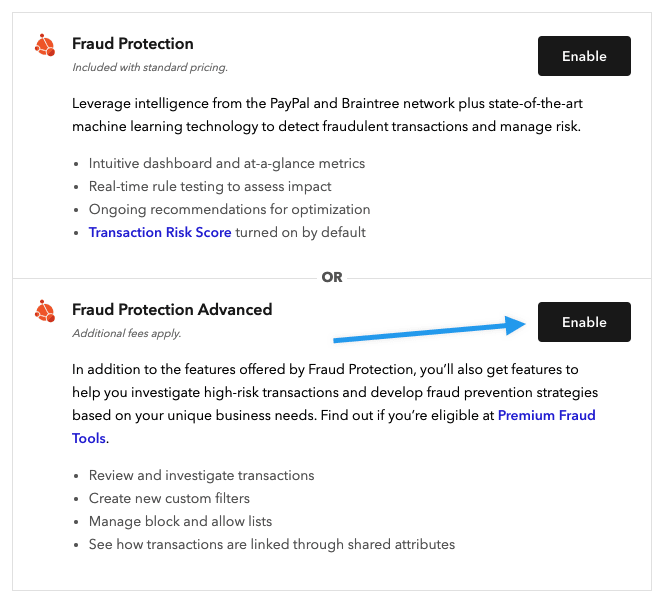
To enable Kount Direct fraud tools, contact your Braintree representative. They can provide the Kount Merchant ID required in the gateway settings.
3D Secure
If you’d like to use 3D Secure verification tools like Verified by Visa, you must first contact your Braintree representative. You can then configure 3D Secure in the payment gateway settings with two fields:
- Level: Choose “Standard” to accept any payments not explicitly rejected during verification, or “Strict” to only accept payments that explicitly pass. If set to “Strict”, failures caused due to connection/availability errors will be rejected as well.
- Supported Card Types: Determine which card types 3D Secure validation should apply to.
Using PayPal without credit cards
↑ Back to topIf you’d like to use PayPal without credit cards, you’ll need to pay careful attention to a few settings to ensure everything is configured correctly. You have two options for how to set this up, based on whether you want to allow customers to link their PayPal accounts for future purchases.
Using PayPal for one-time purchases
You can let customers use Checkout with PayPal for one-time purchases without configuring anything for the PayPal Enterprise Payments credit card gateway, and leave the credit card gateway disabled. However, you cannot enable tokenization with this setup, so customers can’t link their PayPal account to WooCommerce for future purchases.
This setup is not compatible with Subscriptions or Pre-Orders – tokenization is required for using Subscriptions.
Using PayPal with linked accounts
By using the Checkout with PayPal and PayPal Vault workflows, you can let your customers link their PayPal accounts to your store for faster future purchases and for Subscriptions / Pre-Orders support.
This requires a bit of extra setup since Braintree requires using Advanced Fraud Tools with the PayPal Vault. Instead of setting up everything only in the PayPal Enterprise Payments PayPal gateway settings, follow the steps below:
- Go to WooCommerce > Settings > Payments and select the PayPal Enterprise Payments (Credit Card) gateway. You can leave this gateway disabled to hide it at checkout.
- Enter your API keys under the Connection Settings.
- Configure the Fraud Tool setting to “Advanced”. Click here for instructions on ensuring advanced fraud tools are enabled for your Braintree account.
- Click Save changes.
- Click Payments and select the PayPal Enterprise Payments (PayPal) gateway and configure the following settings:
- Enable the gateway.
- For Credentials source, select “Use credentials from PayPal Enterprise Payments (Credit Card)”.
- Enable Tokenization.
- Click Save changes.
This ensures that advanced fraud tools are available so you can use the PayPal Vault.
Support Apple Pay
↑ Back to topYou can support Apple Pay payments with PayPal Enterprise Payments with some additional configuration steps.
- Enable Apple Pay in your Braintree account.
- Next, follow these instructions to register your domain for Apple Pay.
- You may then enable Apple Pay on your site by going to WooCommerce > Settings > Payments > PayPal Enterprise Payments (Credit Cards) > Apple Pay, and ticking the Accept Apple Pay box. You then need to click on Save changes.
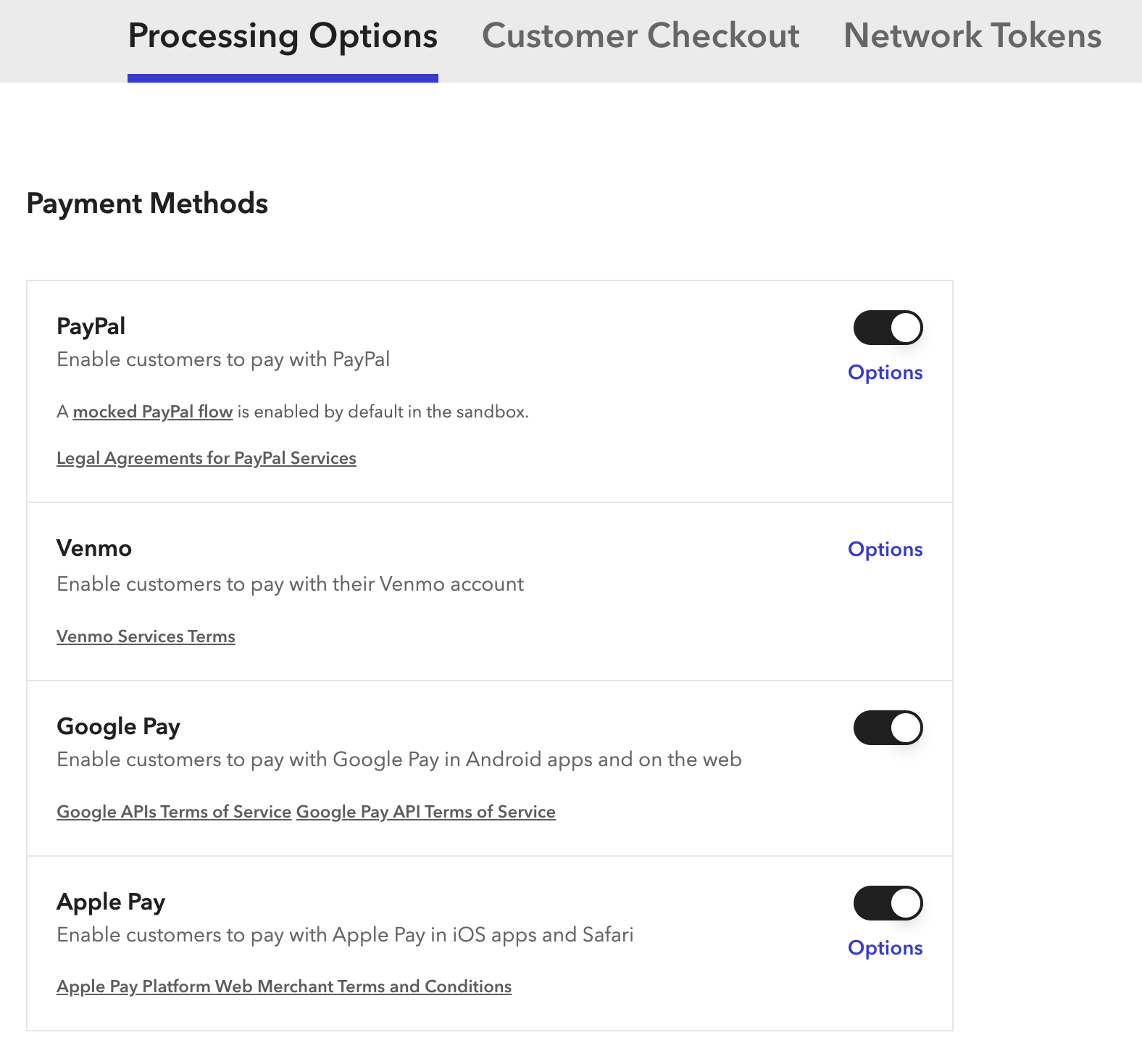
Please note that the Apple Pay integration with Braintree does not support Variable Products.
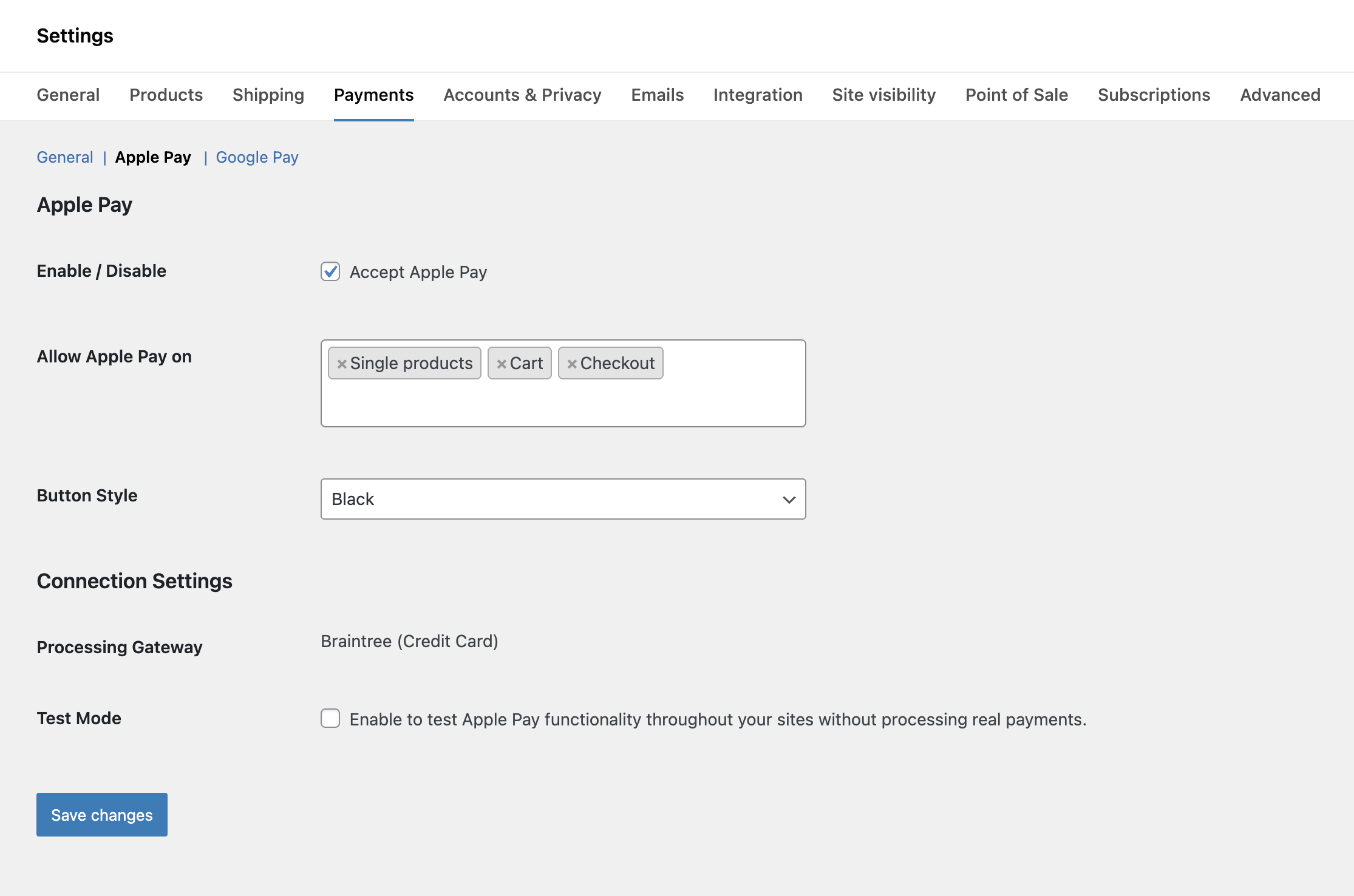
You can configure the following settings for Apple Pay:
- Enable / Disable: Control whether Apple Pay is enabled or disabled.
- Allow Apple Pay on: Control where Apple Pay will be shown as an express checkout option. The available options are “Single products”, “Cart”, and “Checkout”.
- Button style: Control what Apple Pay button style should be used so it aligns with your site. The available options are “Black”, “White”, and “White with outline”.
- Test mode: Control whether Apple Pay test mode is enabled.
Support Google Pay
↑ Back to topYou can support Google Pay payments with PayPal Enterprise Payments with some additional configuration steps.
- Follow these instructions to enable Google Pay in your Braintree account.
- Follow these instructions to get a Google Merchant ID.
- Enable Google Pay on your site by going to WooCommerce > Settings > Payments > PayPal Enterprise Payments (Credit Card) > Google Pay. You then need to tick the Accept Google Pay box and enter the Google Merchant ID from step 2 in the Merchant ID field if you plan to accept non-test payments. You then need to click on Save changes.
- Follow these instructions to register your domain for Google Pay.
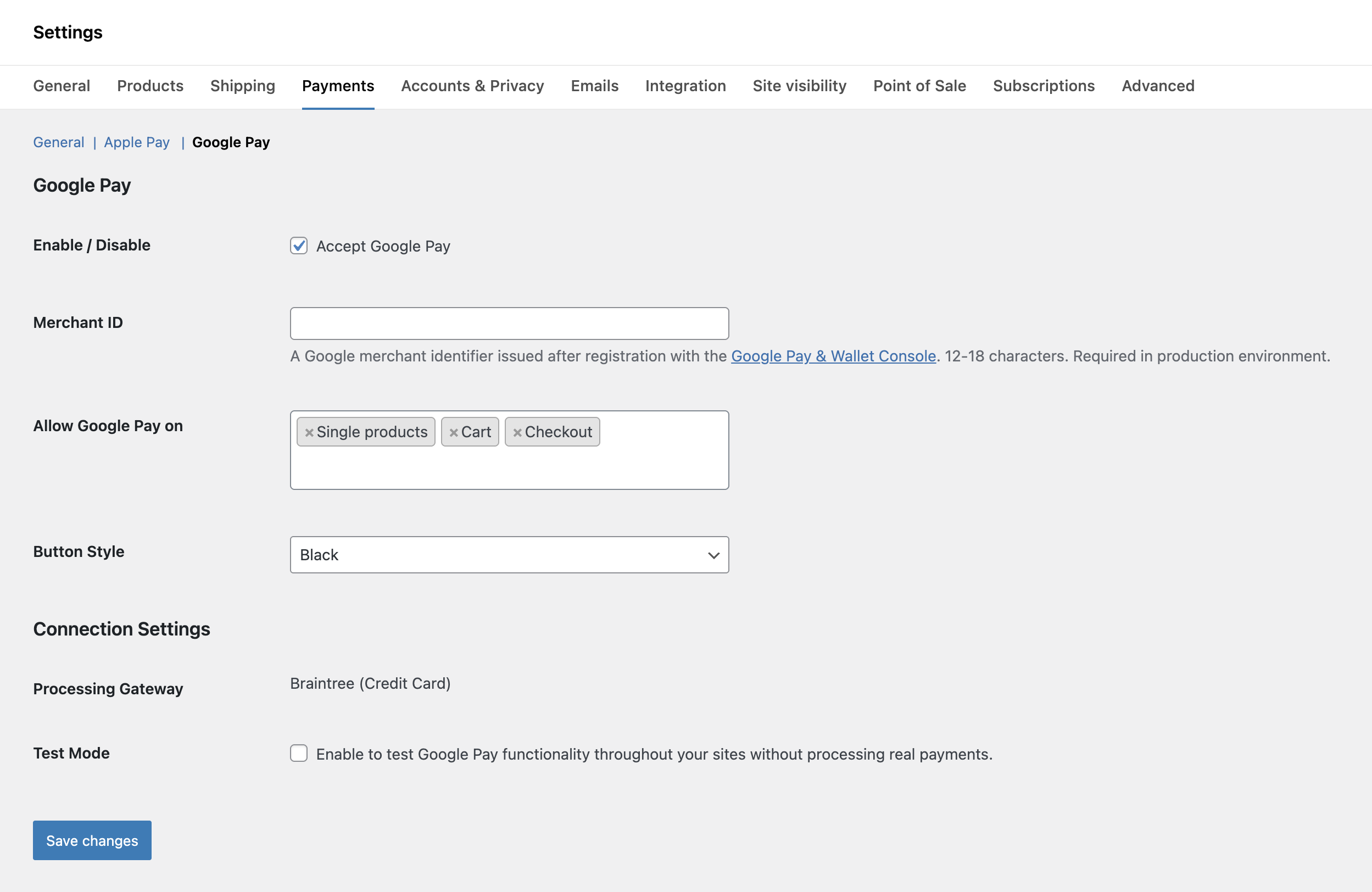
You can configure the following settings for Google Pay:
- Enable / Disable: Control whether Google Pay is enabled or disabled.
- Allow Google Pay on: Control where Google Pay will be shown as an express checkout option. The available options are “Single products”, “Cart”, and “Checkout”.
- Button style: Control what Google Pay button style should be used so it aligns with your site. The available options are “Black” and “White”.
- Test mode: Control whether Google Pay test mode is enabled.
Managing orders
↑ Back to topAs a site administrator, you can use the PayPal Enterprise Payments gateway to manually capture charges and automatically refund / void transactions as needed.
Capture charges
↑ Back to topIf the gateway’s Transaction Type is configured to “Authorization”, you can manually capture these payments from the WooCommerce Orders page. Click here to read more about capturing charges.
Automatic refunds
↑ Back to topYou can process refunds for both the credit card and PayPal gateways directly in WooCommerce without needing to log into your Braintree control panel. Click here to read more about issuing automatic refunds from WooCommerce.
Void transactions
↑ Back to topNote that PayPal Enterprise Payments is one of the payment gateways that supports voided transactions. This means that if a refund is processed by a merchant for their customer before the funds are fully settled, Braintree counts the transaction as void, and the end customer’s order status is changed to Cancelled rather than Refunded.
If the user refunds their customer’s order after funds have been settled, the order status will change to Refunded.
You can void transactions directly in WooCommerce in the following circumstances:
- If the Transaction Type is set to “Authorization”, you can void when the transaction has been authorized but not yet captured.
- If the Transaction Type is set to “Charge”, you can void the transaction when it has not yet been settled (i.e., funds haven’t been transferred from the customer’s account to your Braintree account).
Braintree does not accept partial voids. If a transaction is no longer eligible to be voided, you must refund the order. Click here to read more about voiding transactions in WooCommerce.
Gateway features
↑ Back to topYour customers can take advantage of the following features when your site uses PayPal Enterprise Payments.
Express checkout
↑ Back to topPayPal Enterprise Payments offers a few tools to help expedite PayPal checkout for your customers – Cart Checkout and Buy Now buttons.
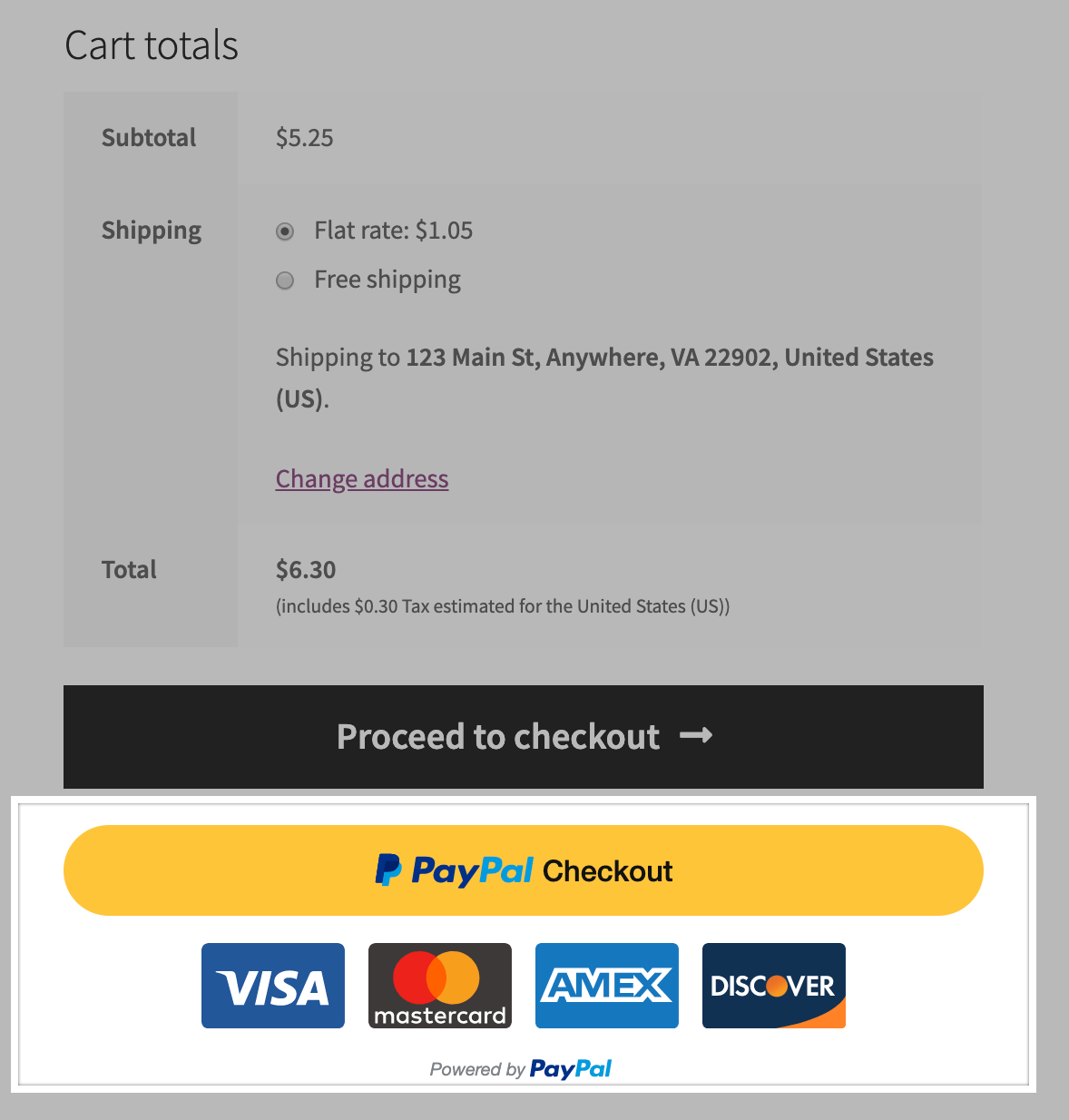
When the Enable Cart Checkout setting is enabled, a PayPal Checkout option will be offered on the cart page. This lets customers log into PayPal, set up account details, and proceed to checkout with these details prefilled in the billing/shipping sections – all they need to do is click Place order to complete the purchase.
When the Buy Now on Product Pages setting is enabled, a Buy Now button is displayed on product pages, which lets customers make purchases via PayPal without going through the standard cart / checkout flow.

Saved payment methods
↑ Back to topWhen Tokenization is enabled, customers can save payment methods during the checkout process or from their My Account area. This lets them quickly save payment details or link their PayPal account for faster future purchases and also lets your site support Subscriptions and Pre-Orders. Click here to read more about managing saved payment methods.
Frequently Asked Questions
↑ Back to topDoes PayPal Enterprise Payments work with WooCommerce Subscriptions or WooCommerce Pre-Orders?
↑ Back to topYes! Both the credit card and PayPal gateways include full Subscriptions and Pre-Orders support. Please note that in order to use these plugins with PayPal Enterprise Payments, you must:
- Have the Braintree vault enabled in your Braintree account for credit card transactions
- Have the PayPal Vault enabled for PayPal transactions
- Enable the Tokenization setting for the credit card, PayPal and/or ACH Direct Debit gateways
- For PayPal transactions, enable Advanced Fraud Tools in your Braintree account and configure that in the PayPal gateway settings
How does PayPal Enterprise Payments impact my site’s PCI compliance?
↑ Back to topPayPal Enterprise Payments is PCI DSS v3.0 SAQ-A compliant and uses Braintree’s hosted fields to process payments. Sensitive payment information is never passed through your site server, as it’s tokenized client-side before it’s sent to Braintree. The hosted fields aren’t quite the same as Braintree’s v.zero SDK, but works in a similar way and are just as secure. We use hosted fields since it offers better customization options for the payment form, letting you create a more intuitive checkout.
How do I use Braintree’s Address Verification System (AVS) with this plugin?
↑ Back to topYou can enable AVS in your Braintree account. Click here for instructions.
What countries can I use PayPal Enterprise Payments in?
↑ Back to topYou can use PayPal Enterprise Payments in any country where Braintree accounts are available!
How can I style the PayPal Enterprise Payments form elements?
↑ Back to topNote that this modification falls outside the scope of our support. We’ve included it to help you in the right direction.
Styling the PayPal Enterprise Payments payment form elements isn’t as straightforward as some of the context is loaded in an iframe. This means that adding custom css to the site won’t affect the look and feel of the iframe contents. For instance, the background color of the credit card input can be adjusted easily enough, as this is loaded outside of the iframe. However, the text color is part of the iframe and therefore needs further steps to be able to change.
The background of the credit card field can be changed by using CSS styling on the .wc-braintree-hosted-field-card-number class. Styling the text color, though, would require a change to the passed-through properties of the form. This is more restricted as Braintree only supports certain CSS attributes for their form fields, as listed on their documentation page.
If you wanted to change the text color, you would need to use a PHP filter included with our plugin to pass these new styling options through to Braintree. The filter in question is wc_braintree_credit_card_hosted_fields_styles which receives both the current list of $styles and the payment $form object.
How do I enable Early Access payment methods?
↑ Back to topEarly Access payment methods can be enabled from WooCommerce > Settings > Advanced > Features > Enable early access payment methods next to PayPal Enterprise Payments.
Once enabled, additional payment methods appear under WooCommerce > Settings > Payments. Note that Early Access features may have limitations and are subject to change before general availability.
Troubleshooting
↑ Back to topHaving a problem? Follow these steps to make sure everything is set up correctly:
- Please ensure that your site meets the plugin requirements.
- Confirm that your API credentials are correct.
- Confirm that you’re not using production API credentials when the gateway’s Environment is set to “Sandbox” (or vice versa).
- Enable Debug Mode and review the error codes/messages provided by PayPal Enterprise Payments under WooCommerce > Status > Logs. In some cases, such as a transaction being held for review or declined, the plugin cannot change the issue, and it must be resolved in your Braintree account. If the error code indicates an issue with the plugin, please submit a support ticket and include the logs to help us troubleshoot.
PayPal option not showing up at checkout
↑ Back to topMy credentials are correct, but I still don’t see PayPal at checkout. What’s going on?
To use PayPal, you’ll first need to enable PayPal in your Braintree account – log in to your account, go to Settings > Processing, and enable the PayPal payment method.
“customer with id xxxxxxxx not found” error at checkout
↑ Back to topIf you’ve recently switched Braintree accounts (e.g. from Sandbox to Production), you’ll need to clear the Braintree customer ID in the user’s profile on the Users page.
Processing through an incorrect merchant account
↑ Back to topI set up the gateway with my different merchant accounts, but processing still goes through a single account. What’s gone wrong?
This plugin can switch accounts based on payment currency, but it can’t handle switching the currency itself. If you want to use multiple currencies, we recommend using Aelia Currency Switcher or WooCommerce Multi-Currency since they’re compatible with PayPal Enterprise Payments – the gateway will then handle routing the payments based on their selected currency. Click here to read more about accepting multiple currencies with PayPal Enterprise Payments.
Using the correct type of Braintree account
↑ Back to topYour Braintree account must be a Braintree Direct account to match the information in this documentation.
If you don’t see the same account details described here, check your account type. If you don’t have a Braintree Direct account, you can:
- Apply for a Braintree Direct account.
- Contact a Braintree representative to set up your account
“[Gateway] cannot process transactions” notice
↑ Back to topIf you see an admin notice like “PayPal Enterprise Payments (Venmo) cannot process transactions, as none of the merchant accounts for the credentials from PayPal Enterprise Payments (Credit Card) support this payment method,” this means none of the merchant accounts tied to your saved credentials support that payment method. Where possible, the notice suggests trying your other gateway’s credentials (Credit Card or PayPal) instead. Otherwise, contact your Braintree representative to enable that payment method on an eligible merchant account.
Reviewing encrypted logs
↑ Back to topLogs can be a helpful troubleshooting tool. Braintree’s logs are encrypted for security.
Braintree response logs use Base64 encoding, but you can easily decode them to read the information:
- Copy everything that appears after
data:in your log - Use a Base64 decoder to convert the encoded text to JSON
- Use a JSON formatter to structure the data in an easy-to-read format
Choose between strict and standard 3DS Modes
↑ Back to topStandard mode and Strict mode handle 3DS authentication errors differently and can be useful for different situations.
Strict mode declines transactions when any 3DS authentication error occurs, including:
- Temporary system outages
- Card not enrolled in 3DS
- Technical issues during validation
Standard mode only declines transactions when customers fail authentication, such as entering incorrect passwords. It allows transactions to proceed if other authentication issues occur.
Choose standard mode to maintain higher payment acceptance rates. Choose strict mode when you need maximum security for all transactions.
PayPal subscription cancellations in PayPal Enterprise Payments
↑ Back to topCustomers can cancel their subscriptions directly in their PayPal account – this will cause a mismatch between the PayPal account and your site’s settings. Here’s what that process looks like:
- Customers can cancel their subscription directly in their PayPal account
- PayPal sends you an email notification about the cancellation
- The subscription in WooCommerce stays active but switches to “Manual Payment”
- Future renewal attempts will fail
PayPal does not send cancellation webhooks for billing agreements. This means WooCommerce cannot automatically cancel the subscription when customers cancel through PayPal.
To avoid failed renewals, regularly check your PayPal email notifications and manually cancel corresponding WooCommerce subscriptions.
WC_Payment_Token_Braintree_PayPal Class Conflict
↑ Back to topAs of version 2.5.0, a class WC_Payment_Token_Braintree_PayPal was added. That class name directly conflicts with a class in the Braintree For WooCommerce plugin – another developer’s Braintree plugin to connect to WooCommerce.
This issue has been reported and logged. We don’t plan to make any changes, as only one of these plugins should be active on a site at a time.
PayPal Enterprise Payments (Credit Card) Payment Failed (Pre-Order Tokenization attempt failed)
↑ Back to topThe error PayPal Enterprise Payments (Credit Card) Payment Failed (Pre-Order Tokenization attempt failed) can be related to Preorders, but a duplicate card error can also cause this. You’ll have to enable logs to get a specific error message and determine if it’s related to this issue.
Duplicate record errors
↑ Back to topBy default, the plugin sends a request to Braintree, which will fail a payment transaction if an existing record (card, address, customer, etc) exists in the vault. The typical error message is: Duplicate card exists in the vault.
When Braintree detects the same card being used across different accounts, it prevents the transaction by default. This typically happens in two scenarios:
- Admin accounts:
- An admin tries to use their stored card on another WordPress account
- An admin attempts to make a guest purchase with their stored card
- Customer accounts:
- A returning customer creates a new account
- A returning customer attempts a guest purchase
To prevent these transactions when Braintree finds a duplicate card, update your settings to fail the transaction instead of allowing multiple entries of the same card.
Note: Changing this setting affects all customers, not just admin accounts.
The following code snippet will disable the default behavior and allow Braintree to process transactions even when a duplicate record exists within the Braintree vault.
Customizations are not covered under our support policy, so this isn’t something we can help implement or troubleshoot on your site.
<?php // only copy this line if needed

function sv_wc_braintree_allow_duplicate_card( $request_data ) {

	if ( isset( $request_data['options'], $request_data['options']['failOnDuplicatePaymentMethod'] ) ) {
		$request_data['options']['failOnDuplicatePaymentMethod'] = false;
	}

	if ( isset( $request_data['creditCard'], $request_data['creditCard']['options'], $request_data['creditCard']['options']['failOnDuplicatePaymentMethod'] ) ) {
		$request_data['creditCard']['options']['failOnDuplicatePaymentMethod'] = false;
	}

	return $request_data;
}
add_filter( 'wc_braintree_api_request_data', 'sv_wc_braintree_allow_duplicate_card' );
When a merchant/developer runs into a “Duplicate card exists in the vault” error while testing, there are a couple of ways we can get around this:
- Try using these card numbers for the testing:
https://developers.braintreepayments.com/guides/credit-cards/testing-go-live/php - They should also be able to purge vault information, as per this document:
https://articles.braintreepayments.com/get-started/try-it-out
Locating the PayPal Transaction ID
↑ Back to topThe PayPal Transaction ID is returned as the “authorization code” (under transaction->paypalDetails->authorizationId in the response) and saved in the _wc_braintree_paypal_authorization_code meta key for the associated order. This meta value can be used like so in custom code:
$order->get_meta( '_wc_braintree_paypal_authorization_code' );
Theme issues due to JavaScript conflicts
↑ Back to topPayPal Enterprise Payments loads important JavaScript on the checkout page. Some themes (particularly those based on the Starker base theme) cause conflicts with this JavaScript. There are two primary issues:
- The theme lacks the
do_action ( ‘get_header’ );call when loading the checkout page. The Starker theme (and any child themes) is an example of this issue. This action must be added to the theme, or we recommend using a WooCommerce-compatible theme like Storefront instead. - The theme has incorrectly modified the review-order.php template. The Braintree JavaScript requires the order review div to have the order_review class. When a theme has modified the template and changed or removed that div, this trigger can’t be bound, and you’ll encounter errors. To fix this, ensure that your review-order.php template is up-to-date and hasn’t been incorrectly modified.
Questions and support
↑ Back to topDo you still have questions and need assistance?
- Get in touch with a Happiness Engineer via our Help Desk. We provide support for extensions developed by and/or sold on WooCommerce.com, and Jetpack/WordPress.com customers.
- If you are not a customer, we recommend finding help in the WooCommerce support forum or hiring a Woo Agency Partner. These are trusted agencies with a proven track record of building highly customized, scalable online stores. Learn more about Woo Agency Partners.