Square Gift Cards offer a flexible and customer-friendly way to shop and gift in your WooCommerce store.
Here’s how you can set up and manage Square Gift Cards, making the process straightforward and beneficial for both you and your customers.
Enabling Square Gift Cards
↑ Back to top- Activate Gift Cards in Settings: To start, navigate to
WooCommerce > Settings > Payments > Gift Cards (Square). Here, you can enable Square Gift Cards for your store.

When the ‘Gift Cards’ option is enabled:
- It adds the capability to split the payments between a Square Gift Card and either a Credit Card or Cash App Pay (if the store is eligible).
- If the Gift Card has insufficient funds, the customer can either opt to use a different gift card, or pay the remaining total using a credit card or Cash App Pay (if the store is eligible) through the Square payment method.
- For refunds done for orders made using split payments (Gift + Credit Card), the refund will be first done to the Gift Card and then the credit card.
- You can sell e-gift cards on your site by registering a WooCommerce product as a Square gift card.
- Customers can purchase a new gift card on your website, which will be delivered to them via email.
- Customers can add funds to an existing gift card by providing the GAN (Gift card account number).
Receiving Payment with Square Gift Cards
↑ Back to topCustomers can avail a Gift Card to make a purchase on your website. A customer can complete the payment entirely with a Gift Card if it has sufficient funds. In a scenario where it has insufficient funds, the customer will be shown the Credit Card option under the Square payment method to pay for the remaining balance.
For example, if the order total is $30 and the Gift Card has a balance of $5, the customer can split the payment and pay the remaining $25 with a credit card.
Please note that when splitting the payment, all other payment methods except Square will be hidden.
Important note: Certain product types that use tokenization for future charges cannot currently be purchased with Square Gift Cards, such as subscription products (created via the Woo Subscriptions extension) and Pre-Orders “Charge Upon Release” products (created via the WooCommerce Pre-Orders extension). When these products are in the Cart, the Gift Card payment method will not be shown.
Selling Square Gift Cards
↑ Back to topSetting Up a Gift Card Product
↑ Back to top- Create a new simple or variable product.
- Mark the product as a gift card by enabling the Square gift card checkbox.
- Enter an amount for the gift card and click publish.
- The gift card product is now ready for purchase.

Note: To ensure that the website’s performance is not negatively affected by multiple API calls, a customer is limited to purchasing only 1 gift card per order
Gift Card Orders (Merchant View)
↑ Back to topFor orders related to the purchase or reloading of a gift card, merchants can see the gift card-related details, such as the amount, GAN (Gift Card account number), etc., under the ‘Order notes’ section.

Refunding a Gift Card
↑ Back to topRefunding a gift card, either in full or in part, will reduce the card’s balance by the refunded amount. This means that if the gift card is fully refunded, it will have a balance of $0. The gift card will remain active, and customers can still add value to the card.
Purchasing a Square gift card (Customer View)
↑ Back to topBy visiting the gift card product page, customers can purchase a gift card by filling out the form, which the recipient will receive via email.
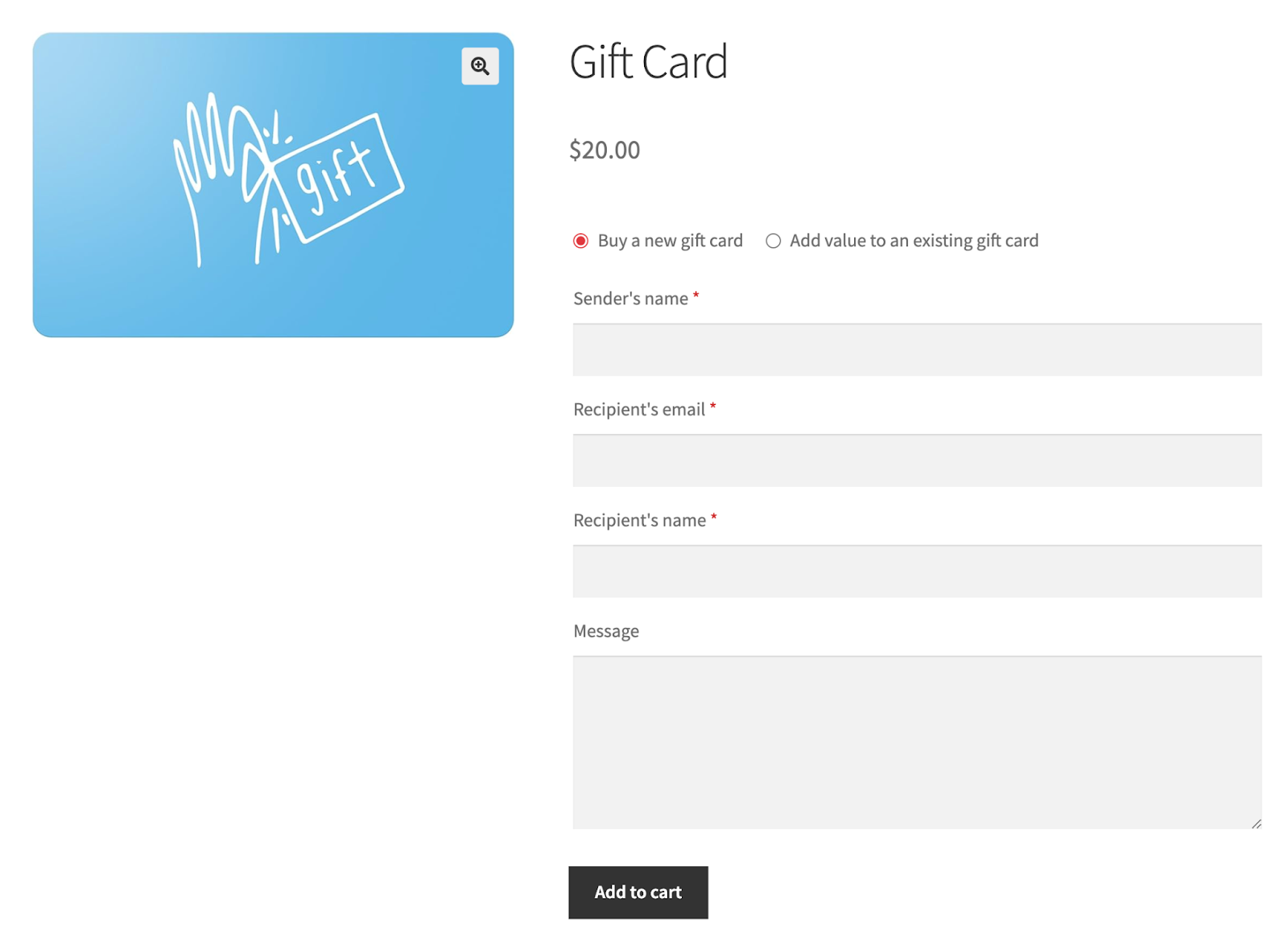
Note: Only the Square payment method can be used to purchase a gift card.
Adding value to a gift card (Customer View)
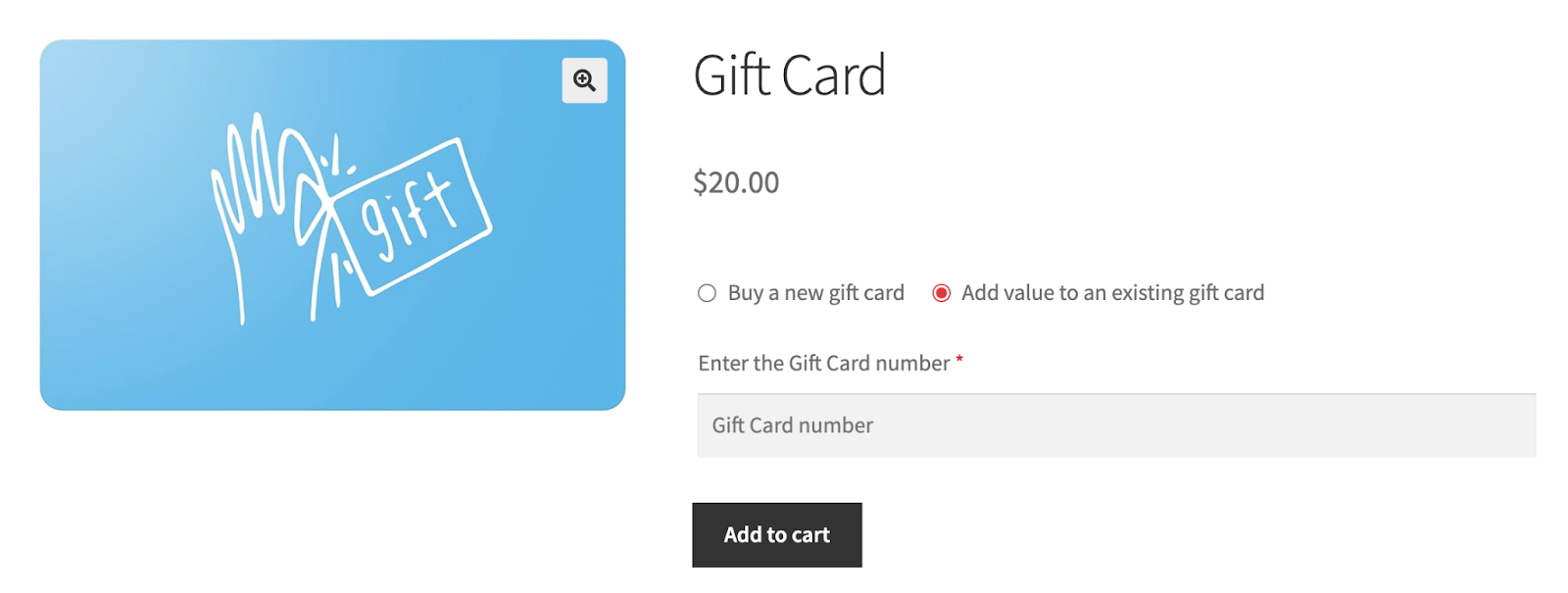
↑ Back to topCustomers who already have a gift card can add funds to it by entering their GAN (Gift card account number).
Email notification for the Square gift card recipient
↑ Back to topEnable the Square gift card sent email notification under WooCommerce > Settings > Email, so that the recipient receives their gift card via email.

WooCommerce Analytics: The purchase of a Gift Card product is included in the calculation of gross sales but excluded from the net sales to align with the information displayed within the Square dashboard. You can find out more about the Gift Cards feature in the payments section of the Frequently Asked Questions page.
Applying a Gift Card (Customer View)
↑ Back to topWhen Gift Cards are enabled, a field is displayed on the Checkout page to allow customers to enter their gift cards.
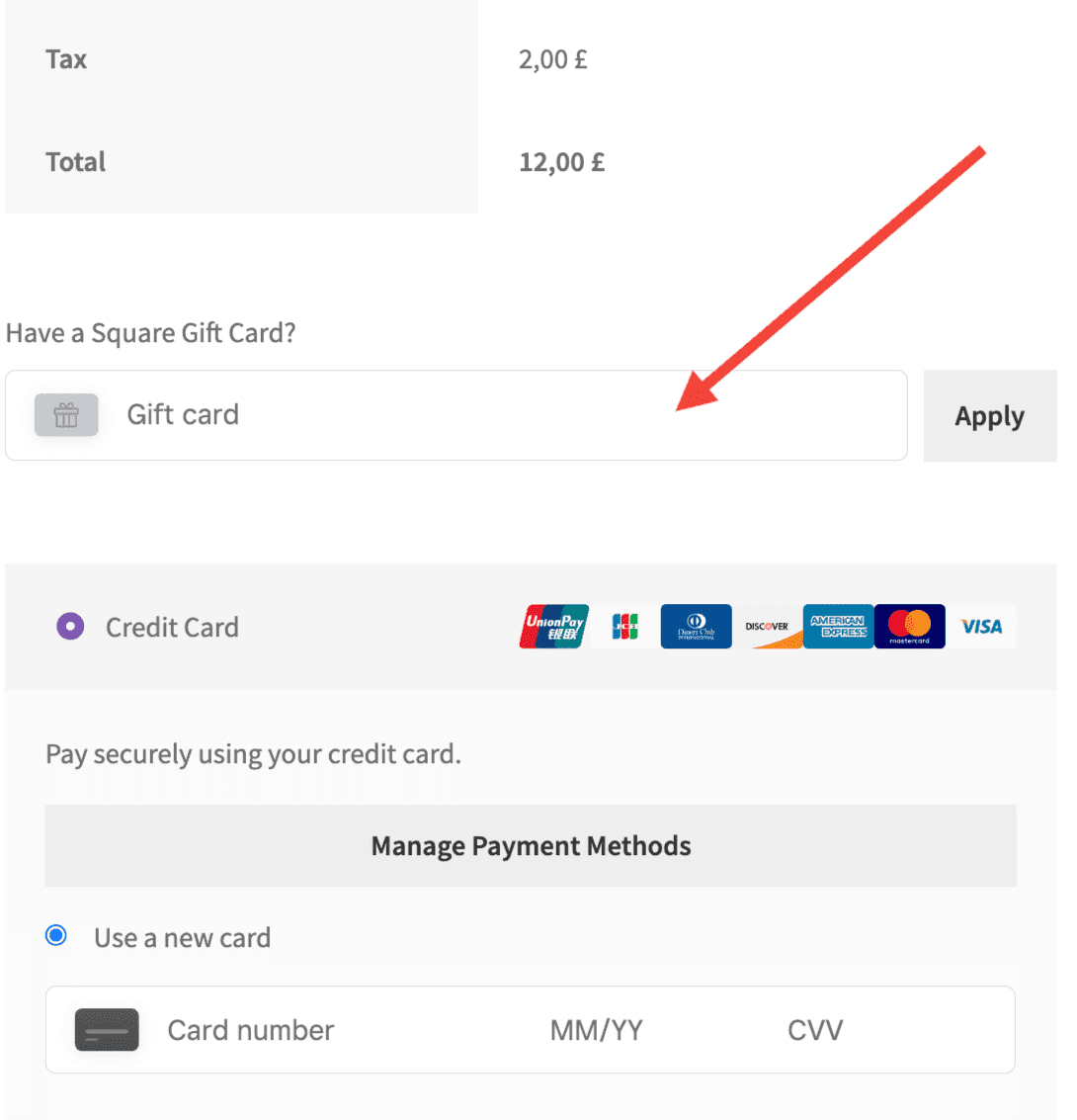
Please note that Gift Cards are currently not supported in block Checkout.
Paying entirely using gift card
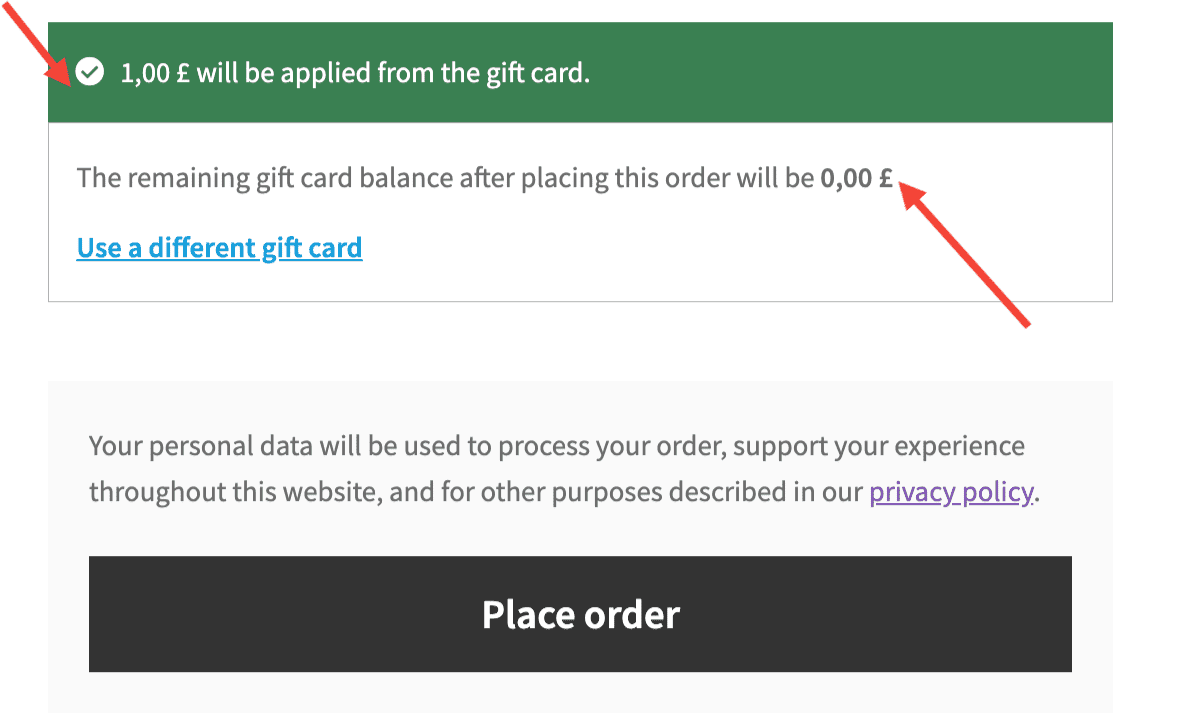
If a customer’s gift card has sufficient balance to pay for the entire order, the credit cards field will be hidden after the gift card is applied. A notice box will appear indicating the amount from the gift card that will be used for the order, as well as the amount remaining in the gift card after placing the order.
Payments split between credit card and gift card
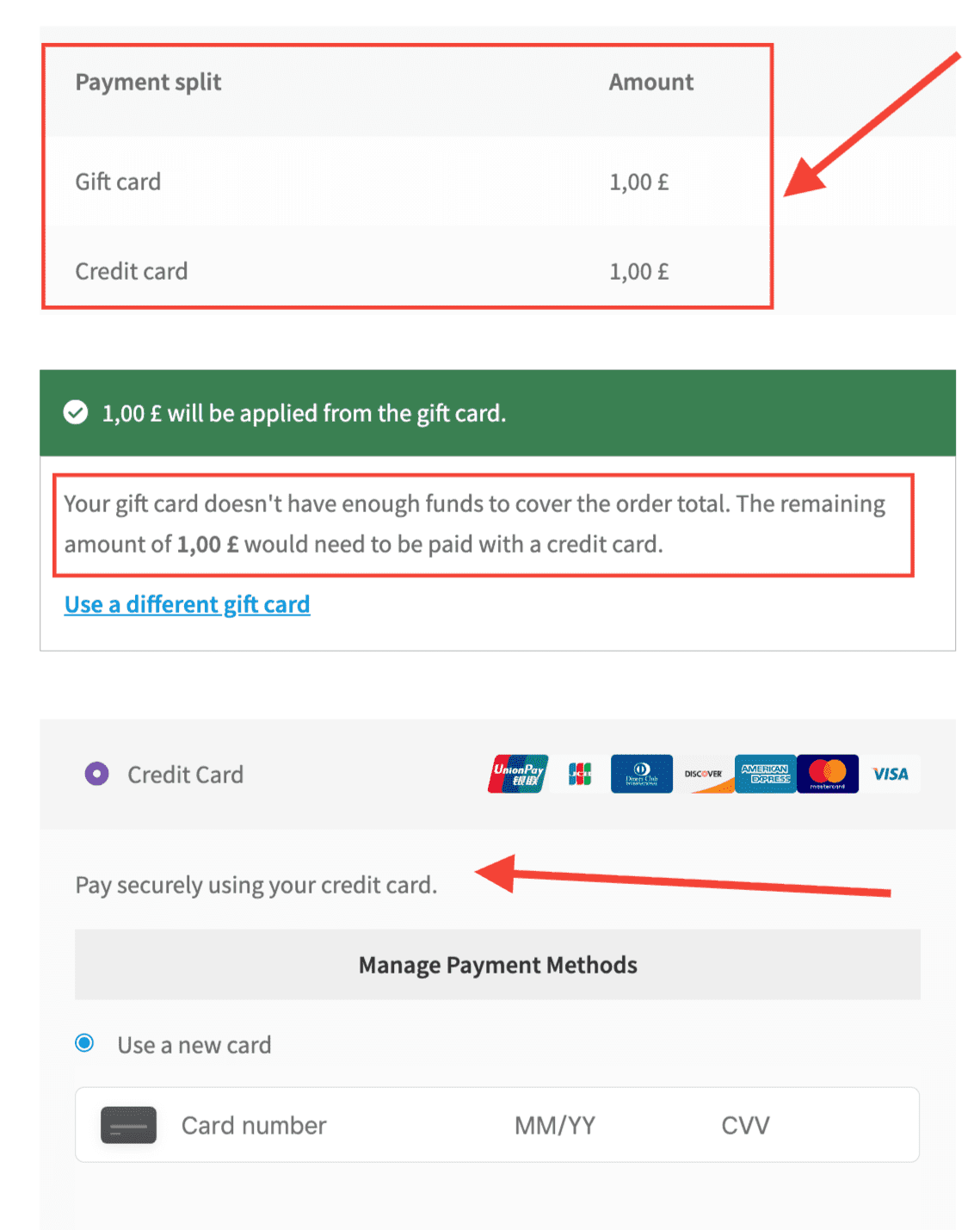
If the gift card doesn’t cover the entire order, payments can be split between the gift card and a credit card. Customers would see a section for payment split amounts, as well as a section stating that they don’t have enough funds on the gift card to cover the entire order amount and that they’ll need to pay with a credit card.
Invalid gift card number
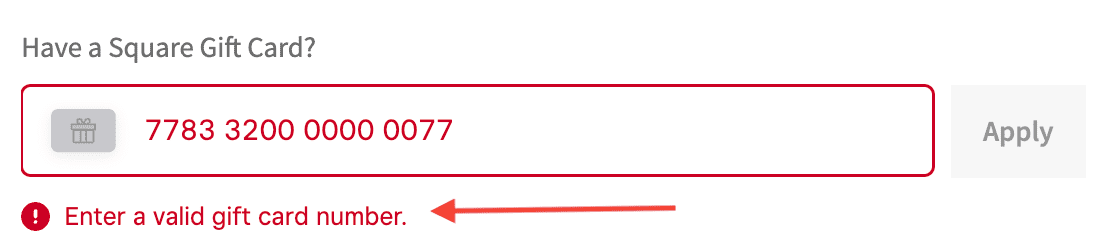
If a customer adds an invalid gift card number, the gift card number field will show a red border, and a notice will appear below it, mentioning Enter a valid gift card number.