
The WooCommerce Square extension supports Square discount codes (called “coupons” in WooCommerce). Customers can enter discount codes created in your Square Dashboard on the Cart and at Checkout. The extension calculates the discount using Square’s pricing rules and applies it to the order so that cart totals, checkout totals, and the final Square payment all match.
Square discount codes work alongside your existing Square payment and product sync. You do not need to create matching coupons in WooCommerce; codes created in Square are recognized automatically when customers enter them.
Requirements
↑ Back to top- WooCommerce Square extension is installed and connected to your Square account.
- Your Square connection must have Discount Codes permissions (the extension will request these when you connect or reconnect).
- Discount codes created in the Square Dashboard (or Square Point of Sale) under Customer > Marketing > Coupons (or “Vouchers”).
- Products in the cart that are eligible for the discount according to your Square pricing rules.
If you have not yet connected Square, follow the Setup and Configuration guide first.
Enabling or disabling Square discount codes
↑ Back to topYou can turn the Square discount codes feature on or off in the plugin settings:
- In WordPress admin, go to WooCommerce > Settings > Square.
- Find the Enable Square discount codes option.
- Enabled (default): Customers can apply Square discount codes at the Cart and Checkout. The extension looks up codes in Square and applies the discount using Square’s rules.
- Disabled: Only WooCommerce coupons are processed. Square discount codes are not recognized; customers will see an error when they try to use them.
This setting is useful if you want to use only WooCommerce coupons for a period, or if you need to temporarily disable Square codes without disconnecting Square. When disabled, the rest of the Square integration (payments, sync, etc.) is unchanged.
Developers can also control this via the woocommerce_square_enable_discount_codes filter (pass a boolean to force enable or disable regardless of the setting).
How it works
↑ Back to top- You create a discount in Square.
In your Square Dashboard, you create a discount (for example, a percentage off or a fixed amount) and optionally a discount code that customers must enter. The extension does not create or edit these; it only uses the codes you set up in Square.
- Customers enter the code in your store.
On the cart or checkout page, customers enter the code in the coupon field and apply it. The extension checks with Square to verify the code is valid, then calculates the discount according to Square’s rules.
- Discount is applied to the order.
The discount amount is displayed in the Cart and at Checkout, and the order total updates accordingly. When the customer pays with Square, the same discount is applied to the transaction, keeping your records consistent. - One type of coupon at a time.
Customers can use either Square discount codes or WooCommerce coupons, but not both on the same order. If a customer tries to add the other type while one is already applied, they will see a message asking them to remove the existing coupon first. That said, multiple coupons are supported, as long as they all belong to the same platform — either Square or WooCommerce.
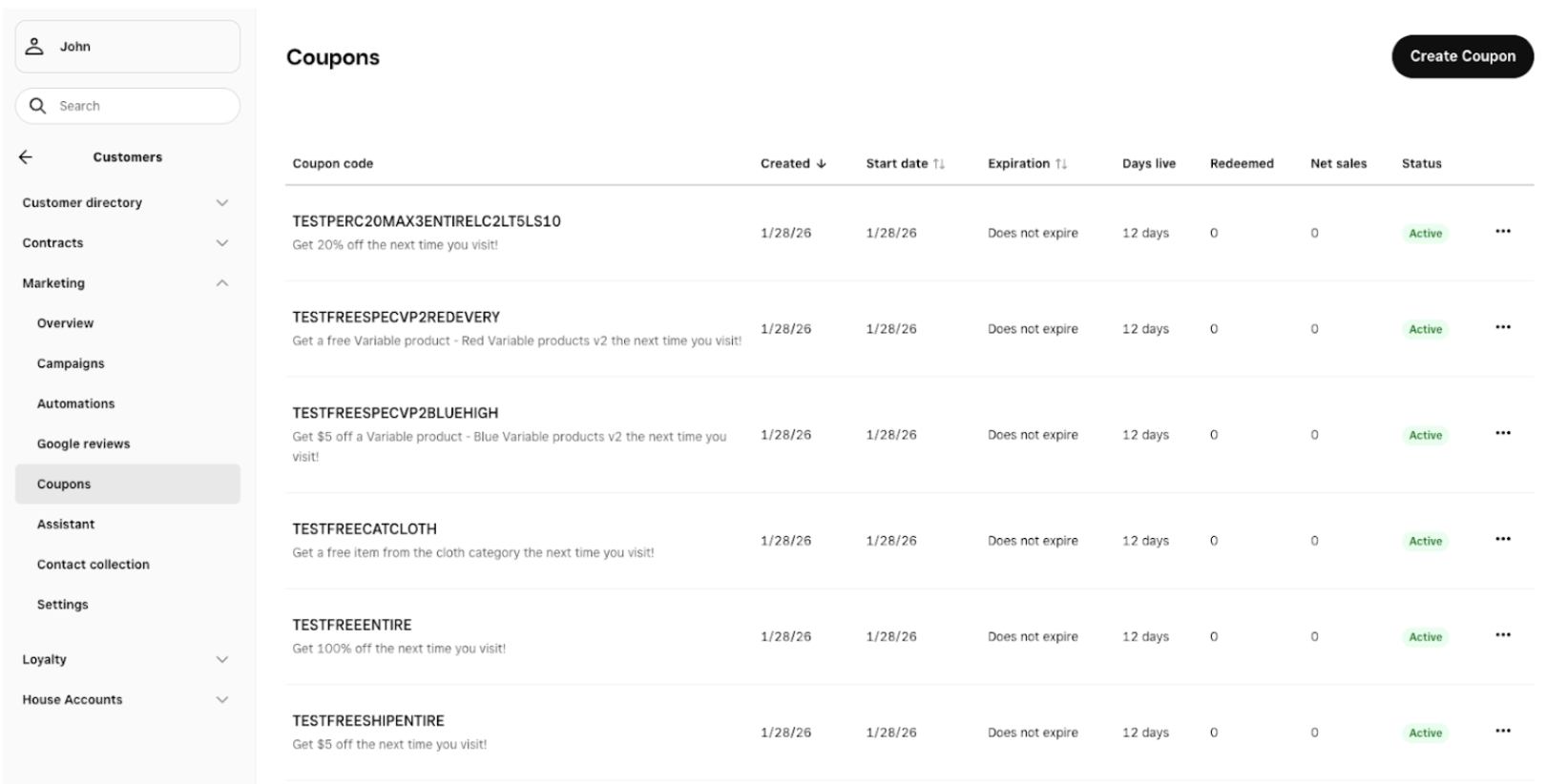
Creating discount codes in Square
↑ Back to topDiscount codes are created and managed in your Square account, not in WooCommerce:
- Log in to the Square Dashboard.
- Go to Customer > Marketing > Coupons (or “Vouchers”).
- Create a new discount and set the type (percentage or fixed amount), eligibility (e.g., specific items or entire order), and any limits or dates.
- If you want customers to enter a code, create a Discount code. Note the exact code (e.g., SAVE10) so you can share it with customers.
The extension will recognize valid, active codes when customers enter them in your store. Expired or invalid codes will show an error message.
Customer experience
↑ Back to top- Cart: Customers can enter and apply a Square discount code on the Cart page. The cart totals update to show the discount. If the cart requires shipping, the discount is calculated after a shipping method is selected.
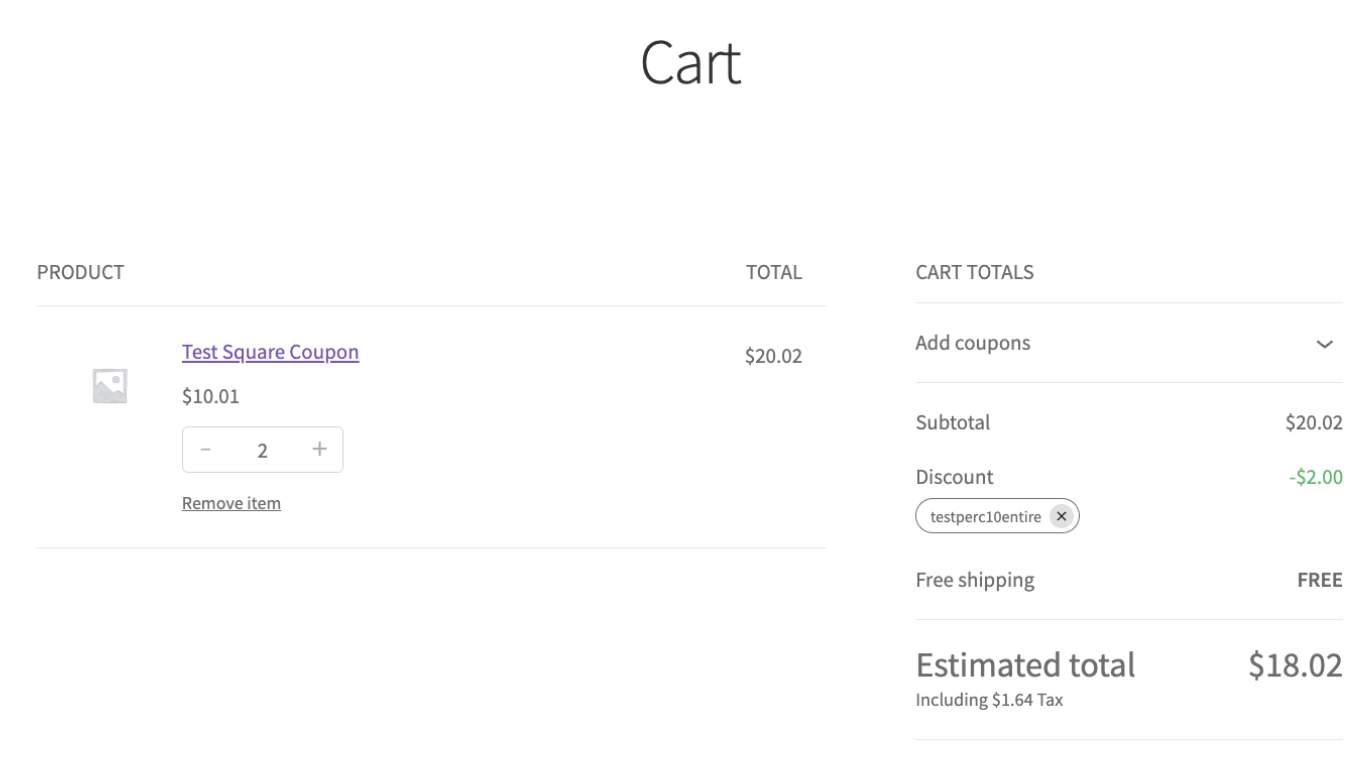
- Checkout: The same code and discount carry through to Checkout. The order total reflects the discount before payment.
- Removing a code: Customers can remove the discount from the Cart or Checkout. The totals update, and no discount is applied to the order.
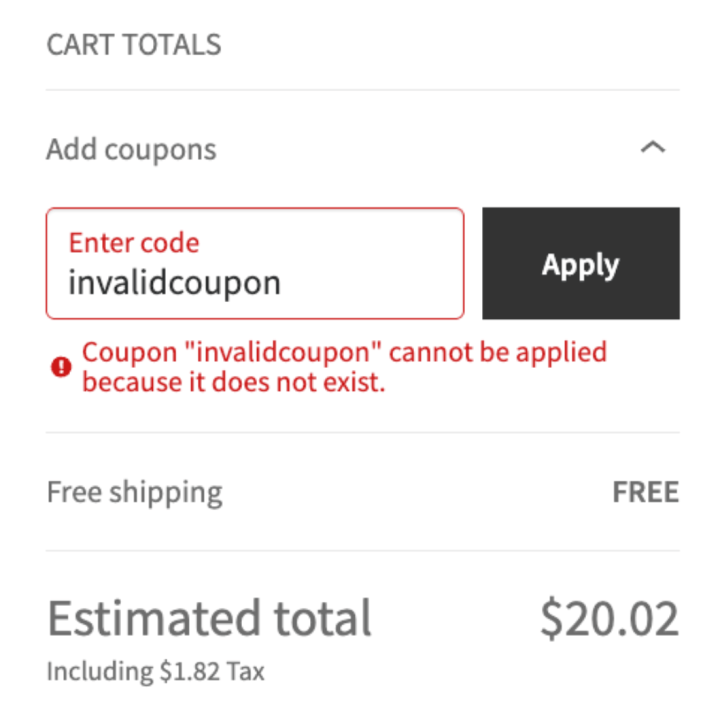
- Invalid or expired codes: If the code is invalid (e.g., misspelled or expired), the customer sees an error message and the code is not applied.
Opting out (for developers)
↑ Back to topMerchants can disable Square discount codes and use only WooCommerce coupons by filtering woocommerce_square_enable_discount_codes. When the filter returns false, the extension does not register any Square discount code logic; the Cart and Checkout will only process WooCommerce coupons.
Filter: woocommerce_square_enable_discount_codes
Default: true (Square discount codes are enabled)
Add the following to your theme’s functions.php or a small custom plugin to turn off Square discount codes:
add_filter( 'woocommerce_square_enable_discount_codes', '__return_false' );Limitations and behavior
↑ Back to topDiscounts that would make the order total zero
↑ Back to topIf a Square discount would reduce the order total to zero or below (for example, a 100% off code on the entire order), the extension will not apply it. The customer will see a message that the code cannot be used because it would set the order total to 0, and Square cannot process zero-amount transactions. The code is removed from the cart so the customer can continue with a normal purchase or use a different discount.
Square codes and WooCommerce coupons cannot be combined
↑ Back to topCustomers must use either Square discount codes or WooCommerce coupons on a single order, not both. If a Square code is applied and the customer tries to add a WooCommerce coupon (or vice versa), they will see a message that the two cannot be used together and must remove one before adding the other.
Shipping and calculation
↑ Back to topFor carts that require shipping, the Square discount is calculated after the customer has selected a shipping method. If they apply a Square code before choosing shipping, the discount is calculated once shipping is selected. Changing the shipping method or the cart contents may trigger a recalculation to keep the discount correct.
Not included in the first phase
↑ Back to topThe following are not supported in the initial release of Square discount codes in the extension:
- Cash App Pay: Square discount codes are not applied when customers pay with Cash App Pay. Use Square card payments (or other supported Square payment methods) for orders that use a Square discount code.
- Free delivery/ free shipping / 100% free: Coupon codes set up in Square to grant free shipping or free delivery may not work as expected; this scenario is not included in the first phase.
- Percentage discounts with a maximum cap: If a Square coupon is a percentage off but capped to a maximum amount (e.g., up to $50), the discount calculation can differ between Square and WooCommerce. Such coupons may not behave correctly in the first phase.
- Limit to sales over a certain amount: If a Square discount is configured in the Square Dashboard with the “Limit to sales over a certain amount” option (discount applies only when the order total is over a set value), that condition may not be enforced correctly when the customer checks out in WooCommerce.
Troubleshooting
↑ Back to topThe discount code is not recognized.
↑ Back to top- Confirm the code is created in Square and is Active (not expired or deactivated).
- Check that the code is entered exactly as in Square (codes are often case-insensitive, but spelling must match).
- Ensure your site is connected to Square and that the connection has Discount Codes permissions. If you connected before this feature was added, try disconnecting and reconnecting Square in WooCommerce > Settings > Payments > Square to grant the new permissions.
The discount amount seems wrong.
↑ Back to topDiscounts are calculated by Square based on your Square pricing rules (e.g, which items are eligible, percentage vs fixed amount). The extension displays the amount returned by Square. If you expect a different value, check the discount setup in the Square Dashboard.
Customers see “cannot be used in combination with other coupons.”
↑ Back to topThis means a WooCommerce coupon is already applied, and the customer tried to add a Square code (or a Square code is applied and they tried to add a WooCommerce coupon). Ask the customer to remove the existing coupon first, then apply the other type if needed.
The code is removed, and an error about “order total zero” is shown
↑ Back to topThe discount would have made the order total zero or negative. Square does not support zero-amount transactions. Use a different discount (e.g., a smaller percentage or a fixed amount) or inform the customer that this code cannot be used for a full discount.

