
Behaviour Settings
↑ Back to topThe Behaviour settings in the Currency per Product for WooCommerce Pro plugin lets you control how product prices assigned to different currencies are displayed and converted across the Shop, Cart, and Checkout pages. You can choose to display products in their assigned currencies, convert prices into a single currency, let customers switch currencies manually using the Currency Switcher (CPP) widget, or automatically apply currency based on the customer’s location.
The behaviours of Shop, Cart, and Checkout pages can be set using the Behaviour options of this plugin.
How this works?
↑ Back to topThe Behaviour settings allow you to control how product prices assigned to different currencies are displayed and converted across your store, cart, and checkout pages.
To access these settings, go to:
WooCommerce → Settings → Currency Per Product → Configuration → Behaviour
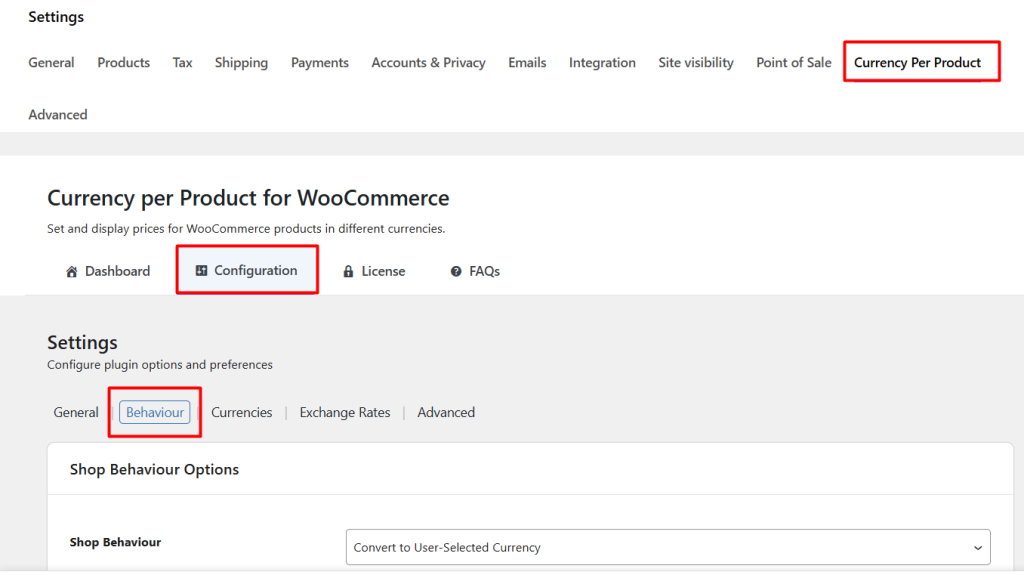
The Behaviour page consists of the following sections:
- Shop Behaviour Options
- Cart and Checkout Behaviour Options
- Location-Based Currency
Shop Behaviour Options
↑ Back to topPrerequisite
Before configuring the Behaviour settings, ensure that Enable Currency per Product is enabled under:
WooCommerce → Settings → Currency Per Product → General
This allows you to assign different currencies to products and use the Behaviour settings described in this document.
Shop Behaviour
This setting controls how prices are displayed on your shop and product pages when products are assigned different currencies.
You can choose from the following options:
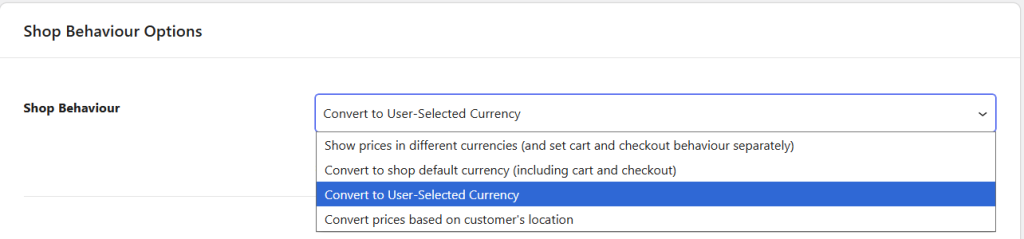
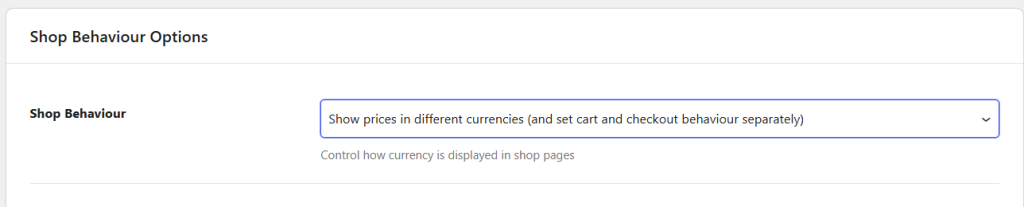
Show prices in different currencies (and set cart and checkout behaviour separately)
When you select this option from the dropdown, it will display your products in their assigned currencies on the Shop page.
To know how to assign different currency to different products, refer the General Settings post.
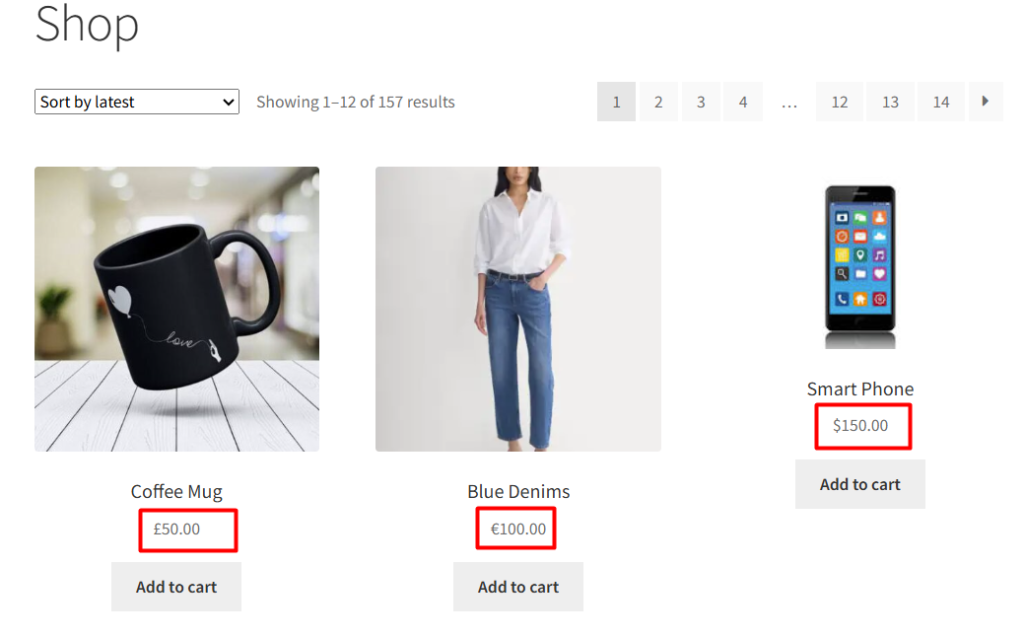
Suppose your store contains the following products:
Coffee Mug–GBP (£50.00)
Blue Denims–EUR (€100.00)
Smart Phone–USD($150.00)
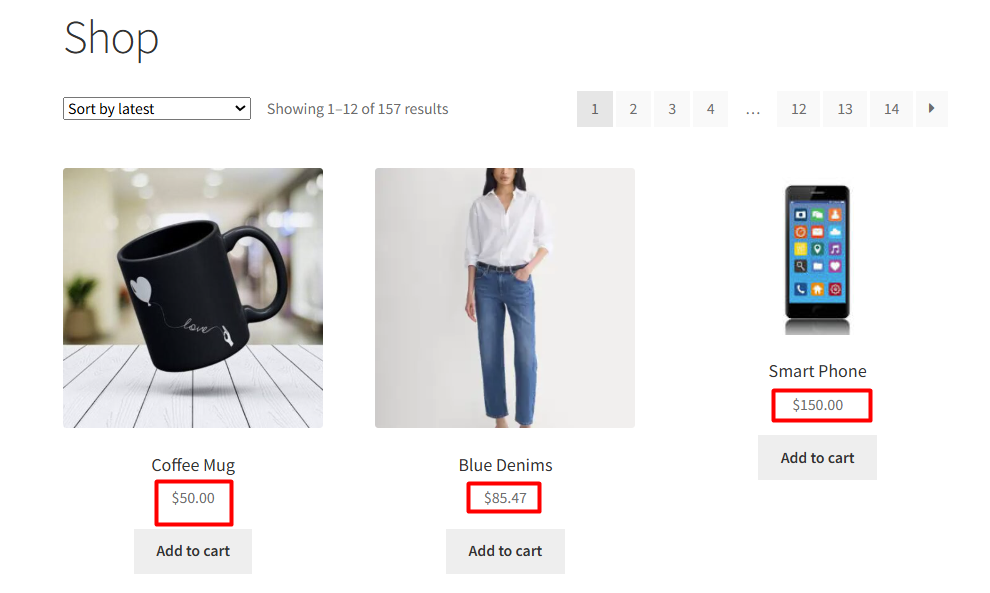
When this option ‘Show prices in different currencies (and set cart and checkout behaviour separately)‘ is selected, each product is displayed in its assigned currency on the shop page. The Coffee Mug will display in GBP, the Blue Denims in EUR, and the Smart Phone in USD.
Note: This is the default Shop Behaviour setting.
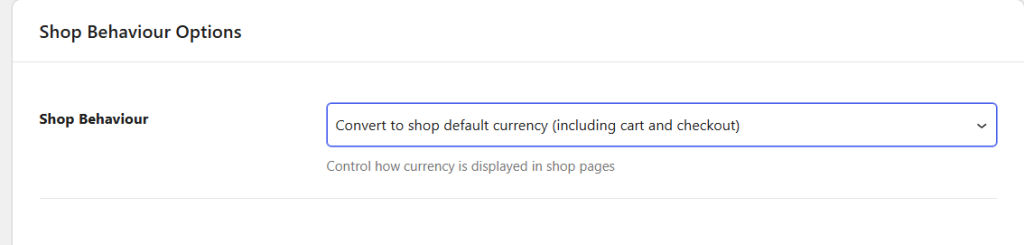
Convert to shop default currency (including cart and checkout)
When this setting is selected, it converts all product prices to your store’s default currency using the configured exchange rates.
Example
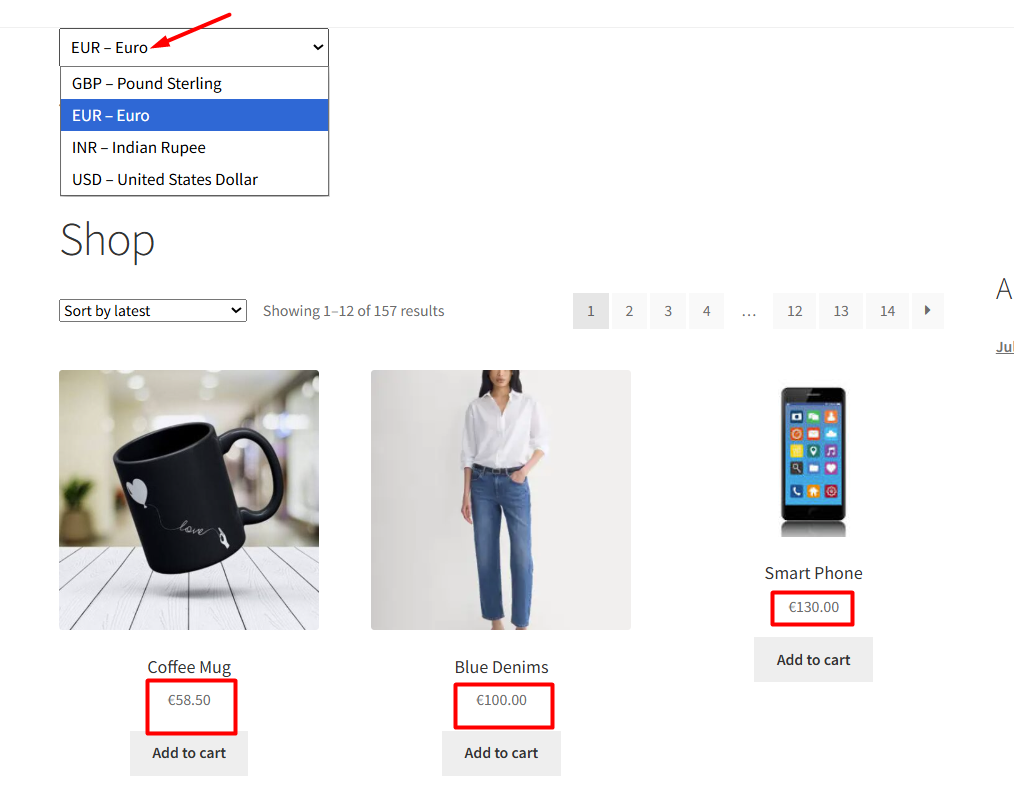
Suppose your store’s default currency is EUR (Euro) and you have the following products:
- Coffee Mug – £50.00 (GBP)
- Blue Denims – €100.00 (EUR)
- Smart Phone – $150.00 (USD)
On the frontend, all product prices are converted and displayed in EUR across the shop, cart, and checkout pages. As a result, Blue Denims and Smart Phone will display converted EUR prices, while Coffee Mug will continue to display its original EUR price.
Convert to User-Selected Currency
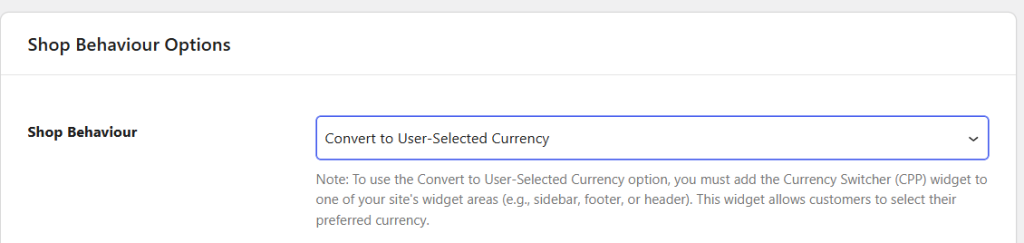
This setting allows customers to view prices in the currency they choose using the Currency Switcher (CPP) widget.
How to Add the Currency Switcher Widget
Follow the steps below to add and configure the Currency Switcher (CPP) widget on your site:
- Go to your WordPress dashboard → Appearance → Widgets.
- Choose the widget area where you want the switcher to appear — for example, Sidebar, Footer, or Header.
- Click “+ Add Block” and search for Currency Switcher (CPP).
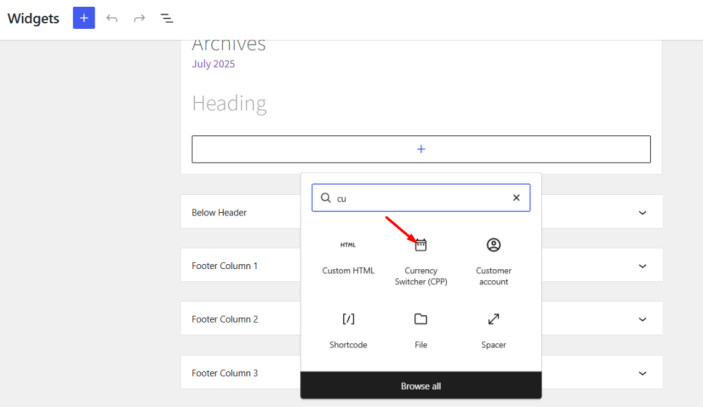
- Click to add it, and it will appear in your chosen widget area.
- You can add a title such as “Select Your Currency” for better clarity.
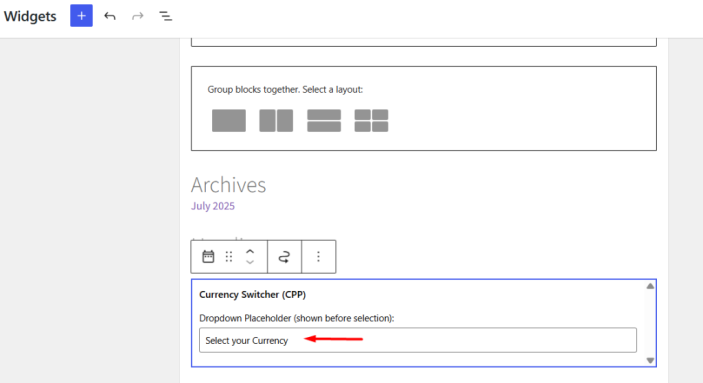
- Click Update to save changes and view the widget appearing on the frontend in the chosen widget area.
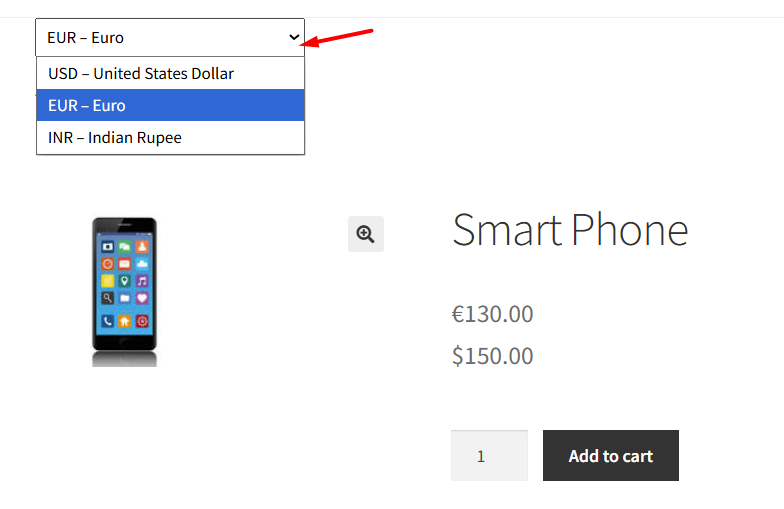
Example
Suppose your store contains:
- Coffee Mug – £50.00 (GBP)
- Blue Denims – €100.00 (EUR)
- Smart Phone – $150.00 (USD)
If a customer selects EUR using the Currency Switcher, the prices of all three products are converted and displayed in EUR throughout the store.
Note: To use this option, you must add the Currency Switcher (CPP) widget to one of your site’s widget areas, such as the sidebar, footer, or header.
Convert prices based on customer’s location
This setting automatically converts and displays prices based on the visitor’s detected location.
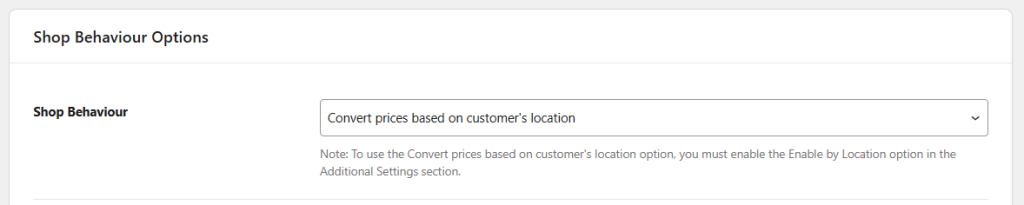
Example
Suppose your store contains:
- Coffee Mug – £50.00 (GBP)
- Blue Denims – €100.00 (EUR)
- Smart Phone – $150.00 (USD)
A customer visiting from Germany sees all product prices displayed in EUR.
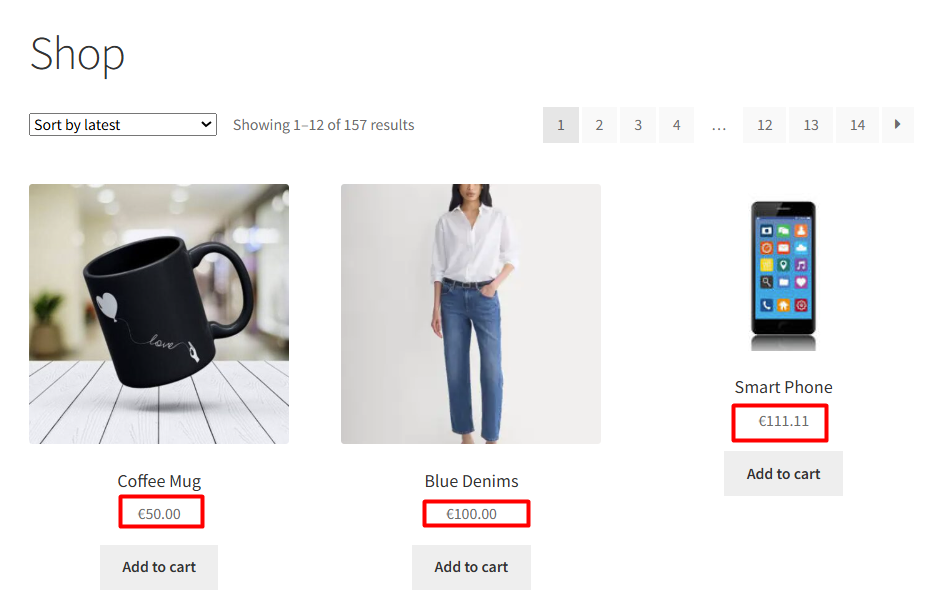
A customer visiting from the United States sees all product prices displayed in USD.
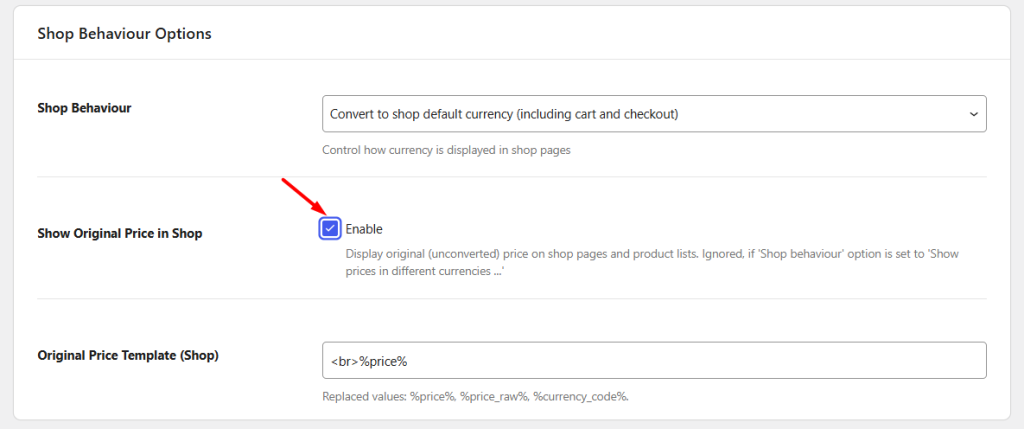
Show Original Price in Shop
Enable this option to display the product’s original price alongside the converted price on shop and product listing pages.
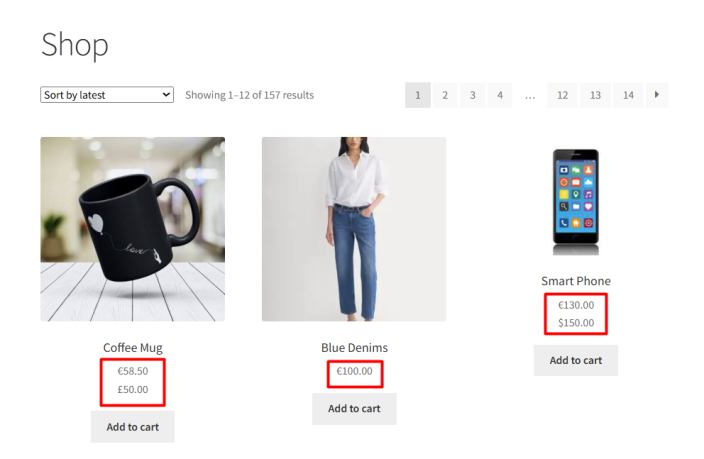
Example
Suppose your store’s default currency is GBP and Blue Denims is assigned EUR (€100.00).
The product displays both the converted GBP price and the original EUR price on the shop and product pages as shown below:
- Converted price: £85.00
- Original price: €100.00
Note: This setting is ignored when Shop Behaviour is set to Show prices in different currencies (and set cart and checkout behaviour separately).
Cart and Checkout Behaviour Options
Cart and Checkout Behaviour
↑ Back to topThis setting allows you to select an appropriate option for displaying products with its price and currency on the Cart and Checkout page. There are various Cart and Checkout behaviour options to show product prices in different currencies on the front end. Let us understand how each of these options work.
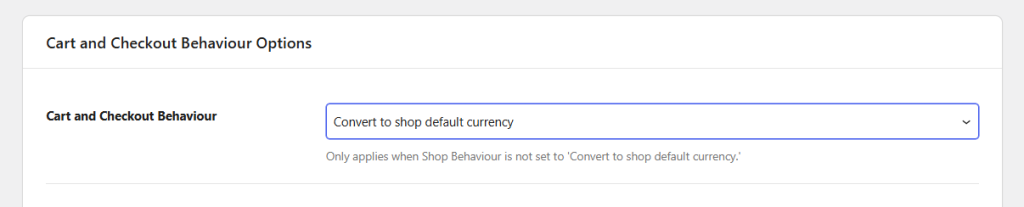
Convert to shop default currency
Select this option to display all product prices in your store’s default currency on the Cart and Checkout pages, regardless of the currency assigned to the products.
Example
Suppose your store’s default currency (base currency) is GBP (Pound Sterling) and a customer adds the following products to the cart:
- Coffee Mug – £50.00 (GBP)
- Blue Denims – €100.00 (EUR)
- Smart Phone – $150.00 (USD)
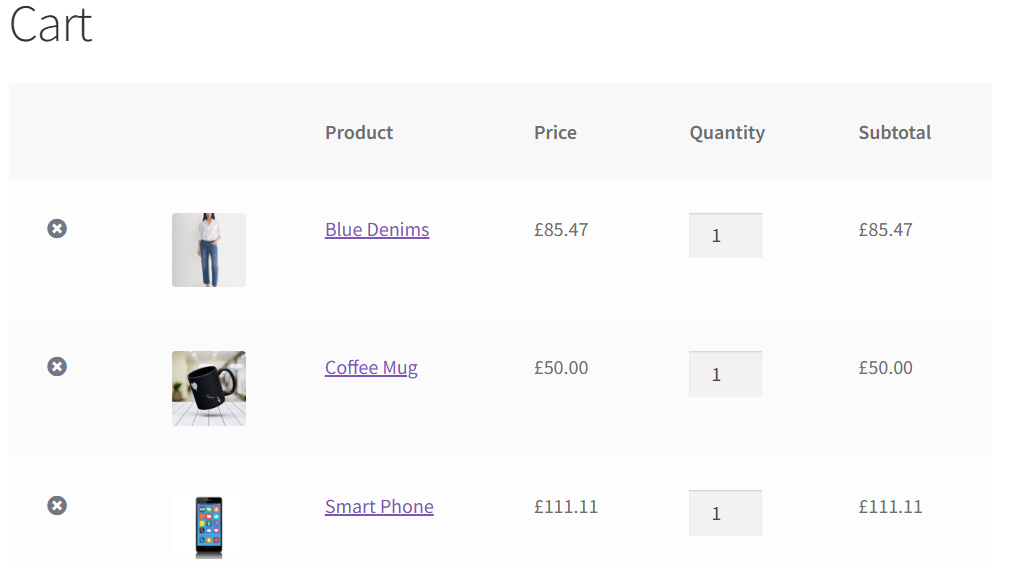
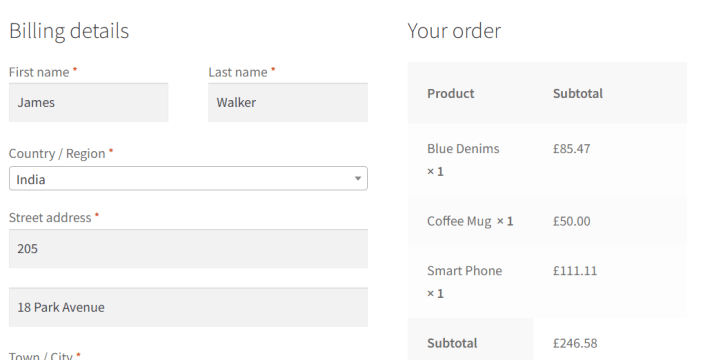
All product prices are converted and displayed in GBP on the Cart and Checkout pages using the configured exchange rates.
Leave product currency (allow only one product to be added to cart)
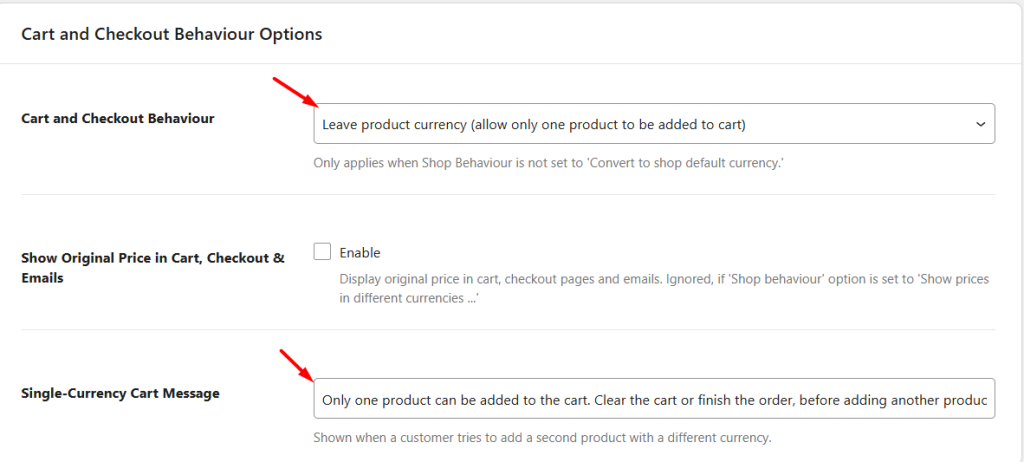
Select this option if you want customers to purchase only one product at a time and complete the checkout before adding another product.

When selected, the Single-Currency Cart Message setting becomes available, allowing you to customize the notice displayed when customers attempt to add another product to the cart.
Example
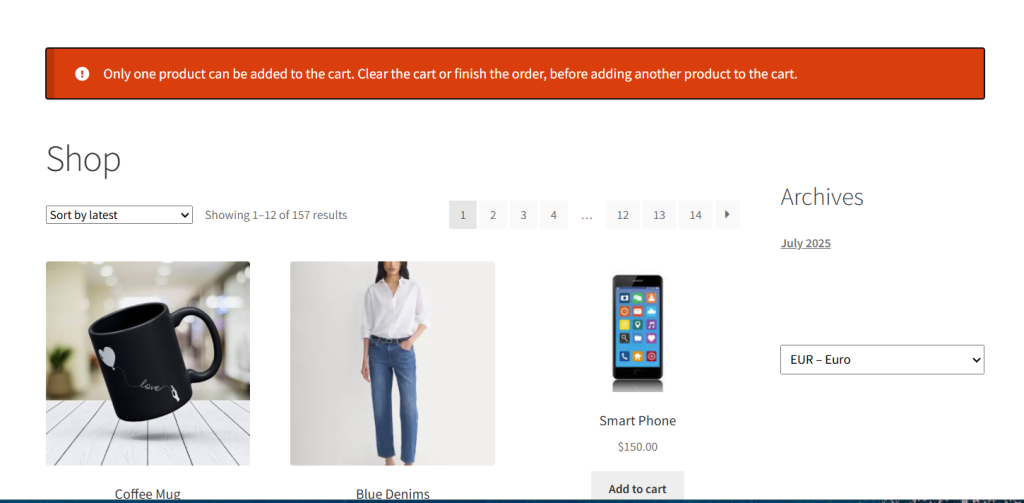
If a customer adds Coffee Mug to the cart and then attempts to add Blue Denims, the plugin displays a notice and prevents the second product from being added.
Note: This option is ignored when Shop Behaviour is set to Convert to shop default currency (including cart and checkout) because all product prices are already converted to the shop’s default currency.
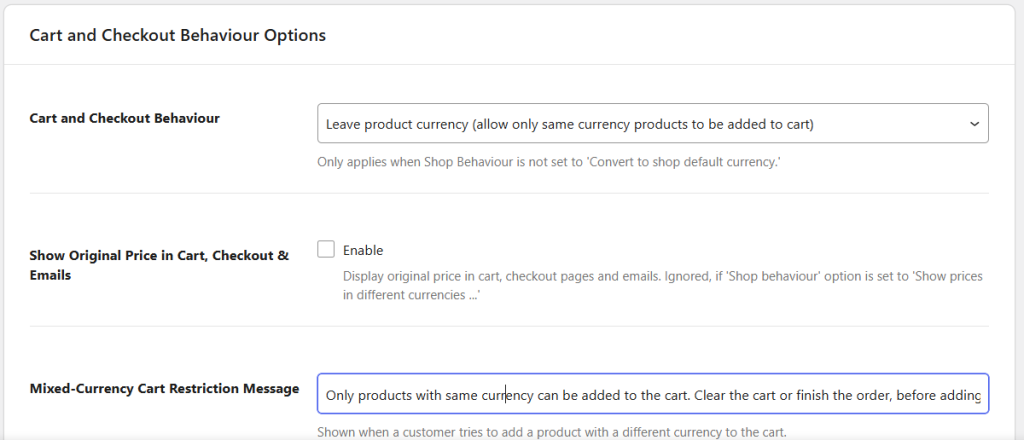
Leave product currency (allow only same currency products to be added to cart)
Select this option to allow customers to add multiple products to the cart only when those products share the same currency.

Selecting the above option displays the Mixed-Currency Cart Restriction Message setting, which allows you to customize the notice shown to customers when they attempt to add products with a different currency to the cart.
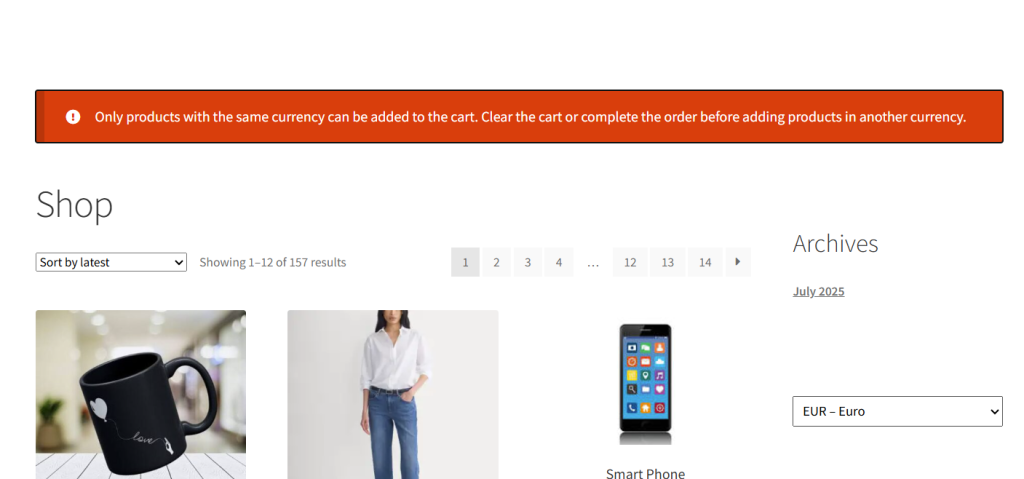
Example
If a customer adds Coffee Mug (£50.00 GBP) to the cart and then attempts to add Blue Denims (€100.00 EUR), the plugin displays a notice and prevents the product from being added.
Note: This option is ignored when Shop Behaviour is set to Convert to shop default currency (including cart and checkout) because all product prices are already converted to the shop’s default currency.
Convert to currency of last product in cart
Select this option to automatically convert all cart items to the currency of the last product added to the cart.

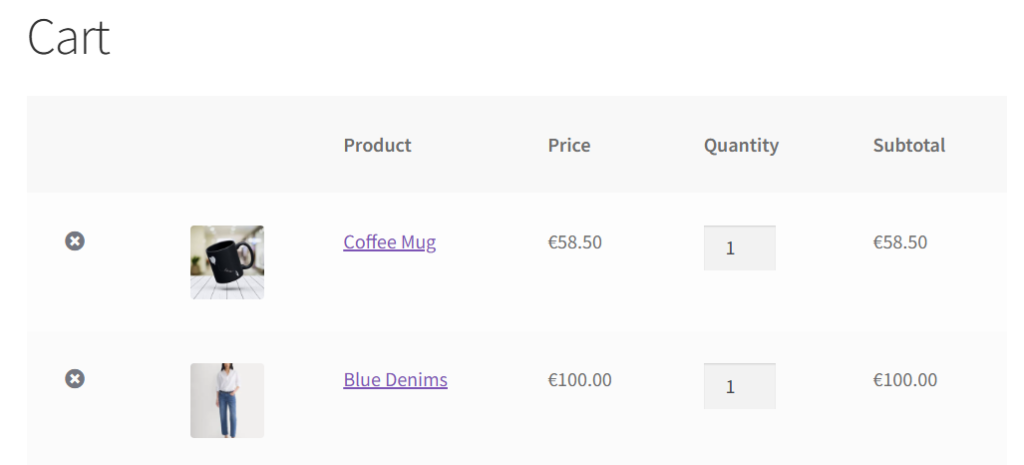
Example
If a customer first adds Coffee Mug (£50.00 GBP) to the cart and then adds Blue Denims (€100.00 EUR), all cart prices are converted to EUR because Blue Denims was the last product added.
Note: This option is ignored when Shop Behaviour is set to Convert to shop default currency (including cart and checkout) because all product prices are already converted to the shop’s default currency.
Convert to currency of first product in cart
Select this option to automatically convert all cart items to the currency of the first product added to the cart.

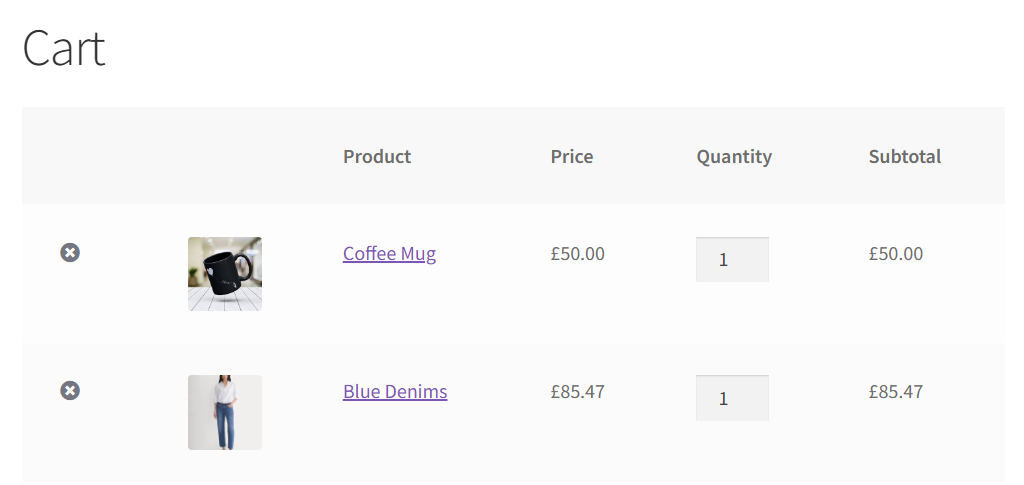
Example
If a customer first adds Coffee Mug (£50.00 GBP) to the cart and then adds Blue Denims (€100.00 EUR), all cart prices are converted to GBP because Coffee Mug was the first product added.
Note: Order currency can only be displayed in a single currency. Depending on the selected Cart and Checkout Behaviour option, the order currency is converted either to the shop’s default currency or to the currency of one of the products in the cart.
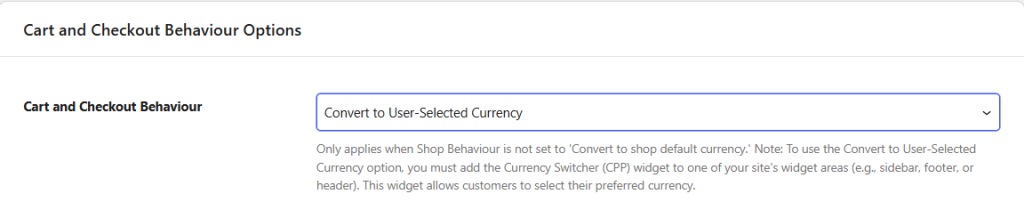
Convert to User-Selected Currency
Select this option to display cart and checkout prices in the currency chosen by the customer using the Currency Switcher (CPP) widget.
Example
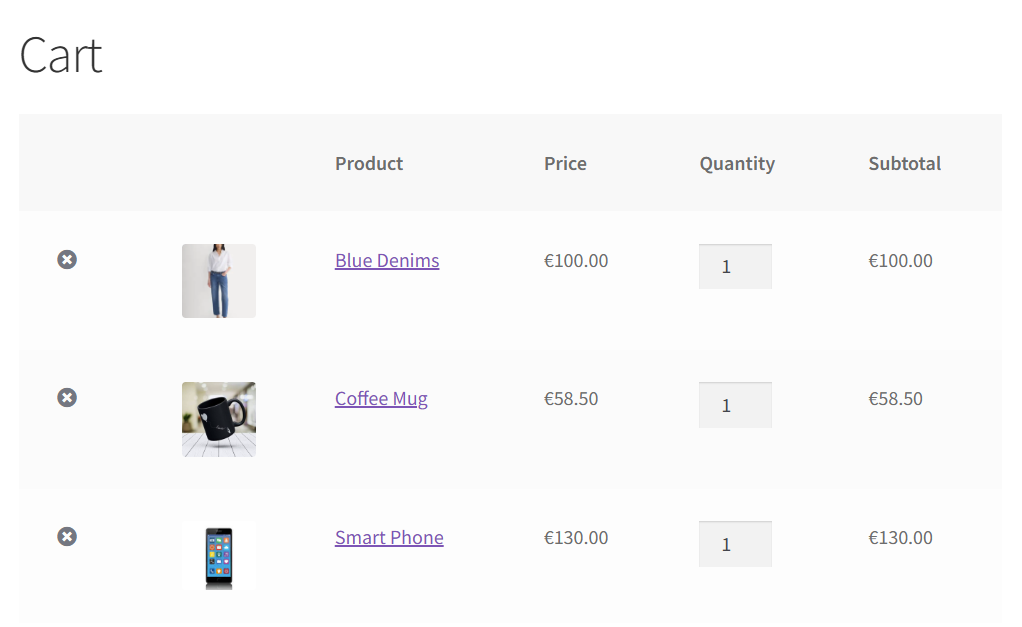
Suppose a customer adds the following products to the cart:
- Coffee Mug – £50.00 (GBP)
- Blue Denims – €100.00 (EUR)
- Smart Phone – $150.00 (USD)
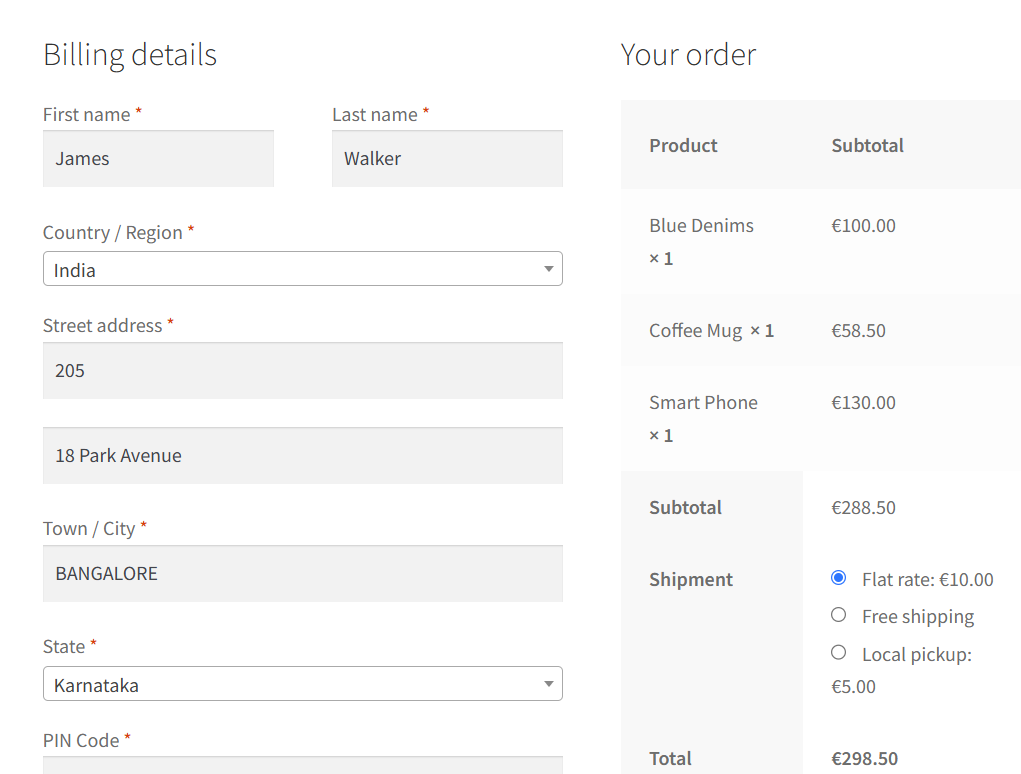
The customer selects EUR using the Currency Switcher, and all product prices are displayed in EUR on the Cart and Checkout pages.
Note:
- This option works only when Convert to User-Selected Currency is also selected under Shop Behaviour.
- The Currency Switcher (CPP) widget must be added to your site to allow customers to select their preferred currency.
- If Convert to shop default currency (including cart and checkout) is selected under Shop Behaviour, this option is overridden.
Convert prices based on customer’s location
This feature allows your store to automatically detect a visitor’s geographic location and display product prices in the corresponding currency.
Note:If the detected user location’s currency isn’t defined in the plugin’s global settings, the product’s assigned currency will be used as a fallback.
How to Enable Geo-Location Pricing
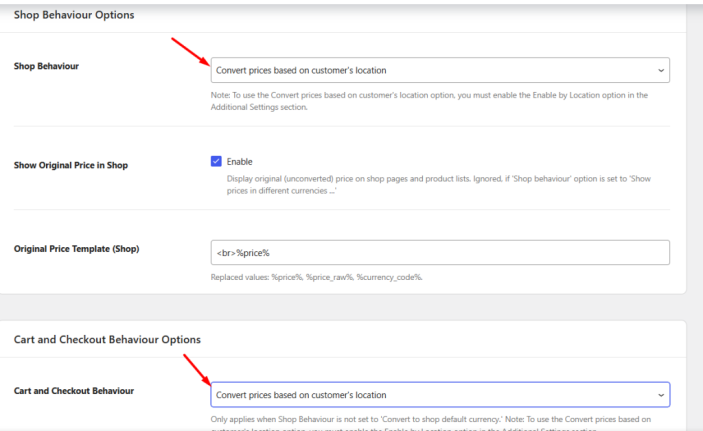
- Shop Behaviour & Cart & Checkout Behaviour
- Go to WooCommerce → Settings → Currency per Product → Behaviour.
- In Shop Behaviour Options, select Convert prices based on customer’s location.
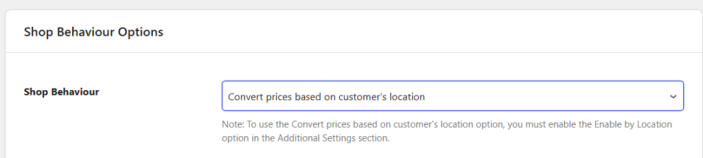
- In Cart and Checkout Behaviour Options, select Convert prices based on customer’s location.

Example
Suppose a customer from India adds the following products to the cart:
- Coffee Mug – £50.00 (GBP)
- Blue Denims – €100.00 (EUR)
- Smart Phone – $150.00 (USD)
The prices are automatically converted and displayed in INR throughout the Cart and Checkout pages.
Note:
- This option works only when Convert prices based on customer’s location is selected in both Shop Behaviour and Cart and Checkout Behaviour settings.
- If a currency matching the customer’s detected location is not configured, the product’s assigned currency is used instead.
Show Original Price in Cart, Checkout & Emails
Enable this option to display the product’s original price alongside the converted price in the Cart, Checkout pages, and order emails.

Example
Suppose your store’s default currency is GBP and Blue Denims is assigned EUR (€100.00).
Frontend Behaviour: The Cart page, Checkout page, and order emails display both the converted GBP price and the original EUR price.
Note: This setting is ignored when Shop Behaviour is set to Show prices in different currencies (and set cart and checkout behaviour separately).
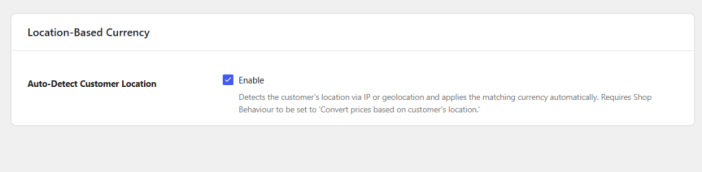
Auto-Detect Customer Location
Automatically detects the customer’s location and applies the corresponding currency.
When enabled, the plugin uses geolocation to determine the visitor’s country and displays prices in the matching currency.
Requirements
To use this feature:
- Set Shop Behaviour to Convert prices based on customer’s location.
- Set Cart and Checkout Behaviour to Convert prices based on customer’s location.
- Enable Auto-Detect Customer Location.
Example
Suppose your store contains:
- Coffee Mug – £50.00 (GBP)
- Blue Denims – €100.00 (EUR)
- Smart Phone – $150.00 (USD)
A visitor from India sees all product prices displayed in INR, while a visitor from the United States sees the same products displayed in USD.
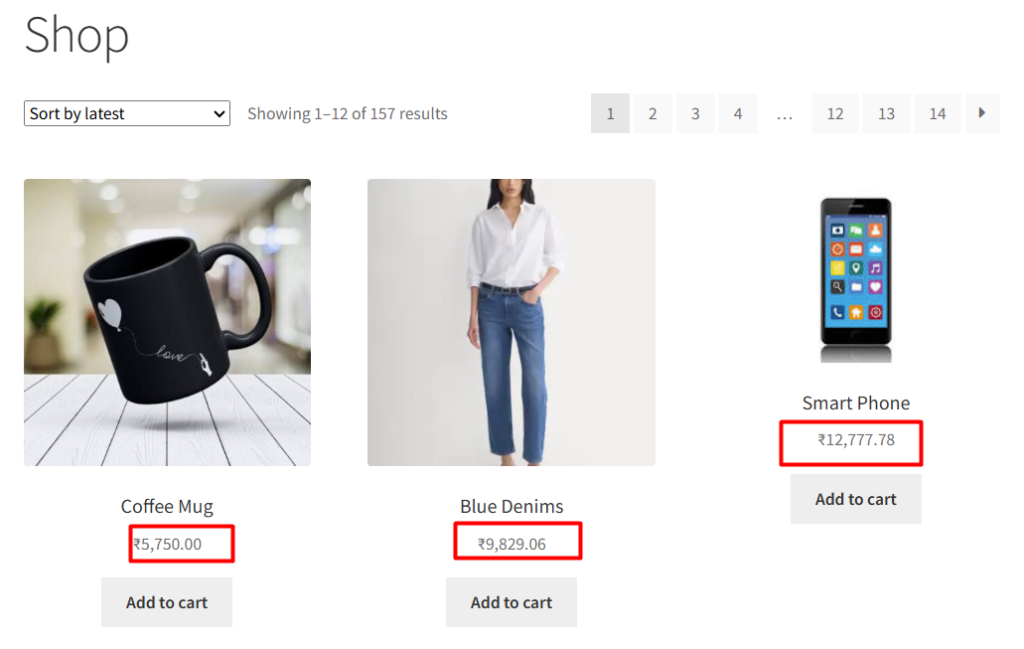
Note: If a currency matching the visitor’s location is not configured in the plugin settings, the product’s assigned currency is used instead.
Save Changes and Reset Settings
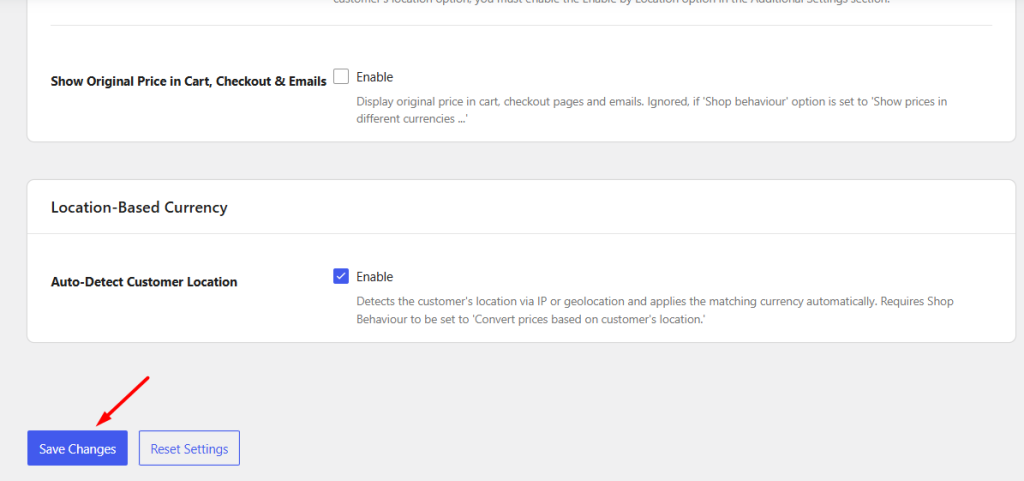
↑ Back to topAt the bottom of the page, you will find the Save Changes and Reset Settings buttons.
Save Changes
Click Save Changes to apply any updates made to the Behaviour settings.
Reset Settings
Click Reset Settings to restore the Behaviour settings to their default configuration.
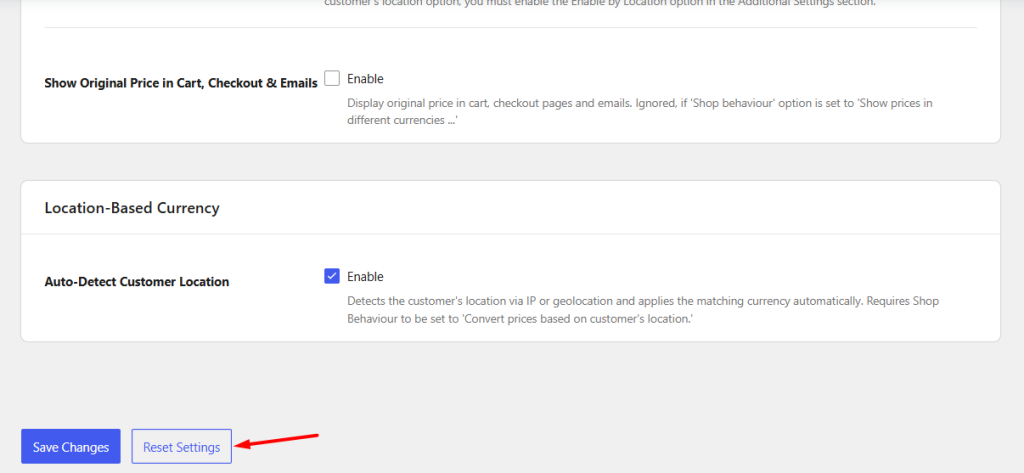
When reset:
- Shop Behaviour is set to Show prices in different currencies (and set cart and checkout behaviour separately).
- Show Original Price in Shop is disabled.
- Cart and Checkout Behaviour is set to Convert to shop default currency.
- Show Original Price in Cart, Checkout & Emails is disabled.
- Auto-Detect Customer Location is disabled.
The Behaviour settings provide flexible ways to display and convert prices across your store, allowing you to create different pricing experiences for customers based on product currency, user preferences, and geographic location.
Currencies Settings
↑ Back to topThe Currencies settings in the Currency per Product for WooCommerce Pro plugin allow you to add and manage the currencies used in your store. You can also configure currency mapping rules to automatically assign currencies based on product categories, product tags, product authors, user roles, and payment gateways.
The currencies added here become available in the Product Currency dropdown on the Edit Product page, allowing you to assign different currencies to individual products. To learn how to assign currencies to specific products using this dropdown, refer to the Per Product Currency documentation.
How this works ?
↑ Back to topTo add different currencies, go to:
WooCommerce → Settings → Currency per Product → Configuration → Currencies
The default Currencies page will appear as shown below.
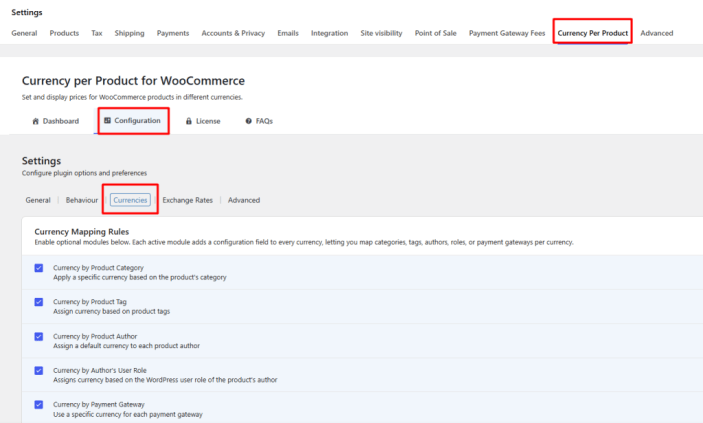
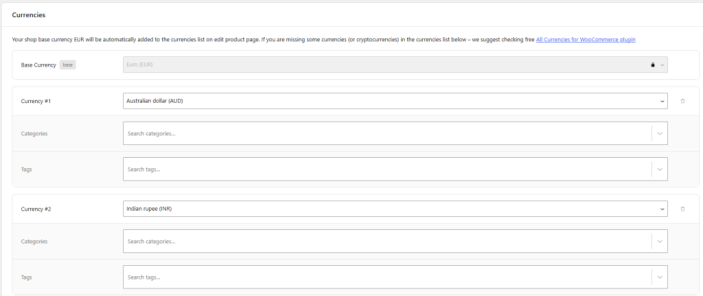
Default Currencies page
The Currencies page consists of the following sections:
- Currency Mapping Rules
- Currencies
- Save Changes and Reset Settings
Let us understand each of these sections in detail.
1. Currencies Options
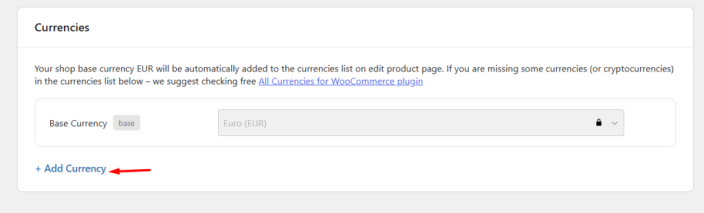
Currencies Options section
The Currencies section allows you to add and manage the currencies available in your store.
The store’s base currency configured in the WooCommerce global settings is automatically added as the Base Currency and cannot be removed.
To add additional currencies:
- Click + Add Currency.
- A new currency row will appear.
- Select the desired currency from the dropdown.
- Repeat the process to add additional currencies.
Adding more than 1 currency
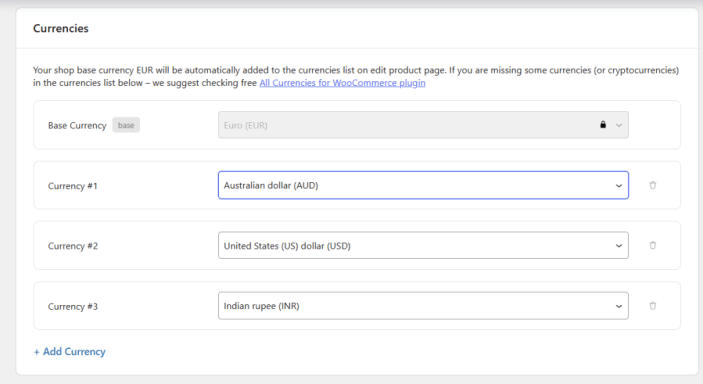
Adding different currencies
The currencies added here become available in the Product Currency dropdown on the Edit Product page, allowing you to assign different currencies to individual products.
If one or more Currency Mapping Rules are enabled, additional configuration fields will appear under each currency, allowing you to define the corresponding conditions.
The default value set for currencies is shop’s default currency.
2. Currency Mapping Rules
The Currency Mapping Rules section allows you to enable additional modules that automatically assign currencies based on specific conditions.
Each enabled module adds a corresponding configuration field under every currency in the Currencies section.
The following mapping rules are available:
- Currency by Product Category
- Currency by Product Tag
- Currency by Product Author
- Currency by Author’s User Role
- Currency by Payment Gateway
You can enable one or multiple mapping rules depending on your store requirements.
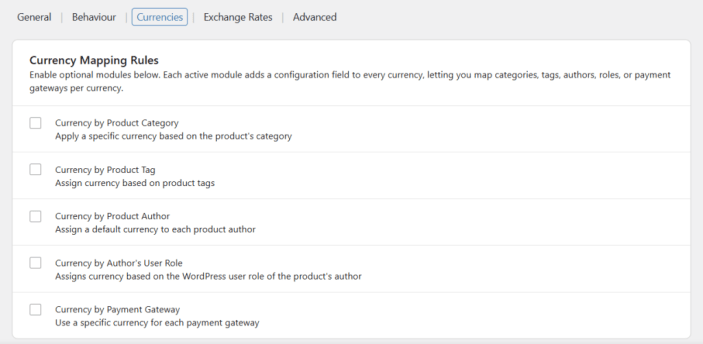
Additional options
If you tick any one of these Additional options checkbox, a selection field will be added for each currency under Currencies section.
a. Currency per product categories
When enabled, a Product Categories field is added to each currency.
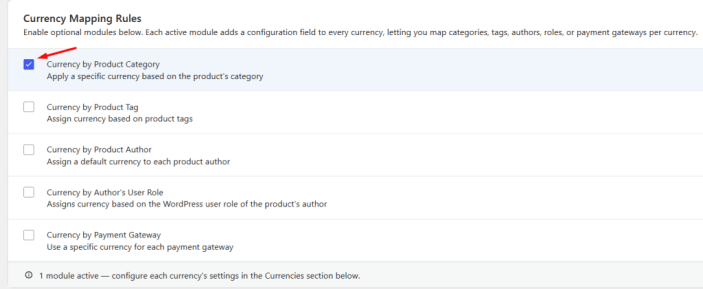
You can select one or more product categories for a currency. Products belonging to the selected categories will automatically use the assigned currency.
For example, suppose your store sells clothing to customers in Europe and electronics to customers in the United States. You can assign:
- Clothing → EUR
- Electronics → USD
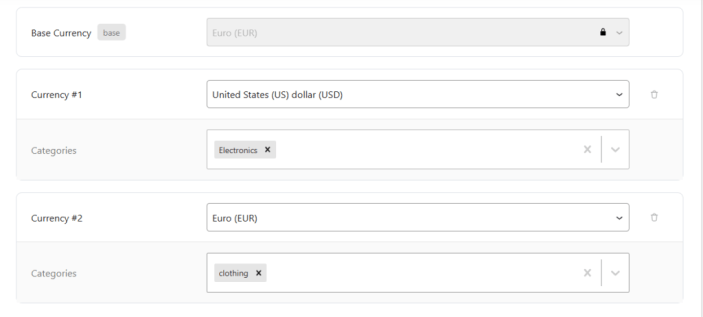
Products in the Clothing category will display prices in Euros, while Electronics products will display prices in US Dollars.
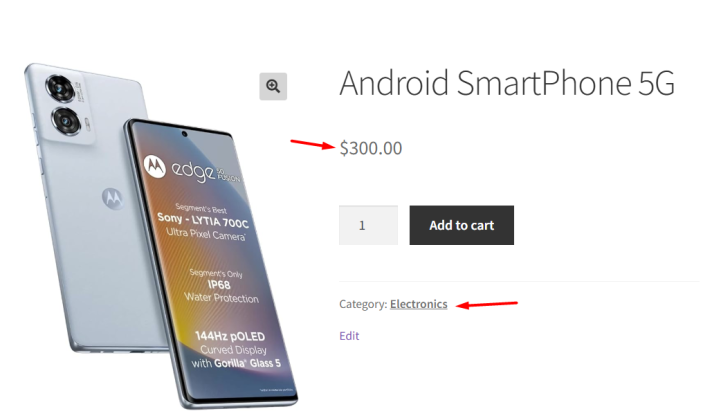
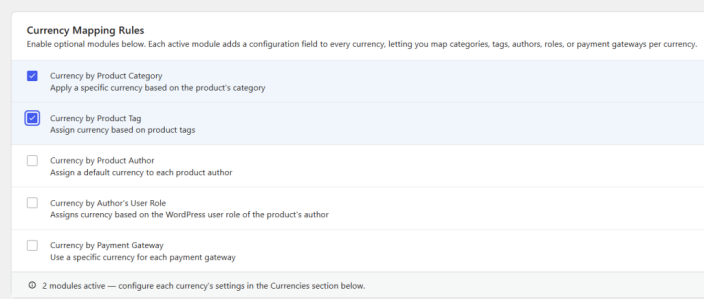
Category clothing displaying prices in Indian rupee
b. Currency per product tags
Here you can add currency for different product tags. When you tick the Currency per product tags checkbox under Additional options, the Product tags selection field for both currencies will appear.

Add appropriate product tags for these currencies to display their prices in the selected currency. Please note that It is not compulsory to add product tags for all currencies.
Let us add the Product tag Cakes for currency Indian rupee and tag Jackets for Euro.

Adding product tags for each currency
Hence, all the products with the product tag Cakes will show product prices in Indian rupee.
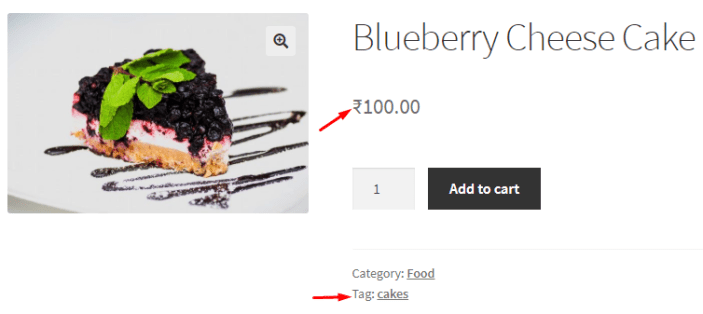
Products with the tag Cakes are displayed in Indian rupee
Alternatively, the products with product tag Jackets will display prices in Euro.

Products with tag Jackets are displayed in Euro
You can add multiple users, user roles, product categories, and product tags for assigning them currencies in the Currencies section.
c. Currency by Product Author
When you select the ” Currency by Product Author” checkbox, a Product Author field is added to each currency.
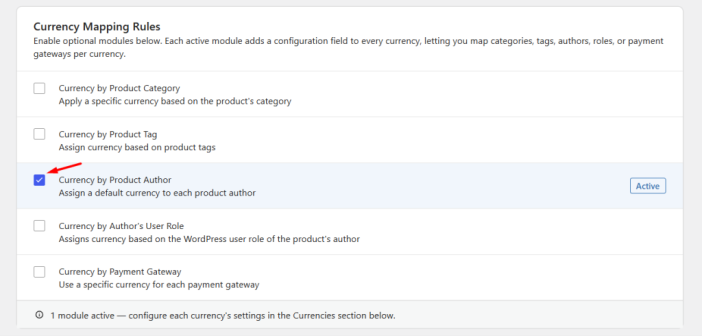
Adding additional option
The Currency by Product Author setting allows you to assign a default currency to selected WordPress users. When a selected user logs into the store and browses products, product prices are displayed in the currency assigned to that user.
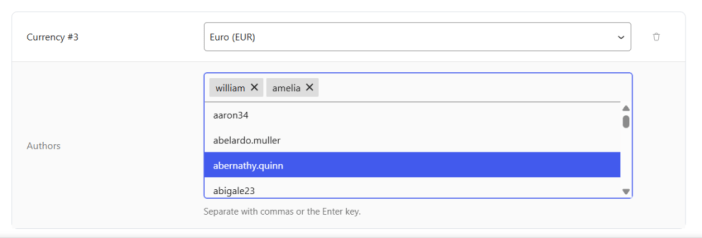
Select product author from the dropdown
For example, you can configure:
- user william → INR
- user amelia → USD
This setting can be useful when different users or vendors need to view product prices in different currencies.
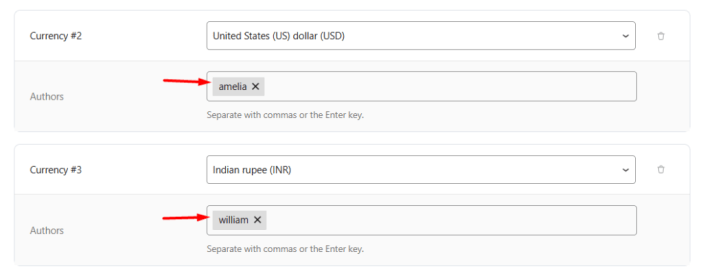
Adding product authors
When william logs into the store, product prices are displayed in Indian Rupees (INR).
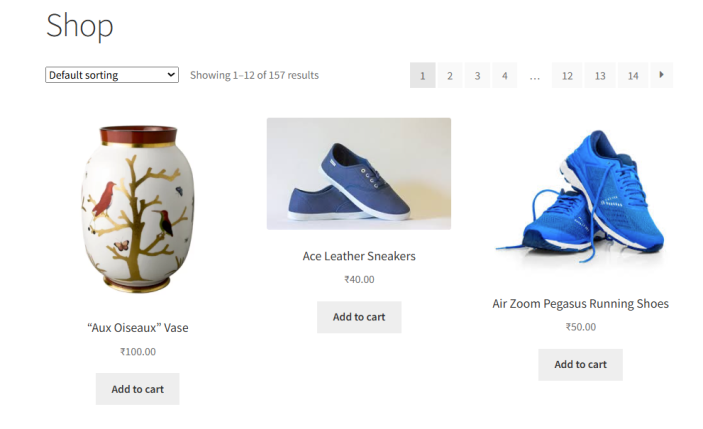
Products for added user in Indian rupee
Similarly, when amelia logs into the store, product prices are displayed in US Dollars (USD).
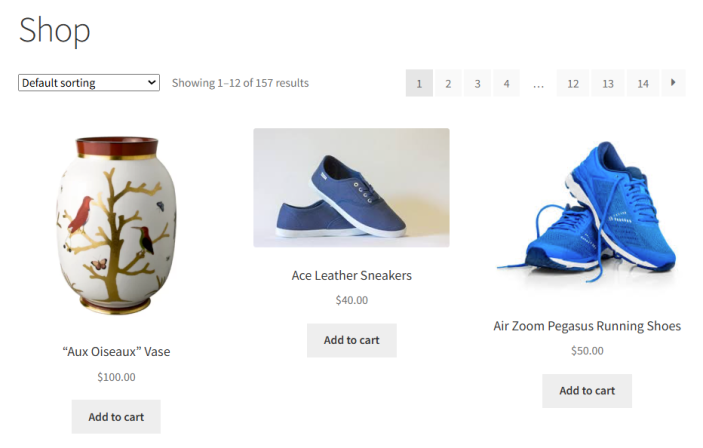
Products for the added user in Euro
You can add more than one product authors by selecting multiple users from the dropdown.
d. Currency per product authors user roles
Product Authors User Roles are the WordPress user roles assigned to users on your store, such as Administrator, Shop Manager, and Vendor.
When you enable the Currency by Product Authors User Roles option, a Product Authors User Roles field is added under each currency in the Currencies section. You can select one or more user roles for each currency.
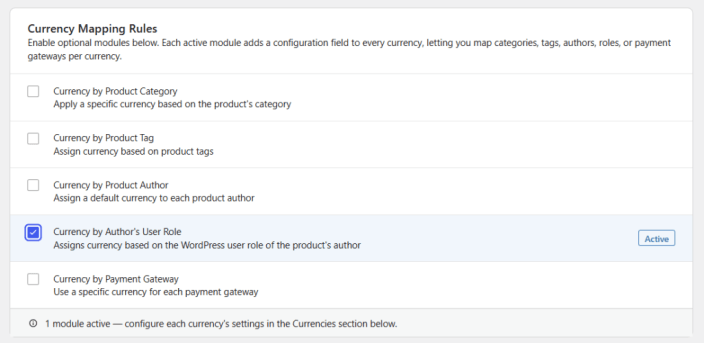
Product authors user roles selection field appears
Let’s select user roles for each of these currencies. You can select the Shop Manager role for currency Indian rupee and Administrator role for Euro.
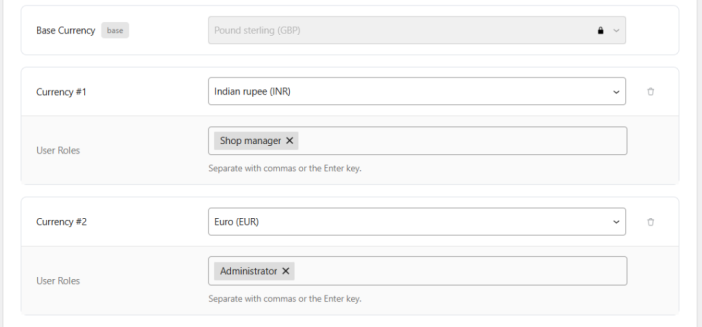
Selecting user roles for both currencies
When a Shop Manager visits the site, they will see all products in Indian rupee.

Display of products in Indian rupee for all Shop Managers
Whereas when an Administrator will visit the store, they will see products in Euros.
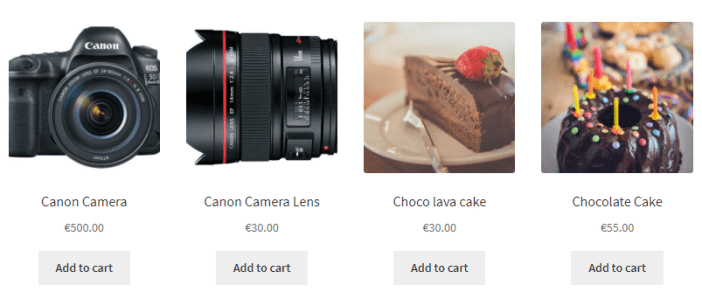
Display of products in Euro for all Administrators
e. Currency per payment gateway
When enabled, a Payment Gateway field is added to each currency. This setting allows you to add specific payment gateways for products assigned to a particular currency.
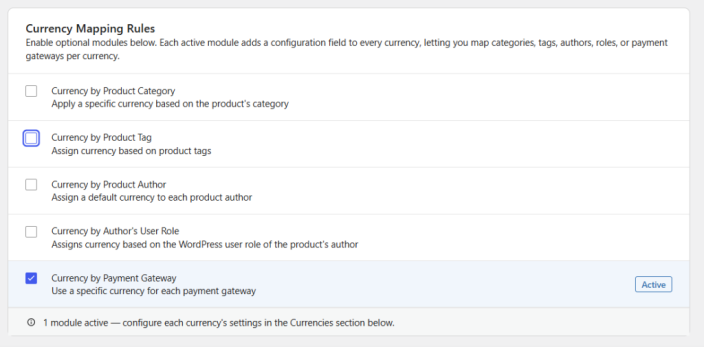
Here, you can add the payment gateways you wish to disable when a product of that particular currency is added by the customer to their cart.
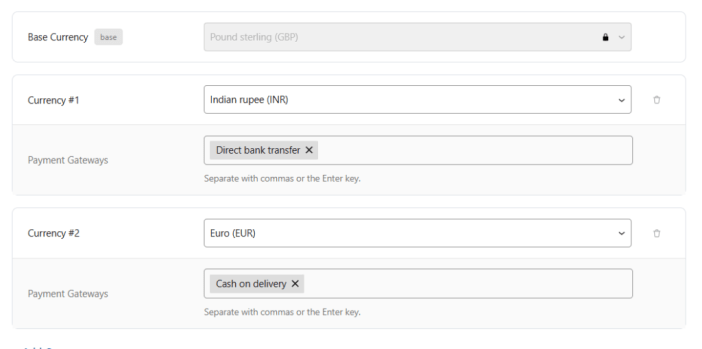
For instance, you can disable the Direct bank transfer payment gateway for products with the currency Indian rupee.
Similarly, you can disable the Cash on delivery payment gateway for products with the currency Euro.
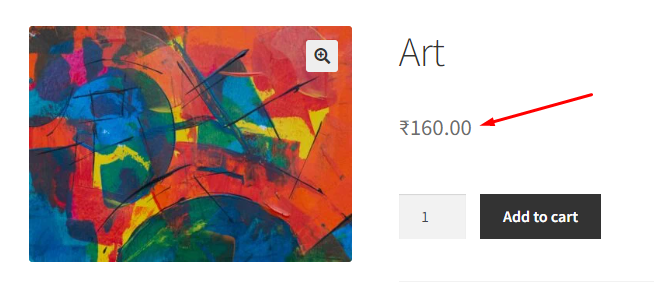
When the customer chooses a product with the currency Indian rupee, the product page will appear like this:
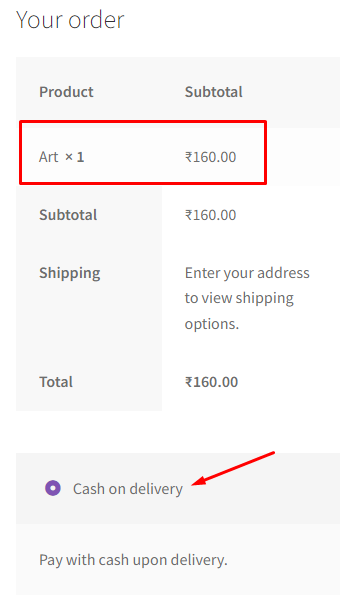
Once it is added, the Checkout Page will not display the Direct Bank Transfer payment gateway because it has been disabled for the Indian currency. In this case, only the Cash on Delivery gateway is available:
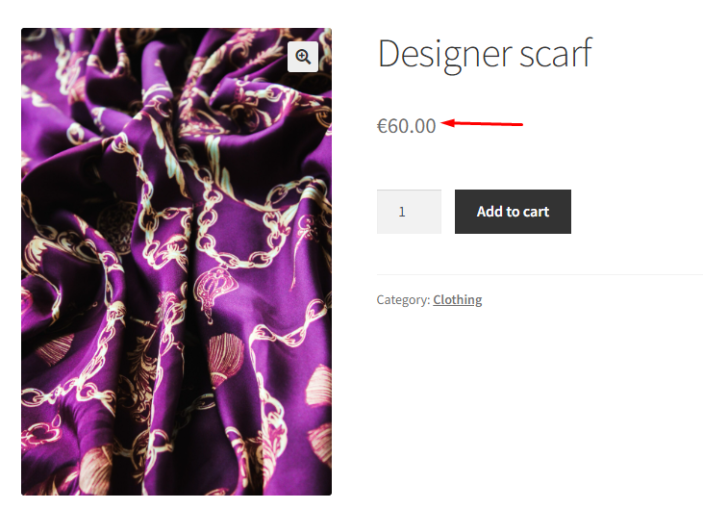
Likewise, the product with Euro currency will appear to the customer as shown here:
After adding it to the cart and proceeding to the Checkout Page, the order details will show the payment gateway Direct bank transfer. This is because the Cash on delivery payment gateway was disabled for the Euro.
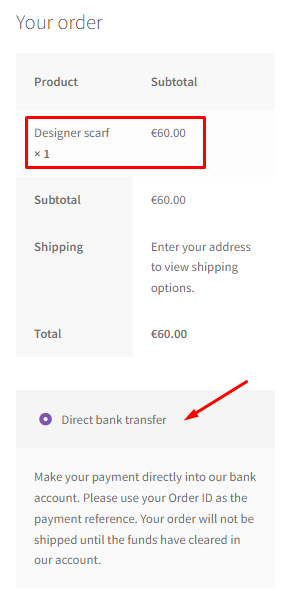
In a similar manner, you can disable different payment gateways for a particular currency according to your needs.
Multiple Selections
You can select multiple mapping rules to have a unique combination as per your requirements. Choosing multiple options will show the corresponding option fields under the currency.
Let’s understand this with an instance. Select Currency per product categories and Currency per product tags in Additional Options section.
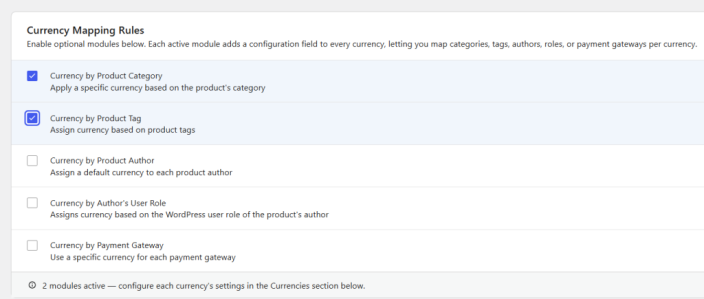
This will display Product categories and Product tags selection field for added currency Euro.

Adding Product categories and tags selection field
Now add the product category and tag for the currency Euro. You can add Clothing to Product categories and Cap & Scarf to Product tags.
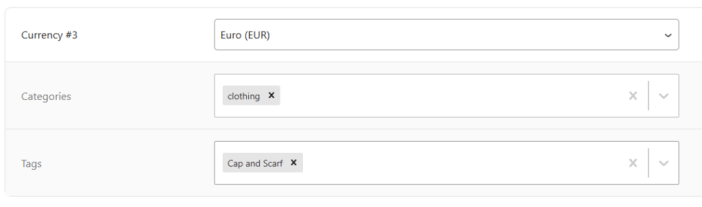
Adding Product categories and tags
Hence all the products with the category Clothing and product tag Cap and Scarf will show product prices in Euro.
Save Changes and Reset Settings
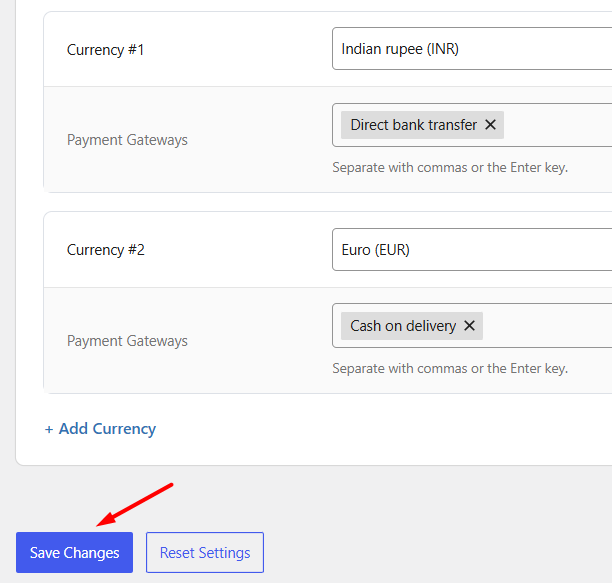
↑ Back to topAt the bottom of the page, you will find the Save Changes and Reset Settings buttons.
Save Changes
Click Save Changes to apply any updates made to the Currencies settings.
Reset Settings
Click Reset Settings to restore the Currencies settings to their default configuration.
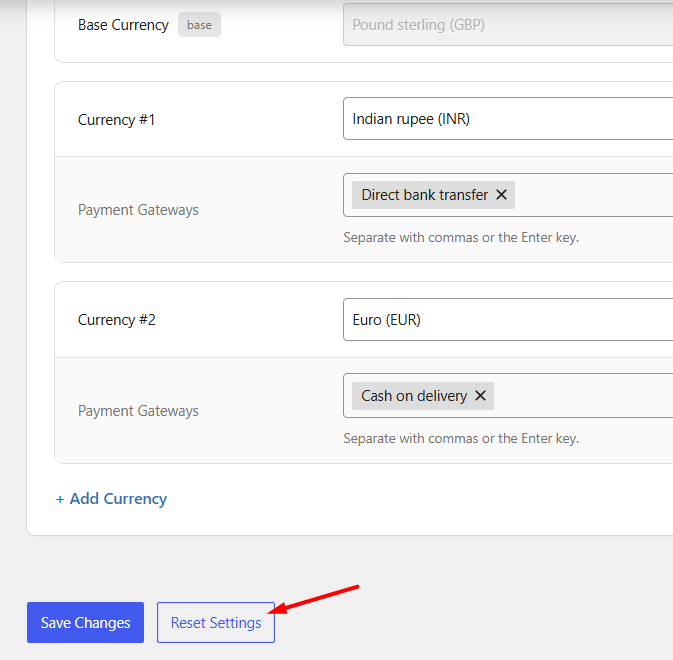
When reset:
- All Currency Mapping Rules are disabled.
- All additional currencies are removed.
- Only the store’s base currency remains in the currency list.
The Currencies settings make it easy to configure and manage multiple currencies in your store and automatically assign them based on categories, tags, authors, user roles, and payment gateway requirements.
Exchange Rates Settings
↑ Back to topThe Behaviour settings of Currency per Product for WooCommerce Pro plugin help you to set and display product prices in different currencies on the shop, cart, and checkout pages. Sometimes you need to show converted prices as per the selected currency on these pages.
Therefore we need to use the Exchange rates settings to show converted product prices on your online store.
How does this work?
↑ Back to topTo access these settings, go to: WooCommerce → Settings → Currency per Product → Configuration → Exchange Rates
The default Exchange Rates settings page appears as shown below:
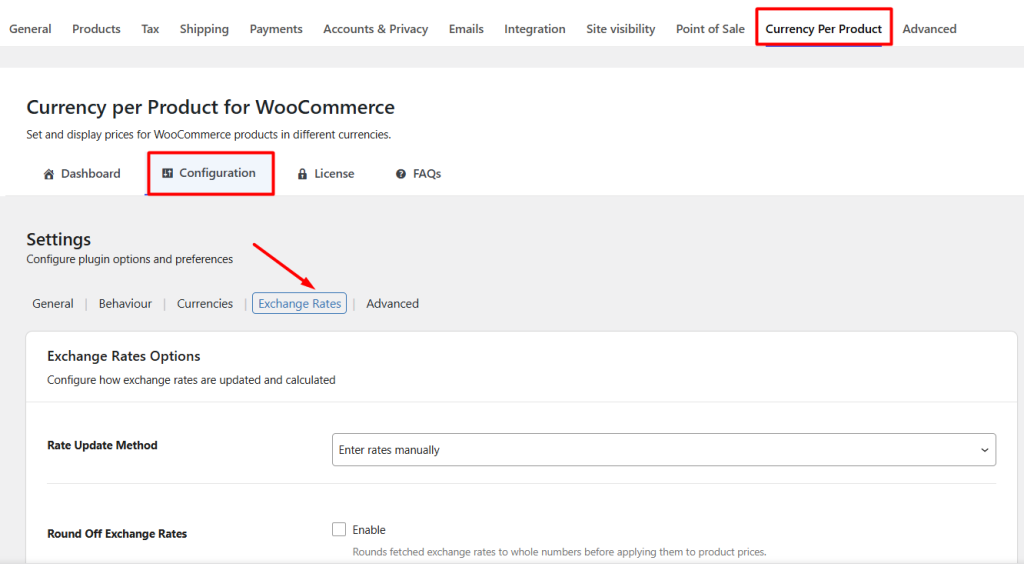
This page consists of 3 sections:
- Exchange Rate Options
- Configured Rates
- Reset Settings
1. Exchange Rate Options
↑ Back to topThe Exchange Rate Options section allows you to control how exchange rates are updated and applied in your store.
Exchange rates updates
There are 2 ways in which you can update the exchange rates – Automatically and Manually.
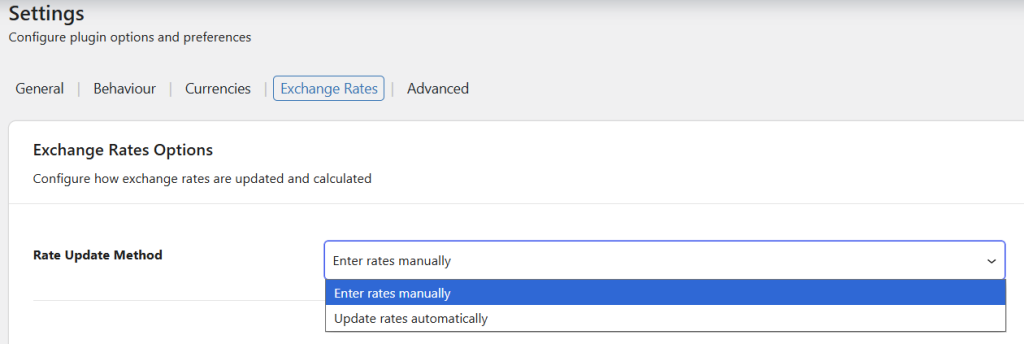
Selecting option from the dropdown
Enter Rates Manually
Select this option if you want complete control over your exchange rates.
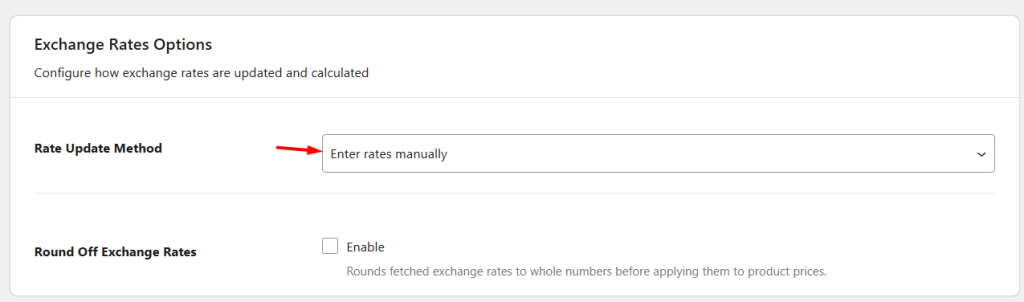
When enabled, you can manually enter rates for each currency under the Configured Rates section.
Example
A store owner selling handmade products may prefer fixed pricing and manually maintain:
- USD → INR = 85
- USD → EUR = 0.92
This prevents daily exchange rate fluctuations from affecting product prices.
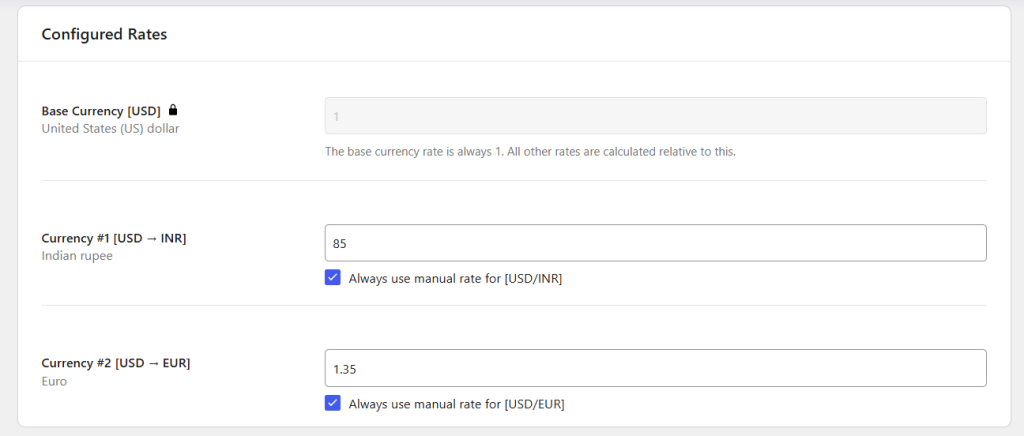
Remember that Exchange rate options will only be applicable if one of the options under the Behaviour settings page is set to Convert to Shop default currency option or if you enable the Sorting by converted price or Filtering by converted price option on the Advanced Settings page.
Update Rates Automatically
When you select Update rates automatically option and click the Save changes button, Update Rates Now button will appear. Select this option to automatically fetch exchange rates from a supported provider.
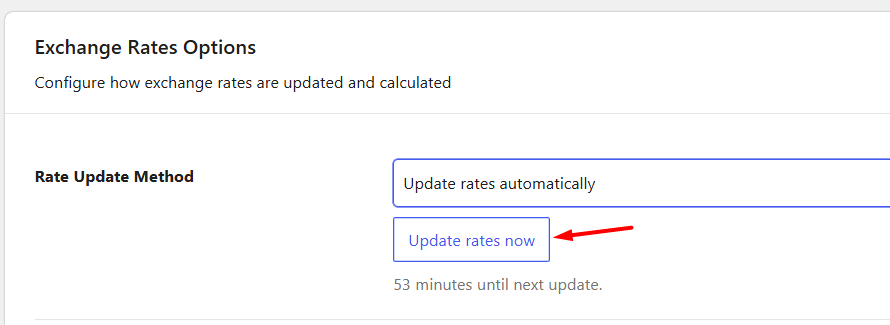
Once enabled, the following settings become available:
- Update Rate
- Update Server
- Exchange Fee Type
- Exchange Fee Amount
An Update Rates Now button also appears, allowing you to fetch the latest rates immediately. You can click on this button to update the exchange rates automatically. For example, an electronics store selling internationally may automatically update rates so product prices always reflect current market exchange rates.
Update Rate
This setting determines how frequently exchange rates are refreshed. These are the available options in the dropdown:
- Update Hourly
- Update Twice Daily
- Update Daily
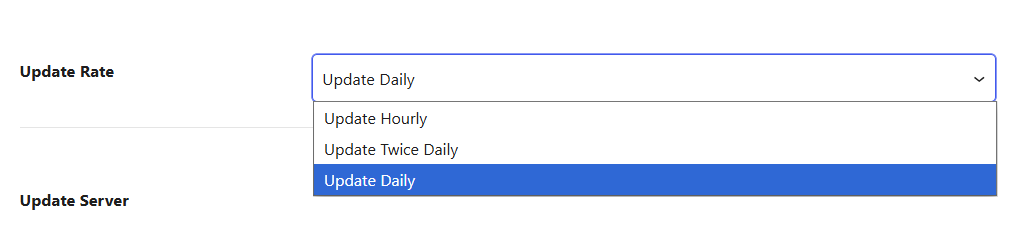
Example
A store selling digital subscriptions across multiple countries may choose Update Hourly because exchange rates can fluctuate frequently. A store selling handcrafted goods with stable pricing may prefer Update Daily.
This exchange rates update will take place automatically depending upon the Update rate option set.
You can select to update the exchange rates manually by clicking the Enter rates manually option from the Exchange rates updates dropdown.
When you do so, you will be able to add an exchange rate for the currency manually under the Exchange Rates section.
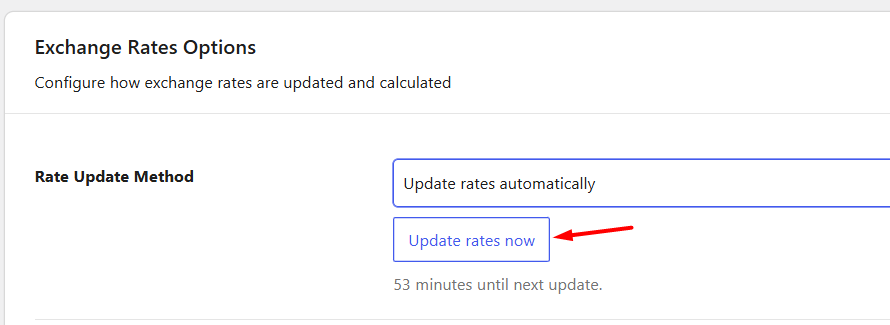
Enter exchange rates manually
The default option for this setting is Enter rates manually.
Update Server
It allows you to select a server for updating the currency exchange rates. There are 5 servers to select from the Update server dropdown.
Available providers include:
- European Central Bank (ECB)
- TCMB
- Free Currency Converter API
- Coinbase
- CoinMarketCap (for cryptocurrencies)
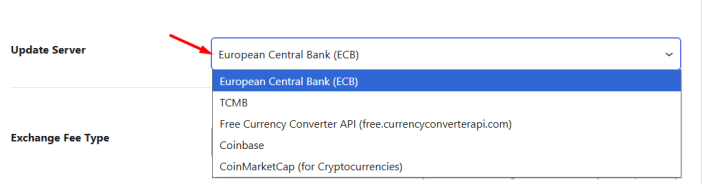
By default, the server selected is European Central Bank. Some providers require an API key.
If you choose Free Currency Converter API then you can fill in the API Key in the Free Currency Converter API Key setting as shown below:
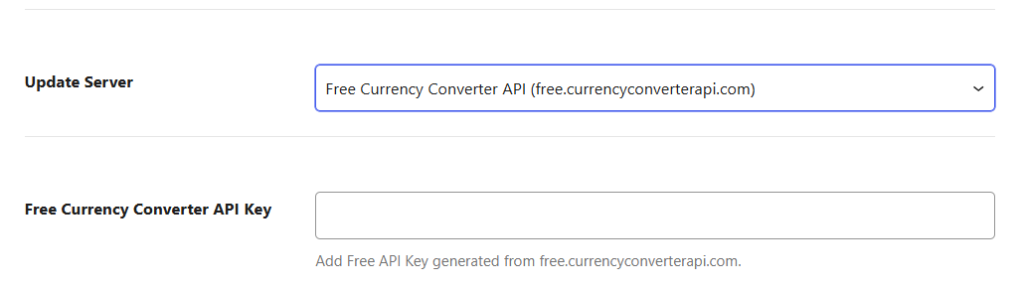
If you wish to add the exchange rate server for cryptocurrency, then choose CoinMarketCap (for Cryptocurrencies). Next, you can fill in the API Key in the CoinMarketCap API Key setting.
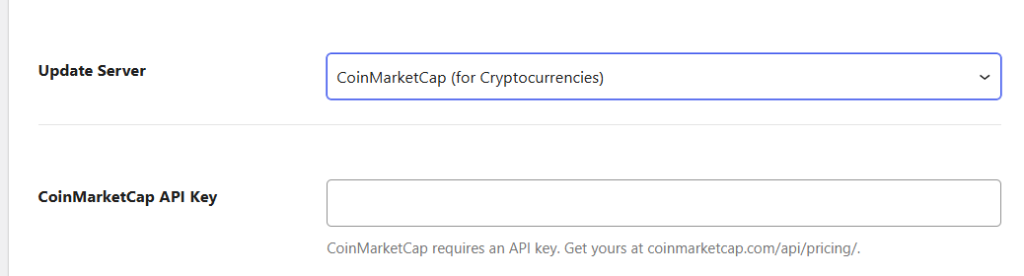
In order to find the API Key, login to your account here: https://pro.coinmarketcap.com/login/
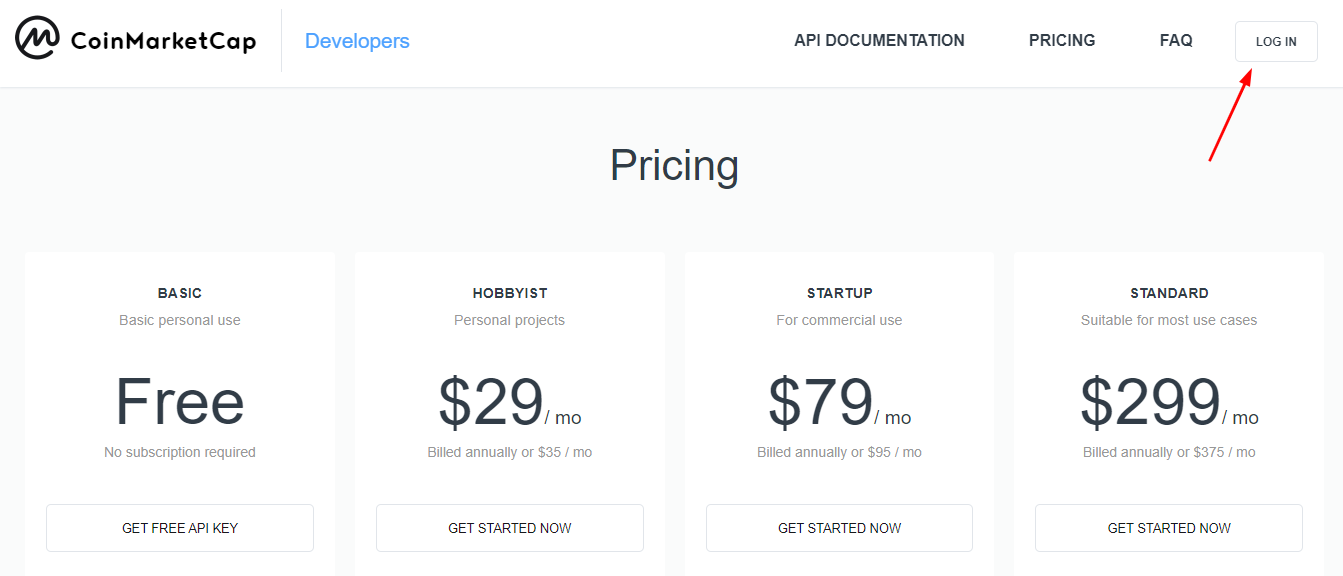
Find the key under the Dashboard:
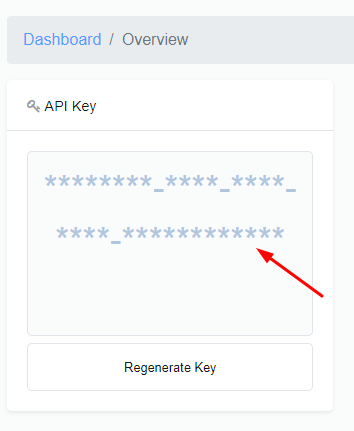
Copy it, paste it into the settings, and click Save Changes.
Additional/Discount Exchange Fees Types
With this setting, you can automatically allow additions or deductions to be calculated for your Exchange rate currency.
Please note that this setting will only work when the ‘Update rates automatically’ is selected in the ‘Exchange rates updates’ setting,
Once you choose to go with this setting, the dropdown will give you four options. They are:
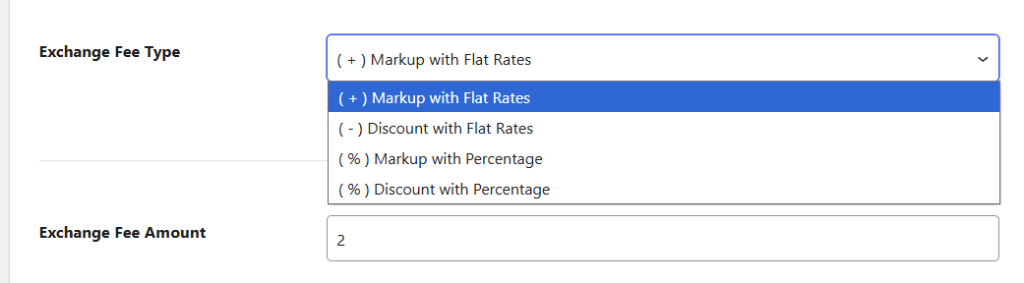
Fee Types options
You choose to provide the additions by using either ‘Markup with Flat Rates’ or ‘Markup with Percentage’ options. 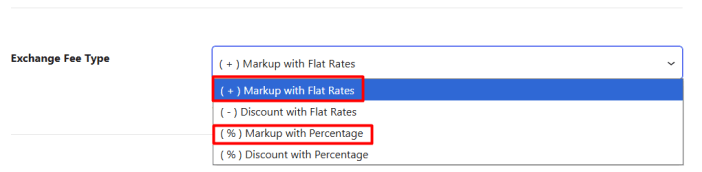
Additional exchange fee types
If you wish to provide deductions, then you can either choose ‘Discount with Flat Rates’ or ‘Discount with Percentage’ options.
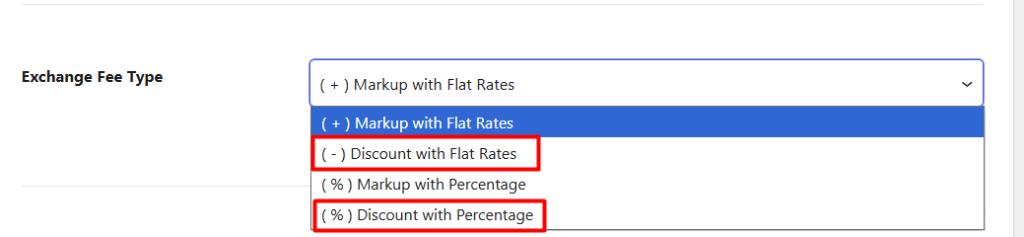
Discount exchange fee types
After choosing, you will have to enter the Additional/Discount Exchange Fee. Enter it in the field right beside the setting name as shown below:
For instance, let’s say that you wish to charge a 10% additional fee on the exchange rate. For this, you will select (+) Markup with Percentage from the dropdown and enter the exchange rate as 10:
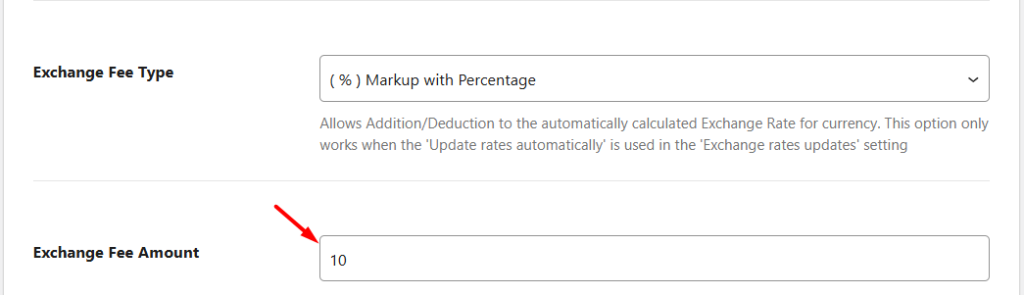
Example of Markup with Percentage Fee Type
Save these settings. On the frontend, when your customer has selected a product then they will see:
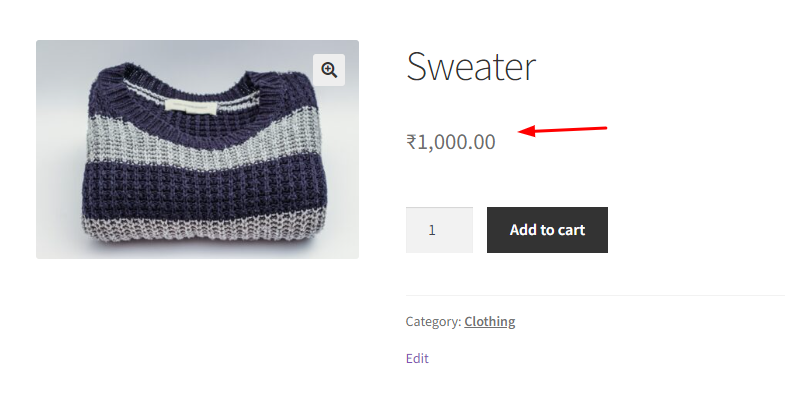
Product Page price
Let us see how it was calculated:
1 USD Rate for INR is 77.79.
The Exchange Fees is set to 10.
The Product Price in INR is 1000.
Thus, the calculation takes place like this using the formula
= { ( 1 / ( Exchange rate + percentage of exchange ) } * price
= { ( 1 / ( 77.79 + 7.77 ) } * 1000
= 0.01168 * 1000
USD Price = 11.687704 or 11.69
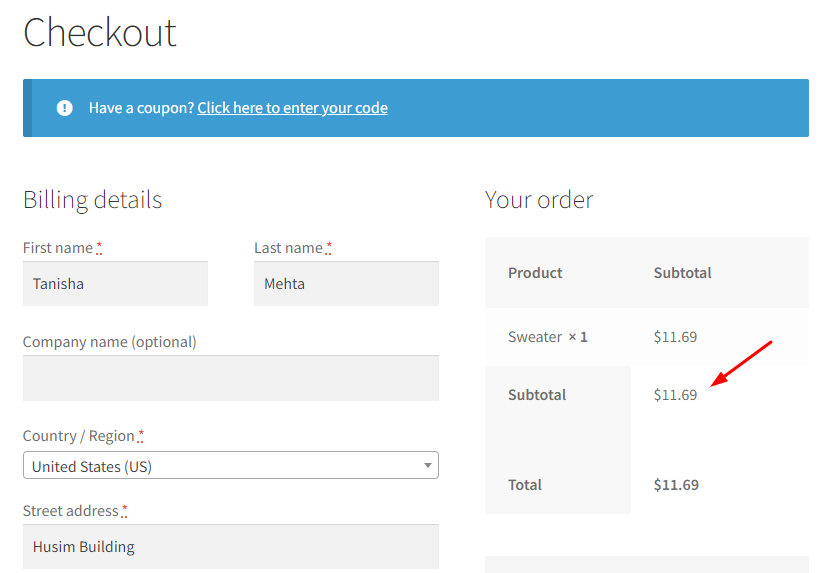
Frontend behaviour
Let us look at another example.
Let’s say that you wish to provide a discount of 20 on the exchange rate. For this, you will select (-) Discount with Flat Rate from the dropdown and enter the exchange rate as 20.
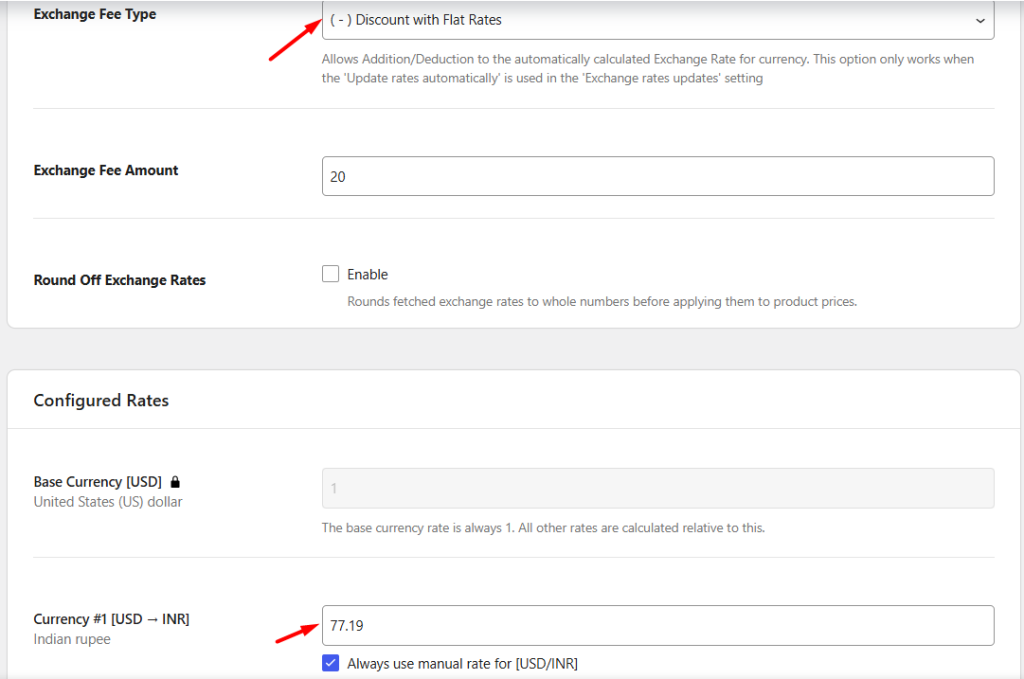
Example of Discount with Flat Rates Fee Type
The calculation will be as follows:
1 USD Rate for INR is 77.79.
The Exchange Fees is set to 20.
The Product Price in INR is 1000.
Thus, the calculation takes place like this using the formula
= { ( 1 / ( Exchange rate – discount of exchange ) } * price
= { ( 1 / ( 77.79 – 20 ) } * 1000
= 0.01730 * 1000
USD Price = 17.3040
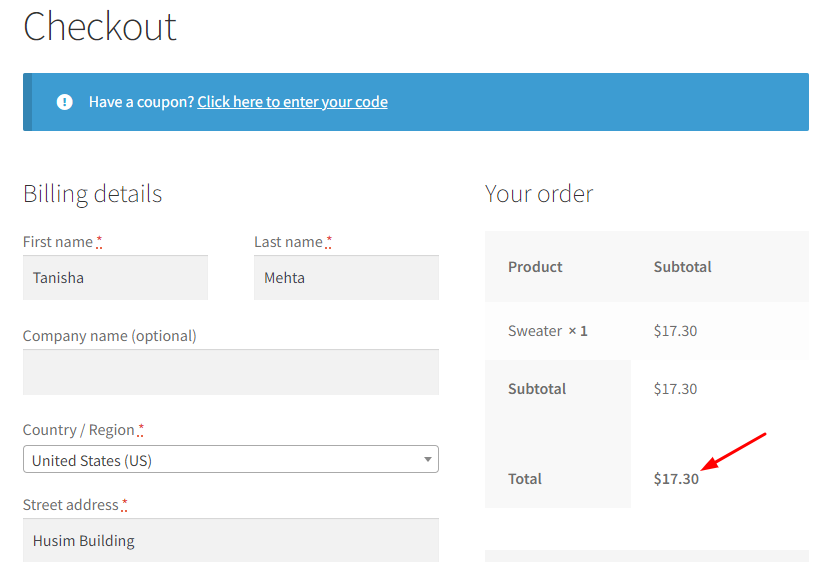
Frontend behaviour
In a similar manner, for discount with percentage, you will subtract the percentage from the exchange rate in the formula and add the flat rate to the exchange rate if it is Markup with Flat Rates setting.
2. Configured Rates
↑ Back to topThis section allows you to enter exchange rates manually for all currencies listed. All currencies that you add on the Currencies settings page will appear under the Exchange Rates section.
This part will be effective when you select the Enter rates manually option for the Exchange rates updates setting.
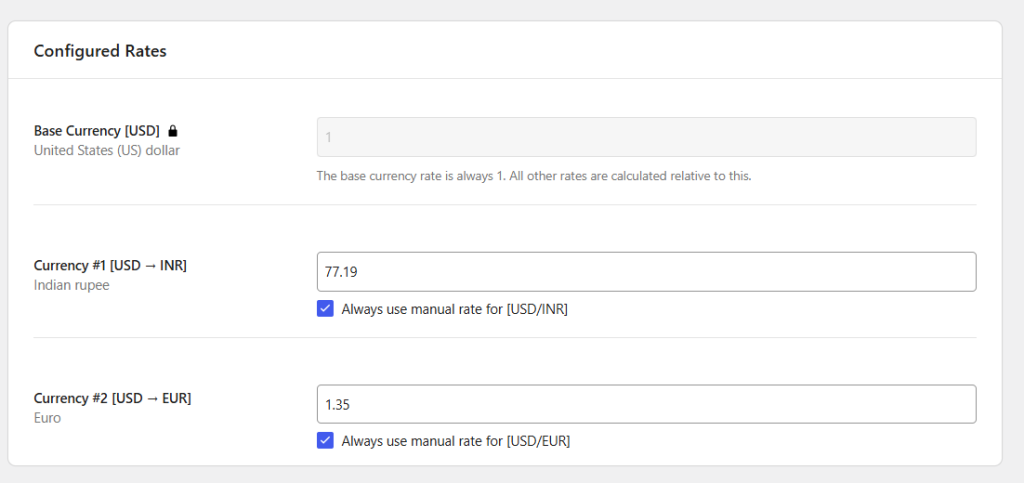
Exchange Rates section
Remember that Exchange rate options will only be applicable if one of the options under the Behaviour settings page is set to Convert to Shop default currency option or if you enable the Sorting by converted price or Filtering by converted price option on the Advanced Settings page.
Round off Exchange Rates
The Round off Exchange Rates setting allows you to simplify the exchange rate by rounding its decimal value before it is used for price conversion.

When this setting is disabled, the exact exchange rate (for example, 94.37) is used to calculate the converted product price. However, when enabled, the exchange rate is rounded (for example, to 94), and this rounded value is used for all calculations.
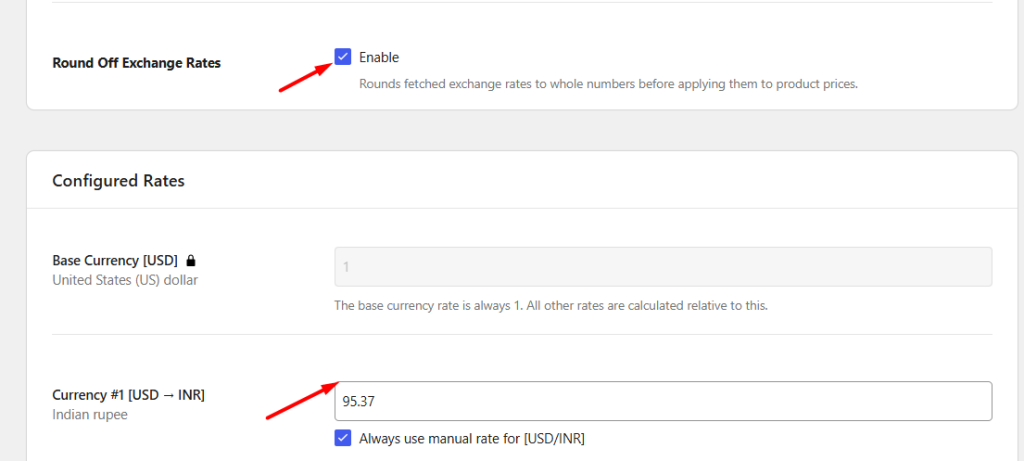
For instance, if a product is priced at $13 and the exchange rate is 94.37, the converted price without rounding would be ₹1226.81.
After enabling this ‘Round off Exchange Rates’ setting, the rate becomes 94, and the converted price changes to ₹1222.00.
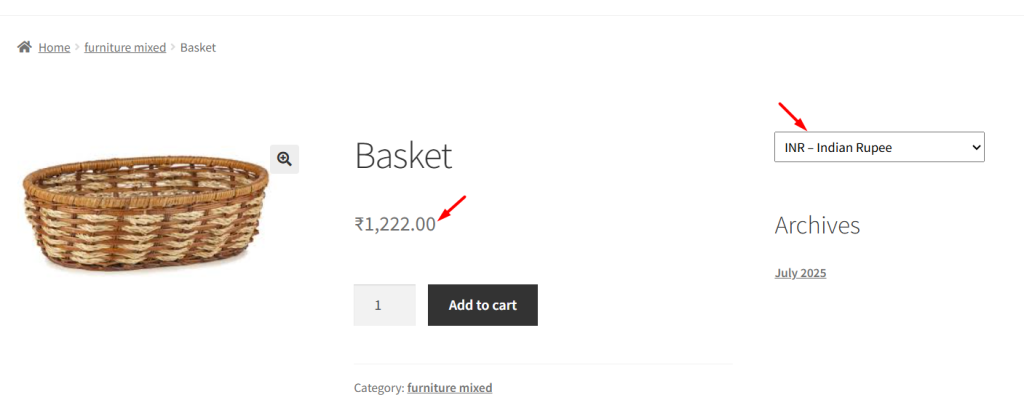
Save Changes and Reset Settings
↑ Back to topAt the bottom of the page, you will find the Save Changes and Reset Settings buttons.
Save Changes
Click Save Changes to apply any updates made to the Exchange Rates settings.
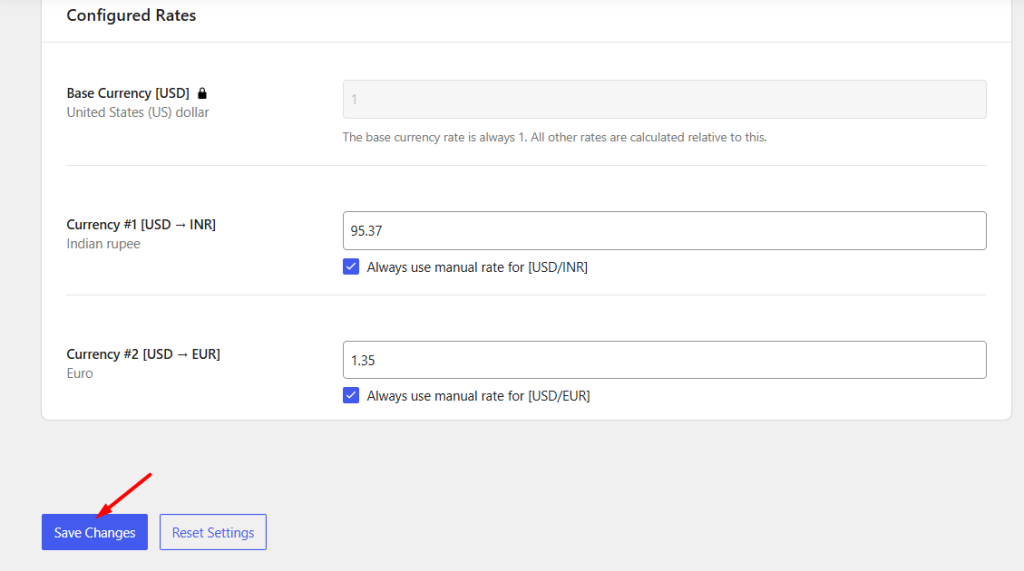
Reset Settings
Click Reset Settings to restore the Exchange Rates settings to their default configuration.
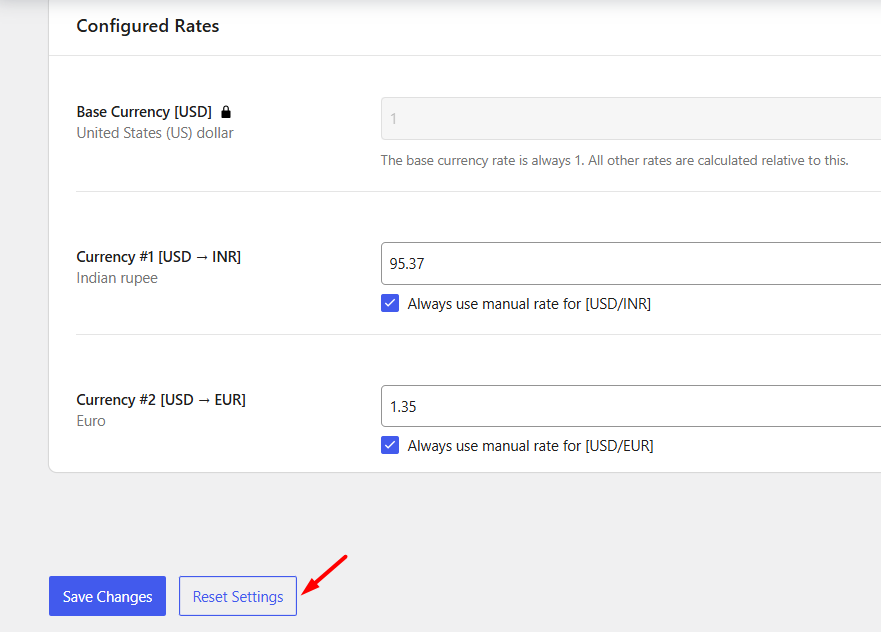
When reset:
- Rate Update Method returns to Enter rates manually
- Update Rate returns to Update Daily
- Update Server returns to European Central Bank (ECB)
- Exchange Fee settings are cleared
- Round Off Exchange Rates is disabled
- The base currency remains set to 1
Whether you prefer to enter fixed exchange rates manually, automatically fetch live rates from supported providers, or apply additional markups and discounts to exchange rates, these settings give you the flexibility to manage currency conversions according to your business requirements.
Advanced Settings
↑ Back to topAdvanced settings of Currency per Product for WooCommerce Pro plugin allows you to fix the mini cart issue or sort and filter products by converted prices or re-calculate prices for the products.
These settings are particularly useful when:
- Product prices need to be sorted or filtered using converted currencies.
- Currency symbols do not display correctly in the mini cart.
- Other plugins cause price conversion conflicts.
- You need to recalculate converted prices or completely remove the plugin’s data.
To access these settings, go to:
WooCommerce → Settings → Currency per Product → Configuration → Advanced
The default Advanced settings page appears as shown below:
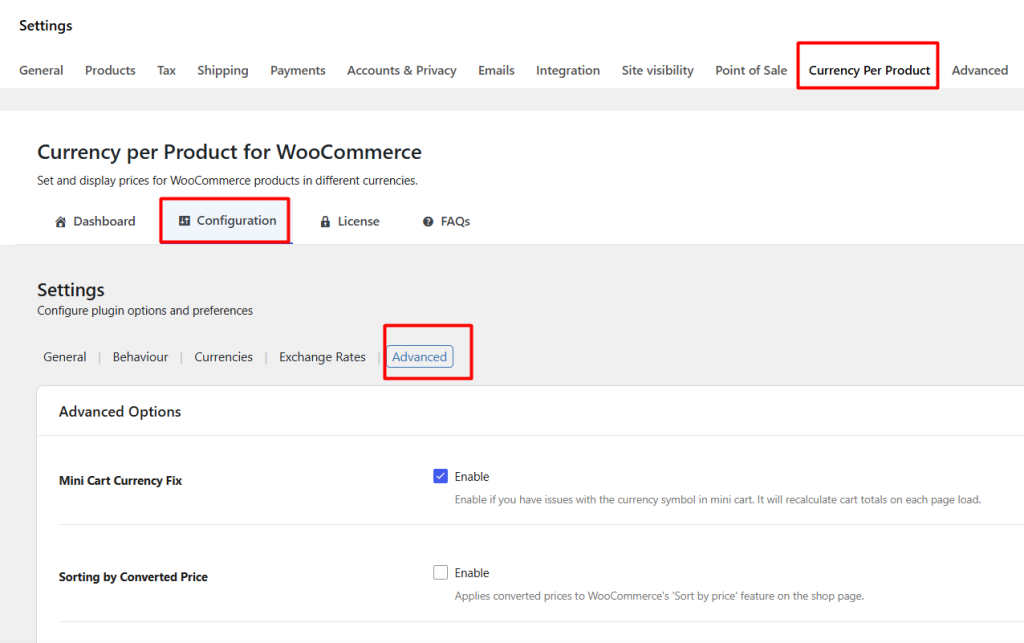
Default Advanced settings page
The page consists of the following sections:
- Advanced Options
- Tools
- Danger Zone
- Save Changes and Reset Settings
Advanced Options
The Advanced Options section contains settings that help improve compatibility and control how converted prices behave throughout the store. Let us understand each of these in detail.
Mini Cart Currency Fix
↑ Back to topEnable this setting if the currency symbol or total displayed in the mini cart is incorrect.
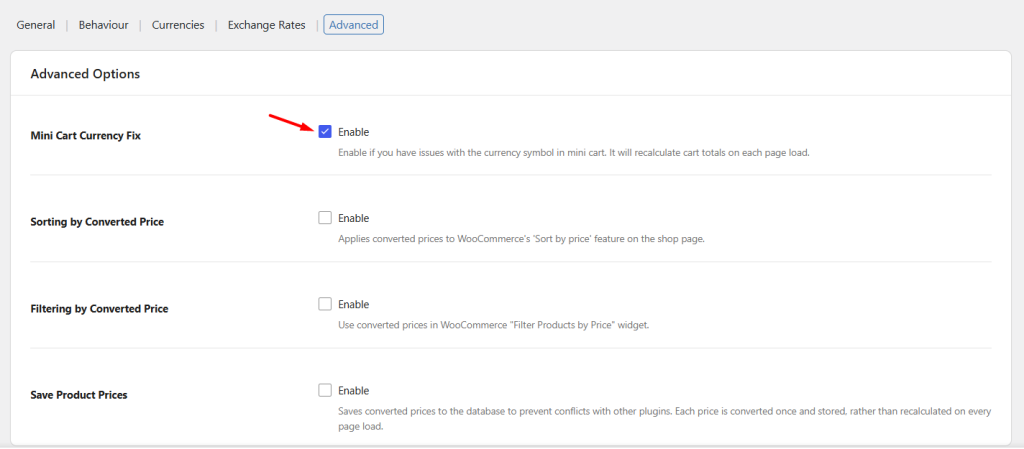
When enabled, the plugin recalculates mini cart totals on every page load and refreshes the displayed currency information.
.
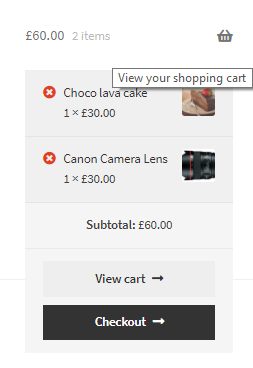
Mini cart on Shop page
By default, this option is disabled.
Sorting by converted price
↑ Back to topA product price when calculated using the exchange rate of the currency is called the converted price of the product. So when you enable Sorting by converted price option, the ‘Sort by price’ sorting on the Shop page will be done using the converted price of the product.
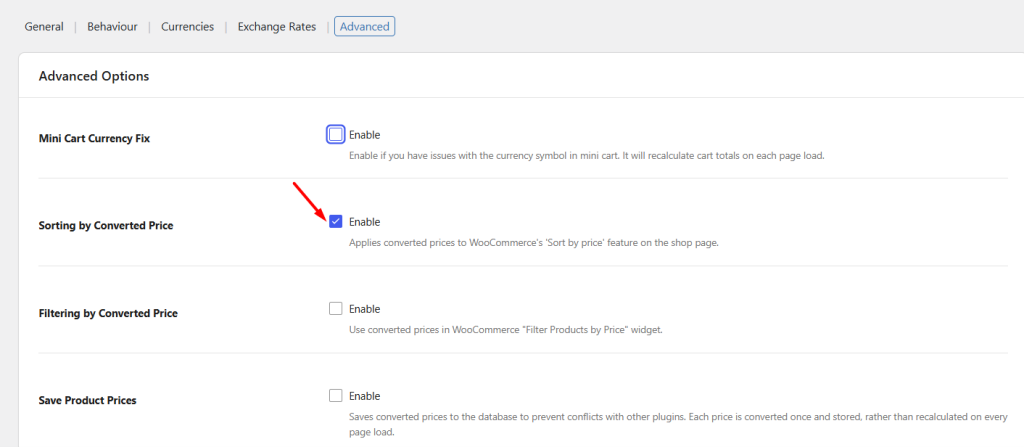
Enabling the Sorting by converted price option
Therefore say the shop’s default currency (base currency) is set to Pound sterling and the products are set to Indian rupee. Hence, as per the exchange rate of Indian rupee, the product prices will be converted and sorting of all WooCommerce products will take place on the Shop page using this converted price.
Say for instance, you select Sort by Price:low to high, then all products will appear in ascending order starting with products having lower price.
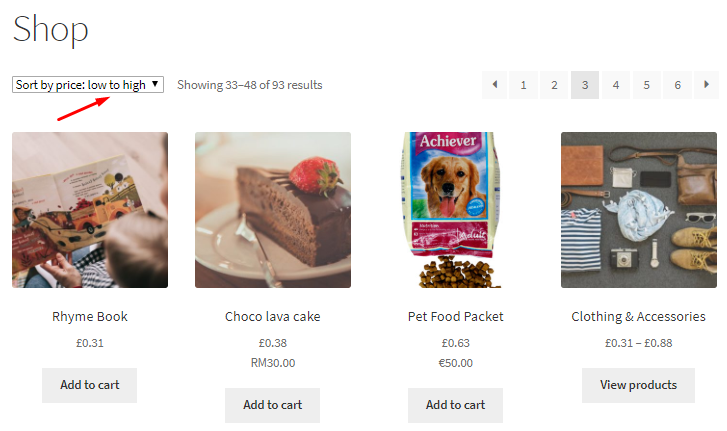
Sorting as per converted price
By default, Sorting by converted price option is disabled.
Filtering by converted price
↑ Back to topSimilarly, you can also filter products on the front end as per converted price. To do so, you can enable the Filtering by converted price option.
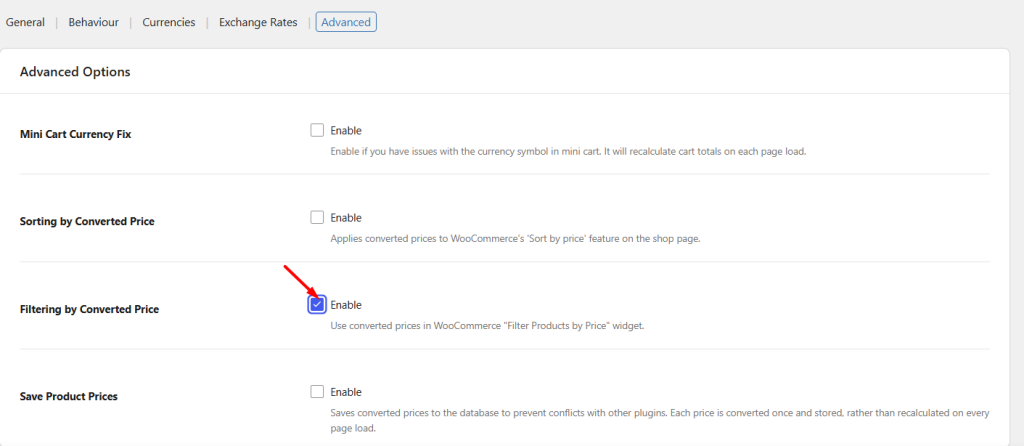
Enabling the option
When you select the price range on the Filter by price widget, the products will be filtered as per converted prices as shown below:
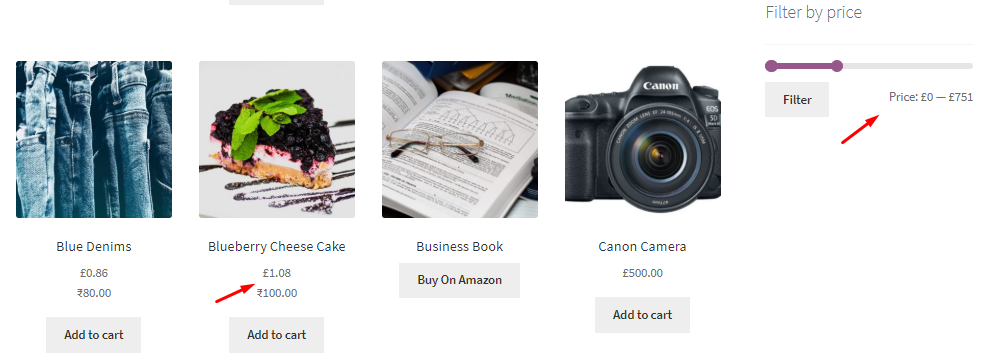
Filtering as per converted price
By default, Filtering by converted price option is disabled.
Save products prices
↑ Back to topMany a times, you use different plugins for your online store. But due to compatibility issues, the prices on the store may be displayed inaccurately. Therefore when you enable Save product prices option, the prices are converted only once and displayed on the store.
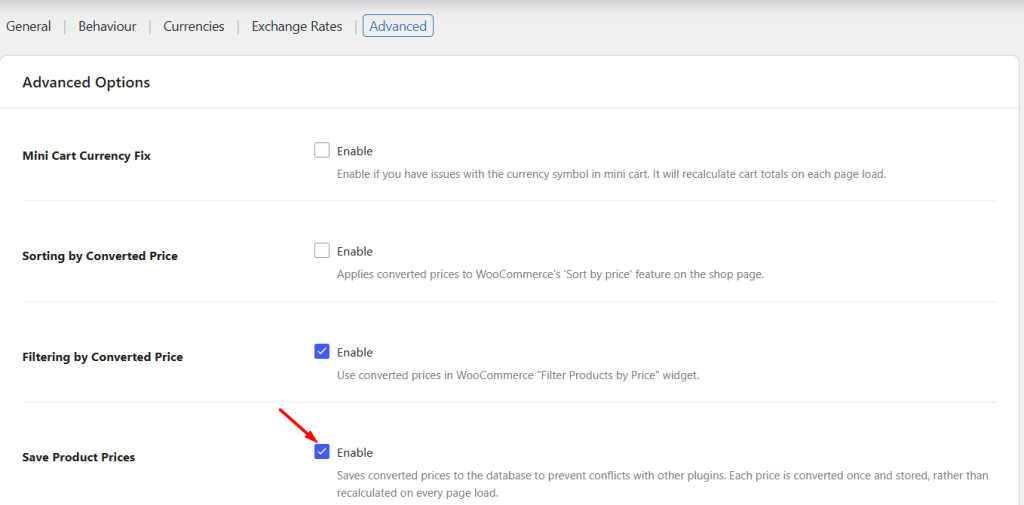
This can improve compatibility with third-party plugins and reduce repeated price calculations. By default, this option is disabled.
Tools
↑ Back to topThere are some advanced tools in this plugin which allows you to re-calculate product prices for sorting and filtering purpose.
Re-calculate prices
↑ Back to topThis option allows you to re-calculate product prices automatically and manually. You can re-calculate (convert) all product prices and save them to use in Sort by Price sorting and Filter Products by Price widget using this option.

Recalculation takes place automatically either when a product is saved or when a scheduled exchange rates update occurs or periodically which is 58 mins until the next update. But if you wish to recalculate prices manually, then you can do so by clicking the Re-calculate prices button. This will re-calculate product prices at that moment.
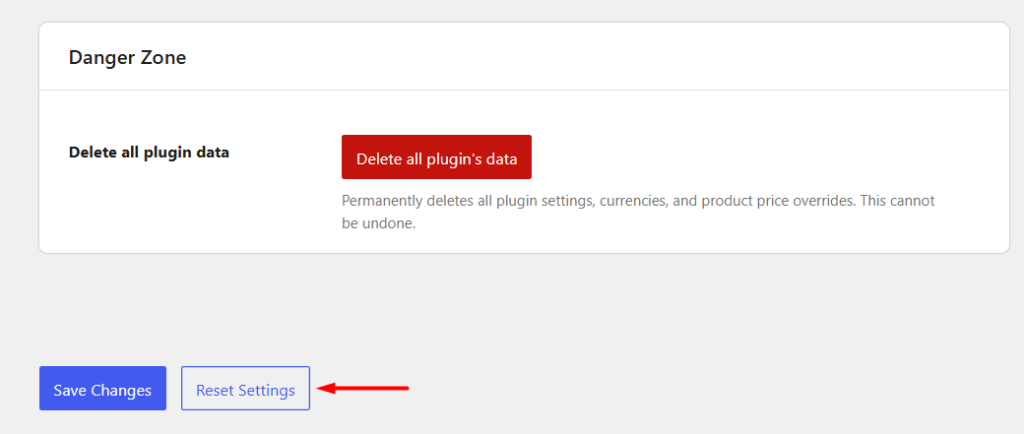
Delete all plugin’s data
↑ Back to topThis option will allow you to delete all the stored data of the plugin from the database like plugin’s options and products meta.
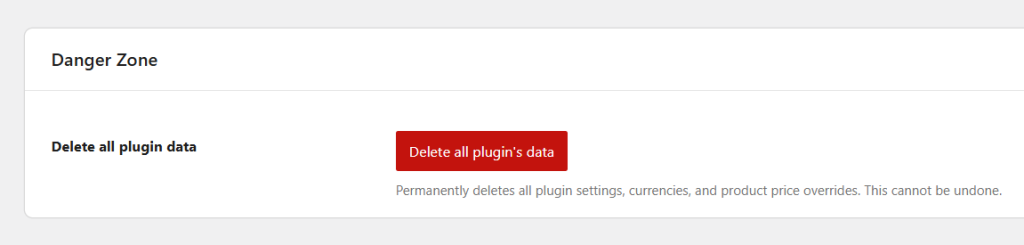
When you click the Delete all plugin’s data button, it will delete all the data permanently which will not be retrieved using any undo action. Hence it is necessary to be careful while using this option.
Save Changes and Reset Settings
↑ Back to topAt the bottom of the page, you will find the Save Changes and Reset Settings buttons.
Save Changes
Click Save Changes to apply any updates made to the Advanced settings.
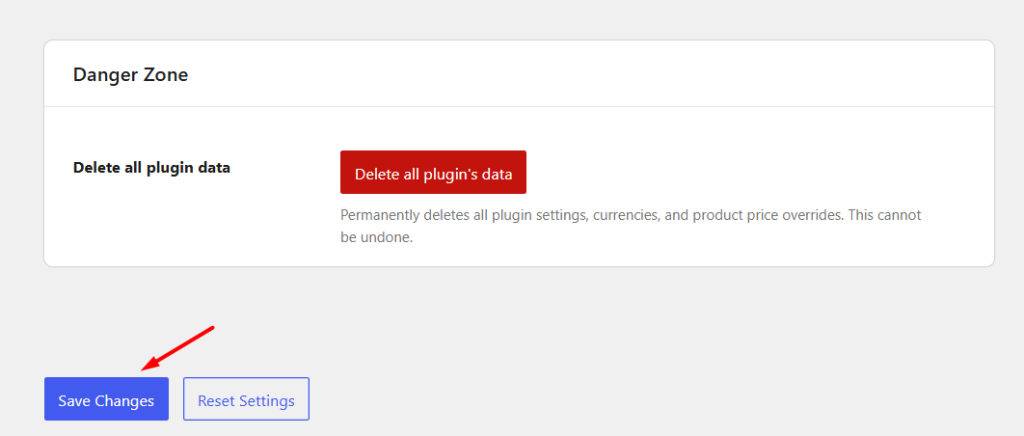
Reset Settings
Click Reset Settings to restore the Advanced Options to their default configuration.
When reset:
- Mini Cart Currency Fix is disabled.
- Sorting by Converted Price is disabled.
- Filtering by Converted Price is disabled.
- Save Product Prices is disabled.
The Tools and Danger Zone sections are not affected because they perform independent actions when their respective buttons are clicked.w when you reset the Advanced settings, this option will be disabled and sorting of products will not take place on the front end.
Set Currency Per Product
↑ Back to topOur Currency per Product for WooCommerce Pro plugin allows you to assign a different currency to individual products and product variations. This is useful when you sell products in multiple countries and want certain products to be priced directly in their local currencies instead of converting prices using exchange rates.
How does this work?
↑ Back to topBefore assigning currencies to products:
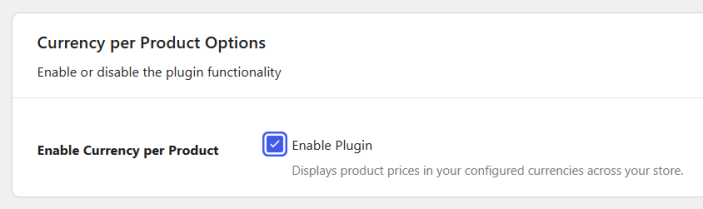
- Enable the plugin from: WooCommerce → Settings → Currency per Product → Configuration → General
- Enable the Enable Currency per Product setting.
- Add the currencies that you want to use from: WooCommerce → Settings → Currency per Product → Configuration → Currencies
4. Once you have enabled the “Currency per Product for WooCommerce” setting, it will show the “Product Currency” dropdown on the Add/Edit Product page. This dropdown shows all the currencies you’ve added in the Currencies tab of the plugin.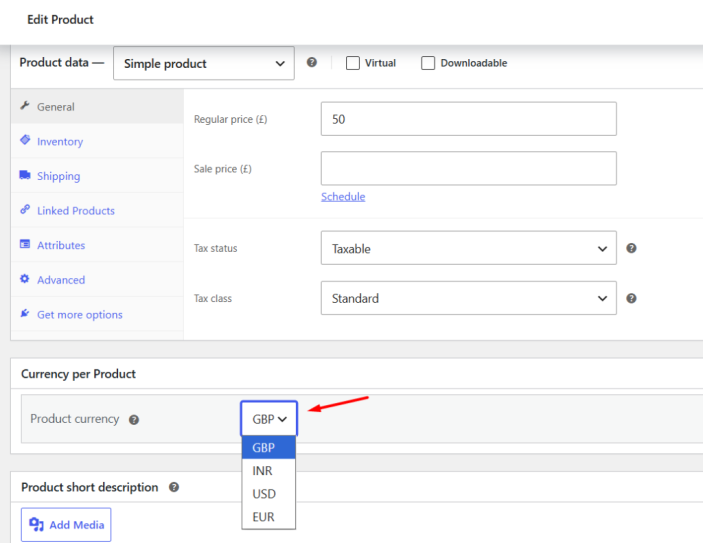
Note: Before assigning currencies to products, make sure you’ve added your desired currencies under the Currencies tab in our plugin settings.
Assigning Currency to a Product
↑ Back to topOn a product’s edit page, the Product Currency dropdown displays all currencies configured in the Currencies settings.
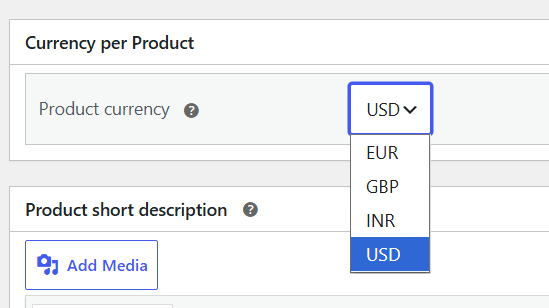
Select the currency that you want to assign to the product and update the product.
For example, suppose your store’s base currency is Euro (EUR), but you sell online consulting sessions to customers in the United States. You can assign US Dollar (USD) as the Product Currency for the consulting product.
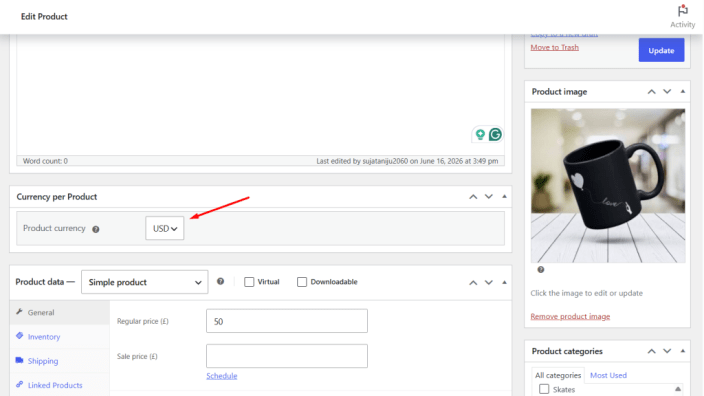
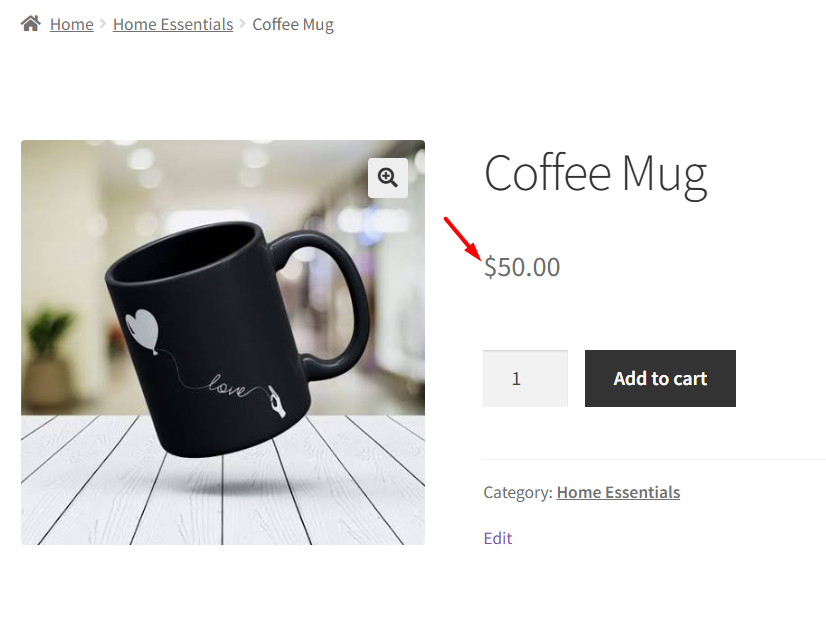
When customers view this product, it will be displayed in USD instead of the store’s default currency.
How Product Currency Works with Behaviour Settings
↑ Back to topThe currency assigned to a product is displayed according to the settings configured under:
WooCommerce → Settings → Currency per Product → Configuration → Behaviour
For example, if you want the assigned product currency to remain unchanged throughout the purchase process, configure:
Shop Behaviour
- Show prices in different currencies (and set cart and checkout behaviour separately)
Cart and Checkout Behaviour
- Leave product currency (allow only the same currency products to be added to the cart), or
- Leave product currency (allow only one product to be added to cart)
With these settings, a product assigned to USD will continue to display and be purchased in USD from the Shop page through Checkout.
To explore more options, like allowing different currencies to appear on different pages, refer to our Behavior Settings documentation.
Let’s say you’ve set a product’s currency to USD on the Edit Product page, and your store’s base currency is the Euro (EUR). Then, the product is displayed in the same currency (USD) on the shop page based on the rules set in the shop behavior settings.
Here’s how the product’s currency, set as USD, is displayed on the Cart page.
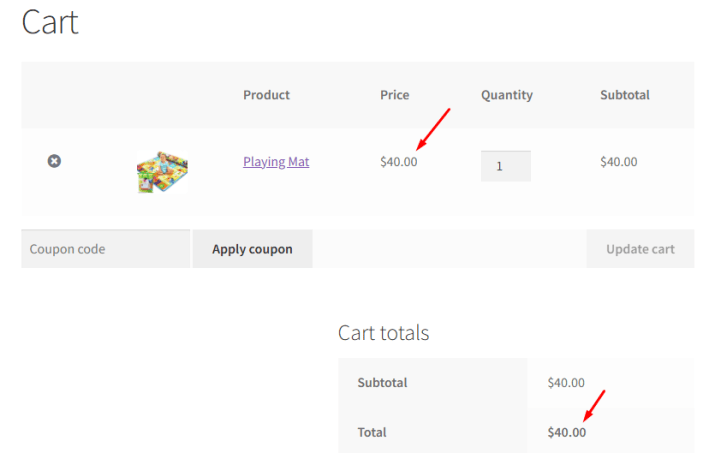
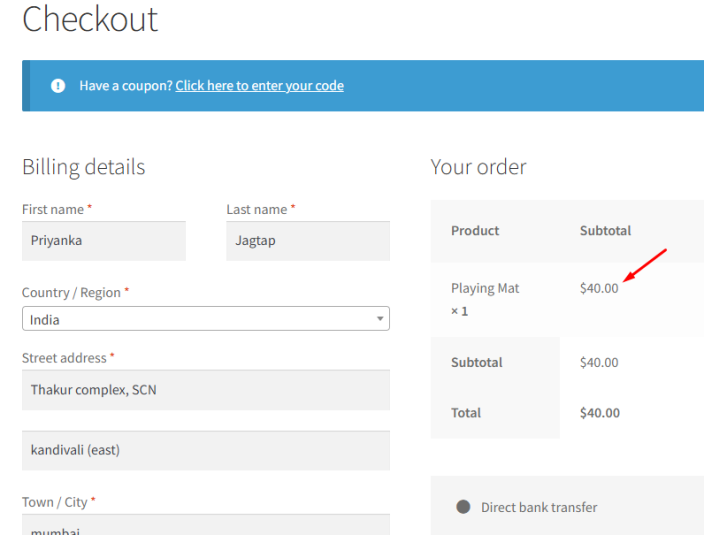
The product is displayed in the same currency (USD) on the checkout page as well.
These options ensure that the product’s currency is the same from Shop to Checkout, as long as they meet the rules above.
Set Currency per Variation (Variable Products)
↑ Back to topYou can also assign different currencies to each variation of a variable product. This allows different variations of the same product to be sold in different currencies.
To assign currencies to variations:
- Edit a variable product.
- Open the Variations tab.
- Expand a variation.
- Select a currency from the Product Currency dropdown.
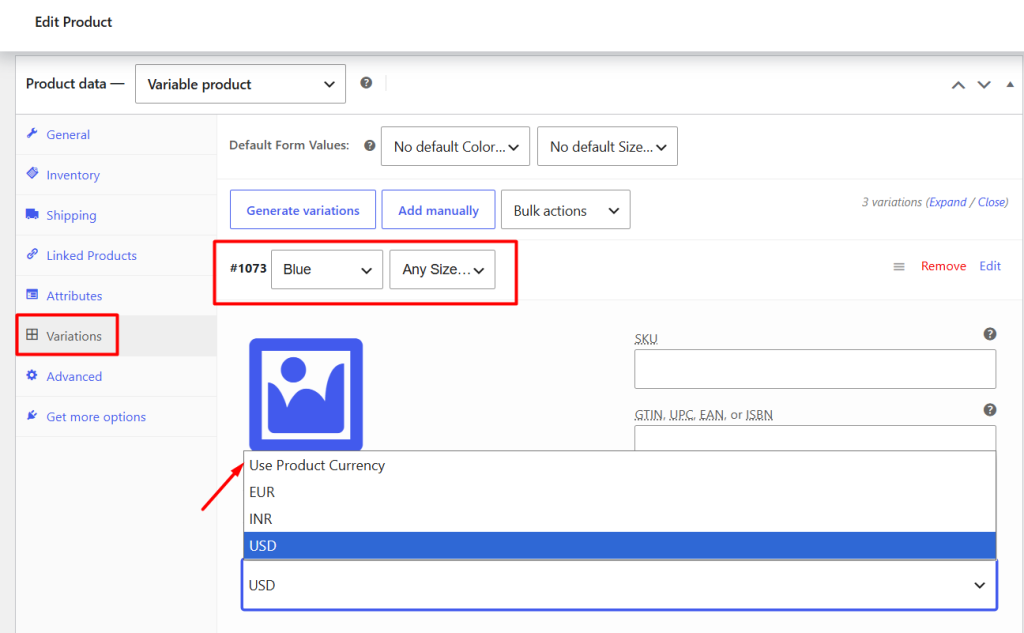
If you choose the “Use Product Currency” option for a variation (e.g., General), it will inherit the main product’s currency (e.g., USD) for this variation.
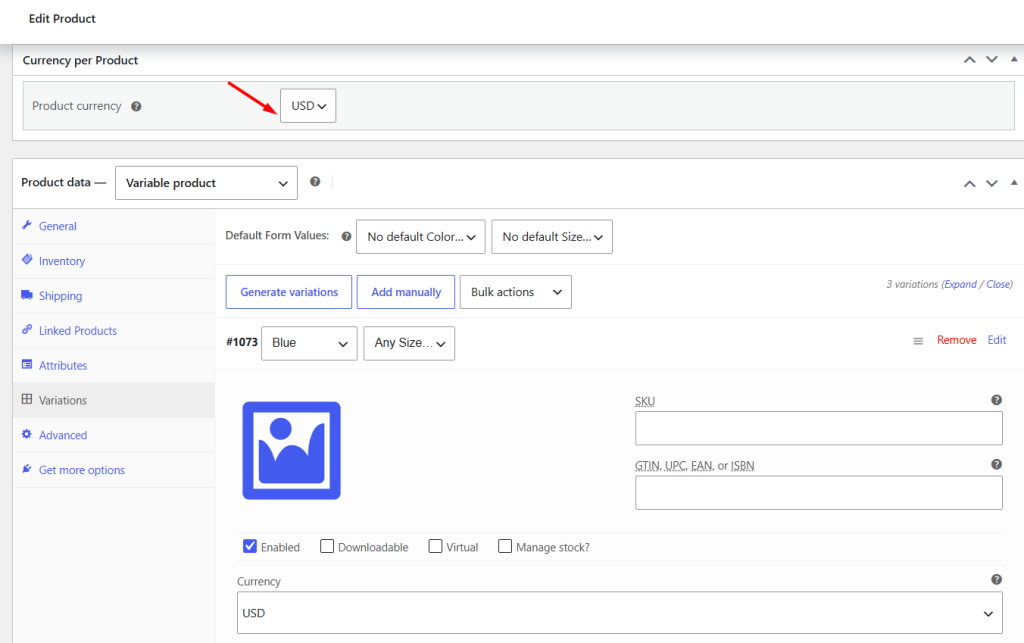
You can see, the product’s currency, i.e., USD, is displayed on the front end of the product page.
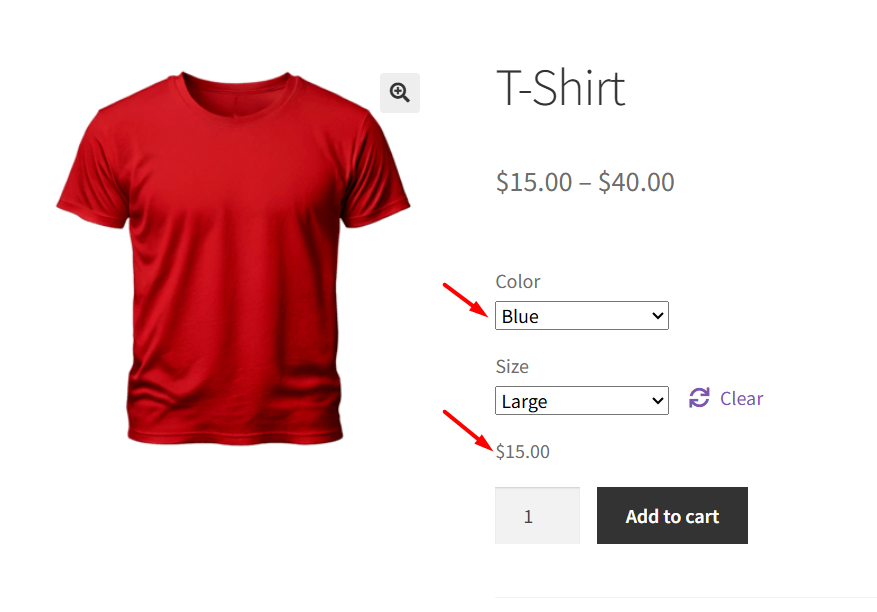
Note: As explained earlier for simple products, the currency behavior you see on the Shop, Cart, and Checkout pages is controlled by the settings under “Shop Behavior” and “Cart and Checkout Behaviour” in the plugin’s Behavior tab.
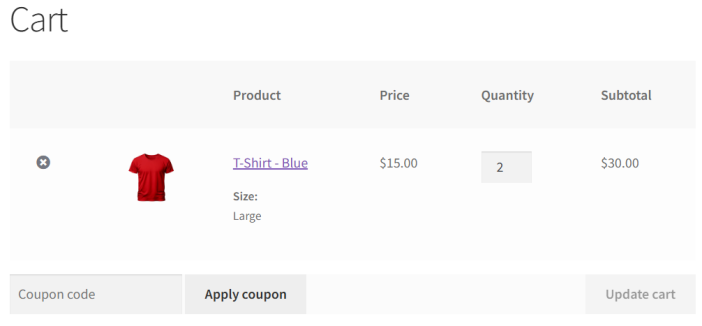
When the product is added to the cart with the specific ‘Blue’ variation, it shows the same currency, USD, on the Cart page.
 The product is displayed in the same currency i.e. USD on the checkout page as well.
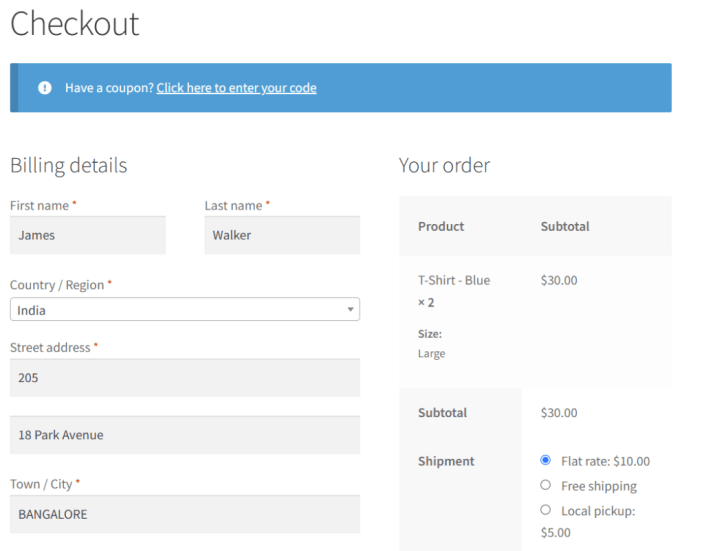 Suppose you want to assign a different currency to another variation, “Red” colour of this product, you can do that. As you can see below, I have assigned the Euro (€) currency for the Red T-shirt variation.
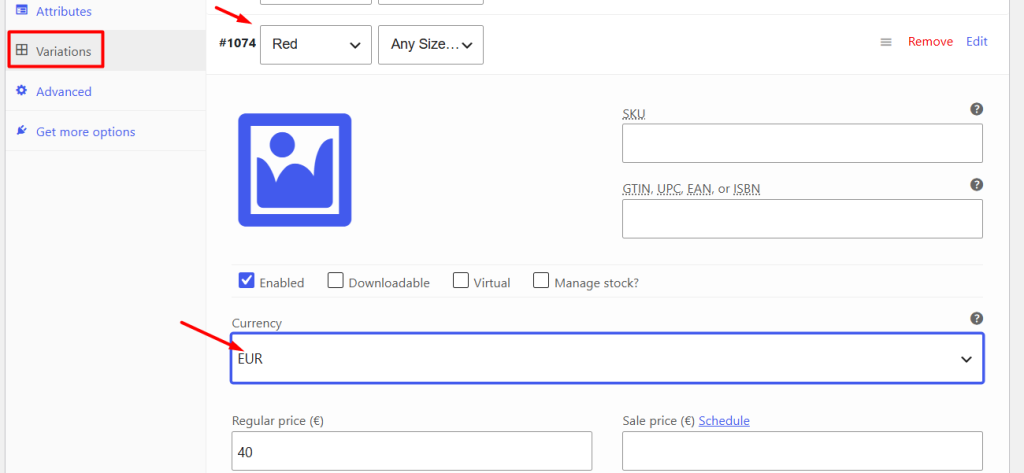
You can see in the screenshot below that the product price for the red variation is displayed in the same currency as the Euro (€) on the front end of the product page.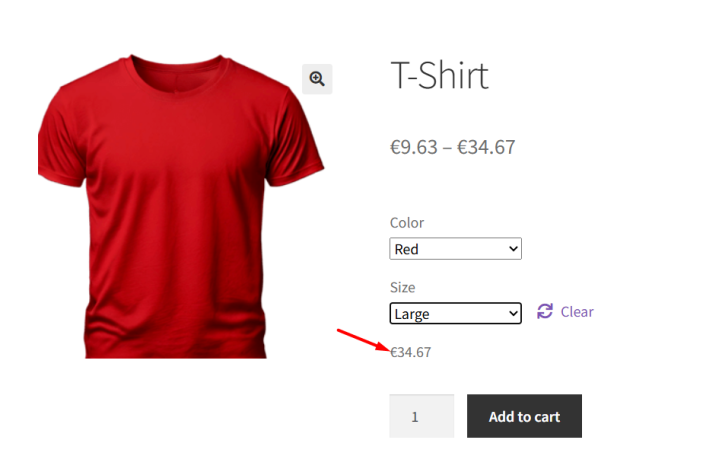
Here’s how the variation’s currency, set as Euro (€), is displayed on the Cart page ( based on the Behavior settings).
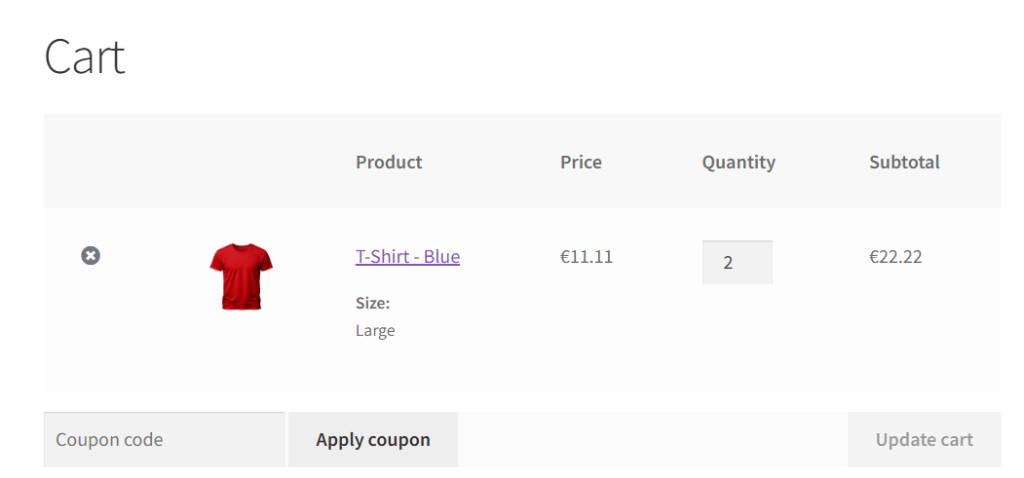
You can see in the screenshot below that the same price in Euro (€) currency is displayed for this variation on the Checkout page as well.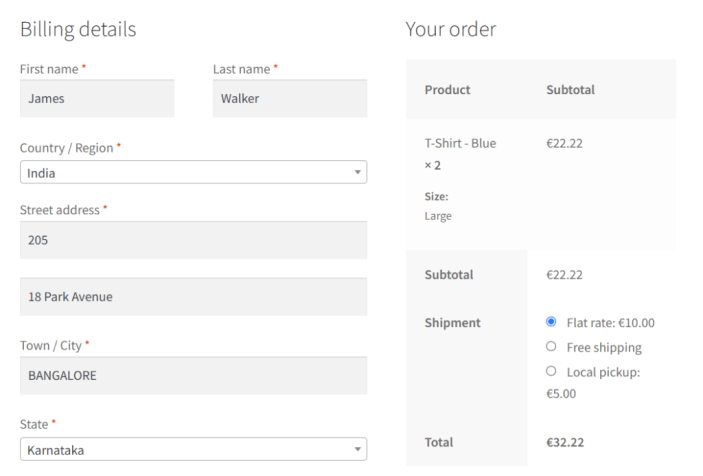
Conclusion
↑ Back to topThe Currency per Product for WooCommerce Pro plugin makes it easy to sell globally by allowing different currencies for products and variations. By combining product-level currencies with the plugin’s Behaviour Settings, you can control exactly how currencies are displayed throughout the customer journey while maintaining a consistent purchasing experience..

