
Stripe’s Optimized Checkout Suite is a modern version of the payment form. As of version 10.8.0, it’s enabled by default for all eligible merchants.
Advantages
↑ Back to topThe Optimized Checkout Suite uses machine learning to decide the order in which payment methods should be displayed to individual shoppers. The goal is to prioritize payment methods that are most likely to lead to purchases.
The prioritization logic only applies to payment methods that you have enabled in the extension settings or via the Stripe dashboard itself. (It’s possible to use it with just a single payment method enabled if you want.)
Enabling Optimized Checkout Suite also lets you use Adaptive Pricing, which allows your international customers to see prices and pay in their preferred currency.
For more details, see Stripe’s documentation.
Enabling
↑ Back to topFirst, update to the most recent version of the Stripe extension to be sure that the Optimized Checkout Suite will be available to you. We recommend enabling automatic updates.
After ensuring the most recent version of the plugin is installed:
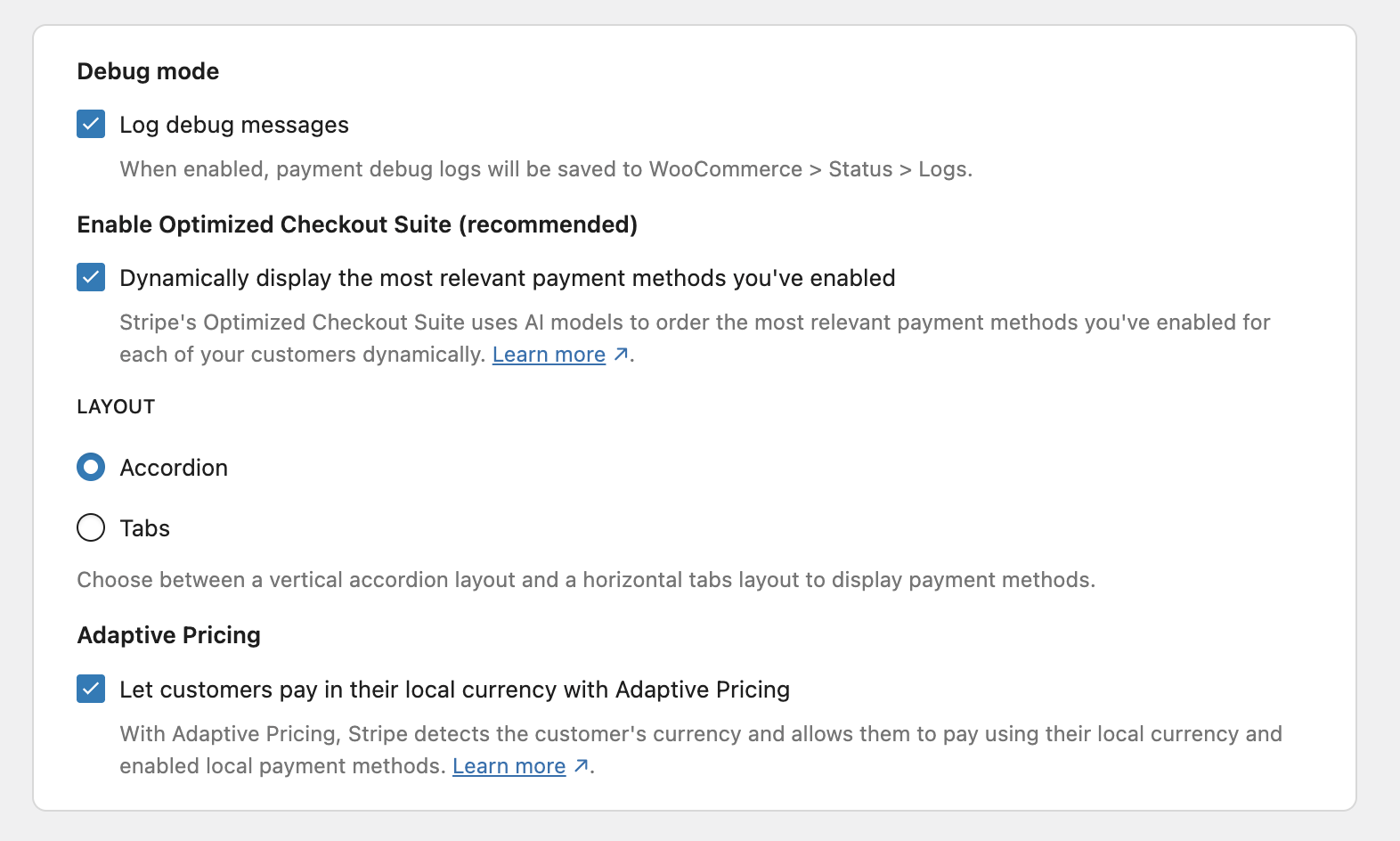
- In your store’s WordPress dashboard, go to WooCommerce > Settings > Payments > Stripe > Settings.
- Scroll to the Advanced Settings section.
- Check the box for “Dynamically display the most relevant payment methods you’ve enabled.”
- You can also optionally enable Adaptive Pricing.
- Choose a layout option.
- Click Save Changes at the bottom.
Layout
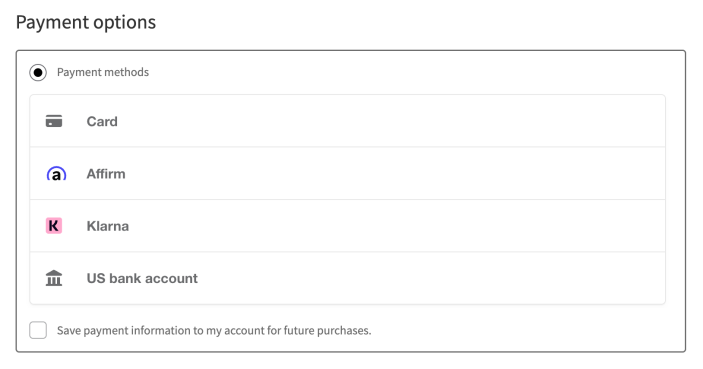
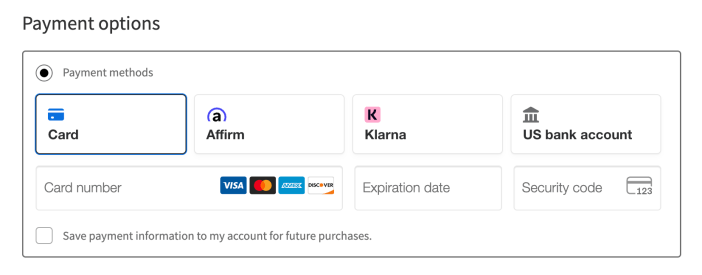
↑ Back to topThe Layout setting controls how the payment methods are shown in the checkout form. See the images below for a comparison.
Also, since the Optimized Checkout Suite works best when Stripe is at the top of your payment providers list (under WooCommerce > Settings > Payments), we present a notice to you if Stripe is not in the top slot:

Clicking the Move to top button will move Stripe to the top of the payment providers list, thus allowing customers to see the full range of payment methods.
Changing the name in checkout
↑ Back to topWhen Optimized Checkout Suite is on, Stripe lists your payment methods under a generic title: Payment methods in the block checkout, or Payment options in the classic checkout.
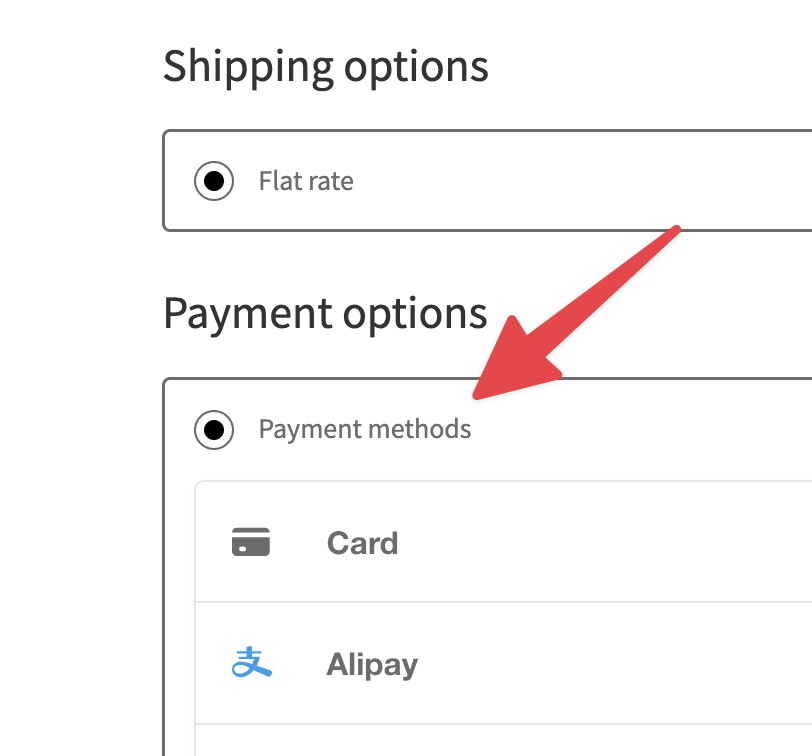
The Stripe extension has no setting to change this title. A developer can change it with a filter. See Change the checkout title.
Note:
If you also use PayPal Advanced Card Processing or another on-site card gateway, give each one a checkout title that names its processor. When both use generic titles, shoppers and store staff can’t easily tell which processor handles a payment. For Stripe, use the filter in Change the checkout title, for example to show Payment methods (Stripe). For PayPal, change the Checkout page title, as described in Advanced Card Processing.
Troubleshooting
↑ Back to topThere are some situations in which Optimized Checkout Suite cannot be enabled.
Settings Sync disabled
↑ Back to topFor Optimized Checkout Suite to work properly, your site and Stripe both need to know which payment methods you have enabled vs. disabled. This is so that shoppers are only shown your enabled payment methods.
We released a settings sync feature in version 9.5.0 that is responsible for keeping your enabled payment methods synchronized between your site and Stripe’s systems. This syncing is critical to Optimized Checkout Suite.
To check to see if settings sync is working correctly:
- In your WordPress dashboard, navigate to WooCommerce > Settings > Payments.
- Click the Manage button for the Stripe extension.
- Click the Settings tab.
- In the Account Details section, make sure that Sync shows as Enabled.
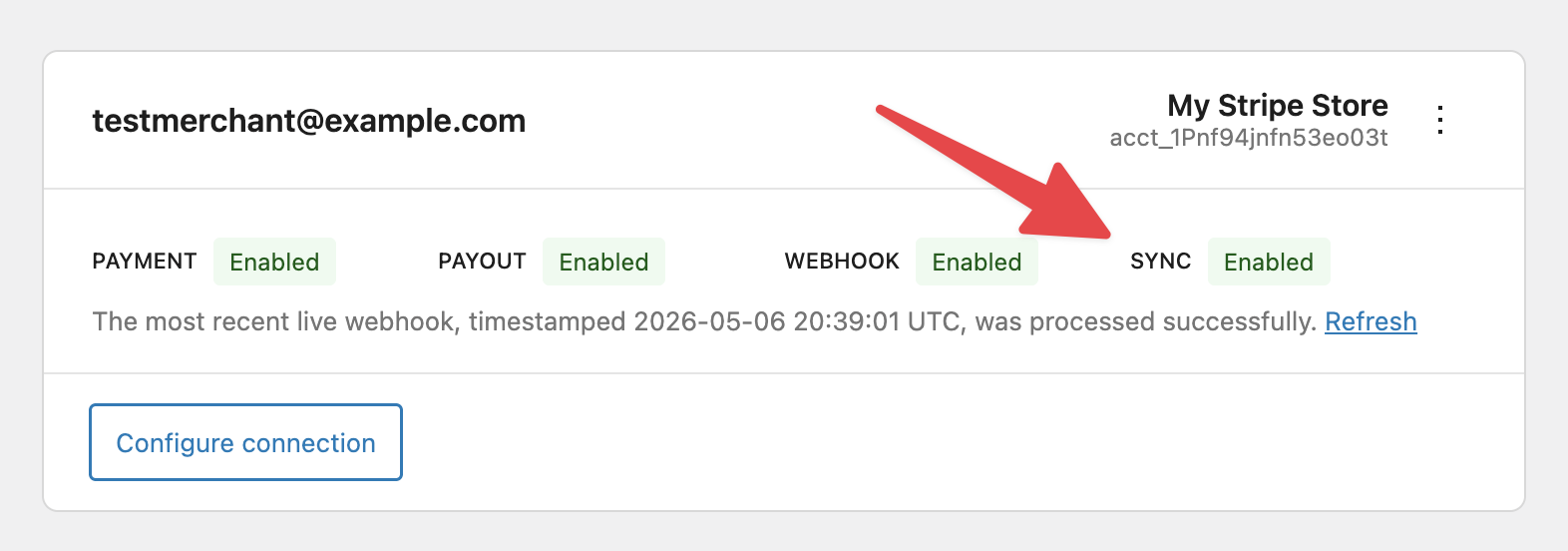
If the Sync feature does not show Enabled, you will need to reconnect your site to Stripe’s system before Optimized Checkout Suite will be available.
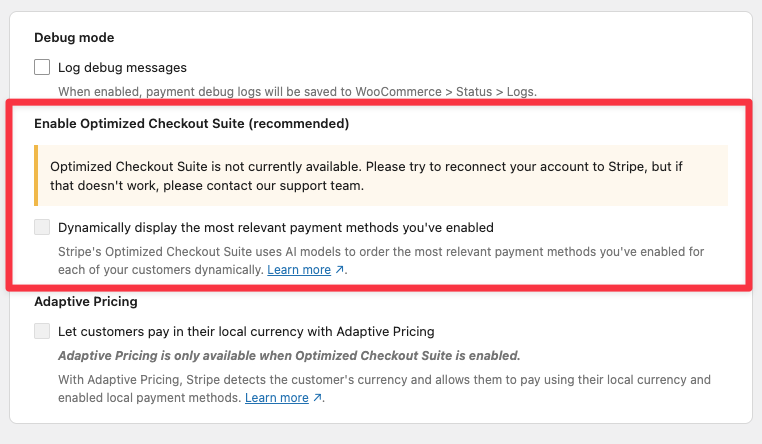
Stripe account on another platform
↑ Back to topIf you created your Stripe account through another platform or service, it may still be controlled by that platform/service, and not by WooCommerce.
To take advantage of the Optimized Checkout Suite, you’ll need to disconnect from that platform account and then reconnect to the WooCommerce platform account.
Using manual API keys
↑ Back to topSites that are still using manually entered API keys may not be eligible for Optimized Checkout Suite. Re-authenticating your connection solves this issue.
Some methods not shown
↑ Back to topOptimized Checkout Suite will only show a payment method if it’s relevant to a given customer. For example, Przelewy24 will be hidden for customers outside Poland.
Some methods (BLIK and Canada PADs) cannot be displayed inside the combined Optimized Checkout payment method. They will be shown on their own, like so:
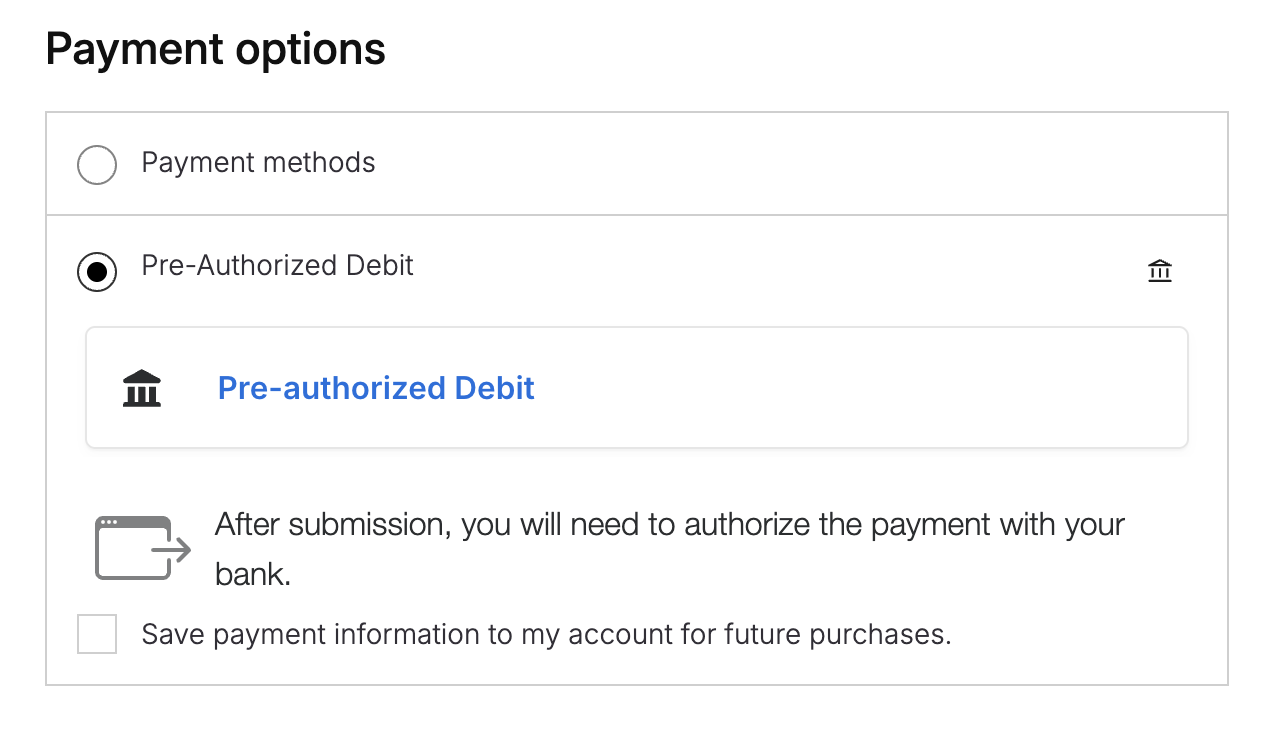
Furthermore, although the Stripe dashboard shows many payment methods, our Stripe plugin can only support a subset of those. Here’s the list of what our plugin supports.
Questions and support
↑ Back to topDo you still have questions and need assistance?
- Get in touch with a Happiness Engineer via our Help Desk. We provide support for extensions developed by and/or sold on WooCommerce.com, and Jetpack/WordPress.com customers.
- If you are not a customer, we recommend finding help in the WooCommerce support forum or hiring a Woo Agency Partner. These are trusted agencies with a proven track record of building highly customized, scalable online stores. Learn more about Woo Agency Partners.