
Adaptive Pricing is a feature of the Optimized Checkout Suite that lets your international customers see prices and pay in their preferred currency, while you continue to receive payouts in the same currency as before.
As of version 10.8.0, Adaptive Pricing is enabled by default for all eligible merchants.
Adaptive Pricing vs. multi-currency
↑ Back to topAdaptive Pricing is not the same as full multi-currency support. It is a lightweight way to offer local-currency checkout for one-time purchases. It does not change the currency orders are stored in, and it does not work with subscriptions or other purchase flows where charges will occur in the future, e.g. manual capture.
If you need full multi-currency support across your catalog, orders, and reports, you will want a dedicated multi-currency solution instead.
Requirements
↑ Back to topFor Adaptive Pricing to work in your store, all of these are required:
The Optimized Checkout Suite must be enabled
↑ Back to topAdaptive Pricing is a feature of the Optimized Checkout Suite and cannot be used on its own. See Enabling the Optimized Checkout Suite for instructions.
Manual capture must be disabled
↑ Back to topAdaptive Pricing is incompatible with the Issue an authorization on checkout, and capture later setting.
Your Stripe account must be in a supported country
↑ Back to topAdaptive Pricing is not available to merchants in India. If your Stripe account is based in India, the Adaptive Pricing setting cannot be enabled.
Your store currency must match your Stripe payout currency
↑ Back to topAdaptive Pricing requires your WooCommerce store currency to match the currency Stripe uses when paying you out.
To check or change your store currency, go to WooCommerce > Settings > General and confirm that the Currency setting matches the currency you receive payouts in.
Adaptive Pricing must be enabled in Stripe dashboard
↑ Back to topIn addition to enabling Adaptive Pricing in your store, you also need to make sure it’s enabled at the Stripe account level as well.
- Sign in to your Stripe dashboard.
- Navigate to Settings > Payments > Adaptive Pricing.
- Make sure Adaptive Pricing is enabled for your account.
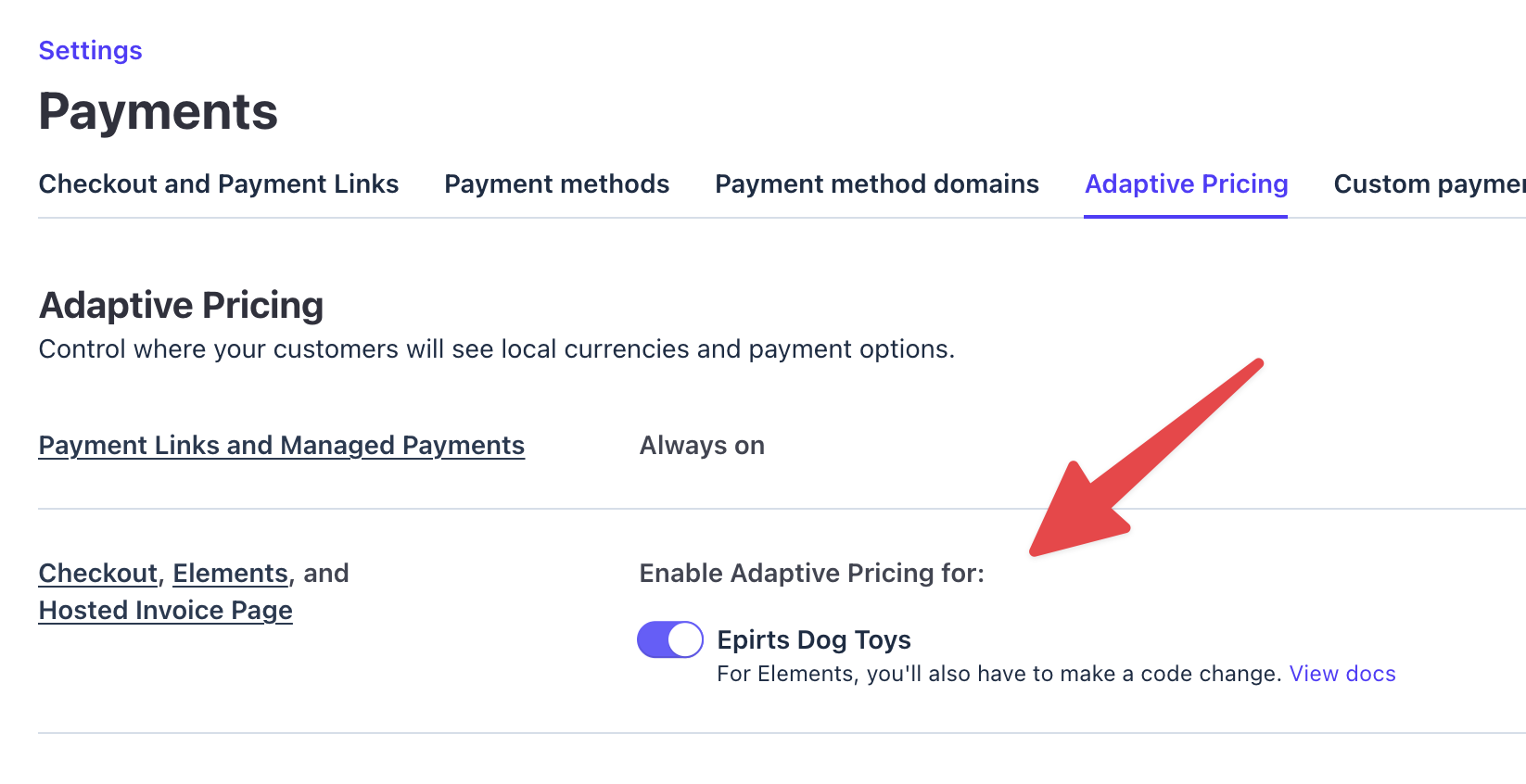
Enabling Adaptive Pricing
↑ Back to topOnce all four requirements above are met, turn Adaptive Pricing on in your store:
- In your WordPress dashboard, go to WooCommerce > Settings > Payments > Stripe > Settings.
- Scroll to the Advanced Settings section.
- If the Optimized Checkout Suite is not already enabled, enable it.
- Check the box for Let customers pay in their local currency with Adaptive Pricing.
- Click the Save changes button at the bottom of the page.
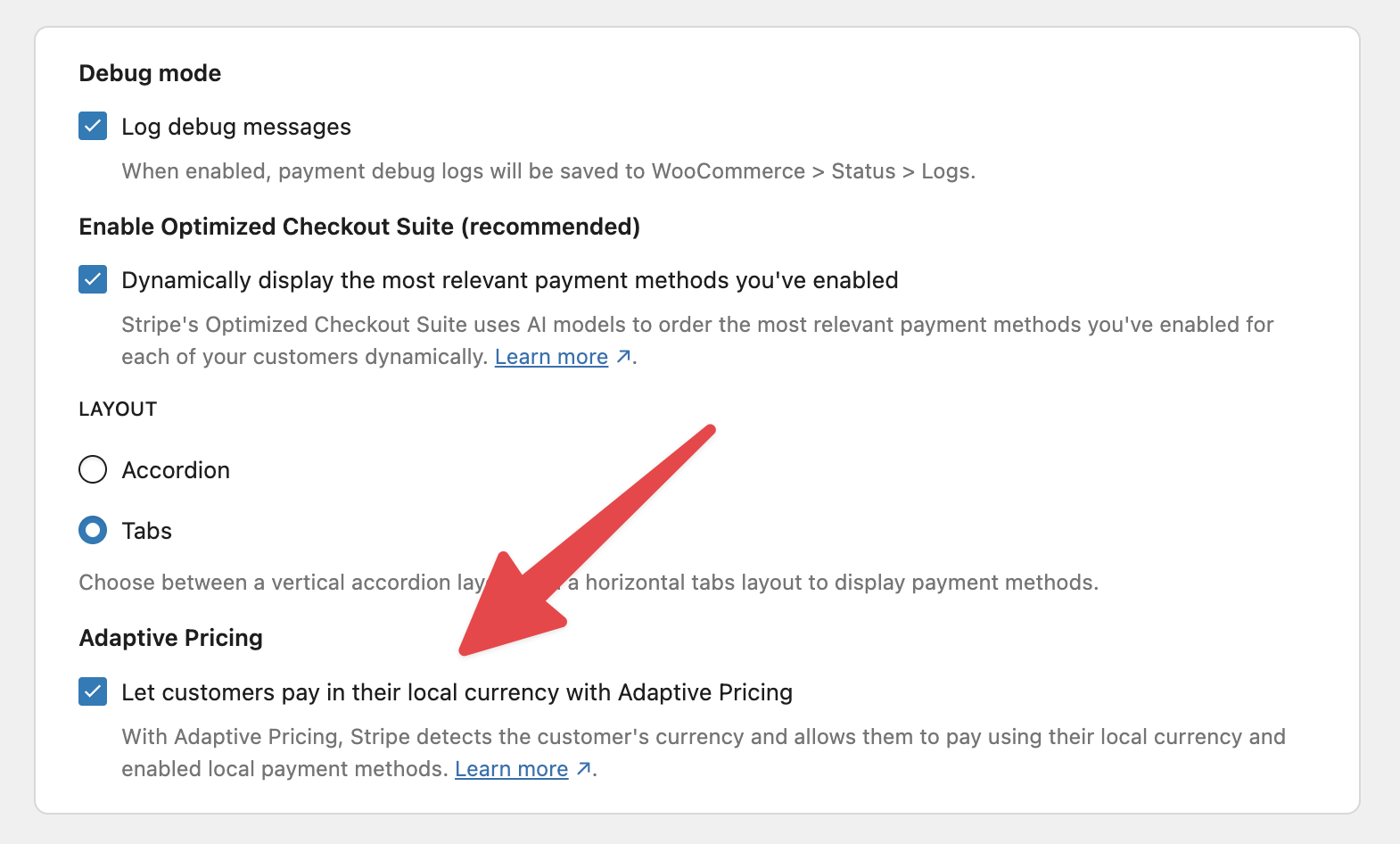
When Adaptive Pricing is enabled, all additional payment methods will become available under WooCommerce > Settings > Payments > Stripe > Payment Methods. We highly suggest enabling as many as possible, since they will present international customers with a wider range of payment options. (Note: fees vary across payment methods.)
What shoppers see
↑ Back to topCurrency selector in checkout
↑ Back to topWhen an eligible shopper visits your checkout, a currency selector appears directly above the Stripe payment form. The shopper can switch between your store’s currency and a supported local currency.
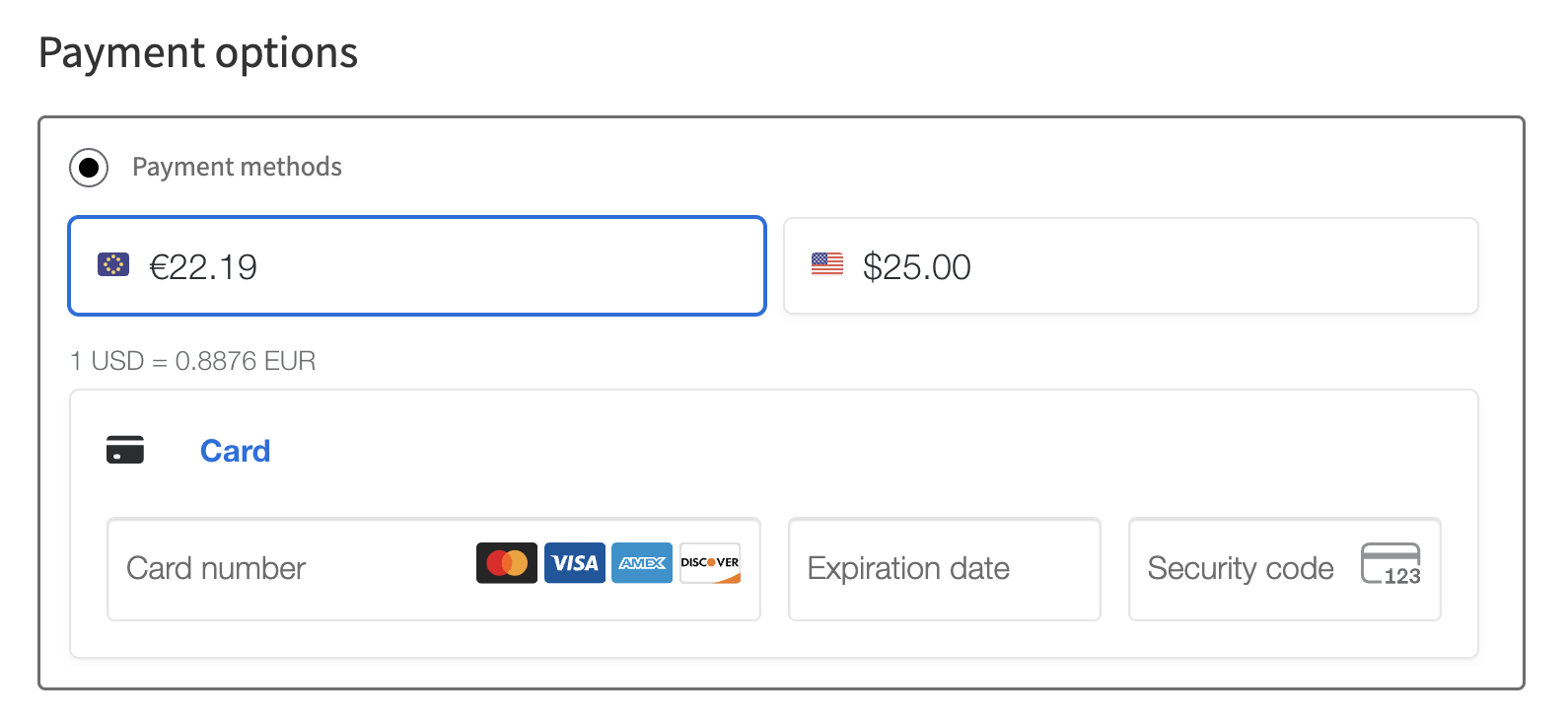
Payment methods adjust to the chosen currency
↑ Back to topOnly methods that support the selected currency and customer country are shown. For example, if a shopper switches to Euros, payment methods that don’t support Euros are hidden from the list. Your enabled payment methods are still respected since Adaptive Pricing only filters within that list, it doesn’t add new methods.
Order received page
↑ Back to topAfter a successful purchase, the order received page shows the converted total in the shopper’s chosen currency along with a notice describing the exchange rate.
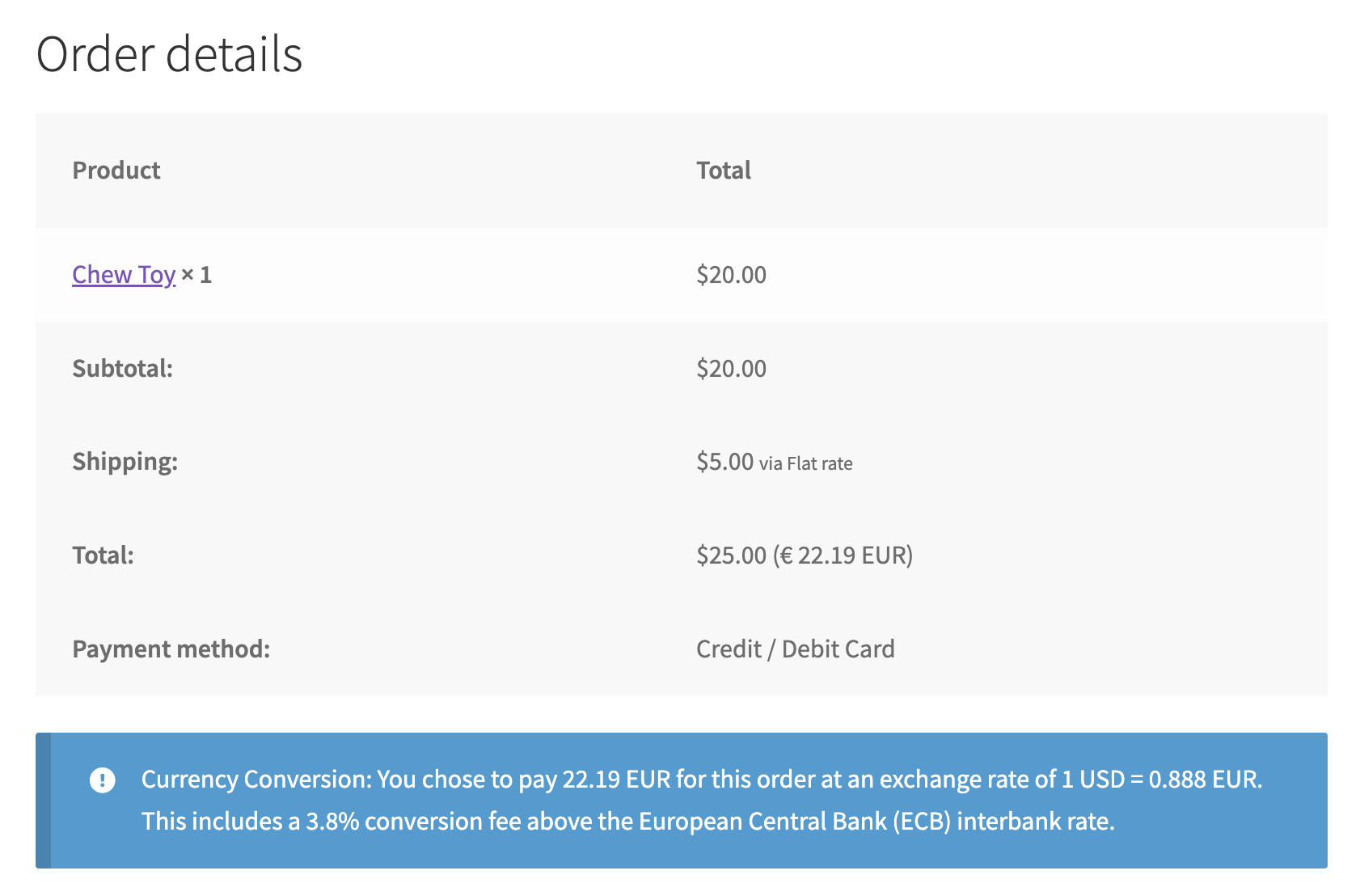
For payment methods that complete asynchronously (such as bank-redirect methods), the Pay and Cancel buttons that normally appear on the order received page during pending status are hidden for Adaptive Pricing orders. This avoids confusion while the payment is still confirming with the bank.
Order confirmation emails
↑ Back to topThe shopper’s order confirmation email includes a notice with the converted total and the exchange rate that was applied.
Internal merchant notification emails include an Adaptive Pricing Applied note, so you can tell at a glance which orders went through this flow.
Information shown to EEA shoppers
↑ Back to topShoppers based in the EEA see additional information on the order received page and in their confirmation email, as required by EU regulations: the European Central Bank’s interbank exchange rate, plus a currency conversion service fee. This disclosure is only shown to EEA-based shoppers; shoppers from other regions don’t see it.
What merchants see
↑ Back to topWhen an order goes through Adaptive Pricing, several places in your store reflect that the shopper paid in a different currency.
New Order email
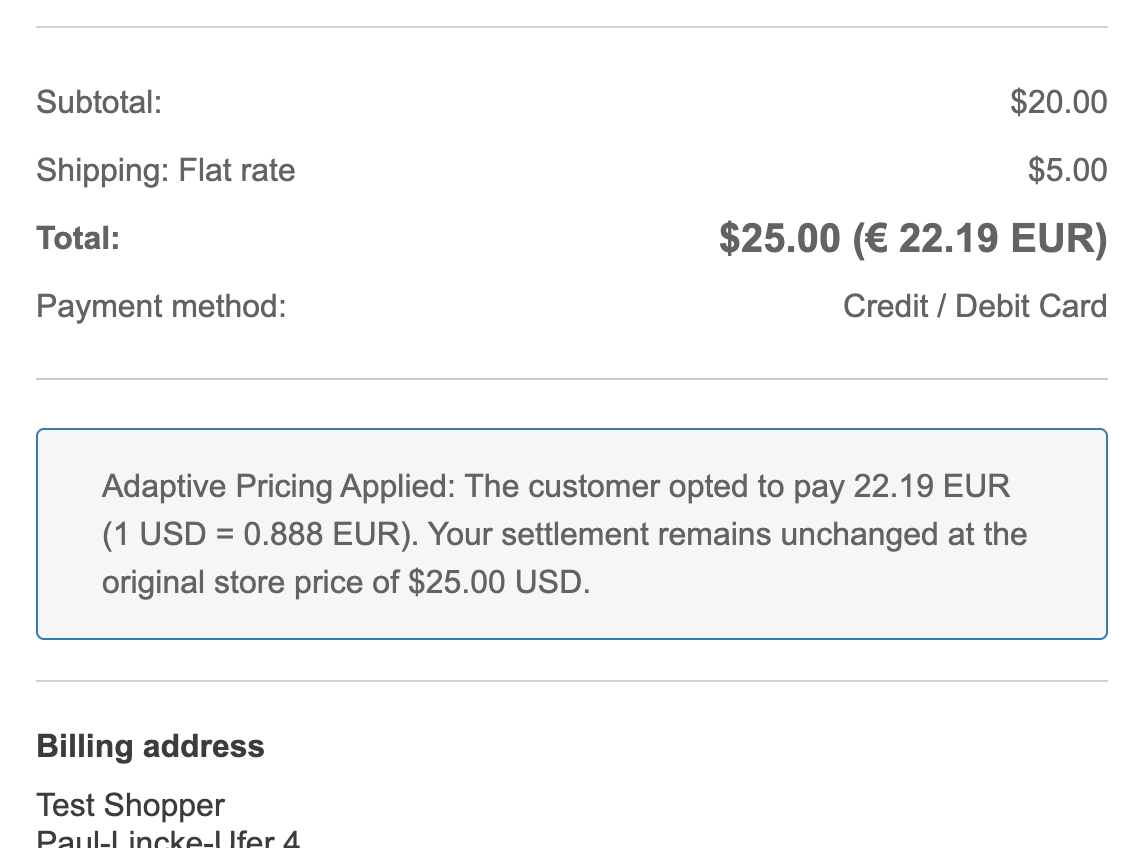
↑ Back to topWhen an order completes, the New Order email sent to you (and any other admin-bound order emails like Cancelled Order or Failed Order) includes an Adaptive Pricing Applied notice with the converted amount, the exchange rate that was used, and a confirmation that your settlement is unchanged.
Order totals in the orders list
↑ Back to topIn WooCommerce > Orders, any order placed using Adaptive Pricing shows the original store currency total alongside the currency the shopper actually paid in. For example:
$25.00 (€ 22.19 EUR)
In the order itself
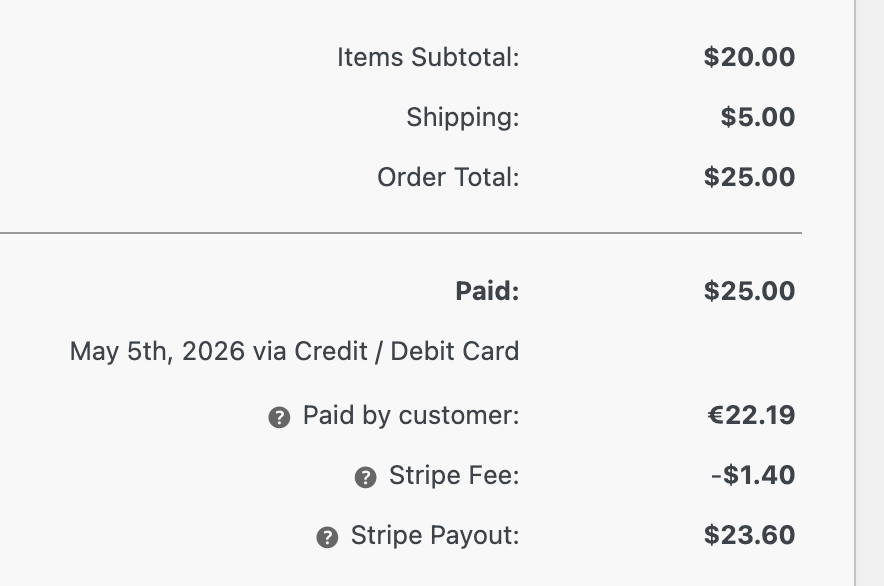
↑ Back to topAny order placed using Adaptive Pricing also gets an order note recording the local currency amount the shopper paid:
Local currency purchase via Adaptive Pricing. Amount paid was: EUR 22.19
This is also recorded in the order totals table:
Refunds
↑ Back to topWhen you refund a payment made via Adaptive Pricing, the amount is converted to the customer currency using the exchange rate at the time you issued the refund. Because exchange rates vary over time, this may be more or less than the original amount.
Put another way: the customer will always be refunded the exact amount that they paid and in the currency that they paid in, regardless of exchange rate fluctuations between the time of the transaction and the time of the refund.
Compatibility
↑ Back to topAdaptive Pricing works with:
- The Optimized Checkout Suite (required)
- One-time purchases
- Pre-orders that charge upfront
- Saved payment methods
- Some payment methods cannot be saved with Adaptive Pricing enabled, but all of the previously saved methods can all be used.
Adaptive Pricing does not work with:
- Subscriptions
- Pre-orders that charge upon release
- Other recurring or scheduled payment flows
- Express checkouts (Apple Pay, Google Pay)
- Manual auth and capture
Disabling
↑ Back to topBecause Adaptive Pricing allows you to activate various payment methods that you otherwise wouldn’t have been able to use (e.g. due to store currency settings), it will warn you if you ever disable Adaptive Pricing while those methods are still active.
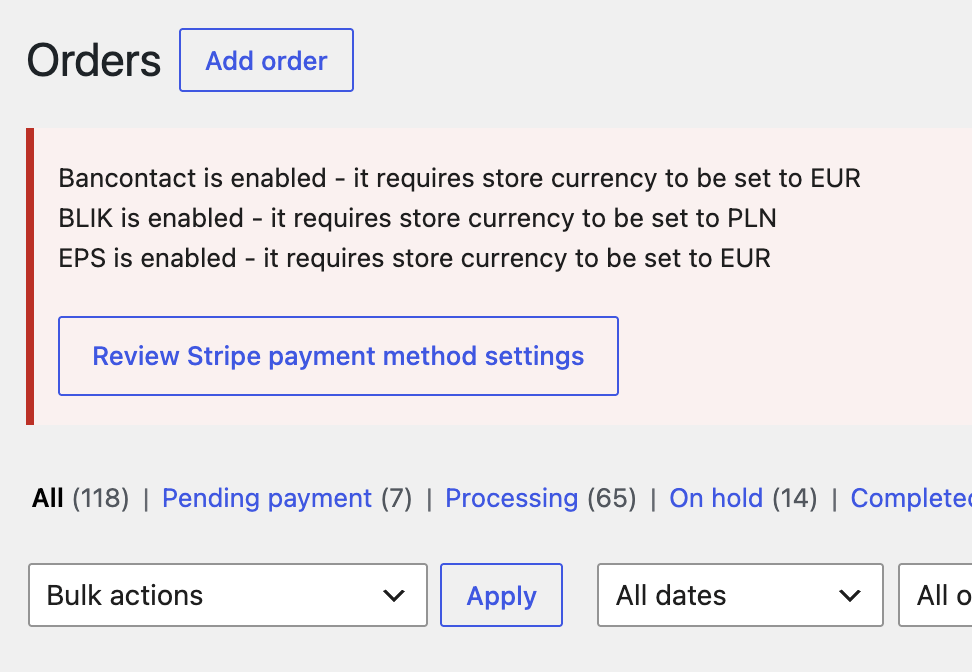
The correct course of action is to either:
- Re-enable Adaptive Pricing in order to re-enable the payment methods, or…
- Disable those methods, since they won’t be available to shoppers anyway.

