
Name Your Price has a small set of store-wide settings. They live at WooCommerce > Settings > Name Your Price and are grouped into Text strings, Styles, and Advanced Options.
Per-product options (the Name Your Price checkbox and the Suggested, Minimum, and Maximum prices) are set on each product. See the main Name Your Price guide.
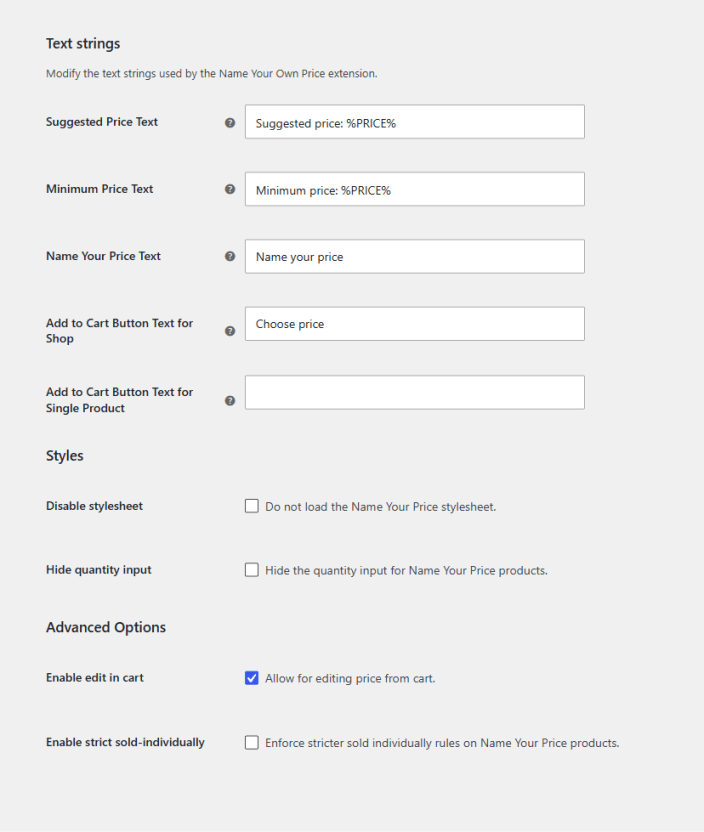
Text strings
↑ Back to topThese control the wording customers see on Name Your Price products. Every field is optional. Leave a field blank to use the default.
| Setting | What it controls | Default |
|---|---|---|
| Suggested Price Text | The suggested-price line shown on the product page and on the product’s card in the shop. %PRICE% is replaced with the product’s Suggested Price. | Suggested price: %PRICE% |
| Minimum Price Text | The minimum-price line shown below the price input. %PRICE% is replaced with the product’s Minimum Price. Not shown when the product’s Hide Minimum Price option is on. | Minimum price: %PRICE% |
| Name Your Price Text | The label above the price input. | Name your price |
| Add to Cart Button Text for Shop | The button on the product’s card on shop and category pages. Because the customer has to enter a price first, this button opens the product page rather than adding to the cart. | Choose price |
| Add to Cart Button Text for Single Product | The add-to-cart button on the product page itself. | (blank: uses WooCommerce’s own “Add to cart” text) |
Examples of %PRICE% in use:
| You enter | Customer sees |
|---|---|
Suggested donation: %PRICE% | Suggested donation: $10.00 |
Name your price, starting at %PRICE%. | Name your price, starting at $15.00. |
Two situations override the single-product button text. When a customer is editing a price from the cart the button reads Update Cart, and when a subscriber is changing their subscription amount it reads Switch subscription (that one belongs to WooCommerce Subscriptions and can be changed under WooCommerce > Settings > Subscriptions > Switching).
Styles
↑ Back to top| Setting | What it controls | Default |
|---|---|---|
| Disable stylesheet | Stops the plugin loading its own (very small) stylesheet, so your theme or custom CSS controls the look of the price input and price text entirely. | Off |
| Hide quantity input | Removes the quantity field from Name Your Price products. Useful for donations and payments, where a quantity makes no sense. | Off |
Advanced Options
↑ Back to top| Setting | What it controls | Default |
|---|---|---|
| Enable edit in cart | Shows an Edit price link on each Name Your Price line in the cart. Clicking it reopens the product page with the current amount filled in; submitting the new amount replaces the cart line. Works in both the classic cart and the Cart block. | On |
| Enable strict sold-individually | Normally WooCommerce treats the same product at two different prices as two separate cart lines, so a customer can end up with, say, one $10 line and one $15 line for the same donation product. Turn this on and a Name Your Price product that is marked Sold individually (on its Inventory tab) appears in the cart at most once, whatever price was entered. | Off |
Both Advanced Options are store-wide. There is no per-product override.
Settings that live elsewhere
↑ Back to topTwo Name Your Price settings are registered on the WooCommerce Subscriptions settings screen rather than this one, because they only apply when Subscriptions is active:
| Setting | Location | Purpose |
|---|---|---|
| Change Name Your Price subscription amount | WooCommerce > Settings > Subscriptions > Switching > Allow Switching | Lets subscribers change their recurring amount from My Account |
| Name Your Price Switch Button Text | Same screen, appears once switching is enabled | The My Account button label (default Change price) |
Both are covered in Name Your Price: Subscriptions.
For developers
↑ Back to topThe price input label can be changed per product with the wc_nyp_price_input_label_text filter, and the input’s attributes (for example a placeholder) with wc_nyp_price_input_attributes. See the FAQ for examples.
Document Version: 1.0
Last Updated: September 27th, 2026
NYP Version Covered: 3.6.0+