
What each Name Your Price setting on a product does, and what customers see because of it. For step-by-step setup, see the Simple products and Variable products walkthroughs.
Prices
↑ Back to topYou’ll find these in the product’s Name Your Price tab under Prices, or in each variation’s fields for variable products. Every price setting is optional. With none set, customers can enter any amount.
Suggested prices
↑ Back to topOn a simple product, when there are two or more suggested prices, customers see them as buttons, plus a Custom button. Choosing a button sets the price straight away; choosing Custom opens a field where the customer types their own amount. With just one, they see it as a Suggested price line above an empty price field.
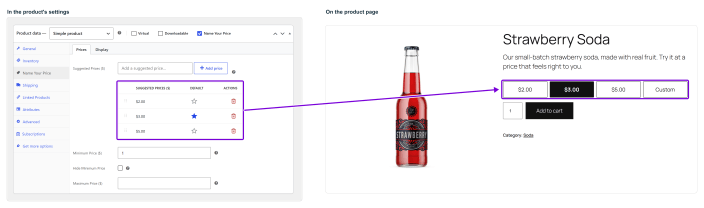
- Default: the suggested price marked with the star is selected when the page loads. With no default, nothing is selected until the customer chooses.
- Order: drag the rows in the table to change the order of the buttons.
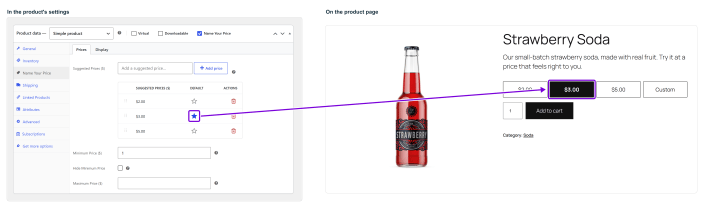
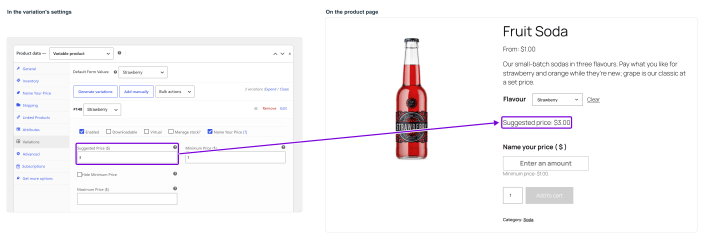
On a variation, you set one suggested price. It’s shown as text above the price field, for example Suggested price: $3.00, and doesn’t fill in the field for the customer.
Minimum price
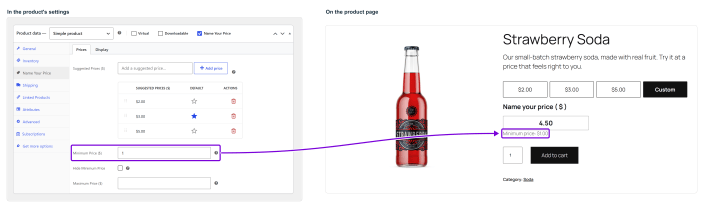
↑ Back to topThe lowest amount you’ll accept. It’s shown under the price field, for example Minimum price: $1.00. If a customer enters less, they see Please enter at least $1.00. and the product isn’t added to the cart.
Hide minimum price
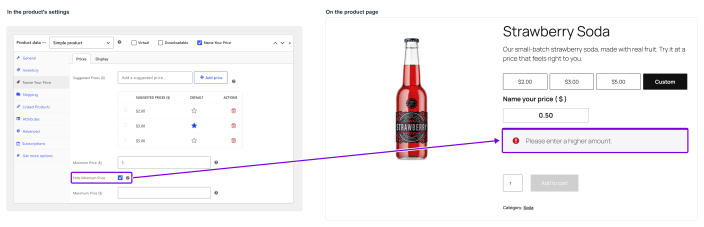
↑ Back to topThe minimum still applies but isn’t shown on the page. A customer who enters too little sees Please enter a higher amount. instead of the exact figure.
Maximum price
↑ Back to topThe highest amount you’ll accept. A customer who enters more sees Please enter less than or equal to $10.00. (with your maximum) and the product isn’t added to the cart.
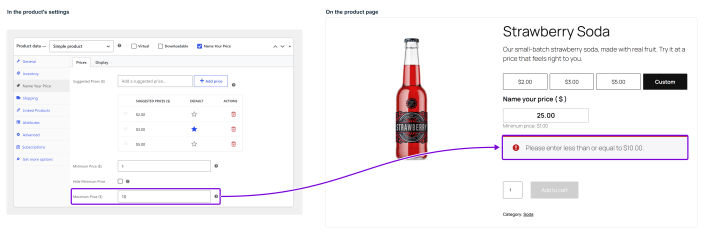
When the limits are checked: as the customer types, and again when they click the add-to-cart button.
Display
↑ Back to topIn the product’s Name Your Price tab under Display. These settings change what customers see on this product only. The grey text in each empty field is your store-wide wording from Settings. Leave a field blank to keep it.
On a variable product, they apply to all of its Name Your Price variations.
Hide quantity input
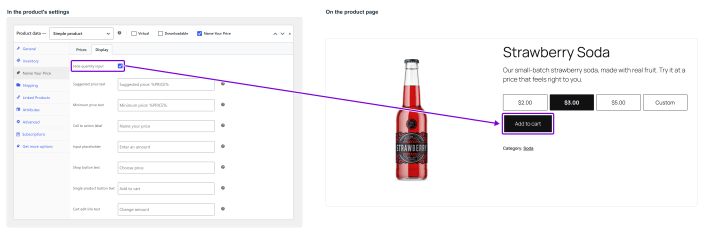
↑ Back to topTick it to remove the quantity field from this product’s page, so customers only choose an amount. It’s handy for donations and payments, where a quantity makes no sense. If the store-wide Hide quantity input setting is on, the field is already hidden on every Name Your Price product.
Suggested price text
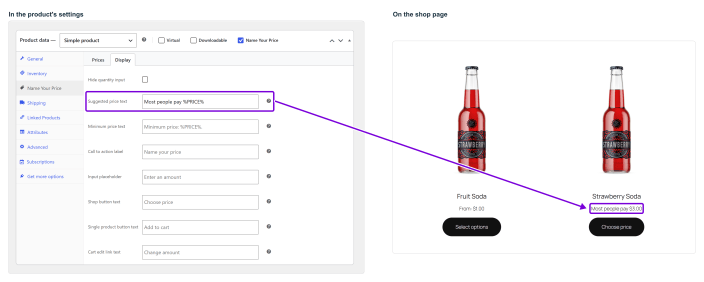
↑ Back to topThe line that shows the suggested price. %PRICE% is replaced with the amount, so you can put it anywhere in the sentence.
- On a simple product, it appears on the product’s card on shop and category pages, using the default suggested price.
- On a variation, it appears above the price field.
| You enter | Customers see |
|---|---|
Most people pay %PRICE% | Most people pay $3.00 |
Suggested donation: %PRICE% | Suggested donation: $3.00 |
Minimum price text
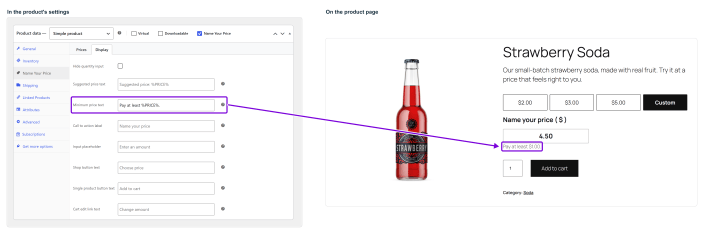
↑ Back to topThe line under the price field that shows the minimum. %PRICE% is replaced with the minimum. It isn’t shown when Hide minimum price is on.
| You enter | Customers see |
|---|---|
Pay at least %PRICE%. | Pay at least $1.00. |
Minimum gift: %PRICE% | Minimum gift: $1.00 |
Call to action label
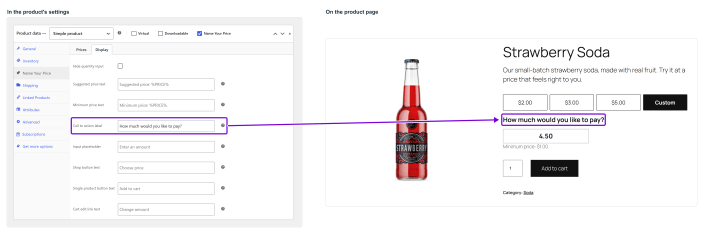
↑ Back to topThe heading above the price field.
| You enter | Customers see |
|---|---|
How much would you like to pay? | How much would you like to pay? |
Your donation | Your donation |
Input placeholder
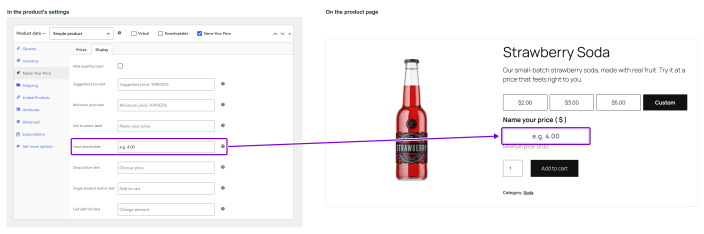
↑ Back to topThe grey hint inside the price field before the customer types. It disappears as soon as they start typing.
| You enter | Customers see |
|---|---|
e.g. 4.00 | e.g. 4.00 in grey inside the empty field |
Shop button text
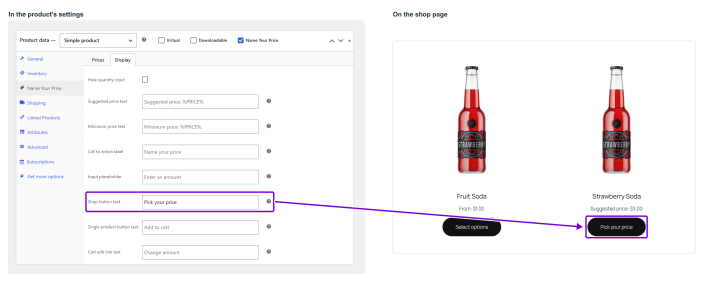
↑ Back to topThe button on this product’s card on shop and category pages. Customers need to choose an amount first, so this button opens the product page instead of adding to the cart.
| You enter | Customers see |
|---|---|
Pick your price | A Pick your price button on the shop card |
Single product button text
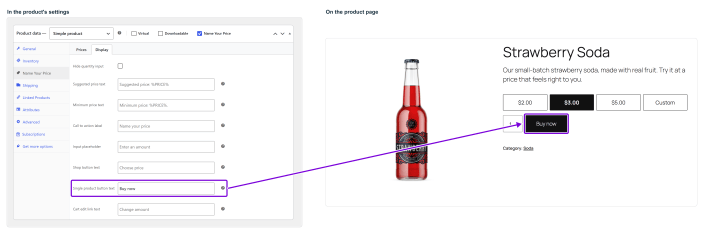
↑ Back to topThe add-to-cart button on the product page.
| You enter | Customers see |
|---|---|
Buy now | A Buy now button |
Donate | A Donate button |
Cart edit link text
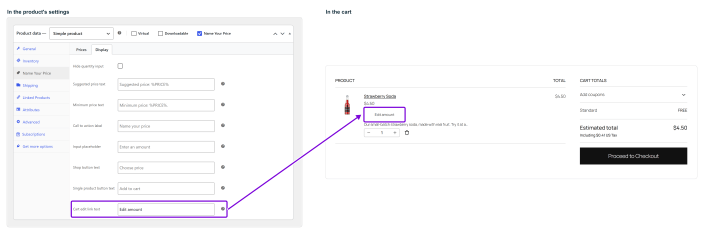
↑ Back to topThe link on this product in the cart that lets customers change their amount. It only appears when Enable edit in cart is on in Settings.
| You enter | Customers see |
|---|---|
Edit amount | An Edit amount link on the cart item |
Editing the price from the cart
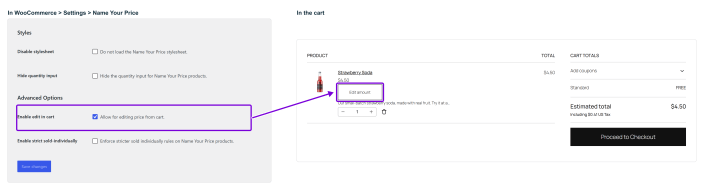
↑ Back to topWhen Enable edit in cart is on in Settings (it’s on by default), each Name Your Price item in the cart shows a Edit amount link.
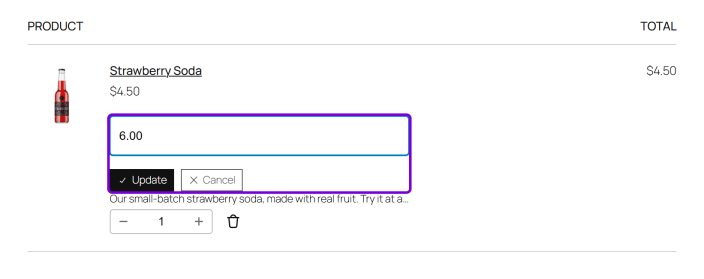
Clicking it opens a price field right in the cart line, with Update and Cancel. The customer types a new amount and clicks Update; the cart updates without leaving the page.
The same minimum and maximum apply. If the new amount is outside them, a message appears in the cart line and the item keeps its old price.
Document Version: 1.0.0
Last Updated: November 8th, 2026
NYP Version Covered: 4.0.0