
Name Your Price is switched on per product. This page covers simple products and variable products; subscription products have their own guide at Name Your Price: Subscriptions.
Requirements
↑ Back to top- WooCommerce and Name Your Price installed and active.
- A product to edit. Name Your Price works with Simple, Variable (per variation), Subscription, Bundle, Composite, Mix and Match, and Deposit product types.
Enable Name Your Price on a simple product
↑ Back to top- Edit the product.
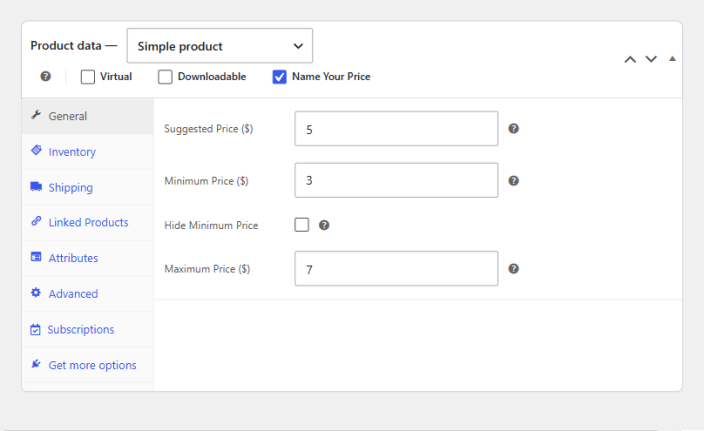
- In the Product data box, tick the Name Your Price checkbox. It sits in the row of options next to the product type dropdown, alongside Virtual and Downloadable. The product type itself stays Simple product.
- Open the General tab. The Name Your Price fields appear in place of the regular and sale price fields: Suggested Price, Minimum Price, Hide Minimum Price, and Maximum Price.
- Update or Publish the product.
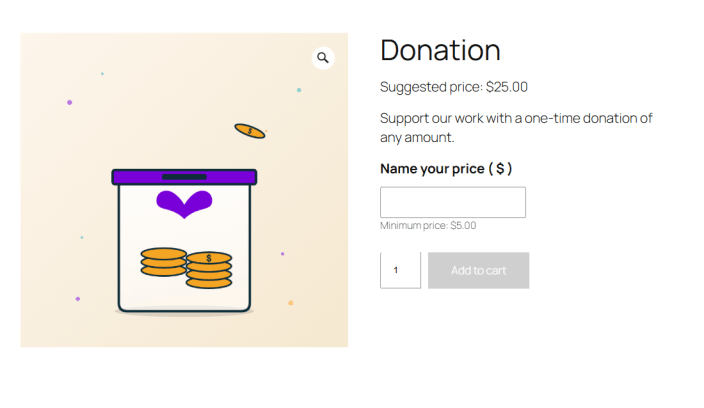
Result: on the product page, a price input appears above the add-to-cart button. The suggested price (if any) is shown above the form, and the minimum (unless hidden) below the input.
How the price fields behave
↑ Back to top- All three prices are optional. You can set none of them, one, or any combination. A product with no prices set accepts any amount the customer enters.
- The Suggested Price does not pre-fill the input. The input starts empty; the suggestion is displayed as text above the form.
- Minimum and Maximum are enforced when the customer adds to the cart. The customer sees an error on the product page and the product is not added until the amount is within range. They are checked again if the cart is loaded later.
- Tick Hide Minimum Price to enforce the minimum without showing it. Customers who enter too little see Please enter a higher amount. instead of the exact figure.
- Minimum must not be higher than Suggested or Maximum. If it is, the product still saves, but you will see a warning: The suggested price must be higher than the minimum for Name Your Price products. Please review your prices. Fix the prices and update again.
- The regular and sale price fields are not used. The customer’s amount is the price. You do not need to enter a regular price, and any regular price already on the product is ignored while Name Your Price is on.
- The customer’s amount is the line price. It carries through the cart, checkout, and the order exactly as entered; quantity multiplies it in the usual way.
Changing the wording. The Name your price label, the suggested and minimum price text, and the button text are all store-wide settings. See Name Your Price: Settings.
Enable Name Your Price on a variable product
↑ Back to topOn a variable product, Name Your Price is set per variation, not on the parent product. Each variation has its own Suggested, Minimum, Hide Minimum, and Maximum prices, and you can mix Name Your Price variations with fixed-price ones on the same product.
- Set the product up as a Variable product with its attributes and variations, as you would normally.
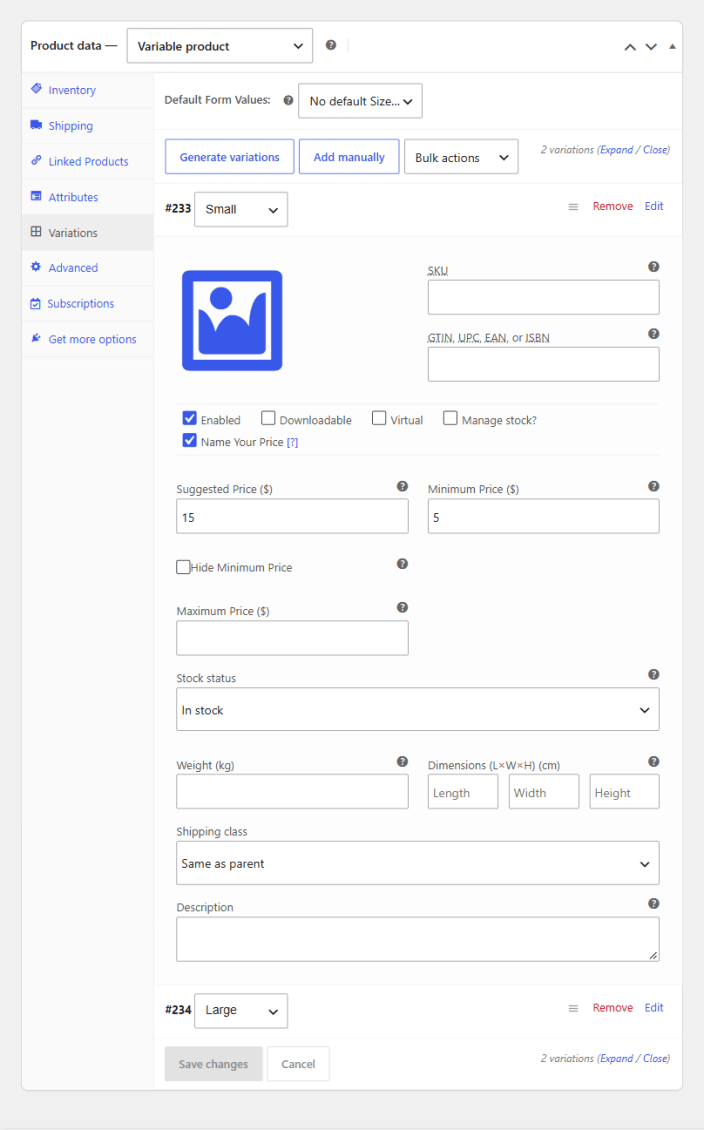
- On the Variations tab, expand a variation.
- Tick that variation’s Name Your Price checkbox. Its own Suggested, Minimum, Hide Minimum, and Maximum Price fields appear in place of the variation’s regular and sale price.
- Fill in the prices you want, and repeat for any other variations that should be Name Your Price.
- Save changes, then Update the product.
Result: when a customer selects a Name Your Price variation, the price input appears in the variation area, with that variation’s own suggested and minimum prices. Selecting a fixed-price variation shows the normal price and add-to-cart button.
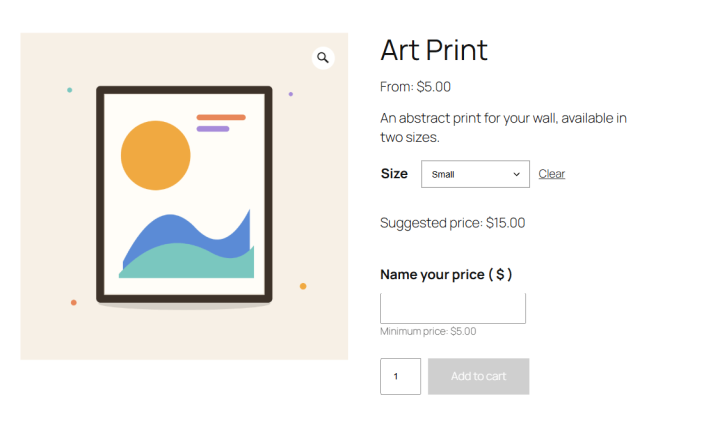
On a product that mixes Name Your Price and fixed-price variations, the product’s displayed price starts from the lowest value, using the Name Your Price variation’s minimum. A product with a Name Your Price variation (minimum $5) and a fixed $30 variation shows From: $5.00.
Variable subscription products work the same way, with the billing period set on each variation. See Name Your Price: Subscriptions.
Editing a price from the cart
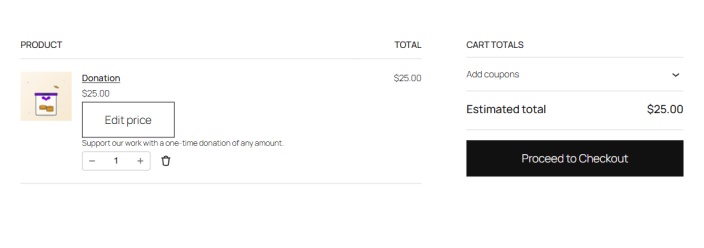
↑ Back to topCustomers can change the amount after adding a product: each Name Your Price line in the cart has an Edit price link that reopens the product page with the current amount filled in. Submitting a new amount replaces the line. This is on by default and can be turned off under WooCommerce > Settings > Name Your Price > Advanced Options (settings reference).
Document Version: 1.0
Last Updated: September 27th, 2026
NYP Version Covered: 3.6.0+