
Name Your Price lets customers set their own recurring amount with WooCommerce Subscriptions. It suits monthly donations, pay-what-you-can memberships, and any subscription where a fixed price doesn’t fit. Subscription support is built into Name Your Price, so you don’t need an extra extension to connect the two.
Requirements
↑ Back to top- WooCommerce Subscriptions. Name Your Price doesn’t create subscriptions on its own.
- Name Your Price
Note:
You don’t need All Products for WooCommerce Subscriptions. Name Your Price has its own subscription support and has never relied on it. Since WooCommerce Subscriptions 9.0, the All Products features are part of Subscriptions, so you may now see its options on your products. They’re a separate feature, not part of Name Your Price. See About the Subscriptions tab below.
Before you start: turn on the subscription product types
↑ Back to topSince WooCommerce Subscriptions 9.0, the subscription product types are switched off by default. If you go to Products > Add New and the product type dropdown has no Simple subscription option, this is why.
Go to WooCommerce > Settings > Subscriptions and find Subscription product creation. Tick Simple subscription, and Variable subscription too if you plan to let customers choose how often they’re billed. Save your changes.
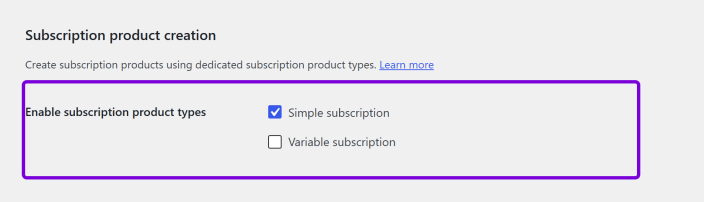
This is a WooCommerce Subscriptions setting, not a Name Your Price one, and it applies to the whole store. Existing subscription products and active subscriptions aren’t affected; it only controls creating new ones.
Note:
WooCommerce Subscriptions plans to deprecate these product types in a future release, and recommends adding subscription plans to simple and variable products instead. Name Your Price works with subscription plans too. See About the Subscriptions tab.
Create a Name Your Price subscription product
↑ Back to top- Go to Products > Add New.
- In the Product data dropdown, choose Simple subscription.
- Tick Name Your Price in the row of options beside the dropdown. A Name Your Price tab appears in the list on the left.
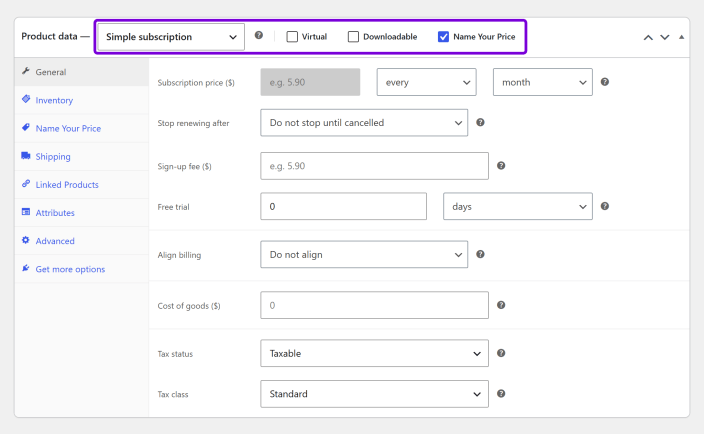
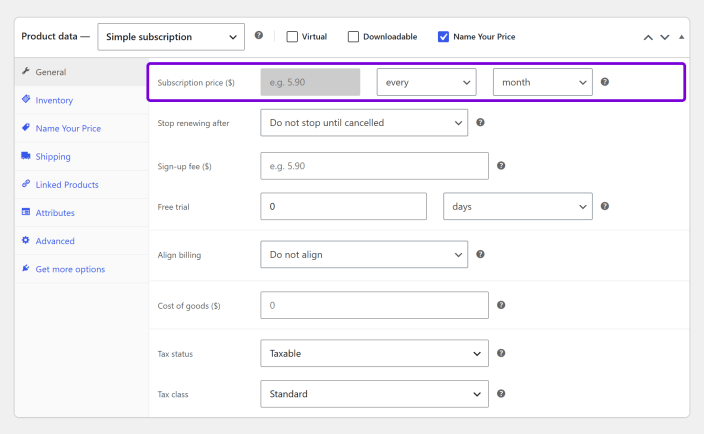
- On the General tab, set how often the customer is billed (every … month), plus any sign-up fee, free trial or expiry. The Subscription price field is greyed out, and that’s expected: the amount the customer enters is what recurs, so there’s nothing to type there.
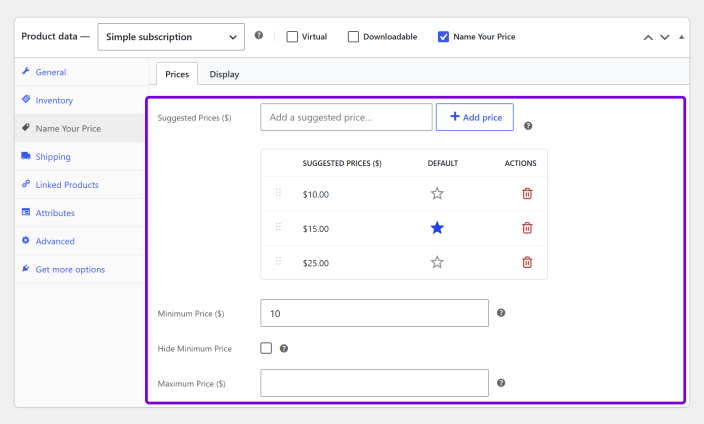
- Open the Name Your Price tab and set your prices: Suggested Prices, Minimum Price and Maximum Price. All are optional. Add two or more suggested prices and customers see them as buttons, plus Custom for their own amount. See Product settings for what each one does.
- Click Publish.
What the customer sees
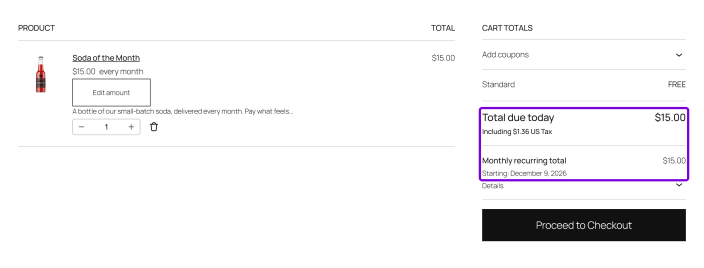
↑ Back to topThe customer chooses or enters an amount on the product page, and the cart and checkout show it as a recurring charge, for example $15.00 every month, with Total due today, a Monthly recurring total and a Starting date.
Let the customer choose their billing frequency
↑ Back to topTo let customers choose how often they’re billed as well as how much, use a Variable subscription, with one variation for each billing period.
Note:
Turn on Variable subscription first. It’s off by default since WooCommerce Subscriptions 9.0. Here’s how to turn it on.
- Create a product and set its type to Variable subscription.
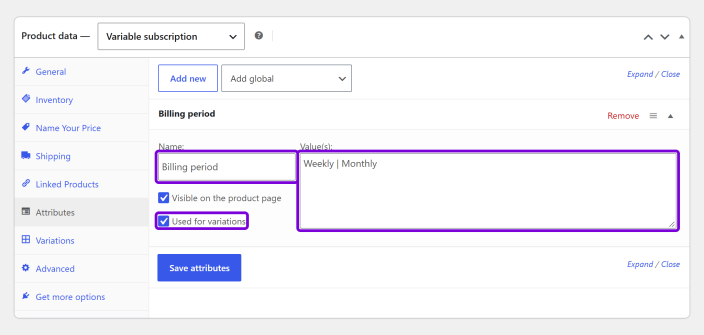
- On the Attributes tab, add an attribute such as Billing period, with the options you want to offer, for example Weekly and Monthly. Tick Used for variations and save.
- On the Variations tab, create a variation for each option.
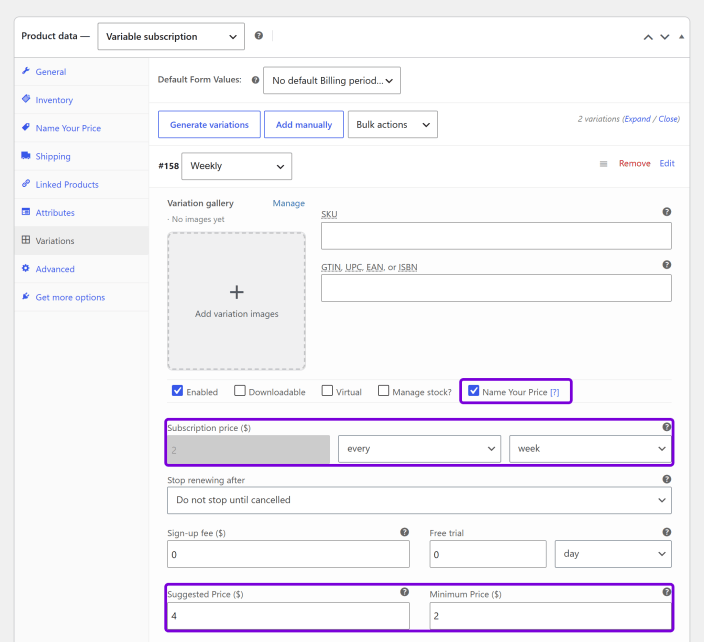
- In each variation where you want customers to name their price, tick Name Your Price. Then set the variation’s billing period to match its option, for example every week for Weekly, and fill in its Suggested price and Minimum price. The Subscription price field is greyed out, because the customer’s amount is the price.
- Click Save changes, then Update.
Each variation has its own prices, so a weekly plan can have a lower minimum than a monthly one. Variations take one suggested price each, shown as text above the price field.
What the customer sees
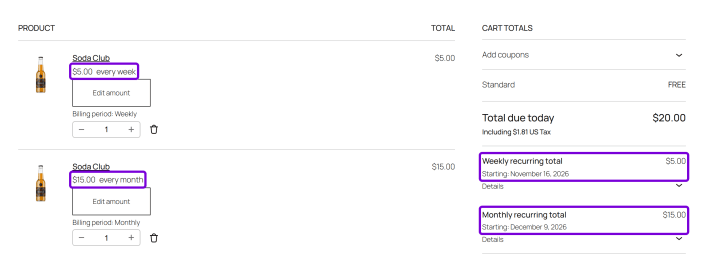
↑ Back to topThe customer picks a billing period, and the price field changes to match: its label shows the period, for example Name your price ( $ / week ).
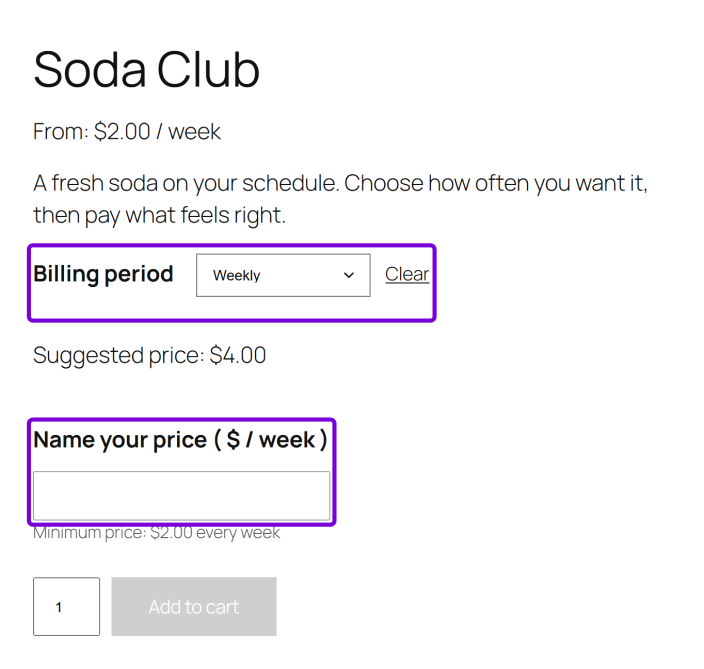
In the cart, each item shows its own billing period, and each period gets its own recurring total.
Let the customer change their subscription amount
↑ Back to topA customer paying $10 a month may later want to give more or less. You can let them change the amount themselves from their My Account area, without cancelling and subscribing again. Turn it on under WooCommerce > Settings > Subscriptions > Switching by ticking Change Name Your Price subscription amount.
For the full setup, what customers see, and how proration affects what they pay, see Changing a subscription amount.
About the Subscriptions tab
↑ Back to topSince WooCommerce Subscriptions 9.0, the features of All Products for WooCommerce Subscriptions are part of Subscriptions. So ordinary products, including simple products with Name Your Price turned on, now have a Subscriptions tab in the Product data box, with Purchase options such as Create custom subscription plans.
That tab comes from Subscriptions, not Name Your Price, and you don’t need it to sell a Name Your Price subscription. Use the subscription product types described above. If you’d rather sell through subscription plans instead, see Subscription plans.
Document Version: 2.0.0
Last Updated: November 8th, 2026
NYP Version Covered: 4.0.0