
Installation
↑ Back to topTo start using a product from WooCommerce.com, you can use the “Add to store” functionality on the order confirmation page or the My subscriptions section in your account.
- Navigate to My subscriptions.
- Find the Add to store button next to the product you’re planning to install.
- Follow the instructions on the screen, and the product will be automatically added to your store.
Alternative options and more information at:
Managing WooCommerce.com subscriptions.

Creating an Auditorium Product
↑ Back to topOnce the Seat Planner plugin is installed, a new product type Auditorium is available in WooCommerce. Use it to sell seats from a visual seat plan.
Steps
↑ Back to top- Go to Products → Add New. Enter Title, Description, and a Product image.
- In Product data, select Auditorium Product from the product type dropdown.
- Open the Seat Planner tab and click Open Seat Planner to open the editor.
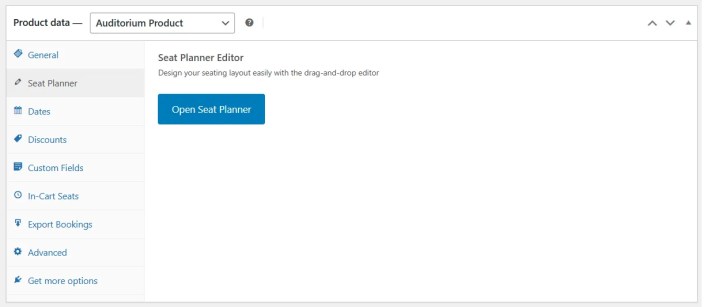
Seat Planner editor
↑ Back to topThe builder has four elements:
- Screen — Static element for the screen position (orientation).
- Seat — Selectable seat that customers can choose. Each seat needs a unique Seat ID; duplicates are highlighted in red and seats without an ID show as unavailable on the front end.
- Object — Static generic element.
- Text — Static text on the plan.
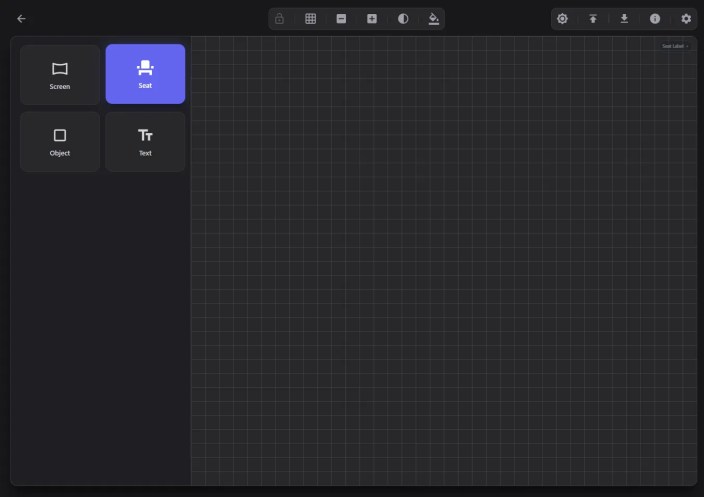
Drag Seat onto the canvas.
In the Seat Properties toolbar set Label (shown to customers), Seat ID (unique), Price, and optionally Handicap Seat.
Use Auto Increment on Label or Seat ID with the Pattern Builder (e.g. Numbers) to assign 1, 2, 3… to multiple selected seats.
Set a default price (e.g. 20) and colors as needed.
Add a Screen and, in the workflow settings (cogwheel), set the background.
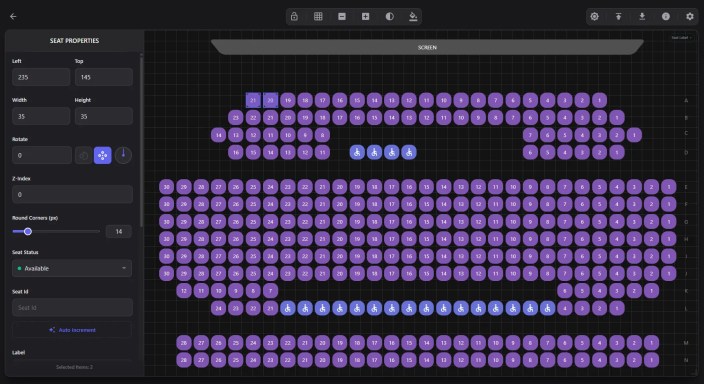
When done, click the left arrow to return to the product page and Publish.
Next
↑ Back to topOptionally add Dates, Discounts, and Custom Fields in the other Seat Planner tabs. The product is virtual and sold individually; availability is per seat (and per date if dates are set).
Adding Discounts
↑ Back to topDiscounts let you offer reduced prices on seats—either as a percentage off or a fixed amount. You can apply them to all seats or limit them by seat group and/or user role.
Where to Add Discounts
↑ Back to top- Edit a WooCommerce product of type Auditorium (Seat Planner product).
- Go to the product data tabs section and click the Discounts tab.
- Use Add Discount to create a new discount and configure it in the card that appears.

Discount Fields
↑ Back to topEach discount has the following options:
- Discount Name (required) — A unique label for this discount (e.g. “Children”, “Students”). Customers see this when choosing a discount for their seat.
- Seat Group — Leave as “All seats” to allow the discount on any seat, or choose a specific group so the discount is only available for seats in that group. Seat groups are defined on individual seats in the Seat Planner editor.
- User Role — Leave as “No role” to show the discount to everyone, or select a WordPress role (e.g. Customer, Subscriber) so only users with that role can use this discount.
- Discount Type — Percentage (e.g. 10% off) or Fixed (e.g. $5 off).
- Discount Value — The amount: a number between 0–100 for percentage, or a monetary value for fixed. The discount is applied to the base seat price; custom field surcharges are added after the discount.
Using Seat Groups with Discounts
↑ Back to topTo restrict a discount to certain seats:
- In the Seat Planner editor, assign a group to the relevant seats (each seat object can have a group name).
- Save the seat plan. The Discounts tab will list those group names in the “Seat Group” dropdown.
- When creating a discount, select that group so the discount is only offered for seats in that group. Customers will only see and can only apply that discount when selecting those seats.
How Customers See Discounts
↑ Back to topOn the frontend, when a customer selects seats:
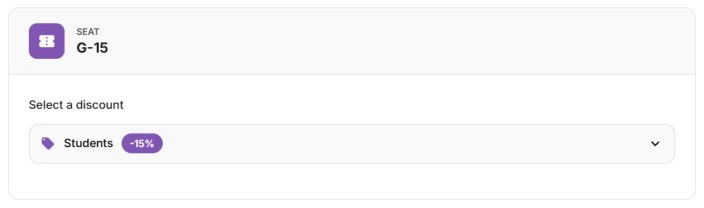
- If the product has discounts and the customer’s role (if required) and seat group (if set) match, they see a discount selector (e.g. “Select a discount”) for each seat or in the options area.
- They can choose one of the available discounts or “No discount”. The price updates according to the base seat price minus the chosen discount; custom field surcharges are then added.
- Discounts are validated at add-to-cart and in the Manager (e.g. when creating or editing orders). If a discount is not allowed for that seat or product, an error is shown.
Summary
↑ Back to top- Add discounts under Product data → Discounts.
- Set a unique name, type (percentage or fixed), and value.
- Optionally limit by Seat Group (assign groups to seats in the editor) and/or User Role.
- Customers choose an available discount when selecting seats; the final price is base price minus discount plus any custom field surcharges.
Adding Dates to a Product
↑ Back to topThe Dates tab lets you define when your event or show is available. Customers pick a date and time when selecting seats, and availability (e.g. sold-out seats) is tracked per date/time. If you leave dates empty, the product is treated as a single “no-dates” event.
Where to Add Dates
↑ Back to top- Edit a WooCommerce product of type Auditorium (Seat Planner product).
- In the product data tabs, open the Seat Planner section.
- Click the Dates tab.
- Use the options described below to set “Stop sales before the event” and to add date/time slots.
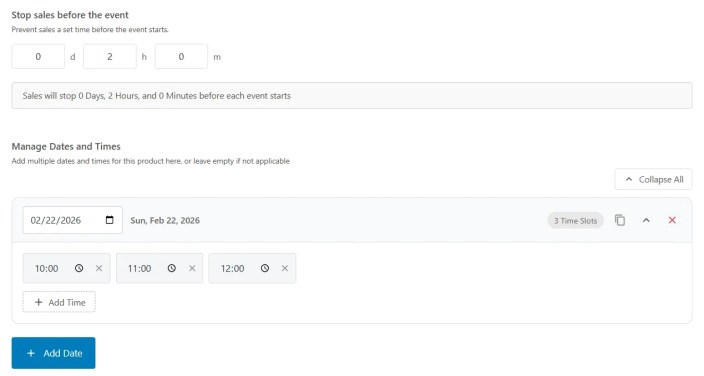
Stop Sales Before the Event
↑ Back to topAt the top of the Dates tab you can set Stop sales before the event. This prevents customers from buying tickets within a certain time before each event start (e.g. 2 hours, 1 day). The value is entered as days, hours, and minutes. Sales for a given date/time are blocked once that cutoff time has passed (based on server time).
- Set all three fields to 0 to allow sales right up until the event start (no cutoff).
- Example: 0 days, 2 hours, 0 minutes — sales stop 2 hours before each event’s start time.
Manage Dates and Times
↑ Back to topUse Add Date to create event slots. Each entry is a date with one or more times (e.g. one date with 10:00 and 14:00 for two showings that day).
- Add Date — Adds a new date card. The first date defaults to today; each new date defaults to the day after the last one, with a default time of 10:00.
- Date field — Use the date picker to set the event date. Past dates may be shown as expired in the admin; they are still stored and can be used for reporting or past bookings.
- Times — Each date card lists one or more times (e.g. 10:00, 14:00). Use the controls to add, edit, or remove times. Each combination of date + time (e.g. 2025-01-15 at 10:00) is one selectable “slot” for customers.
- Duplicate — Duplicates that date (and all its times) as a new card for the next day, so you can quickly build a run of dates.
- Remove — Removes that date and all its times.
Dates are stored as date-time strings (e.g. 2025-01-15T10:00). Duplicates are removed and the list is sorted when you save the product.
How Customers Use Dates
↑ Back to topOn the frontend:
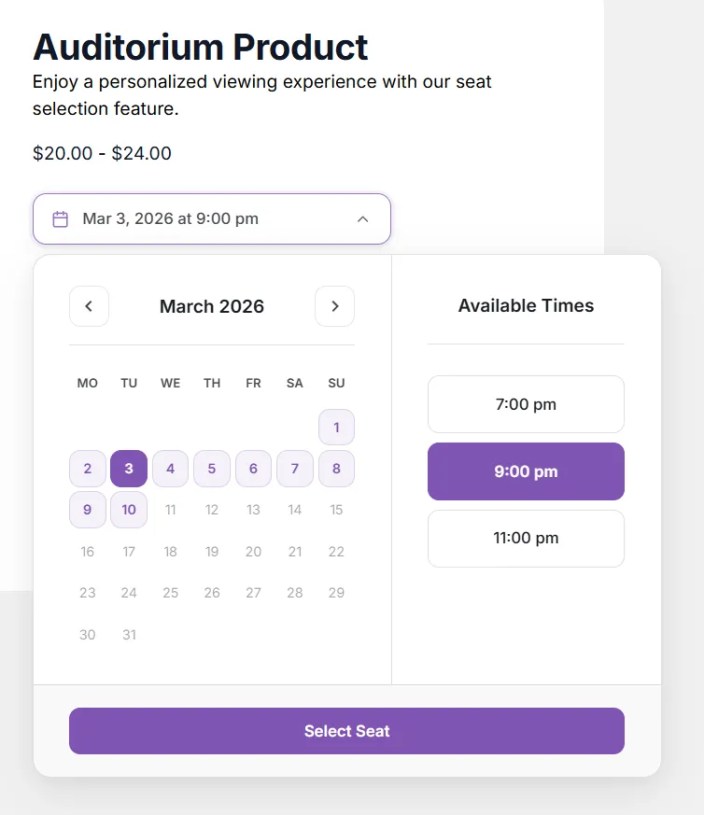
- If the product has dates, customers choose a date and time from the date picker right above the Select Seat button.
- Availability (taken/sold-out seats) is per date/time. A seat can be sold for one slot and still available for another.
- If the product has no dates, customers do not choose a date; the product behaves as a single event and date picker is not displayed.
Summary
↑ Back to top- Open Product data → Seat Planner → Dates.
- Optionally set Stop sales before the event (days, hours, minutes) so sales are blocked shortly before each event.
- Use Add Date to add dates, then add one or more times per date. Use Duplicate to copy a date to the next day.
- Save the product. Customers will see and select these date/time slots when booking seats.
Custom Fields
↑ Back to topCustom fields let you collect extra information per seat (e.g. attendee name, dietary notes, add-ons). You can make fields required, show or hide them with display conditions, and add optional prices so that choices (e.g. a checkbox or select option) add a surcharge to the seat price. The surcharge is applied after the base seat price and any discount.
Where to Add Custom Fields
↑ Back to top- Edit a WooCommerce product of type Auditorium (Seat Planner product).
- In the product data tabs click the Custom Fields tab.
- Use Add Custom Field to create a field and configure it in the card that appears. You can reorder fields by dragging the handle.
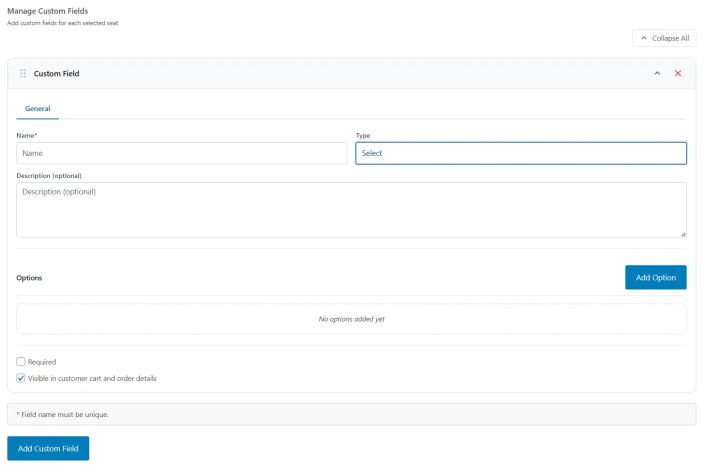
Note: Field labels should be unique (case-insensitive). The admin may warn if two fields share the same label.
Field Types
↑ Back to top- Text — Single-line text input. Optional placeholder.
- Textarea — Multi-line text input. Optional placeholder.
- Checkbox — Yes/no switch. You can set a label for the checked state (e.g. “Yes”) and an optional price; if set, checking the box adds that amount to the seat price.
- Select — Dropdown with predefined options. Each option has a label and an optional price; the selected option’s price (if any) is added to the seat price.
- Number — Numeric input. Optional min/max, placeholder, and optional price per unit; the surcharge is (price × value), e.g. “€2 per item” with value 3 adds €6.
- Meta — Read-only name-value pair. You set a fixed value in the admin; the customer does not edit it. The value is attached to the order (e.g. “Event” = “Summer Concert”). Meta fields are not shown in the seat form.
- Info — Display-only text: label and description. No value is stored. Useful for instructions or notes; you can control visibility with display conditions.
Common Options (per field)
↑ Back to top- Label — Shown next to the input in the seat details form. Should be unique.
- Description — Optional helper text shown under the label on the front-end.
- Required — When enabled, the customer must fill this field (for editable types) before adding the seat to the cart.
- Visible — When enabled, this field’s label and value are shown in the cart and order details on the front-end. When disabled, the value is still stored but not displayed there.
Display Conditions
↑ Back to topFor field types other than Meta, you can add display conditions. The field is only shown to the customer when all conditions are met. For example:
- Show “Dietary requirements” only when “Vegetarian option” (checkbox) is checked.
- Show a message (info field) only when a select field has a specific option selected.
- Show a number field only when another number field is greater than 0.
Conditions can be based on: checkbox (checked/not checked), select (selected option), text/textarea (filled/empty), or number (equals, not equals, greater than, less than).
Mutual Exclusivity
↑ Back to topYou can mark a field as mutually exclusive with one or more other fields (by their UID). If the customer gives this field a value, the other specified fields are hidden. Useful when only one of several options should be chosen (e.g. “Option A” vs “Option B”).
How Customers See Custom Fields
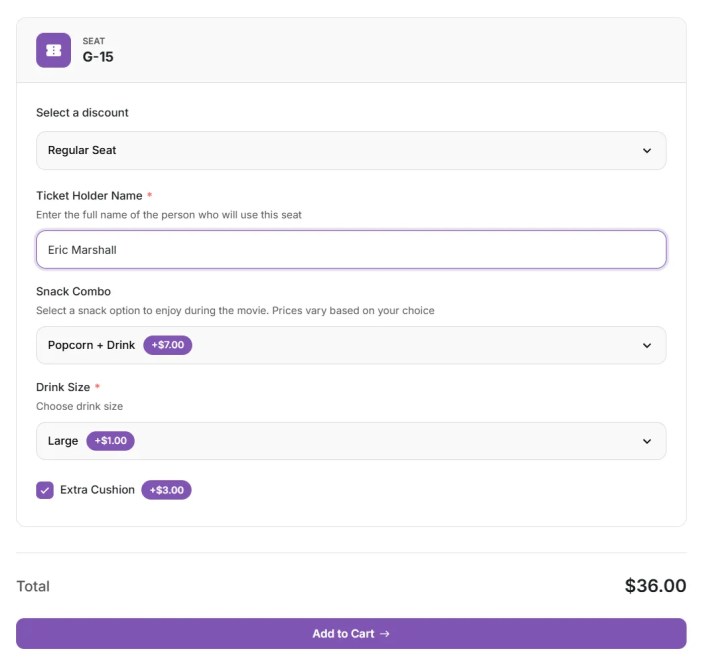
↑ Back to top- When selecting seats, the seat details form shows all applicable editable custom fields (text, textarea, checkbox, select, number). Meta and info fields are handled as described above.
- Fields that have display conditions appear only when those conditions are satisfied. Mutually exclusive fields are hidden when another field in the group has a value.
- Values are saved with the cart item and the order. Any price set on checkbox, select options, or number (per unit) is added to the seat price after the base price and discount.
Summary
↑ Back to top- Add and manage fields under Product data → Seat Planner → Custom Fields. Use unique labels and drag to reorder.
- Use Text, Textarea, Checkbox, Select, or Number for customer input; optionally set Required, Visible, and prices (checkbox/select/number) for surcharges.
- Use Meta for fixed key-value data on the order; use Info for display-only text.
- Use Display conditions and Mutual exclusivity to show or hide fields based on other fields’ values.
Export Bookings
↑ Back to topThe Export Bookings tab lets you download the product’s bookings as a CSV file. You choose which columns to include and, for products with dates, optionally filter by event date. Only orders with status Completed are included in the export.
Where to Find It
↑ Back to top- Edit a WooCommerce product of type Auditorium (Seat Planner product).
- In the product data tabs click the Export Bookings tab.
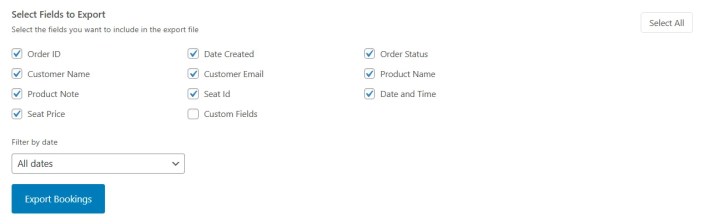
Select Fields to Export
↑ Back to topUse the checkboxes to choose which columns appear in the CSV. You can Select all or Deselect all. At least one field must be selected before exporting.
Available fields:
- Order ID — WooCommerce order ID.
- Date created — When the order was placed.
- Order status — Order status label (export only includes completed orders).
- Customer name — Billing first and last name.
- Customer email — Billing email.
- Product name — Name of the Auditorium product.
- Product note — Purchase note set on the product.
- Seat ID — Seat identifier from the seat plan.
- Date/Time — Event date and time for the seat (for dated products).
- Seat price — Line total for that seat in the order.
- Custom fields — When selected, one column is added per custom field that has values in the exported data (e.g. “Attendee name”, “Dietary requirements”).
Filter by Date
↑ Back to topIf the product has dates configured (in the Dates tab), a Filter by date dropdown appears. You can leave it as All dates to export every booking for this product, or pick a specific date/time to export only bookings for that event slot.
If the product has no dates, the date filter is hidden and the export includes all completed bookings for the product.
How to Export
↑ Back to top- Select one or more fields to include.
- Optionally choose a date in Filter by date (if the product has dates).
- Click Export Bookings. The list of bookings is loaded, then a CSV file is generated and downloaded. The file name includes today’s date and, when a date filter is used, the selected event date.
If there are no bookings for the product (or for the selected date), you’ll see a message and no file will be downloaded. The export uses the same data as the completed orders for this product; only Completed orders are included.
Summary
↑ Back to top- Open Product data → Export Bookings.
- Select the columns you want (order, customer, product, seat, date/time, seat price, custom fields).
- Optionally filter by event date if the product has dates.
- Click Export Bookings to download a CSV. Only completed orders are included.
Overview
↑ Back to topThe Overview page is the default landing when you open Seat Planner in the admin. It gives a quick summary of your venue bookings and links to the main sections of the plugin.
Where to Find It
↑ Back to topIn the WordPress admin sidebar, click Seat Planner. The first view is the Overview. You can also go to Seat Planner → Overview or open the dashboard with the hash #overview.
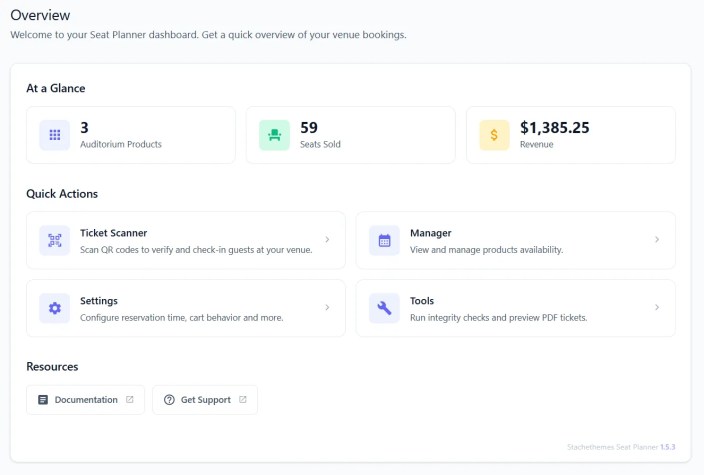
Stats
↑ Back to topThe page shows three summary cards:
- Products — Total number of published Auditorium (Seat Planner) products.
- Seats — Total number of seats sold across all products (all time).
- Revenue — Total revenue from those seat sales, formatted in your store currency.
Stats are loaded from the server when the page opens. If data is still loading, the cards show a loading state.
Quick Actions
↑ Back to topShortcuts to the main Seat Planner areas:
- Ticket Scanner — Open the QR code scanner to verify and check-in guests at your venue.
- Manager — View and manage product availability (products list, dates, availability grid, statistics).
- Settings — Configure reservation time, cart behavior, PDF/QR, reports, colors, and mobile app access.
- Tools — Run booking integrity checks, preview PDF tickets, and edit order items.
Clicking a card navigates to the corresponding section (Scanner, Manager, Settings, or Tools).
Help & Version
↑ Back to topThe page may include a help section and the current plugin version at the bottom.
Summary
↑ Back to top- Overview is the default Seat Planner dashboard: stats (products, seats sold, revenue) and quick links to Scanner, Manager, Settings, and Tools.
Settings
↑ Back to topThe Settings page is where you configure global Seat Planner options: reservation time, cart redirects, QR/PDF attachments, accent color, automated reports, and mobile app access. Changes are saved with the Save settings button at the bottom.
Where to Find It
↑ Back to topSeat Planner → Settings in the admin sidebar, or open the dashboard with #settings.
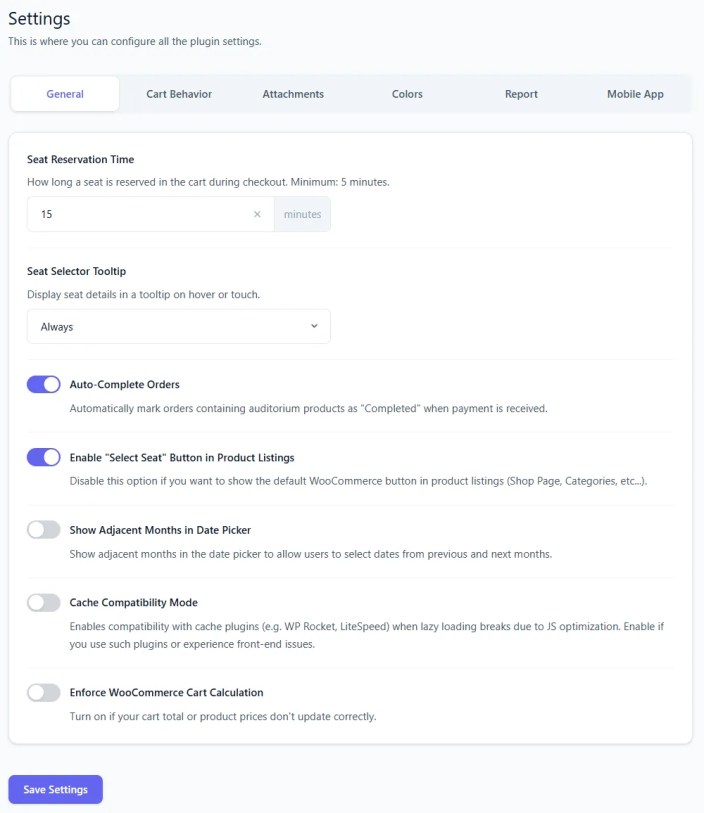
General
↑ Back to top- Seat reservation time — How long (in minutes) a seat stays reserved in the cart during checkout. Minimum 5 minutes; default 15. After this time the reservation can expire if the customer does not complete checkout.
- Seat selector tooltip — When to show the seat tooltip on the front-end: Disabled, Desktop only, Mobile only, or Always.
- Auto-complete orders — When enabled, paid orders are automatically set to Completed (useful for instant confirmation).
- Enable “Select seat” button in product loop — Show the seat selection button on shop/archive pages (product loop) instead of only on the single product page.
- Show adjacent months in date picker — Show previous/next month in the front-end date picker for products with dates.
- Compatibility mode — Use when cache or JS optimization plugins (e.g. WP Rocket, LiteSpeed) cause front-end issues with the seat selector.
- Compatibility calc totals — Recalculate cart totals when the cart is loaded from session; enable if totals are wrong with certain themes or plugins.
Cart Behavior
↑ Back to top- Redirect customers after successful addition — After adding a seat to the cart: Disabled, Redirect to Cart, or Redirect to Checkout.
- Show redirect message — When redirect is enabled, show a message that the customer is being redirected.
- Custom redirect message text — Optional custom text for that message; leave blank for the default.
- Enable cart timer — Show a countdown timer in the cart for each reserved seat (time left before the reservation may expire).
Attachments
↑ Back to top- Enable QR code — Attach a QR code to order confirmation emails.
- Enable PDF attachments — Attach a PDF ticket (with QR code) to order confirmation emails.
- Enable PDF in My Account downloads — Allow customers to download the PDF ticket from My Account → Orders.
- PDF filename — Custom name for the PDF file (without .pdf). Leave blank for the default.
Colors
↑ Back to top- Accent color — Main color used on the front-end for buttons, links, date picker, and cart timer. Affects the seat selector and add-to-cart experience.
Report
↑ Back to top- Enable report — Send an automated email when an auditorium product is fully booked or past its cut-off date.
- Report e-mail — Address to receive the report. Empty uses the site admin e-mail.
- Check interval — How often to check and send reports: Every 15 minutes, Hourly, Twice daily, or Daily.
- Fields to include — Which columns to include in the report (and CSV): order ID, date created, order status, customer name/email, product name/note, seat ID, date/time, seat price, custom fields.
- Include CSV attachment — Attach a CSV of the bookings to the report email.
Mobile App
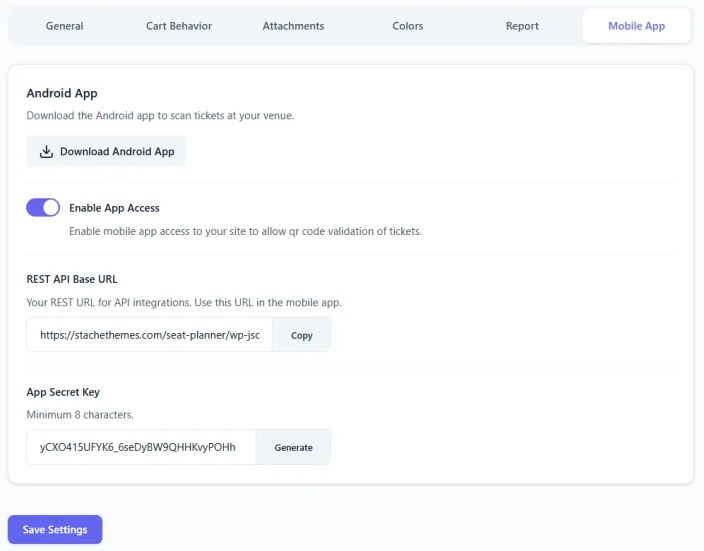
↑ Back to top- Android app — Link to download the Seat Planner Android app for scanning tickets at the venue.
- Enable app access — Allow the mobile app to access your site for QR ticket validation. When disabled, app access is blocked.
- REST API base URL — Read-only; use this in the app. Copy button to copy the URL.
- App secret key — Secret key for app authentication. Minimum 8 characters. Use Generate to create a new key, then enter it in the app.
Summary
↑ Back to top- Settings control reservation time, tooltips, redirects, cart timer, QR/PDF, accent color, reports, and mobile app. Use Save settings to apply changes.
Manager
↑ Back to topThe Manager is where you view and manage your auditorium products: list products, see dates, check availability per date, edit seat status (e.g. sold out, blocked), view statistics, and export bookings. All of this is in one flow under Seat Planner → Manager.
Where to Find It
↑ Back to topSeat Planner → Manager in the admin sidebar, or open the dashboard with #manager. You can also open it from the Overview quick action “Manager”.
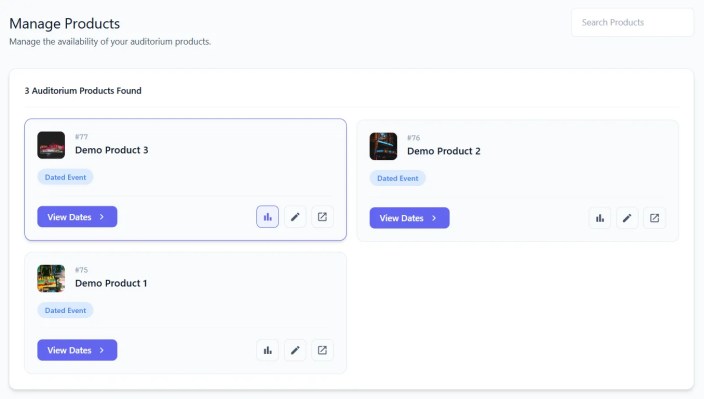
Product Listing
↑ Back to topThe first screen shows a list of your Auditorium (Seat Planner) products. You can search by product name. Click a product to go to the next step.
Dates and Times
↑ Back to topFor the selected product you see its dates and times (if the product has dates configured). Choose what to do next:
- Availability — Open the availability view for a specific date (or “no date” for undated products). There you see the seat plan with taken/available/blocked seats and can edit individual seats or run bulk actions.
- Statistics — View statistics and export bookings (CSV) for the product, optionally filtered by date.
Availability
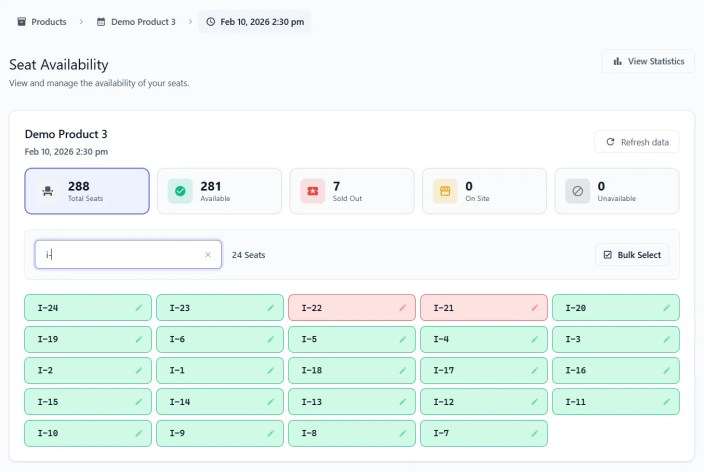
↑ Back to topIn the availability view you see the seat map for the chosen product and date. Seats are shown as taken (sold), available, or otherwise marked (e.g. sold out, blocked) according to orders and any overrides you set.
- Click a seat to edit it: change status, move to another order, update custom fields, apply a discount, etc.
- Use bulk actions (when available) to perform actions on multiple selected seats (e.g. create order, move seats, export).
Changes here affect how the seat appears (e.g. sold out) on the front-end and in reports; moving or creating orders updates WooCommerce orders and order items.
Statistics
↑ Back to topFrom the product’s dates view, opening Statistics shows a summary for that product (and optionally per date). You can Export Bookings to download a CSV of completed bookings, with optional date filter and column selection, similar to the product tab Export Bookings.
Summary
↑ Back to top- Manager: list products → select product → choose Dates → Availability (seat map, edit seats, bulk actions) or Statistics (summary, export bookings). Use it to manage availability and orders per product and date.
Scanner
↑ Back to topThe Scanner page lets you scan QR codes from tickets (e.g. on a phone or printed PDF) to verify and check in guests at your venue. After a successful scan you see order and ticket details; invalid or unknown codes show an error.
Where to Find It
↑ Back to topSeat Planner → Scanner in the admin sidebar, or open the dashboard with #scanner. You can also open it from the Overview quick action “Ticket Scanner”.
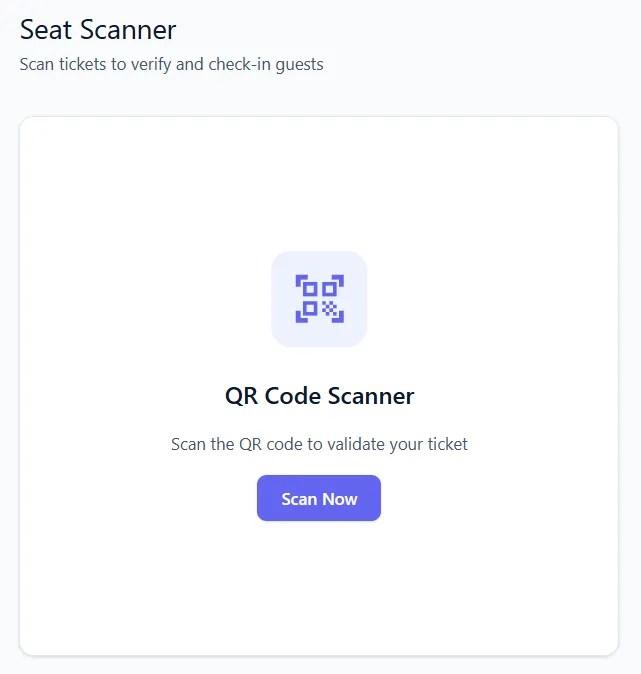
How It Works
↑ Back to top- On the Scanner page, click the button to open the scanner (e.g. “Scan QR code”). A modal opens with the camera/viewfinder.
- Position the ticket’s QR code within the frame. The app validates the code against your site and retrieves the related order and seat.
- On success, the modal shows a result with order and ticket information (e.g. order number, customer, product, seat, date/time). You can close and scan again.
- If the code is invalid, not from your site, or an error occurs, an error message is shown. Fix or try another ticket and scan again.
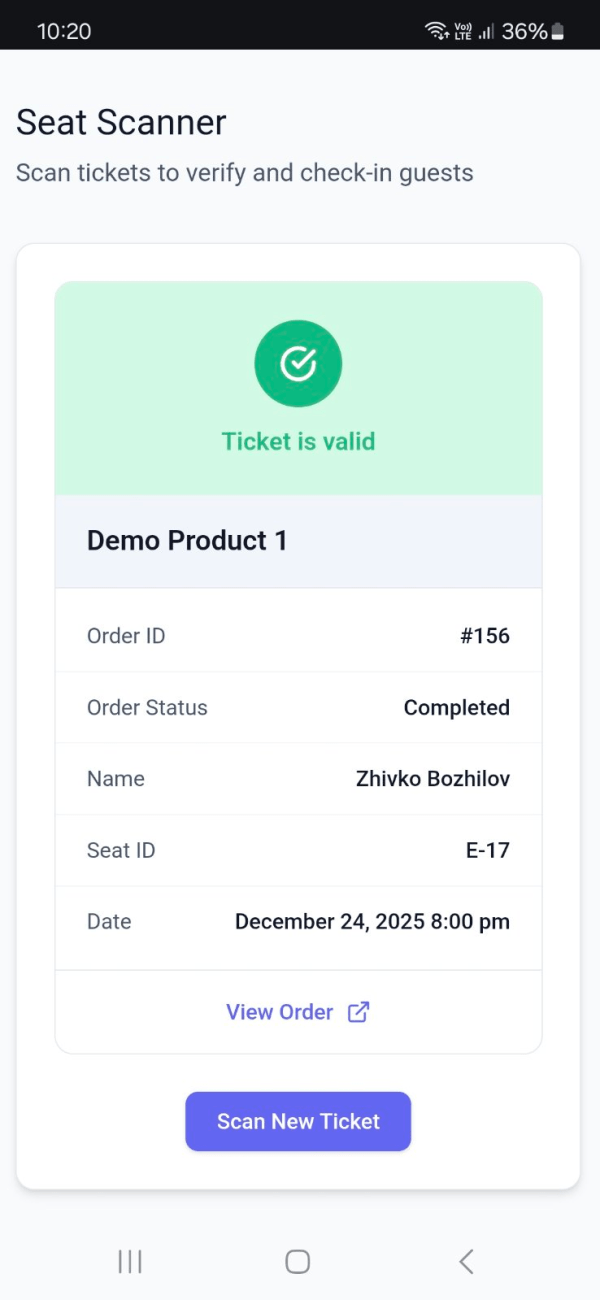
Requirements
↑ Back to top- Browser camera access for the scanner. Grant permission when prompted.
- QR codes must be those attached to orders by Seat Planner (e.g. from the PDF ticket or order email). Other QR formats will show as invalid.
- For scanning on a mobile device at the venue, you can use the same admin page in a mobile browser or the dedicated Android app (see Settings → Mobile app for download and app access).
Summary
↑ Back to top- Use Scanner to validate tickets by scanning their QR code. Open the scanner, point at the code, then view order/ticket details or an error. Requires camera access and Seat Planner–generated QR codes.
Tools
↑ Back to topThe Tools page provides utility tools for managing bookings and tickets: check for double or ghost bookings, preview PDF tickets, and edit order item data (seat, date, discount, custom fields) for existing orders.
Where to Find It
↑ Back to topSeat Planner → Tools in the admin sidebar, or open the dashboard with #tools. You can also open it from the Overview quick action “Tools”.
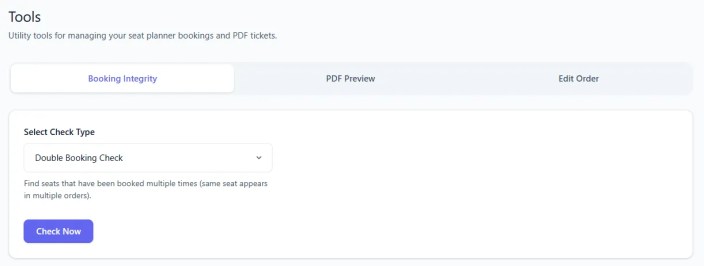
Booking Integrity
↑ Back to topRuns checks across your auditorium products to find:
- Double booking — The same seat (and date, for dated products) appearing in more than one order. This can indicate a data or process issue.
- Ghost booking — A seat marked as taken in product meta but with no matching order item (e.g. after a failed or partial cleanup). The tool can often fix these by syncing meta with actual orders.
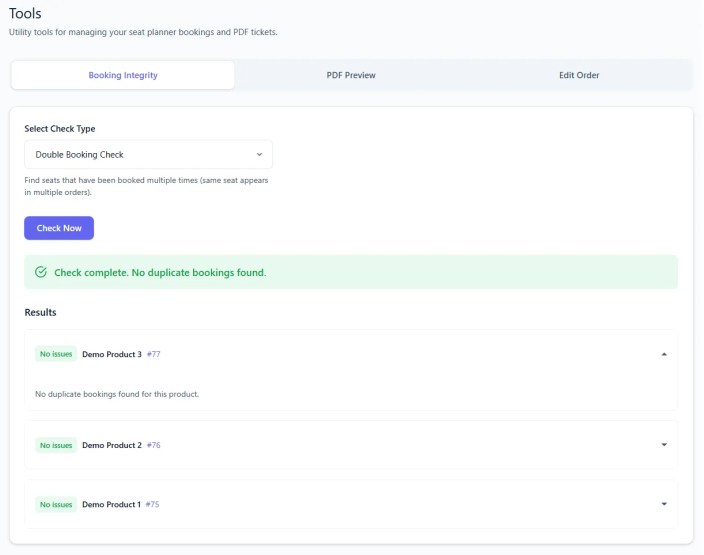
Select the check type (double booking or ghost booking), run the check, and review the results per product. For ghost bookings you may be able to fix issues from the results screen. Re-run after fixes to confirm.
PDF Preview
↑ Back to topPreview how the PDF ticket (attached to order emails) will look. You typically select a product and optionally an order or sample data so the PDF is rendered with realistic content (seat, date, QR placeholder, etc.). Useful to verify layout and text before sending to customers.
Edit Order
↑ Back to topFind an order by ID (or number) and open its seat planner line items. For each seat line item you can edit:
- Seat (change to another seat ID if the product allows it).
- Date/time (for dated products).
- Discount.
- Custom field values.
Changes update the order and item meta. Use this to correct mistakes (wrong seat, wrong date, wrong custom field) without deleting and re-creating the order. Validate that the new seat/date/discount are valid for the product.
Summary
↑ Back to top- Tools: Booking Integrity (double booking and ghost booking checks, with optional fix), PDF Preview (preview ticket PDF), and Edit Order (edit seat, date, discount, custom fields on existing order items).
Shortcodes
↑ Back to topThe plugin provides two shortcodes: one to output the “Select seat” / add-to-cart button for an auditorium product, and one to display a count of seats (e.g. available or sold) for given product(s).
Select seat / Add to cart button
↑ Back to topRenders the Select seat button for a specific auditorium product. Clicking it opens the seat selector (and date picker if the product has dates). Use it on a custom page or post when you don’t want to use the single product template.
Shortcode: [stachesepl_add_to_cart]
Parameters:
- product_id (required) — The WooCommerce product ID of the auditorium product. You can use
pas a shorthand. - date (optional) — For products with dates: the event date/time in
YYYY-MM-DDTHH:mmformat (e.g.2026-12-31T10:00). Shorthand:d. Omit to let the customer choose the date. - class (optional) — Extra CSS class(es) on the container. Shorthand:
c.
Examples:
[stachesepl_add_to_cart product_id=123]
[stachesepl_add_to_cart product_id=123 date=2026-12-31T10:00]
[stachesepl_add_to_cart p=123 d=2026-12-31T10:00 class=my-button]
If product_id is missing or invalid, or the product is not an auditorium product, the shortcode outputs nothing.
Seat count
↑ Back to topOutputs the number of seats that match the given product(s), date(s), and status. Useful for text like “42 seats available” or “10 sold”. The result is wrapped in a span, div, or p with the class stachesepl-count (plus any custom class you set).
Shortcode: [stachesepl_count]
Parameters:
- product_id — One product ID or comma-separated list (e.g.
123or123,456). Shorthand:p. - date — Event date(s) in
YYYY-MM-DDTHH:mmformat. Comma-separated for multiple dates. Empty: for dated products the first available date is used; for no-dates products leave empty. Shorthand:d. - status — Which seat statuses to count. Comma-separated. Values:
available,unavailable,sold-out,on-site. Default:available,on-site. Shorthand:s. - class — Extra CSS class(es) on the wrapper. Shorthand:
c. - wrapper — HTML wrapper:
span,div, orp. Default:span. Shorthand:w.
Examples:
[stachesepl_count product_id=123]
[stachesepl_count p=123]
[stachesepl_count product_id=123,456]
[stachesepl_count product_id=123 status=available date=2026-03-15T19:00]
[stachesepl_count p=123,456 s=sold-out d=2026-03-15T19:00,2026-03-16T19:00] [stachesepl_count product_id=123 wrapper=div class=seat-total]
Only auditorium products are included. Seats are counted from the seat plan data for the given product(s) and date(s); status is the seat’s current state (e.g. from orders or manager overrides).
Summary
↑ Back to top- stachesepl_add_to_cart — Show the Select seat button for an auditorium product; use
product_id(required) and optionallydateandclass. - stachesepl_count — Show how many seats match the given
product_id,date, andstatus; optionalclassandwrapper.
Questions and support
↑ Back to topSomething missing from this documentation? Still have questions and need assistance?
- If you have a question about a specific extension or theme you’d like to purchase, contact us to get answers.
- If you already purchased this product and need some assistance, get in touch with a Happiness Engineer via our support page and select this product’s name from the Product dropdown.