
Use the assistant to ask questions about your store and review proposed changes before applying them. The assistant works in WordPress admin; it does not appear on your storefront.
Before you start
↑ Back to topInstall and connect WooCommerce AI and turn on Enable AI assistant under WooCommerce > Settings > WooCommerce AI. Your store and your user account must both be connected to WordPress.com.
Ask your first question
↑ Back to top- Open the assistant from the sparkle control in the WordPress admin toolbar.
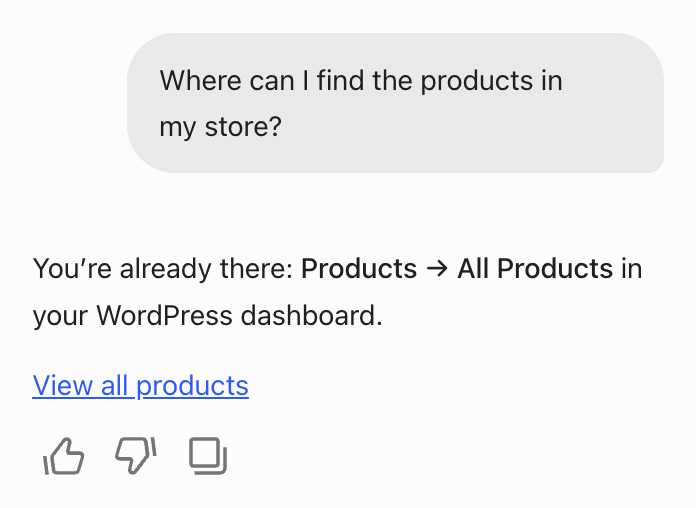
- Type a read-only question, such as “How many orders did my store receive this week?” You can also select a suggested prompt.
- Send the question. Review the answer, including its date range and any limitations. Compare an important figure with the corresponding WooCommerce report before acting on it.
Review a proposed change
↑ Back to topThe steps below apply when the assistant presents a review card. For changes to draft products and coupons, see how changes are saved.
To request a change, describe the items and the result you want. For a bulk price change, ask for a preview of the regular-price change for the selected products. Review the product, fields, and proposed values before approving the specific change. If the proposed changes do not match your request, ask the assistant to revise them.
Check the result after applying a change. If the assistant reports skipped or failed items, review them before retrying. See Review and undo AI changes for previews, partial results, and undo limits.
Use suggestions and page context
↑ Back to topThe greeting includes suggested prompts based on available store data and abilities. Select a suggestion or type your own question. Some suggestions fill the prompt for editing; others start the request directly. Page-context cards can offer questions related to the WooCommerce screen you are viewing, such as products, orders, or reviews.
Read the weekly brief
↑ Back to topThe weekly brief summarizes the previous week’s orders and revenue, a product with unusual performance, low-stock items, and activity handled by the assistant. It appears on the first two days of your week, using the Week Starts On setting under Settings > General. Open the assistant during those first two days to read the brief.
Explore store insights
↑ Back to topStore insights on WooCommerce Home highlight up to four signals, with critical items first, then warnings and informational items. A signal can offer a chat prompt or a link to the related WooCommerce screen. Follow the prompt to ask about the signal, or use the link to check the underlying store data.
When a question cannot be answered
↑ Back to topIf you see a connection prompt, complete the site and user connection before asking again. If an action is unavailable, check the abilities available in chat and whether the product or task is supported. Include the question, visible error, and plugin version when contacting Woo support. Share only the information needed to troubleshoot the request.
Getting started · Step 2 of 3
Next steps
Review and undo changes
Check proposed changes and undo supported actions.
Choose assistant tools
Enable features and choose the tools available in chat.