
The WooCommerce Square extension includes an opt-in bidirectional order fulfillment synchronization feature that allows merchants to seamlessly manage orders between their WooCommerce store and the Square Dashboard. This feature is disabled by default and must be explicitly enabled in “Settings”.
What Order Fulfillment Sync Does
↑ Back to topWhen enabled, the bidirectional order fulfillment sync provides:
- WooCommerce → Square: Orders created in WooCommerce automatically sync to Square with fulfillment details
- Square → WooCommerce: Order status updates from Square (such as marking an order “Completed”) sync back to WooCommerce
- Seamless Integration: Orders appear in both platforms with consistent order fulfillment statuses
Key Benefits
↑ Back to top- Centralized Order Management: View and track orders across online and in-person sales in one place
- Automatic Status Updates: Fulfillment changes in Square automatically reflect in WooCommerce.
- Fulfillment Visibility: See fulfillment options in the Square Dashboard for online orders
- Continuous Sync: Automatic polling (default: every 15 minutes) keeps both platforms in sync
- Merchant Control: Disabled by default, order sync requires explicit opt-in before activation.
How It Works
↑ Back to topSyncing Online orders created in WooCommerce
↑ Back to top1. WooCommerce to Square Order Sync
↑ Back to topWhen a customer places an order through your WooCommerce store using Square:
- Order automatically syncs to the Square Dashboard
- Fulfillment details are included (pickup/shipment information)
- Order appears in Square with the “Fulfillment” button available
- Merchants can view and manage fulfillment directly in Square
2. Square to WooCommerce Order Sync
↑ Back to topWhen an order is fulfilled in the Square Dashboard:
- Square order status changes to Completed
- WooCommerce automatically syncs this status change
- WooCommerce updates the order status to Completed when the status transition is allowed
- WooCommerce adds an order note when the status changes.
3. Preventing Infinite Order Sync Loops
↑ Back to topThe system prevents infinite sync loops by:
- Only syncing fulfillment updates from Square back to WooCommerce
- Not syncing WooCommerce order updates back to Square
Setup and Configuration
↑ Back to topEnabling Order Synchronization
↑ Back to topBefore you begin, install and activate Square for WooCommerce connect your Square account, and select a Square location.
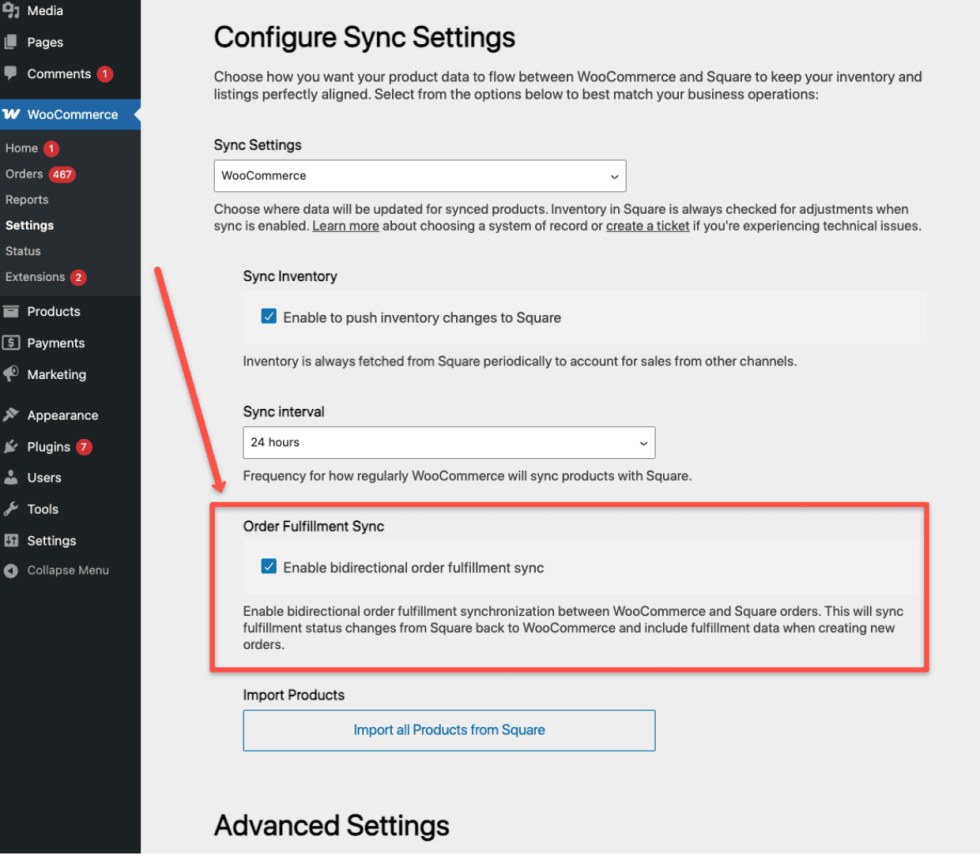
- Go to WooCommerce → Settings → Square
- Navigate to the Configure Sync Settings section
- Check the “Enable bidirectional order fulfillment sync” checkbox
- Click Save changes.
Configuration Options
↑ Back to top- Default State: Disabled (must be enabled in “Settings”)
- Sync Interval: 15 minutes by default; a developer can adjust it.
- Payment methods: Applies to orders processed through a supported Square payment method.
- Order Types: All WooCommerce orders processed through Square
Verify the setup with a sandbox order. Confirm that it appears in the selected Square location with fulfillment details. After updating it in Square, check the linked WooCommerce order and its notes after the next sync. Square orders without a linked WooCommerce order are skipped.
Technical Details
↑ Back to topSync Process
↑ Back to top- Order Creation: WooCommerce order syncs to Square with fulfillment data
- Polling System: Square orders are checked every 15 minutes for updates (default sync interval)
- Status Detection: Polling checks eligible open, completed, and canceled Square orders for changes
- Update Sync: WooCommerce order status updates automatically
API Integration
↑ Back to top- Uses Square’s Orders API for reliable state management
- Leverages Action Scheduler for background processing
- Implements proper error handling and logging
Performance Considerations for High-Volume Stores
↑ Back to topUnderstanding the 1,000 Order Limit
↑ Back to topThe order fulfillment sync implementation has a limit of 1,000 orders per action run. For stores getting thousands of orders in a few minutes, this can lead to missed syncs if orders are updated between polling cycles.
Recommended Configuration for Stores with High Order Volumes
↑ Back to topIf many orders change between polling runs, discuss the polling interval with a developer. Shorter intervals increase server load and do not guarantee that every order will sync.
For developer guidance, see Customizing WooCommerce Square.
Monitoring and Optimization
↑ Back to top- Monitor scheduled actions: In WooCommerce → Status → Scheduled Actions, check for pending sync events.
- Review Logs: Monitor WooCommerce logs for sync results
- Adjust Based on Performance: If a developer changes the interval, monitor sync results and server performance.
- Consider Server Resources: More frequent polling increases server load
Advanced Configuration
↑ Back to topOverriding Sync Behavior
↑ Back to topA developer can adjust the polling interval. See Recommended Configuration above for the customization guide.
Limitations and Considerations
↑ Back to topCurrent Limitations:
- Refund Handling: Refund scenarios created at Square are not synced
- Order Creation: Only syncs existing WooCommerce orders to Square
- Status Types: WooCommerce updates only orders it can match to a Square order
Troubleshooting
↑ Back to topCheck the Troubleshooting page for order sync issues.
Frequently Asked Questions
↑ Back to topCheck the FAQ section for order sync.
Questions and support
↑ Back to topDo you still have questions and need assistance?
- Get in touch with a Happiness Engineer via our Help Desk. We provide support for extensions developed by and/or sold on WooCommerce.com, and Jetpack/WordPress.com customers.
- If you are not a customer, we recommend finding help in the WooCommerce support forum or hiring a Woo Agency Partner. These are trusted agencies with a proven track record of building highly customized, scalable online stores. Learn more about Woo Agency Partners.

