
WooCommerce Square works out of the box with no customization required. The options on this page are PHP code snippets for developers who need to modify default extension behavior.
Important note: We are unable to provide support for customizations under our Support Policy. If you need to customize a snippet beyond what is shown on this page, we suggest Codeable or a Certified WooExpert.
How to Add PHP Snippets to Your Site
↑ Back to topThe safest way to add PHP customizations to WooCommerce is to use a code snippet plugin, such as Code Snippets. This avoids editing theme files directly and prevents your changes from being wiped out during theme updates.
Alternatively, you can add snippets to your child theme’s functions.php file — but only if you are using a child theme. Never add custom code to a parent theme’s functions.php.
Translating Credit card fields
↑ Back to topTo translate the Square payment fields, generate language files from the plugin’s .pot file:
- Locate the source file at:
wp-content/plugins/woocommerce-square/i18n/languages/ - Use the .pot file to generate two translated language files for your locale, replacing {locale} with the appropriate locale code (e.g., fr_FR):
woocommerce-square-{locale}.mowoocommerce-square-{locale}.po
- Place both files in:
wp-content/languages/plugins/
Import HTML in Product Descriptions
↑ Back to topBy default, HTML is stripped from product descriptions when importing from Square. To allow HTML in imported descriptions, add the woocommerce_square_create_product_data filter:
/**
 * Enable HTML descriptions during Square import
 *
 * @param array $data Product data.
 * @param SquareConnectModelCatalogObject $catalog_object The catalog object from the Square API.
 * @param WooCommerceSquareSyncProduct_Import $product_import Import class instance.
 *
 * @return array
 */
function my_square_enable_html_description( $data, $catalog_object, $product_import ) {
    $data['enable_html_description'] = true;
    return $data;
}
add_filter( 'woocommerce_square_create_product_data', 'my_square_enable_html_description', 10, 3 );
Change Product Automatic Sync Interval
↑ Back to topThe default product sync interval is one hour. You can change the Sync Interval time from predefined values under WooCommerce > Settings > Square. To change it, use the wc_square_sync_interval filter (value in seconds):
// sync every 20 minutes instead of every hour

add_filter('wc_square_sync_interval', function () {
    return MINUTE_IN_SECONDS * 20;
} );
Note: After adding this filter, go to WooCommerce > Status > Scheduled Actions, search for wc_square_sync , and cancel the existing scheduled action. A new one will be created with the updated interval.
Reduce the Order Sync Interval
↑ Back to topThe default sync interval is 15 minutes, but you can use a filter to adjust this value. For example, to reduce the interval to 5 minutes:
add_filter( 'wc_square_order_polling_interval_seconds', function( $interval ) {
    // Change from 15 minutes (900 seconds) to 5 minutes (300 seconds).
    return 300;
} );
Reducing the interval may increase the number of API calls made to Square. We recommend testing carefully to ensure performance and rate limits are not impacted.
Remove Apple Pay and Google Pay buttons from either the Single Product, Cart, or Checkout page
↑ Back to topBy default, digital wallets (Apple Pay and Google Pay) will be displayed on all Single Product pages, the Cart page, and the Checkout page.
To remove them from one or more of these pages, you can use the snippet below. It removes the digital wallets from the product page. To hide the options from cart, remove ‘cart’. To hide from checkout, remove ‘checkout’.
add_filter( 'wc_square_display_digital_wallet_on_pages', function( $pages ) {
	return array(
		/* 'product', // Don't show Apple Pay and Google Pay on product pages */
		'cart',
		'checkout',
	);
}, 10, 1 );
Legacy Sandbox Mode
↑ Back to topLegacy sandbox mode can still be enabled via the constant below, but it is advised that you use the setting above, as the constant will likely be removed in the future.
define( 'WC_SQUARE_SANDBOX', true );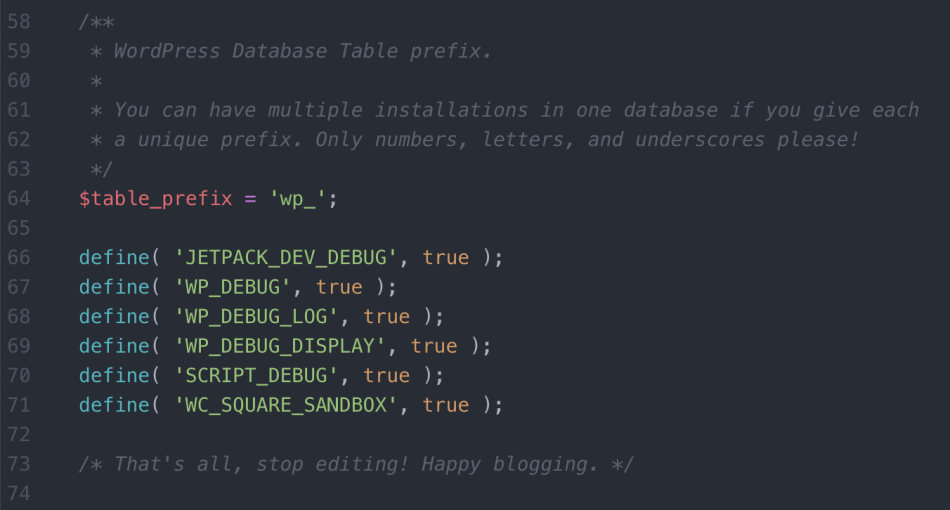
Add the above constant in your preferred method. If using wp-config.php , add it before the line that says /* That's all, stop editing! Happy blogging. */

