
Name Your Price lets customers set their own recurring amount. This is useful for monthly donations, pay-what-you-can memberships, and any subscription where a fixed price does not fit. Subscription support is built into Name Your Price; no bridge extension is required.
Requirements
↑ Back to top- WooCommerce Subscriptions, which is required. Name Your Price does not create subscriptions on its own.
- Name Your Price
You do not need All Products for WooCommerce Subscriptions. Name Your Price has its own built-in Subscriptions support and has never used All Products. As of WooCommerce Subscriptions 9.0 the All Products functionality is bundled into Subscriptions core, so you may now see its options on your products. That is a separate feature, not part of Name Your Price. See About the Subscriptions tab below.
Before you start: turn on the subscription product types
↑ Back to topAs of WooCommerce Subscriptions 9.0, the subscription product types are switched off by default. If you open Products > Add New and the product type dropdown has no Simple subscription option, this is why.
Go to WooCommerce > Settings > Subscriptions and find Subscription product creation. Enable Simple subscription, and Variable subscription as well if you plan to offer a choice of billing frequency. Save your changes.
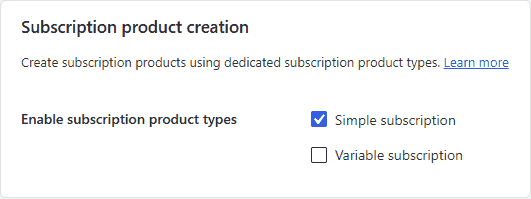
This is a WooCommerce Subscriptions setting, not a Name Your Price one, and it applies to every subscription product on your store. Existing subscription products and active subscriptions are unaffected. The setting only governs creating new ones.
Create a Name Your Price subscription product
↑ Back to top- Go to Products > Add New.
- In the Product data dropdown, choose Simple subscription.
- Tick the Name Your Price checkbox in the row of options beside the dropdown.
- On the General tab, fill in your Suggested Price, Minimum Price, and, if you want one, a Maximum Price. All three are optional.
- Set the billing interval and period (Subscription price … every … month), along with any sign-up fee, free trial, or expiry.
- Publish.
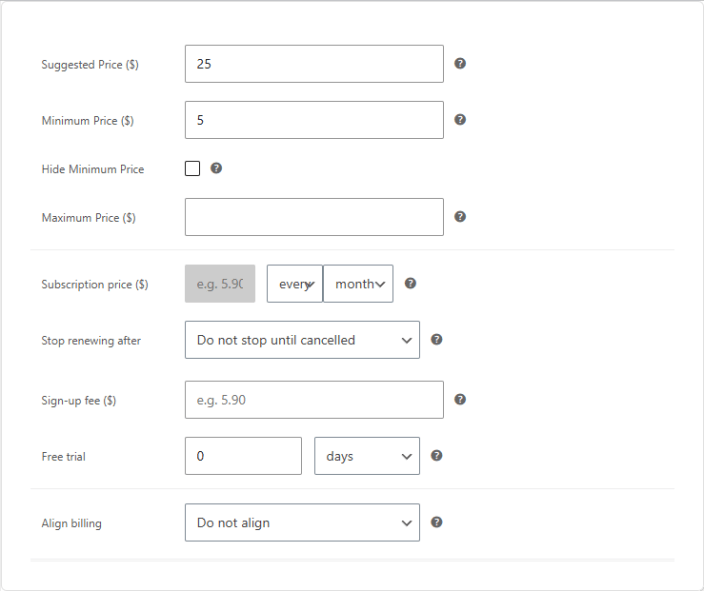
Two things are worth knowing about this screen:
The subscription fields live on the General tab. WooCommerce Subscriptions does not add a separate tab for a Simple subscription product. The subscription pricing block renders on General, directly below the Name Your Price fields.
The Subscription price field is greyed out, and that is correct. When Name Your Price is enabled, the Subscription price field is disabled. The customer’s entered amount is what recurs, so there is nothing to type there. The billing interval and period fields stay editable.
What the customer sees
↑ Back to topOn the product page the customer enters their own amount, and the cart and checkout show it as a recurring charge. For example, the line item reads $6.00 every month, with Total due today, a Monthly recurring total, and a Starting date in the totals.
Let the customer change their subscription amount
↑ Back to topA customer paying $10 a month may later want to increase or decrease it. You can let them do that themselves, from My Account, without cancelling and re-subscribing.
- Go to WooCommerce > Settings > Subscriptions.
- Scroll to Switching > Allow Switching and tick Change Name Your Price subscription amount.
- Optionally set your own Name Your Price switch button text. The default is Change price.
- Click Save changes.
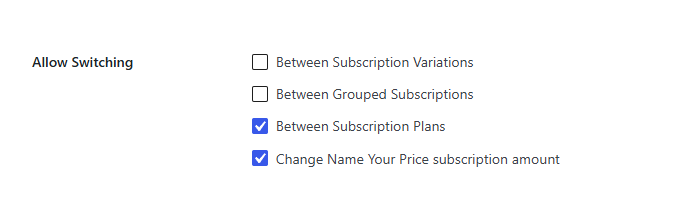
Once enabled, a customer viewing that subscription under My Account > Subscriptions sees a Change price button next to the product. Clicking it returns them to the product page to enter a new amount.
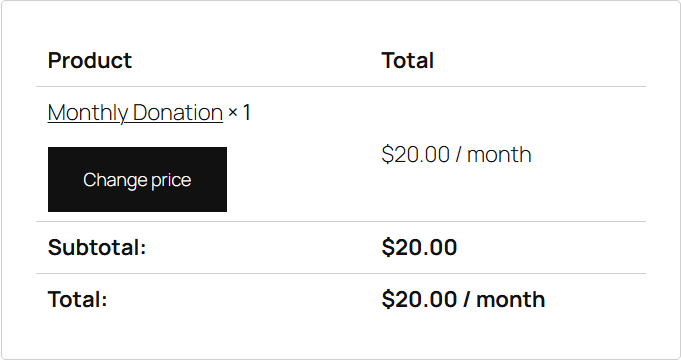
The customer then goes back through checkout. This is a WooCommerce Subscriptions requirement, not a Name Your Price one, and Subscriptions sends them straight to checkout after they submit the new amount. When they complete it, the subscription price is updated.
The new amount has to be different. If a customer submits the same price they are already paying, they will see “Please modify the price so that it is not the same as your existing subscription.” And if switching is not enabled, an attempted switch returns “You do not have permission to modify the price of this subscription.”
Let the customer choose their billing frequency
↑ Back to topTo let customers pick how often they are billed (weekly or monthly, say) as well as how much, use a Variable subscription.
Check the product type is available first. Variable subscription is one of the types turned off by default in WooCommerce Subscriptions 9.0. If it is missing from the product type dropdown, enable it under WooCommerce > Settings > Subscriptions > Subscription product creation. See Before you start.
- Create a product and set its type to Variable subscription.
- On the Attributes tab, add an attribute called Billing Period with the terms you want to offer, such as Weekly and Monthly. Tick Used for variations.
- On the Variations tab, create a variation for each term.
- For each variation, set its billing period to match its name, tick Name Your Price, and fill in that variation’s Suggested and Minimum prices.
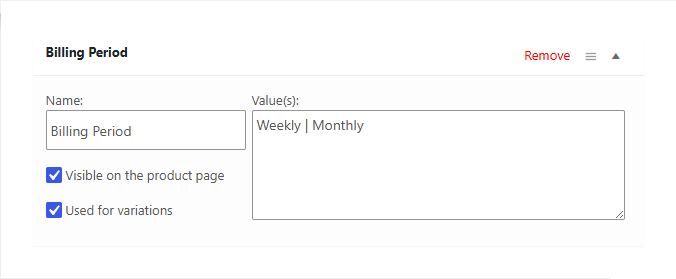
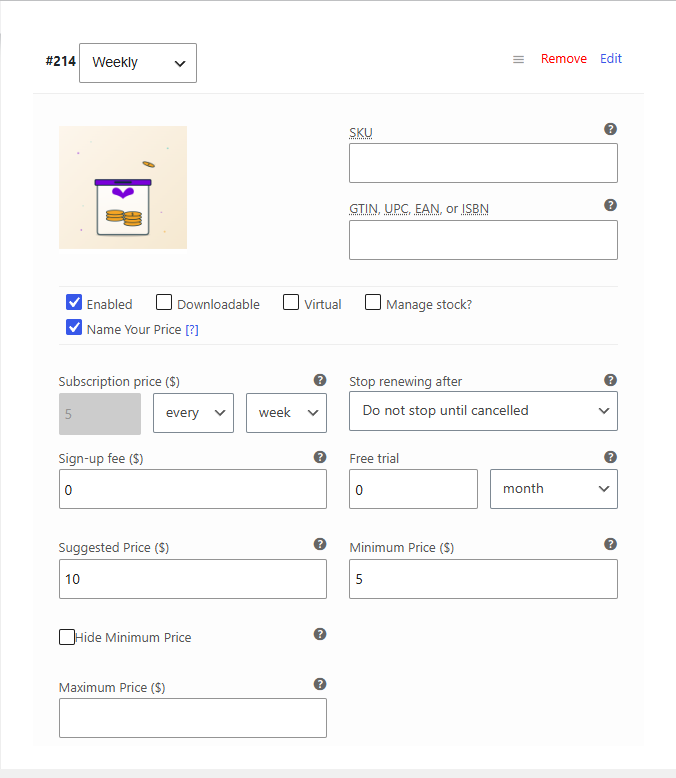
Each variation carries its own Name Your Price settings, so you can set a different minimum for a weekly plan than for a monthly one.
About the Subscriptions tab
↑ Back to topSince WooCommerce Subscriptions 9.0, All Products for WooCommerce Subscriptions is bundled into Subscriptions core. One visible result is that a Subscriptions tab now appears in the Product data box on ordinary products, including simple products with Name Your Price enabled, offering Purchase options such as Create custom subscription plans.
That tab comes from All Products, not from Name Your Price. You do not need it to sell a Name Your Price subscription: use the Simple subscription product type as described above.
You can combine the two if you want to offer a single product either one-time or as a subscription at the customer’s price: add subscription plans under Purchase options, and the customer chooses a plan and enters an amount. The amount they enter is what recurs, the purchase option reads Subscribe every month (the label does not repeat the amount, since the customer sets it), and if they later use Edit price in the cart the plan they chose is kept. Name Your Price 3.8.2 or newer is required for this.
Document Version: 1.0
Last Updated: September 27th, 2026
NYP Version Covered: 3.8.2+