
InventoryFlow ERP plugin allows the WooCommerce store admin to manage multiple physical warehouses, 5-tier spatial bin layouts, automated bin-level inventory reservations, inter-warehouse stock transfers, and complete supplier procurement workflows (RFQ to Purchase Order).
The admin can easily manage multi-facility inventory directly from their WooCommerce store using a dedicated, high-speed Single Page Application (SPA) operating natively at /erp/ on their domain, as well as comprehensive backend controls in the WordPress admin panel.
Warehouse supervisors and pickers can track stock balances, reserve items automatically upon customer orders, and pick products with exact spatial aisle and bin coordinates, eliminating fulfillment bottlenecks and double-selling.
Note:
- This module is fully compatible with WooCommerce High-Performance Order Storage (HPOS) custom order tables.
- This module is compatible with WordPress 6.0+ to 7.x and WooCommerce 6.0+ to 9.x+.
- This plugin works with both simple products and variable product inventory structures.
- We provide a production version of the plugin. If you want a development version then you can get it at an additional cost. Please contact support@webkul.com for it.
Features
↑ Back to top- Store admin can create and manage multiple physical warehouse facilities from a single WooCommerce installation.
- Model warehouse architecture down to Rooms, Racks, Shelves, and individual Bins using an interactive 5-step visual layout builder.
- Customer orders automatically reserve physical inventory at the bin level, eliminating overselling and picking errors.
- Track physical stock, reserved stock, available stock, unit cost price, selling price, and bin fill percentages in real time.
- Execute and track inter-warehouse stock transfers between facilities and specific bins with transit status updates and waybill notes.
- Maintain supplier vendor directories, create Requests for Quotations (RFQs), negotiate commercial terms, and convert accepted quotes into Purchase Orders.
- Receive inbound purchase order shipments directly into designated warehouse bins with partial and full delivery workflows.
- Assign fine-grained Role-Based Access Control (RBAC) permissions across modules for Managers, Floor Staff, and Suppliers.
- Dedicated WordPress Admin Management tabs for Users, RFQs, and General Settings under the WooCommerce menu.
- Optional 6-stage order fulfillment pipeline: Order Received, Stock Validated, Picking, Packing, Shipping, and Completed.
- Dedicated WooCommerce Order Metabox showing exact bin locations, reservation status, and fulfillment stage progression.
- Audit every inventory adjustment, transfer, reservation, and receiving operation through an immutable warehouse activity ledger.
- High-speed Single-Page Application (SPA) accessible at /erp/ for distraction-free warehouse floor operations.
- Automated stock restocking when customer orders are canceled or refunded.
- Fully compatible with WooCommerce High-Performance Order Storage (HPOS) and block-based checkout.
Installation
↑ Back to topThe user will get a zip file for the InventoryFlow ERP plugin that has to upload in the “Add New” menu option in the WordPress admin panel.
Login to the WordPress admin panel, hover your mouse over the “Plugins” menu option which brings out a Sub-Menu, and then select the “Add New Plugin” option.
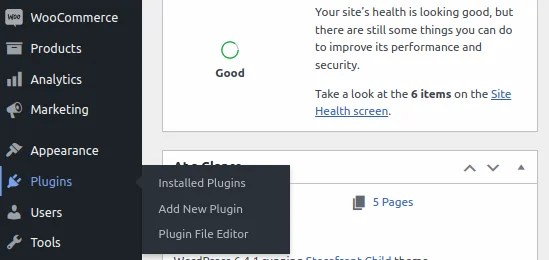
After this, you will see an option on the top of your page that is “Upload Plugin”. Click the option to upload the zip file.
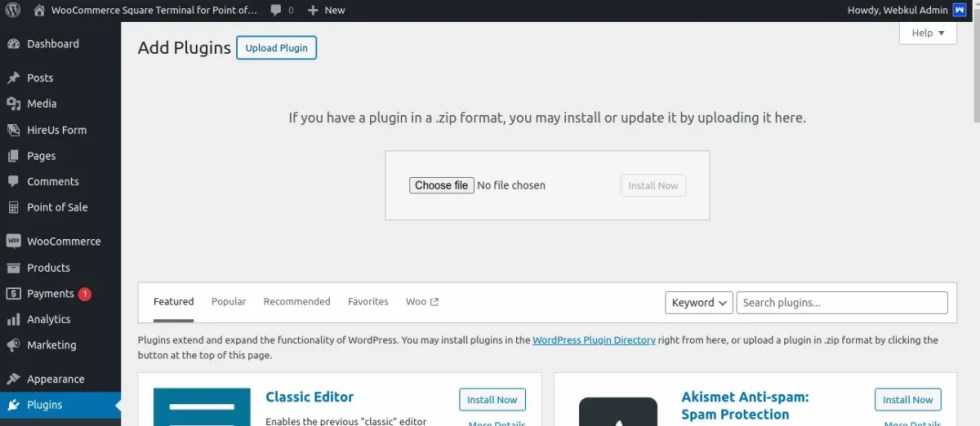
Now, you will see a button “Choose File”. Click on the button to browse for the zip file.
After that, click the “Install Now” button to install the plugin.
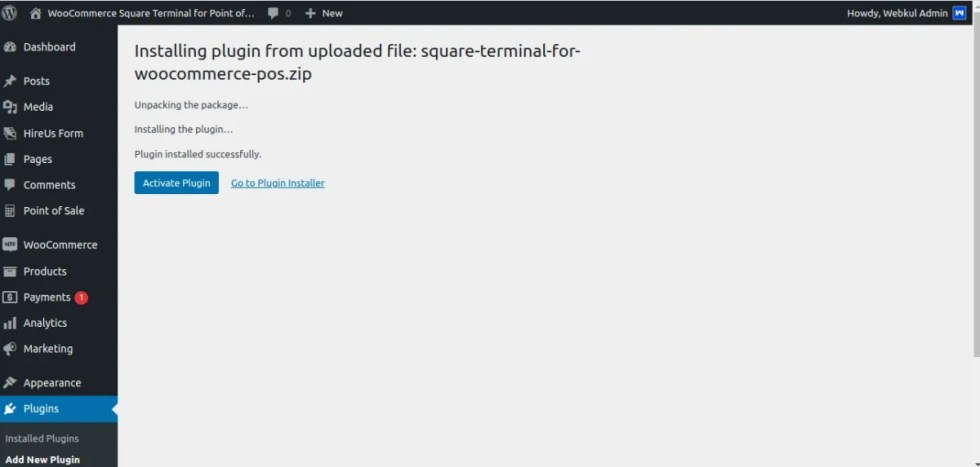
Henceforth now, click on “Activate Plugin” to activate the installed plugin.
InventoryFlow ERP Admin End Configuration & Settings
↑ Back to topAfter successful installation and activation of the plugin, login to the WordPress admin panel and navigate through WooCommerce -> ERP.
The plugin introduces a unified administrative tab bar containing three dedicated management tabs: Users, RFQs, and Settings.
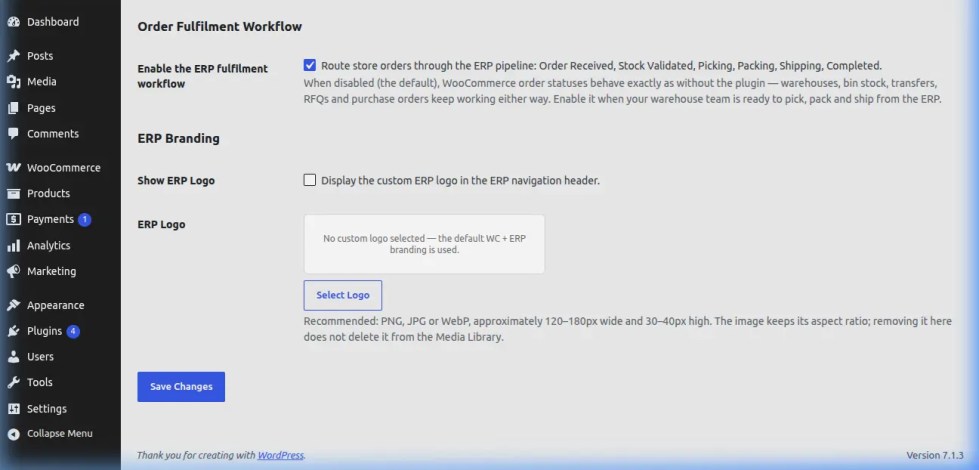
Under the Settings tab, the store admin can configure the following core options:
1. General Settings
- Enable InventoryFlow ERP (Master Switch) – Toggle this checkbox to enable or disable the ERP system across your WooCommerce store. When disabled (the default upon activation), the plugin stays completely dormant and your store behaves exactly like a standard WooCommerce installation—nothing is added to the storefront, customer checkout, or transactional emails. Existing warehouse data, bin allocations, and transaction ledgers are preserved in the database and reactivate immediately when re-enabled.
2. Order Fulfilment Workflow
Once the master switch is enabled, the admin can configure how incoming customer orders interact with the warehouse fulfillment engine:
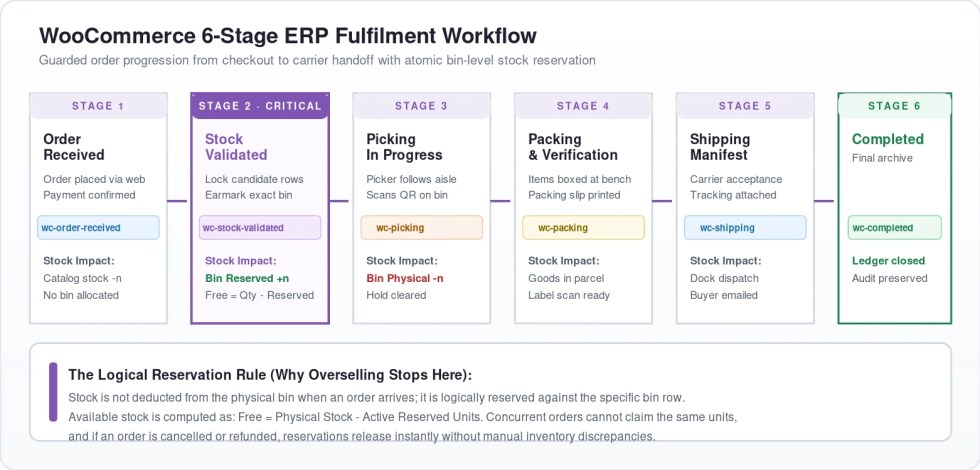
- Enable the ERP Fulfilment Workflow – Checking this option routes store orders through the structured 6-stage warehouse fulfillment pipeline:
- Order Received: Customer completes checkout and payment is confirmed.
- Stock Validated: Inventory availability is verified and locked inside specific warehouse bins.
- Picking: Pick lists are generated with exact spatial aisle coordinates (Room → Rack → Shelf → Bin).
- Packing: Picked items are assembled, packaged, and verified.
- Shipping: Courier labels are affixed and packages dispatched.
- Completed: Fulfillment is confirmed and order status transitions to Completed.
3. ERP Branding & Custom Logo
Customize the visual appearance of the warehouse application to align with your corporate brand identity:
- Show ERP Logo – Check this box to display your corporate company logo in the top navigation header of the standalone ERP portal, picking slips, and purchase order receipts.
- ERP Logo – Click the Select Logo button to open the WordPress Media Library and select or upload your brand logo. The preview frame displays your chosen logo. You can click Change Logo to choose a different image, or click Remove Logo to revert to default branding. Recommended image dimensions are 120–180px wide by 30–40px high in PNG, JPG, or WebP format.
4. Standalone Operational Workspace Access
The plugin provides a dedicated, high-speed Single-Page Application (SPA) designed for warehouse staff and floor operators. It can be accessed directly at https://yourstore.com/erp/. This workspace operates independently of WordPress admin reloads, allowing pickers and packers to scan barcodes, verify orders, and transfer stock with sub-second response times.
Lastly, tap the Save Changes button to store all configuration settings.
5. WordPress Admin – Users Tab (Managers, Staff & Suppliers)
Under WooCommerce -> ERP -> Users, the administrator can manage warehouse personnel directly within the WordPress dashboard.
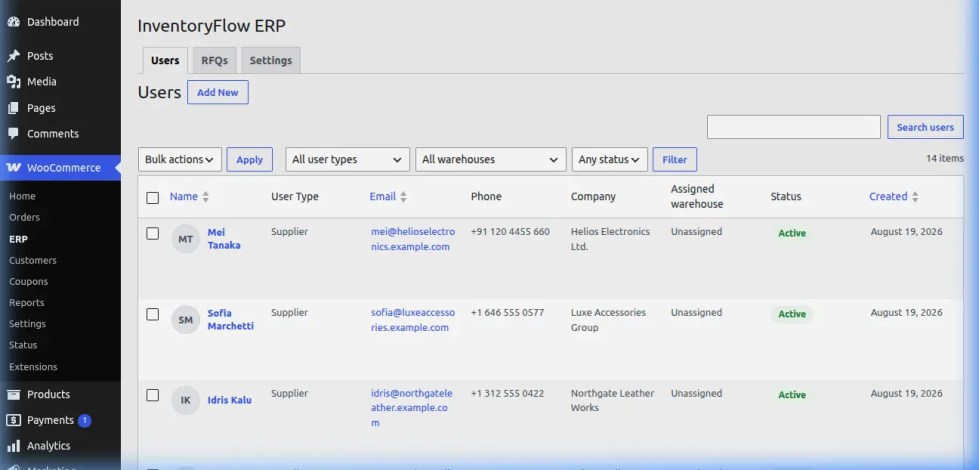
The Users management table allows you to:
- View all registered Warehouse Managers, Picking Staff, and Supplier accounts.
- Inspect assigned warehouse facilities and contact phone numbers.
- Activate, deactivate, or delete user accounts with bulk actions.
- Quickly create new warehouse users and assign them to specific physical sites.
6. WordPress Admin – RFQs Tab
Under WooCommerce -> ERP -> RFQs, the store admin can monitor all active Requests for Quotations directly in the WordPress dashboard without leaving the admin area.
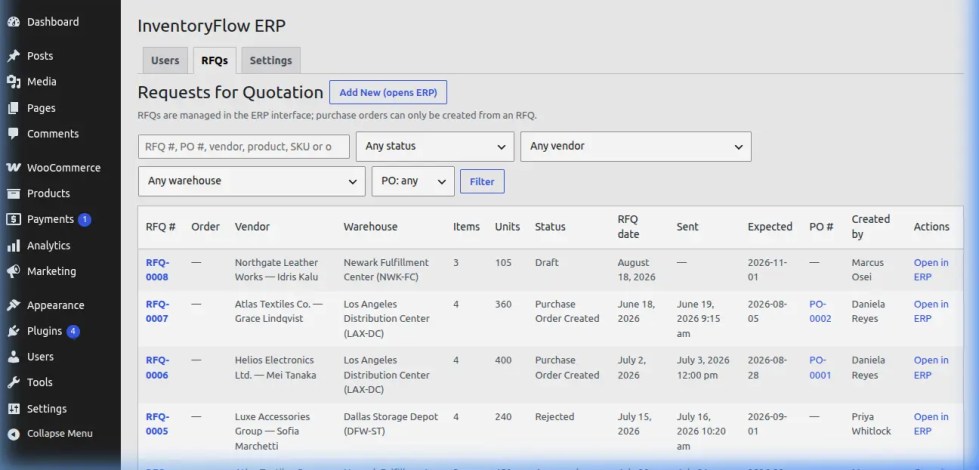
From this list table, administrators can:
- Search and filter RFQs by supplier vendor, target warehouse facility, quotation status, and PO status.
- Review requested item lines, target unit rates, and delivery deadlines.
- Track commercial quotation transitions from Draft to Accepted or Converted to PO.
7. WooCommerce Orders List Table Integration (Fulfilment Column & Quick Actions)
On the main WooCommerce -> Orders list screen (supporting both HPOS custom order tables and legacy post storage), the plugin adds a dedicated Fulfilment column with real-time status badges and one-click quick actions.
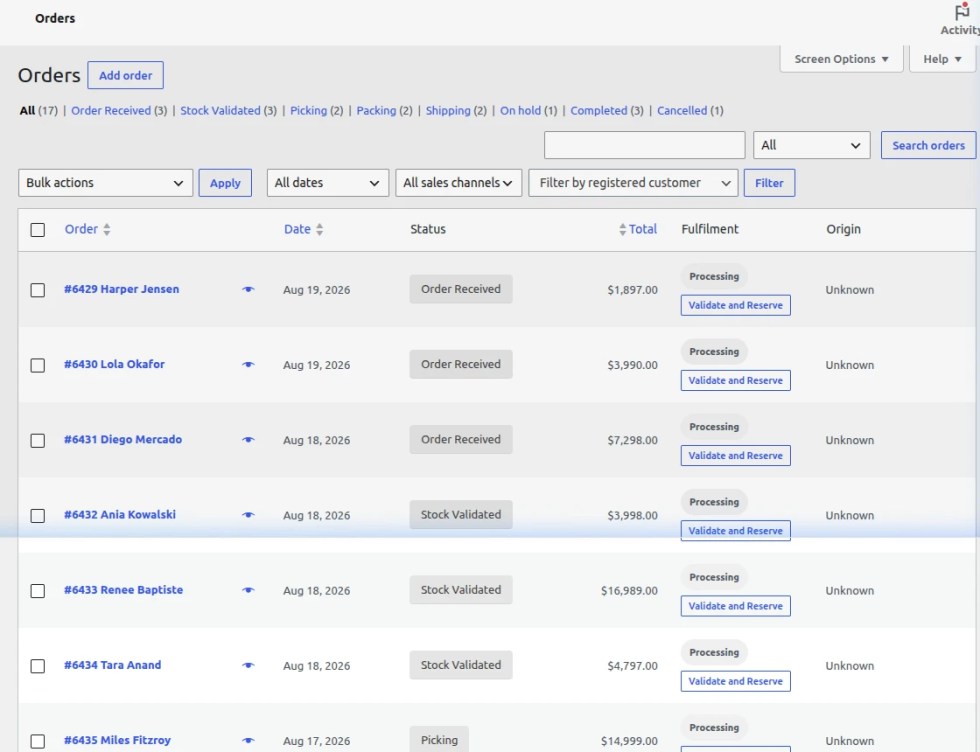
Store administrators can perform routine fulfillment steps directly from the order list without opening individual orders:
- Rolled-Up Stage Badges – Instantly check whether an order is in Order Received, Stock Validated, Picking, Packing, Shipping, or Completed.
- One-Click Workflow Triggers – Advance orders through the fulfillment pipeline via interactive action buttons (e.g., Validate and Reserve, Start Picking, Mark Packed) without page reloads.
- Status Filter Integration – Filter orders by warehouse fulfillment stages directly from the top status bar (e.g., filter by Stock Validated, Picking, or Shipping).
8. WooCommerce Edit Order Screen Integration (Fulfilment Metabox)
When viewing any customer order in the WordPress admin panel (under WooCommerce -> Orders), the plugin adds a dedicated ERP Warehouse Fulfilment metabox to the order details page.
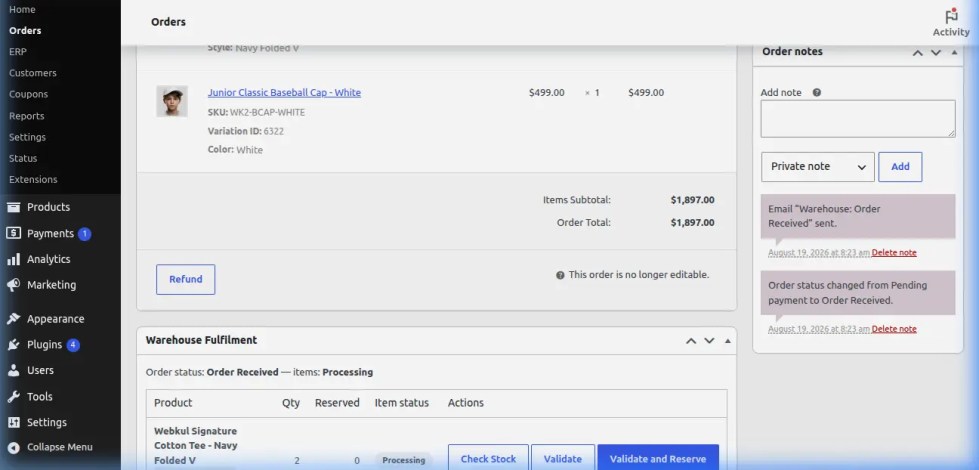
This metabox provides the store administrator with:
- Allocated Warehouse – Indicates which physical facility has been assigned to fulfill the order.
- Bin Allocation Breakdown – Shows the exact Room, Rack, Shelf, and Bin coordinates where each ordered product is currently reserved.
- Fulfilment Stage Tracker – Displays current pipeline progress (Order Received, Stock Validated, Picking, Packing, Shipping, Completed) with visual stage indicators.
- Action Logs – Timestamped record of fulfillment status updates and operator actions for the specific order.
9. WooCommerce Email Notifications Integration
Navigate through WooCommerce -> Settings -> Emails. The extension integrates native WooCommerce transactional email templates for warehouse logistics:
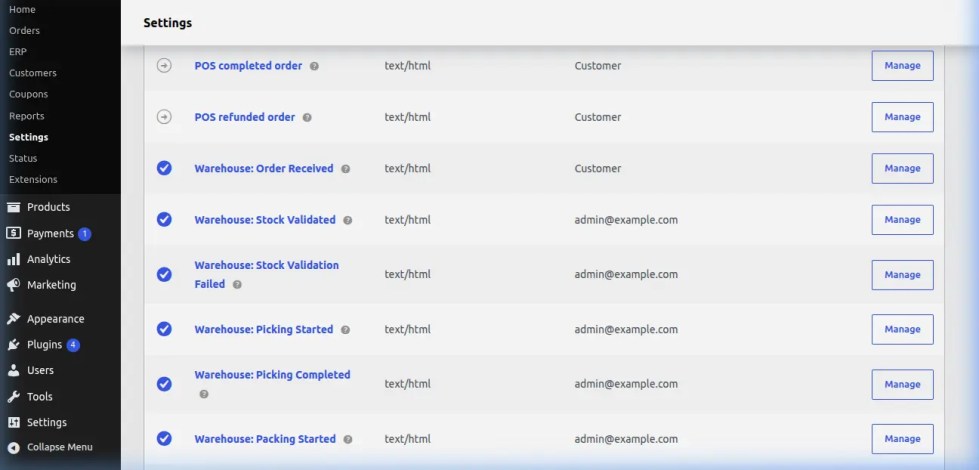
Configurable email notifications include:
- Stock Transfer Dispatched Email – Automatically notifies destination warehouse managers when an internal stock transfer is dispatched from the source facility, including transfer ID, line items, and tracking details.
- Stock Transfer Received Email – Alerts warehouse supervisors when goods arrive at the destination facility and are inwarded into target storage bins.
- Email Customization – Admin can customize recipient addresses, email subject lines, email headings, and email types (HTML/Plain text) using standard WooCommerce email settings.
ERP Central Command Dashboard
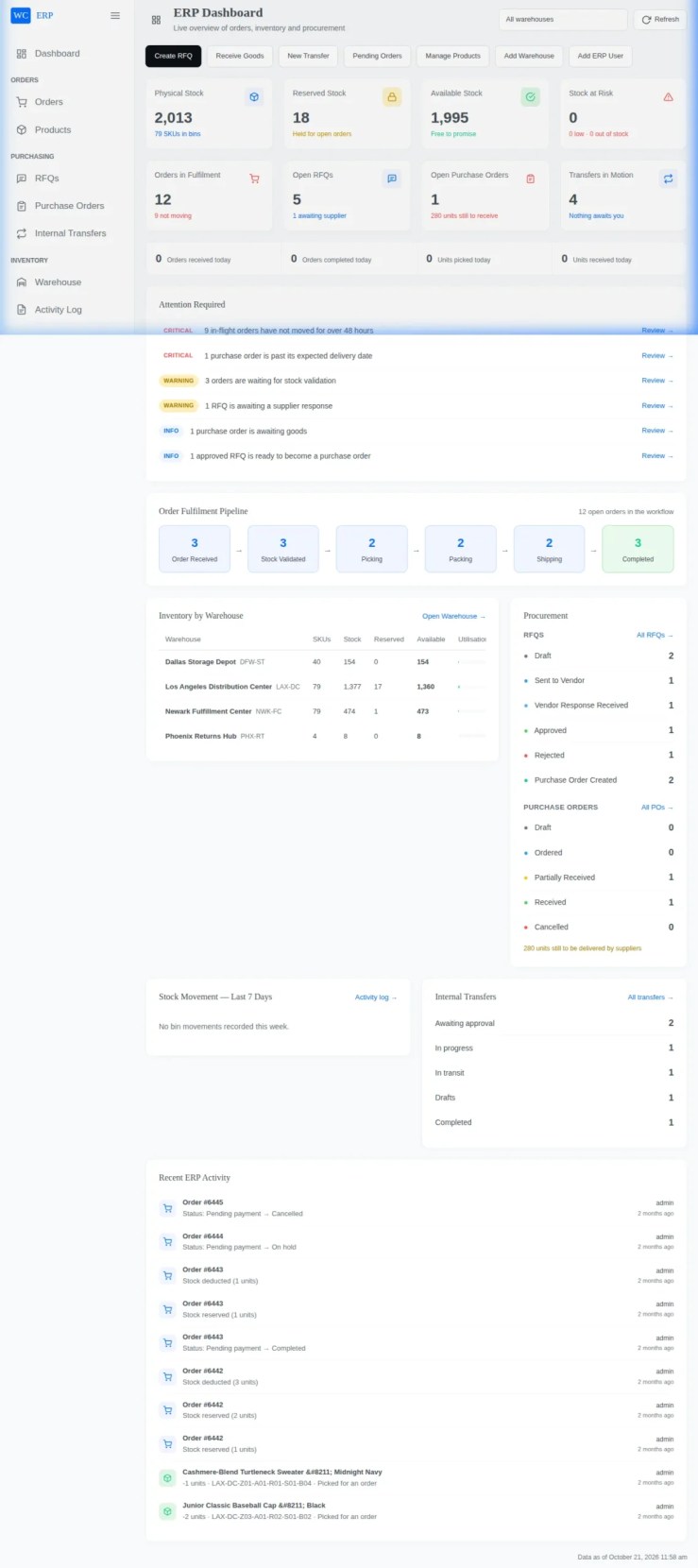
↑ Back to topOnce you launch the ERP application at /erp/, you will be directed to the centralised command dashboard.
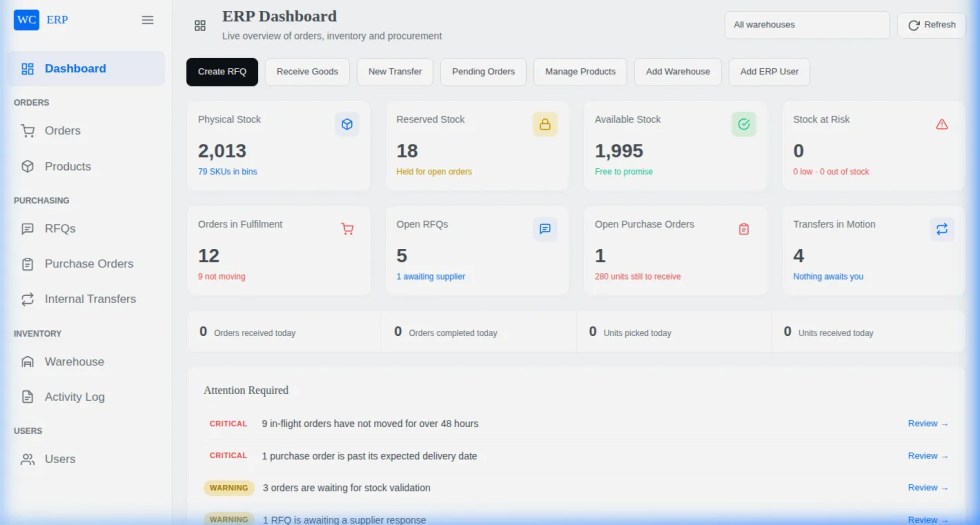
The command dashboard acts as the operational nerve center for warehouse supervisors, providing instant situational awareness through real-time KPI metric tiles and rapid action triggers:
- Total SKUs Tracked – Real-time count of unique simple and variable catalog items currently under active spatial bin tracking across all facilities.
- Physical Stock Value – Aggregates total financial valuation of on-hand inventory across all facilities based on unit cost prices. This provides store owners with accurate balance sheet figures without manual spreadsheet calculations.
- Low Stock & Safety Stock Alerts – Real-time indicator highlighting products that have reached or fallen below safety reorder thresholds, enabling purchasing teams to initiate vendor replenishments before stockouts occur.
- Orders Requiring Action – Live count of customer orders currently awaiting stock validation, picking, packing, or courier dispatch.
- Fast Action Triggers – Dedicated action buttons allowing warehouse supervisors to create a new warehouse, add products, dispatch internal stock transfers, or issue purchase orders with a single click.
Multi-Warehouse Facility Management
↑ Back to topNavigate through Warehouses -> Explorer to oversee multiple warehouse facilities, retail store backrooms, and regional fulfilment hubs.
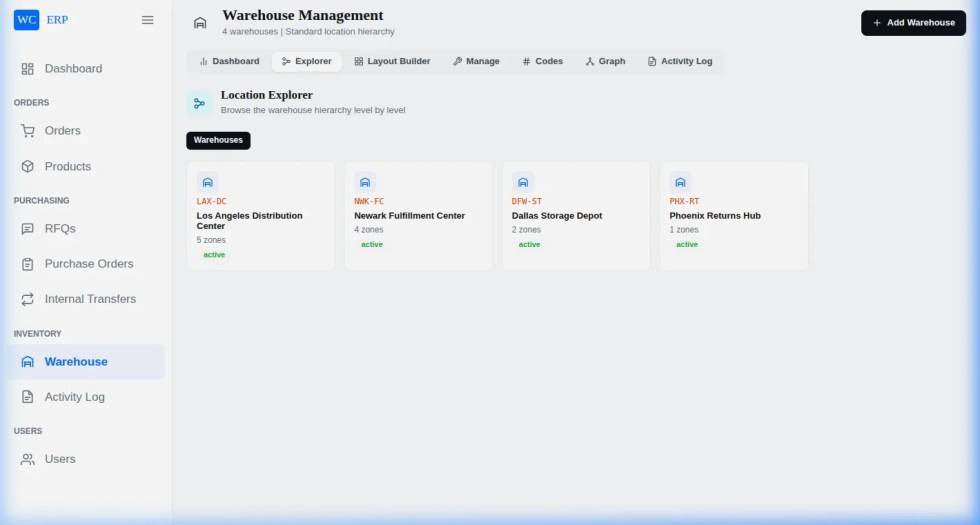
Growing e-commerce businesses often operate beyond a single fulfillment location. The Warehouse Explorer allows administrators to configure multiple physical sites with complete operational independence:
- Facility Code & Name – Assign unique identification codes (e.g.,
MFC-01for Main Fulfillment Center,SEC-02for Secondary Regional Depot) to prevent routing confusion. - Assigned Warehouse Manager – Designate an on-site supervisor responsible for facility inventory, approvals, and dispatch operations.
- Physical Location & Coordinates – Store full street addresses, contact phone numbers, and logistics coordinates used on delivery manifests, waybills, and courier pickup requests.
- Capacity Fill Rate & Storage Health – Live visual gauge displaying current volumetric storage utilization calculated dynamically from individual bin dimensions.
- Facility Creation & Editing – Tap + Add Warehouse to configure facility properties, set active statuses, and establish default operating hours.
5-Step Visual Warehouse Layout Builder
↑ Back to topStandard WooCommerce stores track stock as a single flat numerical balance. ERP for WooCommerce models physical storage into a true 5-tier spatial hierarchy: Facility → Room → Rack → Shelf → Bin.
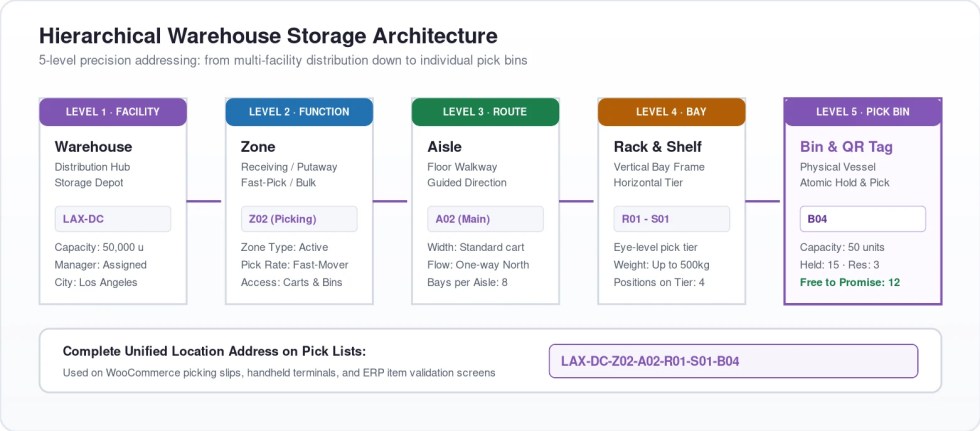
Navigate to Warehouses -> Layout Builder, select your target warehouse facility, and follow the interactive 5-step wizard to model your storage infrastructure:
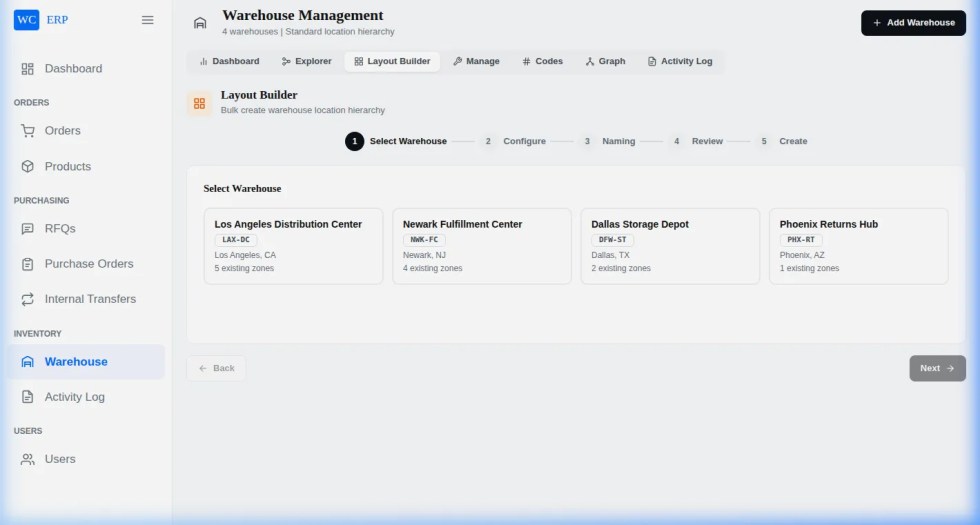
The guided layout wizard steps include:
- Step 1: Facility Boundary – Configure facility boundaries, operating zones, and dispatch docks.
- Step 2: Room Definition – Partition the warehouse into distinct functional areas (e.g., Bulk Storage Room A, Fast-Pick Area, Cold Storage, Quarantine Zone).
- Step 3: Aisle Racks – Place physical storage racks with aisle numbers, directional orientation, width, and height specifications.
- Step 4: Vertical Shelf Tiers – Define horizontal shelf tiers per rack with maximum load-bearing weight limits.
- Step 5: Bin Generation & Visual Grid – Generate standardized, scannable bin identifiers (e.g.,
A-01-S2-B04) with volumetric capacity limits, dimensions, and barcode labels.
The interactive visual grid enables supervisors to click on any bin to inspect current inventory contents, occupied percentage, and available space in real time.
Product Catalogue & Granular Inventory Control
↑ Back to topNavigate to Products -> Inventory to manage catalogue items mapped directly to physical warehouse storage bins.
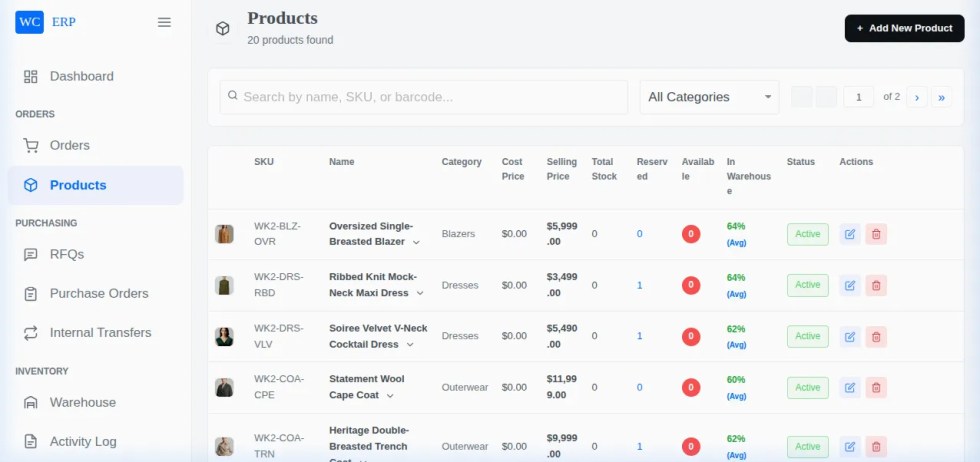
The inventory catalog provides deep operational clarity by breaking stock down into discrete availability tiers:
- Product SKU & Barcode Identification – Unique product identifiers with thumbnail image, title, and barcode references for rapid scanning.
- Cost Price vs. Selling Price – Record unit cost prices alongside WooCommerce retail selling prices. The system automatically computes profit margins and total inventory valuation.
- Total Physical Stock – Total physical inventory units physically residing inside warehouse bins.
- Reserved Stock – Units committed and locked for open customer orders awaiting picking, packing, or dispatch.
- Available Stock – Units genuinely available for purchase on your WooCommerce storefront (calculated as:
Available Stock = Total Physical Stock - Reserved Stock). This prevents overselling during high-volume sales events. - Visual Bin Fill Percentage – Visual progress indicator detailing bin capacity utilisation, helping warehouse teams optimize space allocation.
Order Processing & Intelligent Bin-Level Reservation
↑ Back to topIn standard WooCommerce stores, checkout deducts stock from a global numerical pool without specifying where the physical units are located. ERP for WooCommerce implements automated bin-level reservation.
Navigate to Orders to view incoming customer orders progressing across distinct pipeline stages: Pending, Processing, Ready to Ship, and Shipped.
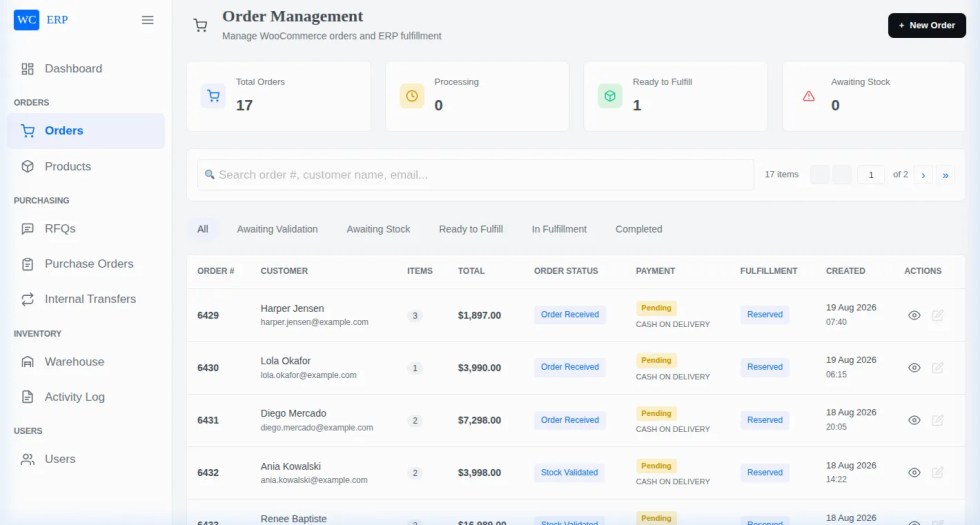
Tapping on any order opens the Fulfillment & Bin Reservation Modal:
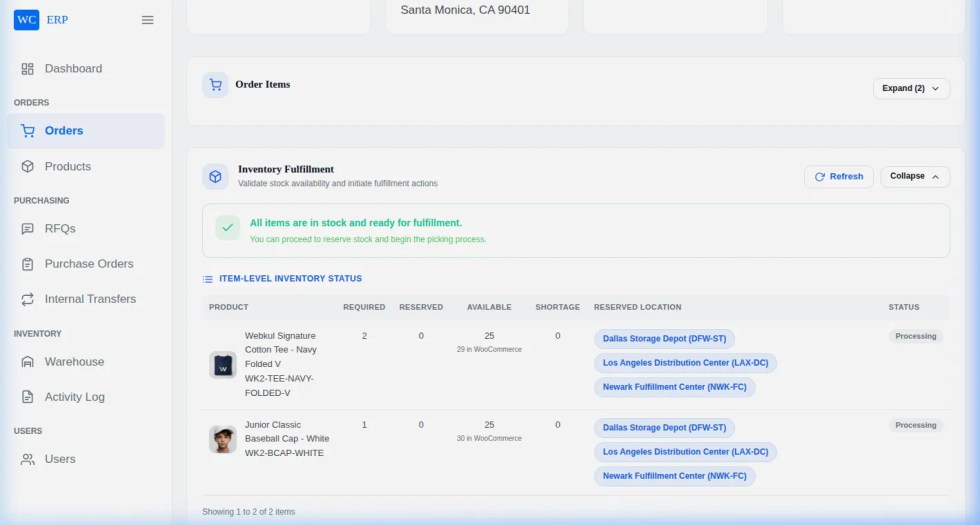
Key fulfillment capabilities include:
- Exact Spatial Picking Path – The system directs pickers along optimal paths by specifying exact coordinates (e.g.,
Room A → Rack 2 → Shelf 3 → Bin B-04) for every ordered line item. - Item Picking Checklists – Pickers mark items as picked with verification checkboxes before moving packages to the packing bench.
- Automated Restocking on Cancellation – If an order is canceled or refunded in WooCommerce, reserved inventory is automatically released and restored to its original warehouse bin with an immutable ledger entry.
Inter-Warehouse Stock Transfers
↑ Back to topNavigate through Transfers -> New Transfer to balance stock across regional facilities or transfer products from bulk storage into active picking bays.
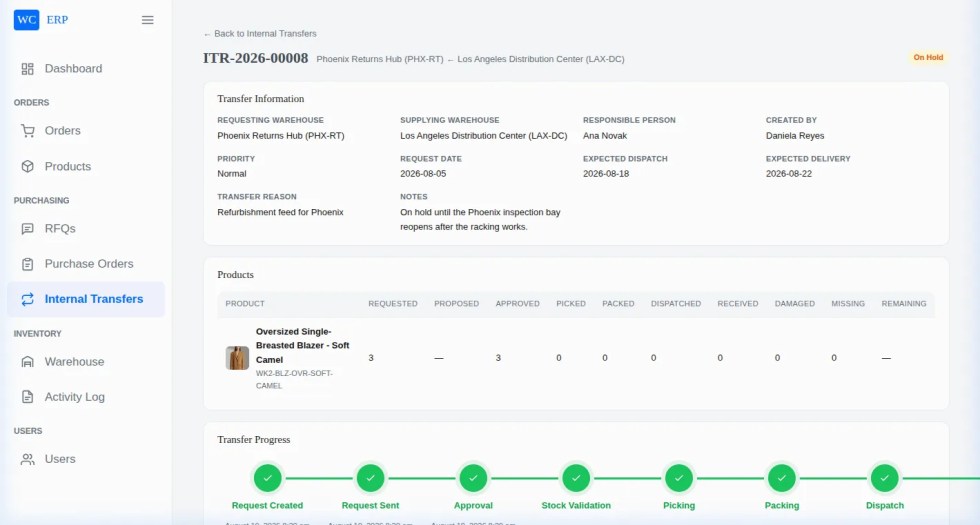
The Stock Transfers module ensures end-to-end auditability without distorting public storefront revenue:
- Source & Destination Precision – Select origin warehouse/bin and receiving warehouse/bin.
- Transit State Tracking – Track transfer lifecycles through distinct states: Draft (pending dispatch) → In Transit (dispatched with carrier notes) → Completed (verified and inwarded at destination).
- Revenue Isolation – Internal transfers move stock physically without generating fictitious customer sales orders, keeping your WooCommerce financial reports completely accurate.
- Automated Email Notifications – Receiving warehouse managers receive automatic email notifications upon transfer dispatch and arrival.
Supplier Directory & Request for Quotations (RFQs)
↑ Back to topNavigate through Suppliers & RFQs -> Create RFQ (or access the RFQs tab under WooCommerce -> ERP in WordPress admin) to manage procurement workflows directly inside WooCommerce.
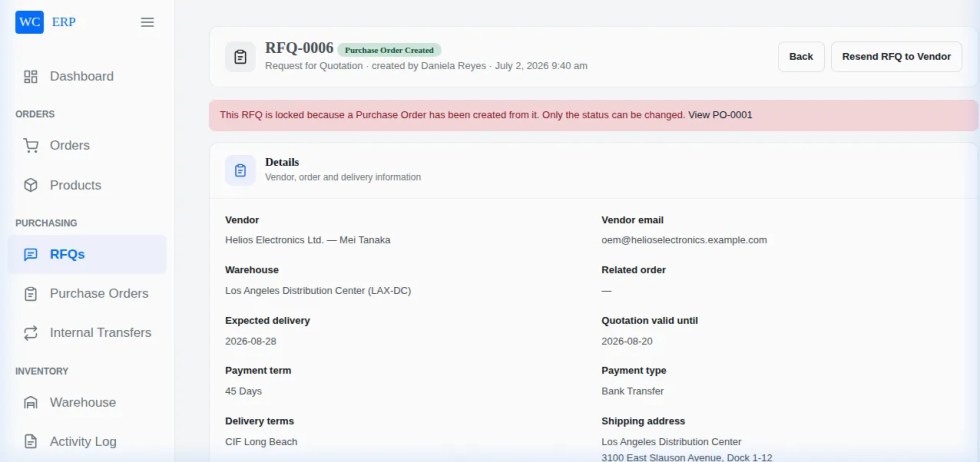
The RFQ workflow streamlines procurement by eliminating external spreadsheets and fragmented email chains:
- Supplier Directory – Maintain comprehensive vendor profiles with contact emails, payment terms, tax IDs, and standard lead times.
- RFQ Generation – Specify requested items, target quantities, target unit rates, and required delivery deadlines.
- Negotiation History – Track quote revisions, agreed price points, and supplier terms directly on the RFQ record.
- Single-Click PO Conversion – When supplier quotation terms are approved, convert the RFQ into an active Purchase Order with a single click.
Purchase Order Receiving & Physical Stock Inwarding
↑ Back to topWhen inbound supplier shipments arrive at the receiving dock, warehouse workers use the Purchase Order Inwarding workflow to inspect items and route them directly into storage bins.
Navigate to Purchase Orders, select the arriving delivery, and tap Receive Goods:
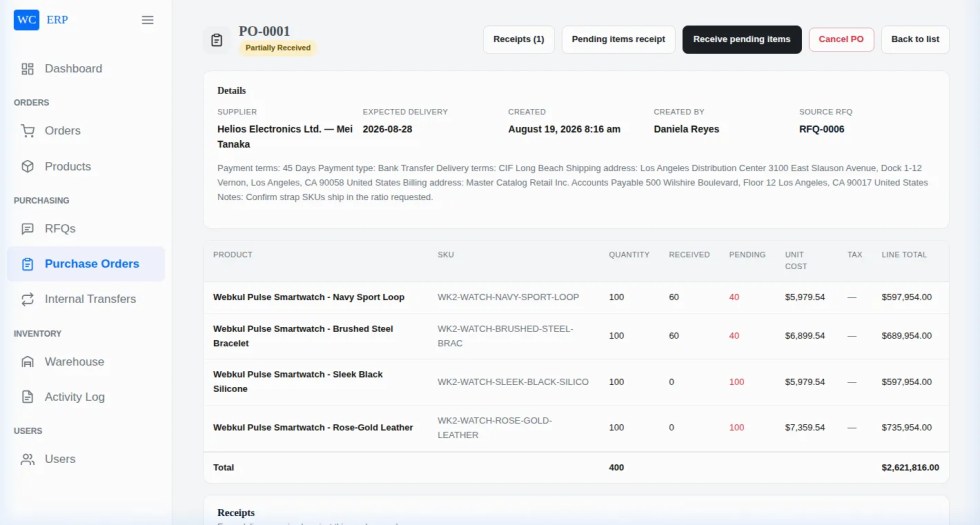
Inwarding features include:
- Partial & Full Delivery Handling – Inward partial shipments while keeping the remainder of the PO open for subsequent deliveries.
- Direct Bin Put-Away – Assign arrived items straight into target storage bins (e.g., fast-moving items into front picking racks, bulk reserves into rear rooms).
- Automatic Catalog Increment – Physical inventory balances and available WooCommerce storefront stock update immediately upon receipt confirmation.
ERP Users & Role-Based Access Control (RBAC)
↑ Back to topManage operational permissions across your organization using pre-configured user roles and a granular permission matrix.
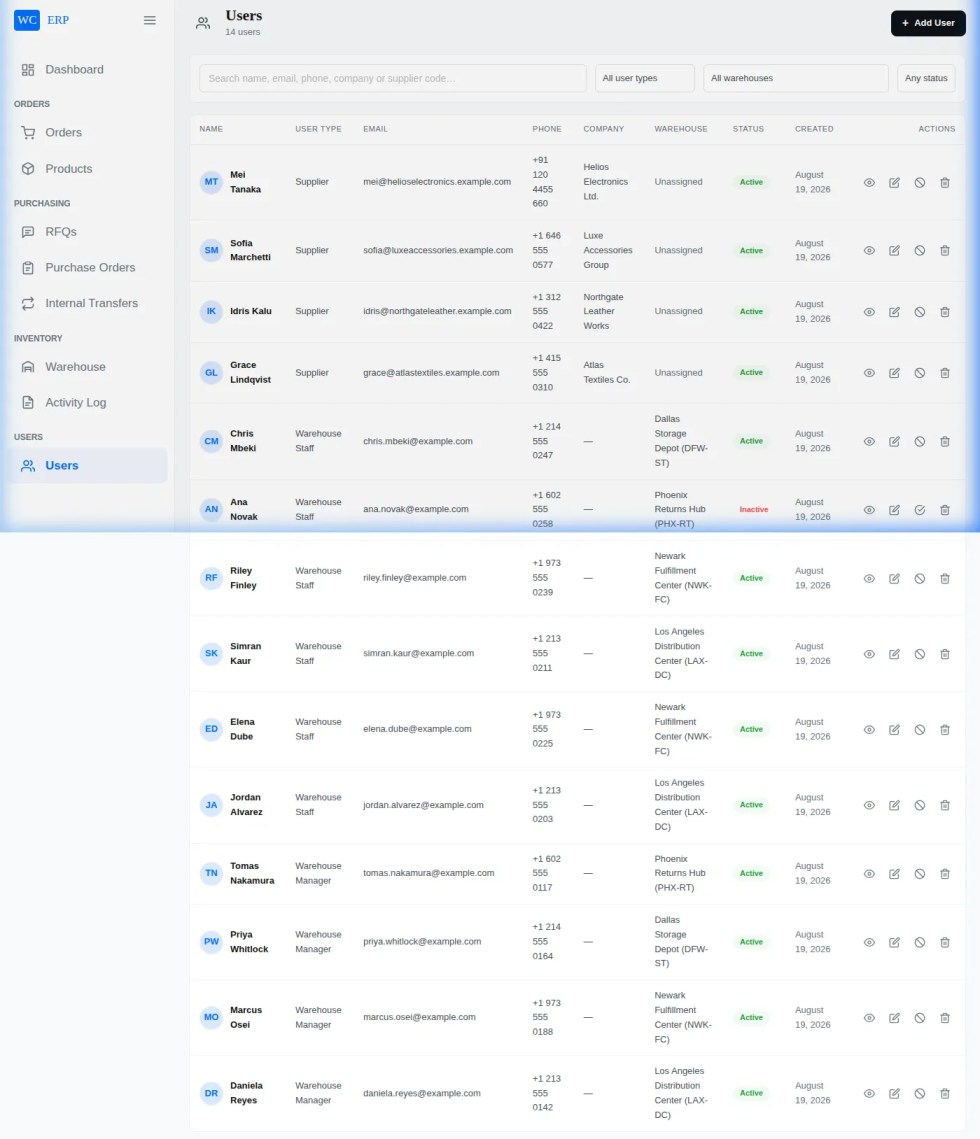
Under Managers & Staff (or the Users tab under WooCommerce -> ERP in WordPress admin), administrators can create and manage user accounts with specific operational roles:
- ERP Administrator / Store Owner – Full master control over settings, layouts, financial valuations, and user permissions.
- Warehouse Manager – Manages layouts, approves transfers, processes purchase orders, and assigns picking tasks.
- Warehouse Staff / Picker – Restricted view limited to picking lists, packing verification, and stock counts.
- Supplier / Vendor – Dedicated portal view to monitor assigned RFQs and open Purchase Orders.
Navigate to Access Control to configure the granular permission matrix.
The permission matrix allows store owners to:
- Toggle granular View, Create, Edit, and Delete permissions across Products, Warehouses, Orders, Transfers, RFQs, POs, and System Settings.
- Assign warehouse managers and staff to specific physical warehouse facilities, preventing unauthorized access to other locations.
Warehouse Activity Log & Audit Trail
↑ Back to topNavigate to Activity Log to inspect the permanent audit ledger of all warehouse stock movements and operational events.
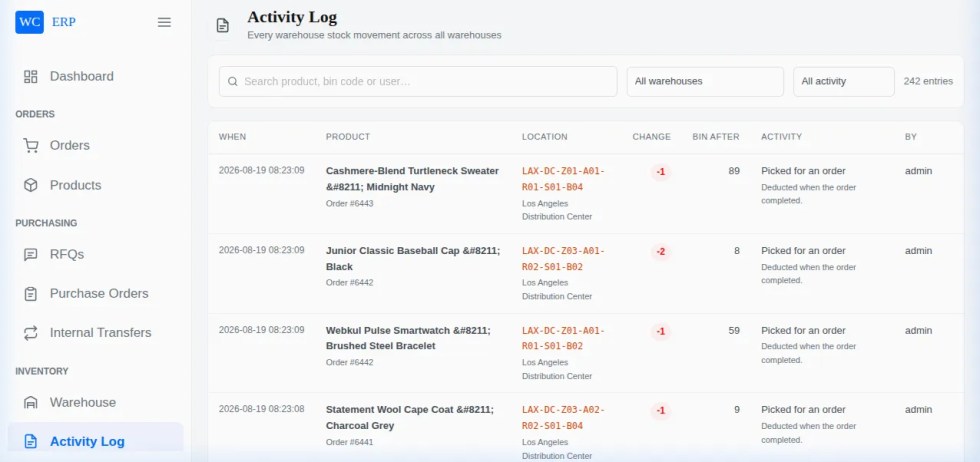
Every single inventory adjustment, order reservation, inter-warehouse transfer, and inbound delivery is logged permanently with microsecond precision:
- Timestamp – Microsecond-accurate date and time of the event.
- Operator Attribution – Exact user account responsible for the action.
- Action Type – Standardized event types:
STOCK_RESERVE,ORDER_FULFILL,TRANSFER_DISPATCH,PO_RECEIVE,BIN_REALLOCATION,RESTOCK_REFUND. - Location Reference – Source bin and destination bin coordinates.
- Quantity Delta – Exact inventory units added (+) or deducted (-).
- Audit Reference – Order ID, Transfer ID, or PO number for instant cross-referencing and verification.