
Bespoke Product Options adds extra fields to WooCommerce products: text and engraving lines, choices shown as dropdowns, buttons, cards, or swatches, checkboxes, quantities, dimensions, dates, date ranges, file uploads, and customer-defined prices. Each field can carry a price; the subtotal on the product page updates as the customer makes choices, and those choices follow the item into the cart, checkout, order emails, and the order screen. Option groups are built once and attached to the whole catalogue, to categories, tags, brands, single products, or user roles, and every product can also carry fields of its own.
Developers find the hooks, the template system, the JavaScript events, and the REST API in the developer documentation.
Installation
↑ Back to top- Download the plugin .zip file from your WooCommerce.com account under My Subscriptions.
- In WordPress, go to Plugins → Add New → Upload Plugin, choose the file and click Install Now.
- Click Activate.
After activation, you can find the option groups under Products → Product Options, a Product Options tab in the product data panel of every product, and the global settings under WooCommerce → Settings → Products → Product Options.
The plugin needs WordPress 6.5 or newer, WooCommerce 8.0 or newer, and PHP 7.4 or newer. It works with classic and block themes, with the Cart and Checkout blocks, and with High-Performance Order Storage.
Quick start
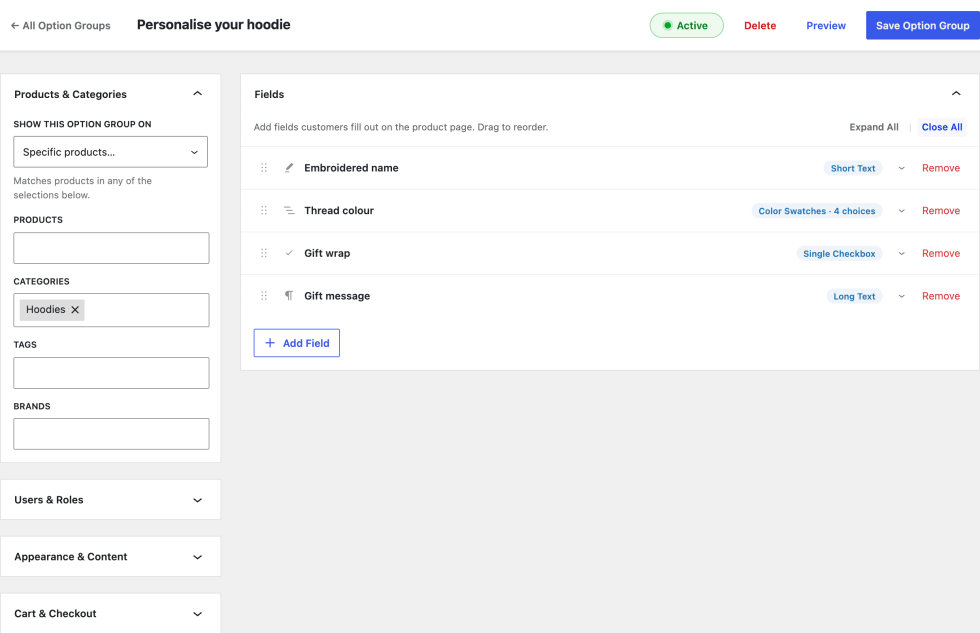
↑ Back to top- Open Products → Product Options and click New Option Group.
- Type the group name at the top of the screen. The name is shown above the fields on the product page when Show group title is on.
- In the Fields panel, click Add Field, pick a Type, enter the Field Label, and set the price if the field costs extra. Drag the handle on the left of a field card to reorder.
- In Products & Categories, choose where the group appears: All products, or Specific products with products, categories, tags, and brands.
- Click Save Option Group. The green Active toggle in the top bar decides whether the group is live.
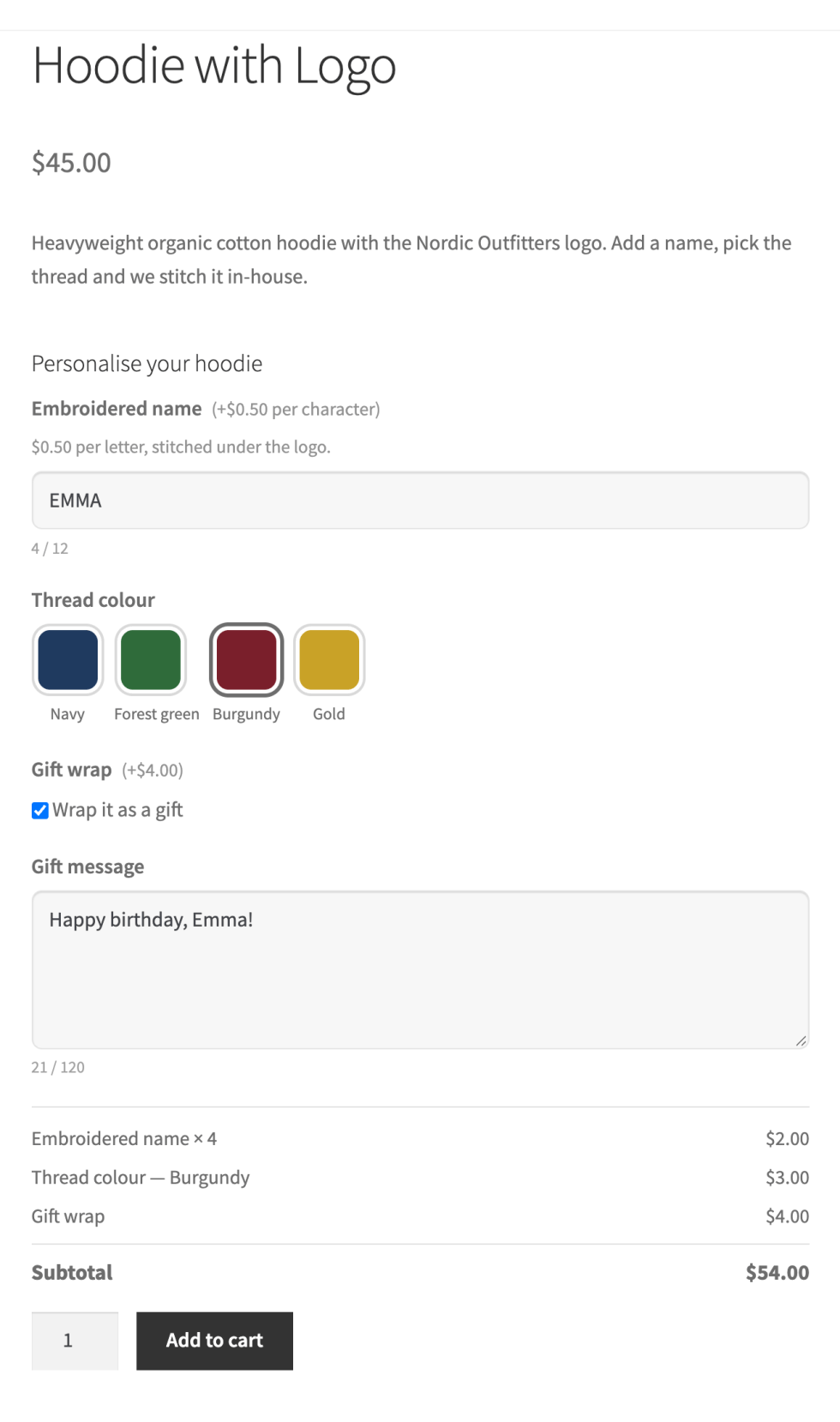
Open a product the group applies to. The fields sit inside the add-to-cart form, each with its price next to the label, and a totals box lists the chosen options and the subtotal.
The builder
↑ Back to topThe builder is a single screen. Fields, choices and settings update as you edit them, and nothing is stored until you click Save Option Group. The top bar holds the Active toggle, Delete, Preview, and Save Option Group.
Field cards
↑ Back to topEvery field is a card. The header shows the label, the type and the number of choices, a collapse arrow and Remove. Expand All and Close All in the Fields panel open or close every card at once. Inside a card, you set the Type, the Field Label, and the Label Display (Label, Title, or Hidden), then the options of that type: placeholder and default value, Require selection, Add description for helper text under the field, limits, Adjust price, and Conditional logic.
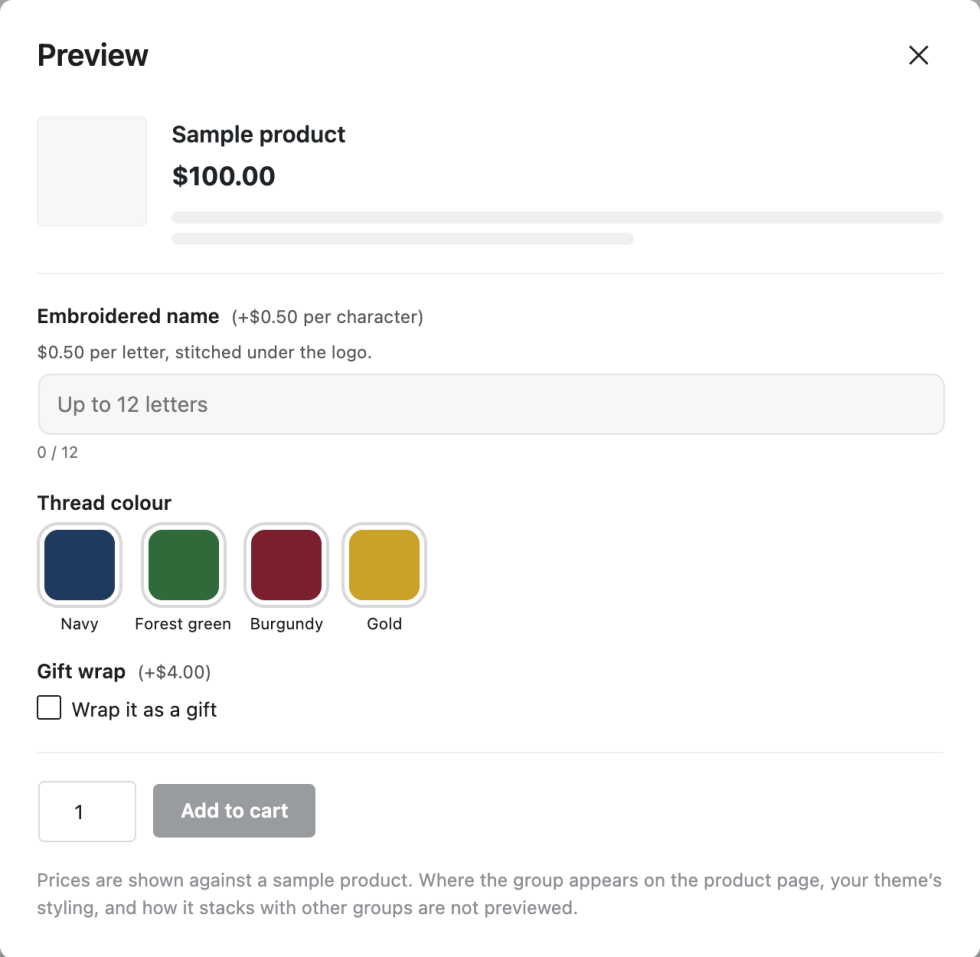
Preview
↑ Back to topPreview renders the current draft, including unsaved changes, with the real storefront markup and script. Conditional logic, character counters, and the totals box behave as they do for a customer. Prices are shown against a sample product of $100.00. The preview does not show the position of the group on the product page, your theme’s styling, or how several groups stack, so check a real product page once for those.
The option groups list
↑ Back to topProducts → Product Options lists every group with where it applies, who sees it, the number of fields, and the status. From the list, you can search, filter by Active and Inactive, drag groups into the order in which they render when several apply to one product, and open the row menu to duplicate, activate, deactivate, or delete a group. Tick several groups for a bulk delete or export. Choice Sets opens the reusable choice lists.
Import and export
↑ Back to topExport downloads the selected groups, or all of them, as a JSON file. Import reads such a file on another site. Imported groups arrive inactive, so nothing goes live before you have checked it. The Products with Options tab lists products that carry fields of their own and offers the same export, import, and bulk clear for those.
Product-specific options
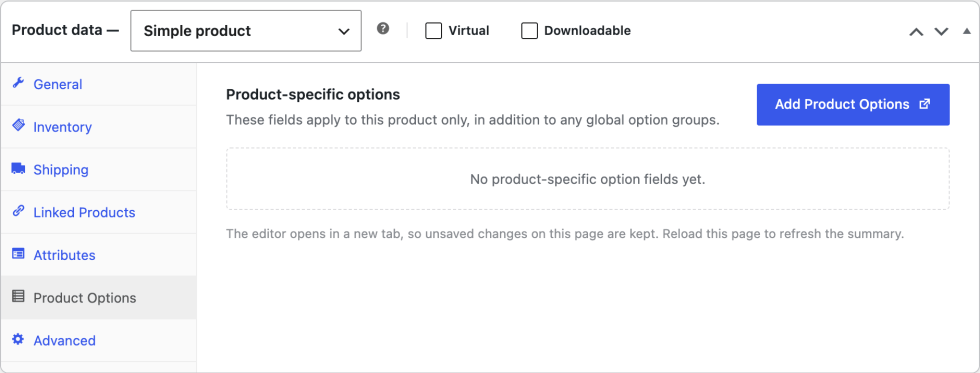
↑ Back to topBesides global groups, every product can carry fields that apply to that product only. Open the product, switch to the Product Options tab in the product data panel, and click Add Product Options. The same builder opens in a new tab with every field type, price type, and conditional logic rule. The tab shows a summary of the fields once they are saved.
Worth knowing:
- Product-specific fields render together with the global groups that apply to the product.
- They have their own active toggle, their own appearance settings, and their own cart settings.
- They are stored with the product, so they are duplicated with it and deleted with it.
- Save a new product once before opening the editor.
Targeting
↑ Back to topProducts and categories
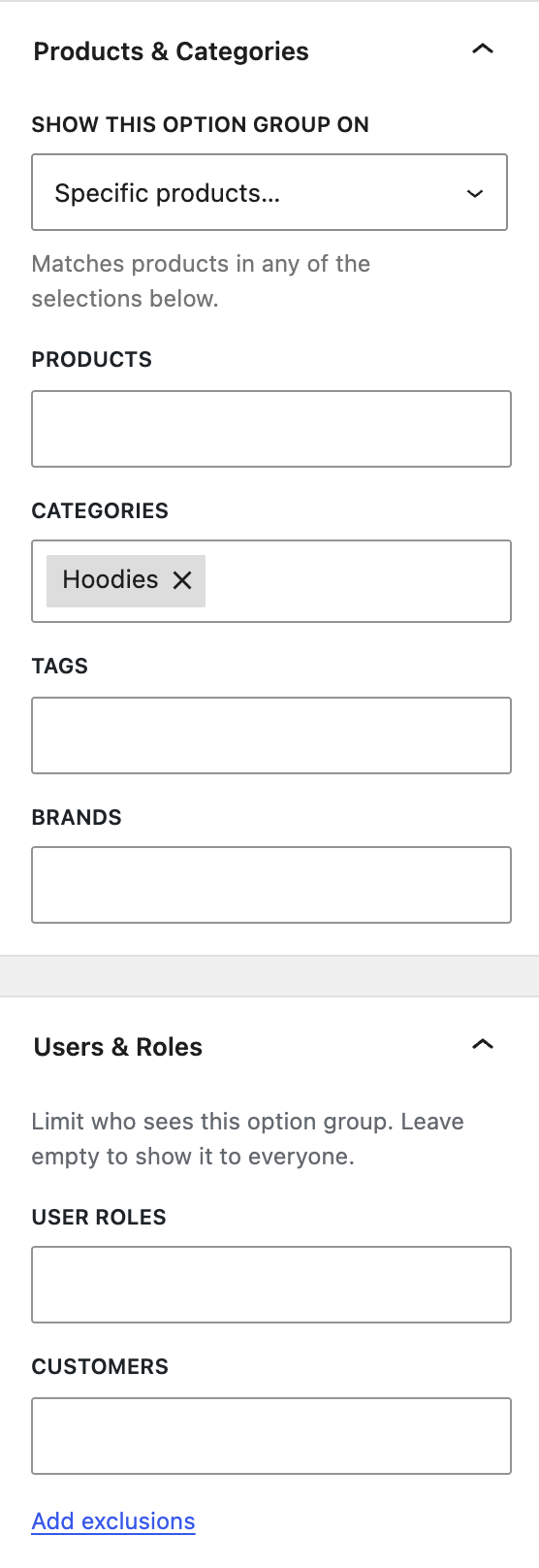
↑ Back to topThe Products & Categories panel decides where a group appears. Choose All products, or Specific products and pick products, categories, tags, and brands. A product matches when it is in any of the selections. Add exclusions opens a second set of lists for products the group must skip, for example, a whole category except a few products.
Users and roles
↑ Back to topThe Users & Roles panel limits who sees the group. Leave it empty to show the fields to everyone, or pick user roles and individual customers. Guest (not logged in) is listed as a role, so a group can target visitors only. Exclusions work here too, for example, everyone except a wholesale role.
Variations
↑ Back to topOn a variable product, a field can be limited to selected variations in the field card. A field with no variations selected shows for every variation.
Field types
↑ Back to topEvery field has a label, an optional description shown under the field, and a Require selection switch. The types:
| Type | What the customer sees | Typical use |
|---|---|---|
| Multiple Choice | A list of choices as a dropdown, radio buttons or checkboxes, buttons, cards, image swatches or colour swatches | Sizes, colours, finishes, add-on services |
| Single Checkbox | One yes or no choice | Gift wrap, express handling, an agreement |
| Short Text | One line, as text, number, email, phone or URL | Names, initials, engraving |
| Long Text | A multi-line text area | Gift messages, instructions |
| Quantity | A number priced per unit | Extra prints, spare parts |
| Dimensions | Width and height priced by area | Blinds, glass, fabric, signage |
| Date Picker | A single date | Delivery or event dates |
| Date Range | A start and an end date priced per day | Rentals and hire periods |
| File Upload | One or more files | Artwork, photos, documents |
| Customer Defined Price | An amount typed by the customer | Donations, tips, pay what you want |
| Heading | A title between fields, no value | Grouping long forms |
Multiple Choice
↑ Back to topChoices are entered in the card, one row each, with a title, a price type, a price, a hide switch, a duplicate button, and a delete button. Display As picks the look: Dropdown, Radio / Checkboxes, Buttons, Cards, Image Swatches or Color Swatches. Allow multiple selections lets the customer pick more than one choice; a dropdown then becomes a compact multi-select box that opens a checkbox list, and radio buttons become checkboxes. Limit number of selections sets a minimum and a maximum; for example, choose 2 to 3. Image and colour swatches carry an image or a colour per choice and a Swatch shape (Theme default, Square or Circle). Default Selection preselects a choice.
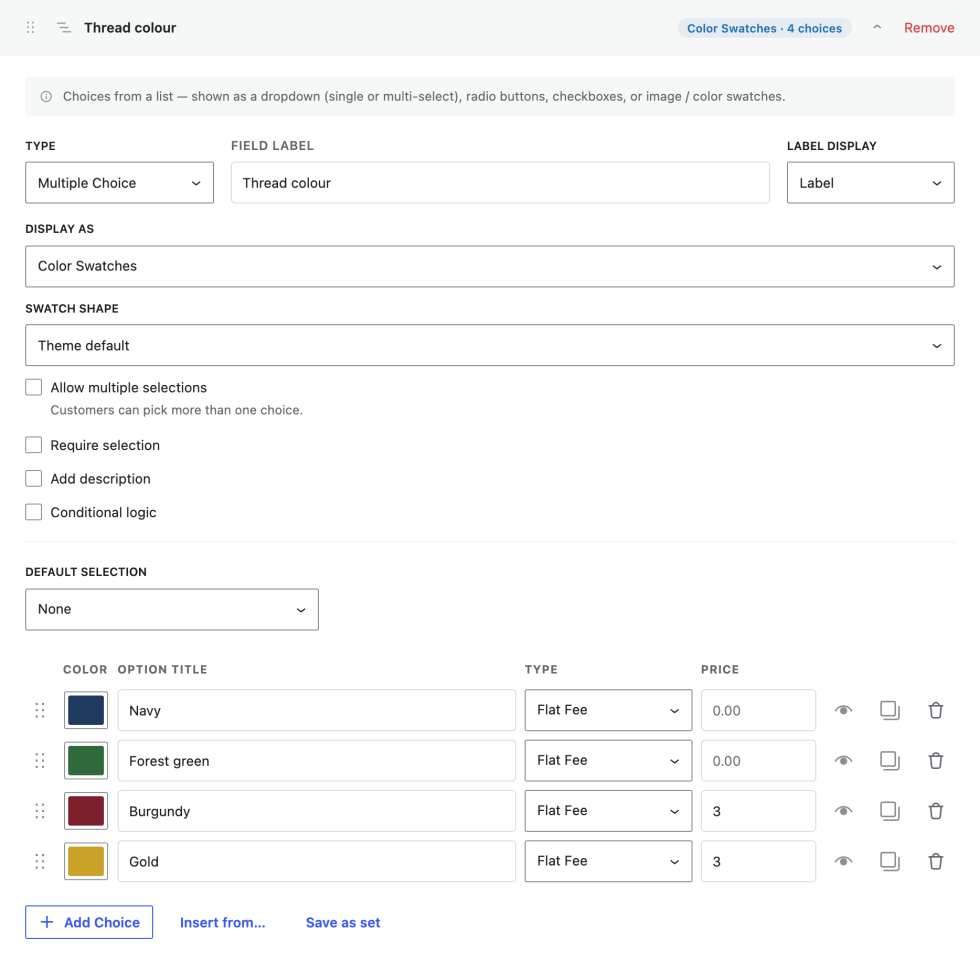
Choices can be typed in, inserted from a saved choice set, or imported from a product attribute with Insert from…. Save as set stores the current list as a choice set for other fields.
Short Text
↑ Back to topDisplay As switches between Text, Number, Email, Phone, and URL, each validated accordingly. Limit by characters sets a minimum and a maximum and shows a counter under the field. A number field can limit the number range with a minimum, a maximum, and a step. With the Per Character price type, the field charges per typed character, which is what engraving needs.
Quantity, Dimensions, dates and uploads
↑ Back to top- Quantity: Set quantity limits gives a minimum, a maximum, and a default. The price is multiplied by the amount.
- Dimensions: Pick the Measurement unit (mm, cm, m, in, or ft) and optional minimum and maximum width and height. With the Per Square Unit (area) price type, the plugin shows the computed area and charges rate × area.
- Date Picker and Date Range: Limit the dates sets the earliest and latest date and, for a range, the minimum and maximum number of days. The Per Day price type multiplies the price by the number of days.
- File Upload: Restrict file types & size sets the accepted extensions and the maximum size in MB for this field, within the global limits. Allow multiple files: Accepts more than one file.
- Customer Defined Price: Set price range gives a minimum and a maximum amount.
- Single Checkbox: The checkbox label is the text next to the box, and Checked by default preselects it.
Pricing
↑ Back to topTick Adjust price on a field, or set a price on each choice of a Multiple Choice field, and pick a Price Type:
| Price type | How it is charged | Example |
|---|---|---|
| Flat Fee | A fixed amount, once per item | Gift wrap +$4.00 |
| Percentage (%) | A share of the product price; follows the selected variation on variable products | 10% of $45.00 = +$4.50 |
| Quantity Based | Multiplied by the amount in a Quantity field | 3 × $6.00 = +$18.00 |
| Per Character | Multiplied by the number of characters typed | EMMA at $0.50 = +$2.00 |
| Per Day | Multiplied by the days in a Date Range | 3 days × $18.00 = +$54.00 |
| Per Square Unit (area) | Rate × width × height from a Dimensions field | 0.96 m² × $25.00 = +$24.00 |
A negative price gives a discount; for example, no cutlery, -$2.00. The line total never drops below zero.
The product page shows the price of every field and choice next to its label. When Show totals is on for the group, a totals box above the add to cart button lists each chosen option with its amount and the subtotal, and updates on every change, including quantity changes. The cart charges the same amounts: the product price plus the options, multiplied by the quantity.
Conditional logic
↑ Back to topTick Conditional logic on a field to show or hide it depending on other fields. Choose Show this field if or Hide this field if, then All rules match or Any rule matches, and add rules with Add Condition. Each rule names a Field, a Relation, and, where needed, a Value.
The relations depend on the field being checked: selected or not selected, is or is not, contains, starts with, ends with, number comparisons (equal, not equal, greater, greater or equal, less, less or equal), date is, before or after, empty or not empty, uploaded or not uploaded, checked or not checked, entered or not entered.
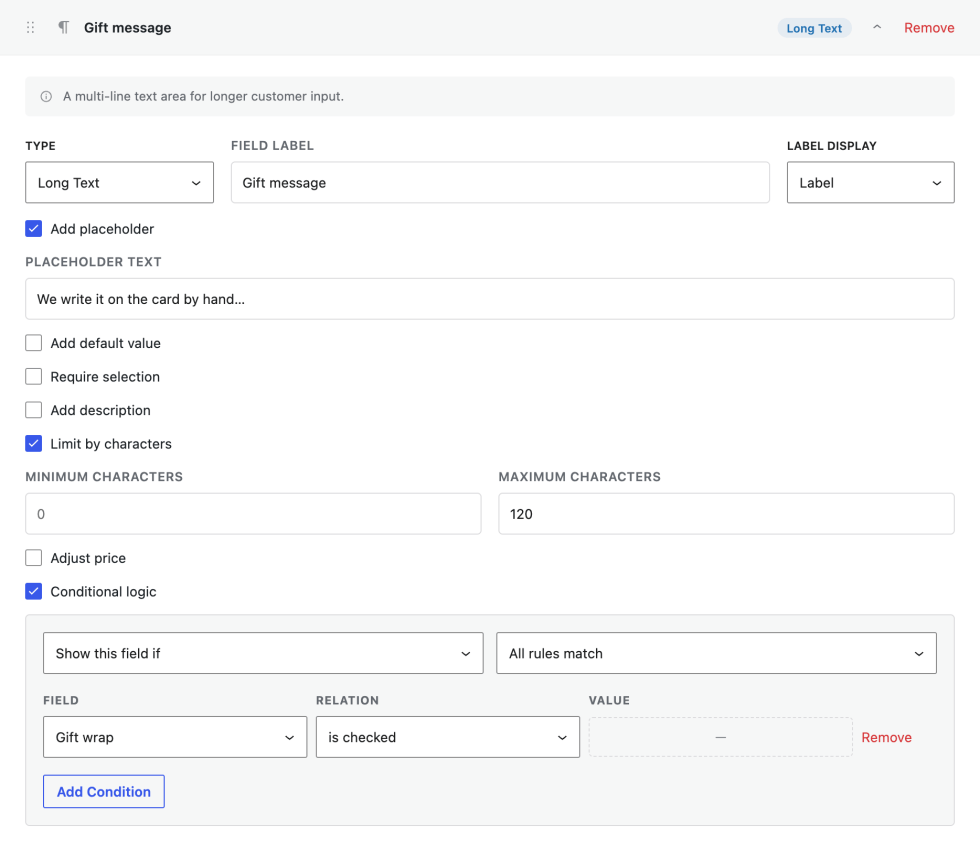
Typical uses: a gift message that appears when gift wrap is ticked, an engraving font that appears once text is entered, or a step-by-step configurator where each answer unlocks the next question. Hidden fields are never charged and never saved to the order.
Choice sets
↑ Back to topA choice set is a reusable list of choices, for example colours, sizes or materials. Build it once under Products → Product Options → Choice Sets, or from any Multiple Choice field with Save as set, and insert it into other fields with Insert from…. The same menu imports the terms of a product attribute as choices. Inserting can add to the existing choices or replace them.
Appearance and position
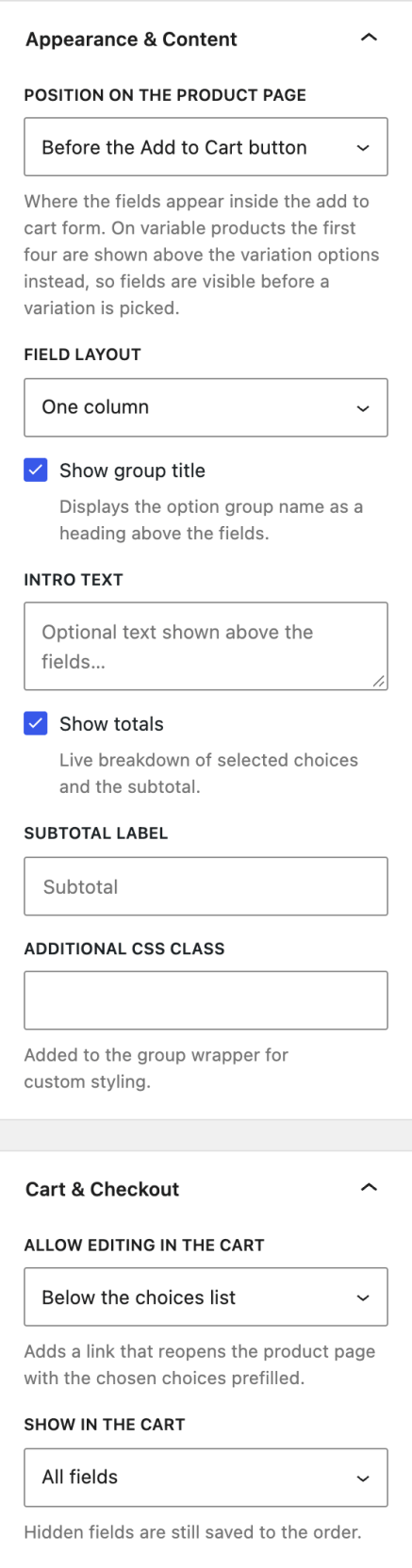
↑ Back to topThe Appearance & Content panel controls how a group renders:
- Position on the product page: before the Add to Cart button (the default), before or after the quantity selector, after the Add to Cart button, or after the variation options. On variable products, the first four positions are moved above the variation options automatically, so the fields stay visible before a variation is picked.
- Field layout: one or two columns.
- Show group title and Intro text: a heading and a paragraph above the fields.
- Show totals and Subtotal label: the totals box and its wording.
- Additional CSS class: added to the group wrapper for custom styling.
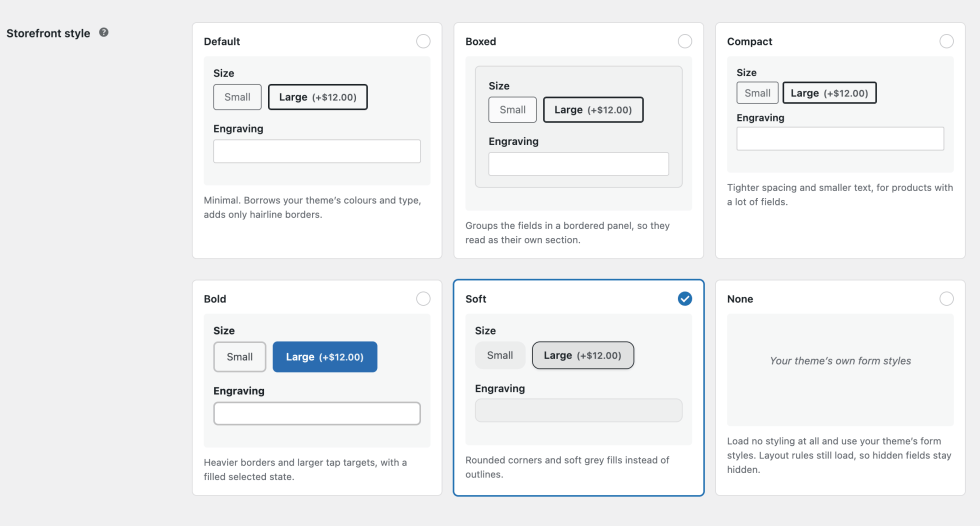
Storefront styles
↑ Back to topA global Storefront style under WooCommerce → Settings → Products → Product Options decides how the fields look. Each style is shown as a live preview:
- Default: minimal, borrows the theme’s colours and type, adds only hairline borders.
- Boxed: groups the fields in a bordered panel.
- Compact: tighter spacing and smaller text, for products with many fields.
- Bold: heavier borders, larger tap targets, a filled selected state.
- Soft: rounded corners and soft grey fills instead of outlines.
- None: loads no styling and uses the theme’s own form styles. Layout rules still load, so hidden fields stay hidden.
Cart and checkout
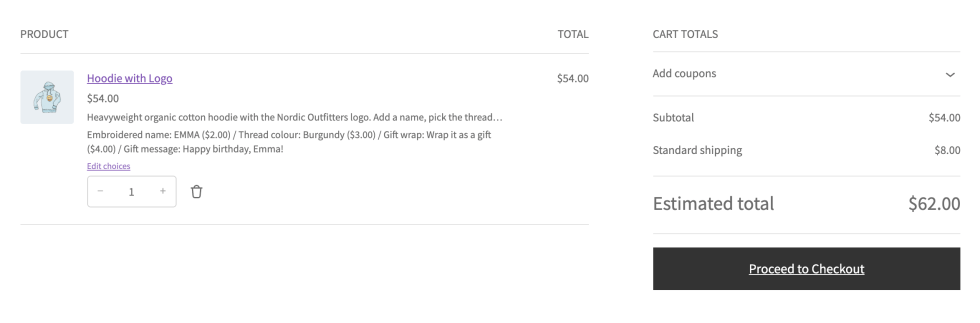
↑ Back to topSelected options travel with the item through the cart, the checkout, the order emails, and the order screen, in the classic cart and checkout, and in the Cart and Checkout blocks. Each option is listed under the product name with its amount, and the line price includes the options.
The Cart & Checkout panel of a group sets:
- Allow editing in the cart: an Edit choices link below the choices list or below the product name, or no link. The link reopens the product page with every choice and the quantity prefilled, so the customer changes a choice without starting over.
- Show in the cart: all fields, or only the fields the customer filled in. Hidden fields are still saved to the order.
Orders
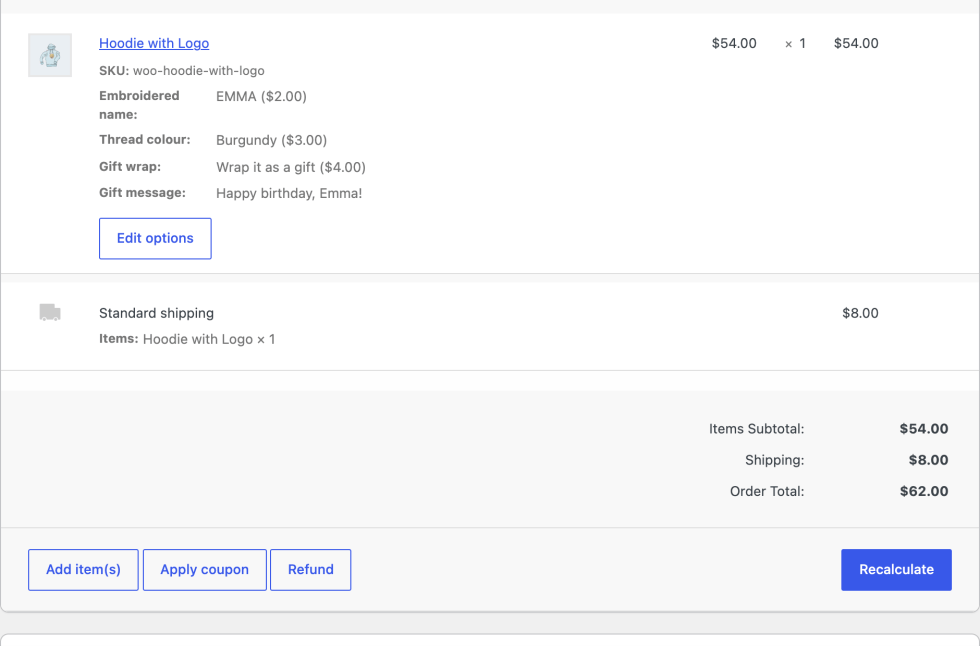
↑ Back to topEach order line lists the choices with their prices. Uploaded files are linked from the order screen for fulfilment. The data is stored as regular order item meta, so it appears in order emails, in invoices from other plugins and in exports. Order again from the customer account restores the choices that still exist.
Orders created by hand
↑ Back to topOn an order that is still editable, every simple product or variation line shows an Edit options button. It opens the real storefront fields in a modal: conditional logic and the subtotal behave as they do for a customer, and saving runs the same validation and pricing as the cart. Use it for phone orders, quotes turned into orders, or to fix a customer’s mistake without a refund. File Upload fields are not offered in the modal because uploads belong to a customer’s session.
Variable products
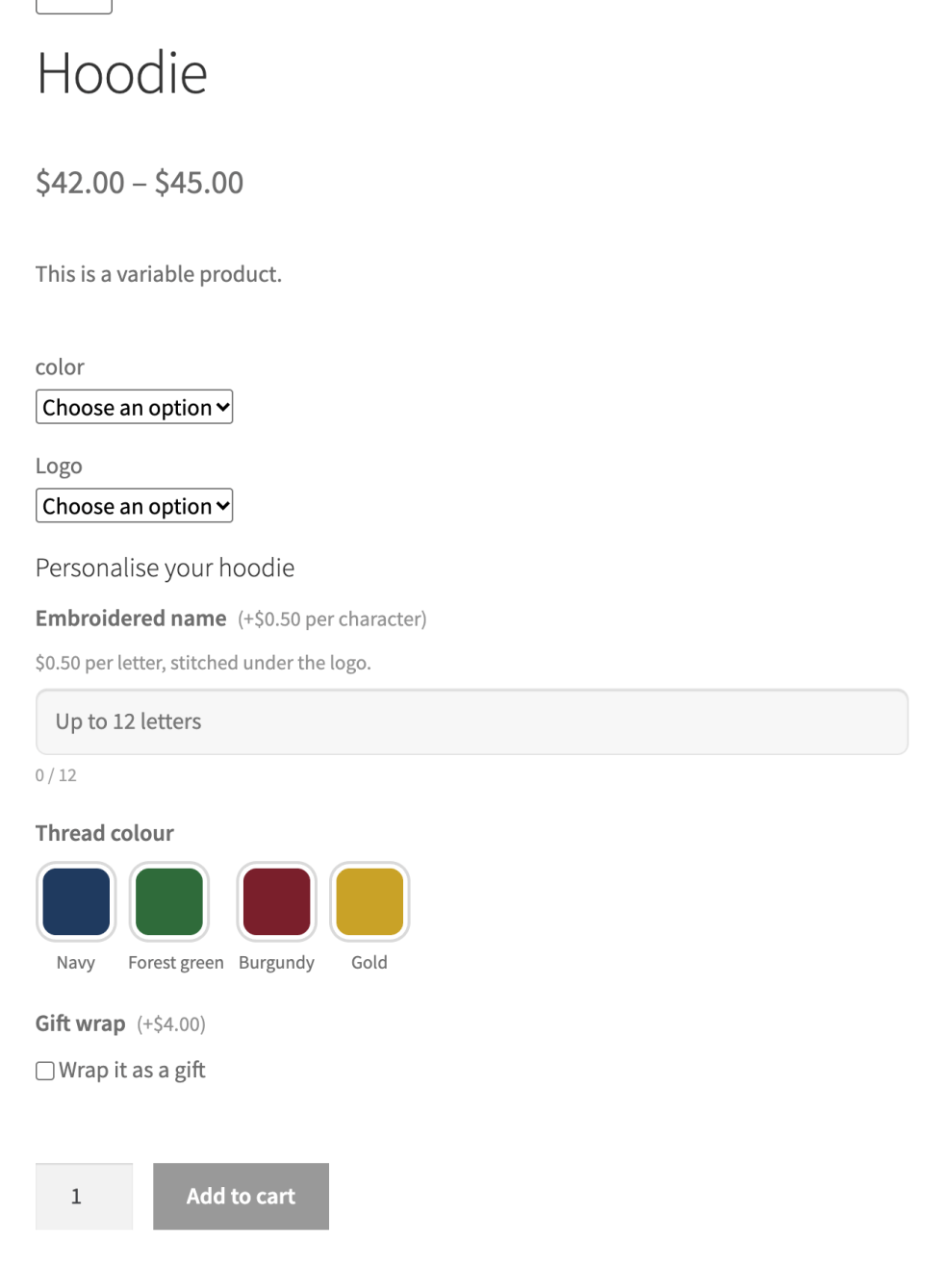
↑ Back to topFields render after the variation options and before the add to cart button, so they are visible before a variation is chosen. Percentage prices follow the price of the selected variation, and a field can be limited to selected variations. The totals box uses the variation price once one is selected.
File uploads
↑ Back to topFiles are uploaded when the customer adds the product to the cart and stored in a protected subdirectory of the uploads folder that is not listable. Files that end up attached to an order are kept and linked from the order screen. Files that never reach an order, for example from abandoned carts, are deleted after the number of days set in Delete unpurchased uploads, 7 by default. Set it to 0 to keep everything.
Under WooCommerce → Settings → Products → Product Options, you set the global Maximum file size and the Allowed file types. A field can be stricter than the global rules, never looser. Products with a File Upload field use the classic product page form, because files cannot travel in a Store API request; the cart and checkout blocks work as usual.
Settings reference
↑ Back to topAll global options live under WooCommerce → Settings → Products → Product Options.
| Setting | What it does | Default |
|---|---|---|
| Storefront style | The look of the fields on the product page, chosen from live previews | Default |
| On uninstall | Delete every option group, choice set, product-specific field, setting, and uploaded file when the plugin is deleted. Deactivating never removes anything | Off |
| Maximum file size | Global cap for File Upload fields in MB; empty means no global limit | Empty |
| Allowed file types | Comma-separated extensions, for example jpg, png, pdf; empty allows everything WordPress permits | Empty |
| Delete unpurchased uploads | Days to keep files that are not attached to an order; 0 never deletes | 7 |
| Integrations | One switch per supported plugin, with its status: plugin detected or idle until installed | On |
Compatibility
↑ Back to top- Themes: classic and block themes. The Default style borrows the theme’s colours and typography, and the None style hands styling over to the theme entirely.
- Cart and Checkout blocks: full Store API support. Selections appear on the cart line in the classic and the block cart.
- High-Performance Order Storage: supported.
- Multi-currency: WooCommerce Currency Switcher (FOX), CURCY, Aelia Currency Switcher, WooCommerce Multilingual currencies, WooPayments Multi-currency and Currency Switcher for WooCommerce. Option prices convert with the shopper’s currency.
- Translation: WPML and Polylang, including targeting of translated products, categories, and tags.
- WooCommerce Brands: option groups can target brands.
- Tiered Pricing Table: option prices are kept on top of tier prices, and percentage options are based on the tier price.
FAQ
↑ Back to topA field does not show on the product page. Check, in order: the group’s Active toggle is on (product-specific fields have their own toggle), the product matches Products & Categories and is not excluded, the current user matches Users & Roles, the field is not limited to other variations, and no conditional logic rule hides it. Grouped and external products never show fields.
The totals box does not appear. Switch on Show totals in Appearance & Content. The box only shows once a priced option is selected, so a group with unpriced fields has no box.
Do options work with variable products? Yes. Fields sit after the variation options, percentage prices follow the selected variation, and a field can be limited to selected variations.
Do options work with the Cart and Checkout blocks? Yes. Products with a File Upload field need the classic product page form; everything else works in both.
Can customers change their choices from the cart? Yes, with the Edit choices link, when Allow editing in the cart is on for the group.
Can I add or change options on an existing order? Yes, with Edit options on the order line while the order is still editable.
Can I move option groups to another site? Yes. Export them as JSON and import them on the other site. They arrive inactive.
Where do uploaded files go? Into a protected subdirectory of the uploads folder. Files not attached to an order are deleted after the retention period.
Does deleting the plugin remove my data? Only when On uninstall is ticked in the settings. Otherwise, all groups, choice sets, product fields, and files stay in place, and deactivating never removes anything.
Developers and support
↑ Back to top- Developer documentation: hooks, templates, JavaScript events, REST API, and the data model.
- Get help: open a ticket from your WooCommerce.com account.