
This walkthrough turns on Name Your Price for some variations of a variable product, while others keep a fixed price. The example is a fruit soda in three flavours: customers name their own price for Strawberry and Orange, and Grape sells at a set $3.50.
Before you start
↑ Back to top- WooCommerce and Name Your Price 4.0.0 installed and active.
- A variable product with its variations already created. If you haven’t set one up yet, see WooCommerce’s Variable products guide.
Step 1: Turn on Name Your Price for a variation
↑ Back to top- Go to Products and edit the variable product.
- In the Product data box, open the Variations tab.
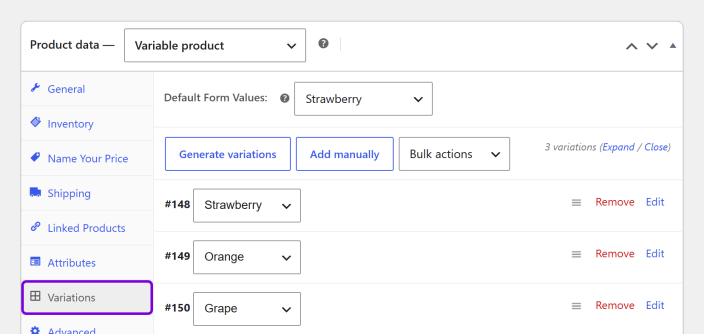
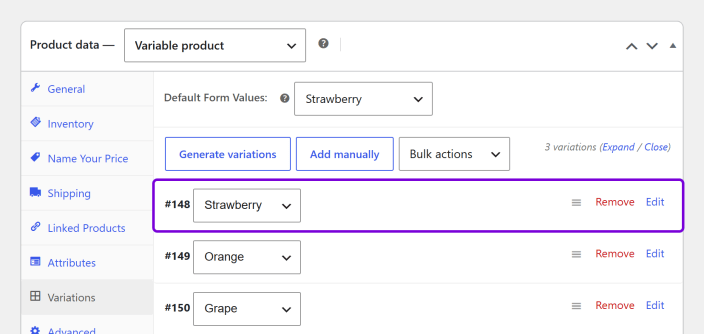
- Click the variation’s row to expand it. Clicking anywhere on the row, or on Edit, opens it.
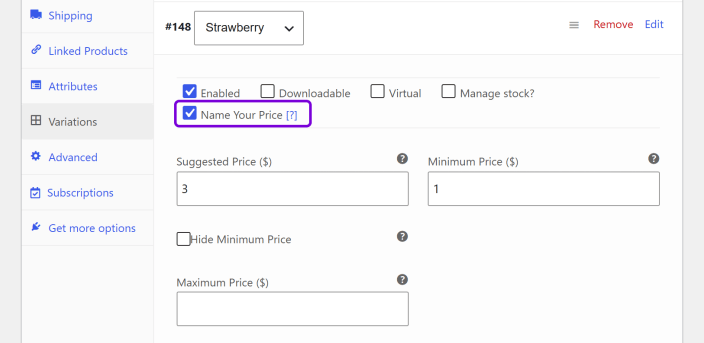
- Tick Name Your Price. It sits in the row of checkboxes with Enabled, Downloadable and Virtual.
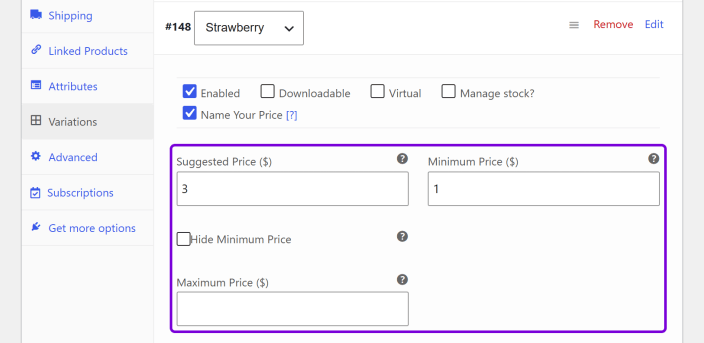
The variation’s Regular price and Sale price fields are replaced by Name Your Price fields:
- Suggested Price: the amount shown to customers as a suggestion. It doesn’t fill in the price field for them.
- Minimum Price and Maximum Price: the lowest and highest amounts you’ll accept. Leave them blank for no limit.
- Hide Minimum Price: tick this to enforce the minimum without showing it.
Repeat for each variation that should be Name Your Price. Leave the box unticked on variations that keep a fixed price, and give those a regular price as usual.
Note:
Variations take one suggested price each. The suggested price buttons (several amounts plus Custom) are only available on simple products. See Product settings.
Step 2: Save the variations
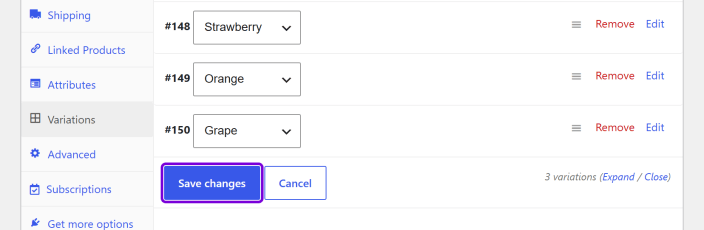
↑ Back to topClick Save changes at the bottom of the Variations tab, then Update the product. Save changes becomes clickable once you’ve edited a variation.
Step 3 (optional): Change the wording for this product
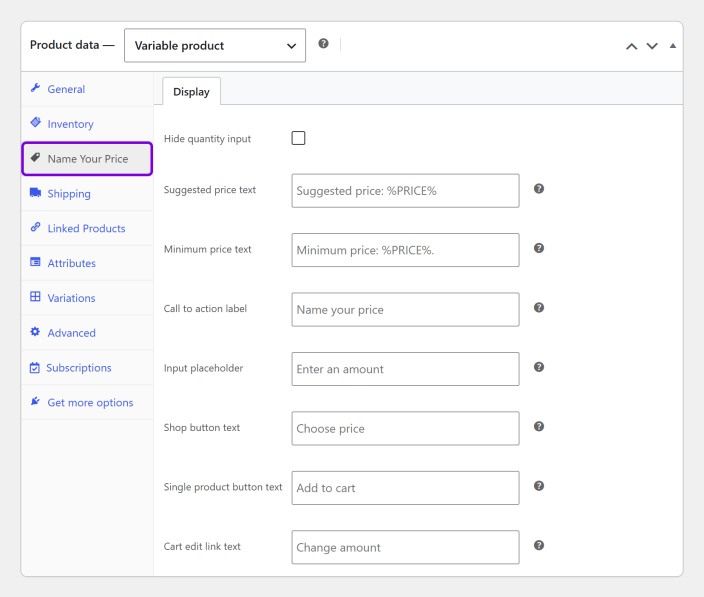
↑ Back to top- Open the product’s Name Your Price tab.
- Click Display. It has the same text and quantity options as a simple product, and they apply to all of this product’s Name Your Price variations.
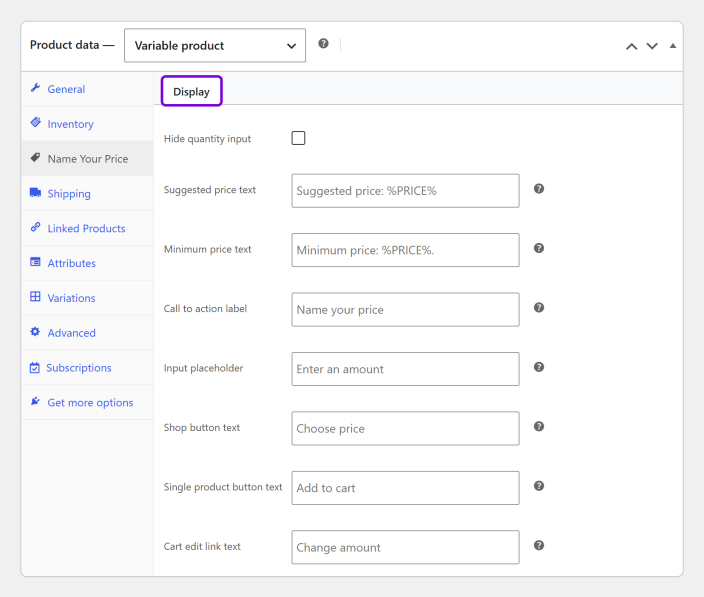
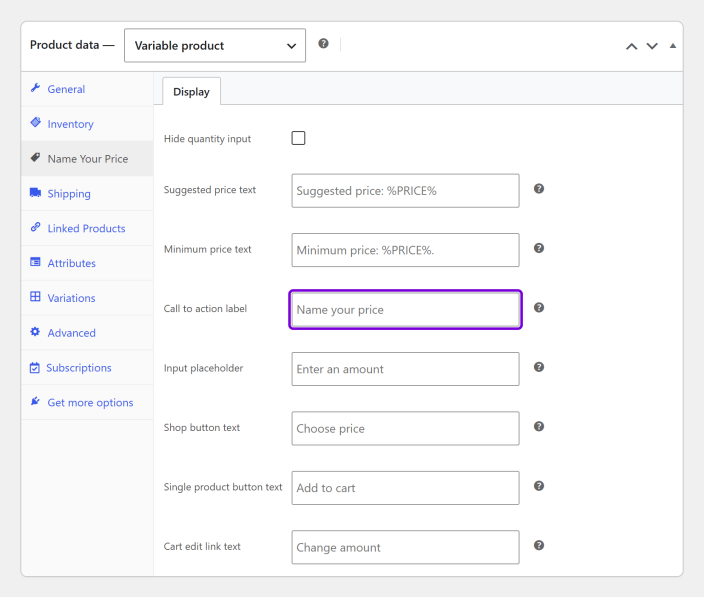
The grey text in each field is the store-wide wording. Leave a field blank to keep it, or type in it to change it for this product only. See Product settings for what each field does.
Result
↑ Back to topWhen a customer picks a Name Your Price flavour, the page shows the suggested price.
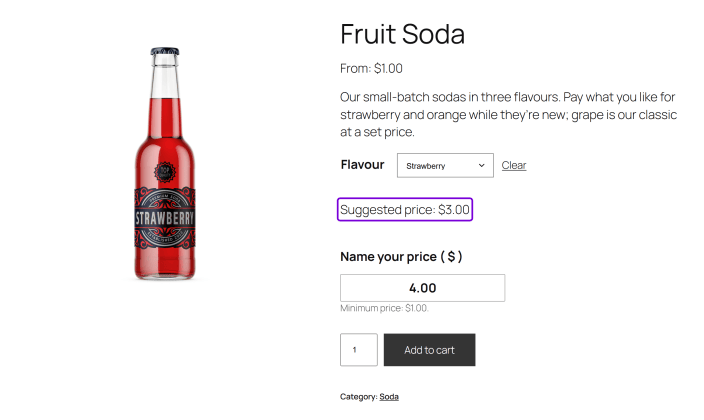
Below it is a field for the customer’s own amount, with the minimum underneath.
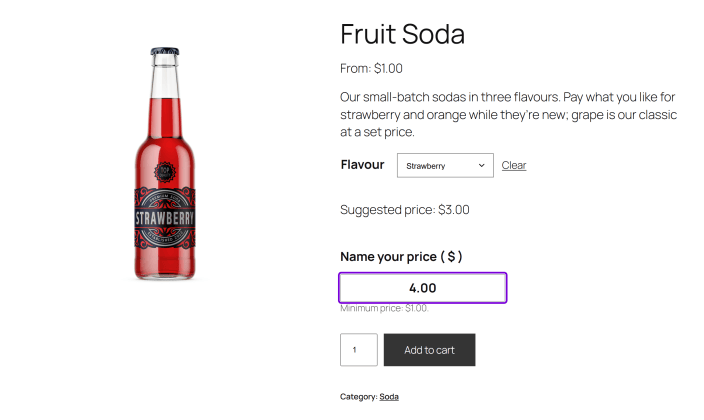
Picking Grape shows its fixed $3.50 price and a normal add-to-cart button.
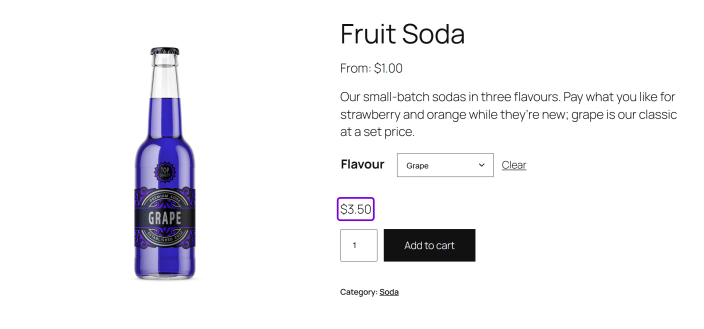
Above the dropdown, the product’s price reads From: followed by the lowest amount a customer could pay, which here is the Name Your Price minimum of $1.00.
Next steps
↑ Back to top- Product settings: what each price and wording option does, and editing the price from the cart.
Document Version: 1.0.0
Last Updated: November 8th, 2026
NYP Version Covered: 4.0.0