
Customers who subscribe to a Name Your Price product can change how much they pay from their My Account area, without cancelling and subscribing again. This page covers how to turn that on and what your customers see. To set up the subscription product itself, see Subscriptions.
Turn it on
↑ Back to top- Go to WooCommerce > Settings > Subscriptions.
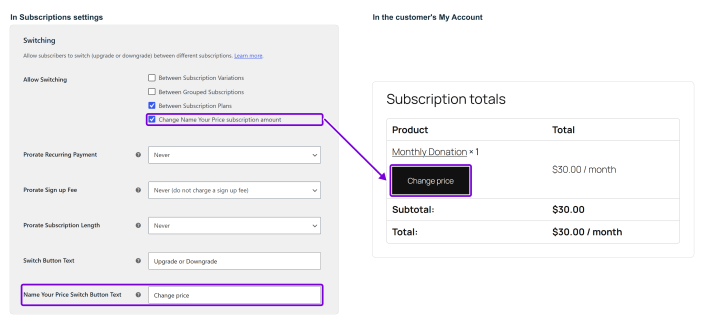
- Under Switching, find Allow Switching and tick Change Name Your Price subscription amount.
- Optionally, change the Name Your Price Switch Button Text. The default is Change price.
- Click Save changes.
What the customer sees
↑ Back to topOn their subscription in My Account > Subscriptions, the customer sees a Change price button next to the product. It takes them back to the product page, with their current amount already filled in and a Switch subscription button.
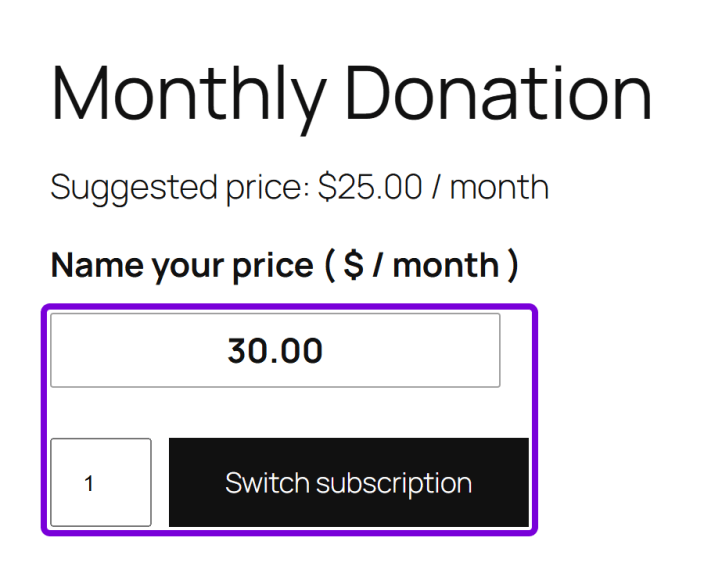
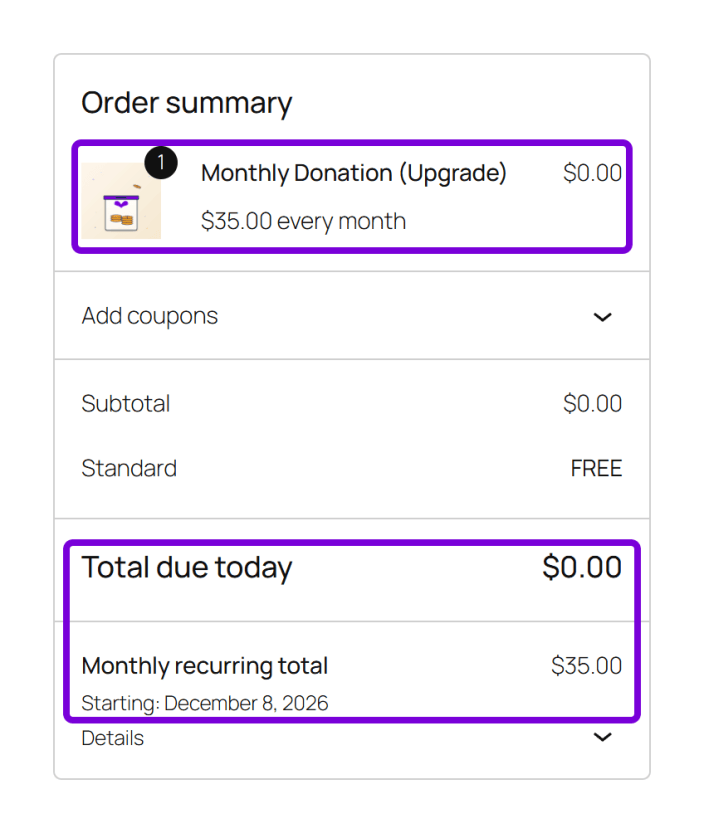
They enter the new amount and click Switch subscription. The product goes into their cart as a switch, for example Monthly Donation (Upgrade). At checkout they see Total due today and the new monthly recurring total. Whether anything is due today depends on your WooCommerce Subscriptions proration settings. With proration off, the new amount starts at the next renewal. Once they place the order, the subscription uses the new amount.
Note:
The new amount has to be different. If a customer submits the amount they already pay, they see Please modify the price so that it is not the same as your existing subscription.
Document Version: 1.0.0
Last Updated: November 8th, 2026
NYP Version Covered: 4.0.0