
Note:
Subscription plans are new in WooCommerce Subscriptions 9.0. They come from All Products for WooCommerce Subscriptions, which is now part of Subscriptions. On an older version of Subscriptions, you need the separate All Products extension for them.
With subscription plans, one Name Your Price product can be bought once or as a subscription, at an amount the customer chooses. Plans are a WooCommerce Subscriptions feature, set on the product’s Subscriptions tab. To set up a product that’s always a subscription instead, see Subscriptions.
Storewide or custom plans
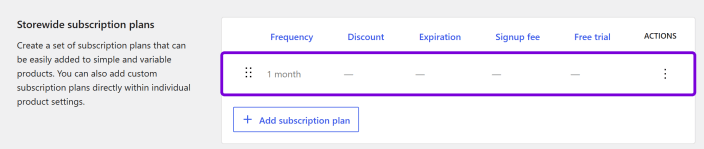
↑ Back to top- Storewide plans are set up once and shared by every product that uses them. Add them under WooCommerce > Settings > Subscriptions > Storewide subscription plans.
- Custom plans belong to one product and replace the storewide plans for that product.
Add plans to a product
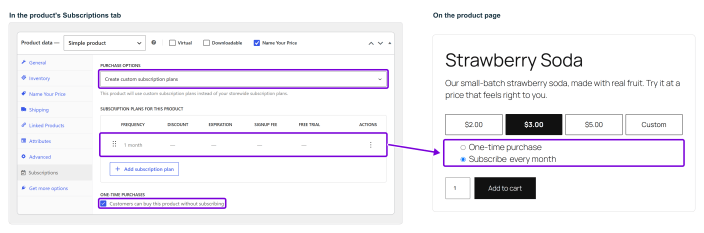
↑ Back to top- Edit a simple or variable product with Name Your Price turned on, and open the Subscriptions tab.
- Under Purchase options, choose Use storewide subscription plans. Or choose Create custom subscription plans, then click Add subscription plan.
- To offer a one-time purchase as well, keep Customers can buy this product without subscribing ticked.
- Click Update.
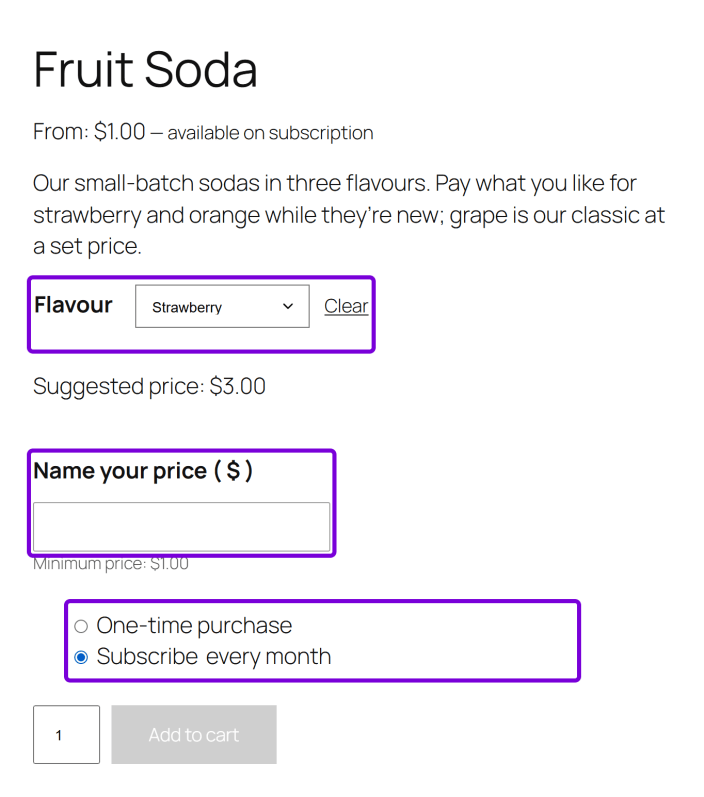
On a variable product, the plans apply to every variation. The customer picks a variation, enters an amount, and chooses how to buy.
What the customer sees
↑ Back to topThe customer chooses One-time purchase or Subscribe, then enters their amount.
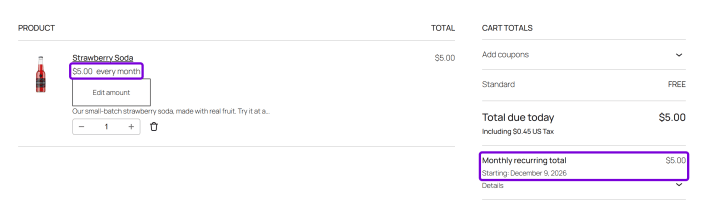
- The amount they enter is what recurs.
- The option reads Subscribe every month, without an amount, because the customer sets it.
- If they change the amount from the cart with Edit amount, the plan they chose is kept.
Note:
Plan discounts don’t apply. A discount on a plan doesn’t change a Name Your Price amount. The customer pays what they enter.
Sell as a subscription only
↑ Back to topTo sell the product only as a subscription, with no one-time option:
- Open the product’s Subscriptions tab and set up its plans under Purchase options, as described above.
- Under One-time purchases, untick Customers can buy this product without subscribing.
- Click Update.
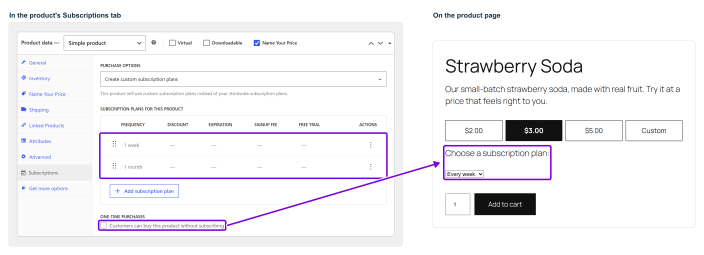
The One-time purchase option is gone, so every purchase is a subscription. With more than one plan, customers choose how often from a list, for example Every week or Every month, then enter their amount. With a single plan there’s nothing to choose, so they just enter their amount.
Document Version: 1.0.0
Last Updated: November 8th, 2026
NYP Version Covered: 4.0.0