
WooCommerce Conditional Content shows messages, banners, notices and other content to the right shopper at the right moment. You write the content, add rules that say when it applies, and choose where it appears. Rules read the product, the cart, the customer, the date and the page being viewed.
The extension has two building blocks. A content block is a piece of content with its own rules. A condition set is a named group of rules that shows or hides any block in the WordPress editor.
Conditional Content pairs with WooCommerce Dynamic Pricing: show a pricing table or an offer message under the same conditions as the discount.
Requirements and installation
↑ Back to top- WordPress 6.5 or later.
- WooCommerce 9.0 or later.
- PHP 7.4 or later.
- Download the extension ZIP from your WooCommerce account.
- Go to Plugins > Add New Plugin > Upload Plugin, choose the ZIP and install it.
- Activate the extension.
More information: Install and Activate Plugins/Extensions.
Content blocks
↑ Back to topA content block holds the content, the rules that decide when it shows, the place it shows, and the style it shows in.
- Go to WooCommerce > Content Blocks and choose Add Content Block.
- Enter a title and write the content in the editor. Text, images, HTML and shortcodes all work.
- In the Rules box, add the rules that decide when the content shows. A new content block starts with the Always rule.
- In the Output Settings box, choose a Location. See Where content shows below.
- Optionally, choose a Style and a Tone under Appearance in the same box. See Style a content block below.
- Choose Publish. The notice reads “Content block published.” A content block displays once it is published.
On a block theme a new content block starts on Manual placement only, ready to place in the editor. On a classic theme it starts on After product description.
Style a content block
↑ Back to topA style gives a message a ready-made look. The Style and Tone lists are under Appearance in the Output Settings box on the content block’s edit screen, below the Location list.
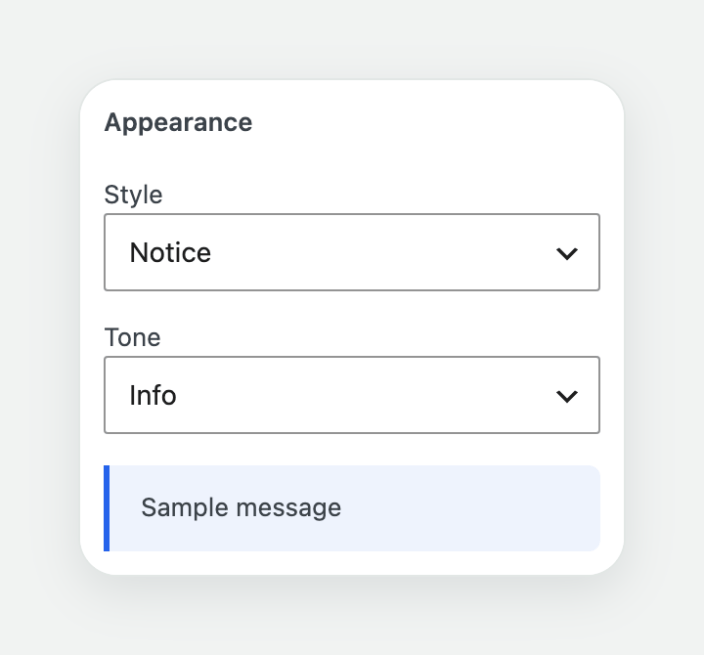
The Style list sets the shape of the message.
| Style | Look | Use it for |
|---|---|---|
| None | The message as your theme prints it. | Plain messages. Every content block starts here. |
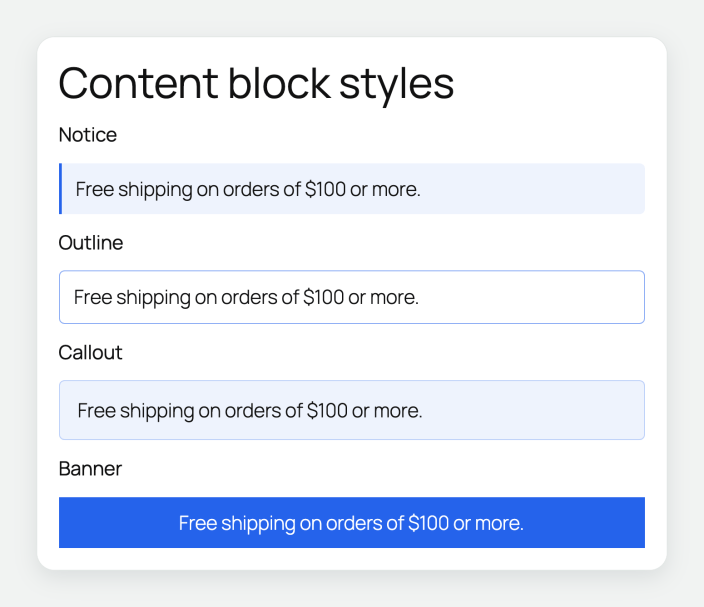
| Notice | A tinted panel with a coloured bar on the left. | Short notes beside the content, such as shipping or stock. |
| Outline | A thin border in the tone colour. | A quiet message on a busy page. |
| Callout | A tinted panel with a border and extra space inside. | An offer or a tip that needs room. |
| Banner | A solid bar in the tone colour with centred text. | An announcement. |
The Tone list sets the colour. The tone colours the left bar of a Notice, the border of an Outline, the tint and border of a Callout, and the fill of a Banner.
| Tone | Colour | Use it for |
|---|---|---|
| Neutral | The theme’s text colour. A Banner uses dark grey. | Messages with no particular meaning. |
| Info | Blue. | Delivery dates and product details. |
| Success | Green. | A reward or a threshold the shopper has reached. |
| Warning | Amber. | Low stock and deadlines. |
| Custom | The colour you choose. | Your brand colour. |
Compare the four styles with the Info tone.
Custom colour
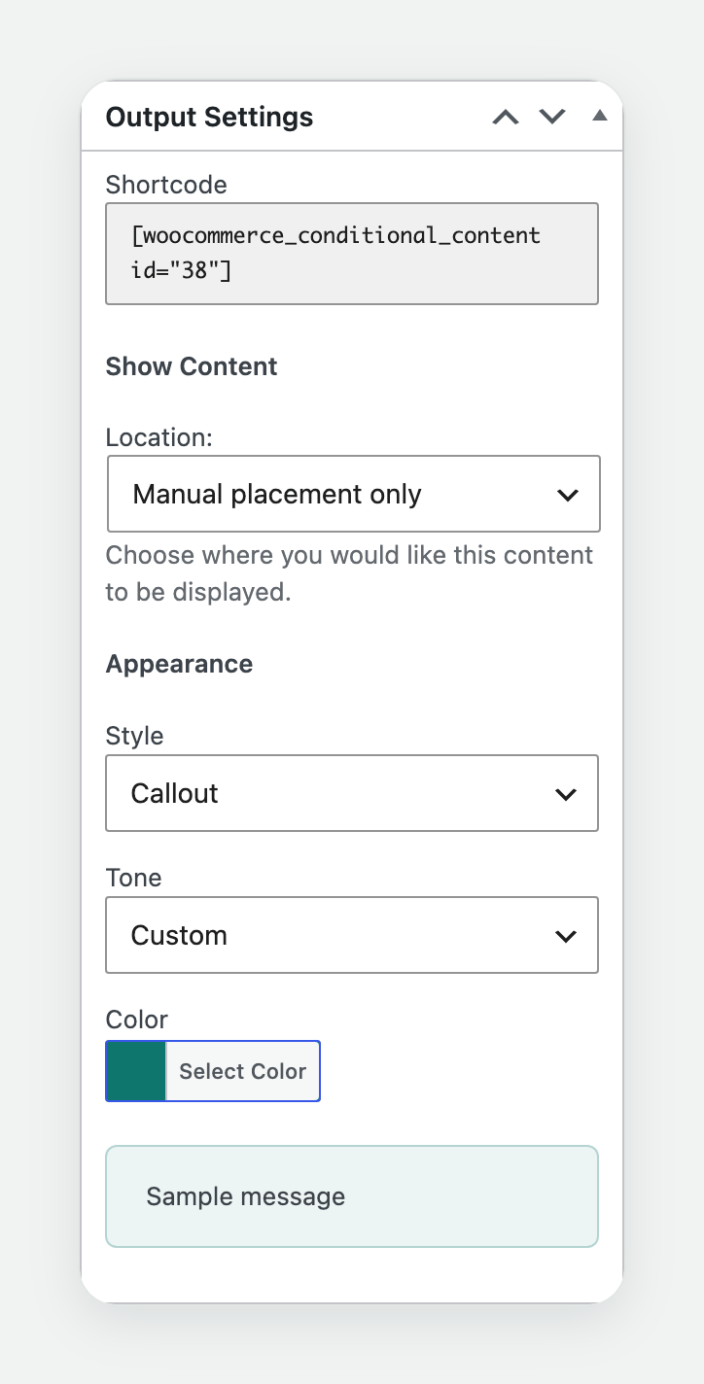
↑ Back to topChoose Custom in the Tone list to show the Color field. Choose Select Color and pick a colour, or enter a hex value such as #0f766e. A Banner with a light colour gets dark text. Until you choose a colour, a Custom tone looks Neutral.
The preview under the settings shows a Sample message in the style, tone and colour you choose. It changes as you change the settings.
Where a style applies
↑ Back to topA style applies wherever the content block shows: a location, the Conditional Content block, the shortcode, the template tag and content that follows the cart. The rules decide when the message shows. The style decides how it looks.
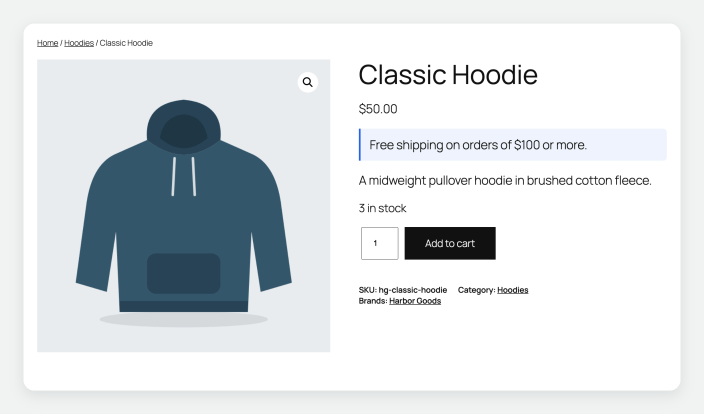
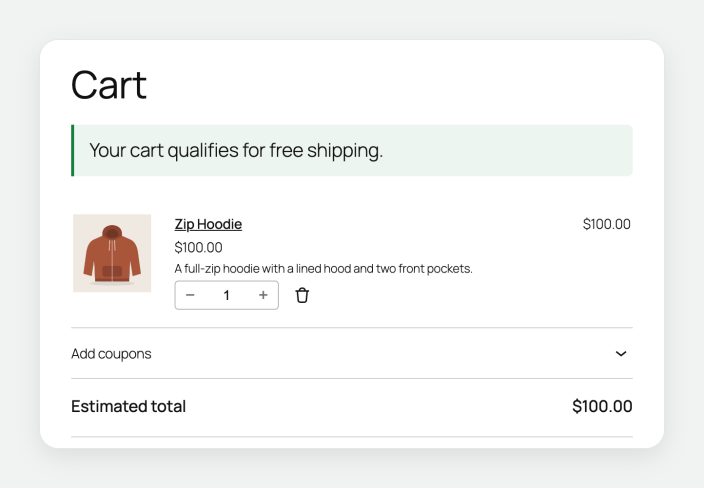
This Notice has the Info tone and sits under the product price. The next content block has the Success tone and the rule Cart Total Monetary Amount is greater or equal to 100. It shows once the cart reaches $100.
Style classes for themes
↑ Back to topA styled content block prints these classes on its wrapper, next to wccc-content-block.
wccc-styleand one ofwccc-style-notice,wccc-style-outline,wccc-style-calloutandwccc-style-banner.wccc-tone-info,wccc-tone-successorwccc-tone-warningfor those tones.- A Custom tone sets
--wccc-toneon the wrapper. A Banner with a light colour also sets--wccc-on-tone, the text colour.
The stylesheet is assets/css/content-styles.css. It loads only on pages that show a styled content block. Each style reads its colour from --wccc-tone, so one rule restyles a tone.
.wccc-style-notice { border-left-width: 6px; }
.wccc-content-block.wccc-tone-success { --wccc-tone: #0f766e; }
Rules
↑ Back to topEach rule has three parts: a rule type, an operator and a value. For example: Product Category / in / Hoodies.
How rule groups combine
↑ Back to top- The and button adds a rule to the same rule group. A rule group matches when all of its rules match.
- The Add Rule Set button adds another rule group under the word or. The content shows when any one rule group matches.
- A content block with the Always rule shows to everyone.
Example: the first rule group holds Role is Customer and Product Category in Hoodies. The second rule group holds Sale Status is On Sale. The content shows to customers viewing a hoodie, and to everyone viewing a product that is on sale.
A rule whose type is no longer available, for example after its add-on is deactivated, shows in the rule builder as its type followed by “(unavailable)”. Saving keeps the rule as it is. A rule group that holds only that rule stays unmatched, and the rule works again when its type returns.
Enter amounts and quantities as plain numbers: 100 for $100, 25 for 25 items.
Rule types
↑ Back to topThe rule picker groups rule types as shown here. “Comparison operators” means: is equal to, is not equal to, is greater than, is less than, is greater or equal to, is less or equal to.
| Group | Rule | What it checks | Operators |
|---|---|---|---|
| General | Always | Matches every time. | None |
| Product | Products | The product being viewed is one of the products you choose. | is, is not |
| Product | Product Type | The product’s type, such as Simple or Variable. | is, is not |
| Product | Product Category | The product is in any of the categories you choose. | in, not in |
| Product | Product Attributes | The product has any of the attribute terms you choose, such as Color: Blue. | has, does not have |
| Product | Product Tag | The product has any of the tags you choose. | in, not in |
| Product | Product Price | The product’s current price. | Comparison operators |
| Product | Product Custom Field | A custom field on the product. Enter the Field Key and the Field Value to compare. | is empty, is not empty, and the comparison operators |
| Product | Product Brand | The product has any of the brands you choose. | in, not in |
| Schedule | Date | Today’s date. starts matches from the date you enter onward. ends matches up to and including the date you enter. | starts, ends |
| Schedule | Day | The day of the week. | is, is not |
| Schedule | Time | The time of day, entered as 17:00. is greater than matches after that time. | Comparison operators |
| Stock | Stock Status | The product is In Stock or Out of Stock. | is, is not |
| Stock | Stock Level | The stock quantity of a product that manages stock. | Comparison operators |
| Sales | Sale Date | The product’s scheduled sale dates, compared with the date you enter. | starts on or before, ends on or after |
| Sales | Sale Status | The product is On Sale or Not On Sale. | is, is not |
| Membership | User | The logged-in user is one of the users you choose. | is, is not |
| Membership | Role | The logged-in user has any of the roles you choose. | is, is not |
| Membership | Authentication | The visitor is Logged In or Logged Out. | is, is not |
| Store | Order Count and Status | The number of orders the customer has in the order status you choose. | Comparison operators |
| Store | Ordered Product(s) | The customer has bought any of the products you choose. | has purchased, has not purchased |
| Store | Total Spent | The total the customer has spent on paid orders. | Comparison operators |
| Store | Days Since Last Order | The number of days since the customer’s most recent paid order. | Comparison operators |
| Cart | Cart Total Quantity | The number of items in the cart. | Comparison operators |
| Cart | Cart Total Monetary Amount | The total of the items in the cart after coupons, before shipping and fees. The total includes tax when the store enters prices with tax. | Comparison operators |
| Cart | Cart Products | The quantity in the cart of the products you choose. Choose Any to count every product. | contains less than, contains at least, contains exactly |
| Cart | Cart Categories | The quantity in the cart of products from the categories you choose. | contains less than, contains at least, contains exactly |
| Cart | Cart Line Item Product | The product on one cart line. | in, not in |
| Cart | Cart Line Item Quantity | The quantity on one cart line. | Comparison operators |
| Geography | Country | The visitor’s country. | is, is not |
| Geography | WPML Language Code | The active WPML language, entered as a code such as fr. | is, is not |
| Taxonomy | Product Category Archive | The category page being viewed is one of the categories you choose. | is, is not |
| Page | Page | The page being viewed is one of the pages you choose. | is, is not |
| Page | Post Type | The post type of the page being viewed. | is one of, is not one of |
| Page | Singular or Archive | The view is Singular, Archive / Category Page, or Both. | is |
Rule notes
↑ Back to top- Product, Stock and Sales rules check the product in view: the product on a product page, or each product in a product grid. They match where a product is in view, with every operator.
- Product Brand appears in the picker when the store has WooCommerce brands, which WooCommerce includes from version 9.6.
- Stock Level matches products that manage stock, where the product has a stock quantity. A variable product that manages stock on its variations holds its quantities on the variations, so manage stock on the parent product to use this rule on its product page.
- Sale Date reads the sale schedule set on the product. starts on or before matches products whose sale starts on or before the date you enter. ends on or after matches products whose sale ends on or after it.
- Sale Status follows the product’s sale schedule: a scheduled sale counts as On Sale between its start and end dates.
- Date, Day and Time use the site’s timezone from Settings > General. Dates use the format
2026-12-01. - Country uses WooCommerce geolocation of the visitor’s IP address. When the address has no known country, the rule uses the store’s base country.
- Order Count and Status, Total Spent and Days Since Last Order read the logged-in customer’s orders. A guest counts as zero orders and $0 spent. Days Since Last Order matches logged-in customers who have a paid order.
- Ordered Product(s) reads the logged-in customer’s orders. For a guest it reads orders placed with the billing email entered in the current session.
- Page, Post Type and Singular or Archive judge the page being viewed, wherever the content sits on it. A block in a header, a sidebar or a product tile asks about the page it appears on.
- Page matches the pages you choose. The Shop page matches the shop, and the Posts page matches the blog.
- Post Type matches a single item of the type and the archive of the type. Products matches every product page and the shop page. Posts matches every single post and the blog.
- Singular or Archive: Singular matches a single page, post or product. Archive / Category Page matches the shop, product category and tag pages, and post category, tag and date archives.
- Cart Line Item Product and Cart Line Item Quantity judge one cart line. Use them on a content block with a Custom Action that passes the cart line, such as
woocommerce_after_cart_item_namewith Accepted Function Args set to 1.
Where content shows
↑ Back to topA content block reaches the page in four ways. Choose the one that fits the theme and the page.
| Route | Use it for |
|---|---|
| Location | Classic themes. The content block prints at a WooCommerce template position you pick from a list. |
| Conditional Content block | Block themes and any page or post edited in the block editor. You place the content block exactly where it belongs. |
| Shortcode | Page builders, widgets and the classic editor. |
| Template tag | Theme developers who print a content block from a template file. |
Locations on classic themes
↑ Back to topIn Output Settings, the Location list holds these positions.
| Group | Locations |
|---|---|
| WooCommerce | Before main content, After main content |
| Shop | Before shop loop, After shop loop |
| Single Product | Before single product summary, After single product summary, Before sale flash, Before product images, After product title, After product price, After product description, After add to cart, After product meta, After product sharing, After product data tabs, After related products |
| Classic Cart | Before cart, Before cart table, After cart table, Before cart totals, Before checkout button, After checkout button, After cart |
| Classic Checkout | Before checkout form, Before customer details, After customer details, Before order review, Before payment methods, Before place order button, After place order button, After checkout form |
| Order Received | Before order details, After order details |
| Classic Mini Cart | Before mini cart, Before mini cart buttons, After mini cart |
| Block editor | Manual placement only |
| Custom | Custom Action |
- Single Product locations show on product pages.
- Classic Cart and Classic Checkout locations show on cart and checkout pages built with the WooCommerce cart and checkout shortcodes.
- Order Received locations show on the order received page after a classic checkout.
- Classic Mini Cart locations show in the WooCommerce Cart widget.
- Manual placement only keeps the content block out of every location. The content block then shows where you place its block, shortcode or template tag.
Custom Action prints the content block at any action your theme or another plugin runs. Enter the Action Hook Name and a Priority. A lower priority prints earlier among everything attached to that action. Set Accepted Function Args to the number of values the action passes when a rule needs them.
The rules are checked each time the location runs. An action that runs for each product in a product grid, such as woocommerce_after_shop_loop_item, checks Product, Stock and Sales rules against each product, so the content shows on the tiles of matching products.
The Conditional Content block
↑ Back to topThe Conditional Content block places a content block in the site editor or the post editor. The content shows at that exact position when its rules match.
- Open a template in Appearance > Editor, or edit a page or post.
- Insert the Conditional Content block.
- Choose a content block from the Content block list. To start a new one, enter a New content block title and choose Create.
- Save the template or page.
The editor previews the content of the content block. The storefront applies its rules. The Edit content block link in the block sidebar opens the content block to edit its content and rules.
A content block shows at its location and at every place its block is placed. When a placed content block also has a location, the block sidebar shows Also shown at: followed by the location. Choose Use manual placement only to show it only where the block is placed. A content block created from the block starts on Manual placement only.
Inside the Single Product block, on any page, the Conditional Content block checks Product, Stock and Sales rules against that block’s product. Inside a product tile of a Product Collection block it checks them against the tile’s product.
The shortcode
↑ Back to top[woocommerce_conditional_content id="123"]The id attribute is the ID of the content block. Copy the finished shortcode from the Shortcode field in Output Settings on the content block’s edit screen. The field shows the whole shortcode and appears once the content block is saved.
The shortcode shows the content block where you paste it when its rules match. It works anywhere shortcodes run: the Shortcode block, the classic editor, text widgets, Elementor’s Shortcode widget (tested), and other page builders with a shortcode widget. Set the content block’s location to Manual placement only so that it shows only where the shortcode is.
The template tag
↑ Back to topTheme developers print a content block from a template file with woocommerce_conditional_content(). See For developers below.
Condition sets and Display conditions
↑ Back to topA condition set is a named group of rules with no content of its own. Any block in the editor can follow a condition set: a paragraph, an image, a group, a whole row of columns.
Create a condition set
↑ Back to top- Go to WooCommerce > Condition Sets and choose Add Condition Set.
- Enter a title that says who or what it matches, such as “Wholesale customers” or “Cart over $100”.
- Build the rules in the Rules box. Rules and rule groups work the same way as on a content block.
- Choose Publish. The notice reads “Condition set published.” A condition set matches once it is published.
One condition set serves any number of blocks. Editing the condition set updates every block that uses it.
Show or hide a block
↑ Back to top- Select a block in the site editor or the post editor.
- Open the Display conditions panel in the block sidebar.
- Choose a Condition set. The block now shows when the condition set matches.
- Turn on Hide when matched to reverse it: the block shows to everyone except shoppers who match.
- Save.
The panel also holds an Edit condition set link and a Remove conditions button.
The editor shows every block so that you can keep editing it. A block with a condition set has a dashed outline in the editor canvas while it is unselected. The storefront applies the conditions.
A block inside the Single Product block is checked against that block’s product, on any page. A block inside a product tile is checked against the tile’s product. On a shop or category page, a block outside the product grid with a Product, Stock or Sales rule reads the first product listed on the page.
Deleted and unpublished condition sets
↑ Back to topA block whose condition set is deleted, in the trash or unpublished stays hidden on the storefront, with Hide when matched on or off. The panel shows “Condition set not found. This block never displays.” or “Condition set not published. This block never displays.” Choose another condition set or choose Remove conditions to show the block again.
Cart, Checkout and Mini-Cart blocks
↑ Back to top- The Cart, Checkout, Mini-Cart and Mini-Cart Contents blocks take Display conditions. Their condition is decided when the page loads.
- WooCommerce builds the inner blocks of these blocks in the browser, such as the order summary, the payment options and the Mini-Cart footer. These blocks always display, and the Display conditions panel is absent for them. An inner block that still carries a condition set shows “Conditions do not apply to this block.” with the Remove conditions button.
- A Paragraph or Group placed inside the Cart or Checkout block takes Display conditions and follows the cart as it changes.
- A Paragraph or Group placed inside the Mini-Cart drawer follows conditions that are decided when the page loads, such as Role, Page and Date rules.
Content that follows the cart
↑ Back to topContent with a Cart rule keeps up with the cart. The shopper changes a quantity, adds a product or removes one, and the content appears or disappears on the page they are on.
This applies to three routes:
- A block with Display conditions.
- The Conditional Content block.
- The shortcode.
The page loads first. The shopper’s browser then asks the store whether the cart matches, and the store sends the content for a match. The check repeats each time the cart changes, including changes made in the Mini-Cart drawer. The content stays out of the page source until the shopper’s cart matches, and the page reserves no space for it. This route uses JavaScript in the shopper’s browser.
Classic cart locations
↑ Back to topContent at a location is decided when WooCommerce draws that part of the page. On the classic cart page WooCommerce redraws the cart form and the cart totals each time the shopper updates the cart, and the locations inside them follow the cart on the same page view.
| Location | Updates |
|---|---|
| Before cart table, After cart table, Before cart totals, Before checkout button, After checkout button | With the cart, as the shopper updates it |
| Before cart, After cart | On the next page load |
| Before mini cart, Before mini cart buttons, After mini cart | With the mini cart, each time WooCommerce refreshes it |
Page caching
↑ Back to top- Content with a Cart rule on a block, the Conditional Content block or the shortcode is decided for each shopper after the page loads. It works on cached pages.
- All other content is decided when the server builds the page. A cached page keeps that result until the cache refreshes.
- Caching plugins commonly serve logged-in customers and the cart and checkout pages fresh, which keeps Role, User and order history rules accurate for them.
Common setups
↑ Back to topLow-stock message on a product
↑ Back to top- Rules, in one rule group: Stock Level is less or equal to 5 and Stock Level is greater than 0. The second rule keeps the message off products that have sold out.
- The message shows on products that manage stock.
- Classic theme: Location After product title.
- Block theme: place the Conditional Content block under the product title in the Single Product template.
Sale notice during the sale dates
↑ Back to top- For products with their own sale schedule: the rule Sale Status is On Sale. The notice shows on each product while its sale runs.
- For a store-wide promotion: add Date starts 2026-11-27 and Date ends 2026-11-30 to the same rule group. The notice shows from November 27 through November 30.
- Location: After product price, or the Conditional Content block under the product price.
Message for a customer role
↑ Back to top- Rule: Role is Customer, or any role your store uses, such as a wholesale role.
- Location: Before main content shows it at the top of shop and product pages.
- Block theme: create a condition set with the same rule and add it to a block in the header through Display conditions.
Cart total reaches $100
↑ Back to top- Create a condition set named “Cart over $100” with the rule Cart Total Monetary Amount is greater or equal to 100.
- Block cart page: edit the Cart page, add a Paragraph above the Cart block with your message, and choose the condition set in Display conditions. The message appears when the cart reaches $100 and leaves when it drops below.
- Classic cart page: create a content block with the same rule and the location Before cart table.
Content for returning customers
↑ Back to top- Win back a customer: Days Since Last Order is greater than 30 shows content to logged-in customers whose last paid order is more than 30 days old.
- Thank a loyal customer: Total Spent is greater or equal to 100 shows content to logged-in customers who have spent $100 or more.
- Combine them in one rule group to reach loyal customers who have been away.
A banner on one page
↑ Back to top- Create a condition set with the rule Page is and the page you want.
- Add a banner block to a shared area such as the header template part.
- Choose the condition set in Display conditions. The banner shows on that page and stays hidden everywhere else.
Category message on shop tiles
↑ Back to top- Rule: Product Category in and the category.
- Classic theme: Location Custom Action, Action Hook Name
woocommerce_after_shop_loop_item, Priority10. - Block theme: place the Conditional Content block inside the product template of the Product Collection block.
- The message shows on the tile of every product in that category.
Troubleshooting
↑ Back to topThe content is missing
↑ Back to top- Published: the content block and its condition set are both published.
- Rule groups: rules joined with and must all match. Move a rule to its own rule group with Add Rule Set when either one should be enough.
- Product rules need a product: Products, Product Category, Stock and Sales rules match on product pages and product tiles. On the cart, on a category page header or on a regular page, use Cart Products, Cart Categories, Product Category Archive or the Page rules.
- Products or Cart Products: Products checks the product being viewed. Cart Products checks what is in the cart.
- Product Category or Product Category Archive: Product Category checks the category of a product. Product Category Archive checks which category page is open.
- Numbers only: enter
100in Product Price, Cart Total Monetary Amount and Total Spent. A value with a currency symbol reads as 0. - Product tiles: content for product tiles uses an action that runs on every tile, such as the custom action
woocommerce_after_shop_loop_item, or the Conditional Content block inside the product template. - Unavailable rules: a rule marked “(unavailable)” in the rule builder belongs to an add-on that is inactive. Activate the add-on or remove the rule.
- Single Product locations: these show on product pages. For the shop or a category page choose a Shop location.
Block themes
↑ Back to topOn a block theme, place content with the Conditional Content block or with Display conditions. The position is exactly where you put the block.
WooCommerce’s block templates run a fixed set of the classic template actions, and run the product summary action one time. The Single Product locations that share that action, such as After product price, After add to cart and After product meta, print together at one position on a block theme. Switch those content blocks to the Conditional Content block: place the block, then choose Use manual placement only in the block sidebar.
Page builders
↑ Back to topA location prints where the page template runs its WooCommerce action. On a product or shop template designed in a page builder, use the builder’s shortcode widget with the content block’s shortcode. The shortcode is tested in Elementor’s Shortcode widget. The content shows where you place the widget.
Cart and checkout pages
↑ Back to top- Block pages: pages built with the Cart and Checkout blocks. Add a block with Display conditions, or the Conditional Content block, to the page. A Paragraph or Group inside the Cart or Checkout block takes Display conditions too.
- Classic pages: pages built with the
[woocommerce_cart]and[woocommerce_checkout]shortcodes. Use the Classic Cart and Classic Checkout locations.
Caching
↑ Back to topContent with a Cart rule on a block or shortcode is decided for each shopper and works on cached pages. For all other content, clear the page cache after you change a content block, a condition set or a rule.
Styling
↑ Back to topEvery content block prints inside <div class="wccc-content-block wccc-content-block-123">, where 123 is its ID. Use these classes in your theme’s CSS. A content block with a style also carries the classes listed under Style classes for themes.
For developers
↑ Back to topTemplate tag
↑ Back to top<?php woocommerce_conditional_content( 123 ); ?>Prints content block 123 when its rules match. Pass false as the second argument to get the HTML back as a string, or null when the rules do not match:
$html = woocommerce_conditional_content( 123, false );The rules are decided on the server each time the tag runs. Set the content block’s location to Manual placement only so that it prints only from the tag.
Ask a condition set from code
↑ Back to topif ( function_exists( 'wccc_matches' ) && wccc_matches( 'wholesale-customers' ) ) {
// The current request matches the condition set.
}wccc_matches( $set, $subject = null ) takes a condition set ID, slug or post and returns a boolean. It returns false for a condition set that is missing or unpublished. IDs are the stable reference. To judge a specific product, pass a subject: wccc_matches( 45, new WCCC_Subject( $product ) ).
Add a rule type
↑ Back to topAdd the rule type to the picker with wc_conditional_content_get_rule_types and provide a class named WC_Conditional_Content_Rule_ followed by the rule type key.
add_filter( 'wc_conditional_content_get_rule_types', function ( $types ) {
	$types['My Store']['mystore_weekend'] = 'Weekend';
	return $types;
} );

add_action( 'init', function () {
	if ( ! class_exists( 'WC_Conditional_Content_Rule_Base' ) ) {
		return;
	}

	class WC_Conditional_Content_Rule_Mystore_Weekend extends WC_Conditional_Content_Rule_Base {

		public function __construct() {
			parent::__construct( 'mystore_weekend' );
		}

		public function get_possible_rule_values(): array {
			return array( 'yes' => 'Yes' );
		}

		public function is_match( $rule_data, $arguments = null ): bool {
			$weekend = in_array( (int) current_time( 'w' ), array( 0, 6 ), true );
			$result  = '==' === ( $rule_data['operator'] ?? '' ) ? $weekend : ! $weekend;

			return $this->return_is_match( $result, $rule_data, $arguments );
		}
	}
} );
A rule class sets its operators with get_possible_rule_operators(), its values with get_possible_rule_values() and its input with get_condition_input_type(). The base class supplies “is equal to” and “is not equal to” and a select input.
The shipped rule classes extend WC_Conditional_Content_Rule_Pure, whose is_match() is final. To change how a shipped rule decides, register your own rule type, or filter results with woocommerce_conditional_content_is_match.
On a block or shortcode, a rule type registered this way is decided for each shopper after the page loads, the same way Cart rules are.
Add a location
↑ Back to topadd_filter( 'wc_conditional_content_get_locations', function ( $locations ) {
$locations['shop']['hooks']['mystore_archive_description'] = array(
'action' => 'woocommerce_archive_description',
'priority' => 20,
'title' => 'After archive description',
'description' => '',
);
return $locations;
} );Add the filter when your plugin or theme loads, before the init action.
Filters and actions
↑ Back to top| Hook | Purpose |
|---|---|
wc_conditional_content_get_rule_types | The rule types in the picker, grouped by label. |
wc_conditional_content_get_locations | The locations in the Location list. |
woocommerce_conditional_content_is_match | The result of every rule. Receives the result, the stored rule and the arguments of the action that printed the content. |
woocommerce_conditional_content_get_should_display | Whether a content block displays. Receives the decision and the content block post. |
woocommerce_conditional_content_get_output_hook | The action, priority and accepted arguments a content block binds to at its location. |
woocommerce_conditional_content_the_content | The rendered content of a content block. |
woocommerce_conditional_content_apply_the_content_filter | Return false to print a content block’s content without WordPress’s the_content filters. |
wc_conditional_content_product_custom_field_value | The product value the Product Custom Field rule compares. |
wc_conditional_content_product_custom_field_value_to_match | The value the Product Custom Field rule compares against. |
wccc_block_supports_conditions | Whether a block type shows the Display conditions panel. Receives the default and the block name. |
wccc_should_defer | Whether a condition set or content block is decided after the page loads. Receives the default, the volatility (page, visitor or cart) and the source post. |
wccc_register_facts | Action for registering fact collectors with WCCC_Facts::register(). |
Remove the Display conditions panel from a block type:
add_filter( 'wccc_block_supports_conditions', function ( $supports, $block_name ) {
	return 'core/spacer' === $block_name ? false : $supports;
}, 10, 2 );
Decide customer-based rules, such as Role, Country and order history, after the page loads. Use this on stores that serve cached pages to logged-in customers:
add_filter( 'wccc_should_defer', function ( $defer, $volatility ) {
	return $defer || 'visitor' === $volatility;
}, 10, 2 );
Register a fact for a rule that extends WC_Conditional_Content_Rule_Pure. Such a rule names the facts it reads in get_required_facts( array $rule_data ): array and decides from them in decide( array $rule_data, array $facts ): bool. The volatility of its facts sets when the rule is decided.
add_action( 'wccc_register_facts', function () {
	WCCC_Facts::register( 'customer.is_vip', WCCC_Facts::VISITOR, function () {
		return (bool) get_user_meta( get_current_user_id(), 'is_vip', true );
	} );
} );
Hook wccc_register_facts when your plugin loads or on init.
Template override
↑ Back to topCopy templates/contentblock.php from the extension to woocommerce-conditional-content/contentblock.php in your theme to change the markup around every content block.
Questions and support
↑ Back to topHave a question before you buy? Fill out the pre-sales form.
Already purchased and need assistance? Get in touch with the developer through the Help Desk. Include the rules and Output Settings of the content block, your theme, and whether the page uses blocks or classic templates.

