
1. Installation & Activation
↑ Back to topHow to get started with the leading WooCommerce COD Fee plugin.
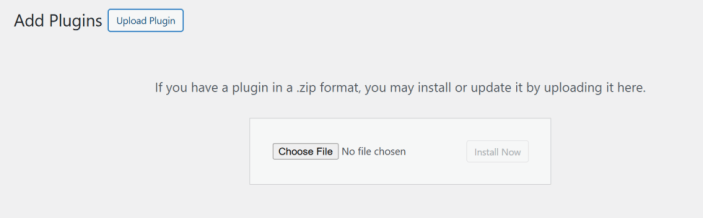
- Navigate to Plugins → Add New → Upload Plugin.
- Choose the
cod-fee-by-location.zipfile. - Click Install Now and then Activate.
2. Global Settings
↑ Back to topBefore creating specific fee rules, you should configure your baseline global settings.
- Navigate to WooCommerce > Settings from your WordPress Dashboard.
- Click on the COD Fee tab at the top of the settings page.
General Settings
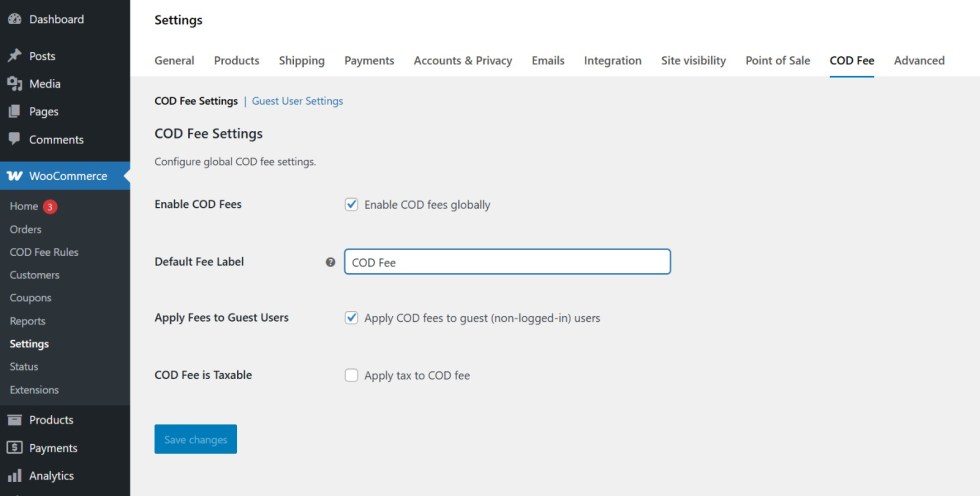
↑ Back to top- Enable/Disable: Toggle this switch to activate or deactivate the entire plugin globally.
- Default Fee Label: This is the text displayed to the customer on the checkout page (e.g., “Cash on Delivery Extra Handling Fee”). You can override this dynamically later, but this acts as the default.
- Taxable: Choose whether the additional COD fee is subject to your WooCommerce store’s tax rules.
Guest User Restrictions
↑ Back to topProtect your margins by preventing unauthorized or high-risk guest orders.
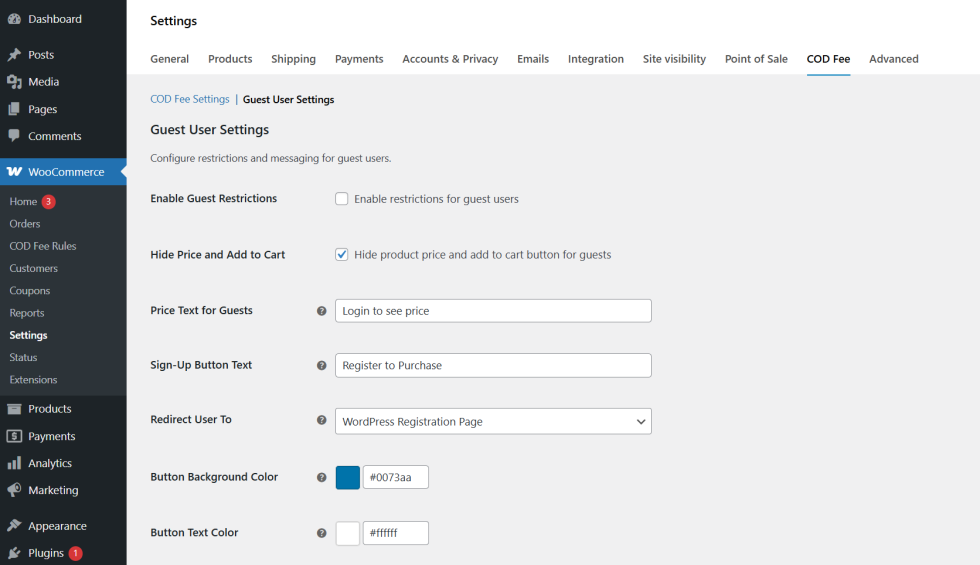
- Disable Guest Purchases: When checked, unauthenticated users cannot use the Cash on Delivery payment method.
- Hide Prices for Guests: When checked, product prices will be blurred or hidden entirely until the user logs into an account.
- Custom Login Prompts: Replace the hidden price with a custom button (e.g., “Login to View Price”). You can fully customize the background color and text color of this button within these settings.
3. Creating a COD Fee Rule
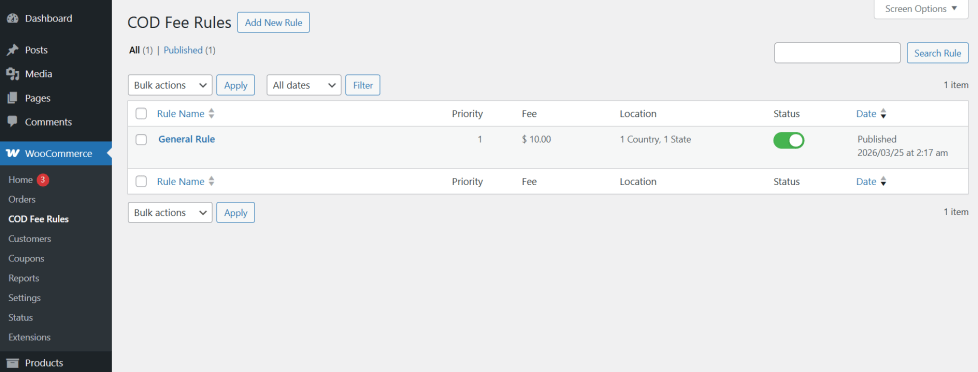
↑ Back to topThe core power of the plugin lies in its dynamic rule engine. You can create unlimited rules, and the plugin will apply the one that best matches the customer’s checkout criteria.
To build a rule, navigate to WooCommerce > COD Fee Rules in your sidebar and click Add New Rule.
Rule Configuration (The Basics)
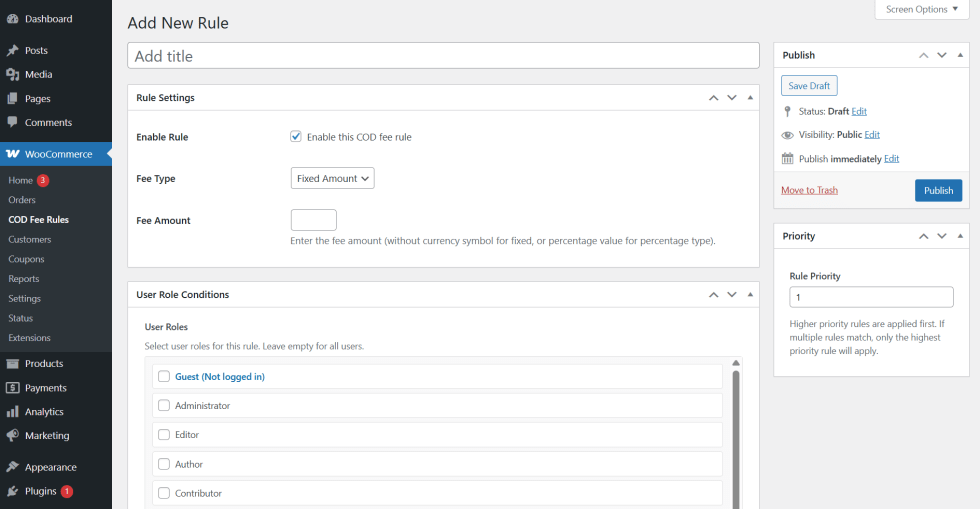
↑ Back to top- Rule Title: Give the rule a descriptive internal name (e.g., “New York City 10% Surcharge”).
- Status: Toggle to quickly enable or disable this specific rule.
- Fee Type: Choose between a Fixed Amount (e.g., $5.00) or a Percentage (e.g., 5% of the cart subtotal).
- Fee Amount: Enter the numerical value for your chosen fee type.
Location Conditions (Geographic Targeting)
↑ Back to topDesignate exactly where this fee applies.
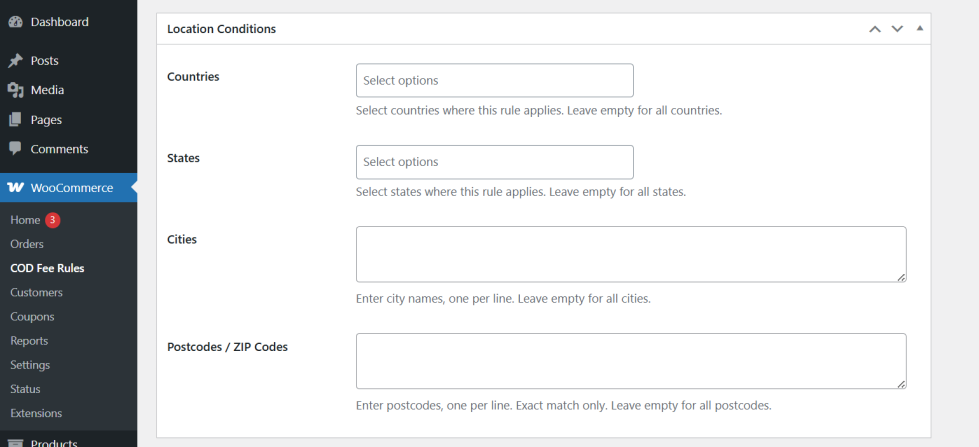
- Countries & States: Select entire nations or specific states/provinces from the dropdown menus.
- Cities: Enter specific city names to apply hyper-local targeted fees.
- Postcodes / Zip Codes: For the most accurate targeting, enter a list of zip codes (one per line).
Tip: If you leave a location field blank, the rule applies to ALL locations within the context of your other conditionals.
Cart & Order Conditions
↑ Back to topControl when a fee should trigger based on the cart’s value or shipping metrics.
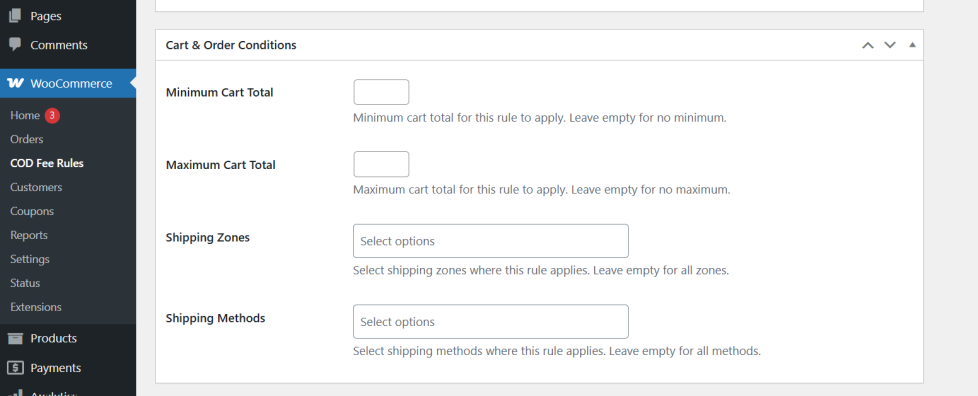
- Minimum & Maximum Cart Total: Define a specific range where the COD fee applies (e.g., apply a $5 fee for orders between $1 to $49. Orders over $50 get COD for free).
- Shipping Zones & Methods: Restrict the rule to apply only if a customer is using “Flat Rate” or “Local Pickup” inside a specific WooCommerce Shipping Zone.
Product & Category Conditions
↑ Back to topControl what items trigger the fee.
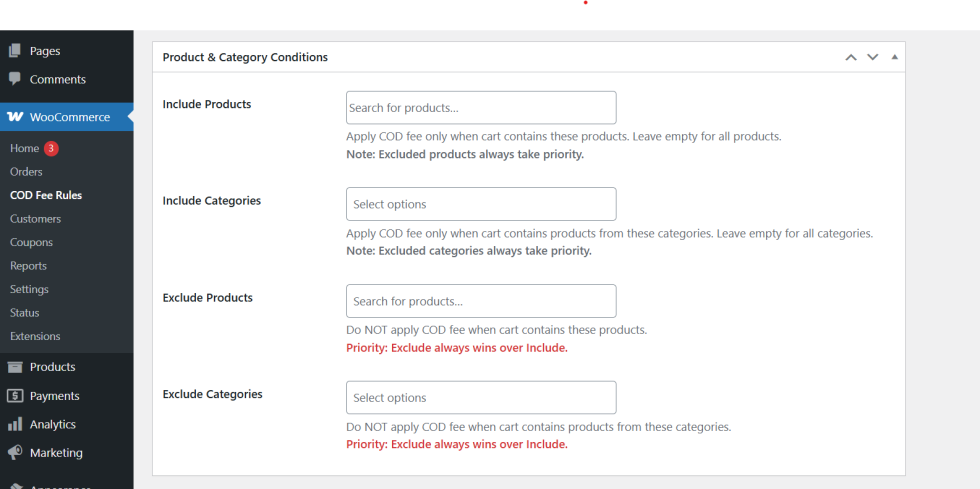
- Include Products / Categories: The fee will only trigger if these specific products or categories are in the customer’s cart.
- Exclude Products / Categories: Critical for high-margin items. If an excluded product is in the cart, the COD fee is entirely waived, regardless of location.
4. Understanding the Priority System
↑ Back to topIf a customer matches two different rules, which one wins? The plugin uses a Priority System.
When creating a rule, look for the Priority box (usually on the right sidebar).
- Assign a number to the rule (e.g., 1, 10, or 99).
- The highest number wins.
Example:
- Rule A: Applies to the entire USA ($2 Fixed Fee) – Priority: 1
- Rule B: Applies only to Beverly Hills, CA 90210 ($10 Fixed Fee) – Priority: 10
If a customer orders from Texas, they get Rule A. If a customer orders from Beverly Hills, they get Rule B, because Priority 10 outranks Priority 1.
5. Compatibility Notes
↑ Back to top- WooCommerce Blocks & Store API: This plugin is 100% compatible out-of-the-box with the modern React-based WooCommerce Blocks Checkout.
- HPOS: The plugin is fully optimized for High-Performance Order Storage.
- Multi-Currency (WPML / WOOCS): Fixed fees will automatically be converted to the customer’s native currency on the checkout page if you are using an active currency switcher tool.
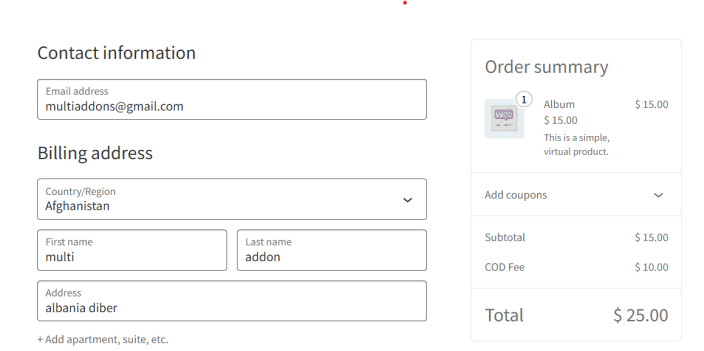
FAQs
↑ Back to top
How do I add multiple Zip/Postal codes to a single WooCommerce COD Fee rule?
Adding multiple zip codes is easy and doesn’t require creating dozens of separate rules. When creating or editing a rule under WooCommerce > COD Fee Rules, scroll down to the Location Conditions section. In the “Postcodes / Zip Codes” text box, simply paste your list of zip codes with one zip code per line. The plugin will automatically check the customer’s checkout address against the entire list to apply the correct Cash on Delivery surcharge.
Why is my Cash on Delivery (COD) fee not showing on the checkout page?
If the fee isn’t appearing, please check the following common configuration issues:
Ensure the global Enable Plugin toggle is turned ON under WooCommerce > Settings > COD Fee.
Check your rule’s Priority. If a customer matches a rule with a priority of 0 and no fee, that rule might be overriding your intended fee.
Ensure you haven’t accidentally excluded the specific product or category currently in the cart under the “Product Conditions” settings.
Verify that “Cash on Delivery” is actually enabled as a payment method in your core WooCommerce Payment settings.
Can I apply a COD surcharge only to specific WordPress User Roles?
Yes. You can restrict any COD fee based on the customer’s logged-in status or role. Inside the rule builder, look for the User Role Conditions section. You can select specific roles (e.g., Customer, Wholesale, Subscriber) from the dropdown menu. If you want the fee to apply to unregistered visitors, simply select Guest. If no roles are selected, the rule applies to everyone.
How does the Priority System calculate the final Cash on Delivery handling fee?
Because you can create unlimited conditional rules based on location, cart total, or products, a customer might match more than one rule at checkout. The plugin resolves this using the Priority number you assign to each rule. The system evaluates all matching rules and applies the rule with the highest priority number. For example, a rule with Priority 99 will always override a rule with Priority 1.

