
Customer Desk brings customer profiles, purchase history, internal notes, follow-ups, and customer conversations into your WooCommerce dashboard.
Use it to organize daily customer care, give your team useful context, and keep track of what should happen next. Registered customers and imported guest customers can both have Customer Desk profiles.
Installation and setup
↑ Back to topInstall the extension
↑ Back to top- Make sure WooCommerce is installed and active.
- Go to Plugins → Add New → Upload Plugin.
- Select the Customer Desk ZIP file, install it, and activate the extension.
- Open WooCommerce → Customer Desk.
No external CRM account or API key is required.
Configure your store
↑ Back to topGo to WooCommerce → Settings → Customer Desk. The settings are organized into these sections:
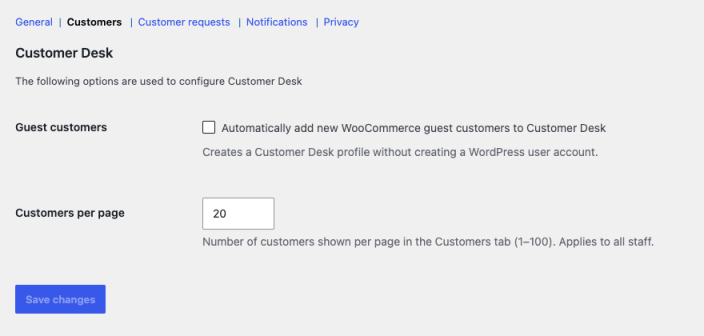
- General: An introduction to the available settings.
- Customers: Enable automatic addition of new guest customers and choose how many customers appear per page.
- Customer requests: Enable messaging through My Account and customize its menu label.
- Notifications: Enable and customize email alerts sent after staff replies.
- Privacy: Choose how Customer Desk responds to WordPress personal-data erasure requests.
Click Save changes after updating a section.
Customers and customer cards
↑ Back to top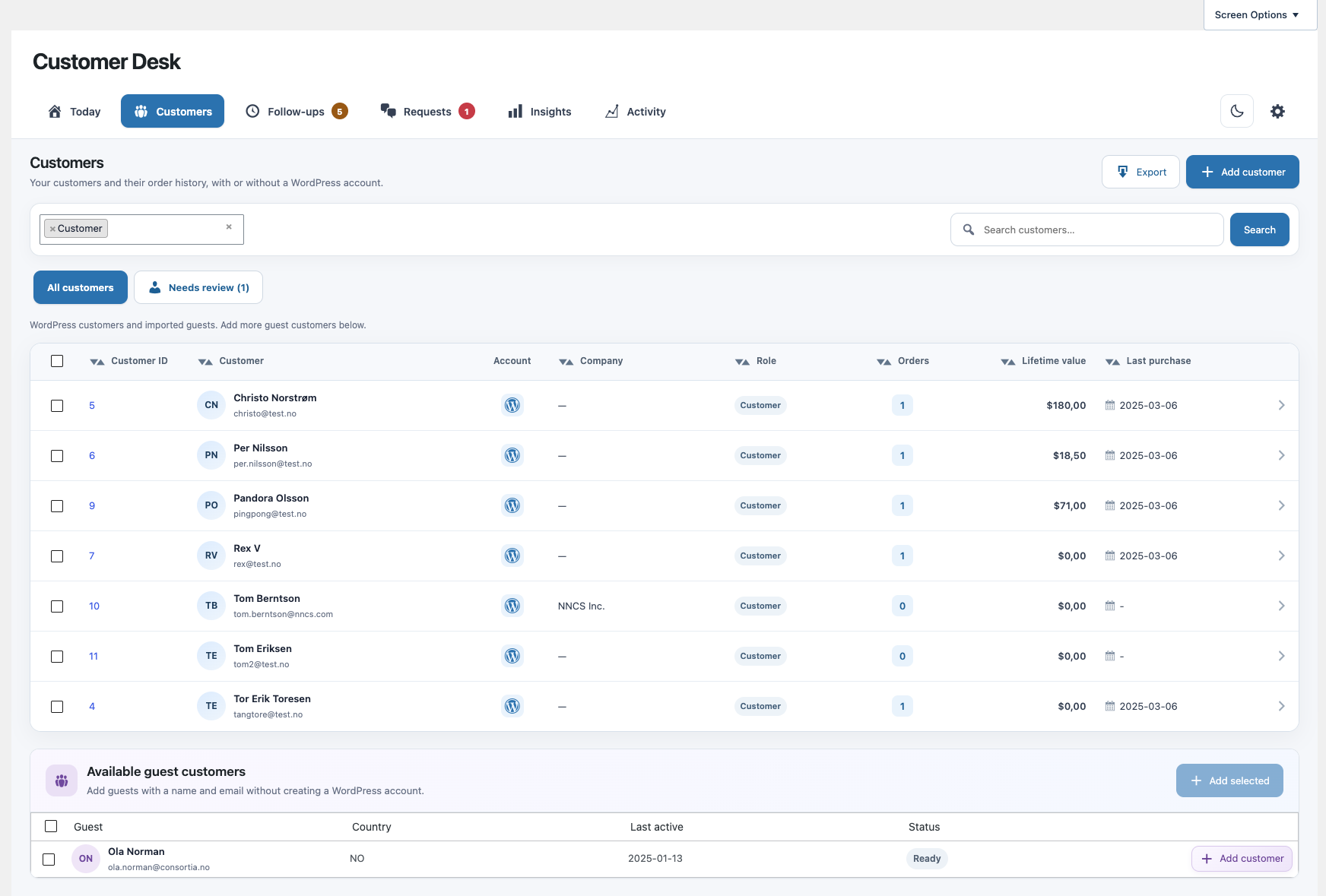
Find and organize customers
↑ Back to topOpen the Customers tab to search registered customers and imported guests. Select a customer to open their card.
Use Screen Options on the Customers tab to show or hide optional columns. Set the number of customers per page under Settings → Customer Desk → Customers.
Click Export to download customer information as CSV. Choose the customers and fields to include. Imported guest profiles can be included using the selected-customer or visible-row options.
The Add customer action creates a WordPress customer account and requires permission to create users.
Add guest customers
↑ Back to topThe Available guest customers section lists eligible WooCommerce guests who can be added to Customer Desk.
Click Add customer beside an entry, or select several guests and click Add selected. This creates CRM profiles without creating WordPress accounts.
To automatically add new guest customers, enable Guest customers in Customer Desk settings.
Authorized staff can later create and link a WordPress account from a guest’s customer card. Existing CRM history stays with the profile; historical guest orders are not automatically reassigned. Suggested account matches require staff approval.
Use the customer card
↑ Back to top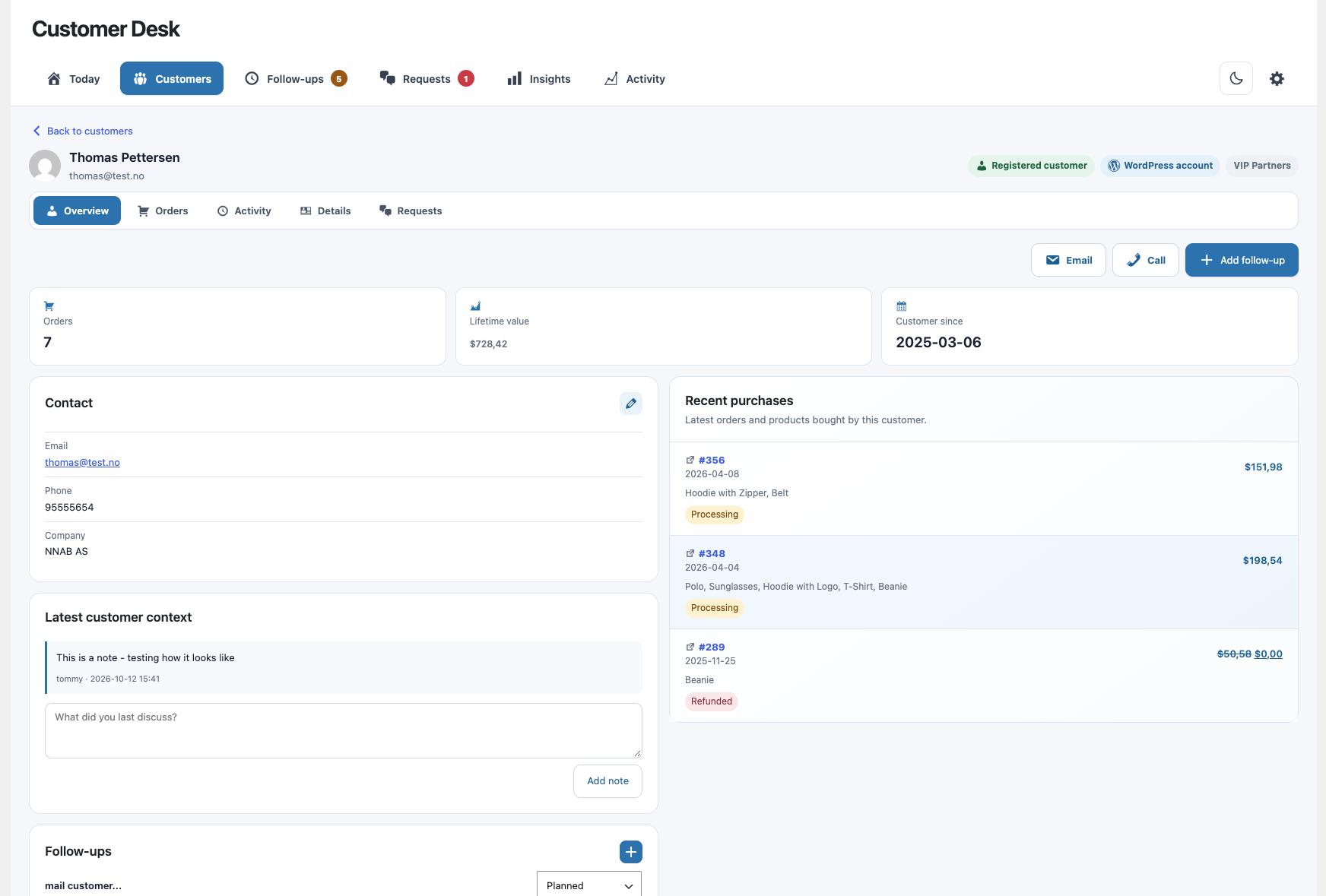
The customer card groups information into tabs:
- Overview: Contact details, recent purchases, internal notes, and follow-ups.
- Orders: Purchase history and links to orders in WooCommerce.
- Activity: Recorded Customer Desk events for this customer.
- Details: Contact information, billing and shipping addresses, and CRM classification.
- Requests: Conversations associated with a customer’s WordPress account.
Use Edit to update supported contact and address fields. In Details, Copy billing to shipping saves entering the same address twice.
The CRM profile section lets you set a profile status, assign a customer owner, and add tags. Click Save CRM profile to save these values.
Today and follow-ups
↑ Back to top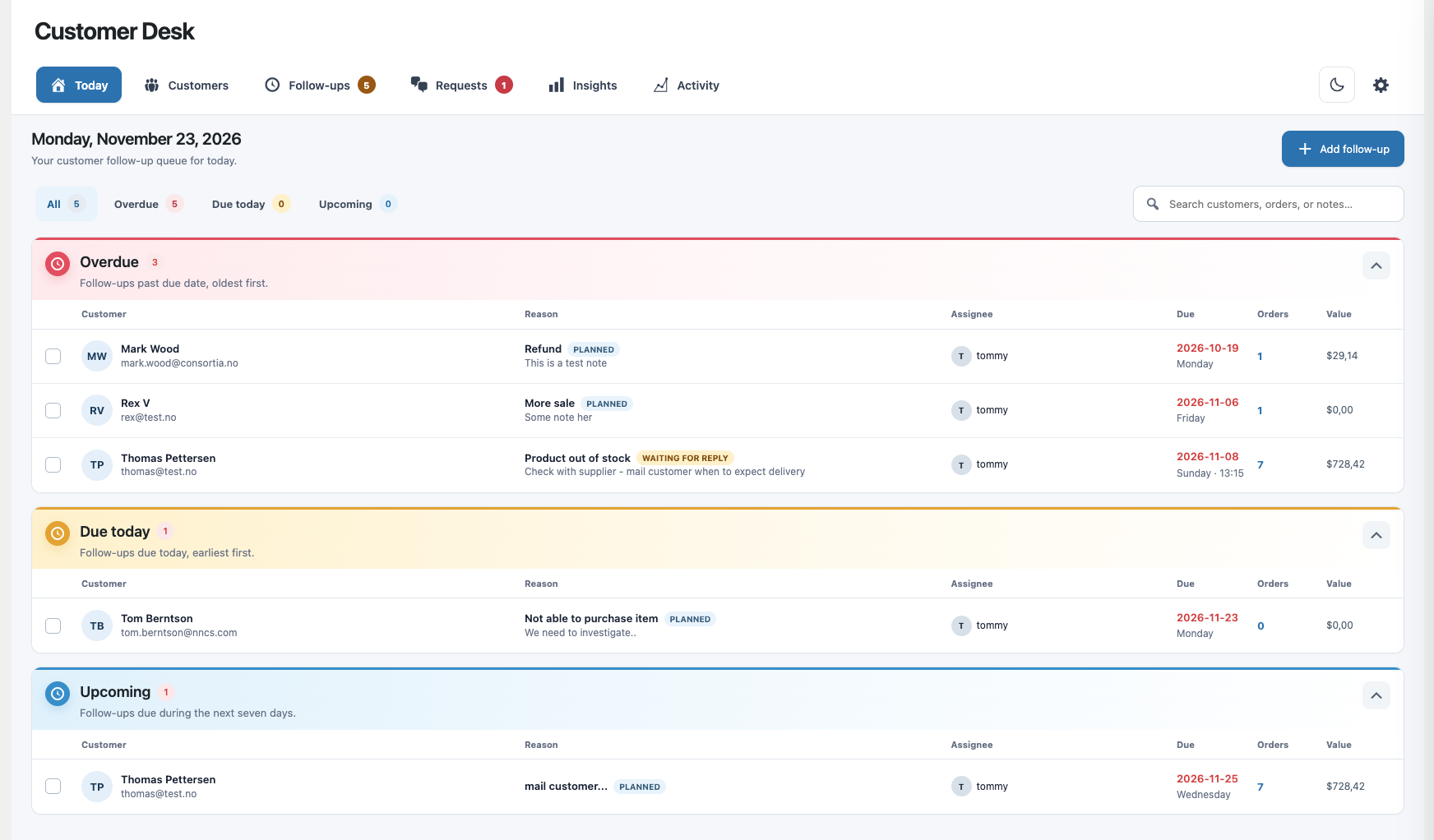
Work through Today
↑ Back to topThe Today tab organizes unfinished follow-ups into:
- Overdue: Due dates that have passed.
- Due today: Follow-ups scheduled for today.
- Upcoming: Follow-ups due during the next seven days.
Use the filters and search to focus your queue. Select a row to open the customer side panel, where you can review customer context and work on follow-ups without leaving the list.
Create and manage follow-ups
↑ Back to topClick Add follow-up, select a customer, enter the next action, and choose the assignment and due date.
Follow-ups can also be created from customer cards, customer requests, and the Customer Desk widget on WooCommerce order screens. When opened from a customer, that customer is selected automatically.
Use statuses to distinguish planned work, tasks waiting for a reply, completed tasks, and canceled tasks. Add internal comments to record progress. Use Move due to reschedule; due-date changes are recorded in Activity.
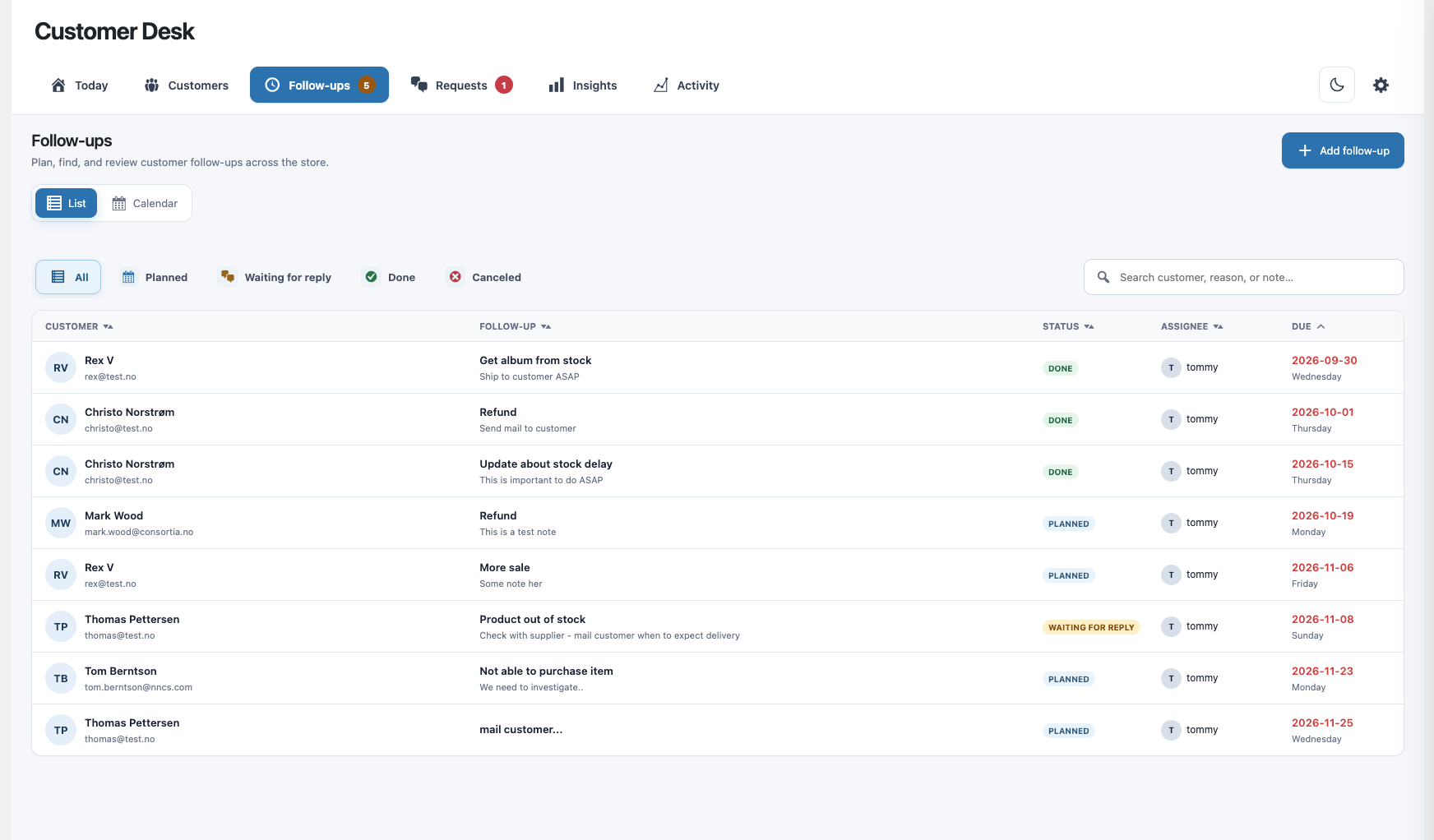
The Follow-ups tab provides list and calendar views. Select a calendar date to see its tasks, then select a task to open the customer side panel.
Work from a WooCommerce order
↑ Back to topOpen an order under WooCommerce → Orders and locate the Customer Desk widget.
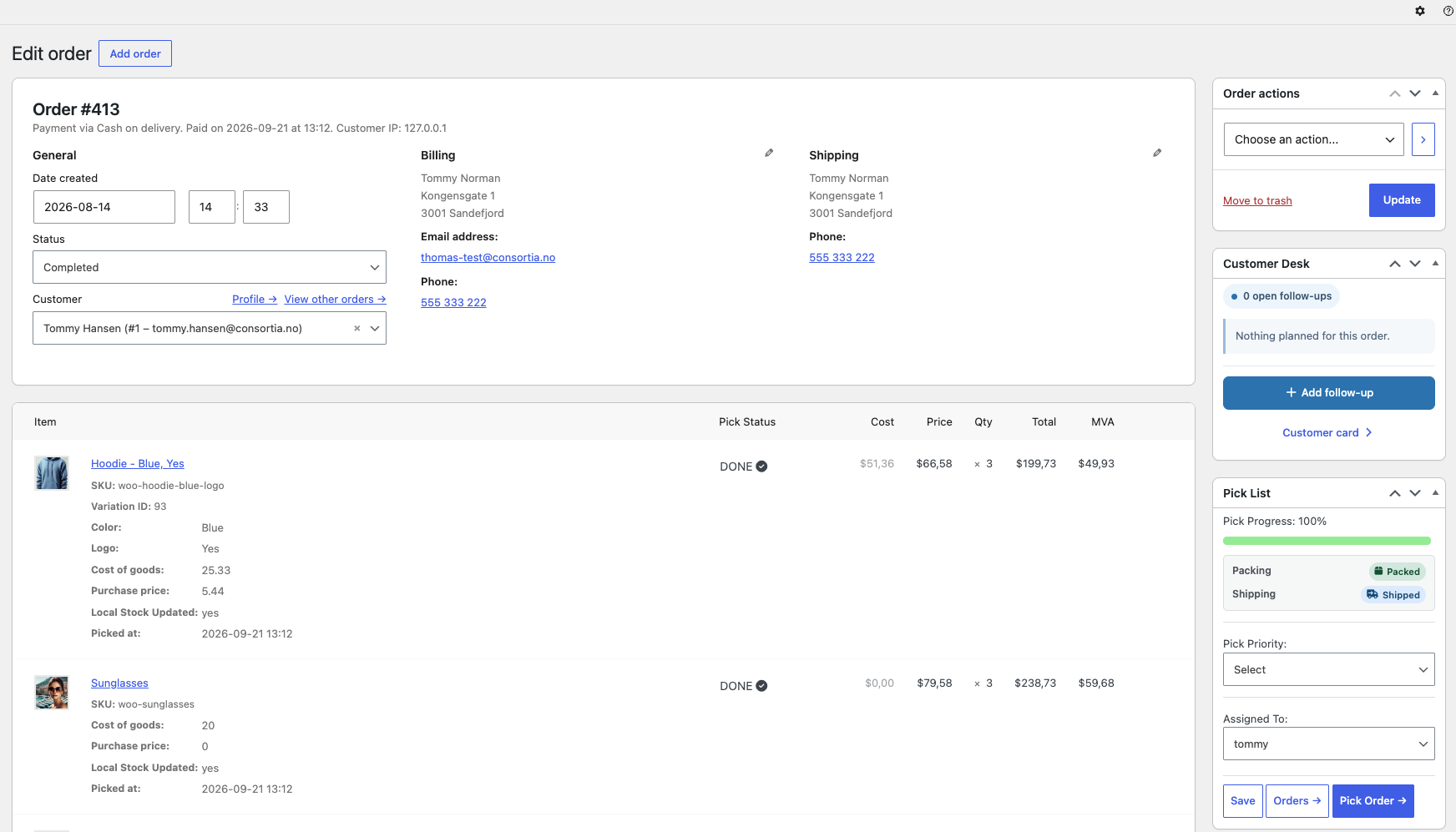
The widget lets you review open order-related follow-ups, create another follow-up, or open the customer card. Creating a follow-up does not change the order status or send a customer message.
Customer requests and My Account
↑ Back to topEnable customer messaging
↑ Back to topUnder Settings → Customer Desk → Customer requests, enable requests and choose a My Account menu label. The default label is Contact us.
Logged-in customers can use this section to send messages, select one of their orders, and read and reply to conversations. Product previews help them identify the correct order.
Messaging requires a WordPress account. Guest profiles without an account can have internal notes and follow-ups but cannot use My Account messaging.
Read and reply to requests
↑ Back to top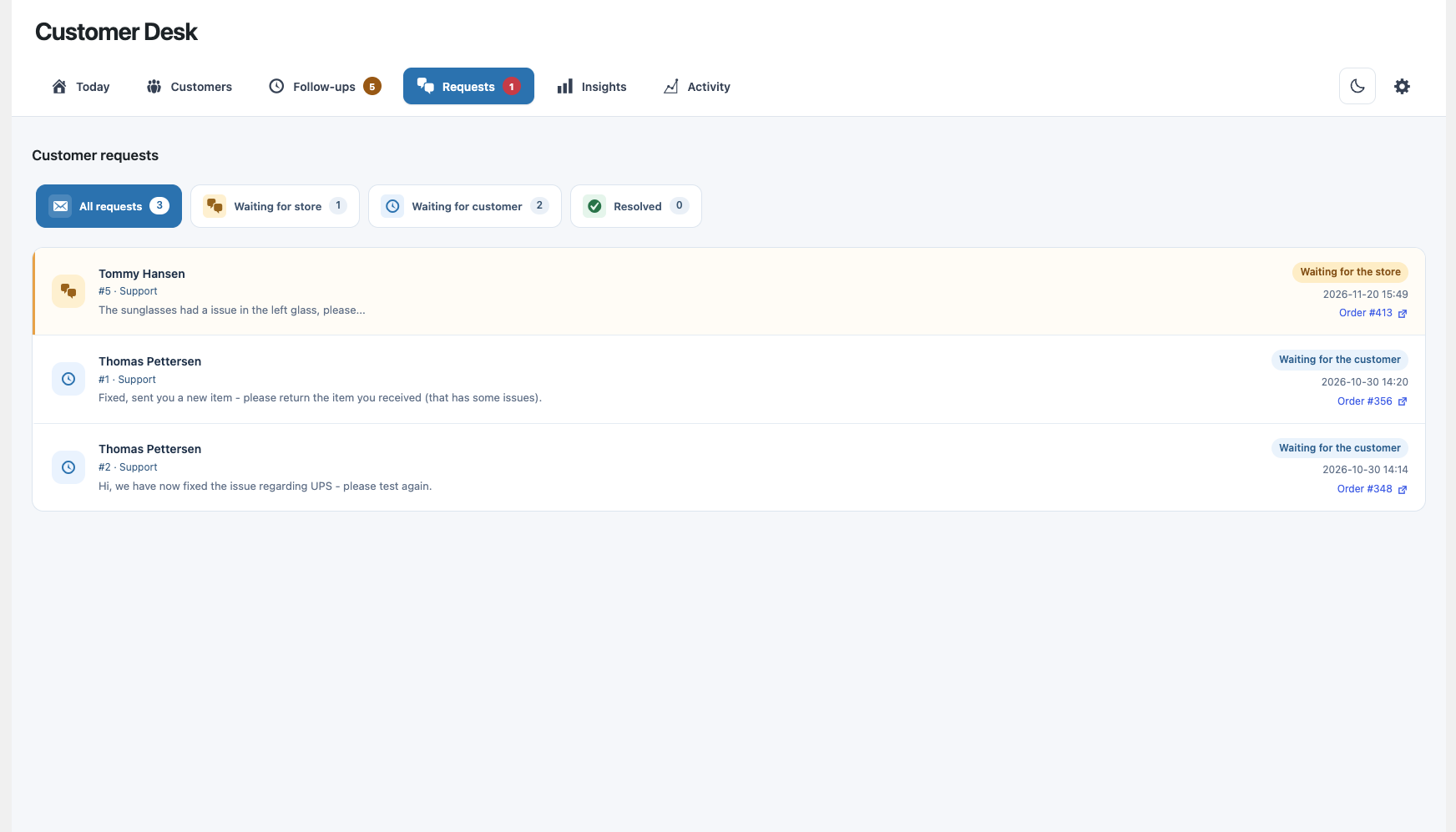
Open the Requests tab to review conversations. Filters distinguish requests waiting for the store, those waiting for the customer, and resolved requests.
Select a request to open it on the customer card. Review the messages and related order information, enter your reply, and click Send reply.
Replies are visible to the customer. Keep private team information in customer notes or follow-up comments.
Open conversations check for new messages and status changes every 15 seconds while the browser tab is visible. Reply drafts are preserved, and a new-message indicator appears when you are reading earlier messages.
Resolve or continue a conversation
↑ Back to topCustomers and authorized staff can mark a request as Resolved. The conversation remains readable, and sending another message reopens it.
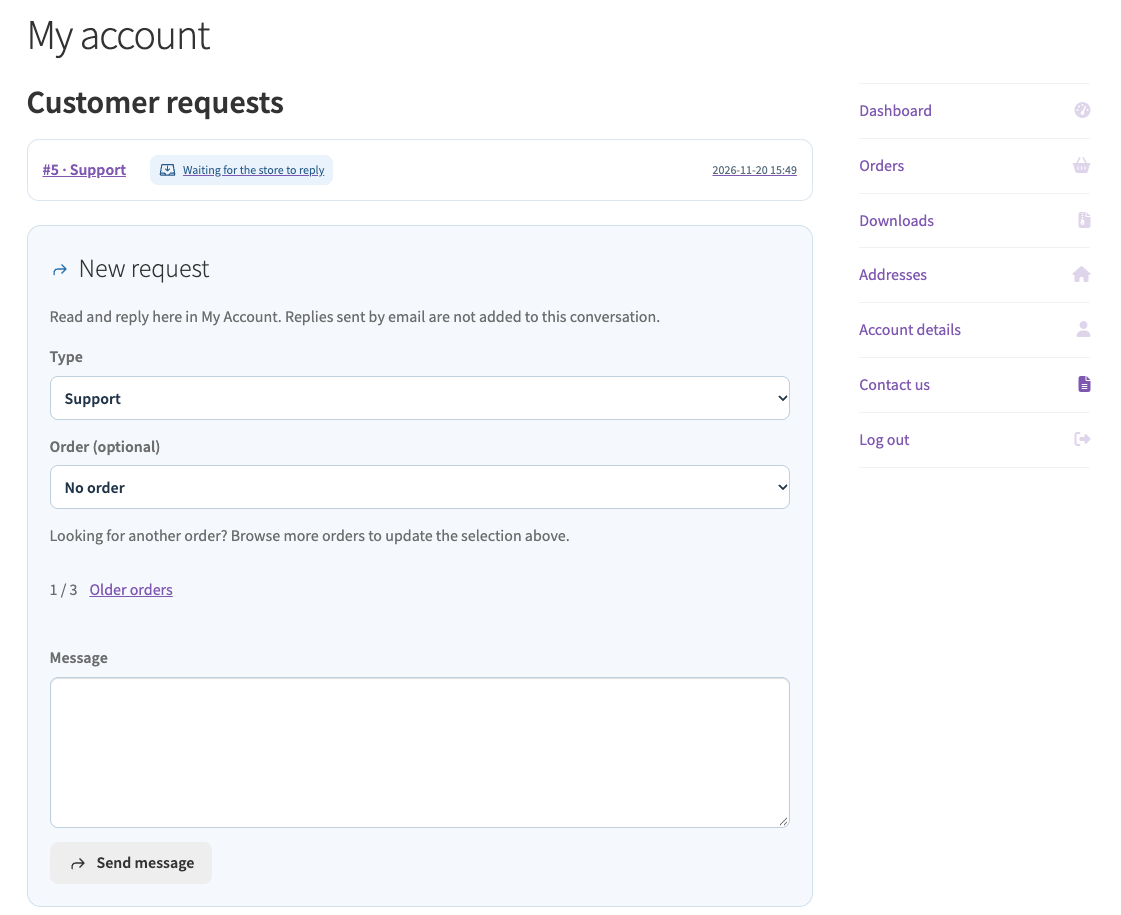
In My Account:
- Waiting for your reply means the customer should respond.
- Waiting for the store to reply means the customer is waiting for your team.
Requests currently support text messages; file attachments are not available.
Configure email notifications
↑ Back to topEnable optional customer email notifications under Settings → Customer Desk → Notifications.
Customize the subject and plain-text message using:
[CUSTOMER_NAME][STORE_NAME][CUSTOMER_LINK]
The message must include [CUSTOMER_LINK], which opens the conversation in My Account and requires login.
Email replies are not imported into Customer Desk. Customers should reply through My Account.
Insights and Activity
↑ Back to topUnderstand customer purchase value
↑ Back to top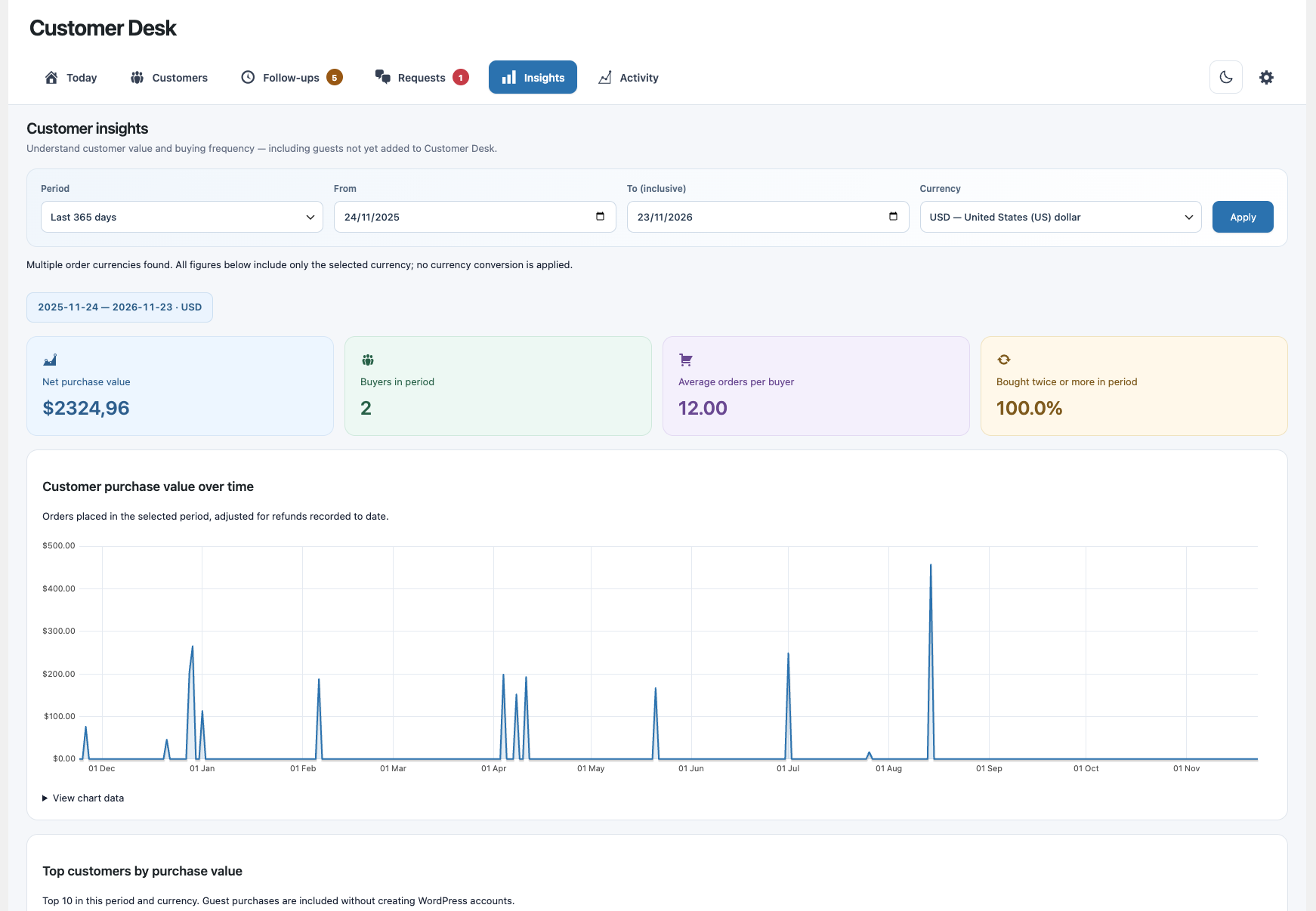
Open Insights, choose a reporting period and currency, and click Apply.
The report includes net purchase value, buyer numbers, average orders per buyer, repeat-purchase share, trends, and top customers. Both registered and guest buyers are included, whether or not they have been imported into Customer Desk.
Net purchase value is calculated after discounts and refunds, excluding tax and shipping. Refunds indexed against the selected orders are included even when recorded after the reporting period. Fully refunded orders still count toward purchase frequency.
Customer lifetime value uses the same net calculation across all dates in the store currency. Insights covers the selected period and currency, so totals can differ. Currencies are not combined or converted.
These figures depend on WooCommerce Analytics being up to date.
Review recorded activity
↑ Back to top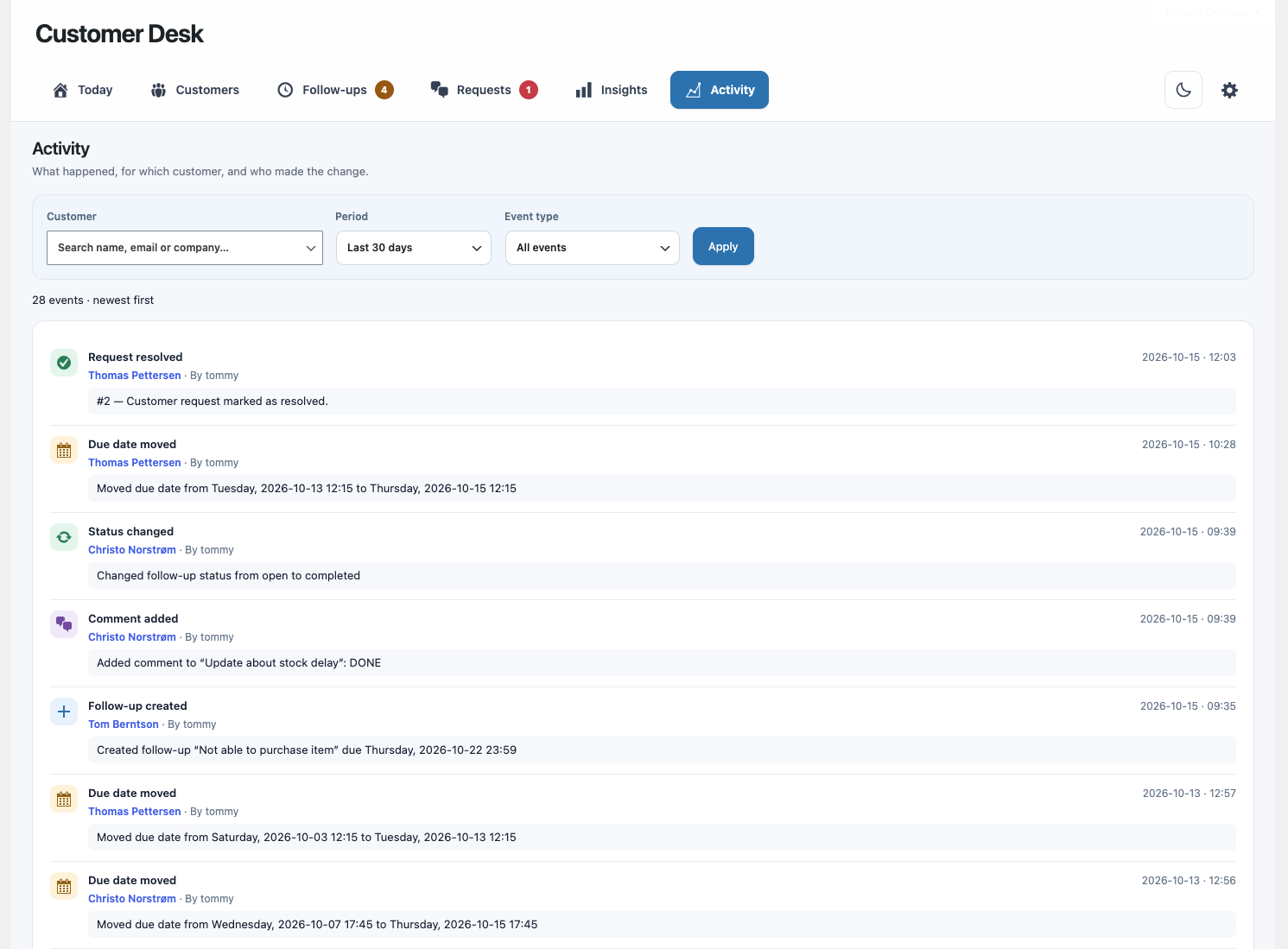
The Activity tab provides a searchable, paginated history of supported Customer Desk events. Filter by customer, event type, or period to find relevant changes.
Activity is not a complete audit log of all WordPress or WooCommerce actions. Use customer notes for relationship context and follow-up comments for progress on individual tasks.
Privacy and appearance
↑ Back to topHandle personal-data requests
↑ Back to topCustomer Desk integrates with WordPress personal-data export and erasure tools.
The Privacy setting defaults to Retain for manual review. If you select Delete Customer Desk data, an authorized WordPress erasure can permanently remove matching CRM content. Saving the setting alone does not erase data.
Customer Desk’s eraser does not delete WordPress users or WooCommerce orders. Historical email matches and some account metadata require manual review. Back up your database before erasure.
Internal notes and comments about a customer can be included in personal-data exports. Review exports before sharing them.
Switch between light and dark mode
↑ Back to topUse the appearance button beside Settings in the Customer Desk navigation to switch modes. Your preference is saved for your user account.