Create and redirect customers to WooCommerce custom thank you page based on products, categories, or payment types. You can also redirect to any page, product or custom URL.
Configuration
↑ Back to topAfter you have installed and activated the Plugin, go to WooCommerce > Settings > Customized Thank You Pages. Here you can find three tabs, which are General Settings, Payment Methods, Table customization and Shortcode.
General Settings:
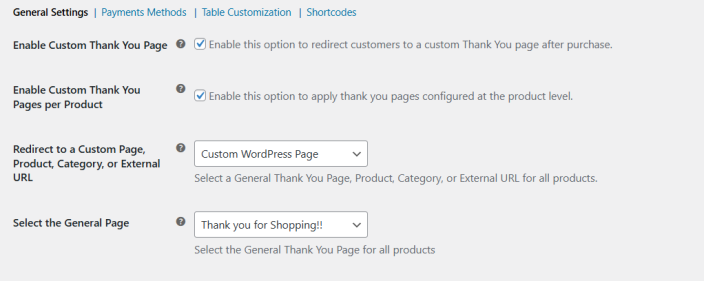
↑ Back to topEnable Custom Thank You Page: Enable this option to redirect customers to a custom Thank You page after checkout.
Enable Custom Thank You Pages per Product: Enable this option to apply Thank You pages set at the product level.
Redirect to a Custom Page, Product, Category, or External URL: Choose to redirect customers to a custom WordPress page, product page, category page, or an external URL after purchase. Upon selecting each option, it will show further different options.
Payment Methods
↑ Back to topUse this option to display or redirect customers to a specific WooCommerce thank you page based on the payment method selected at checkout. It will automatically include all the payment methods on the store. For now, we have added the default payment methods.
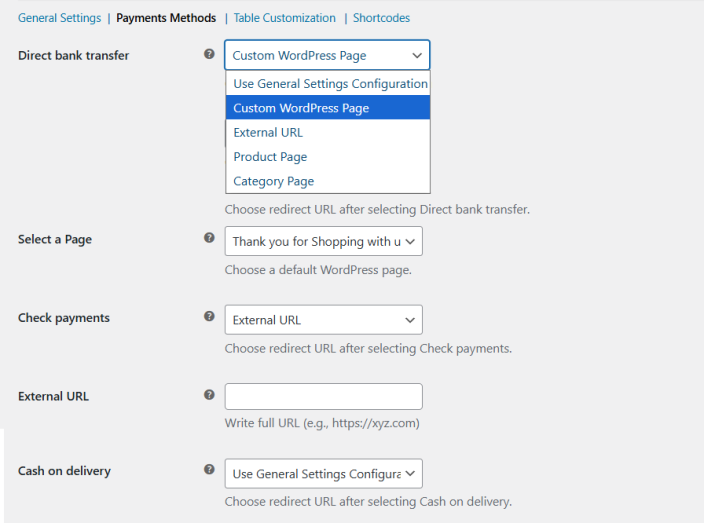
Table Customization
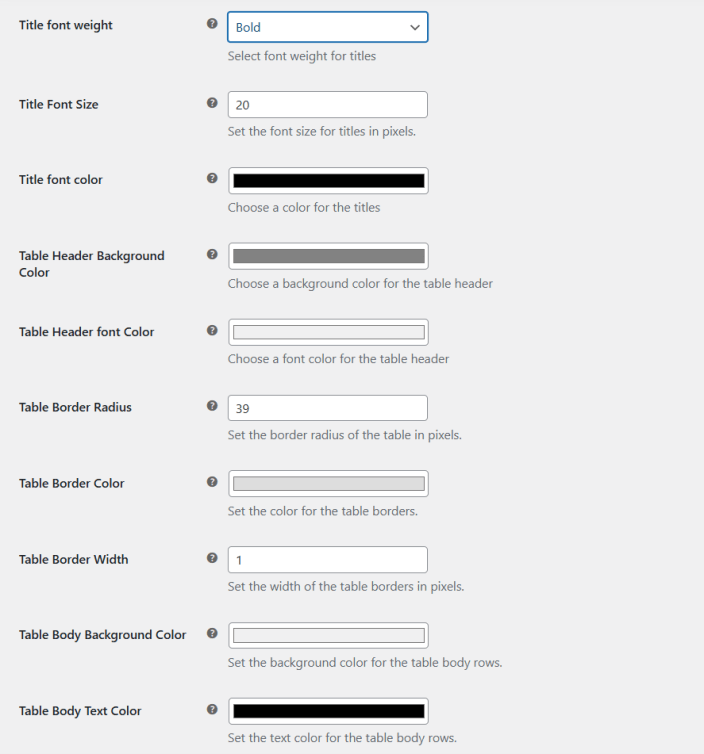
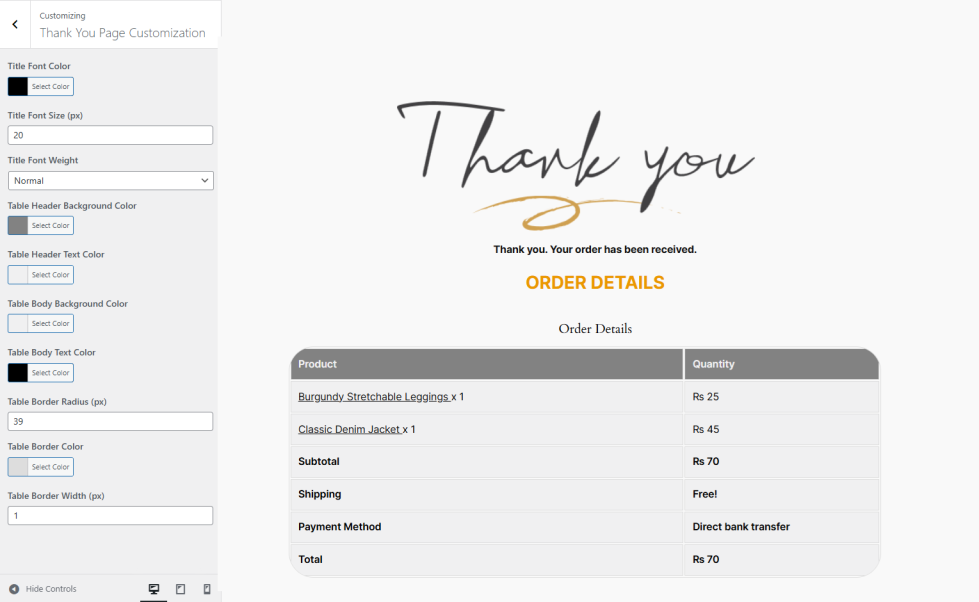
↑ Back to top- Title Font Weight: Select the font weight for titles (e.g., Lighter, Normal, Bold, Bolder).
- Title Font Size: Set the font size for titles in pixels.
- Title Font Color: Choose the color for the titles.
- Table Header Background Color: Select a background color for the table header.
- Table Header Font Color: Choose the font color for the table header text.
- Table Border Radius: Set the table’s border radius in pixels to control the roundness of the corners.
- Table Border Color: Define the color of the table borders.
- Table Border Width: Set the width of the table borders in pixels.
- Table Body Background Color: Choose the background color for the table body rows.
- Table Body Text Color: Set the text color for the table body rows.
You can also customize the table from the WordPress customizer.
Shortcodes
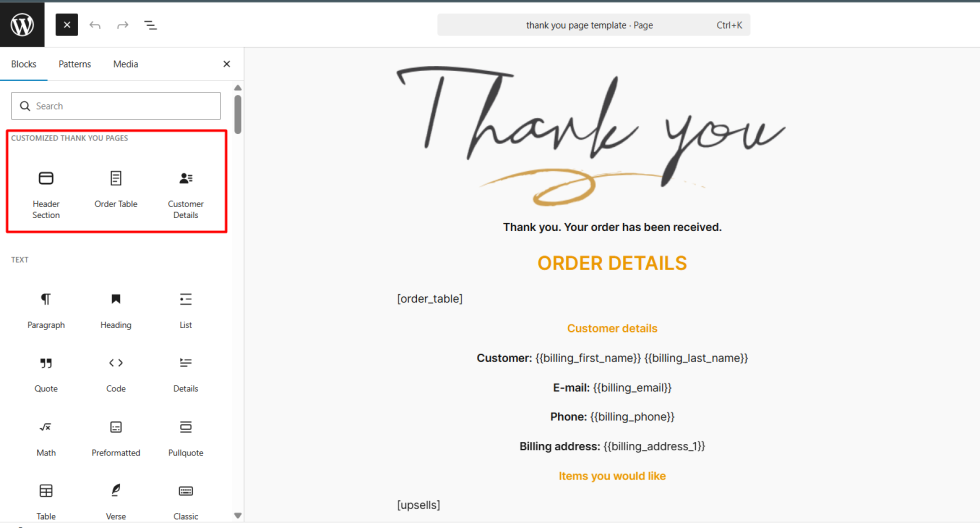
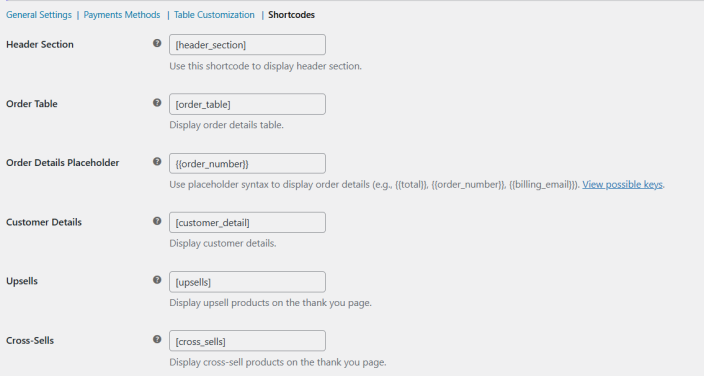
↑ Back to top- Header Section: Use this option to display the header section on the Thank You page.
- Order Table: Display the complete order details table on the Thank You page.
- Order Details Placeholder: Use shortcodes such as order number, total amount, and billing email to dynamically show order information.
- Customer Details: Display customer information on the Thank You page.
- Upsells: Show upsell products on the Thank You page to encourage additional purchases.
- Cross-Sells: Display cross-sell products on the Thank You page to increase sales opportunities.
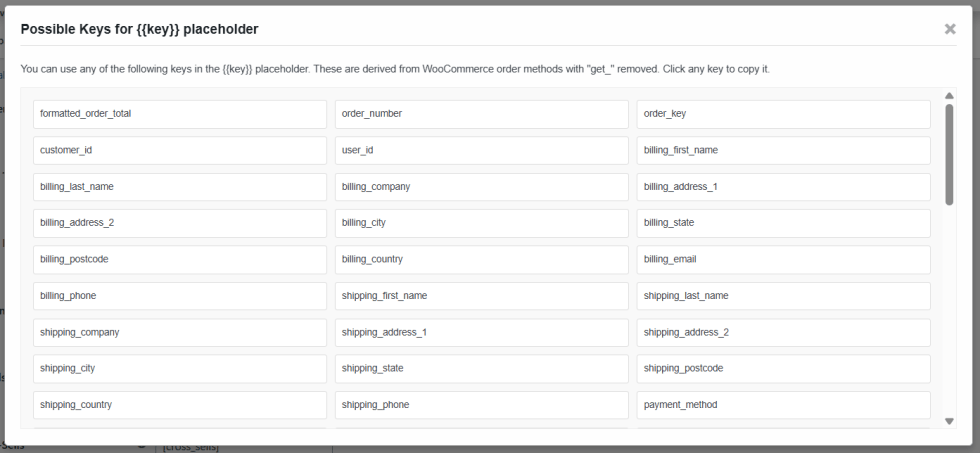
You can display multiple types of order details on the WooCommerce custom thank you page. Click on the view possible keys to view and select the preferred.
Thank you Page Rule:
↑ Back to topStore owners can create multiple rules for thank you pages. For each rule, go to WooCommerce >Thank You Page Rule.
You can configure the following for rule creation:
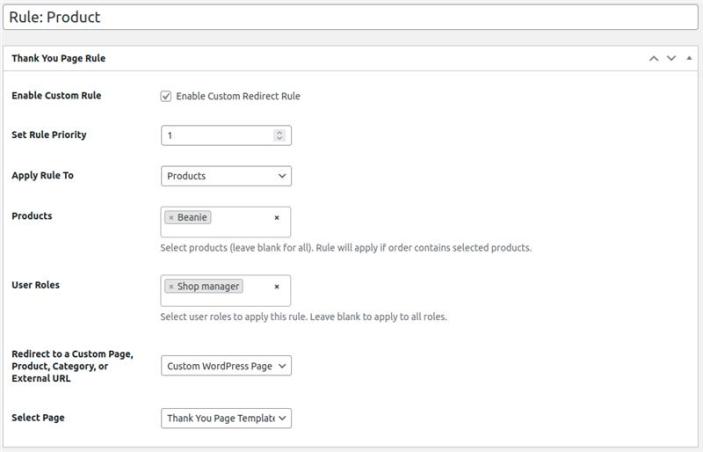
Rule Name: Set the Name of the rule
Enable Custom Rule: Checkbox to enable custom redirect rule
Set Rule Priority: Set the priority of the rule
Apply Rule to: Choose from product, category, tags, or product type (simple, variable, grouped) to determine where the rule will be applied. Upon selection of each choice, you will be given different options.
User Roles: Select the user to which this rule applies.
Redirect to a Custom Page, Product, Category, or External URL: Select a General Thank You Page, Product, Category, or External URL for all products.
Select Page: This option of this field is dependent on the selection of the above. For example, if you have selected the Product option. It will allow you to redirect customers to a specific product page after checkout.
Product Level Settings:
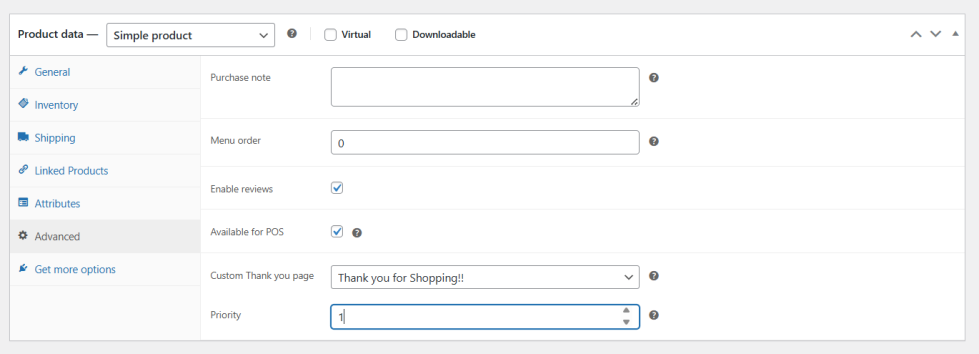
↑ Back to topYou can enable the custom thank you page for WooCommerce from the product level. Select the page you want to display for the specific products and set priority between the products.
Note: Product-level settings have more priority than general.
How to Create a Custom Page:
↑ Back to topFor the creation of a custom thank you page, go to the Pages tab and click on an add page button.
You can click on a + (plus) button to add a header section, Order Table and customer details under the Customized thank you Pages heading.
If you want to add shortcodes here, copy them from WooCommerce > Settings > Customized Thank You Pages > Shortcodes.