
Give customers confidence at checkout with the Delivery Date Picker for WooCommerce. Add a clear delivery or collection date selector, control the earliest selectable date with global or per-product lead times, and optionally block weekend bookings to match your real-world fulfilment schedule.
Installation
↑ Back to topTo start using a product from WooCommerce.com, you can use the “Add to store” functionality on the order confirmation page or the My subscriptions section in your account.
- Navigate to My subscriptions.
- Find the Add to store button next to the product you’re planning to install.
- Follow the instructions on the screen, and the product will be automatically added to your store.
Alternative options and more information at:
Managing WooCommerce.com subscriptions.

Setup and Configuration
↑ Back to topDelivery Date Picker for WooCommerce adds a single “Delivery or Collection Date” field to your checkout, and lets you control the earliest selectable date using a global lead time, with optional per-product and per-variation overrides. It supports both the classic shortcode-based checkout and the newer block-based checkout, so you don’t need to configure anything separately for different checkout types.
In the WooCommerce > Settings > Delivery Date tab, you can configure the plugin’s global behaviour. Here, you set a default minimum lead time (in days) between “today” and the earliest date a customer can choose. You can also decide whether weekends should be counted towards that lead time or skipped as non-working days, allowing you to model real-world fulfilment schedules more accurately.
You can optionally block weekend selection entirely, preventing customers from choosing Saturdays and Sundays even if they fall outside the lead time window. This is useful if you never deliver or allow collection on weekends. You can also customise the field heading shown above the picker (for example, “Delivery Date” or “Collection Date”) and add hint text that appears above the calendar. The hint text can use the placeholders {days} (the longest per-product lead time in the cart) and {day_label} (“day” / “days”) so your message automatically reflects the current basket.
On the product level, you can override the global lead time for individual products. In the product editor, you’ll find an “Override global delivery lead time” checkbox and a “Minimum lead time for this product (days)” field. When enabled, this product-specific lead time is used instead of the global value. For variable products, the same controls are available at the variation level, allowing you to set different lead times per variation where needed.
At checkout, the plugin automatically calculates the effective required lead time based on the contents of the cart, always using the longest applicable lead time (either from product/variation overrides or the global setting). The inline calendar then starts at the earliest valid date, respecting your lead time, weekend counting, and weekend-blocking rules. If the customer doesn’t manually pick a date, the earliest valid date is silently prefilled and saved with the order, ensuring every order has a usable delivery/collection date without causing checkout failures.
Once configured, the selected date is stored on the order and displayed in the admin order screen using your chosen field title, and is also added to customer and admin emails so your fulfilment team and customers always have a clear, consistent delivery or collection date.
Global Delivery Date Settings
↑ Back to topTo get started with our plugin by configuring your global settings, head to WooCommerce > Settings > Delivery Date tab.
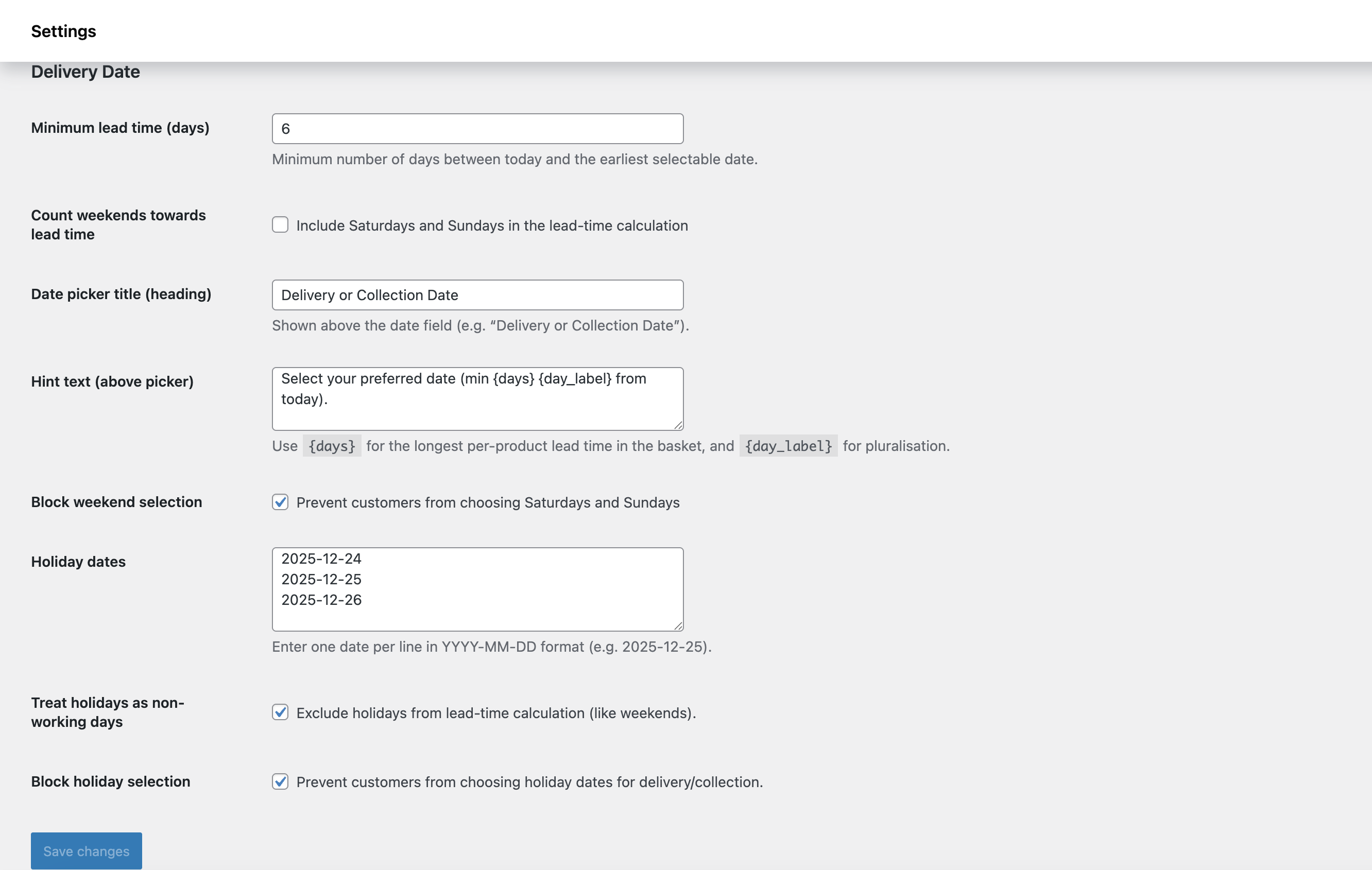
When you’re in the global settings area, you’ll see that there are many options you can configure, which include:
- Minimum lead time (days): This is where you set, globally, the minimum number of days between today’s date and the earliest selectable date. This is particularly useful if you have a consistent lead time across all of your products, so you do not need to test it at the product level, saving you a significant amount of time.
- Count weekends towards lead time: Some businesses operate on weekends, and some do not. If your business operates on weekends and you would like to count both Saturday and Sunday towards product lead times, check this box. If not, then leave it unchecked.
- Date picker title (heading): This simply is the title your customers will see in the checkout area, above our date picker. You can change this to whatever you would like it to say. For example, if you only offer products for delivery, you could simply change it to Delivery Date.
- Hint text (above picker): This bit is essentially a subheading. You can use it to tell your customers how to use the date picker, for example, by clarifying the date they should be picking. You can also use these placeholders to show the relevant information in this hint:
{days}(the longest per-product lead time in the cart) and{day_label} - Block weekend selection: Although this involves weekends, it is different to the setting above, counting weekends towards lead time. With this setting, you are deciding whether customers should be able to select either Saturday or Sunday as a delivery date. Businesses that don’t work on weekends may want to check this, but businesses that work seven days a week may want to leave this unchecked. For example, a florist who delivers all week would want to leave this unchecked, so that their customers can select a weekend delivery date.
- Holiday dates: Here, you can specify all your business’ holiday dates, whether these are public holidays, special days off for your business, or anything else. They must be entered one per line, and in the format YYYY-MM-DD. These are one-off, non-recurring dates, so for example if you have the same holiday each year, you will need to enter the same date multiple times, once per line, just with the year parameter (YYYY) changed. Should you leave the two checkboxes below this field unchecked, these dates will have no effect. You’ll need to check at least one of these for them to take effect.
- Treat holidays as non-working days: If you check this checkbox, in a similar fashion to weekends, the holiday dates you have entered above will be excluded from your lead time calculations.
- Block holiday selection: If you check this checkbox, again in a similar fashion to weekends, the holiday dates you have entered above will become un-selectable by your customers as delivery dates.
Per-product Overrides
↑ Back to topWith our plugin, you can also override the global delivery date that you’ve set above for each individual product. This is particularly useful if you are a business that makes a range of products, where certain products take longer to make. To override the global setting for a specific product, in the product’s editor window, head to Product Data > General.
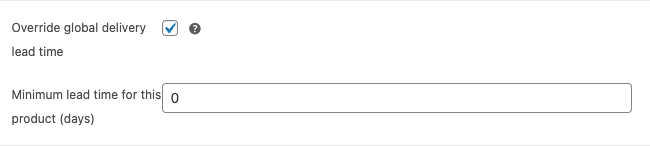
When you do that, you will see a section that looks like this image. Very simply, to override the global lead time for a specific product, check the override global delivery lead time checkbox, and then in the field below, type in the minimum lead time for this specific product. If the checkbox above remains unchecked, then the lead time you set in this field will not take effect.
Our plugin supports simple products and variable products. With variable products, you can either override lead times for all variations of a product as per the per-product overrides above, or you can override the lead time per individual variation by going to Product Data > Variations and editing the same fields for the individual variation.
Usage & Display
↑ Back to topWith our Delivery Date Picker plugin, your customers will be able to select their preferred delivery date based on all the restrictions you have set using the settings above. On your checkout page, the field will look like the one below.
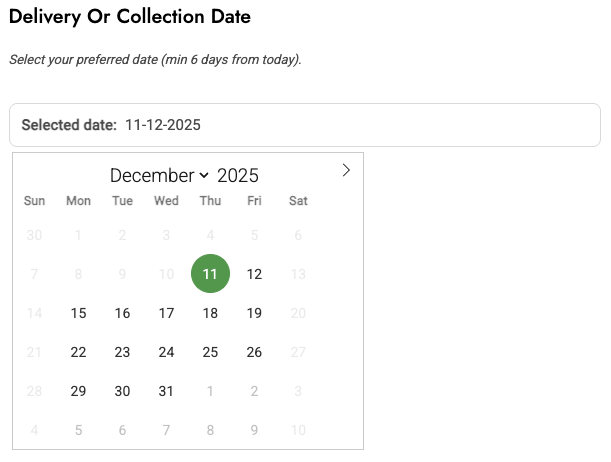
By default, the earliest available date will be selected, based on your constraints. However, your customers can select any available date from the date picker.
Our plugin will also take into account the situation where someone has in their basket various products with different lead times. In this situation, it will only allow the customer to select a delivery date based on the product with the longest lead time in the basket. For example, if your customer has two products in the basket, one with a 5-day lead time and one with a 10-day lead time, the customer will only be able to select a delivery date based on the 10-day lead time.
Troubleshooting
↑ Back to topThe delivery date field isn’t showing on my checkout. What should I check first?
↑ Back to topFirst, make sure WooCommerce is active – the plugin only runs when WooCommerce is loaded. Next, confirm you’re viewing the checkout page (not cart or a custom form), and that your theme/template is using the standard WooCommerce checkout hooks. If you’re using the new Checkout block, ensure you’ve added the “Checkout” block to that page; the plugin automatically integrates with the block-based checkout and doesn’t require extra setup.
I’m using the WooCommerce Checkout block. Do I need to configure anything special for this plugin to work?
↑ Back to topNo extra configuration is needed. The plugin registers an additional checkout field with the Store API and renders a “Delivery or Collection Date” panel within the Checkout block. If you don’t see it:
- Make sure you’re on WooCommerce 8.9+ (or a version that supports
woocommerce_register_additional_checkout_field). - Clear any page cache and try a hard refresh.
- Temporarily switch to a default theme (e.g. Storefront) and disable other checkout-related plugins to rule out conflicts.
Customers are being told weekends aren’t available, but they can still see weekend dates. Is this expected?
↑ Back to topIt depends on your settings:
- If “Block weekend selection” is enabled, weekends are disabled in the inline calendar for the classic checkout, and the plugin will prevent or silently correct weekend selections in both classic and block-based checkouts.
- If you only exclude weekends from the lead-time calculation (by unchecking “Count weekends towards lead time”), weekends may still be selectable if they fall after the minimum allowed date. To completely stop weekend bookings, make sure “Block weekend selection” is checked on the Delivery Date settings tab.
The earliest selectable date doesn’t match the lead time I expect. Why is that?
↑ Back to topThe plugin uses the longest applicable lead time in the cart:
- It checks each product (and variation) for an override.
- If any item has “Override global delivery lead time” enabled with a higher lead time, that value wins.
- If no overrides are found, it uses the global minimum lead time you set in WooCommerce → Settings → Delivery Date.
It also respects whether weekends are counted as working days. If “Count weekends towards lead time” is disabled, the plugin treats the lead time as business days, which can push the earliest date further into the future than you might expect from the raw number.
My orders are missing the delivery date, or the date doesn’t show in admin/email. What’s happening?
↑ Back to topThe plugin always attempts to save a valid date:
- If the customer selects a date, that value is saved.
- If they don’t choose a date, the plugin automatically fills the earliest valid date based on your lead time and weekend settings.
If you don’t see the date:
- Check the order meta in WooCommerce admin – it appears under your chosen field title (e.g. “Delivery or Collection Date”).
- Make sure you haven’t customised order emails in a way that strips additional meta fields. The plugin adds the date to the standard email meta array; heavily customised email templates might need a tweak to display it.
- Temporarily switch to a default theme and disable email-customising plugins to check for conflicts.
The plugin says “Invalid date format. Please use DD-MM-YYYY.” Can I change the format?
↑ Back to topThe plugin standardises on DD-MM-YYYY internally for validation and storage. This is also what it expects when customers type dates into the Blocks checkout text field. At the moment, the format is not configurable from the settings screen. If you see this message:
- Check that your customers are not entering dates in a different format (e.g. US-style MM/DD/YYYY).
- Make sure any custom checkout fields or scripts are not pre-filling or modifying the date value with a different format.
My hint message shows {days} and {day_label} literally instead of the numbers. Why?
↑ Back to topThe placeholders only work in the “Hint text (above picker)” field in the Delivery Date settings tab. The plugin replaces:
{days}with the longest per-product lead time in the basket (or the global lead time if no overrides), and{day_label}with either"day"or"days".
If you see the raw placeholders:
- Make sure you’ve entered them exactly as
{days}and{day_label}. - Confirm you haven’t disabled the hint entirely (it needs to be non-empty).
- If you’re using a translation plugin, ensure it isn’t escaping or altering the curly braces.
I’ve set a per-product lead time override, but the global lead time is still used. Why?
↑ Back to topCheck the following in the product editor:
- The “Override global delivery lead time” checkbox must be ticked.
- The “Minimum lead time for this product (days)” field must be a positive integer (greater than 0).
- For variable products, ensure you’re editing the correct variation and that the override is set at the variation level if you expect that specific variation to behave differently.
If an override is ticked but the days are set to 0, the plugin ignores that override and falls back to the global lead time.
Does the plugin support different dates per shipping method or per shipping zone?
↑ Back to topNot in this version. The delivery/collection date is a single order-level field and is calculated based on product/variation lead times and your global settings, not per shipping method. If your fulfilment logic depends heavily on shipping methods or zones, you may need custom code or a dedicated shipping–scheduler extension alongside this plugin.
The date picker looks broken or unstyled on my checkout page. How can I fix that?
↑ Back to topThe classic checkout uses a bundled datepicker library and some light CSS:
- Make sure your theme isn’t aggressively stripping or overriding styles on WooCommerce checkout elements.
- Check for console errors that might indicate a JavaScript conflict (e.g. other scripts interfering with jQuery or Flatpickr).
- Temporarily disable other checkout/datepicker plugins and test with a default theme (Storefront or Twenty Twenty-…) to see if the issue persists. If it works there, the problem is likely theme or plugin conflict–related.
I want to test the plugin quickly. Any tips?
↑ Back to topYes:
- Set global lead time to something obvious, like
5days. - Enable Block weekend selection so the difference is easy to see.
- Create one product with a higher per-product lead time (e.g. 10 days) and add it to your cart alongside a normal product.
- Go to checkout and confirm that:
- The inline calendar starts at the date 10 days out (or 10 business days, depending on your weekend settings).
- Weekends are disabled if you checked “Block weekend selection”.
- The hint message correctly reflects the longest lead time and uses “day”/“days” appropriately.
- The chosen date appears on the order in admin and in order emails.
FAQs
↑ Back to topHelp customers by answering commonly asked questions.
Does this plugin work with both Classic and Block-based Checkout?
Yes. The plugin fully supports both the traditional shortcode checkout and WooCommerce’s newer Block-based Checkout. No extra setup is required.
<br>Can I set different delivery lead times for different products?
Yes. Each product — and even each variation — can override the global lead time with its own minimum number of days.
What if my business doesn’t deliver at weekends?
You can prevent customers from selecting Saturdays and Sundays entirely, or you can allow weekend deliveries while excluding them from lead-time calculations (for example, only counting business days).
What happens if a customer doesn’t select a date?
The plugin automatically assigns the earliest valid delivery/collection date based on your settings, ensuring no order is left without a usable date.
Where can I see the chosen delivery date once an order is placed?
The date appears on the order admin screen, as well as in the order confirmation emails sent to the customer and store admin.
Is the delivery date required at checkout?
Yes — the field is required by default so the customer must have a valid date selected. When using the Block checkout, missing dates are automatically filled in to avoid checkout failures.
Can I customise the label and hint message shown above the date picker?
Definitely. You can change the title (e.g. “Delivery Date” vs “Collection Date”) and add your own message to guide customers. You can even include placeholders like
{days}to dynamically show the correct minimum lead time.
Does this support blackout dates or public holidays?
Yes. You can specify an unlimited number of one-off dates you’d like to mark as a holiday. You just need to enter one per line in the ‘Holiday dates’ field in our settings area (WooCommerce > Settings > Date Picker) in the format YYYY-MM-DD. You also have the opportunity to choose whether these dates should be excluded from lead time calculations and/or whether customers should be prevented from selecting these dates as delivery dates.
Will this work with custom checkout plugins or heavily modified themes?
In most cases, yes. The plugin uses standard WooCommerce hooks and APIs. If another plugin replaces or removes the normal checkout field handling, you may need small adjustments for full compatibility.
Can I change the date format from DD-MM-YYYY?
Not currently. The plugin standardises on DD-MM-YYYY for consistency between classic and block-based checkout. Format customisation may be added in a later update.
Does the plugin affect shipping methods or delivery pricing?
No — this plugin only manages the date field. Delivery fees and shipping logic remain entirely controlled by WooCommerce and your shipping extensions.

