Overview
↑ Back to topEU Withdrawal Pro helps you manage consumer withdrawal requests directly in WooCommerce. Customers can submit requests for eligible products, including selected quantities from an order. You can review each request, communicate your decision, and retain a record of the process.
The extension supports registered customers and guest orders, physical, and downloadable products, WooCommerce High-Performance Order Storage (HPOS), classic checkout, Checkout Blocks, and classic and block themes. It is fully localized in all 24 official languages of the European Union.
Important: EU Withdrawal Pro provides tools for managing withdrawal requests. It does not guarantee legal compliance or automatically issue refunds. Make sure your configuration, store policies, and handling of requests meet the legal requirements applicable to your business.
Requirements
↑ Back to top- WordPress 6.0 or newer.
- WooCommerce 10.0 or newer.
- PHP 7.4 or newer. A currently supported PHP version is recommended.
- A working WooCommerce store with a configured My Account page and working order emails.
These are the extension’s minimum requirements. Your installed version of WooCommerce may require newer versions of WordPress or PHP.
Installation
↑ Back to top- Download the extension ZIP file from your WooCommerce.com account.
- In your WordPress dashboard, go to Plugins > Add New Plugin.
- Select Upload Plugin and choose the ZIP file.
- Click Install Now, then Activate Plugin.
- Go to WooCommerce > Settings > Products > EU Withdrawal, or click Check settings in the activation notice.
Review your settings before accepting live withdrawal requests. The extension automatically registers the required withdrawal pages; you do not need to create pages or add shortcodes.
Quick setup
↑ Back to top- Open WooCommerce > Settings > Products > EU Withdrawal.
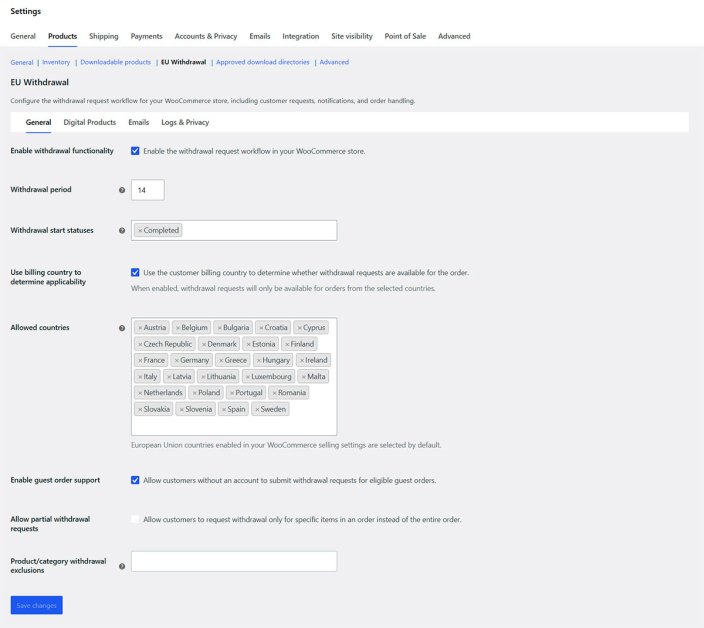
- In the General tab, make sure Enable withdrawal functionality is checked.
- Review the withdrawal period and the order statuses that start it.
- Review your allowed countries and enable guest order support if your store accepts guest checkout.
- Configure any legally applicable product exclusions.
- If you sell downloadable products, review the Digital Products tab.
- In Emails, verify the administrator notification recipients and review the customer email templates.
- In Logs and Privacy, choose a suitable data retention policy.
- Save changes in each tab before moving to another one.
Place a test order and take it through your configured withdrawal start status. Submit a withdrawal request as a customer and check that you can open and resolve it from the administration area. If you accept guest checkout, test that process separately, including the order email.
General settings
↑ Back to topGo to WooCommerce > Settings > Products > EU Withdrawal > General.
Enable withdrawal functionality
↑ Back to topTurns on the customer-facing withdrawal request workflow. This option is enabled by default.
Withdrawal period
↑ Back to topSet the number of days customers have to submit an eligible withdrawal request. The default is 14 days.
Withdrawal start statuses
↑ Back to topChoose the order statuses that start the withdrawal period. The default is Completed. When an order first reaches one of the selected statuses, the extension records the start date. Later status changes do not reset that date.
Choose statuses that reflect your actual fulfillment process. For example, if you use Completed before the customer receives physical goods, review whether that status is appropriate for calculating the applicable withdrawal period. The extension uses WooCommerce order status changes rather than independently detecting the delivery date.
Existing orders: Orders placed before installation are not automatically made eligible. The extension cannot reliably determine when an existing order previously reached the configured start status. If an order subsequently reaches a selected status, the extension can record a start date; review existing requests on a case-by-case basis where necessary. Installing the extension does not change a customer’s underlying legal rights.
Use billing country to determine applicability
↑ Back to topWhen enabled, the extension checks the order’s billing country against the Allowed countries list. This option is enabled by default. If disabled, the billing-country restriction is not applied.
Allowed countries
↑ Back to topSelect the countries whose customers can use the withdrawal workflow. By default, the list includes EU countries that are enabled in your WooCommerce selling settings. Review this selection if you change the countries where you sell.
Enable guest order support
↑ Back to topAllows customers who purchase without an account to submit withdrawal requests through secure links. Guest checkout must also be enabled in WooCommerce > Settings > Accounts and Privacy. This setting may be hidden if your store does not allow guest checkout.
Category withdrawal exclusions
↑ Back to topSelect any product categories that should be excluded from the withdrawal workflow. Excluding a category also excludes its subcategories. Use exclusions only where they are appropriate under the applicable rules. You can also exclude individual products and variations, as explained below.
Customer messages
↑ Back to topCustomize the messages shown on the withdrawal request details page when a request is pending, approved, or rejected. The following placeholders are available:
{order_number}— WooCommerce order number.{date}— deadline date for a pending request.{time}— deadline time for a pending request.
Keep the messages clear and consistent with your store’s procedures. These settings control on-screen messages; email messages are customized separately in the Emails tab.
Excluding products and variations
↑ Back to topIn addition to category exclusions, you can exclude specific products from the withdrawal workflow.
- Go to Products > All Products and edit the product.
- In the Product data panel, open the Advanced tab.
- Check Exclude from withdrawal workflow.
- Update the product.
For a variable product, excluding the parent product also excludes all its variations. To exclude only a specific variation, open the Variations tab, expand that variation, enable Exclude from withdrawal workflow, and save your changes.
If an order contains both eligible and excluded products, customers can still submit a request for the eligible products. Use exclusions only for products that are legally excluded from the right of withdrawal.
Digital and downloadable products
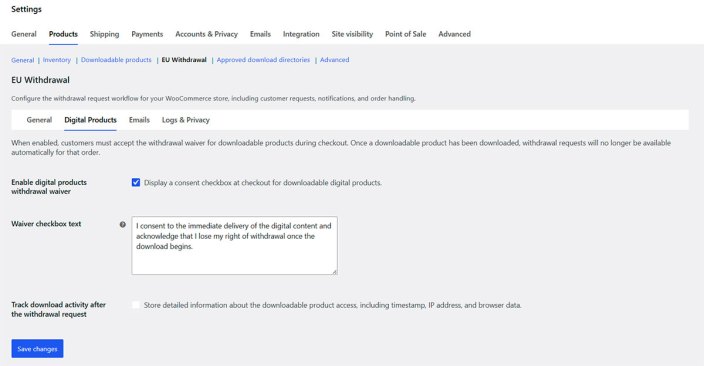
↑ Back to topIf your store contains downloadable products, go to WooCommerce > Settings > Products > EU Withdrawal > Digital Products. The tab is shown when downloadable products are detected in your catalog.
Enable digital products withdrawal waiver
↑ Back to topEnable this option to display a consent checkbox at checkout for downloadable products. When the checkbox is required, customers must accept it before completing their purchase. The extension records acceptance and the waiver text associated with the order.
With the waiver enabled, if acceptance has been recorded and WooCommerce reports that a downloadable product has already been accessed, that product is no longer available for automatic withdrawal requests through the extension. Other eligible products in the same order can still be selected.
The waiver is disabled by default. Make sure it is appropriate for the digital content you sell and that your checkout and confirmation process meet the applicable legal requirements.
Waiver checkbox text
↑ Back to topCustomize the consent statement displayed at checkout. The default wording refers to immediate delivery of digital content and acknowledgement that the right of withdrawal is lost once the download begins.
Review any custom wording carefully before saving. Changing the text affects future checkout displays; it does not change the consent already recorded for previous purchases.
Track download activity after the withdrawal request
↑ Back to topEnable this option to record subsequent WooCommerce download events for products included in a pending withdrawal request. The records can include the download time, product, IP address, and browser information.
You can review these events in the request’s Logs tab. This feature records activity; it does not automatically reject a request or revoke download permissions. Review the recorded information before making your decision.
Tracking relies on WooCommerce’s own download handling and does not monitor copies of files already downloaded or downloads made outside WooCommerce.
Email notifications and reminders
↑ Back to topGo to WooCommerce > Settings > Products > EU Withdrawal > Emails.
Customer and administrator notifications
↑ Back to top- Submitted request: the customer receives an acknowledgement when a request is submitted, and the configured administrator recipients receive a notification with a link to review it. The customer acknowledgement cannot be disabled through the settings.
- Approved request: the customer receives the decision and any administrator comment when the approval notification is enabled.
- Rejected request: the customer receives the decision and any administrator comment when the rejection notification is enabled.
Approval and rejection emails are enabled by default. We recommend keeping them enabled so customers can follow the progress of their requests.
Administrator notification recipients
↑ Back to topEnter the email addresses of the people responsible for handling requests. By default, the WordPress administrator email address is used. Separate multiple addresses with commas or semicolons.
Pending withdrawal reminders for administrators
↑ Back to topEnable this option to send an automatic reminder when a pending request approaches its recorded deadline.
Set the Reminder threshold in days (1 to 13 days). The default threshold is 3 days. For example, a threshold of 3 sends a reminder when the daily check finds a pending request with three days or fewer remaining before the deadline. The extension records that the reminder has been processed and does not repeatedly send the same reminder.
Reminders use WordPress scheduled tasks. Their actual timing depends on your site’s scheduled task configuration and email delivery.
Customize email templates
↑ Back to topYou can edit the subject and body of the submitted, approved, and rejected customer notifications. The settings display the placeholders available for each template.
| Placeholder | Replaced with |
|---|---|
{customer_name} | Customer name |
{request_id} | Withdrawal request reference |
{order_number} | WooCommerce order number |
{request_url} | Link to the request details |
{requested_items} | Products and quantities included in the request |
{site_name} | Store name |
{deadline} | Recorded deadline (submitted request template) |
{admin_comment} | Administrator’s message (approval and rejection templates) |
Keep the braces around placeholders so the extension can replace them with the correct information. After editing a template, submit, and resolve a test request to check the resulting emails.
How customers submit a withdrawal request
↑ Back to topRegistered customers
↑ Back to top- Log in to the store and go to My Account > Orders.
- Find an eligible order and click Withdrawal Request.
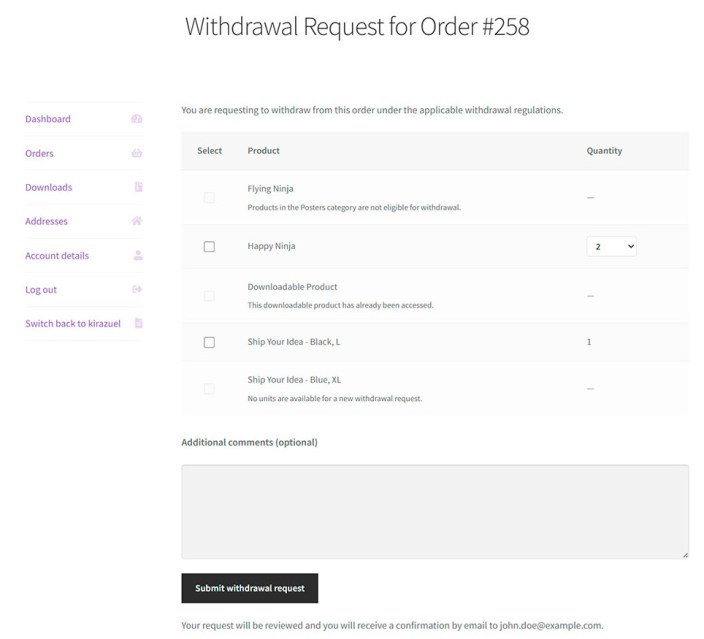
- Select the products to include in the request. Where more than one unit is available, choose the desired quantity.
- Enter an additional comment if needed. This is optional.
- Click Submit withdrawal request.
The customer can see the request details and status, and receives an email acknowledgement. The request can also be opened from its corresponding Withdrawal # action in the Orders list.
Guest customers
↑ Back to topWhen guest checkout and guest withdrawal support are enabled, qualifying guest orders receive a Request Withdrawal link in a customer order email after the configured trigger status has been reached (typically the completed-order email).
- Open the order email and click Request Withdrawal.
- Select the required products and quantities.
- Add an optional comment and click Submit withdrawal request.
No account or login is required. The secure link identifies the specific order and authorizes access to the form. After submission, the acknowledgement email includes a link to the request details.
These links should be treated as private. Customers should not share them with other people.
Full and partial withdrawals
↑ Back to topCustomers can select all eligible products and quantities to request a full withdrawal, or select only certain products and units to request a partial withdrawal. The form indicates unavailable products and quantities. Its availability depends on the order status, recorded start date, withdrawal period, country settings, exclusions, previous requests, refunds, and applicable digital product rules.
Review and manage withdrawal requests
↑ Back to topOpen the withdrawal dashboard
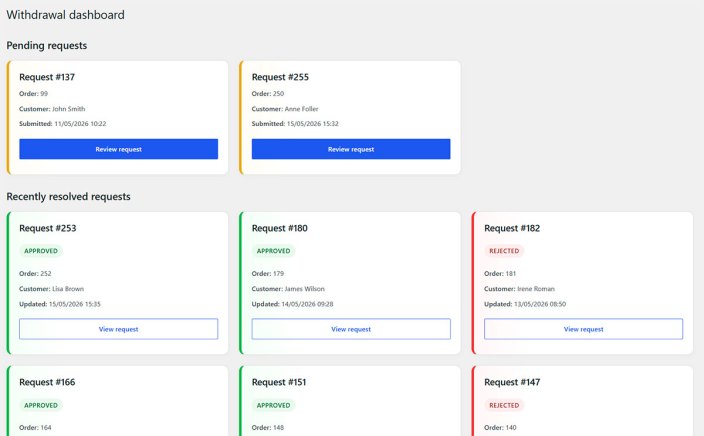
↑ Back to topGo to WooCommerce > Withdrawal dashboard. The dashboard shows pending requests and up to 30 recently resolved requests. Open the relevant request to review it.
You can also identify pending requests in WooCommerce > Orders using the dedicated review action. The related order contains request information and links in its notes. A WordPress dashboard widget provides an additional entry point for pending reviews.
Review a request
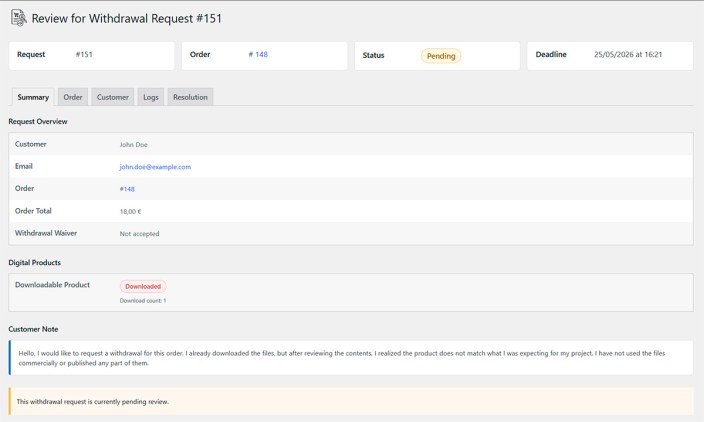
↑ Back to topThe review screen shows the request reference, associated order, current status, and relevant deadline or resolution date. It contains five tabs:
- Summary: review the customer details, request date, products, and quantities included, comments, and any recorded waiver and digital download information.
- Order: review the original WooCommerce order, including its items, totals, and customer note where available.
- Customer: review customer information and available purchase history, including the number of orders and total spent.
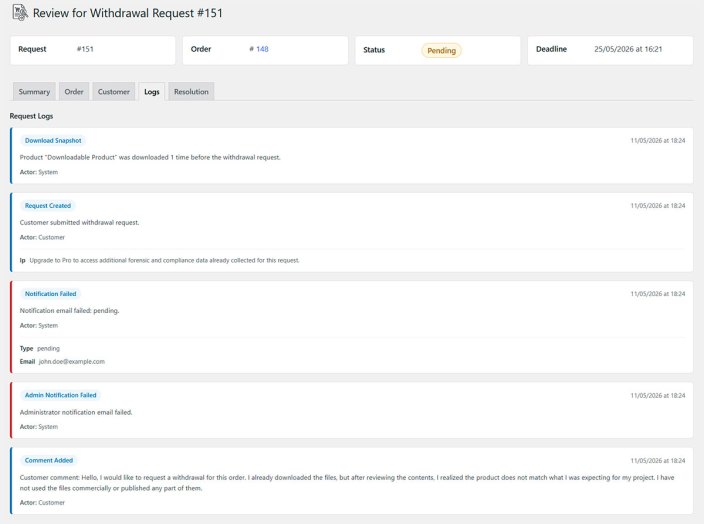
- Logs: review recorded events such as submission, notifications, waiver acceptance, download activity, and administrative decisions.
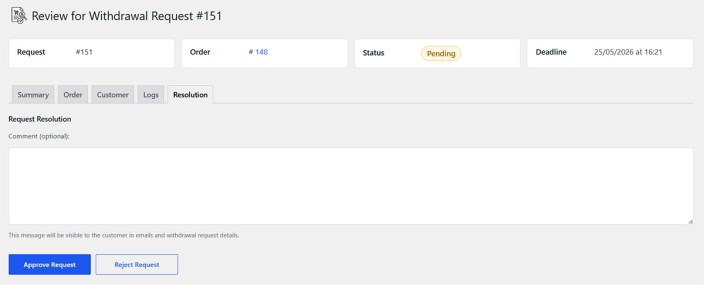
- Resolution: record your decision and an optional message for the customer.
The displayed deadline is calculated using the recorded withdrawal start date and withdrawal period at the time of request creation. It is a workflow reference and is not a separate legal refund deadline calculation. Review the legal deadlines applicable to each case independently.
Approve or reject a request
↑ Back to top- Review the information available in the Summary, Order, Customer, and Logs tabs.
- Open the Resolution tab.
- If needed, enter a message for the customer, such as return instructions or the reason for rejection.
- Click Approve Request or Reject Request, as appropriate.
The extension records the decision, updates the request status, and adds an order note. The message is visible to the customer in their request details and is included in the corresponding notification email if enabled. A resolved request is no longer editable through the standard resolution form.
Refunds and returns: approving a withdrawal does not automatically refund the payment, change the WooCommerce order status, restock products, revoke downloads, or arrange a return shipment. Handle these operations separately using WooCommerce and your existing return procedures.
If a notification could not be sent, review the notification settings and logs and contact the customer manually when needed.
Request logs and PDF reports
↑ Back to topEach request has its own activity log. To review or export it:
- Open the relevant withdrawal request.
- Go to the Logs tab.
- Review the recorded events and available technical information.
- Click Export Logs to download a PDF report.
The report contains request and order references, available customer information, request status, and the recorded activity. It can help with internal record-keeping, audits, or customer disputes. It is an administrative report, not a legal certificate.
Export any records you need to retain before the automatic log cleanup removes their detailed information. Store exported reports securely because they may contain personal data.
Logs and privacy
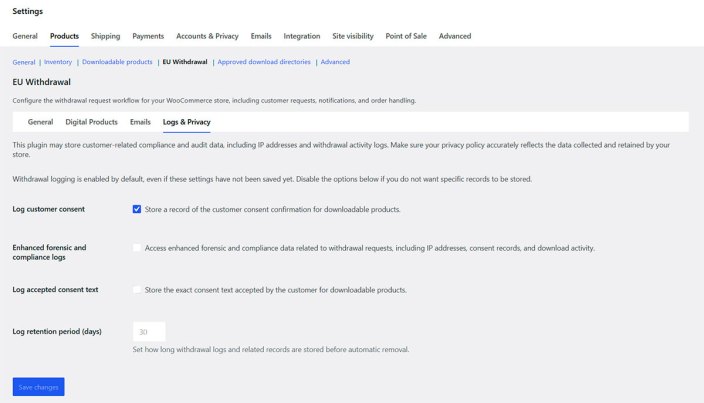
↑ Back to topGo to WooCommerce > Settings > Products > EU Withdrawal > Logs and Privacy.
Enable automatic log cleanup
↑ Back to topWhen enabled, the extension periodically removes detailed log records and selected stored customer information from resolved requests that have reached the configured retention limit. It preserves the basic request record and replaces its detailed activity log with a cleanup entry. Pending requests are not included in automatic cleanup.
Log retention period (days)
↑ Back to topChoose how long to retain detailed logs for resolved requests. The default is 365 days; the minimum offered by the settings is 14 days. Automatic cleanup is enabled by default.
The retention calculation uses the resolved request’s last modification date. Cleanup runs through WordPress scheduled tasks and may not occur at an exact time.
Personal data and WordPress privacy tools
↑ Back to topThe extension may store customer names, email addresses, company information, comments, request data, IP addresses, browser information, timestamps, and download activity where applicable. Withdrawal-related data is stored in your WordPress database; the extension does not transmit it to a separate external processing or analytics service. Notification emails use your store’s email delivery system.
The extension integrates with the native WordPress privacy tools:
- Tools > Export Personal Data — include withdrawal-related personal data associated with the requested email address.
- Tools > Erase Personal Data — remove or redact personal information supported by the extension while preserving necessary request references and administrative records.
These operations do not replace WooCommerce’s own privacy tools or automatically erase previously exported PDF files. Review your store’s privacy policy and choose an appropriate retention period for your business and legal obligations.
Languages and localization
↑ Back to topEU Withdrawal Pro includes translations for all 24 official EU languages: Bulgarian, Croatian, Czech, Danish, Dutch, English, Estonian, Finnish, French, German, Greek, Hungarian, Irish, Italian, Latvian, Lithuanian, Maltese, Polish, Portuguese, Romanian, Slovak, Slovenian, Spanish, and Swedish.
The extension uses the WordPress translation system. Set the site’s language under Settings > General > Site Language; administrators can also choose their preferred language in their WordPress user profile.
Custom messages, saved email templates, and customized waiver text are merchant-provided content. Review or translate these separately if you change languages or run a multilingual store. The included language files do not automatically translate custom content or create a multilingual storefront.
Troubleshooting
↑ Back to topThe Withdrawal Request button is missing
↑ Back to topCheck that the extension and withdrawal functionality are enabled, that the customer is viewing an order belonging to their account, and that the order has reached a configured withdrawal start status after installation. Verify that the recorded withdrawal period has not expired, that the order status and billing country are eligible, and that at least one product and unit can still be requested.
For downloadable products, review any applicable waiver and recorded download activity. For existing orders, see the explanation in General settings.
A guest customer did not receive a withdrawal link
↑ Back to topVerify that both WooCommerce guest checkout and the extension’s guest order support are enabled. Check that the order was placed without an account, has reached a configured start status, and that the corresponding customer order email was sent. The initial guest link is intended to be included once per order, so resending an order email may not add it again.
If the customer no longer has the original link, contact them through your normal verified support process and handle their withdrawal request as appropriate.
A withdrawal link displays Page not found
↑ Back to topWithdrawal links should work immediately after activation. Make sure you are using the latest extension release, WooCommerce is active, and your My Account page and WordPress permalink configuration work correctly. If the problem persists, clear relevant caches and save Settings > Permalinks to rebuild WordPress routing rules. Contact support if the issue continues.
A secure guest link must retain its original query parameters. Check that an email or redirection service has not altered or removed them.
The digital products tab is missing
↑ Back to topThe tab appears when the extension detects downloadable products in your catalog. Verify that at least one published or private product is configured as downloadable and save the product before checking the settings again. If your catalog contains only downloadable variations and the tab does not appear, contact support.
Customer notifications or reminders are not arriving
↑ Back to topCheck the notification options, administrator recipient addresses, email templates, spam folder, and store email delivery configuration. Review the request’s Logs tab for recorded notification results. For reminders, make sure the request is still pending, the deadline has not passed, the configured threshold has been reached, and WordPress scheduled tasks are running.
A successful sending event does not guarantee that a recipient’s email provider accepted or delivered the message.
Detailed logs are no longer available
↑ Back to topCheck the request’s log for an automatic cleanup entry and review your retention settings. If cleanup has already removed detailed records, they cannot be restored from the request itself. Use previously exported reports or appropriate backups if available.
Frequently asked questions
↑ Back to topCan customers submit requests without an account?
↑ Back to topYes. When guest order support is enabled, qualifying guest orders receive a secure withdrawal link in a customer order email.
Can customers request a withdrawal for only part of an order?
↑ Back to topYes. The form supports selection of eligible products and individual quantities.
Does the extension automatically refund approved requests?
↑ Back to topNo. You retain control over financial refunds and return handling through your existing WooCommerce procedures.
Can I use the extension with WooCommerce HPOS or checkout blocks?
↑ Back to topYes. EU Withdrawal Pro supports HPOS and both classic and block-based checkout. It also supports classic and block themes.
Does installing the extension guarantee legal compliance?
↑ Back to topNo. The extension helps organize and document your withdrawal process. You remain responsible for configuring the extension appropriately, making legally valid decisions, and fulfilling your consumer protection and privacy obligations.
Getting help
↑ Back to topIf you need assistance, contact support through your WooCommerce.com account. Include your WordPress, WooCommerce, and EU Withdrawal Pro versions, a description of the issue, the steps needed to reproduce it, and any relevant error messages. Remove customer personal data and secure guest access links from screenshots or logs before sharing them.