
This page explains some common Google for WooCommerce errors and how to resolve them.
Can’t complete setup; Continue button is unavailable
↑ Back to topThe Continue button on the final onboarding step is unavailable until you complete all required setup items.
Common causes and solutions
↑ Back to top1. Store address is incomplete
In WP Admin, go to WooCommerce > Settings. Complete these required address fields:
- Street address
- City
- Postcode
- Country
2. Required Google accounts are not connected
The Continue button remains unavailable until you connect these accounts:
- Connect a Google account.
- Link a Google Merchant Center account.
- Connect a Google Ads account.
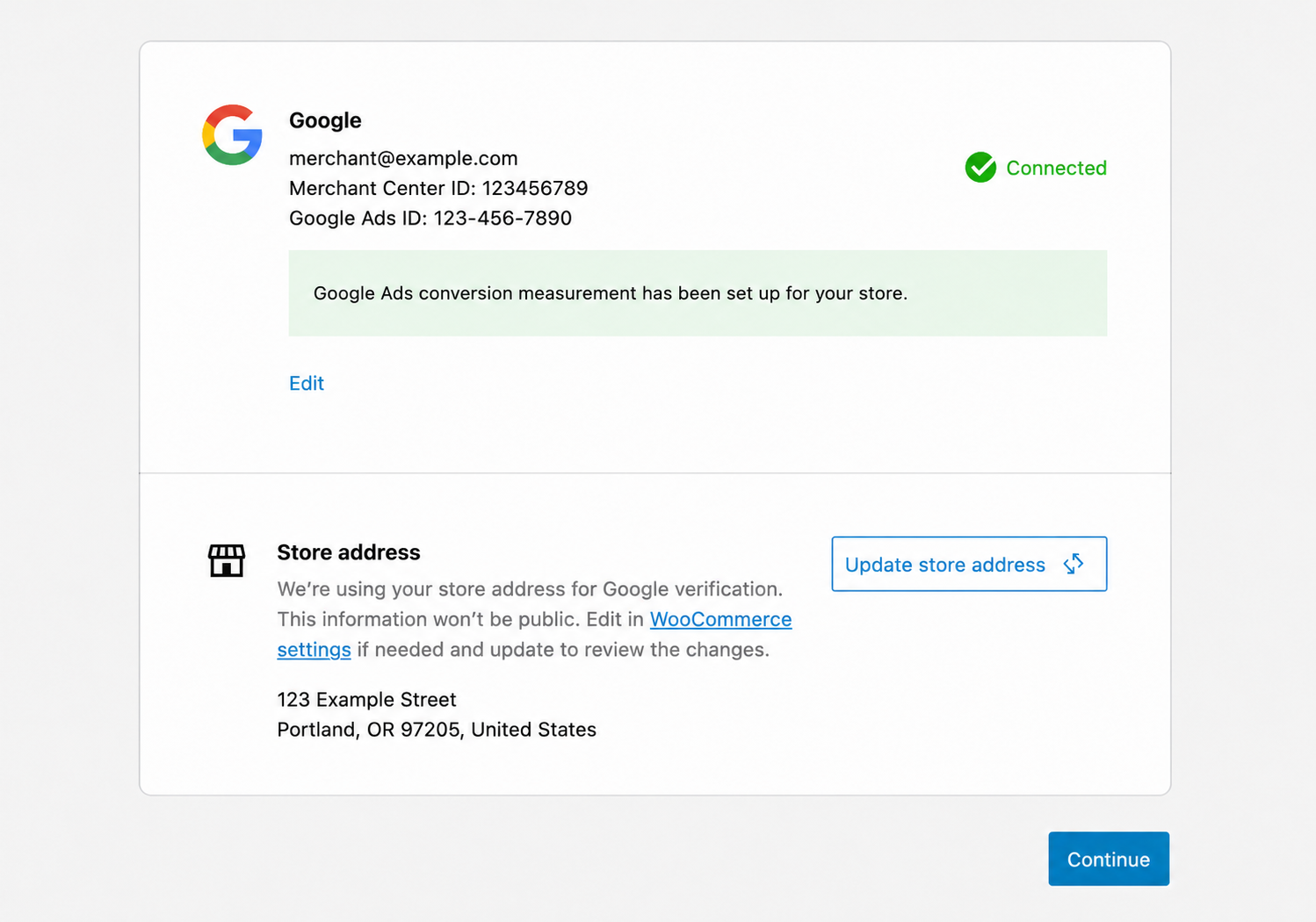
The Google section should show the connected Google account email address, Merchant Center ID, and Google Ads ID. Each account displays a green checkmark and a Connected status when the connection is complete. If a connection is missing or incomplete, the Continue button remains unavailable.
3. Account connections need to be reset
- Disconnect your Google accounts
- Open
https://<example.com>/wp-admin/admin.php?page=wc-admin&path=%2Fgoogle%2Fsettings, replacing<example.com>with your site’s domain. - Scroll down and select Disconnect from all accounts.
- Open
- Reconnect your Google accounts
- After disconnecting, go to Marketing > Google for WooCommerce.
- Follow the prompts to reconnect these accounts:
- Google account
- Google Merchant Center
- Google Ads account
- After you reconnect all required accounts and complete the store address, the Continue button becomes available.
Can’t create, edit, or pause Google Ads campaigns
↑ Back to topIf Google for WooCommerce cannot create, edit, or pause a campaign, you may see a message that an EU political advertising declaration is required.
Google Ads requires every campaign in the connected account to declare whether it contains political advertising intended for the European Union (EU), even when the answer is no. If any campaign is missing the declaration, Google blocks campaign-management changes across the account. This can prevent you from creating, editing, or pausing other campaigns, including campaigns that do not target an EU country.
Resolve the error
↑ Back to top- Update Google for WooCommerce to the latest version. The guided declaration flow requires version 3.6.1 or newer.
- In WP Admin, go to Marketing > Google for WooCommerce.
- Follow the prompt to review campaigns that are missing an EU political advertising declaration, then answer the declaration question for each campaign.
- If the prompt does not appear, open the connected Google Ads account and complete the declaration at the account or campaign level. An admin or standard user must complete this task in Google Ads. See Google’s EU political advertising declaration guidance.
- After every campaign has a declaration, return to Google for WooCommerce and try the change again.
Note:
If you declare that a campaign contains EU political ads, Google will not serve that campaign in the EU. The campaign can still run in other regions.
Limited performance due to missing identifiers (GTIN, MPN, and brand)
↑ Back to topGoogle may limit a product’s performance when it is missing one or more product identifiers, such as a Global Trade Item Number (GTIN), Manufacturer Part Number (MPN), or brand. These identifiers distinguish products and help Google match them with relevant searches.
Google does not require these identifiers for every product, but missing identifiers can reduce a product’s visibility on Google Shopping channels.
To add identifiers to an individual product, edit the product and open the Google for WooCommerce tab in the Product data section. To map identifiers across your store or a product category, use attribute mapping. See the attribute mapping use cases for examples.
Use the guidance below for custom or handmade products and products from known brands.
Identifiers for custom or handmade products
↑ Back to topFor custom or handmade products, use these identifier values:
[gtin]: Leave this field blank.[mpn]: Enter the product’s WooCommerce SKU.[brand]: Enter your domain name withouthttps://www..
Products from known brands
↑ Back to topManufacturers usually provide identifiers for branded products.
[gtin]: Enter the GTIN supplied by the manufacturer. You can often find it on the product’s barcode or packaging. If you cannot find it, contact the manufacturer.[mpn]: Enter the manufacturer-assigned part number. If the product does not have an MPN, leave this field blank.[brand]: Enter the product’s brand, such as Adidas. Google uses this value to match the product with relevant searches.
Unable to update your Google Merchant Center contact information
↑ Back to topThe Unable to update your contact information error can occur when Google for WooCommerce cannot communicate with WordPress.com through your site’s XML-RPC endpoint. A web host, firewall, or security plugin may block these requests.
Use the Jetpack debug tool to check the site’s connection. You can also open https://example.com/xmlrpc.php in a browser, replacing the example with your site’s domain. An unrestricted endpoint normally displays XML-RPC server accepts POST requests only. This browser test checks access from your IP address; a 403 can be expected when the host allows only Jetpack’s IP ranges.
A browser error alone does not establish that Jetpack is blocked. If the connection check fails, ask your host to check its logs for blocked or rate-limited requests from WordPress.com.
- Verify the requests’ source IPs against the published Jetpack IP ranges. The
for=jetpackquery parameter helps locate Jetpack requests, but it does not authenticate them. - If those requests are blocked, allow Jetpack’s published IP ranges access to the XML-RPC endpoint. Keep the exception scoped to that endpoint and keep the firewall rules current as the IP list changes.
- Do not allow requests based on a Jetpack user agent. A user agent can be spoofed.
See Jetpack’s IP allowlist guide for host-specific examples. If your site uses an alternate Jetpack XML-RPC endpoint, contact support to confirm the correct URL and access rules. Adding for=jetpack to a URL does not replace source-IP checks.
After the host changes the rules, check the connection again and retry updating your contact information. If the host finds no block, perform a conflict test to check whether a theme or plugin is interfering.
Note:
Google for WooCommerce uses Jetpack services to connect your site to WordPress.com. You do not need to install the Jetpack plugin.
Google ID was not found in Merchant Center
↑ Back to topThis error can appear when a product is marked as synced in WooCommerce but its matching ID cannot be found in Google Merchant Center. This can happen if someone deletes the product directly in Merchant Center.
Google for WooCommerce resyncs products when they are updated. To trigger a full sync, open the debug page at wp-admin/admin.php?page=connection-test-admin-page, then select Sync All Products with Google Merchant Center.
Error submitting products to Google
↑ Back to topError submitting products to Google: Google Merchant Center has not been set up correctly. Please review your configuration.
This error indicates a problem with the Google Merchant Center connection. Disconnect and reconnect your Google accounts.
In WP Admin, go to Marketing > Google for WooCommerce > Settings, then select Disconnect from all accounts. Follow the prompts to reconnect your accounts.

