
Build a mobile app for your WooCommerce store effortlessly, without any coding required. Boost your sales and reach a wider audience of mobile users with customizable apps for both Android and iOS platforms.
Installation:
↑ Back to top- Download the Mobile App Builder Extension and have your .zip file
- At the WordPress admin panel, go to the Plugins section, and click ‘Add New’ to upload and install the plugin you just downloaded from WooCommerce.
- Upload the .zip file to proceed with the installation.
- Wait until the plugin installs. After successful installation, activate the plugin, and move on to configuration settings.
Configuration:
↑ Back to topAt the WooCommerce admin panel go to WooCommerce > Settings > FMA Mobile App Builder for configuration. Here you will find the Eight tabs: Key Configuration, Display Settings, Image Settings, Buy From Us, Brands, Contact Us, Translation and Terms and Conditions.
Key Configuration:
↑ Back to topIn key configuration tab you need to add following:
- Consumer Key: (Enter consumer key for you mobile app)
- Consumer Secret: (Enter consumer secret for your mobile app)
For Consumer Key and Consumer Secret you need to go WooCommerce > Settings > Advanced tab. here you can See Rest API Tab in this tab you can click on a Add Key button to generate a Consumer Key and Consumer Secret.
Note: Please fill out the Google Form in Key Configuration Tab at Admin Panel to receive the APK file for your store.

Display Settings:
↑ Back to top- Theme Color: (Select the Color of the theme)
- New Products: ( Enable New Products on the app)
- Best Sale Products: (Enable Best Selling products on the app)
- On Sale Products: (Enable On Sale products on the app)
- Top Rated Products: (Enable Top Rated products on app)
- Category Slider: (Enable Category Slider.)
- Select category: (Select the category you want to display)

Image Settings:
↑ Back to top- Top Banner Slider: (Enable Top Slider on your app)
- Slider Images: (Here you can upload slider images and select product on which you want to redirect customers when click on banner image)
- Grid Banner Slider: (Enable Banners on your app)
- Grid Banner Images: (Here you can upload grid banner images and link on which you want to redirect on click)
- Mobile logo: (It will be displayed on Sign In & Sign Up Page)
- Logo Image: (upload logo image)

Buy From Us:
↑ Back to top- Enable / Disable: (Enable Disable form)
- Images: (Upload images for form)

Brands:
↑ Back to topIn this tab you can add unlimited brands, Click on a Add New Brand button and add following data to add brand:
- Brand Title
- Brand Description
- Select Category or Add New Category
- Enable
- Featured
- Upload Brand Thumbnail

Custom Notifications:
↑ Back to topIn this tab you have three types of settings which are Notification Settings, Create Notifications and Send Notifications.
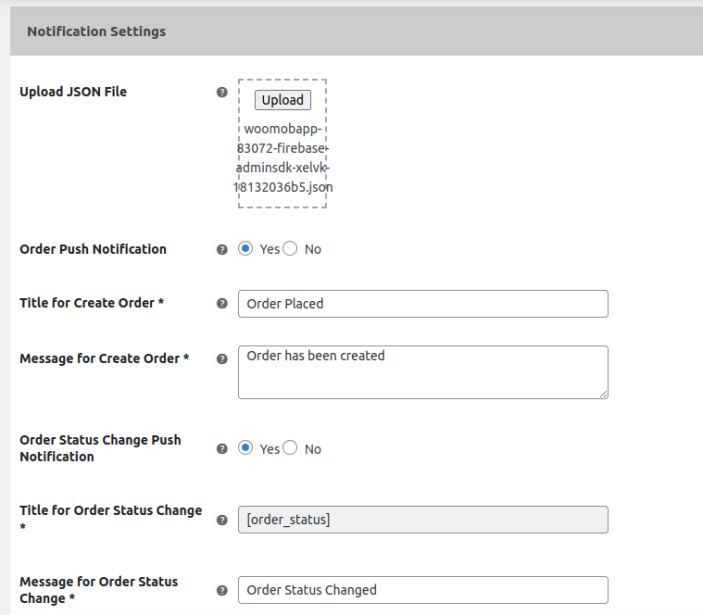
Notifications Settings:
- Upload JSON File: upload json file.
- Order Push Notifications: enable or disable order push notification.
- Title for Create order: Set title for create order.
- Message for Create Order: Enter message for create order.
- Order Status Change push Notifications: Enable or Disable order status change push notification.
- Title for Order Status Change: Set the title for Order status change.
- Message for Order Status Change: Enter message for order status change.
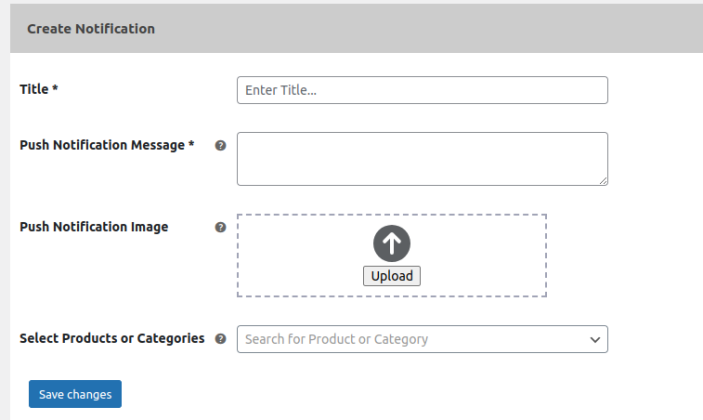
Create Notifications:
- Title: Enter title for notification.
- Push Notification Message: Write message for push notification.
- Push Notification Image: Upload image for push notification
- Select Products or Categories: Select product categories on which you want to redirect from push notification.
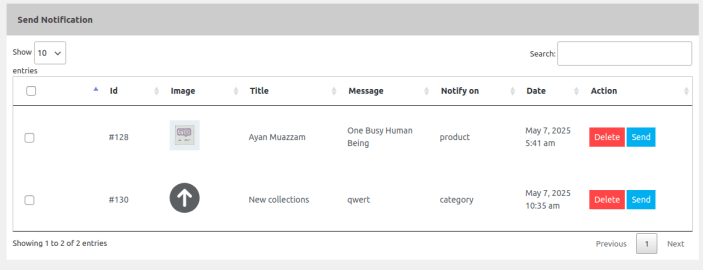
Send Notification:
In this section all created notifications will be available, You can send or delete them in this section.
Contact Us:
↑ Back to topIn this tab, you can see all user’s details who contact you through mobile app.

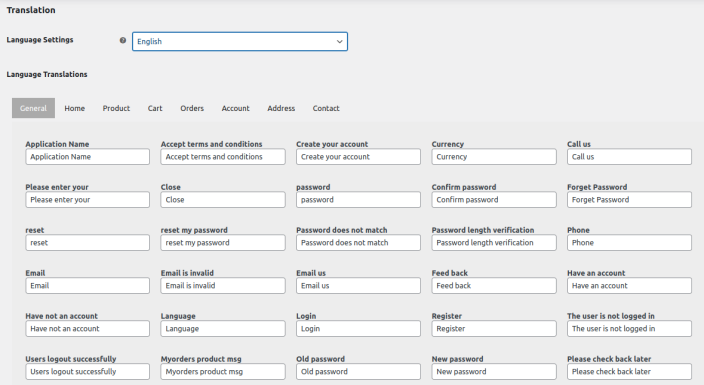
Translation:
↑ Back to topIn this section, you can choose the translation language and provide translated text for General, Home, Product, Cart, Orders, Account, Address, and Contact sections.
Terms and Conditions:
↑ Back to topYou can set the terms and conditions for mobile app from here.


