
Welcome to the official documentation for Nexa Currency Switcher for WooCommerce. This guide will walk you through everything from setup to advanced features.
Installation
↑ Back to top- Purchase and download the plugin from WooCommerce.com.
- In your WordPress dashboard, navigate to Plugins > Add New > Upload Plugin.
- Upload the ZIP file, click Install Now, then Activate.
- Go to WooCommerce > Currency Switcher to begin setup.
Configuration
↑ Back to top1. Set Up Currencies
↑ Back to top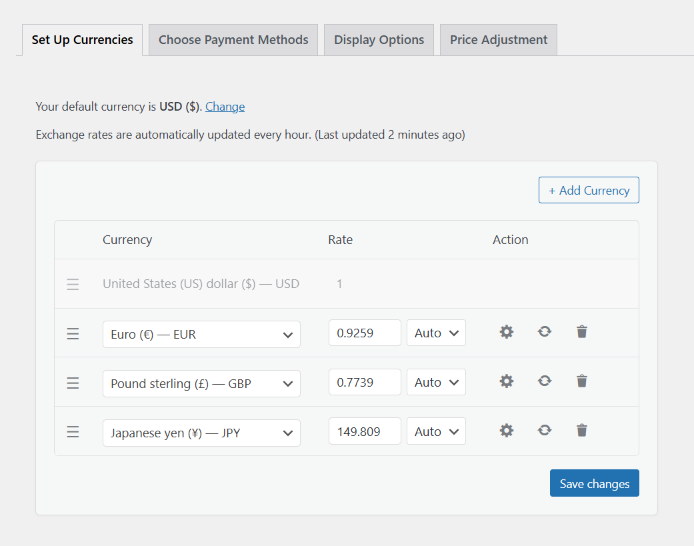
- Click + Add Currency to add new currencies.
- Choose Manual or Auto exchange rates.
- Use the ⚙️ Settings Icon to configure:
- Decimal precision
- Currency symbol position
- Decimal & thousand separators
- Exchange fee markup (percentage or fixed)
2. Choose Payment Methods
↑ Back to top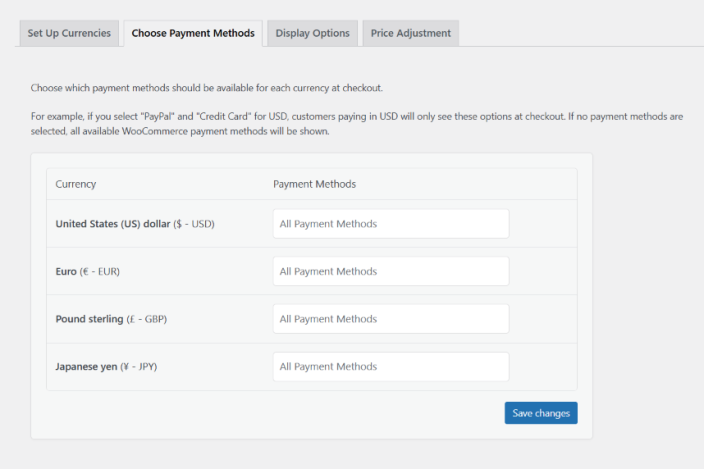
- Assign which payment methods are allowed per currency.
3. Display Options
↑ Back to top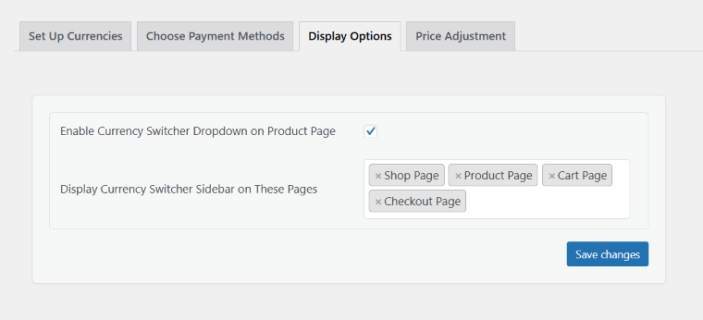
- Enable dropdown selection on product pages.
- Choose where to display the currency switcher (shop, cart, checkout, etc.).
4. Price Adjustment
↑ Back to top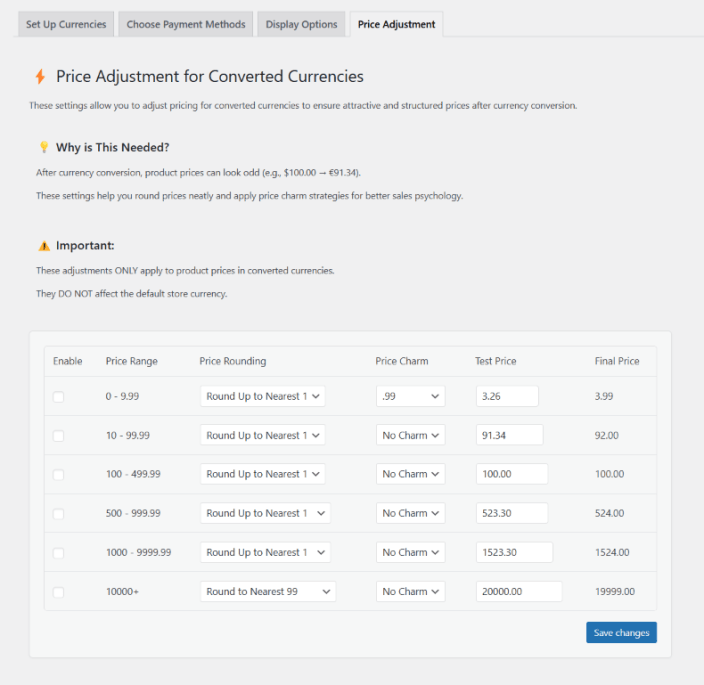
- Set custom rounding rules by price range.
- Enable charm pricing (e.g., convert 9.43 to 9.99).
- Use Test Price Input to preview final price output.
How Customers Use It
↑ Back to top- Customers see the currency switcher based on your display settings.
- Prices update instantly when a new currency is selected.
- Optionally, currency can be auto-detected using GeoIP.
- Cart and checkout reflect the selected currency (or revert to base currency if preferred).
FAQs
↑ Back to topQ: Can I set different prices for each currency manually?
↑ Back to topA: Yes! You can set different prices for each currency manually.
Q: Will checkout happen in the selected currency?
↑ Back to topA: Yes, checkout will happen in the selected currency.
Q: Do I need a third-party service for currency rates?
↑ Back to topA: No, it’s not required.
Best Practices
↑ Back to top- Always test on a staging site before updating settings.
- Use charm pricing and rounding to improve conversions.
Thank you for using Nexa Currency Switcher — the smart way to sell globally! 🌍

