
Order Files Uploader allows your WooCommerce store to both customers and store owners to upload and download files after an order is placed
This creates a simple and reliable way to exchange order-related files without email attachments or external file-sharing services.
Installation
↑ Back to topTo start using a product from WooCommerce.com, you can use the “Add to store” functionality on the order confirmation page or the My subscriptions section in your account.
- Navigate to My subscriptions.
- Find the Add to store button next to the product you’re planning to install.
- Follow the instructions on the screen, and the product will be automatically added to your store.
Alternative options and more information at:
Managing WooCommerce.com subscriptions.

Setup and Configuration
↑ Back to topGetting started
↑ Back to topTo set up your store with Order Files Uploader:
- Install and activate the plugin.
- Go to Products → Edit Product.
- Enable file uploads for the products you want customers to upload files for.
Usage
↑ Back to topProduct edit page
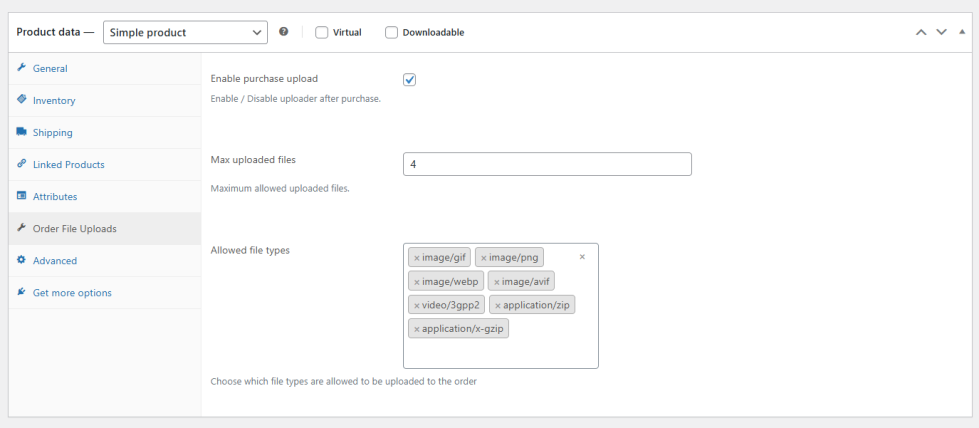
↑ Back to topFrom the product edit page, you can control file uploads on a per-product basis.
For each product, you can:
- Enable or disable file uploads after purchase
- Set the maximum number of files customers can upload
- Restrict allowed file types (e.g. PDF, JPG, PNG, ZIP)
Customer Side
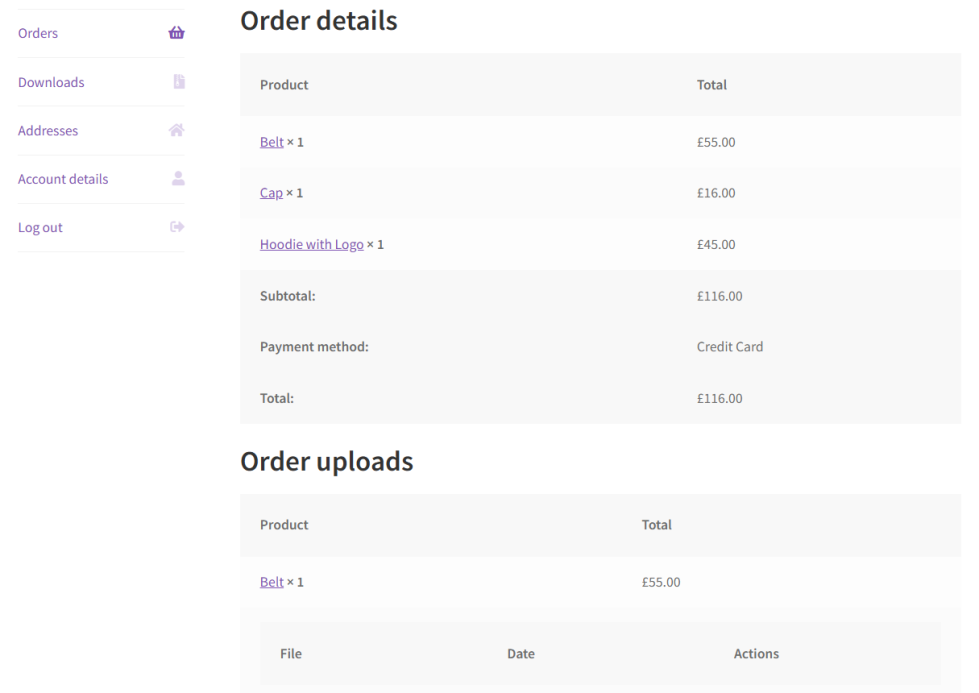
↑ Back to topAfter completing checkout, customers can manage files from their order page:
- Go to My account -> Orders
- Click View on the relevant order
From the order details page, customers can:
- Upload files related to purchased products
- Download files uploaded by the store owner
Once a customer uploads a file, an email notification is automatically sent to the store owner.
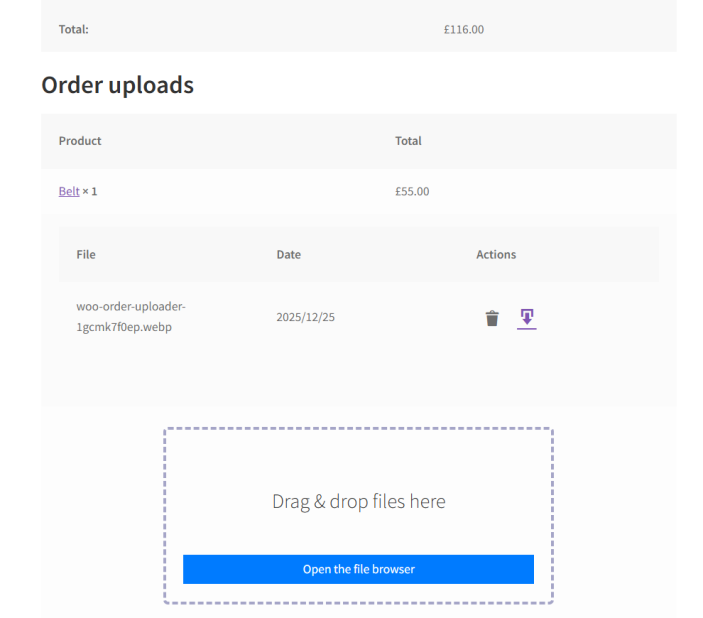
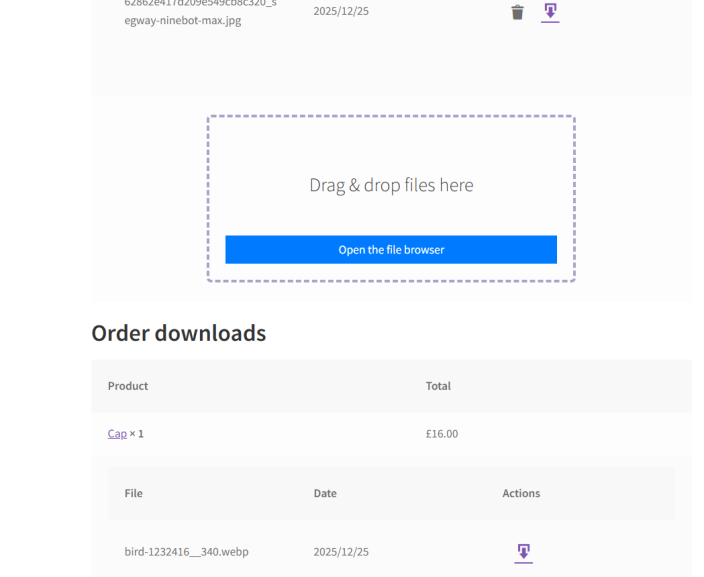
Once a file is uploaded, an email will be sent to the admin.

Admin Side
↑ Back to topStore owners and administrators can manage files directly from the WooCommerce order edit screen.
From WooCommerce → Orders → Edit Order, you can:
- View all customer-uploaded files
- Download customer files
- Upload files for customers to download
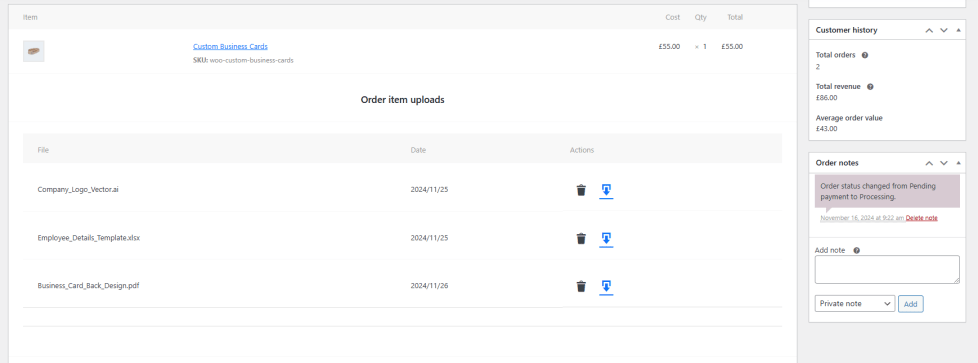
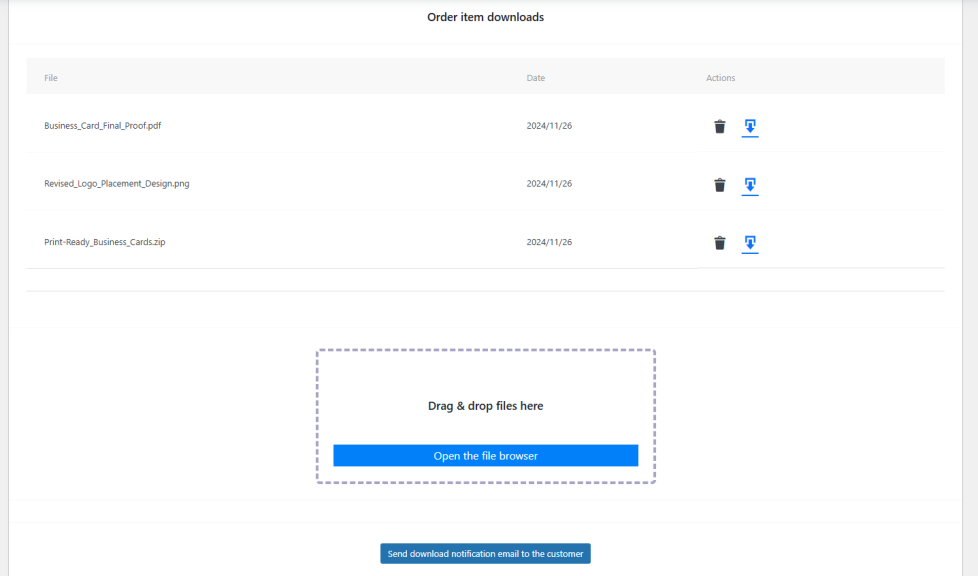
When files are uploaded for the customer, you can click Send download notification to notify the customer by email that new files are available.

Notifications
↑ Back to topOrder Files Uploader includes built-in email notifications to keep both sides informed:
- Admin notification when a customer uploads files
- Customer notification when new files are uploaded by the store owner
This helps speed up order fulfillment and reduces manual follow-ups.
FAQs
↑ Back to topHelp customers by answering commonly asked questions.
Can I restrict certain file types?
Yes. You can limit uploads to specific extensions (e.g.,
pdf,png,docx) from the product edit page.
Will uploaded files be visible to other customers?
No. Files are tied to the specific order and only visible to that order’s customer and the store admin.
Can customers see files from other orders or customers?
No. Files are strictly tied to individual orders. Customers can only access files related to their own orders.

