Paywall Pass is a product type in the TIV Paywall for WooCommerce extension that grants customers access to all Paywall products in the store for a specified period.
Instead of purchasing individual products, customers buy a single pass and unlock all hidden content at once. Store managers can create multiple passes with different durations and prices.

How it works
↑ Back to top- A customer purchases a Paywall Pass product.
- While the pass is active (not expired), the customer can view the hidden content of all Paywall products without purchasing them individually.
- When the pass expires, access reverts to the unpaid state. The customer can purchase a new pass to renew access.
Features
↑ Back to topExpiration
↑ Back to topEach Paywall Pass product has its own expiration period, configured when creating the product. You can offer different options — for example, a one-day pass, a one-week pass, or a monthly pass.
Registration required
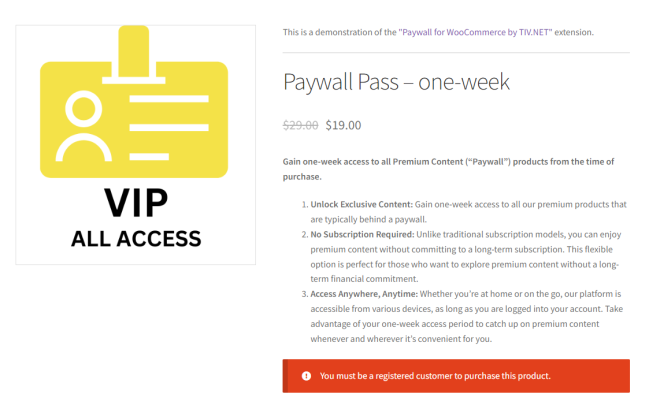
↑ Back to topPaywall Pass requires customers to be registered and logged in. If a user is not logged in, the “Add to Cart” button is disabled and they are prompted to register or log in.
One pass at a time
↑ Back to topCustomers can have only one active Paywall Pass at a time. Until the current pass expires, they cannot purchase another one. This prevents overlapping pass durations.
Individual products locked during active pass
↑ Back to topWhile a Paywall Pass is active, customers cannot purchase individual Paywall products — the content is already accessible to them through the pass.
Setting up Paywall Pass
↑ Back to top- In WooCommerce, create a new product and select the Paywall Pass product type.
- Set the price and expiration period (e.g., 7 days, 30 days).
- Publish the product.
You can create multiple Paywall Pass products with different durations and prices to offer various access tiers.
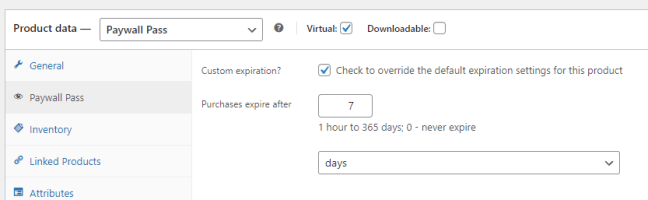
Managing Paywall Pass products
↑ Back to topPaywall Pass products are managed like any other WooCommerce product. You can edit pass details, pricing, and expiration times at any time. Bulk Edit and Quick Edit are also supported for updating prices and expiration settings across multiple products.
Customer experience
↑ Back to topPurchasing a pass
↑ Back to topWhen not logged in, the “Add to Cart” button for Paywall Pass products is disabled. The customer is prompted to register or log in first.
Using the pass
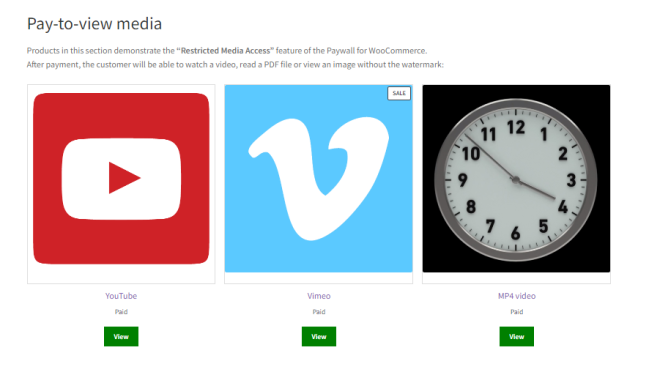
↑ Back to topWhile the Paywall Pass is active, the customer can access the hidden content of all Paywall products without purchasing them individually.
Viewing pass status
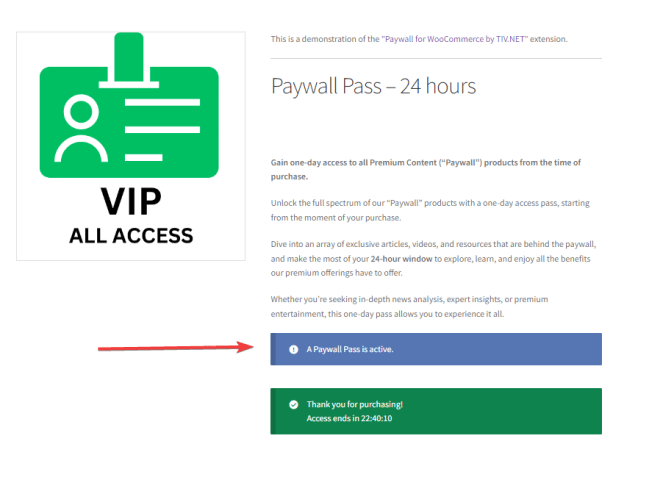
↑ Back to topCustomers can see their active Paywall Pass and remaining access time on the “Purchased Products” tab in My Account. Store managers can adjust the expiration date/time or cancel the pass from the order edit screen.

FAQ
↑ Back to topCan customers purchase multiple Paywall Passes at once?
No. Customers can have only one active pass at a time. They must wait for the current pass to expire before purchasing another.
Can I offer custom expiration durations?
Yes. Create multiple Paywall Pass products with different expiration periods and prices to match your business needs.
Can customers still purchase individual Paywall products when they have an active pass?
No. While the pass is active, individual Paywall products are already accessible and cannot be purchased separately.
Will customers be notified before their pass expires?
Yes, if expiration notifications are enabled in the Paywall settings. Customers receive an email reminder before their access expires.