
Introduction
↑ Back to topReviewify is a WooCommerce review automation plugin built to help store owners collect real customer feedback, reward reviewers with discounts, and increase conversions using trust and social proof.
With Reviewify, you can automatically send discount coupons after verified reviews, collect photo and video reviews, customize how reviews appear on product pages, and automate review emails using SendGrid. You do not need any coding skills to use the plugin. Reviewify works seamlessly with WooCommerce reviews, coupons, and email workflows.
Reviewify transforms customer reviews into repeat purchases, stronger trust, and long-term customer loyalty.
Plugin Requirements
↑ Back to topBefore installing Reviewify, confirm that your website meets the following requirements to ensure smooth performance and compatibility.
System Requirements
↑ Back to top- WordPress version 5.0 or higher
- WooCommerce version 5.0 or higher
- PHP version 7.4 or higher
Recommended Setup
↑ Back to top- Enable HTTPS to support secure photo and video uploads
- Configure WordPress email delivery or connect to SendGrid
- Enable product reviews in WooCommerce settings
Installation process of Reviewify
↑ Back to topFollow these steps to start using the Review Discounts and Photo Reviews for WooCommerce:
Step 1: Install the Plugin
↑ Back to top- Download the plugin: Log in to your WooCommerce account and download the photo-reviews-for-discount.zip file.
- Install the plugin:
- Open the WordPress Admin Dashboard and navigate to Plugins > Add New Plugin.
- Click Upload Plugin and select the photo-reviews-for-discount.zip file.
- Click Install Now to proceed with the installation.
- Activate the plugin: Click Activate to enable the plugin.
To learn more, refer to the Install WooCommerce Extensions documentation.
Step 2: Enable WooCommerce Reviews
↑ Back to top- Go to WooCommerce → Settings → Products.
- Turn on Enable product reviews.
- Save your changes.
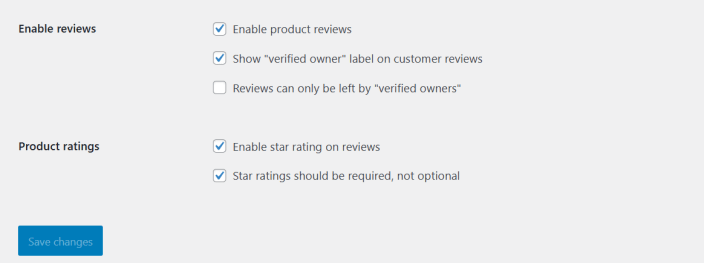
After activation, Reviewify appears in your WordPress admin menu.
Plugin Menu Overview
↑ Back to topOnce activated, Reviewify adds a dedicated menu with the following options:
- Reviewify
- Add New Discount
- Reviewify (All Discounts)
- Settings
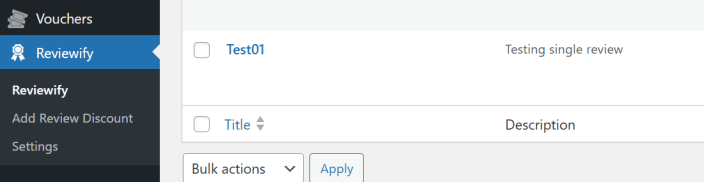
Each menu section controls a specific part of review automation, rewards, and customer engagement.
Creating a Review Discount
↑ Back to topNavigation: Reviewify → Add New Discount
This page allows you to create automated discount campaigns that reward customers after they submit reviews. Reviewify generates WooCommerce coupons automatically and sends them based on your rules.
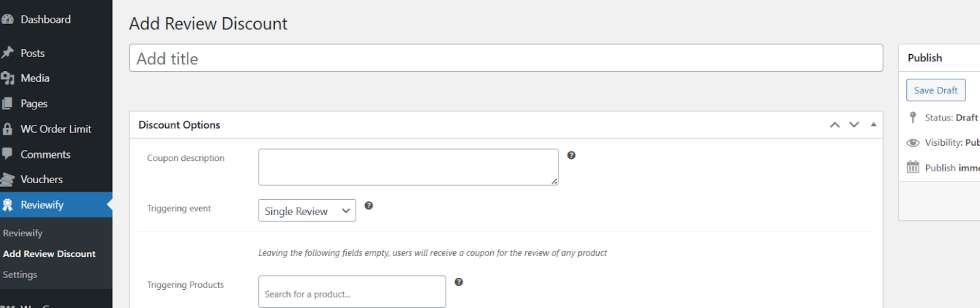
Discount Title
↑ Back to topUse the Add title field to name your discount campaign.
Example: 10% Off for Product Reviews
This title helps you identify campaigns inside the admin dashboard and does not affect the coupon code itself.
Discount Options
↑ Back to topCoupon Description
↑ Back to topEnter a description for the coupon. This text helps you recognize the purpose of the coupon and can also appear in customer emails through placeholders.
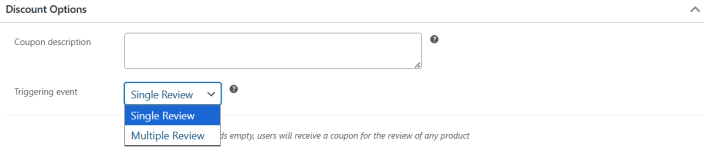
Triggering Event
↑ Back to topChoose when Reviewify should generate a coupon.
Available option:
- Single Review
- Multiple Reviews
The plugin sends a coupon when a customer submits one or more verified reviews.
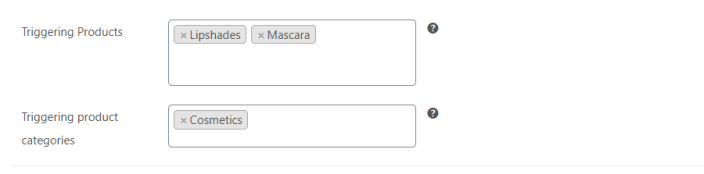
Triggering Products
↑ Back to topSelect specific products that qualify for this review reward.
- Leave this field empty to reward reviews for any product.
- Select one or more products to limit the discount to those items only.
Triggering Product Categories
↑ Back to topChoose product categories that qualify for the reward.
- Keep Any category selected to apply the campaign storewide.
- Select categories to run targeted review campaigns.
Discount Type
↑ Back to topChoose how WooCommerce applies the discount.
Available options:
- Percentage discount
- Fixed cart discount
- Fixed product discount

Coupon Amount
↑ Back to topEnter the discount value.
Examples:
- Enter 10 for a ten percent discount
- Enter 500 for a fixed amount discount
Validity Days
↑ Back to topSet how long the coupon remains valid after it is issued.
Example:
- Enter 7 to expire the coupon after seven days

This creates urgency and encourages faster repeat purchases.
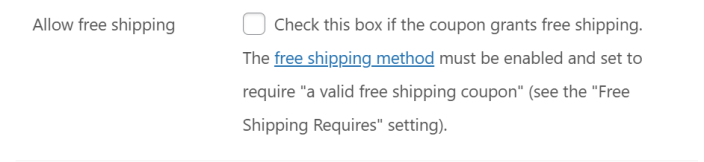
Allow Free Shipping
↑ Back to topEnable this option to include free shipping with the coupon.
Requirements:
- WooCommerce free shipping must be enabled
- Free shipping requires a valid coupon
Individual Use Only
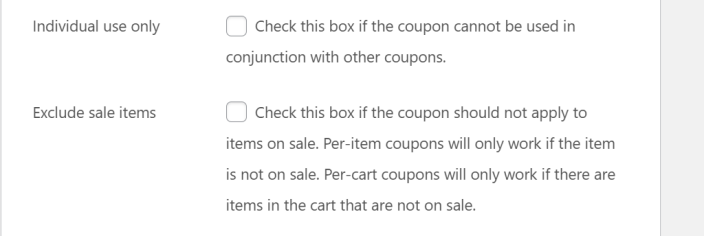
↑ Back to topEnable this option to prevent customers from combining this coupon with other coupons.
This helps protect profit margins during promotions.
Exclude Sale Items
↑ Back to topEnable this option to prevent the coupon from applying to discounted products.
Behavior:
- Per-product coupons apply only to non-sale items
- Per-cart coupons apply only if the cart includes non-sale items
Minimum Amount to Spend
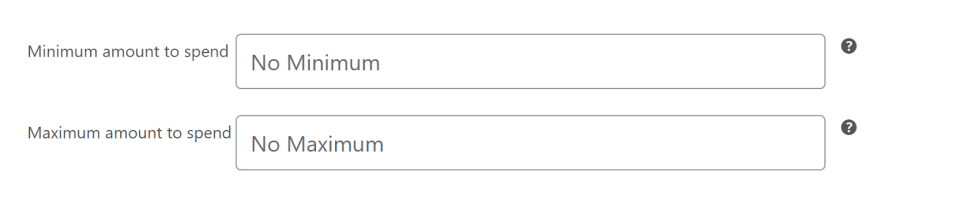
↑ Back to topSet the minimum cart total required to use the coupon.
Leave this field empty if you do not want a minimum spend requirement.
Maximum Amount to Spend
↑ Back to topSet the maximum cart total allowed to use the coupon.
Leave this field empty if no maximum limit is required.
Included Products
↑ Back to topSelect products where the coupon is allowed.
Excluded Products
↑ Back to topSelect products where the coupon should not apply.
Included Product Categories
↑ Back to topLimit coupon usage to selected product categories.
Excluded Categories
↑ Back to topPrevent coupon usage on selected categories.

Publishing the Discount
↑ Back to topUse the Publish panel to:
- Save the campaign as a draft
- Publish it immediately
- Control its visibility
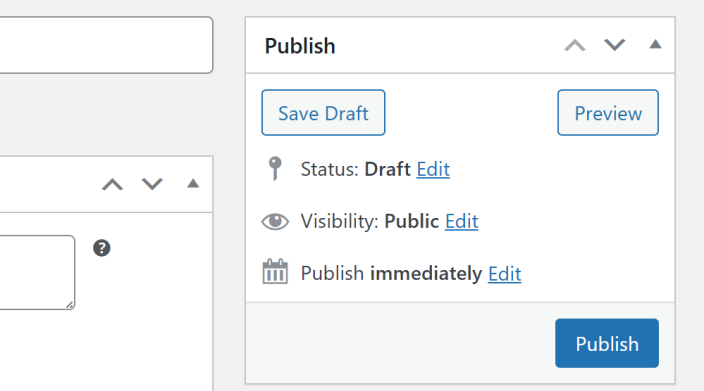
Once published, Reviewify activates the discount campaign automatically.
Reviewify Settings
↑ Back to topNavigation: Reviewify → Settings or WooCommerce → Settings → Reviewify

The settings area controls review automation, email notifications, photo reviews, styling, and integrations.
General Settings Tab
↑ Back to topEnable Reviewify
↑ Back to topTurn the plugin on or off globally.
When disabled:
- Review coupons, stop generating
- Automated emails stop sending
- Review automation pauses
Select Email Notifications
↑ Back to topChoose which automated emails Reviewify sends.
Available options:
- Single review reward email
- Multiple reviews reward email
- Customer close to target reminder
- Customer after buying product email
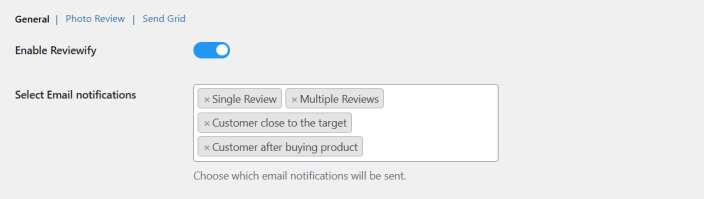
You can enable more than one option at the same time.
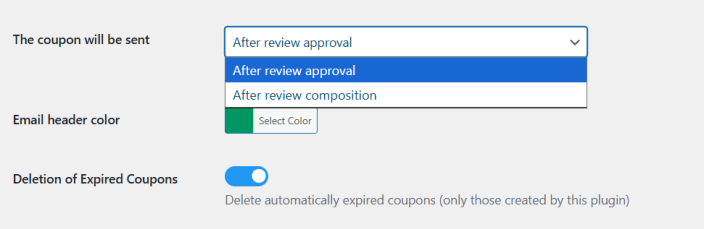
Coupon Send Timing
↑ Back to topChoose when Reviewify sends coupon emails.
Available option:
- After review approval
- After review composition
This ensures only approved reviews receive rewards.
Email Header Color
↑ Back to topChoose the color used in email headers to match your brand identity.
Deletion of Expired Coupons
↑ Back to topEnable automatic deletion of expired coupons.
Reviewify removes only the coupons it creates.
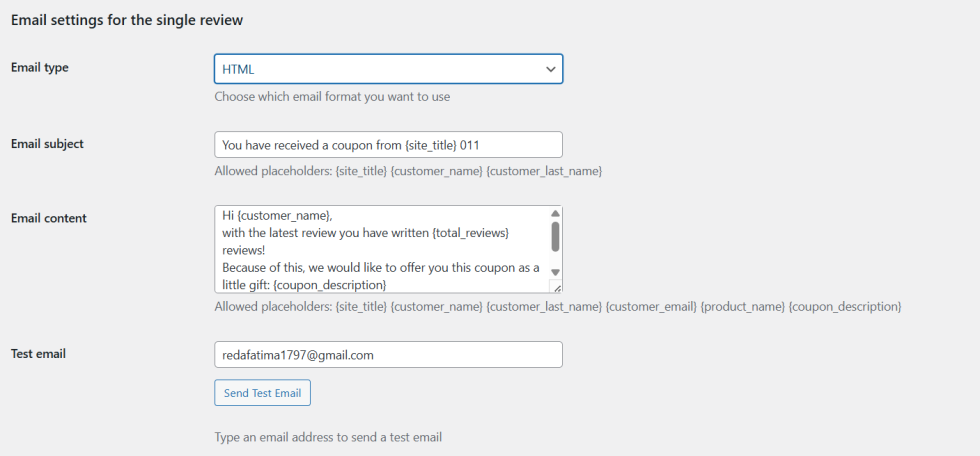
Email Settings for Single Review
↑ Back to topEmail Type
↑ Back to topChoose the email format:
- HTML
- Plain text

Email Subject
↑ Back to topSet the subject line for reward emails.
Supported placeholders:
- {site_title}
- {customer_name}
- {customer_last_name}
Email Content
↑ Back to topCustomize the email message sent to customers.
Supported placeholders:
- {site_title}
- {customer_name}
- {customer_last_name}
- {customer_email}
- {product_name}
- {coupon_description}
Test Email
↑ Back to topEnter an email address and send a test email to preview formatting and delivery.
Email Settings for Multiple Reviews
↑ Back to topThese settings apply when customers reach a review goal.
Available fields:
- Email type
- Email subject
- Email content
- Test email
Additional placeholder:
- {total_reviews}
- {coupon_description}
- {customer_name}

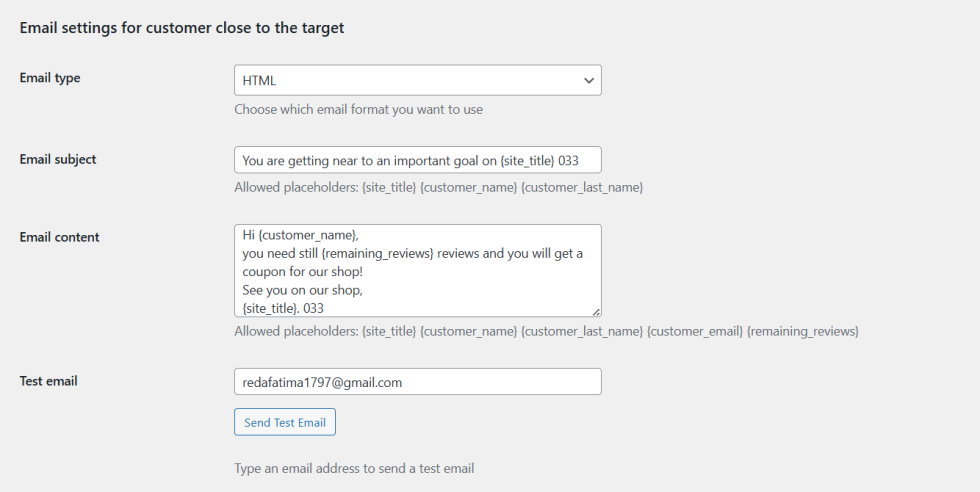
Email Settings for Customer Close to Target
↑ Back to topThis email reminds customers when they are close to earning a reward.
Additional placeholder:
- {remaining_reviews}
This message motivates customers to complete the remaining reviews.
Email Settings for Customer After Buying Product
↑ Back to topThis email is sent after purchase to encourage future reviews.
It helps re-engage customers and sets expectations early.
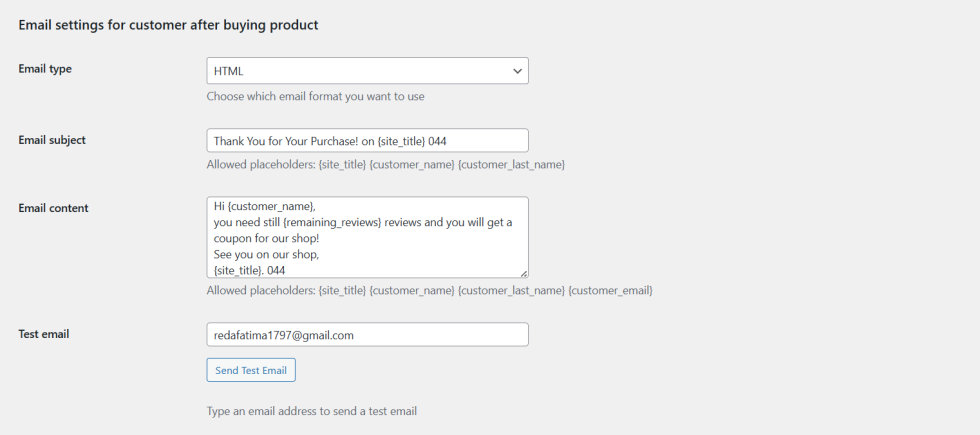
Photo Review Settings Tab
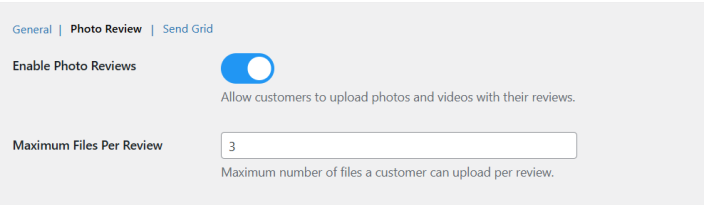
↑ Back to topGo to the Photo Review sub-tab.
Enable Photo and Video Reviews
↑ Back to topAllow customers to upload photos and videos with their reviews.
Maximum Files Per Review
↑ Back to topSet how many files a customer can upload per review.
Example:
- Enter 3 to allow three files
Enable Review Editing
↑ Back to topAllow customers to edit their reviews and upload media.
Enable Review Voting
↑ Back to topAllow visitors to vote reviews as helpful using thumbs up or down.
Show Average Ratings
↑ Back to topDisplay an average rating summary with progress bars.
Show Review Filters
↑ Back to topAllow customers to filter reviews by:
- Rating
- Date
- Media presence
Hide Reviewer Names
↑ Back to topMask reviewer names for privacy.
Behavior:
- Displays the first letter followed by asterisks
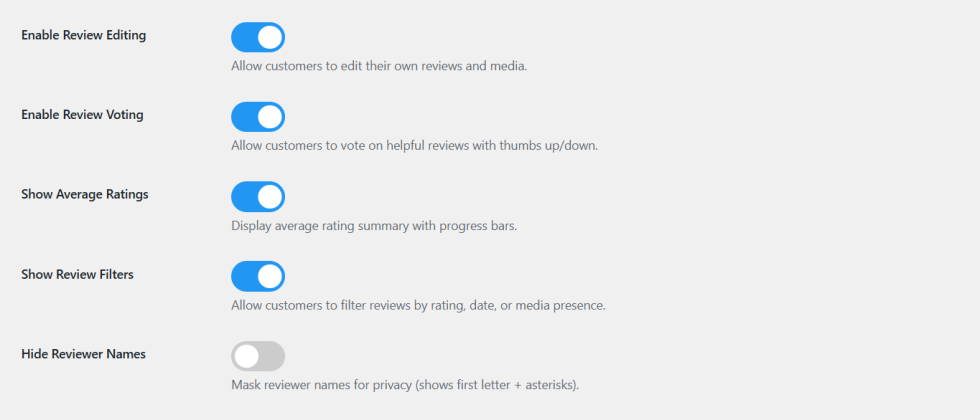
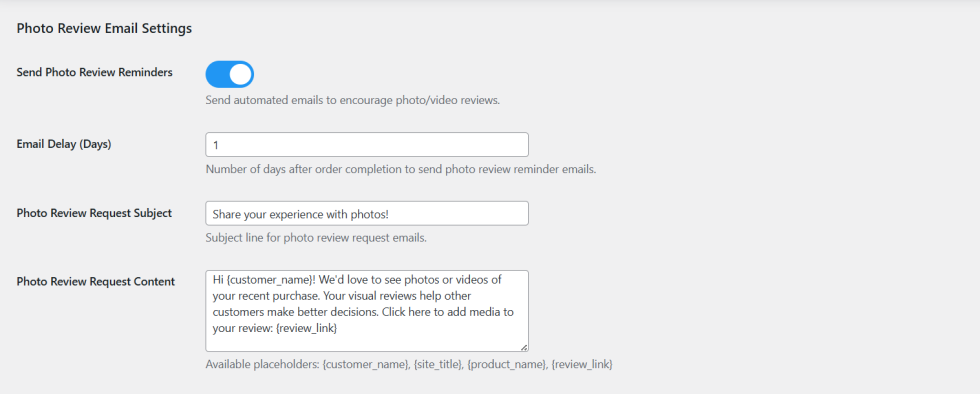
Photo Review Email Settings
↑ Back to topSend Photo Review Reminders
↑ Back to topSend automated reminders that encourage customers to upload photos or videos.
Email Delay (Days)
↑ Back to topSet how many days after order completion the reminder email sends.
Photo Review Request Subject
↑ Back to topCustomize the subject line for photo review requests.
Photo Review Request Content
↑ Back to topCustomize the email message.
Available placeholders:
- {customer_name}
- {site_title}
- {product_name}
- {review_link}
Display Customization
↑ Back to topStars Color
↑ Back to topSet the color of rating stars.
Progress Bar Color
↑ Back to topChoose the color for rating progress bars.
Text Color
↑ Back to topSet the color for review labels and text.
Filter Background Color
↑ Back to topSet the background color for review filter dropdowns.
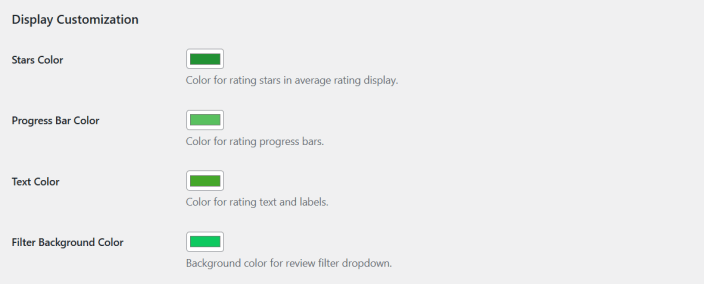
Photo Review Statistics
↑ Back to topThis section shows real-time review insights.
Available metrics:
- Total reviews
- Reviews with media
- Total media files
- Average media per review
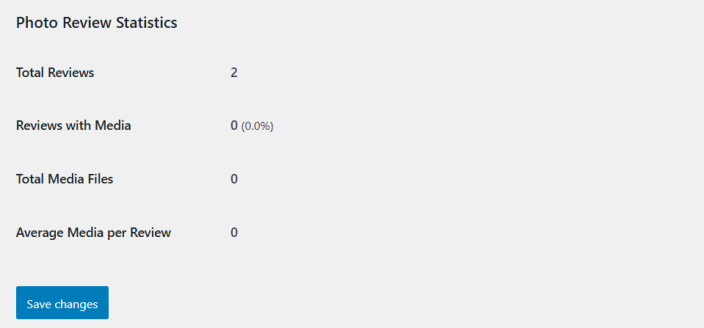
These insights help you measure engagement and campaign performance.
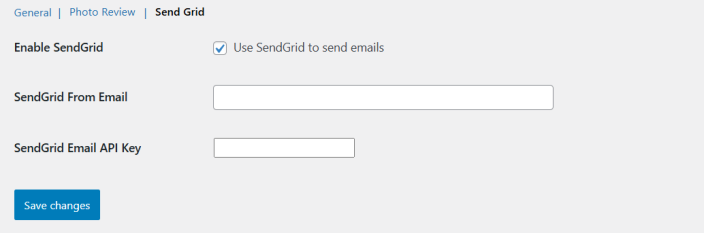
SendGrid Integration Tab
↑ Back to topUse SendGrid to send Reviewify emails with better delivery.
- Enable SendGrid: Check the box to send all Reviewify emails via SendGrid
- From Email: Enter a verified sender email from your SendGrid account
- API Key: Paste your SendGrid API key with mail send permissions
Click Save changes to apply the settings.
Once enabled, Reviewify will send all emails through SendGrid for more reliable delivery.
Benefits include:
- Better inbox placement
- Faster email delivery
- Reduced spam issues
Best Practices
↑ Back to top- Approve reviews before sending coupons
- Use short coupon validity periods to create urgency
- Enable photo review reminders to increase media uploads
- Use category targeting for new product launches
- Always test emails before enabling automation
Frequently Asked Questions
↑ Back to topDo you have any pre-sale questions? Contact us now →

