The Product Featured Video plugin for WooCommerce allows store owners to add videos to products and display them across product and shop pages. This helps showcase products more effectively by replacing or enhancing product images with engaging video content, improving customer experience and conversions.
Installation
↑ Back to topTo start using a product from WooCommerce.com, you can use the “Add to store” functionality on the order confirmation page or the My subscriptions section in your account.
- Navigate to My subscriptions.
- Find the Add to store button next to the product you’re planning to install.
- Follow the instructions on the screen, and the product will be automatically added to your store.
Alternative options and more information at:
Managing WooCommerce.com subscriptions.

Setup and Configuration
↑ Back to topAfter activating the plugin, configure its settings by navigating to:
WooCommerce > Settings > Product Featured Video
General Level Settings
↑ Back to top1. General Settings
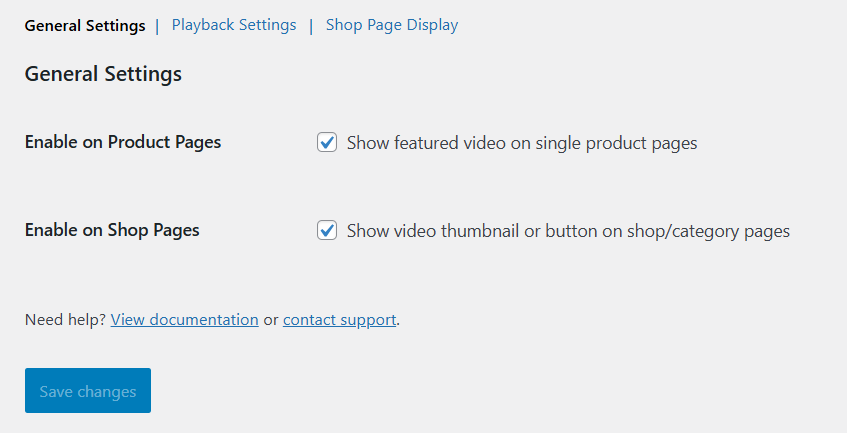
↑ Back to top- Enable on Product Pages: Show Product Featured Video on single product pages.
- Enable on Shop Pages: Show video thumbnails or video buttons on shop/category pages.
2. Playback Settings
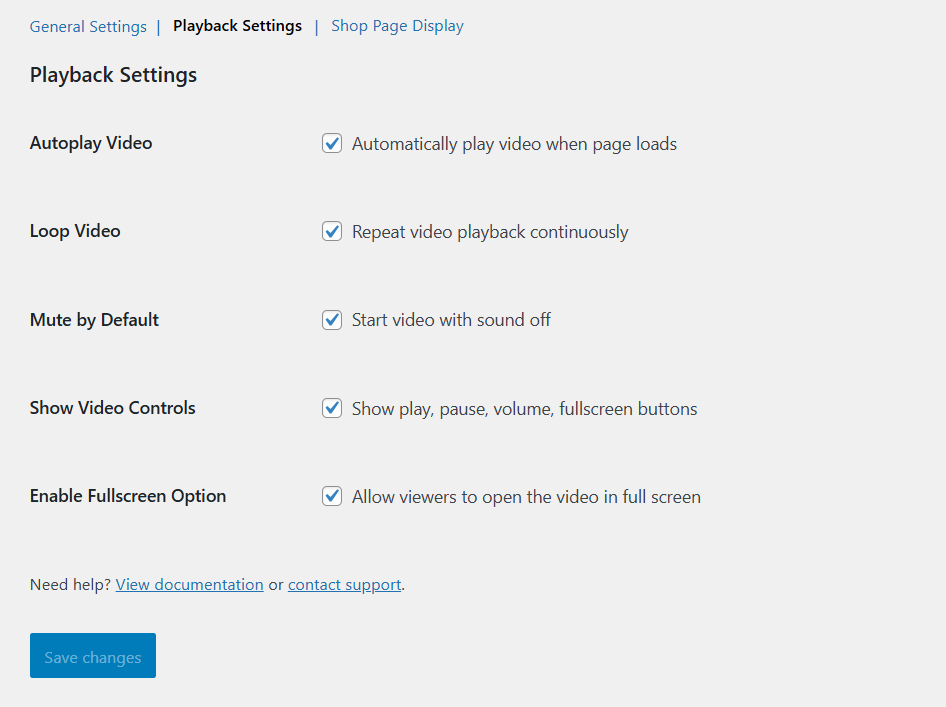
↑ Back to top- Autoplay Video: Automatically play the video when the page loads.
- Loop Video: Repeat video playback continuously.
- Mute by Default: Start video playback with sound muted.
- Show Video Controls: Display video controls including play, pause, volume, and fullscreen.
- Enable Fullscreen Option: Allow customers to open the video in fullscreen mode.
3. Shop Page Display
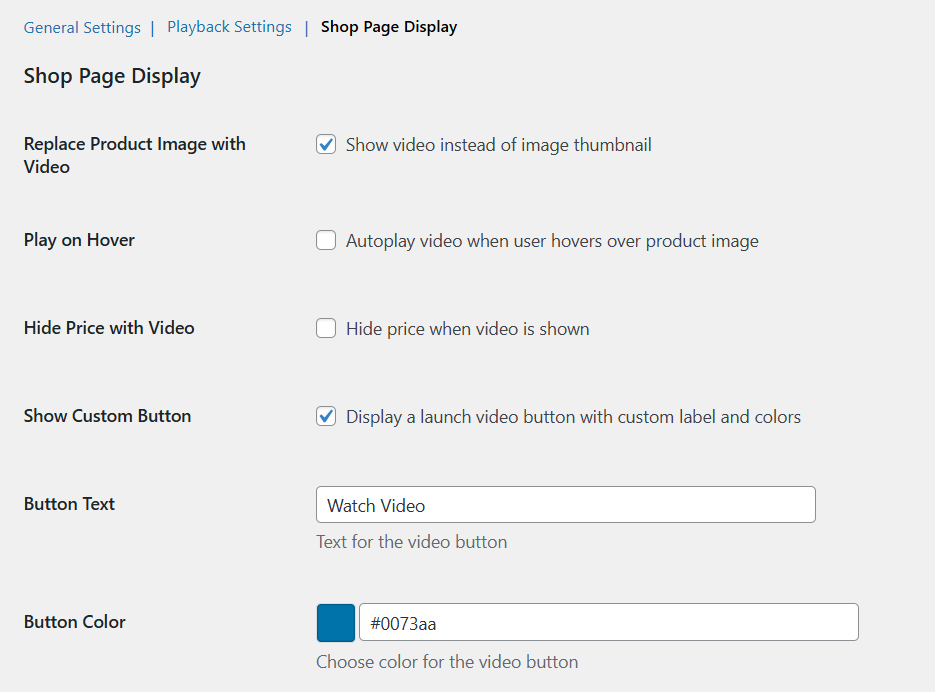
↑ Back to top- Replace Product Image with Video: Show the video instead of the product image thumbnail on shop and category pages.
- Play on Hover: Automatically play the video when a customer hovers over the product image.
- Hide Price with Video: Hide the product price while the video is displayed.
- Show Custom Button: Display a custom button to launch the product video.
- Button Text: Set the label for the video button (e.g., Watch Video).
- Button Color: Choose the background color of the video button.
Product Level Settings
↑ Back to top1. Product Featured Video
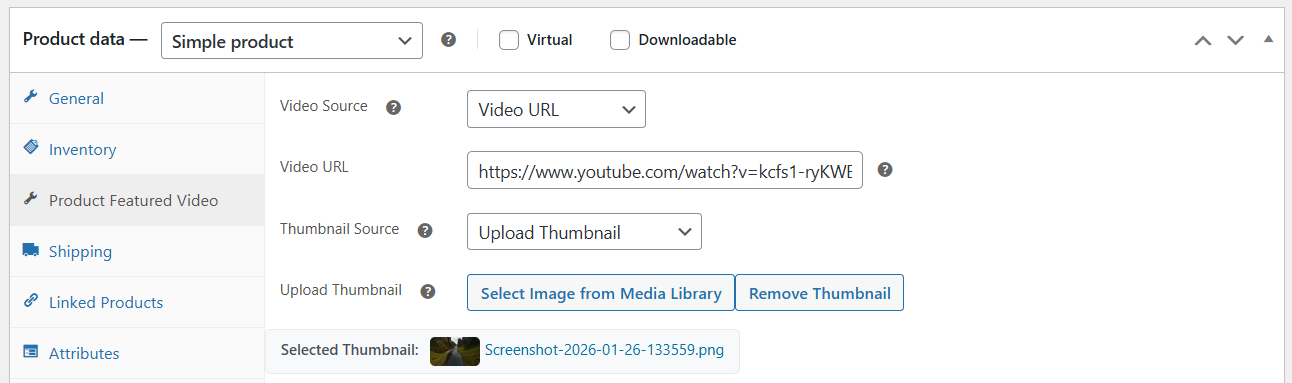
↑ Back to topNow go to the Products tab, edit any product and click on a Product Featured Video tab in the product data section where product-specific video settings can be configured.
- Video Source: Video URL or Upload Video
- Video URL: Enter the video URL from supported platforms such as YouTube or Vimeo.
Example: https://www.youtube.com/watch?v=kcfs1-ryKWE - Thumbnail Source: Upload or URL
- Upload Thumbnail
Upload a custom thumbnail image from the Media Library.
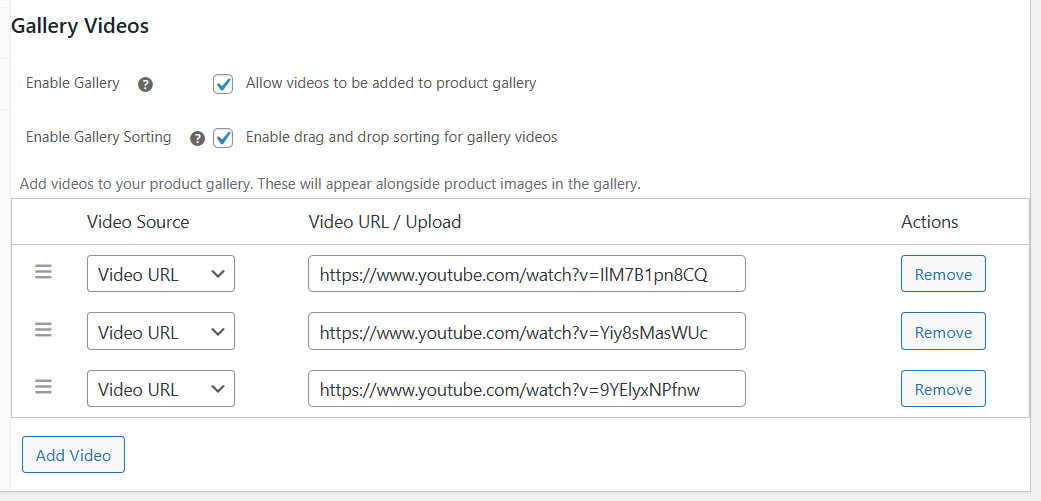
Gallery Videos
↑ Back to top- Enable Gallery: Allow videos to be added to the product image gallery.
- Enable Gallery Sorting: Enable drag-and-drop sorting for gallery videos.
Click on the ” Add Video button to add videos to the gallery.