
Installation
↑ Back to topTo start using a product from WooCommerce.com, you can use the “Add to store” functionality on the order confirmation page or the My subscriptions section in your account.
- Navigate to My subscriptions.
- Find the Add to store button next to the product you’re planning to install.
- Follow the instructions on the screen, and the product will be automatically added to your store.
Alternative options and more information at:
Managing WooCommerce.com subscriptions.

Setup and Configuration
↑ Back to topGetting started
↑ Back to topTo set up your store with Save and Restore Cart plugin:
- Activate Save and Restore Carts plu

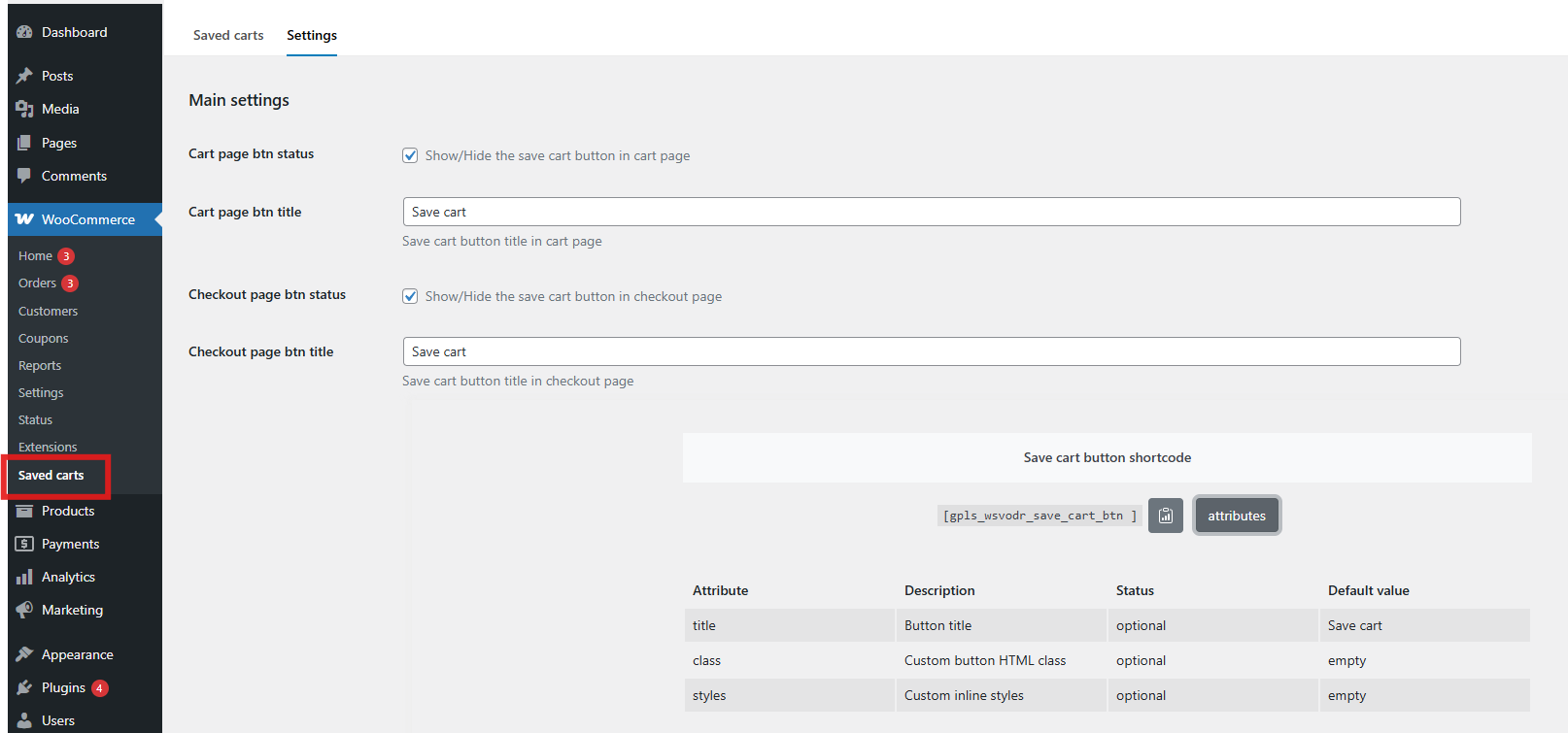
2. Go to: WooCommerce > Saved Carts page > Settings tab
Settings
↑ Back to topThe settings are very simple, you can check from there to enable/disable the Save Cart button and set the button title in checkout and cart pages.
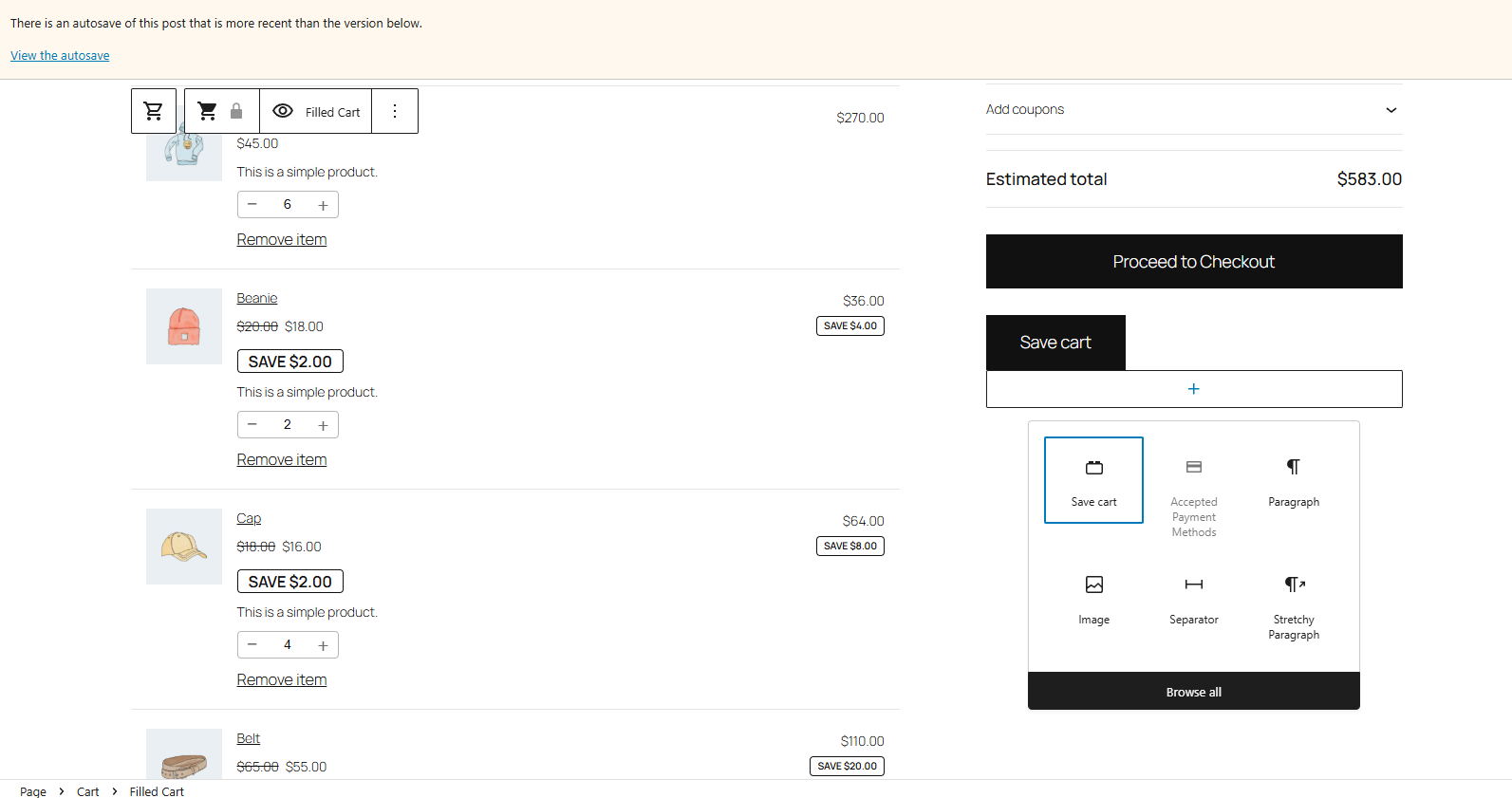
If you are using a block based theme, you can find the Save cart button block in both Cart and Checkout Block pages.
Saved Carts Table
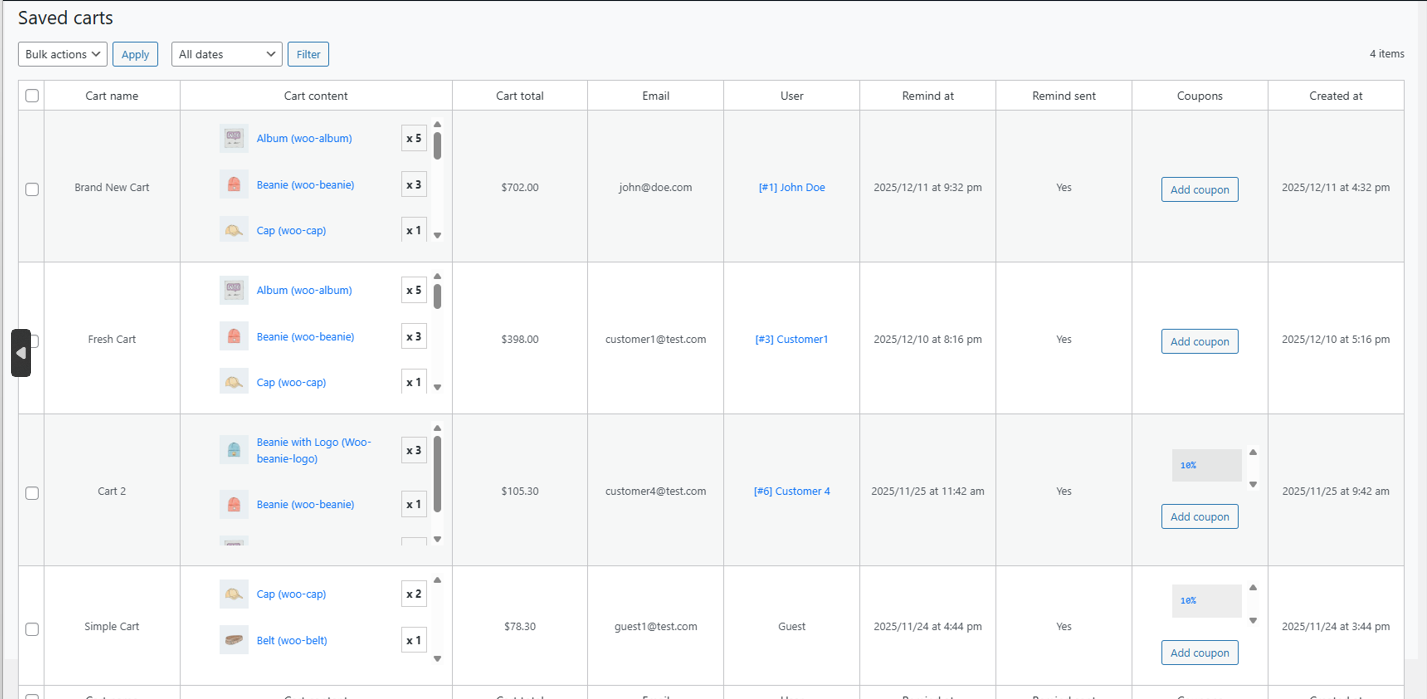
↑ Back to topIn this tab, you will find all saved carts of all customers, you can check the cart items, cart total, the cart saved date, you can also add coupon codes to the carts and send email reminder from the dashboard.
Frontend Side
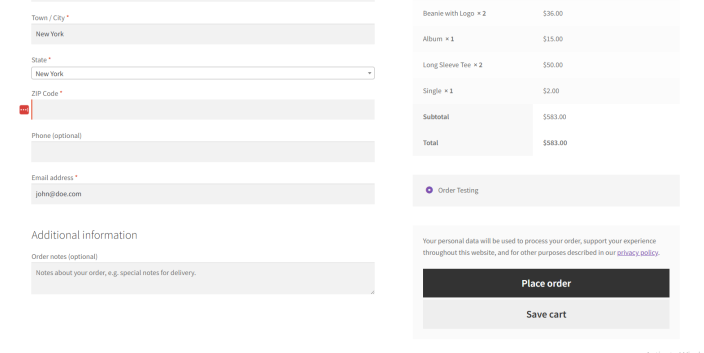
↑ Back to topThe Save Cart button will be in Cart and Checkout page if enabled from Settings page ( enabled by default ). It can be placed anywhere using the button shortcode in Settings page
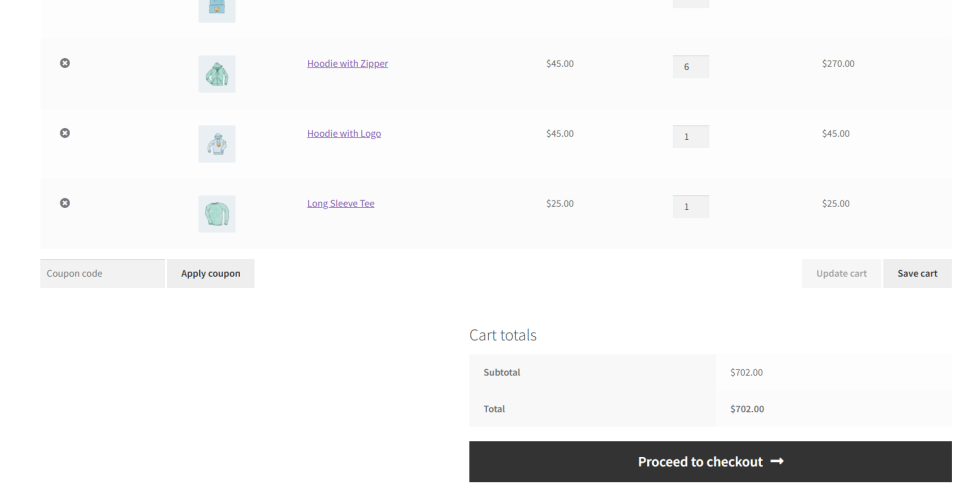
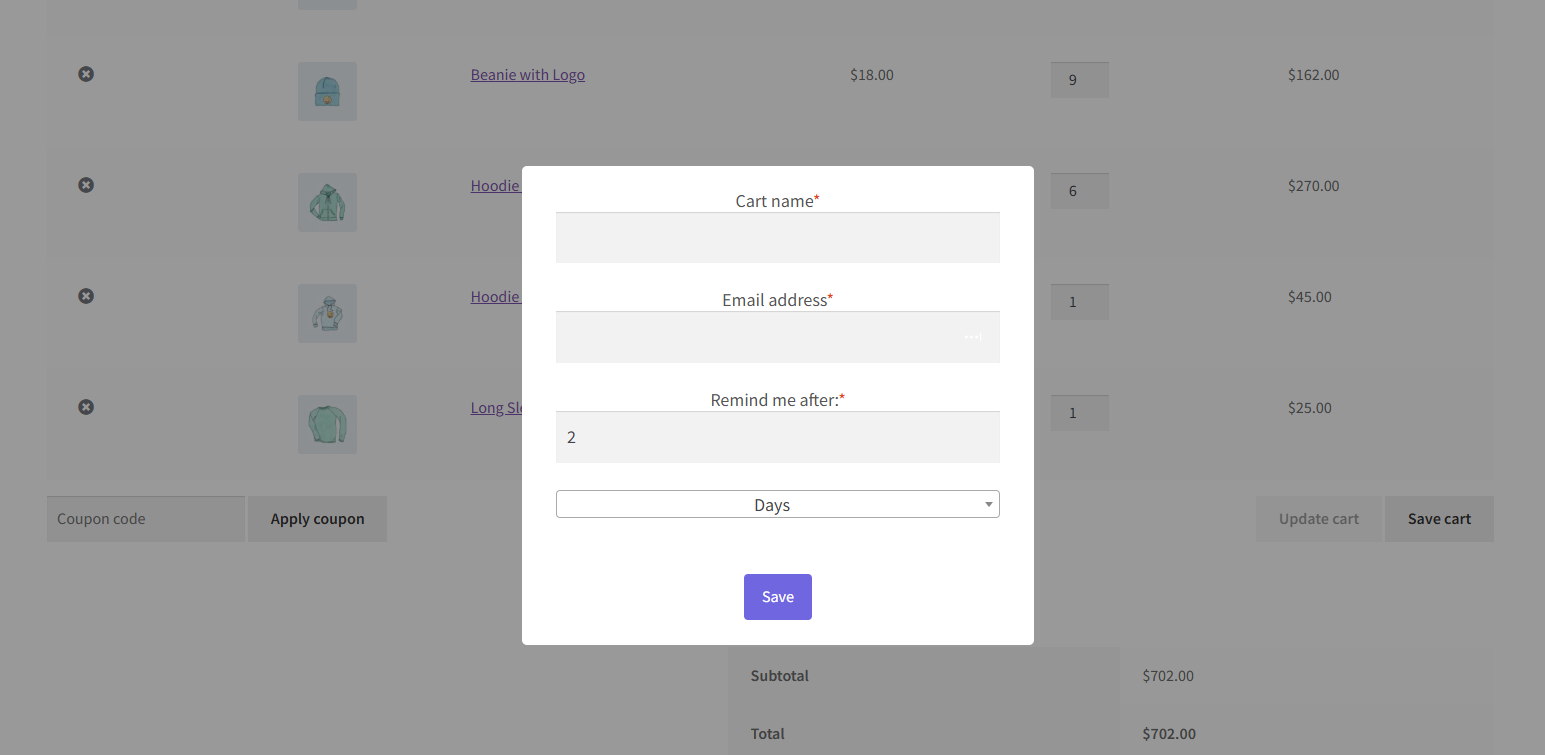
By clicking on the button, a popup will show up for the customer to set the cart name, their email addres, and when to remind them about the cart.
My Account
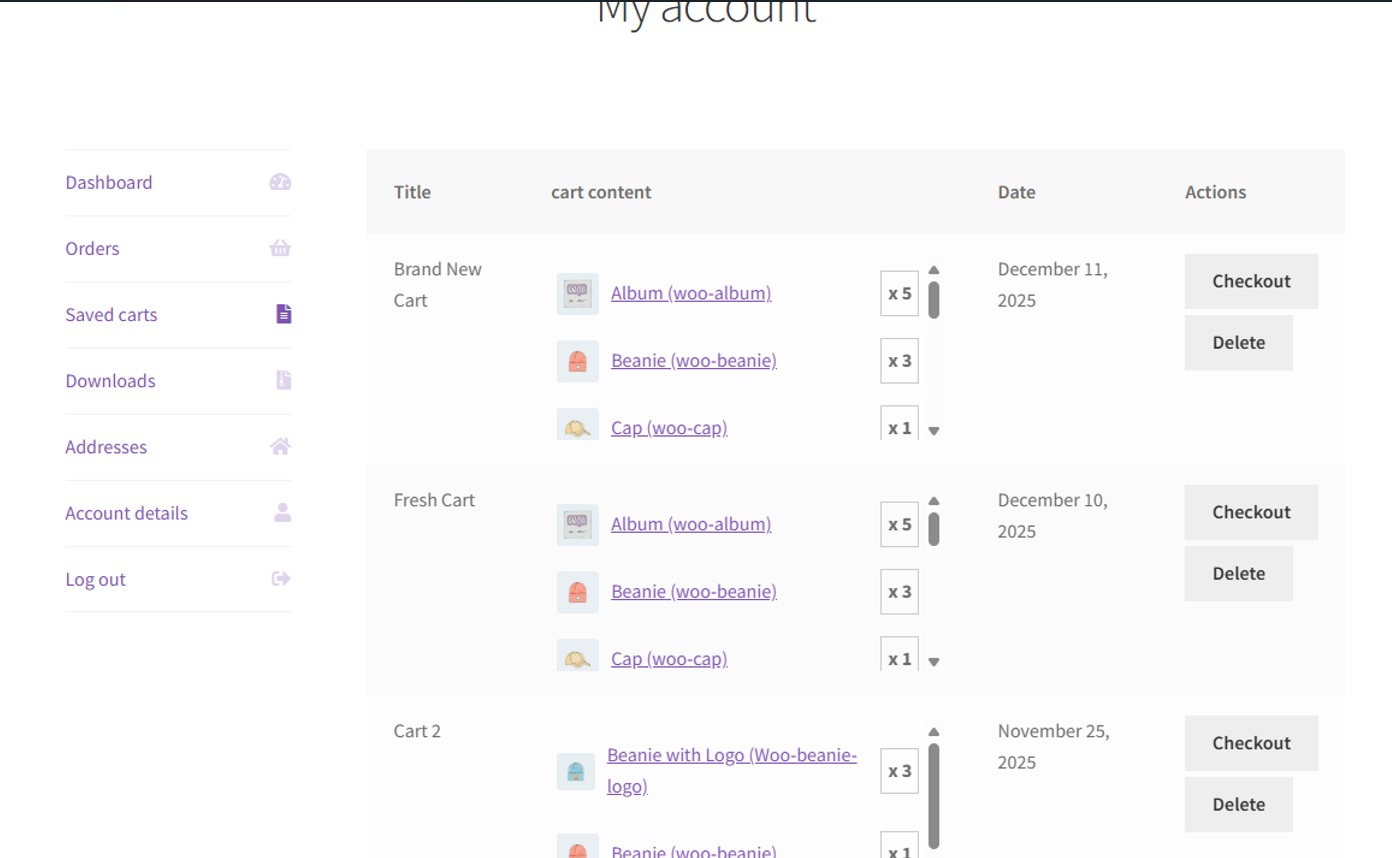
↑ Back to topCustomers can track their saved carts from their My Account -> Saved cart page.
They can delete or restore the carts from there. clicking Checkout will redirect the customer to the Checkout page with the saved cart in one click.
Emails
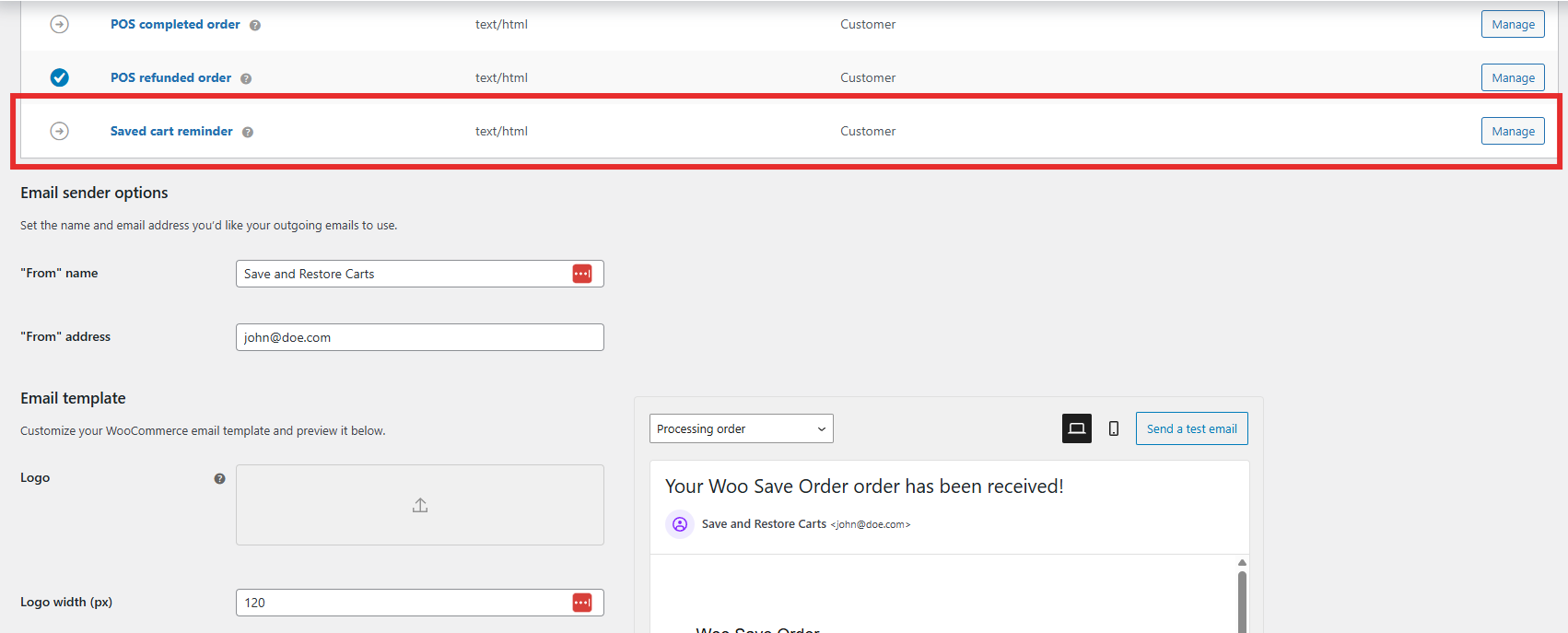
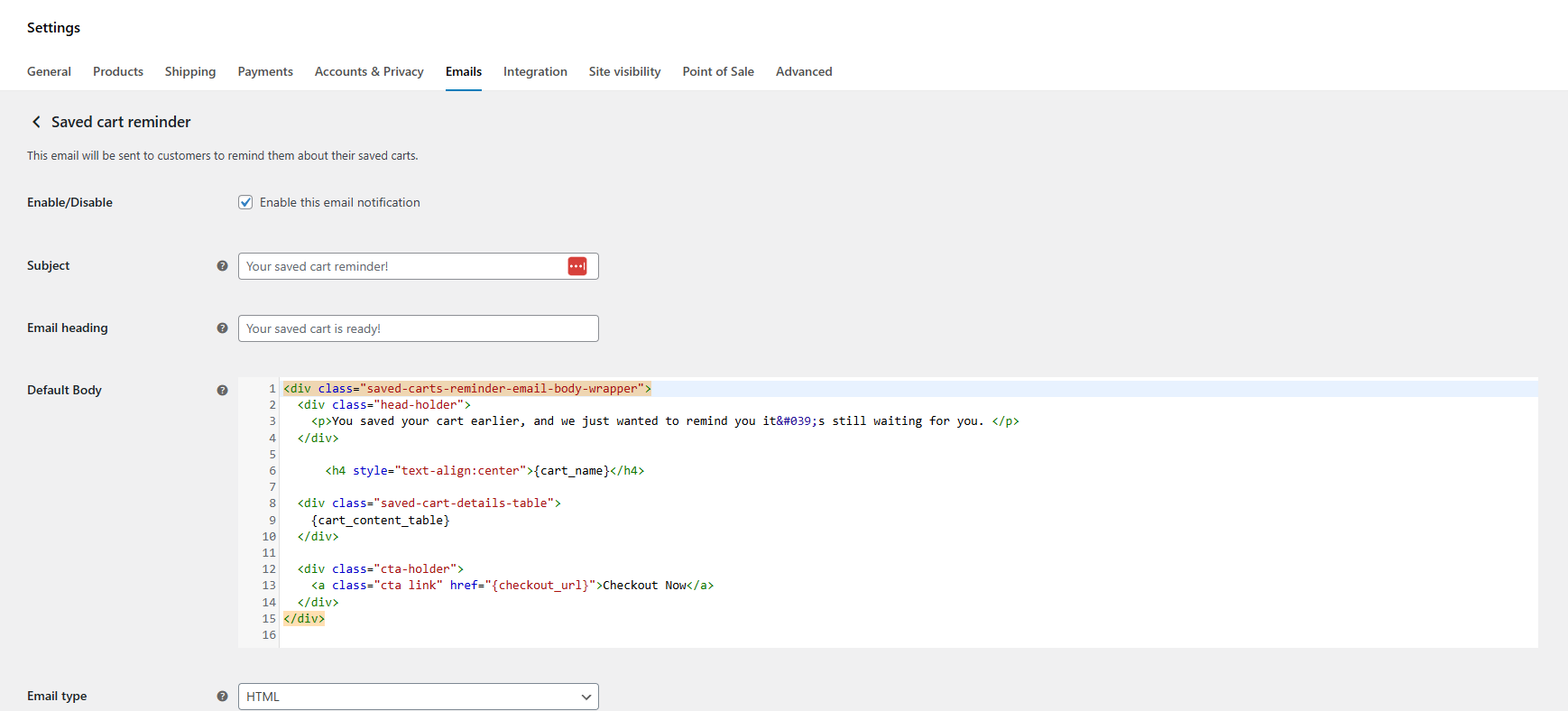
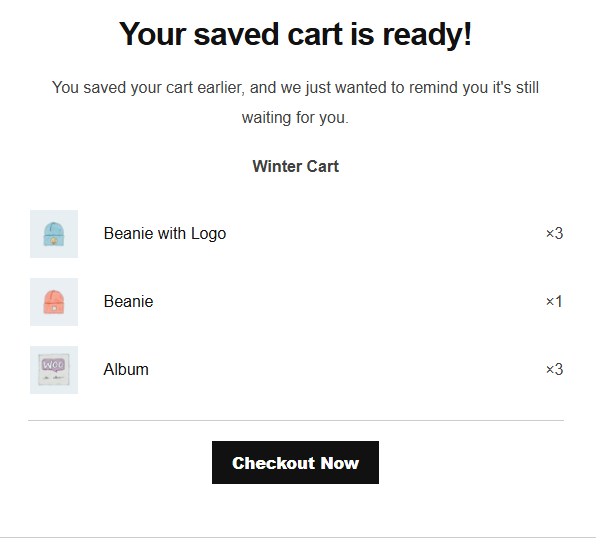
↑ Back to topSaved cart reminder email exists in WooCommerce > Settings >Emails
FAQs
↑ Back to topHelp customers by answering commonly asked questions.
Can guest users save carts?
Yes. Guest users can save carts by providing an email address when saving the cart.
Can customers restore their carts later?
Yes. Customers can restore saved carts with one click from their My Account → Saved Carts page or directly from the reminder email.
Can I apply coupons to saved carts?
Yes. Admins can apply coupon codes directly to saved carts from the Saved Carts dashboard.

