
Shipping Insurance Manager lets you offer optional shipping insurance as a paid add-on at checkout. You define the packages, decide what each one costs and who can see it, and the customer picks one before they pay. This page covers every setting, the checkout and order screens, the Insurance report, the AI assistant tools, and the extensibility surface for developers.
Overview
↑ Back to topShipping Insurance Manager adds a Shipping Insurance section to your WooCommerce checkout, where customers choose between “No Insurance” and any insurance packages you have configured. Each package charges either a flat fee or a percentage of the cart, and you can limit a package by user role, shipping class, shipping zone, membership plan, or cart value. The selected package is stored on the order, added as a fee line, and rolled into an Insurance report under Analytics. The plugin records and charges for the insurance option. It does not underwrite policies or file claims, which stay with you and your insurance provider.
Requirements
↑ Back to top- WordPress 6.0 or higher.
- WooCommerce 7.0 or higher. WooCommerce must be active, and the plugin declares it as a required plugin, so WordPress will not let you activate Shipping Insurance Manager without it.
- PHP 7.4 or higher.
Optional, and only needed for specific features:
- WooCommerce Memberships, if you want to restrict a package to members of a particular plan. The Membership field is hidden when Memberships is not active.
- The WordPress Abilities API, if you want to manage insurance through an AI assistant. This ships with WordPress 6.9 and with recent versions of WooCommerce. Without it the plugin behaves exactly as it always has, minus the assistant tools.
- A multi-currency extension, if your store sells in more than one currency. See Multi-currency stores.
- CURCY – WooCommerce Multi Currency, if your store sells in more than one currency. Other currency switchers can be connected with a filter. See Multi-currency stores.
Installation
↑ Back to topTo start using a product from WooCommerce.com, you can use the “Add to store” functionality on the order confirmation page or the My subscriptions section in your account.
- Navigate to My subscriptions.
- Find the Add to store button next to the product you’re planning to install.
- Follow the instructions on the screen, and the product will be automatically added to your store.
Alternative options and more information at:
Managing WooCommerce.com subscriptions.

There are no license keys, connection steps, or setup wizards. Once the plugin is active, three sample packages named Basic, Standard, and Premium are created for you so the settings screen is not empty. They are switched off by default, so nothing appears at checkout until you enable them. Edit them or delete them and add your own.
To start configuring, go to WooCommerce > Settings > Shipping and open the Shipping Insurance section.
Usage
↑ Back to topEverything lives in one settings screen, plus four places where insurance shows up in day-to-day work: the checkout, the order screen, the orders list, and the Insurance report.
- Shipping insurance settings
- The insurance package table
- Adding and editing a package
- The checkout experience
- Managing insurance on an existing order
- Finding insured orders
- The Insurance report
- Using an AI assistant
- Multi-currency stores
Shipping insurance settings
↑ Back to topGo to WooCommerce > Settings > Shipping and select Shipping Insurance from the section links at the top. The screen has two halves. The top half holds four store-wide settings that apply to every package. The bottom half is the package table.

Insurance Terms Page picks a published page holding your insurance terms and conditions. When you set one, an “Insurance Terms” link appears next to the Shipping Insurance heading at checkout and opens in a new tab, so customers can read the terms without losing their cart. Leave it empty and no link appears. The plugin does not create the page or write the terms for you.

Exclude shipping methods lists the shipping methods that never qualify for insurance. Local pickup is excluded by default, since nothing is in transit. The check runs against the method the customer has chosen: if every chosen method is on this list, the whole Shipping Insurance section is hidden, and any insurance already selected is cleared from the session so no fee is charged. Insurance also stays hidden if no shipping rates are available at all.

Default insurance option decides which choice is pre-selected when a customer reaches checkout. There are three values, and it is worth knowing that this is not a way to pick one specific package:
- No insurance package is the default. Customers start on “No Insurance” and opt in.
- Most expensive package pre-selects whichever eligible package works out costliest for that particular cart.
- Least expensive package pre-selects whichever eligible package works out cheapest.
The comparison runs per cart, on the fees as calculated for that cart, and only across the packages that customer is eligible for. So the pre-selected package can differ from one customer to the next.
Percentage calculation base controls what a percentage package is a percentage of:
- Items subtotal (products only) is the default. Shipping is excluded, which matches the way insurance is usually priced against declared product value.
- Cart total (products + shipping) adds the shipping total to the base.
Both figures exclude taxes. This setting also decides which figure the minimum and maximum cart value thresholds on each package are compared against, so the two always stay consistent. It never changes what a fixed package charges, but it does apply to a fixed package’s cart value thresholds.
The insurance package table
↑ Back to topBelow the settings sits the package table, where you add and manage the packages themselves. Each row shows the package name and description, its restrictions, an enabled toggle, and the cost.
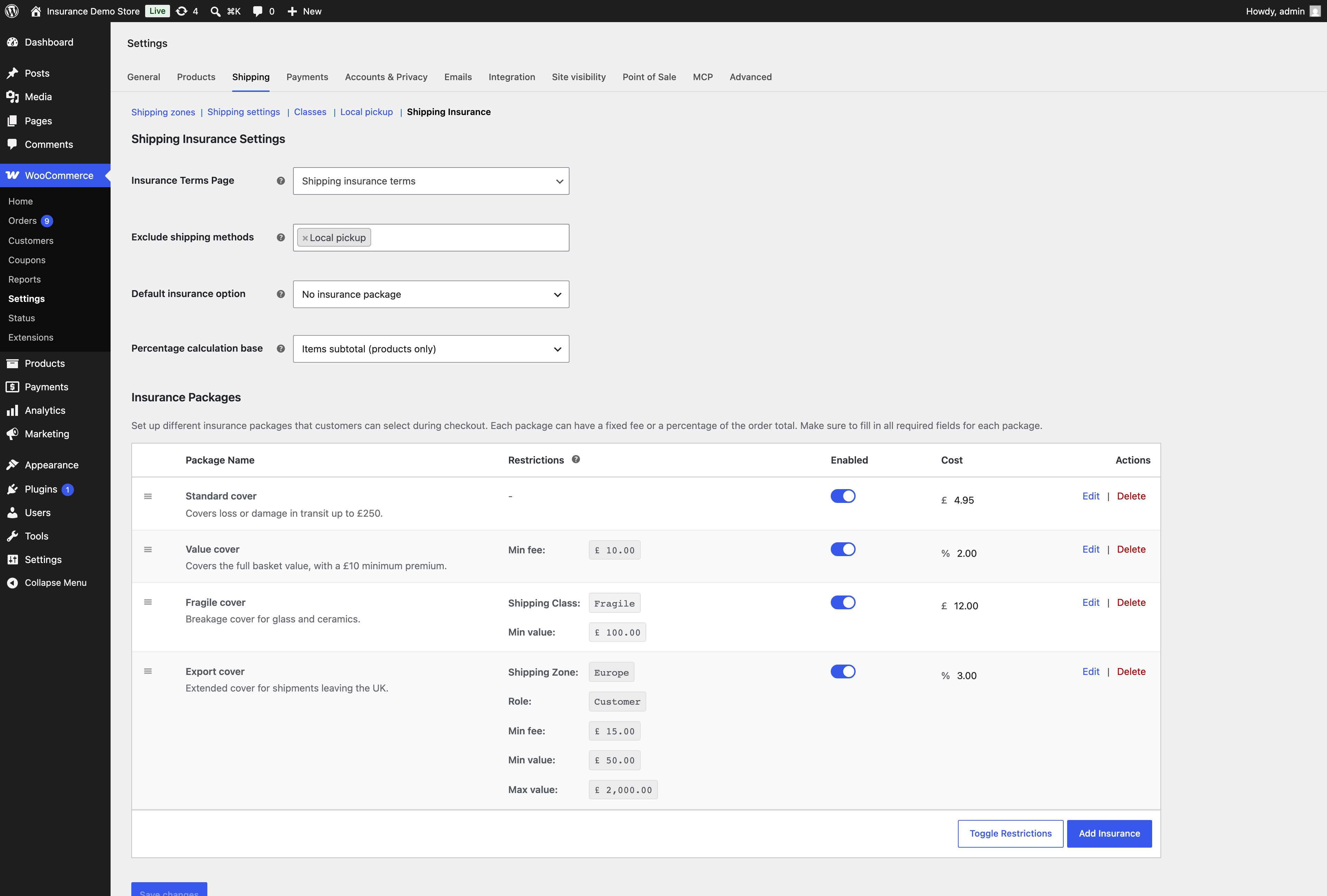
- Add Insurance adds a new row and opens the editor for it.
- Toggle Restrictions shows or hides the Restrictions column. The column reveals itself automatically as soon as a package restricts by role; for the other restriction types, use this button to bring it into view. Your choice is remembered.
- The Enabled toggle switches a package on or off. A disabled package keeps all of its settings but never appears at checkout, which makes this the safe way to retire a package temporarily.
- Edit opens the package editor. Delete removes the row.
- The drag handle on the left reorders packages. The order here is the order customers see at checkout.

Nothing you change here is saved until you click Save changes at the bottom of the settings screen, including the enabled toggles and the reordering.
Adding and editing a package
↑ Back to topClicking Add Insurance or Edit opens the package editor. It is split into general details, cost, and restrictions.

Under General details:
- Package name is what customers see next to the radio button at checkout. Give it a name that means something to a shopper, such as Standard cover, rather than an internal code.
- Description appears as a tooltip beside the package at checkout. It is capped at 120 characters, so keep it to one line about what the cover includes.
Under Insurance package cost:
- Fee type is either Fixed or Percentage. Fixed charges the same amount on every eligible order. Percentage charges a share of the base set by the Percentage calculation base setting.
- Cost is the amount. For a fixed package this is a currency value and the field shows your store currency symbol. For a percentage package it is a percentage and the field shows a percent sign instead.
- Minimum fee is a floor, and it only does anything on percentage packages. If the calculated percentage comes out below this number, the customer is charged the minimum instead. Use it so a 2% package still earns something worthwhile on a small cart. Leave it at zero for no floor.
Under Package restrictions, every field defaults to unrestricted. A package with no restrictions is offered to everyone whose cart has an eligible shipping method.

- Shipping zone limits the package to one zone. The cart has to be shipping to that zone for the package to appear.
- Shipping class limits the package to one class. At least one product in the cart must carry that class. Use this for fragile or high-value ranges that need their own cover.
- Role limits the package to one or more user roles. This is a multi-select, so you can name several. The list includes “Guest (no account)” for customers checking out without an account. Leave it empty for all roles.
- Membership appears only when WooCommerce Memberships is active, and limits the package to holders of one membership plan.
- Minimum cart value and Maximum cart value bound the cart sizes the package is offered for. Zero means no bound in either direction. Both are compared against the same base your percentage setting uses. Use them to build tiers, such as a cheap package up to 100 and a percentage package above it.
A restriction that a customer fails simply hides that package from them. It never blocks checkout. If every package is hidden, the Shipping Insurance section does not render at all.
Click Save in the editor, then Save changes on the settings screen.
The checkout experience
↑ Back to topBoth the classic checkout and the block checkout are supported, and both show the same packages at the same prices. The plugin registers its data through the WooCommerce Store API for the block checkout, so the two paths share the same calculation.

Customers see a Shipping Insurance section in the order summary, listing “No Insurance” first and then each eligible package with its calculated price. If you have set an Insurance Terms page, a link to it sits under the heading. Each package with a description gets a help tip beside it.
Choosing a package adds a fee line to the totals immediately, named “Shipping Insurance” followed by the package name in parentheses. Switching between packages recalculates the fee. Selecting “No Insurance” removes it.

The fee is taxable by default and uses your shipping tax class, so it follows the same tax treatment as shipping. When your store displays prices including tax, the amount shown next to each package includes tax too.
The selection is held in the customer’s session, then written to the order when they place it, so it survives them going back to edit the cart.
Managing insurance on an existing order
↑ Back to topYou can add, change, or remove insurance on an order after the fact, which is useful for phone orders and for customers who ask to add cover after placing an order.
Open the order and look in the Order items panel, next to the usual Add item(s) button. Click Add Insurance and a dialog lists “No Insurance” plus every enabled package, each with the fee it would cost for this order’s contents. Pick one and click Apply.


Applying a selection removes any insurance fee already on the order, adds the new one, records the choice on the order, and recalculates taxes and totals. Choosing “No Insurance” removes insurance without adding anything. The fee is calculated the same way checkout calculates it, including the minimum fee floor on percentage packages.
The chosen package also appears as a line in the order details, under the shipping address.

Finding insured orders
↑ Back to topThe orders list gains an Insurance column showing the package name for each order, or a dash where no insurance was taken. It works on both the legacy orders screen and High Performance Order Storage (HPOS). A filter dropdown above the list lets you narrow the view to a single package.

The Insurance report
↑ Back to topGo to Analytics > Insurance for a report on how insurance is performing. It sits in the Analytics menu alongside the standard WooCommerce reports and uses the same date range controls.

The report gives you unique packages sold, orders with insurance, and total insurance revenue for the range, a daily chart, and a table breaking the numbers down by package with orders, net sales, and average per order. You can sort the table by any column and filter the whole report to a single package.

Date presets run from Today through Year to date, and you can supply a custom range. The report counts orders in the processing, completed, on-hold, and pending statuses.
Using an AI assistant
↑ Back to topShipping Insurance Manager publishes ten tools through the WordPress Abilities API, so an AI assistant can read your insurance setup, price a cart, report on revenue, and change your configuration in plain language. The plugin does not talk to the assistant itself. It publishes the tools, and a connector exposes them.
MCP (Model Context Protocol) is the W7S connector for this, and it connects assistants such as Claude and ChatGPT to your store. Install it, go to WooCommerce > Settings > MCP > Add Tools and import the Shipping Insurance Manager tools you want to expose. They appear under their own category, and you choose which ones to switch on, so you can offer the read-only tools and leave the ones that change things switched off.

Every tool requires the manage_woocommerce capability, which shop managers and administrators have and customers do not.
Tools that only read. These never change anything, so they are safe to leave switched on.
- Get shipping insurance settings reports your current configuration: the default checkout option, the percentage base, the terms page, the excluded shipping methods, how many packages exist, and whether Memberships, a multi-currency extension, and HPOS are active. Ask it “what is my shipping insurance setup?”
- List insurance packages returns every package with its fee type, amount, minimum fee, cart value thresholds, and restrictions, with roles and membership plans resolved to readable names rather than IDs. Ask it “list my insurance packages and tell me which ones are restricted.”
- Quote insurance for a cart calculates what each package would cost for a cart you describe, using the same maths as the checkout, and tells you which packages that customer would actually be eligible for and why the others are not. It never touches a real cart or session. Ask it “a guest is buying 250 of stock, what insurance can they choose and what would each option cost?”
- Get insurance on an order reports whether one order is insured, which package was chosen, and how much was charged including tax. Ask it “was order 4182 insured, and for how much?”
- Report on insurance revenue summarises a period: orders placed, orders insured, the attach rate, revenue, the average fee, and a per-package breakdown. The numbers match the Analytics > Insurance screen for the same window. Ask it “how much did shipping insurance earn last quarter, and what share of orders took it?”
- List orders by insurance returns the orders behind that report, either the insured ones or the uninsured ones when you want to see what you are missing. Billing emails are masked. Ask it “show me this month’s orders that skipped insurance.”
Tools that change things. A well-behaved assistant confirms with you before running these, and the last two are flagged as destructive.
- Update shipping insurance settings changes the default checkout option, the percentage base, the terms page, or the excluded shipping methods. If any value you give it is invalid, the whole change is rejected rather than half-applied. Ask it “pre-select the cheapest insurance option at checkout, and do not offer insurance on local pickup.”
- Create or update an insurance package adds a package or edits an existing one, including switching it on or off. Restrictions are checked against the roles, classes, zones, and plans that actually exist on your store. Ask it “add a Premium package at 3% with a 20 minimum, for orders over 500.”
- Delete an insurance package removes a package and tells you what remains. Because packages are addressed by position, it warns you when the remaining positions have shifted. Orders that already recorded that package keep its name.
- Set insurance on an order adds, changes, or removes insurance on an existing order, exactly as the Add Insurance button does, and recalculates taxes and totals. Ask it “add the Standard insurance package to order 4182.”
Exact inputs and outputs for each tool are in Abilities API tools.
Multi-currency stores
↑ Back to topInsurance amounts are stored in your store’s base currency. When a supported multi-currency extension is active, the plugin converts the currency-sensitive fields into the currency the customer is shopping in: the fixed fee amount, the minimum fee, and the minimum and maximum cart value thresholds. A percentage is a percentage in any currency, so the percentage amount itself is left alone, and percentage fees come out in the active currency because they are calculated from the converted cart.
Detection is automatic and looks for CURCY – WooCommerce Multi Currency. Using a different currency switcher? Developers can wire it in with the shipping_insurance_is_multicurrency_active and shipping_insurance_pre_convert_amount filters, covered under Filters.
Use cases
↑ Back to topFlat-fee cover on every order. A homewares store wants a simple, predictable option. Create one package called Standard cover, set Fee type to Fixed and Cost to 4.95, leave every restriction empty, and leave Default insurance option on “No insurance package” so customers opt in. Every eligible order sees one choice at one price.
Value-based cover with a floor. An electronics store wants insurance to scale with the order but never to be trivially cheap. Create one package with Fee type set to Percentage and Cost 2, then set Minimum fee to 10. A 200 cart is charged 10 rather than 4, and a 2,000 cart is charged 40. Leave Percentage calculation base on Items subtotal so shipping is not insured twice.
Tiered packages by cart size. A jeweller wants a cheap option on small orders and a percentage option on large ones. Create a fixed package at 5 with Maximum cart value set to 250, and a percentage package at 3% with Minimum cart value set to 250. Carts under 250 see only the flat option, carts over it see only the percentage option, and neither tier has to be explained to the customer.
Cover only for fragile goods. A ceramics studio only wants to offer insurance on breakables. Put the relevant products in a Fragile shipping class, then create a package with Shipping class set to Fragile. The package appears only when the cart contains at least one fragile item. Add Local pickup to Exclude shipping methods so collection orders are not offered cover.
Insurance included for trade customers. A wholesaler wants trade buyers on cover by default while retail customers opt in. Create a package restricted by Role to your wholesale role, then set Default insurance option to Least expensive package. Trade customers arrive at checkout with their package pre-selected and can still decline it. Retail customers, who are not eligible for that package, are only pre-selected onto the cheapest option available to them, so keep a retail-facing package configured if you want that behavior.
International orders only. A store shipping mostly domestically wants cover on exports. Create a package with Shipping zone set to your international zone. Domestic carts never see it.
Working with other W7S extensions
↑ Back to topShipping Insurance Manager solves one part of the post-purchase problem. These combinations from the W7S catalogue cover the rest of it.
Cover the shipment, then prove where it went. Pair it with Order Shipment Tracking. Insurance claims live or die on documentation, and a tracking number with a delivery timestamp is the first thing any provider asks for. Offer cover at checkout here, record the carrier and tracking number there, and every insured order carries its own evidence trail. Use the Insurance column on the orders list to spot which shipments need that evidence kept.
Insure the transit, then insure the goods. Product Insurance covers the item itself after it arrives, where this extension covers the journey. Sell them side by side for high-value categories: shipping cover on the cart, product cover on the individual item. Restrict the shipping package by Shipping class so both offers appear on the same fragile or high-value ranges and nowhere else.
Do not charge for cover on collections. Cash Payment on Pickup gives you a pay-on-collection gateway. Nothing is in transit on a collection, so add every pickup method to Exclude shipping methods and the Shipping Insurance section disappears for those carts automatically. Customers collecting in person are never asked to insure a journey that is not happening.
Price cover against same-day delivery risk. Uber Direct Shipping adds on-demand local delivery. Courier handoffs carry different risk from a standard parcel, so create a package restricted by Shipping zone to your local delivery zone, priced separately from your national cover.
Show a customer exactly what they agreed to. Terms and Conditions Tracker records an audit trail of every checkout agreement. When a customer disputes a claim, pair that record with your Insurance Terms Page setting so you can show which version of your insurance terms was linked at the moment they bought.
Ask about insurance instead of building the report. MCP (Model Context Protocol) exposes the tools described above to Claude or ChatGPT. Instead of opening Analytics and filtering, ask which packages sold last quarter, what the attach rate was, or which orders skipped cover, and get the answer in the chat. Because the connector also exposes the tools from other W7S extensions you have installed, you can ask questions that cross products, such as which insured orders are still without a tracking number.
Keep the report fast as the store ages. Archive Old Orders moves stale orders out of the way. The Insurance report reads live orders across your chosen date range, so on a store with years of history, archiving keeps both that report and the orders list responsive.
FAQ
↑ Back to topWhat is shipping insurance?
Shipping insurance covers the value of goods against damage, loss, or theft while they are in transit. Some policies also cover theft after delivery. The specifics depend on your provider and policy, so read your terms for exclusions and limits.
Does this plugin actually insure my shipments?
No. It is the checkout and record-keeping side only. It presents the packages you configure, charges the fee, and records what each customer chose. Arranging the underlying policy, setting prices that cover your exposure, and filing claims all happen outside the plugin, between you and your insurance provider.
How is the fee calculated?
A fixed package charges its amount exactly. A percentage package charges its percentage of the base set in Percentage calculation base, which is the items subtotal by default and can include shipping instead. If the package has a minimum fee and the percentage lands below it, the minimum is charged. All base figures exclude taxes.
Why does the minimum fee field do nothing on my package?
It only applies to percentage packages. A fixed package already has a set price, so there is nothing to raise to a floor.
Why is the Shipping Insurance section not appearing at checkout?
Work through these in order. The section is hidden entirely when every shipping method the customer has chosen is on the Exclude shipping methods list, when no shipping rates are available for the cart at all, or when no package passes its restrictions for that customer. A single package is hidden when it is disabled, when the cart falls outside its minimum or maximum cart value, or when its role, shipping class, shipping zone, or membership restriction does not match.
Does it work with the block checkout?
Yes. Both the classic and the block checkout are supported, and both use the same calculation, so a package costs the same either way.
Can I pre-select a specific package?
Not directly. Default insurance option pre-selects the cheapest or the most expensive eligible package for that particular cart, or no package at all. If you want one package pre-selected for a specific group of customers, restrict that package to them and set the default to “Least expensive package” or “Most expensive package” accordingly.
How do I stop offering a package without losing its settings?
Switch its “Enabled” toggle off and save. It disappears from checkout and keeps its configuration for later. This is safer than deleting, because deleting shifts the stored position of every package below it.
Is the insurance fee taxed?
By default yes, using your shipping tax class, so it is treated the same way as shipping. Developers can change this with the shipping_insurance_fee_taxable filter.
Can I add insurance to an order that has already been placed?
Yes. Open the order and use the Add Insurance button in the Order items panel. You can also change or remove insurance the same way, and totals and taxes are recalculated.
What happens to existing orders if I delete or rename a package?
Orders that already recorded a package keep the name they recorded, so your history and the Insurance report stay intact.
Does the Insurance report include refunded or cancelled orders?
No. The report counts orders in the processing, completed, on-hold, and pending statuses. Developers can change that set with the sim_insurance_analytics_statuses filter.
Do I need an AI assistant to use the plugin?
No. The assistant tools are optional and register only when both WooCommerce and the Abilities API are present. Without them everything else works exactly as before.
Where do I get help?
Open a ticket from your WooCommerce.com account.
Developer documentation
↑ Back to topAll identifiers below are stable as of version 2.0.0.
Options
↑ Back to top| Option | Values |
|---|---|
shipping_insurance_packages | Array of package definitions, indexed by position. Keys: name, description, enabled (yes or no, and an empty string on the sample packages created at activation), type (fixed or percentage), amount, min_fee, min_cart_value, max_cart_value, roles (array of role slugs, or array( 'all' ); a legacy comma-separated string is still read), shipping_class, shipping_zone, memberships (each a single value or all) |
shipping_insurance_terms_page | Page ID, or 0 |
shipping_insurance_exclude_shipping_methods | Array of shipping method IDs |
shipping_insurance_default_option | '', most_expensive, or least_expensive |
shipping_insurance_percentage_base | items_subtotal or cart_total |
shipping_insurance_manager_debug_mode | yes or no |
Package positions are array indices, not durable identifiers. Deleting a package reindexes everything after it.
Order data
↑ Back to topThe selected package name is stored in order meta under _shipping_insurance_package, read through the CRUD layer, so it works under both post storage and HPOS. The fee line is added with WC_Cart::add_fee() under the label Shipping Insurance (Package name) and carries a package_name item meta value, which makes the fee identifiable on orders placed in another language.
$order = wc_get_order( $order_id );
$package = $order->get_meta( '_shipping_insurance_package', true );

foreach ( $order->get_items( 'fee' ) as $item ) {
    if ( $item->get_meta( 'package_name', true ) ) {
        $insurance_total = (float) $item->get_total();
        $insurance_tax   = (float) $item->get_total_tax();
    }
}
Fee calculation
↑ Back to topShipping_Insurance_Manager_Fee_Calculator is the single source of truth, deliberately free of cart and session state so the checkout, the admin order screen, and the ability layer cannot drift apart. Static methods:
get_percentage_base_setting()returnsitems_subtotalorcart_total.calculate_base_amount( $items_subtotal, $shipping_total = 0, $base = null )resolves the base, never negative.calculate_fee( $package, $base_amount )returns the fee, applying themin_feefloor to percentage packages. Unknown types return0.0.get_min_fee( $package )andget_cart_value_range( $package )read the floor and the{min, max}thresholds, where0means no bound.is_within_cart_value_range( $package, $cart_total )gates a package against the thresholds.is_multicurrency_active(),convert_to_active_currency( $amount ),get_packages(), andget_currency_adjusted_packages()handle the currency layer.
$packages = Shipping_Insurance_Manager_Fee_Calculator::get_currency_adjusted_packages();
$base     = Shipping_Insurance_Manager_Fee_Calculator::calculate_base_amount( 250.00, 12.50 );

foreach ( $packages as $index => $package ) {
    if ( ! Shipping_Insurance_Manager_Fee_Calculator::is_within_cart_value_range( $package, $base ) ) {
        continue;
    }
    $fee = Shipping_Insurance_Manager_Fee_Calculator::calculate_fee( $package, $base );
}
Filters
↑ Back to topshipping_insurance_fee_taxable
Whether the insurance fee is taxable. Applied when rendering package prices at checkout, when adding the fee to the cart, and in the Store API endpoint data. Defaults to true, in which case the fee uses the shipping tax class. Return false and the fee is added with no tax class.
add_filter( 'shipping_insurance_fee_taxable', '__return_false' );shipping_insurance_package_name
Arguments: $name, $index, $package. Filters the package name rendered at checkout. The example appends the minimum fee to percentage packages so the floor is visible before selection.
add_filter(
    'shipping_insurance_package_name',
    function ( $name, $index, $package ) {
        if ( 'percentage' === ( $package['type'] ?? '' ) && ! empty( $package['min_fee'] ) ) {
            $name .= sprintf( ' (min %s)', wp_strip_all_tags( wc_price( $package['min_fee'] ) ) );
        }
        return $name;
    },
    10,
    3
);
shipping_insurance_package_label
Arguments: $label, $index, $package. Filters the “No Insurance” label only. It is called with an empty string for the index and 0 for the package, so do not read those.
add_filter(
    'shipping_insurance_package_label',
    function ( $label ) {
        return __( 'Ship without cover', 'your-textdomain' );
    }
);
shipping_insurance_table_columns
Arguments: $columns. Filters the settings table columns, keyed sort, name, restrictions, enabled, amount, actions. Add a key here, then render its cell on shipping_insurance_custom_column_field. Keep actions last.
add_filter(
    'shipping_insurance_table_columns',
    function ( $columns ) {
        $actions = $columns['actions'];
        unset( $columns['actions'] );
        $columns['claims_ref'] = __( 'Claims reference', 'your-textdomain' );
        $columns['actions']    = $actions;
        return $columns;
    }
);
shipping_insurance_table_buttons
Arguments: $buttons. An array of button HTML strings rendered in the settings table footer, next to Add Insurance.
add_filter(
    'shipping_insurance_table_buttons',
    function ( $buttons ) {
        $buttons[] = '<button type="button" class="button export_packages">'
            . esc_html__( 'Export packages', 'your-textdomain' )
            . '</button>';
        return $buttons;
    }
);
sim_insurance_analytics_statuses
Arguments: $statuses. The order statuses counted by the Insurance report and by the reporting abilities. Defaults to wc-processing, wc-completed, wc-on-hold, and wc-pending. Filter it once and both the report screen and the ability stay in agreement.
add_filter(
    'sim_insurance_analytics_statuses',
    function ( $statuses ) {
        return array( 'wc-completed' );
    }
);
shipping_insurance_is_multicurrency_active
Arguments: $active. Whether multi-currency conversion applies. The default detection looks for a wmc_get_price() helper. Force it on when you handle conversion through shipping_insurance_pre_convert_amount yourself.
add_filter( 'shipping_insurance_is_multicurrency_active', '__return_true' );shipping_insurance_pre_convert_amount
Arguments: $converted, $amount. Short-circuits currency conversion. Return any non-null value and it is used as the converted amount, skipping the built-in detection entirely.
add_filter(
    'shipping_insurance_pre_convert_amount',
    function ( $converted, $amount ) {
        if ( 'EUR' !== get_woocommerce_currency() ) {
            return $converted;
        }
        return $amount * 0.85;
    },
    10,
    2
);
shipping_insurance_convert_amount
Arguments: $amount. Filters the final converted amount, after any built-in conversion has run. Useful for rounding.
add_filter(
    'shipping_insurance_convert_amount',
    function ( $amount ) {
        return ceil( $amount );
    }
);
shipping_insurance_currency_adjusted_packages
Arguments: $packages. Filters the whole package array after currency conversion. Only amount on fixed packages, min_fee, min_cart_value, and max_cart_value are converted before this runs.
add_filter(
    'shipping_insurance_currency_adjusted_packages',
    function ( $packages ) {
        foreach ( $packages as $index => $package ) {
            if ( 'fixed' === ( $package['type'] ?? '' ) ) {
                $packages[ $index ]['amount'] = round( (float) $package['amount'], 2 );
            }
        }
        return $packages;
    }
);
Actions
↑ Back to topshipping_insurance_custom_column_field
Arguments: $key, $index, $package. Fires for any settings table column not handled internally, so a column added through shipping_insurance_table_columns can render its own cell. Check the key before rendering, because the action fires for every unrecognised column.
add_action(
    'shipping_insurance_custom_column_field',
    function ( $key, $index, $package ) {
        if ( 'claims_ref' !== $key ) {
            return;
        }
        printf(
            '<input type="text" name="shipping_insurance_packages[%d][claims_ref]" value="%s" />',
            (int) $index,
            esc_attr( $package['claims_ref'] ?? '' )
        );
    },
    10,
    3
);
sim_attach_insurance_fee_item_meta_error
Arguments: $e (a Throwable). Fires when attaching package metadata to the fee line item throws. The exception is caught so order creation is never interrupted, which means the failure is silent unless you hook this.
add_action(
    'sim_attach_insurance_fee_item_meta_error',
    function ( $e ) {
        wc_get_logger()->error(
            $e->getMessage(),
            array( 'source' => 'your-plugin' )
        );
    }
);
REST routes
↑ Back to topNamespace shipping-insurance-manager/v1. All routes are read-only.
| Route | Purpose |
|---|---|
/packages | Enabled packages with resolved restrictions and cart value thresholds |
/settings | Terms page URL and excluded shipping methods |
/terms-page | Terms page URL only |
/insurance-report | The Insurance report data |
/packages, /settings, and /terms-page are open on the checkout page, since the block checkout consumes them, and otherwise require either the manage_woocommerce capability or a Store API nonce. /insurance-report always requires manage_woocommerce. It accepts after, before, period (7d, 14d, 28d, week, month, quarter, year; default 28d), orderby (revenue, orders, package, avg), order, page, per_page, and package, and returns summary, intervals, rows, total, pages, page, and per_page.
Store API
↑ Back to topThe plugin registers endpoint data under the shipping-insurance-manager namespace via woocommerce_store_api_register_endpoint_data(), which is how the block checkout reads the packages and writes the customer’s selection.
Abilities API tools
↑ Back to topTen abilities register in the shipping-insurance-manager category on wp_abilities_api_init, with the legacy abilities_api_init also hooked for earlier builds of the API and a guard so each ability registers only once. Registration happens on plugins_loaded at priority 20 and is skipped entirely when WooCommerce or the Abilities API is absent. Every ability requires manage_woocommerce. See Using an AI assistant for what each one does in practice.
| Ability | Key inputs | Writes |
|---|---|---|
shipping-insurance-manager/get-settings | none | no |
shipping-insurance-manager/list-packages | include_disabled, package_id | no |
shipping-insurance-manager/quote-insurance | items_subtotal (required), shipping_total, package_id, user_role, shipping_zone_id, shipping_class_ids, currency_adjusted | no |
shipping-insurance-manager/get-order-insurance | order_id (required) | no |
shipping-insurance-manager/get-insurance-report | period, after, before, package, include_daily | no |
shipping-insurance-manager/list-insured-orders | insured, package, period, after, before, limit | no |
shipping-insurance-manager/update-settings | default_option, percentage_base, terms_page, excluded_shipping_methods | yes |
shipping-insurance-manager/upsert-package | package_id to update, plus any package field | yes |
shipping-insurance-manager/delete-package | package_id (required) | yes, destructive |
shipping-insurance-manager/set-order-insurance | order_id (required), package_id | yes, destructive |
quote-insurance reports fee per package, whether the min_fee floor was applied, eligible, and ineligible_reasons drawn from disabled, user_role, shipping_zone, shipping_class, below_min_cart_value, and above_max_cart_value. Restrictions that cannot be judged from the supplied input come back in restrictions_not_evaluated rather than being guessed at, which is always where membership restrictions land.
Logging
↑ Back to topLogging is off unless shipping_insurance_manager_debug_mode is set to yes. When on, Shipping_Insurance_Manager_Debug::log_debug( $message, $type ) writes through wc_get_logger() under the source shipping-insurance-manager, at any WC_Log_Levels severity. Find the output at WooCommerce > Status > Logs.
update_option( 'shipping_insurance_manager_debug_mode', 'yes' );
Shipping_Insurance_Manager_Debug::log_debug( 'Quoted package 2', 'debug' );
Compatibility
↑ Back to topThe plugin declares compatibility with HPOS and with the Cart and Checkout blocks through before_woocommerce_init. Deactivation and uninstall are both no-ops, so settings and packages survive a deactivate and reactivate cycle and are not removed on uninstall.

