
Installation
↑ Back to top- Download the .zip file from your WooCommerce account.
- Go to: WordPress Admin > Plugins > Add New and Upload Plugin with the file you downloaded with Choose File.
- Install Now and Activate the extension.
Setup and Configuration
↑ Back to top- Download Zip Button Text – Default (if blank): Download All Files (.zip)
- Select All Text – Default (if blank): Select All
- Download All Order Downloads Text – Default (if blank): Download Order Files (.zip)
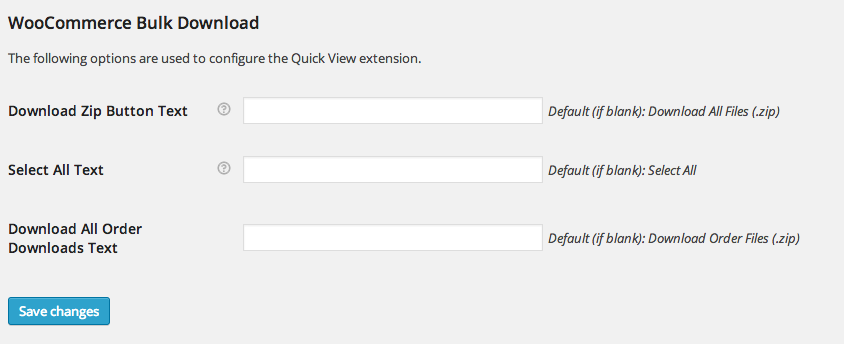 Settings > General” width=”844″ height=”344″> Settings
Usage
↑ Back to top
Order Received Page
↑ Back to top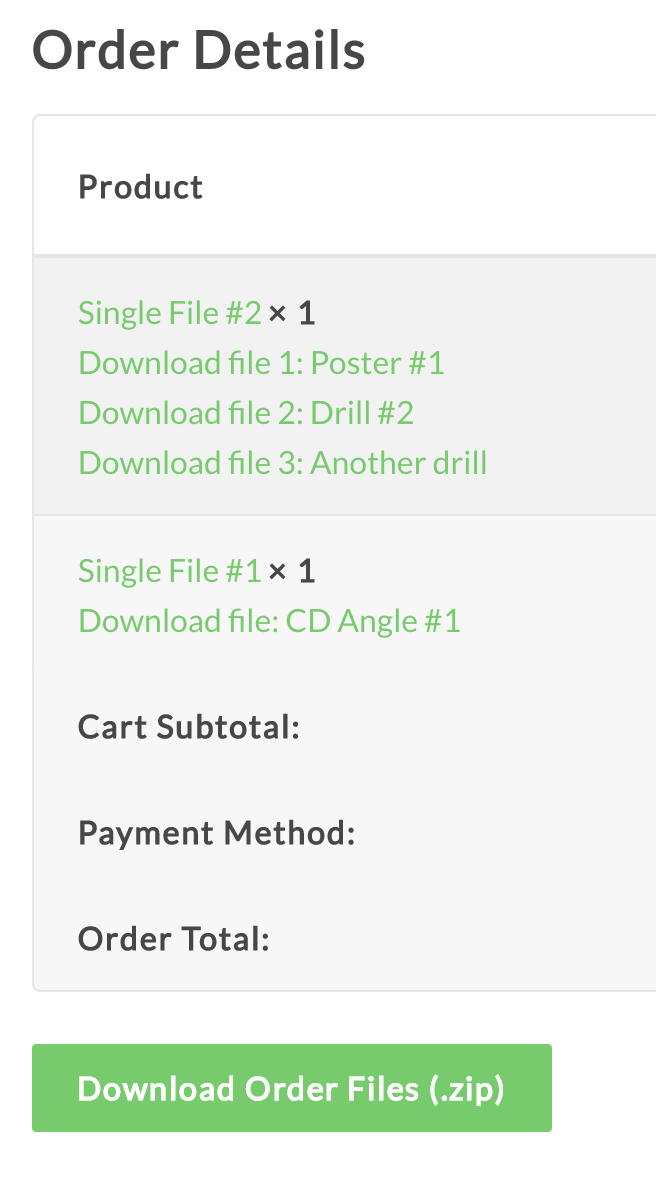
Customization
↑ Back to topcustom.css file or with a plugin like Simple Custom CSS:
.wcbd-zip-form.wcbd-order-zip-form { display: none; }
The file that they download will be generated in the custom wcbd_zips folder that is created in the /wp-content/uploads/ directory on plugin installation. This file will be automatically delete every hour or so.
Note: If you are unfamiliar with code and resolving potential conflicts, select a WooExpert or Developer for assistance. We are unable to provide support for customizations under our Support Policy.
Uninstalling
↑ Back to topWooCommerce Bulk Download can only zip files that exist on your web server. If your customers are downloading some files from Amazon S3 for example, those files will not be included in the zip folder.

